How to Limit Puppeteer Browser Memory Usage
Control Puppeteer RAM with bounded concurrency, deterministic cleanup, request filtering, measurement, and safe browser recycling.

Direct answer: Puppeteer has no universal megabytes-per-page figure or built-in RAM cap. Memory depends on the sites you load, renderer processes, open pages and contexts, media, JavaScript activity, browser version, and concurrency. The reliable way to control usage is to bound concurrent work, close pages and contexts deterministically, avoid downloading resources you do not need, measure parent and child RSS, and recycle the browser when memory stops returning after work finishes.
Start with a small queue, create only the pages you need, and close every page in a finally block. Add request interception only when you understand which resources your page requires. Use the lighter chrome-headless-shell mode when your workload does not need the complete Chrome feature set. Treat any concurrency or restart number as a workload-specific setting that must be measured.
1. How Puppeteer memory is allocated
A Puppeteer program has several memory domains:
- Node.js memory: your JavaScript heap, buffers, result arrays, closures, and event listeners.
- Browser-process memory: the Chromium browser process and its bookkeeping.
- Renderer memory: page processes that execute HTML, CSS, JavaScript, layout, and painting.
- Other child processes: network, GPU, utility, and crash-handler processes, depending on the browser and workload.
A page with a large DOM, video, canvas, complex client-side application, or many third-party scripts can use much more memory than a simple document. Two pages in the same browser can also have different renderer behavior. Browser contexts provide isolation for cookies and storage, but they still create live browser work and therefore contribute to the memory floor.
There is no authoritative, workload-independent number such as “one page always uses 100 MB.” Measure the URL mix and browser version you actually deploy.
2. Bound concurrency before changing browser flags
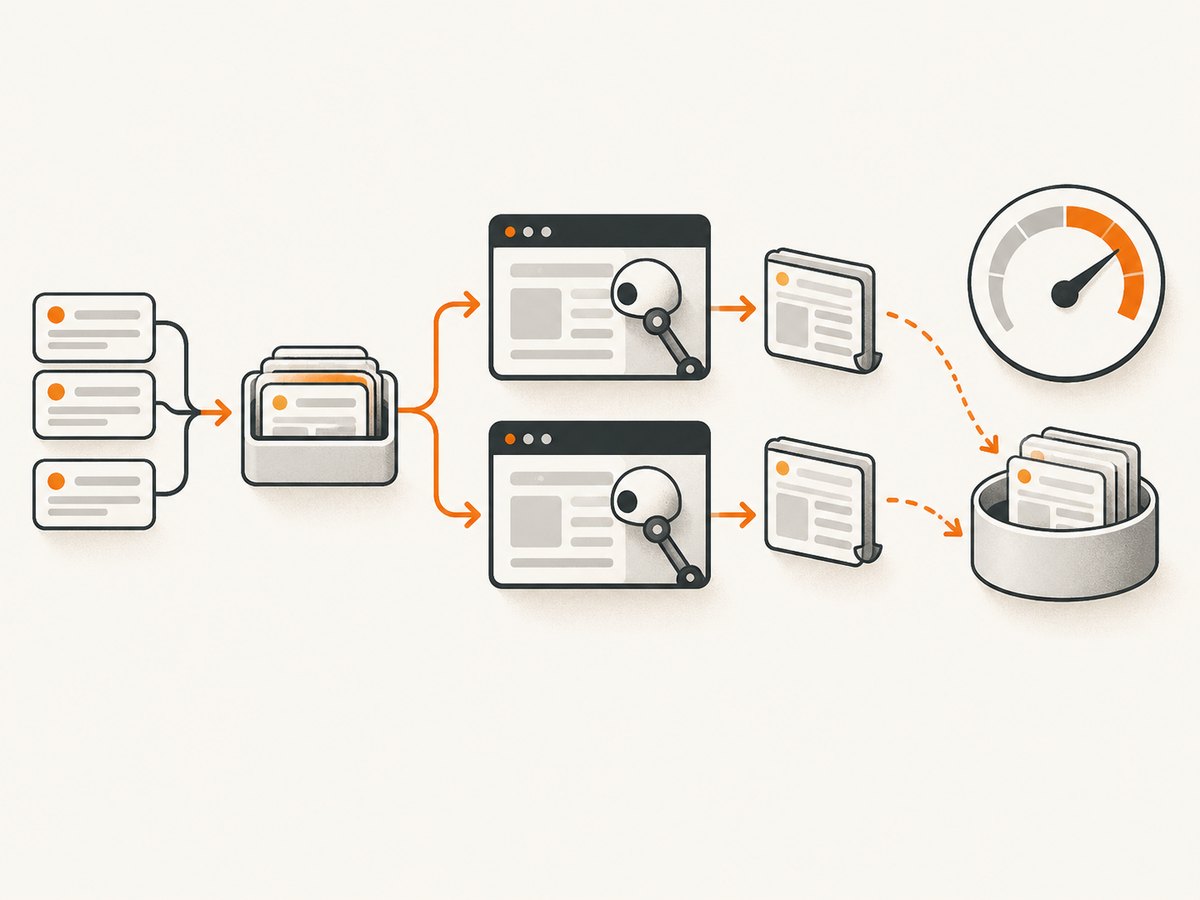
The largest controllable factor is how much work is live at one time. Ten simultaneous navigations generally require more renderer memory than two. Use a queue or semaphore and make the limit explicit.
import puppeteer from 'puppeteer';

const urls = [
  'https://example.com/one',
  'https://example.com/two',
  'https://example.com/three',
];

const CONCURRENCY = 2;

async function capture(browser, url) {
  const page = await browser.newPage();
  try {
    await page.goto(url, {
      waitUntil: 'domcontentloaded',
      timeout: 45_000,
    });
    return await page.title();
  } finally {
    await page.close();
  }
}

async function runPool(browser, items, limit) {
  const results = new Array(items.length);
  let next = 0;

  async function worker() {
    while (true) {
      const index = next++;
      if (index >= items.length) return;
      try {
        results[index] = {url: items[index], title: await capture(browser, items[index])};
      } catch (error) {
        results[index] = {url: items[index], error: String(error)};
      }
    }
  }

  await Promise.all(Array.from({length: limit}, worker));
  return results;
}

const browser = await puppeteer.launch({headless: true});
try {
  console.log(await runPool(browser, urls, CONCURRENCY));
} finally {
  await browser.close();
}
Begin with a deliberately low limit, then increase it while recording RSS, completion rate, navigation time, and failures. The correct value is the highest level that meets your latency and reliability goals within your memory budget. Puppeteer’s troubleshooting documentation uses jest --maxWorkers=2 as an example of limiting test concurrency; that illustrates the technique, not a universal Puppeteer recommendation.
3. Close pages, contexts, and references deterministically
Always close a page after its URL or task is complete. If you created a browser context for isolation, close that context when the group of work ends. Put cleanup in finally so navigation errors, timeouts, and extraction exceptions cannot skip it.
const context = await browser.createBrowserContext();
try {
  const page = await context.newPage();
  try {
    await page.goto('https://example.com', {waitUntil: 'domcontentloaded'});
    // Extract only the values needed by the job.
  } finally {
    await page.close();
  }
} finally {
  await context.close();
}
Closing a page releases Puppeteer’s reference to it, but your own code can still retain memory. Avoid unbounded arrays of complete HTML strings, screenshots, response bodies, and page objects. Remove event listeners that capture large objects, and do not keep closures containing a page after the task finishes. If you need results, store compact records or stream them to durable storage.
4. Filter network resources carefully
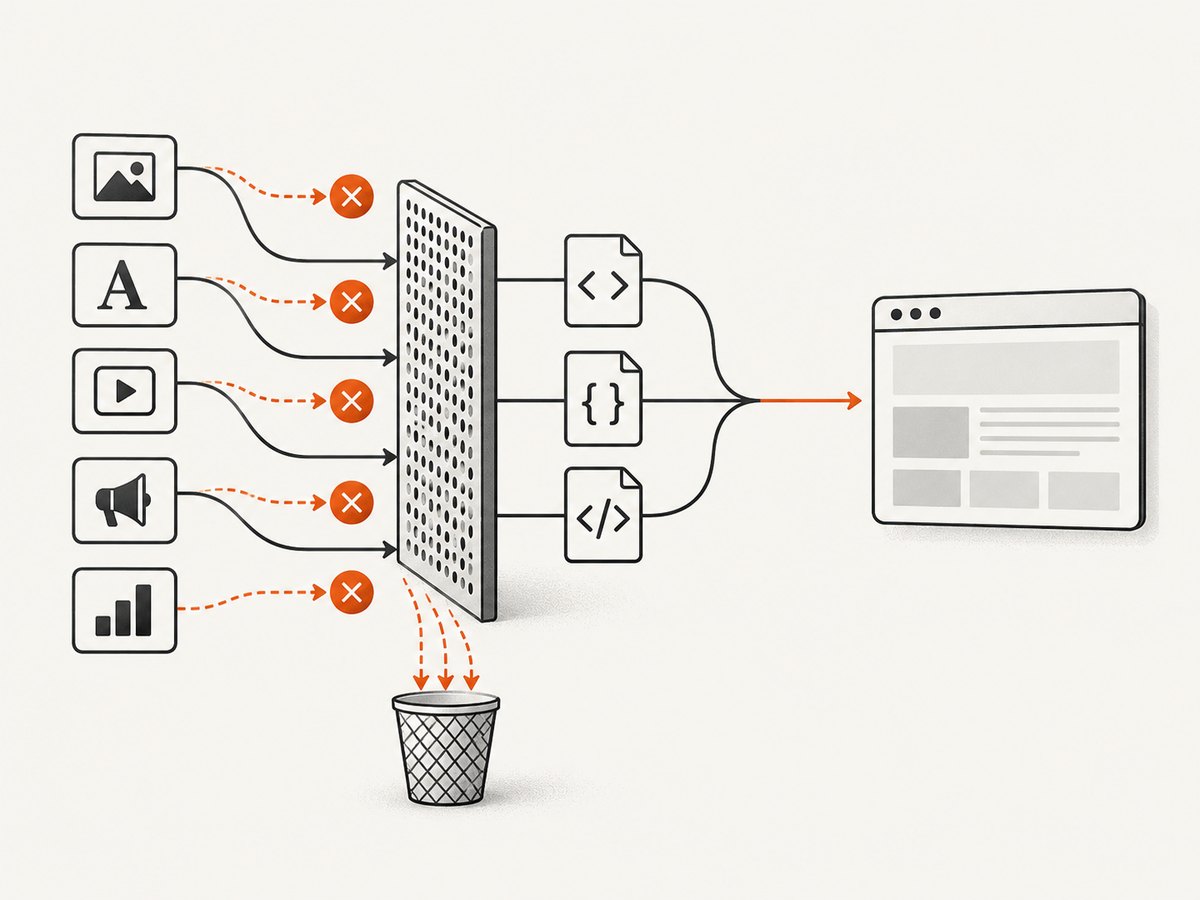
Request interception can reduce downloaded data and renderer work. It is useful when your task does not need images, fonts, video, advertising, or analytics. Every intercepted request must be continued, responded to, or aborted; otherwise it remains stalled.
await page.setRequestInterception(true);
page.on('request', request => {
  const type = request.resourceType();
  if (['image', 'font', 'media'].includes(type)) {
    request.abort();
  } else {
    request.continue();
  }
});

await page.goto(url, {waitUntil: 'domcontentloaded'});
Do not copy this filter blindly. Images may be required for a screenshot or visual test. Fonts can change layout. Scripts can be required for client-side rendering, authentication, consent handling, or extraction. Blocking stylesheets can make selectors unreliable. Test each resource class against representative pages and keep the smallest set that preserves correctness.
5. Choose an appropriate headless mode
Puppeteer launches headless mode by default. Its headless guide documents headless: 'shell', which uses chrome-headless-shell. The guide describes that executable as more performant for automation tasks that do not need the complete Chrome feature set, while also warning that it does not match regular Chrome behavior completely.
const browser = await puppeteer.launch({
  headless: 'shell',
});
Use this mode only after checking your workload. Full Chrome behavior may matter for features, rendering fidelity, authentication flows, extensions, or browser APIs. Compare memory and correctness with the same URL sample, viewport, navigation wait conditions, and resource policy.
6. Reuse a browser, then recycle it deliberately
Keeping one browser open avoids repeated startup work. Long-running jobs can nevertheless accumulate site state, caches, application references, or browser resources. Reuse is reasonable when pages and contexts close cleanly; recycling is a defensive recovery mechanism when RSS remains high or grows across batches.
import puppeteer from 'puppeteer';

async function processBatch(urls) {
  const browser = await puppeteer.launch({headless: 'shell'});
  try {
    for (const url of urls) {
      const page = await browser.newPage();
      try {
        await page.goto(url, {waitUntil: 'domcontentloaded', timeout: 45_000});
        // Process the result immediately; do not retain the page.
      } finally {
        await page.close();
      }
    }
  } finally {
    await browser.close();
  }
}

await processBatch(urls);
There is no official universal “restart after N URLs” rule or RSS threshold. Pick a policy from measurements: restart after a fixed batch size, after RSS exceeds a limit appropriate for your container, or when memory fails to fall after all pages close. Make restarts observable and retry only idempotent work.
7. Measure the whole process tree
Node heap statistics alone do not describe Chromium renderer memory. Record parent RSS and child-process RSS, active page and context counts, navigation duration, response status, timeout rate, and completed URLs. Compare one change at a time.
import process from 'node:process';

function logNodeMemory(label) {
  const m = process.memoryUsage();
  console.log(label, {
    rssMb: Math.round(m.rss / 1024 / 1024),
    heapUsedMb: Math.round(m.heapUsed / 1024 / 1024),
    externalMb: Math.round(m.external / 1024 / 1024),
  });
}

logNodeMemory('before batch');
// Run a measured batch here.
logNodeMemory('after batch');
On Linux, supplement this with an operating-system process-tree measurement such as ps, cgroup metrics, or your container runtime’s memory counters. Capture a baseline with one page, then test increasing concurrency. A useful report includes peak RSS, steady-state RSS after cleanup, throughput, and failures for each setting.
8. Configuration settings that are often misunderstood
| Setting or tactic | What it controls | Memory guidance |
|---|---|---|
cacheDirectory |
Where Puppeteer stores downloaded browser files | Deployment and disk setting; it does not cap renderer RAM. |
temporaryDirectory |
Temporary browser files | Useful for container storage planning, not a runtime memory ceiling. |
executablePath |
Which browser executable launches | Changes the binary and compatibility; measure the selected browser. |
| Node heap limits | JavaScript heap available to Node | Separate from Chromium renderer memory. A larger or smaller Node heap does not directly set browser RSS. |
| Browser flags | Low-level Chromium behavior | Do not assume a flag lowers RSS without measuring it for your workload. |
Puppeteer installation downloads Chrome for Testing and chrome-headless-shell into a cache directory by default. Cache and executable settings can solve packaging or disk problems, but they do not impose a renderer RAM limit.
9. Common failure modes and fixes
“Memory keeps growing after every URL”
Cause: pages, contexts, listeners, result buffers, or application objects remain referenced; a site may also retain state during a long browser lifetime.
Fix: close pages in finally, close contexts, remove listeners, bound result storage, and test a controlled browser restart. Confirm that RSS falls after cleanup before choosing a restart threshold.
“The process runs out of memory when concurrency increases”
Cause: too many renderer processes or heavy pages are live simultaneously.
Fix: lower the queue limit, cap page creation, and measure throughput at each level. A smaller concurrency can complete more work reliably if it avoids swapping or container termination.
“Pages hang after enabling interception”
Cause: an intercepted request was never continued, responded to, or aborted.
Fix: ensure every branch makes exactly one decision. Log the resource type and URL while debugging, then narrow the filter.
“The page is broken after blocking resources”
Cause: a blocked stylesheet, script, font, or image was required for rendering or application logic.
Fix: restore that resource class, or allowlist the specific host or request pattern required by the page.
“Headless shell behaves differently from Chrome”
Cause: chrome-headless-shell does not match regular Chrome completely.
Fix: use regular headless Chrome for workflows that need full browser behavior, and reserve shell mode for tasks verified to work without it.
“Node heap looks healthy but the container is killed”
Cause: Chromium child processes consume memory outside the Node heap.
Fix: monitor the complete process tree or cgroup, reduce live pages and downloaded content, and leave headroom for browser startup and peak navigation.
10. A practical tuning checklist
- Define the correctness requirement: full rendering, extraction, PDF, or screenshot.
- Measure one page and one browser with a representative URL sample.
- Add a queue and start with low concurrency.
- Close every page and context in
finally. - Remove retained page references, listeners, and unbounded result buffers.
- Block only resources proven unnecessary for the task.
- Compare regular headless Chrome with
headless: 'shell'when compatible. - Record parent and child RSS, page counts, duration, and failures.
- Set a measured recycling policy and retry policy for failed URLs.
- Load-test the same URL mix under the memory limit of the deployment.
11. Or skip the browser setup
If your goal is a clean website screenshot rather than managing Chromium yourself, ScreenshotNeo provides a single HTTP request. The API accepts options for full-page capture, element selectors, device presets, viewport and retina scale, dark mode, custom CSS and JavaScript, clicks, waits, resource blocking, headers, cookies, user agents, timezone, geolocation, transparent backgrounds, resizing, caching, signed links, asynchronous jobs, bulk capture, PDFs, and HTML/CSS rendering.
See the ScreenshotNeo API documentation for the complete parameter list.
curl -G "https://api.screenshotneo.com/v1/shot" -d access_key=YOUR_API_KEY --data-urlencode url=https://stripe.com -o shot.webpimport requests
r = requests.get("https://api.screenshotneo.com/v1/shot", params={"access_key": "YOUR_API_KEY", "url": "https://stripe.com"}, timeout=90)
open("shot.webp", "wb").write(r.content)const q = new URLSearchParams({ access_key: 'YOUR_API_KEY', url: 'https://stripe.com' });
const res = await fetch(`https://api.screenshotneo.com/v1/shot?${q}`);Cookie banners, newsletter popups, and chat widgets are removed before the shot. Bot checks, blank pages, timeouts, failed loads, and cache hits are not billed, and response headers identify the page verdict and billing result. An MCP server lets Claude, Cursor, and other MCP clients call take_screenshot, get_page_info, and capture_pdf. The Free plan includes 1,000 screenshots each month with no card; paid plans start at $5 for 3,000 shots. Create a free ScreenshotNeo account.
12. Performance, reliability, and cost considerations
Performance: More concurrency can improve throughput until CPU, memory, network, or target-site limits dominate. Measure pages per minute together with peak RSS; optimizing only one metric can produce an unstable service.
Reliability: Use navigation timeouts, close resources on every path, record failures, and retry only operations that are safe to repeat. Recycle a browser when measured RSS does not recover, rather than waiting for an out-of-memory kill.
Cost: Browser memory affects infrastructure size, container density, and the number of workers you can run. Filtering unnecessary resources and bounding concurrency can reduce infrastructure pressure, but overly aggressive filtering can create incorrect results and expensive retries. A managed screenshot API can trade browser operations work for per-capture pricing; ScreenshotNeo bills only clean shots and lists verdict and billing headers on each response.
13. FAQ
Does Puppeteer have a maximum RAM option?
There is no documented universal Puppeteer RAM cap for Chromium renderers. Control workload size with concurrency, cleanup, resource policy, measurement, and recycling.
Should I use one page per URL?
Use a page per task when isolation and simple cleanup matter. Reuse pages only with a deliberate reset strategy and measurements showing that state does not accumulate.
Will closing a page always return all memory to the operating system?
Not necessarily. Allocators and browser processes may retain memory for reuse. Track steady-state and peak RSS, and recycle the browser when memory remains abnormally high for your workload.
Can I solve Chromium memory with --max-old-space-size?
No. That option governs the Node.js heap. Chromium renderer and browser-process memory are separate resource domains.
Is headless shell always the best choice?
No. It can be more performant for automation that does not need complete Chrome behavior, but verify rendering and API compatibility before switching.


