BlogScreenshots on your device
Linux Mint Screen Capture: Screenshots, Selected Areas, Windows, and Recording
Capture the whole screen, a selected area, or a window in Linux Mint, copy screenshots to the clipboard, add annotations, and record video.
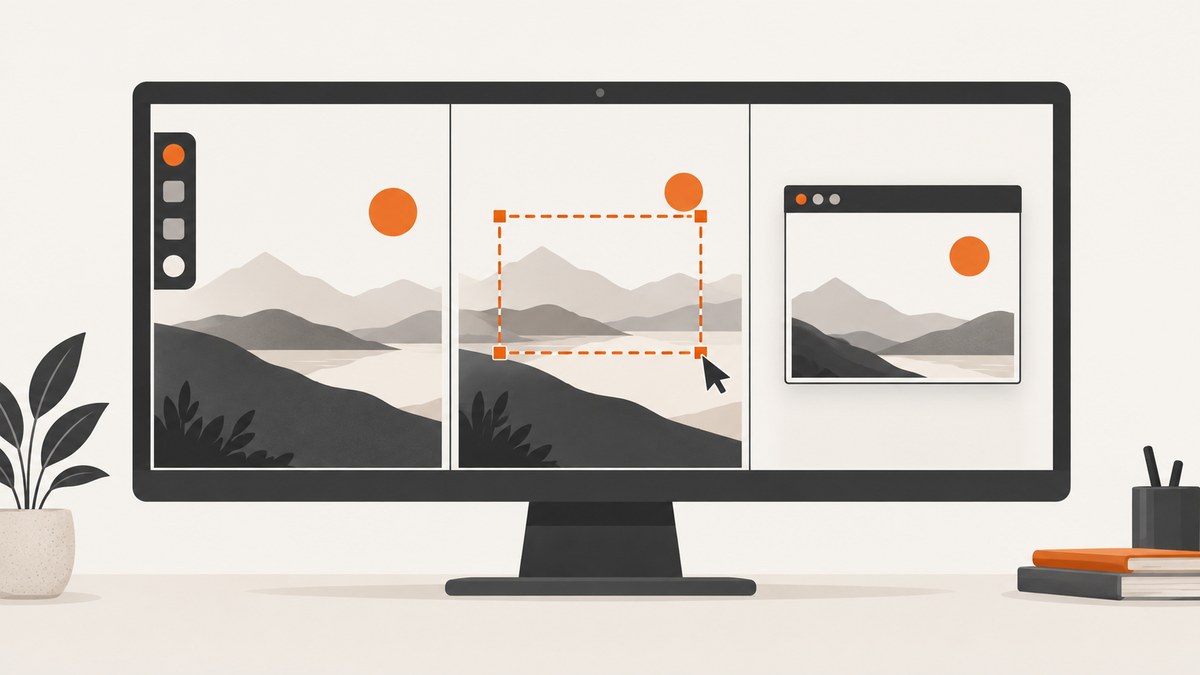
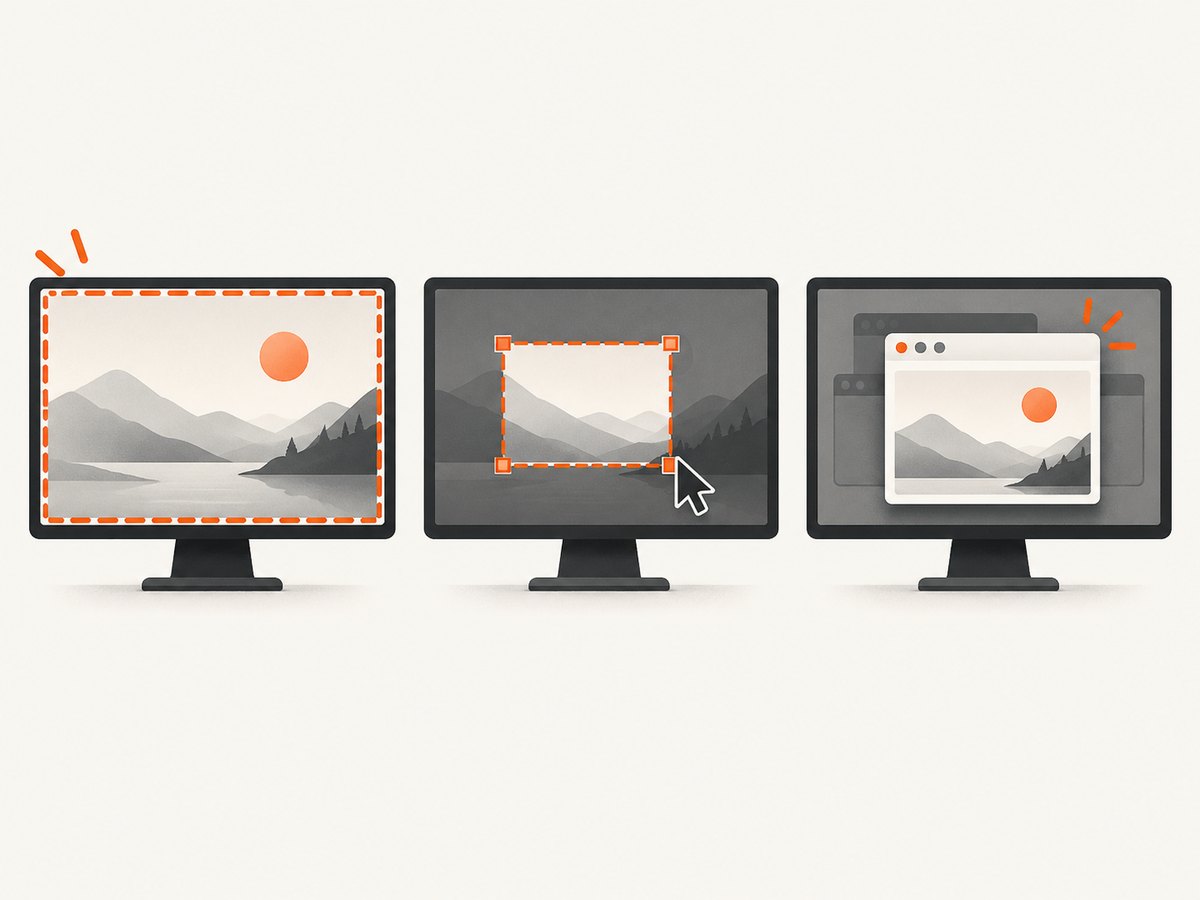
On Linux Mint Cinnamon, the reported defaults are Print for a screenshot, Shift + Print for a selected area, and Alt + Print for the active window. Add Ctrl to the corresponding shortcut to copy the capture to the clipboard. These are community-reported Cinnamon defaults, not a guarantee for every Mint edition, release, or customized keyboard setup. If a shortcut does not work, open your desktop’s Keyboard Shortcuts settings and check its screenshot assignments.
1. Take a screenshot in Linux Mint
The key may be labeled Print Screen, PrtSc, or PrtScn. On some laptops it shares a key with another function, so you may need Fn as well. Check the key legends and your keyboard settings if pressing it alone does nothing.
| What to capture | Reported Cinnamon shortcut | Clipboard version |
|---|---|---|
| Entire screen | Ctrl + Print | |
| Selected rectangular area | Shift + Print | Ctrl + Shift + Print |
| Active window | Alt + Print | Ctrl + Alt + Print |
After a file capture, use the screenshot dialog or utility to choose where to save it if prompted. Clipboard captures are useful when you want to paste directly into a document, chat, or image editor; switch to file capture when you need a named image you can find later.
Capture a drawn area
- Press Shift + Print.
- When the selection tool appears, drag across the rectangle you want to capture.
- Use the resulting dialog to save the image, or use the Ctrl-modified area shortcut to copy it if that assignment is enabled.
If the shortcut instead captures immediately, or does nothing, use the Screenshot application from the Mint menu or inspect the shortcut assignments. Labels and available actions can vary by desktop and version.
2. Check shortcuts and choose a capture method
Open Keyboard Shortcuts from the desktop settings or search for it in the application menu. Find the screenshot or screen capture section and inspect the actions for full screen, area, window, and clipboard. You can change an assignment there if another app already uses the key. Avoid assigning the same key combination to two actions.
Linux Mint has Cinnamon, MATE, and Xfce editions. The shortcut details above are reported for Cinnamon. For MATE or Xfce, check the shortcut settings and screenshot utility included in your desktop rather than assuming Cinnamon’s assignments apply. The official Linux Mint documentation index is a starting point for edition-specific documentation.
| Need | Practical choice |
|---|---|
| Quick full-screen, area, or window image | Use the desktop’s screenshot shortcut or built-in screenshot utility. |
| Paste directly into another application | Use the clipboard assignment, then paste with the destination app’s paste shortcut. |
| Arrows, text, or other annotations | Consider Ksnip, an optional utility listed in the Mint Community software catalog. Confirm it is available and works in your release and display session. |
| Screen video | Use a screen recorder; recording is a separate workflow from taking a still screenshot. |
3. Use an optional tool for annotations
The Linux Mint Community catalog describes Ksnip as supporting rectangular selection, full-screen and window captures, delay, cursor options, and annotation features. That can help when a screenshot needs arrows or labels. It is optional software, and availability or compatibility depends on your Mint release and desktop session. Check the application’s current package listing and release notes before relying on a particular feature. See the Ksnip entry in the Linux Mint Community catalog.
Xfce Screenshooter is another desktop-specific option listed by the Mint Community catalog. It supports desktop, rectangle, and selected-window capture. If you are using Xfce, check whether it is already available before installing another tool. See the Xfce Screenshooter catalog entry.
4. Record video instead of taking a still image
A screenshot is a single image; recording captures activity over time and creates a video file. If you need a walkthrough or a reproducible visual bug report, choose a screen recording tool and check its output format, audio options, and compatibility with your desktop session.
The Cinnamon Spices applet named ScreenShot+Record Desktop is an optional community applet, not something to assume is bundled or enabled. Its listing names ffmpeg, xdotool, and x11-utils as recording dependencies and includes user reports of recording trouble on Mint 22.3. Treat it as version-sensitive: verify the listing and dependencies for your release before installing or depending on it. See the Cinnamon Spices applet listing.
5. Or skip the browser setup
For a screenshot of a public web page rather than your Mint desktop, ScreenshotNeo is a website screenshot API and MCP server. One request returns an image or PDF. It is not a replacement for capturing arbitrary desktop applications.

With cURL:
curl -G "https://api.screenshotneo.com/v1/shot" -d access_key=YOUR_API_KEY --data-urlencode url=https://stripe.com -o shot.webpWith Python:
import requests
r = requests.get("https://api.screenshotneo.com/v1/shot", params={"access_key": "YOUR_API_KEY", "url": "https://stripe.com"}, timeout=90)
open("shot.webp", "wb").write(r.content)
With Node.js:
const q = new URLSearchParams({ access_key: 'YOUR_API_KEY', url: 'https://stripe.com' });
const res = await fetch(`https://api.screenshotneo.com/v1/shot?${q}`);
See the ScreenshotNeo API documentation for request options. Cookie banners, newsletter popups, and chat widgets are removed before the shot, and each of those steps can be turned off. Bot checks, blank pages, failed loads, timeouts, and cache hits are never billed; response headers report the page verdict and billing status. An MCP server gives Claude, Cursor, and other MCP clients screenshot tools. The free plan includes 1,000 screenshots a month with no card; paid plans start at $5 for 3,000. Sign up for 1,000 free screenshots a month with no card.
6. Troubleshooting
| Problem | Likely cause | What to try |
|---|---|---|
| Print does nothing | The key has another function, an app has claimed the shortcut, or the assignment differs. | Try Fn + Print, open Keyboard Shortcuts, and inspect the screenshot actions. Launch the screenshot utility from the menu as a fallback. |
| The whole screen is captured instead of an area | The area-selection shortcut differs or has been reassigned. | Check the area capture assignment; the reported Cinnamon default is Shift + Print. |
| Shortcut captures a file when you wanted to paste | You used the save assignment rather than its clipboard variant. | Check whether the matching Ctrl-modified shortcut is assigned, then paste into the destination app. |
| Another app opens or intercepts the key | Two applications use the same shortcut. | Change one assignment in Keyboard Shortcuts or the other application’s shortcut preferences. |
| Screenshot has the wrong window or monitor | The active window or display arrangement changed before capture. | Focus the intended window first; use area capture if you need a precise portion. Check the screenshot utility’s options for multi-monitor behavior. |
| Annotation or recording tool is missing or fails | The optional package may not be installed, may lack dependencies, or may not match the current desktop session. | Check the tool’s Mint catalog or project documentation for your release and session. For the recording applet, verify its listed dependencies and compatibility reports. |
7. Performance, reliability, and file handling
- Capture the smallest useful region. This makes screenshots easier to share and keeps unrelated desktop content out of the image.
- Use clipboard capture for immediate pasting. Use file capture when you need a persistent artifact, predictable filename, or an attachment you can locate later.
- Check what is visible before capturing. Close menus or notifications that obscure the target; move the pointer if the capture includes an unwanted cursor and the utility offers a cursor option.
- For repeatable documentation, standardize the desktop and window size. A fixed layout makes successive captures easier to compare.
- For video, account for dependencies and compatibility. Optional recording tools may rely on packages or display-session behavior that changes across Mint releases; validate on the target machine before a time-sensitive recording.
- Mind sensitive content. A screenshot can include notifications, account details, or other windows. Review the image before sharing it.
FAQ
What is the Linux Mint equivalent of the Windows Snipping Tool?
For a quick Cinnamon area capture, try Shift + Print. For annotations, consider optional software such as Ksnip, after confirming compatibility with your installation.
Can I copy a selected area without saving a file?
The reported Cinnamon clipboard shortcut is Ctrl + Shift + Print. Check Keyboard Shortcuts if it is not assigned on your system.
Do these shortcuts work in every Linux Mint edition?
No single assignment is guaranteed across Cinnamon, MATE, Xfce, releases, and customized setups. Check the active desktop’s shortcut settings.
Can ScreenshotNeo capture my Linux desktop?
No. ScreenshotNeo captures web pages by URL. Use Mint’s screenshot utility for your desktop and local applications.


