How to Give LlamaIndex Eyes: Web Screenshots with MCP
Give a LlamaIndex agent visual access to web pages by connecting an MCP screenshot tool and returning the captured image in a supported content block.
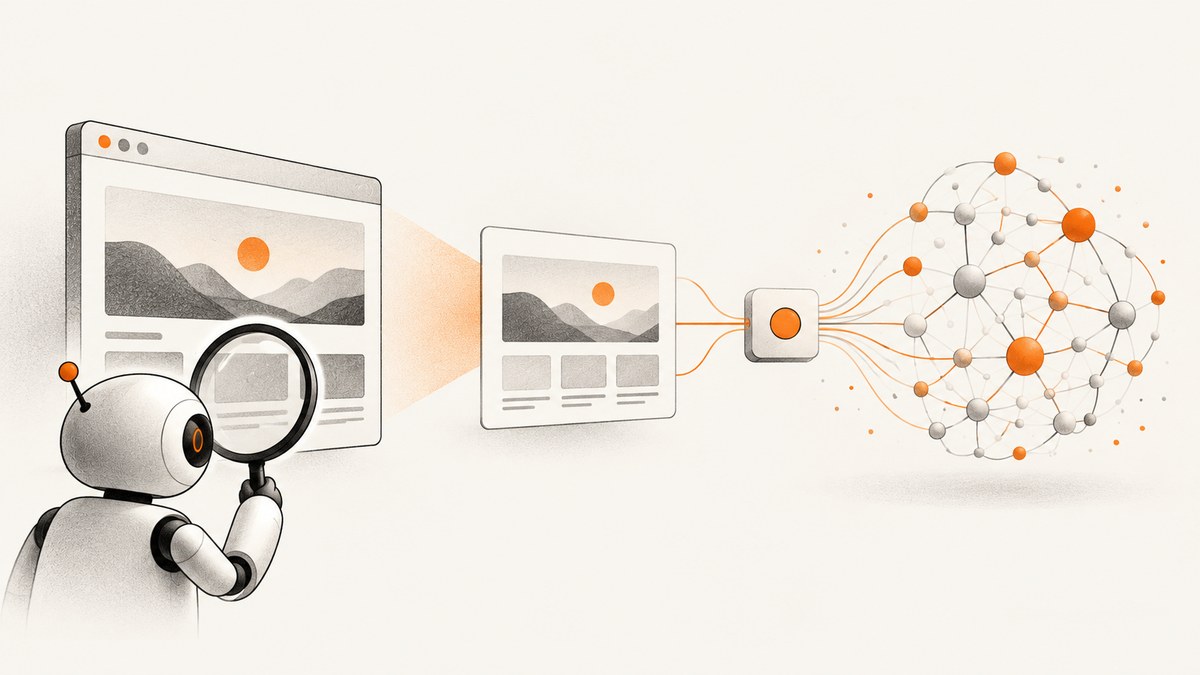
A LlamaIndex agent can inspect a web page visually when it can call a screenshot tool and the resulting image reaches a model that accepts image input. MCP can connect the agent to tools; MCP itself does not take screenshots. You need a screenshot-capable MCP server or a custom function that captures a page and returns image content.
The official LlamaIndex docs MCP is for searching and reading LlamaIndex documentation. It does not provide arbitrary website screenshots. This guide shows the two practical routes: connect an MCP screenshot server, or write a small LlamaIndex tool that calls a screenshot API and returns image bytes. The custom route gives you control over capture parameters and error handling.
1. Understand the pieces
There are three separate parts in this workflow:
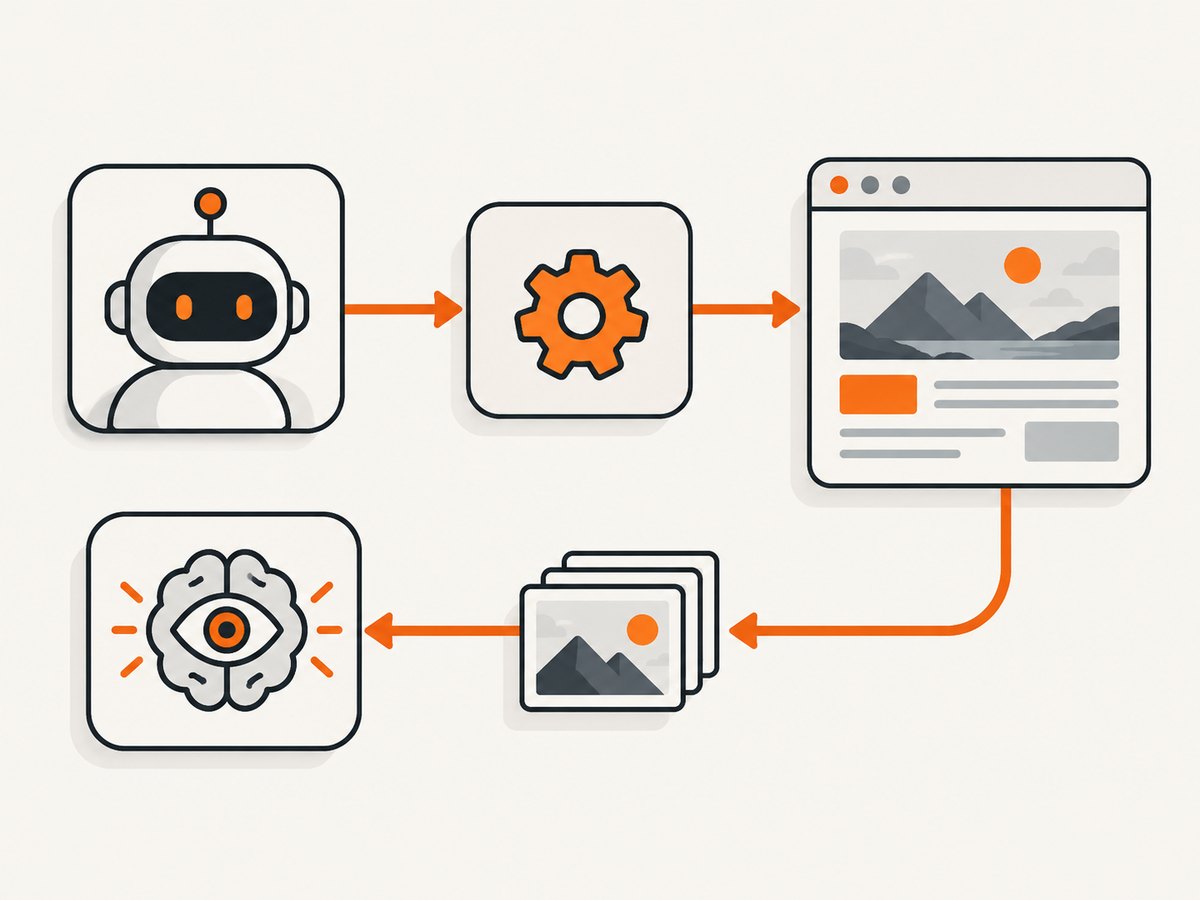
- LlamaIndex agent: decides when it needs a visual observation and invokes a tool.
- Screenshot tool: accepts a URL and capture options, renders the page, and produces an image such as PNG.
- Vision-capable model: receives the image content and interprets layout, visible text, charts, or other visual state.
MCP is a standard connection layer for exposing tools. It does not make a documentation-search tool into a screenshot tool. LlamaIndex’s llama-index-tools-mcp package can fetch tools from an MCP endpoint and expose them as LlamaIndex FunctionTool objects. The official docs example uses get_tools_from_mcp_url or its asynchronous form, and supports limiting which tools are imported. See the LlamaIndex MCP tools guide.
The official LlamaIndex docs MCP endpoint is intended for documentation search and reading. Its tools include search_docs, grep_docs, and read_doc; it does not capture arbitrary websites. See the LlamaIndex docs MCP announcement.
2. Route A: connect an MCP screenshot server
If the screenshot provider exposes an MCP endpoint and documents its transport and authentication, use the MCP integration to load its screenshot tool. The exact endpoint, tool names, and credentials depend on that server. Do not assume that an endpoint for a different MCP integration includes screenshot functionality.
Install the MCP integration
pip install llama-index-tools-mcpInstall a compatible LlamaIndex core and the model integration you intend to use as well. Pin versions in a real application so an upgrade cannot silently change tool or content-block behavior.
Load a server’s tools
The following pattern follows the LlamaIndex MCP integration. Replace the example endpoint with the screenshot server’s documented MCP URL. This sample only loads tools; it does not claim a particular server or tool name.
import asyncio
from llama_index.tools.mcp import aget_tools_from_mcp_url

async def main():
    tools = await aget_tools_from_mcp_url(
        "https://YOUR-MCP-SERVER.example/mcp",
        allowed_tools=["take_screenshot"],
    )
    print([tool.metadata.name for tool in tools])

asyncio.run(main())
Check the installed package documentation for the exact endpoint argument, transport, and authentication options. Some MCP servers use a local command transport rather than a URL; the URL example is not interchangeable with every server configuration. Keep server credentials in process configuration or a secret store, not in tool arguments that the model can see.
Give the agent an image-aware tool
After loading tools, pass the screenshot tool into an agent that can handle its image result. Tool discovery alone does not guarantee that the model provider accepts image content or that the agent framework preserves it. Confirm the response format with your installed versions and model integration.
For a concrete screenshot-to-image example, a vendor tutorial demonstrates making an HTTP request and wrapping PNG response bytes in LlamaIndex’s ImageBlock. It recommends FunctionAgent for that image use case and reports that its tested ReActAgent path filtered image blocks when creating textual observations. Treat these as version-specific findings from that tutorial, not universal framework guarantees. The tutorial also cites llama-index-core 0.12.45 or later for tool content blocks. Verify behavior against your installed release and provider before relying on it. See the Site-Shot LlamaIndex screenshot tutorial.
3. Route B: build a direct screenshot function
A custom function is useful when the screenshot capability is an HTTP API rather than an MCP tool, or when you need to constrain inputs and return image bytes in a known format. The function below accepts a URL, calls ScreenshotNeo, checks the response, and returns a LlamaIndex image block. It is a Python example using LlamaIndex content blocks; check the installed versions of llama-index-core and your model integration for their current imports and image handling.
Install the libraries:
pip install llama-index-core llama-index-llms-openai requestsSet the API key outside the source code, for example in your shell environment:
export SCREENSHOTNEO_API_KEY="YOUR_API_KEY"
export OPENAI_API_KEY="YOUR_OPENAI_API_KEY"
The API call uses the documented ScreenshotNeo endpoint and options. See the ScreenshotNeo API documentation for supported parameters and response details.
import os
import requests
from llama_index.core.tools import FunctionTool
from llama_index.core.agent.workflow import FunctionAgent
from llama_index.core.base.llms.types import ImageBlock, TextBlock
from llama_index.llms.openai import OpenAI

API_URL = "https://api.screenshotneo.com/v1/shot"
API_KEY = os.environ["SCREENSHOTNEO_API_KEY"]


def screenshot_page(url: str):
    """Capture a public web page and return its PNG image to the agent."""
    response = requests.get(
        API_URL,
        params={"access_key": API_KEY, "url": url, "format": "png"},
        timeout=90,
    )
    response.raise_for_status()
    content_type = response.headers.get("content-type", "").split(";", 1)[0]
    if content_type != "image/png":
        raise ValueError(f"Expected image/png, received {content_type or 'no content type'}")
    return [
        TextBlock(text=f"Screenshot captured for {url}"),
        ImageBlock(image=response.content, image_mimetype="image/png"),
    ]

screenshot_tool = FunctionTool.from_defaults(
    fn=screenshot_page,
    name="screenshot_page",
    description=(
        "Capture a rendered web page and inspect its visual appearance. "
        "Use for layout or visible visual state; use text or DOM tools for exact text extraction."
    ),
)

agent = FunctionAgent(
    tools=[screenshot_tool],
    llm=OpenAI(model="gpt-4o-mini"),
    system_prompt=(
        "Use screenshot_page when a visual inspection is needed. "
        "Only capture URLs supplied by the user or otherwise authorized. "
        "Explain what is visible and mention when the image does not support a conclusion."
    ),
)

async def main():
    result = await agent.run(
        "Look at the layout of https://example.com and summarize the visible structure."
    )
    print(result)

if __name__ == "__main__":
    import asyncio
    asyncio.run(main())
The response format check is deliberate: passing JPEG bytes labeled as PNG can cause downstream image decoding failures. Match the API’s requested format, its actual content type, and the MIME type assigned to ImageBlock. If a particular LlamaIndex or model version expects a different content-block constructor or agent workflow, adapt this boundary and verify that the image reaches the model.
Keep tool inputs and access narrow
- Let the model choose a page URL only when that is part of the task. Keep the ScreenshotNeo access key out of the function signature and prompt.
- For production, validate URL schemes and host access according to your application’s security policy. Avoid giving an agent unrestricted access to internal services or private network addresses.
- Set explicit timeouts and cap image dimensions or full-page capture where practical. Very tall pages can consume more bandwidth and model input capacity.
- Return a short text block with the image so downstream components know what the image represents, but do not substitute a text description for the image itself.
- Use text extraction or a DOM-aware tool when the task needs exact wording, links, or structured values. A screenshot represents visible pixels and can omit content below the fold or obscured by overlays.
4. Return an image the model can actually use
A screenshot is an image output, not merely a textual observation. A custom function should return the captured bytes inside an image-capable content block with a matching MIME type. The Site-Shot example uses an HTTP response body and an ImageBlock for PNG bytes. If a tool wrapper flattens the result to a string, the agent may only see a URL or a note that a screenshot exists, rather than the picture.
Before shipping, verify the entire path with a small page: API returns an image, the tool result retains image content, the agent workflow preserves that content, and the selected model/provider accepts it. Do not infer image support just because a tool call succeeds.
5. Troubleshooting
| Symptom | Likely cause | Fix |
|---|---|---|
| The agent says it cannot see the page | The tool returned a URL or text only, the wrapper dropped content blocks, or the model does not accept image input. | Inspect the raw tool result and confirm it contains image bytes in an image block. Check model vision support and use a workflow that preserves image blocks. |
| MCP connection fails or returns no tools | Wrong transport or endpoint, server authentication failure, or a tool filter that excludes the screenshot tool. | Use the server’s documented transport and URL, configure credentials as documented, and temporarily remove the allowlist to inspect available tool names. |
| Import error for MCP helpers | The MCP integration package is absent or installed in a different Python environment. | Install llama-index-tools-mcp in the interpreter running the app; check the environment and package version. |
| Image decoder reports an invalid format | Image bytes and declared MIME type do not match, or the API returned an error body instead of an image. | Call raise_for_status(), inspect content type, request a supported image format, and set the matching MIME type. |
| The screenshot contains a challenge, blank page, or error page | The destination did not render normal page content for the capture request, or the page load failed. | Check the capture service’s page status and response metadata. Retry only when appropriate; avoid treating a challenge screen as a successful visual observation. |
| Agent workflow ignores image blocks | Image handling differs across agent and core versions; the cited tutorial reports this behavior for its tested ReAct path. | Try an image-preserving workflow such as the tutorial’s FunctionAgent example, then validate against your exact installed versions and provider. |
| Request times out | The page is slow, waits on third-party resources, or has a costly full-page render. | Use a bounded timeout, configure a suitable wait condition, reduce capture scope, and surface a clear tool error rather than retrying indefinitely. |
| Exact text is missing or hard to read | Small type, scaling, responsive layout, or image compression limits visual reading. | Use an appropriate viewport/scale and pair the screenshot with a text or DOM tool for exact content. |
6. Performance, reliability, and cost
Each agent screenshot call adds a page render, network transfer, image processing, and vision-model input. The research sources provide no reliable latency, cost, or accuracy benchmarks, so measure these in your own target pages and deployment. A compact viewport screenshot is generally a smaller input than a long full-page image; use full-page capture only when the question requires below-the-fold context.
Reliability depends on both the destination page and the capture path. Pages may vary by cookie state, authentication, geolocation, dynamic content, or bot defenses. Make the wait condition explicit when the screenshot service supports it, and consider a short controlled delay or selector wait for a page whose content appears asynchronously. Record whether capture failed, returned a non-image response, or produced an image that the model could not consume. Apply bounded retries only to transient failures, with backoff; repeated retries against a slow or blocked site can waste time and increase charges with some providers.
Control costs by limiting tool calls, viewport size, and image detail to what the task needs. Keep a clear tool description so the agent does not call screenshots for questions that text tools can answer. Check the chosen screenshot service’s pricing, billing rules, limits, retention, and failure handling directly; the dossier does not support comparative claims about other providers.
7. Or skip the browser setup
ScreenshotNeo provides a screenshot API and MCP server for developers. A single GET request can return a PNG, JPEG, WebP, or PDF. For an agent integration, you can connect through its MCP server or call the API from a LlamaIndex function and wrap the returned image bytes in an image block. The capture service handles the browser rendering step.
import requests

r = requests.get(
    "https://api.screenshotneo.com/v1/shot",
    params={"access_key": "YOUR_API_KEY", "url": "https://stripe.com"},
    timeout=90,
)
r.raise_for_status()
open("shot.webp", "wb").write(r.content)
Then return r.content in the image block as shown in the custom tool example. The key stays in your server configuration. See the ScreenshotNeo docs for API parameters and MCP setup.
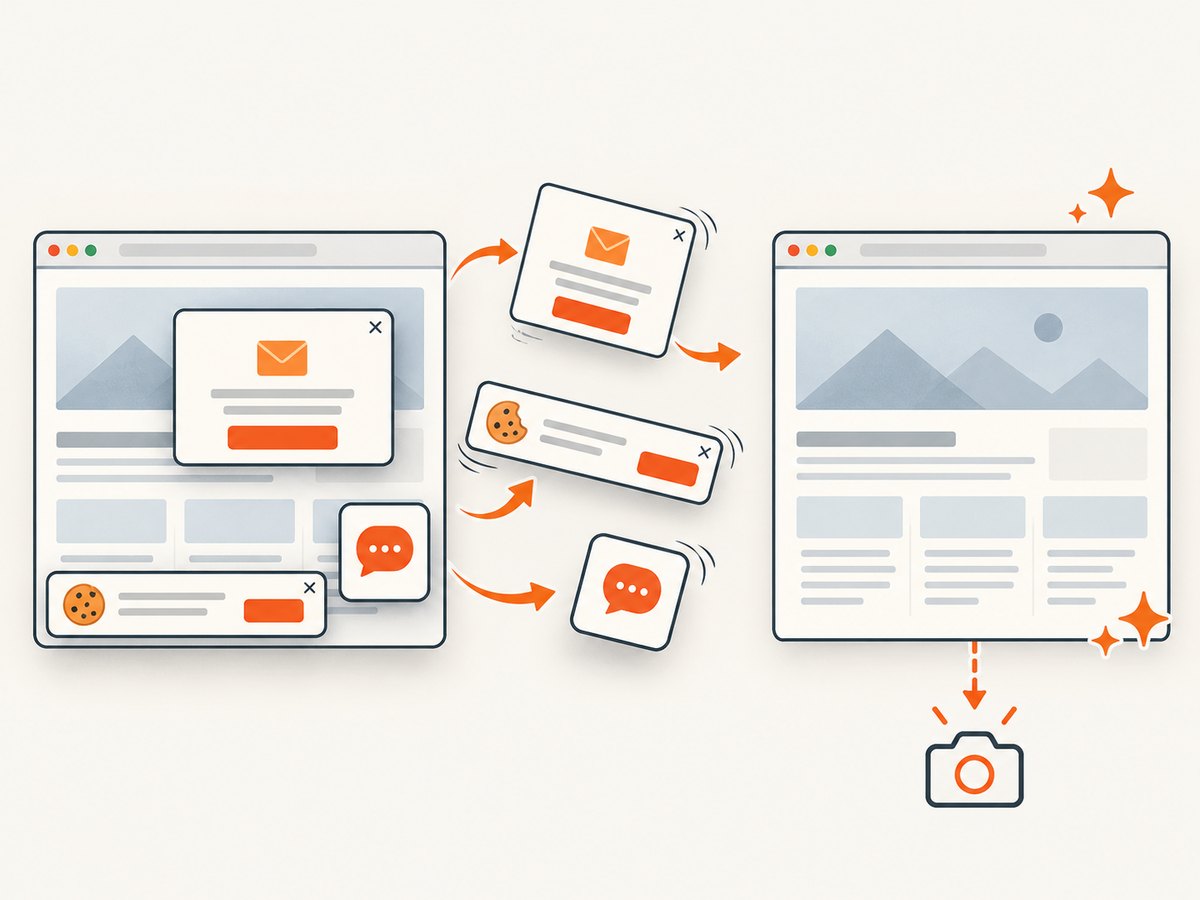
- Cookie banners are accepted like a visitor, and 60+ known consent platforms, newsletter popups, and chat widgets are removed before capture; each step can be turned off.
- Bot checks and CAPTCHAs, blank pages, timeouts, failed loads, and cache hits cost nothing. Responses include
X-Page-VerdictandX-Billedheaders. - An MCP server exposes
take_screenshot,get_page_info, andcapture_pdfto Claude, Cursor, and other MCP clients. - The free plan includes 1,000 screenshots a month with no card. Paid plans start at $5 for 3,000 screenshots. All features are available on every plan.
Try ScreenshotNeo for a direct API or MCP screenshot tool. Create a free account for 1,000 screenshots a month with no card.
8. FAQ
Does the LlamaIndex docs MCP take screenshots?
No. Its documented tools search and read LlamaIndex documentation. Use a screenshot-capable server or add a custom capture function.
Does adding an MCP server automatically give the agent vision?
No. The server must return an image, the LlamaIndex tool path must preserve image content, and the selected model/provider must accept it.
Should I use screenshots or browser/DOM tools?
Use screenshots to reason about visible appearance and layout. Use text or DOM tools for exact text, links, and structured page data; combine them when the task needs both.
Can I screenshot pages that require login?
That depends on the capture tool’s documented authentication support and your authorization to access the page. Protect cookies and credentials, and do not expose secrets as model-controlled tool inputs.