BlogScreenshots on your device
How to Capture Full-Page Screenshots with a Mac Chrome Extension
Learn how to capture an entire webpage on Mac with Chrome extensions, fix stitching problems, export to PDF, and automate captures with ScreenshotNeo.
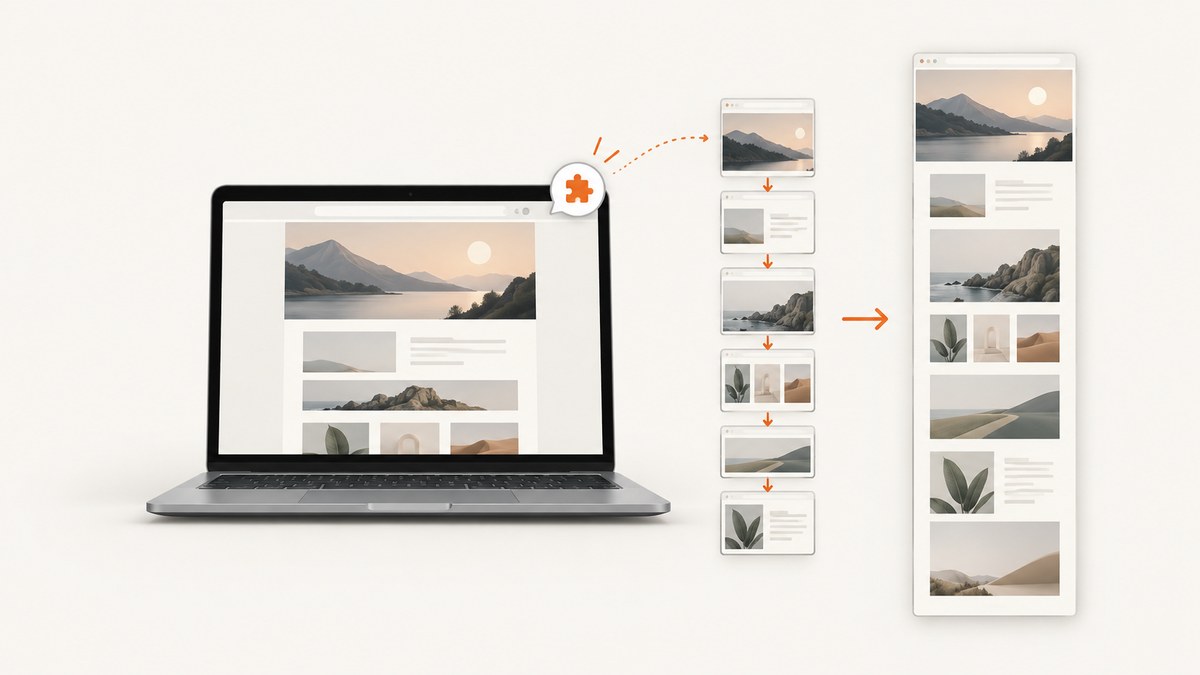
Short answer: macOS screenshot shortcuts capture the visible screen or a selected rectangle. They do not automatically scroll through a webpage. To capture the entire document in Chrome, install a full-page screenshot extension from its official Chrome Web Store listing, open the page, activate the extension, wait while it scrolls and stitches the sections, then review and export the image or PDF.
This guide covers the complete Mac workflow, page types that cause problems, extension selection, export formats, troubleshooting, privacy checks, and an API option when you need repeatable captures in code.
1. Why Mac shortcuts do not capture a whole webpage
On macOS, common shortcuts such as Shift-Command-3 and Shift-Command-4 capture the screen or a selected region. A browser viewport shows only the part of a document currently on screen, so those shortcuts cannot include content below the fold. A full-page extension solves this by taking successive viewport captures while it scrolls, then combining them into one tall result.
Chrome also has browser-protected surfaces and special viewers. An extension may not be able to capture every browser page, a PDF viewer, a page behind a permission boundary, or content rendered in an unusual embedded surface. Start with an ordinary webpage and check the extension’s current instructions when the target is restricted.
2. The reliable Mac Chrome workflow
- Choose the official extension listing. Install from the developer’s official Chrome Web Store page. GoFullPage’s official extension returned to the Chrome Web Store on September 14, 2026. During the earlier disruption, unofficial copies appeared, so use the official publisher link rather than a similarly named download.
- Review permissions. Before adding an extension, read the permissions and the current privacy policy. The store listing is the publisher’s statement; it is not an independent audit of the extension’s code or data handling.
- Open the target page in Chrome. Let the page finish its initial load. If it uses an account, enter the required credentials yourself and confirm that the content you are allowed to capture is visible.
- Start capture. Click the extension’s toolbar button. Some extensions document their own keyboard shortcut; for example, a Mac-focused alternative documents
Option-Shift-S. Do not assume that shortcut works for GoFullPage or another extension. - Wait for scrolling and stitching. The extension scrolls through visible sections and joins them. Do not click, resize the window, navigate away, or interact with a sticky element while the capture is running.
- Inspect the result. Check the top, bottom, navigation areas, images, tables, and repeated fixed elements. Dynamic content, inner scroll areas, fixed headers, frames, and exceptionally long pages can create omissions or duplicates.
- Export. Depending on the extension, choose PNG, JPG or JPEG, and sometimes PDF. Save the file with a useful name and verify that it opens correctly before sharing or archiving it.

3. Choosing a full-page extension
Features change, so confirm the current Chrome Web Store listing before promising a format or behavior. Compare extensions using these practical criteria:
| Question | Why it matters |
|---|---|
| Which outputs are available? | Listings may offer PNG, JPEG/JPG, PDF, or a combination. A PDF may be one tall page or split across standard paper pages. |
| Can you edit the capture? | Some tools include crop, annotation, blur, or marking controls; others only export the stitched result. |
| How does it handle complex pages? | Look for documented support for inner scrollers, frames, fixed elements, lazy content, and very tall captures. These are listed capabilities, not a guarantee for every site. |
| How is the extension distributed? | Use the official store listing and dated publisher notices. Avoid mirrors and look-alike extensions. |
| What data does it access? | Read current permissions and the privacy policy. Vendor privacy claims should be treated as claims unless independently verified. |
GoFullPage is the extension whose official listing and publisher notices are most relevant to the current availability guidance in this article. FullPage Capture is another listed option; its listing described scrolling capture, annotation, and PNG, JPEG, and PDF export, with version 1.9.50 reported as updated August 27, 2026. Verify those details in the live listing because store metadata can change.
4. Handling pages that do not capture cleanly
Lazy-loaded images
Some pages load images only when they approach the viewport. Start the capture after the page’s initial scripts settle, and watch the resulting image for blank placeholders. If the extension offers a delay or lazy-load setting, use it. Otherwise, scroll through the page manually once, wait for images to appear, return to the top, and run the capture again.
Sticky headers and floating controls
A fixed header can appear in every viewport section and be repeated down the stitched image. Cookie controls, chat bubbles, and floating purchase buttons can create similar artifacts. Close or hide them before starting. If the extension has an element-removal or editing tool, use it and inspect the joins afterward.
Nested scroll areas
A page can contain a table, code panel, or sidebar with its own scrollbar. Full-page browser capture normally follows the document’s main scroll position; it may not traverse every inner scroller. Scroll the inner area separately and capture it as a region, or use the site’s own export function when available.
Frames and restricted content
Cross-origin frames, browser pages, embedded PDF viewers, and permission-protected surfaces may be inaccessible to an extension. Try the ordinary HTML page behind the viewer, use a permitted download, or ask the content owner for an export. Do not treat an empty frame as proof that the page itself has no content.
Very long documents
Extremely tall pages can exceed image or memory limits. A tool may split the result, stop early, or produce a large file that is difficult to open. Capture logical sections separately, export PDF if the extension supports it, or use an automated service that can create a PDF or process asynchronous jobs.
5. Exporting an image or PDF
Use PNG when you need lossless text and interface details. JPEG is smaller and useful for photographic pages, but compression can soften small type. If WebP is offered, it can reduce file size while retaining good visual quality, though your downstream editor or document system must support it.
PDF is convenient for review, printing, and document workflows. Check whether the extension creates one long PDF page or paginates the content. A tall single page can be awkward to print, while standard pages can place a heading at the bottom of one page and its content on the next. Open the exported PDF in Preview and inspect page breaks, links, text sharpness, and missing images.
6. Troubleshooting checklist
| Symptom | Likely cause | Fix |
|---|---|---|
| Only the visible viewport was saved | The extension did not start or the page was protected. | Click the toolbar button on a normal webpage, wait for the capture UI, and check the extension’s support notes. |
| The bottom of the page is missing | The capture stopped early, hit a length limit, or a script kept changing the page. | Wait for initial loading, close overlays, retry, or capture sections separately. |
| Images are blank | Images are lazy-loaded, blocked, or still loading. | Pre-scroll once, wait, disable blocking extensions for the site, and retry. |
| Header or chat bubble repeats | The element is fixed to the viewport. | Close it, hide it if supported, or crop the duplicate after capture. |
| Text or sections overlap | Animations, sticky positioning, or layout changes occurred between sections. | Pause animations where possible, wait for the layout to settle, and recapture. |
| An inner table is cut off | It has a separate scrollbar. | Capture that element separately or use a page-provided export. |
| PDF pages look wrong | The extension’s PDF mode uses a long page or unexpected paper breaks. | Try image export, choose another PDF mode if available, and inspect the final file in Preview. |
| The extension disappeared or looks unofficial | Store availability or publisher versions changed. | Use the official listing and compare the publisher name before installing. |
7. Privacy, permissions, and safe operating practice
A capture extension can need access to page contents in order to scroll and read the document. Review the permission scope, publisher identity, update date, and privacy policy. Do not install a repackaged extension from a random download site. For sensitive pages, sign out after capture if appropriate, avoid saving files to shared folders, and remove the exported image when it is no longer needed.
Remember that a screenshot is a copy of whatever was visible, including private data, account names, addresses, and tokens displayed in the page. Redact before sharing. If a page contains a secret that appears only briefly, inspect every stitched section rather than relying on a quick thumbnail.
8. Performance and reliability tips
- Use a stable network and close tabs that consume substantial memory.
- Capture after fonts, images, and client-side data have finished loading.
- Disable page animations when the site provides a reduced-motion setting.
- Keep the browser window at the intended width; changing it changes responsive layout and the final image.
- For repeatable records, save the URL, capture date, viewport size, extension name and version, and export format with the file.
- Review long captures at 100% zoom around every join, not only at fit-to-window scale.
9. Or skip the browser setup
If you need scheduled, repeatable, or server-side screenshots, ScreenshotNeo provides a website screenshot API and MCP server. One GET request returns PNG, JPEG, WebP, or PDF. It can capture full pages and load lazy images, target one element by CSS selector, use dark mode and device presets, set any viewport and retina scale, apply custom CSS or JavaScript, click before capture, hide selectors, wait for a selector, delay or network idle, block ads, trackers, requests or resource types, set headers, cookies, user agent, Authorization, timezone and geolocation, resize images, cache with a chosen TTL, create signed public image links, run async jobs with signed webhooks, capture up to 100 URLs per bulk call, and expose usage data, OpenAPI, and an MCP server.

Cookie banners, newsletter popups and chat widgets can be removed before the shot, with each cleanup step configurable. Bot checks, blank pages, timeouts, failed loads and cache hits cost nothing; response headers identify the page verdict and whether the request was billed.
See the ScreenshotNeo API documentation for the complete parameter reference. The same request works from cURL:
curl -G "https://api.screenshotneo.com/v1/shot" -d access_key=YOUR_API_KEY --data-urlencode url=https://stripe.com -o shot.webpPython:
import requests
r = requests.get("https://api.screenshotneo.com/v1/shot", params={"access_key": "YOUR_API_KEY", "url": "https://stripe.com"}, timeout=90)
open("shot.webp", "wb").write(r.content)
Node.js:
const q = new URLSearchParams({ access_key: 'YOUR_API_KEY', url: 'https://stripe.com' });
const res = await fetch(`https://api.screenshotneo.com/v1/shot?${q}`);
ScreenshotNeo includes an MCP server with take_screenshot, get_page_info, and capture_pdf tools for Claude, Cursor, and other MCP clients. The Free plan includes 1,000 shots each month with no card; paid plans start at $5 for 3,000 shots. Create a free ScreenshotNeo account.
10. FAQ
Does Command-Shift-4 take a full-page screenshot?
No. It captures a selected screen region. Use a Chrome extension or an automated screenshot service for content below the fold.
What is the Mac shortcut for a full-page capture?
There is no universal macOS shortcut. Shortcuts are extension-specific; one Mac-focused extension documents Option-Shift-S, but that should not be assumed for other extensions.
Can I capture a Chrome PDF viewer with an extension?
Support varies. Browser-protected pages and PDF viewers may prevent extension capture. Use the viewer’s download or print function when available.
Why should I inspect the stitched image?
Scrolling capture can expose repeated fixed elements, missing lazy images, layout shifts, or cut-off inner scroll areas. A visual check catches these before you publish or archive the file.
Is an extension better than an API?
An extension is convenient for an occasional capture in an interactive browser. An API is easier to automate, repeat, monitor, and run across many URLs or schedules.


