BlogScreenshots on your device
Mac Screenshot API
Use ScreenCaptureKit for modern macOS screenshots. This guide covers stills, streams, permissions, window selection, Swift code, errors, and a browser API alternative.
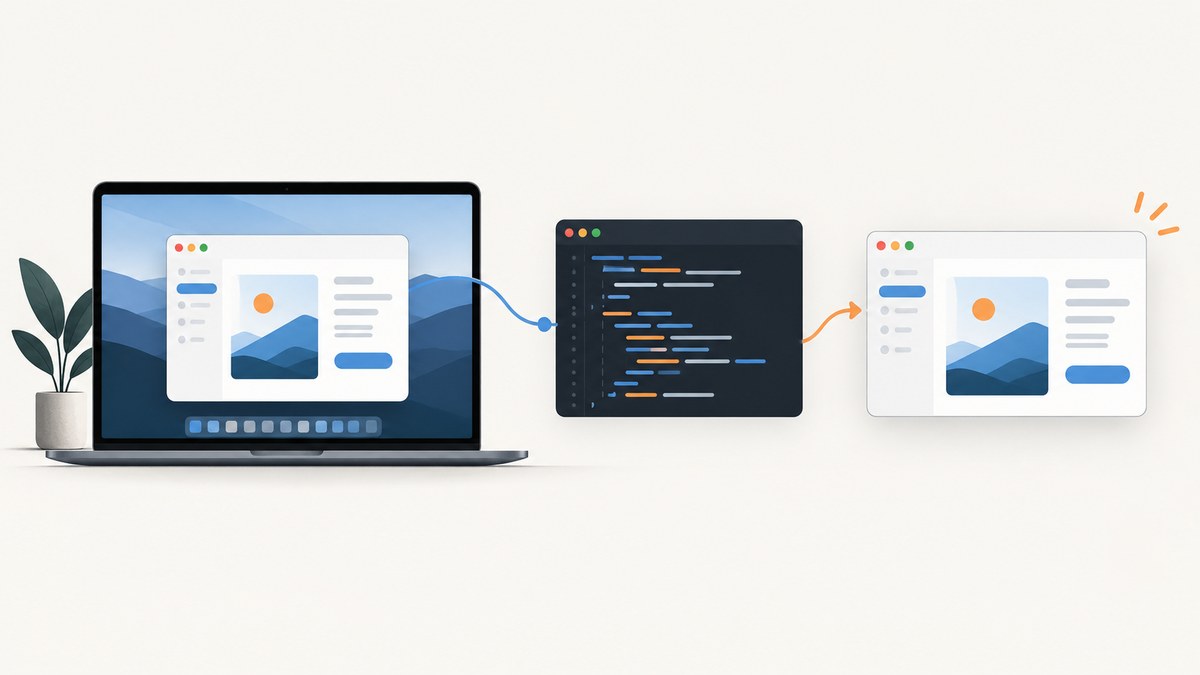
Use Apple’s ScreenCaptureKit for new macOS screenshot work. For one still image, call SCScreenshotManager.captureImage(contentFilter:configuration:). For a continuing sequence of frames, create an SCStream and process its sample buffers. ScreenCaptureKit can target a display, app, or window through SCShareableContent and SCContentFilter.
The older Core Graphics CGWindowListCreateImage API is deprecated. Apple’s macOS Sequoia 15 release notes warn that deprecated content-capture APIs can trigger system alerts and direct developers to ScreenCaptureKit and SCContentSharingPicker.
1. Choose the macOS capture API
| Requirement | Use |
|---|---|
| Capture one image | SCScreenshotManager.captureImage |
| Capture video or repeated frames | SCStream |
| Let the user choose a display, app, or window | SCContentSharingPicker |
| Programmatically choose content | SCShareableContent plus SCContentFilter |
| Legacy window image capture | CGWindowListCreateImage; deprecated, so migrate |
ScreenCaptureKit is the right default when privacy prompts, source filtering, Retina output, and compatibility with current macOS security behavior matter. Apple’s framework documentation says to request screen-recording permission before capturing content and add NSScreenCaptureUsageDescription to the app target.
2. Add permission and framework setup
- In Xcode, add
ScreenCaptureKitto the target. - In the target’s Info settings, add
NSScreenCaptureUsageDescriptionwith a clear explanation such as “This app captures a selected window for documentation.” - Run the app and ask the person to grant Screen Recording access in System Settings.
- Handle denial and restricted states in your UI. Apple’s sample notes that its sample must be restarted after permission is granted; behavior can vary with macOS version and permission state.
Do not claim a capture succeeded merely because the API call returned. Check errors, nil content, and the resulting image dimensions.
3. Capture one display, app, or window in Swift
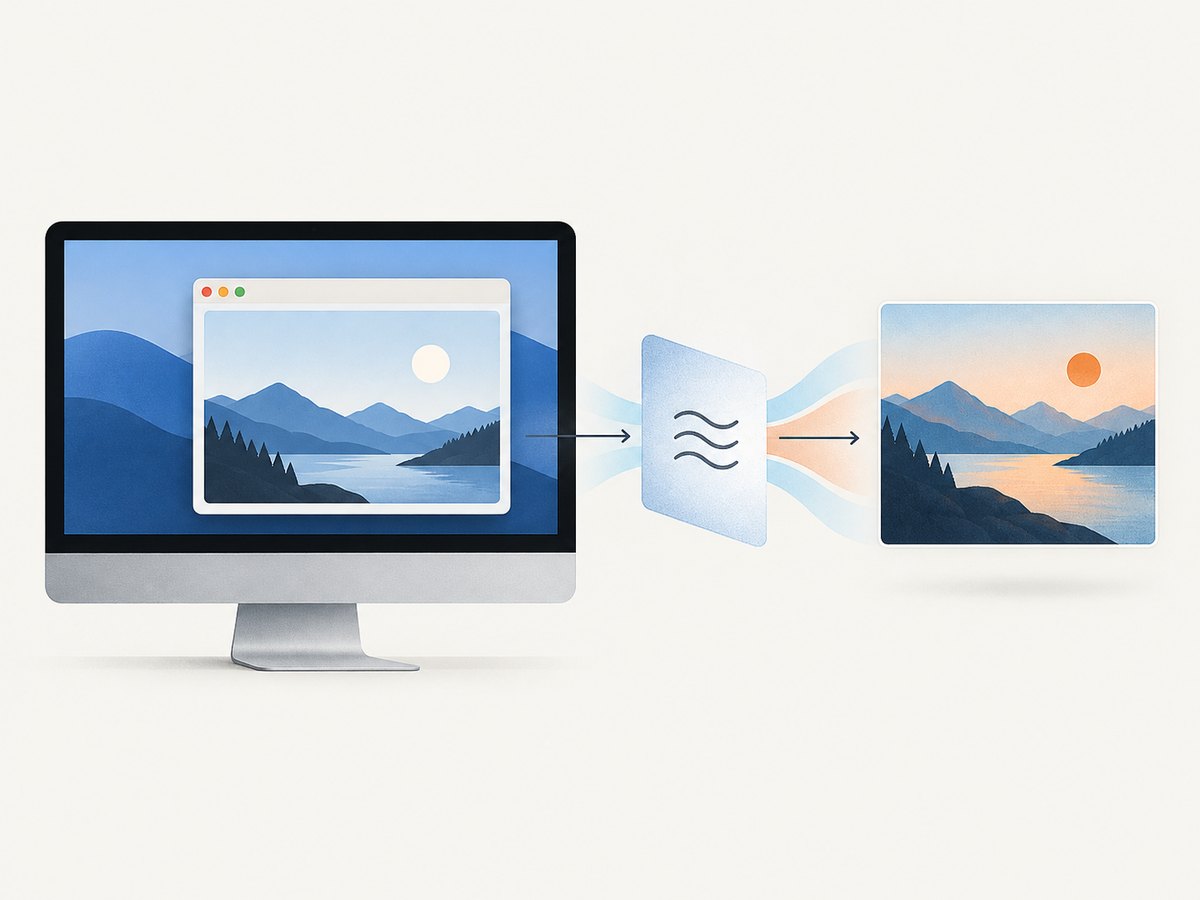
The following async function obtains shareable content, selects a window, creates a filter, captures one frame, and writes a PNG. It uses the documented SCScreenshotManager.captureImage path.
import ScreenCaptureKit
import CoreGraphics
import ImageIO
import UniformTypeIdentifiers

@available(macOS 13.0, *)
func captureWindow(named title: String, outputURL: URL) async throws {
    let content = try await SCShareableContent.excludingDesktopWindows(false,
                                                                       onScreenWindowsOnly: true)

    guard let window = content.windows.first(where: { $0.title == title }) else {
        throw NSError(domain: "Screenshot", code: 1,
                      userInfo: [NSLocalizedDescriptionKey: "Window not found: \(title)"])
    }

    let filter = SCContentFilter(desktopIndependentWindow: window)
    let configuration = SCStreamConfiguration()
    configuration.width = max(1, Int(window.frame.width * 2))
    configuration.height = max(1, Int(window.frame.height * 2))
    configuration.scalesToFit = true
    configuration.showsCursor = false

    let image = try await SCScreenshotManager.captureImage(contentFilter: filter,
                                                            configuration: configuration)

    guard let destination = CGImageDestinationCreateWithURL(
        outputURL as CFURL, UTType.png.identifier as CFString, 1, nil
    ) else {
        throw NSError(domain: "Screenshot", code: 2,
                      userInfo: [NSLocalizedDescriptionKey: "Could not create image destination"])
    }

    CGImageDestinationAddImage(destination, image, nil)
    guard CGImageDestinationFinalize(destination) else {
        throw NSError(domain: "Screenshot", code: 3,
                      userInfo: [NSLocalizedDescriptionKey: "Could not write PNG"])
    }
}

@main
struct Demo {
    static func main() async {
        do {
            let destination = URL(fileURLWithPath: "/tmp/window.png")
            try await captureWindow(named: "Safari", outputURL: destination)
            print("Saved to \(destination.path)")
        } catch {
            fputs("Capture failed: \(error)\n", stderr)
            exit(1)
        }
    }
}
For a display, use the display returned by SCShareableContent:
guard let display = content.displays.first else { throw CaptureError.noDisplay }
let filter = SCContentFilter(display: display, excludingApplications: [], exceptingWindows: [])
For an app, select an SCRunningApplication and construct the corresponding filter. Apple’s sample also demonstrates excluding the capturing app when targeting a display, which prevents your own controls from appearing in the result.
4. Configure the still image
SCStreamConfiguration is used by both still capture and streams. Set only what your use case needs.
| Setting | Why it matters |
|---|---|
width, height |
Controls output pixels. Account for Retina scale and memory use. |
showsCursor |
Include or omit the pointer. |
scalesToFit |
Fit the source into the configured dimensions. |
| Pixel format and color settings | Relevant when processing stream sample buffers or converting images. |
| Audio settings | Useful for streams; a single screenshot does not require audio. |
Keep the source filter and configuration together. A filter decides what is visible; configuration decides output properties and stream behavior.
5. Let the user choose content with SCContentSharingPicker
When users should select a display, app, or window themselves, Apple recommends SCContentSharingPicker. It supplies a system selection experience and can manage active sharing selections. This avoids maintaining a custom list that can become stale as windows open and close.
Use programmatic filters when your product already knows the target, such as an automated documentation tool that captures a particular app window. Use the picker when the person making the capture should control the source.
6. Capture continuously with SCStream
A stream is appropriate for recording, live previews, remote support, or repeated frame analysis. Configure an SCStream, add an output handler, then start capture. The handler receives sample buffers; convert or encode them according to your pipeline.
import ScreenCaptureKit

final class StreamOutput: NSObject, SCStreamOutput {
    func stream(_ stream: SCStream,
                didOutputSampleBuffer sampleBuffer: CMSampleBuffer,
                of outputType: SCStreamOutputType) {
        guard outputType == .screen,
              sampleBuffer.isValid else { return }
        // Process or encode the video frame here.
    }
}

@available(macOS 13.0, *)
func startStream(for display: SCDisplay) async throws -> SCStream {
    let filter = SCContentFilter(display: display,
                                  excludingApplications: [],
                                  exceptingWindows: [])
    let configuration = SCStreamConfiguration()
    configuration.width = 1920
    configuration.height = 1080
    configuration.minimumFrameInterval = CMTime(value: 1, timescale: 30)
    configuration.showsCursor = false

    let stream = SCStream(filter: filter, configuration: configuration, delegate: nil)
    let output = StreamOutput()
    try stream.addStreamOutput(output, type: .screen, sampleHandlerQueue: .main)
    try await stream.startCapture()
    return stream
}
Retain the output delegate for the lifetime of the stream. Stop the stream when the capture ends and release resources; otherwise a preview or recording feature can keep consuming CPU and memory after its window closes.
7. Permission, privacy, and deployment details
- Screen Recording permission is user-controlled. Explain the purpose before opening System Settings.
- A denied permission can produce an error or no usable content. Surface an actionable message that names the Screen Recording setting.
- Only request the content scope you need. A window filter reduces accidental capture of unrelated windows.
- Background capture may require the appropriate background execution configuration. Do not promise unattended capture without setting that up and documenting its behavior.
- Apple’s sample page lists macOS 15 or later and Xcode 16 or later for that sample. Those requirements should not be treated as the minimum availability of every ScreenCaptureKit symbol; check SDK annotations for your deployment target.
8. Legacy API: CGWindowListCreateImage
CGWindowListCreateImage can appear in older examples, but Apple marks it deprecated. Apple’s macOS Sequoia 15 release notes state that applications using deprecated content-capture APIs such as CGDisplayStream and CGWindowListCreateImage can trigger alerts indicating they might collect detailed user information. Migrate new code to ScreenCaptureKit and the system content picker.
9. Troubleshooting common errors
| Symptom | Likely cause | Fix |
|---|---|---|
| No displays, windows, or apps returned | Permission is missing, content changed, or the filter query is too restrictive. | Check Screen Recording access, refresh SCShareableContent, and log available titles and bundle identifiers. |
| Permission prompt never appears | The app has already been denied or the prompt is controlled by System Settings. | Tell the user to enable Screen Recording for the app, then retry. Restart if the current app state does not refresh. |
| Window lookup fails | Titles are empty, localized, duplicated, or changed after navigation. | Prefer stable identifiers such as owning application and window ID where available; refresh before capture. |
| Image is blank or unexpectedly small | Incorrect filter, minimized/off-screen window, or dimensions that do not match the source. | Capture an on-screen window, verify filter membership, and set explicit dimensions while logging the resulting image size. |
| Stream starts but no frames arrive | The output was not added correctly, the delegate was released, or the sample buffer is invalid. | Retain the output object, verify addStreamOutput succeeded, check sampleBuffer.isValid, and use a serial or main queue appropriate to your processing. |
| High CPU or memory use | Output dimensions or frame rate are higher than required, or frames are queued faster than they are processed. | Reduce width, height, or frame rate; process off the UI thread; drop stale frames for previews. |
| Capture includes the recorder’s own controls | The app was not excluded from a display filter. | Exclude the capturing application or target a specific window. |
| System warning mentions detailed information collection | Deprecated capture APIs are still in use. | Replace them with ScreenCaptureKit and SCContentSharingPicker. |
10. Performance, reliability, and cost considerations
Performance
- Capture at the smallest dimensions that meet your output requirement.
- For streams, choose a frame interval and pixel size suitable for the actual preview or recording.
- Avoid doing image encoding or computer-vision work synchronously on the main thread.
- For a single still, avoid starting a stream;
SCScreenshotManagerhas a direct one-frame path.
Reliability
- Refresh shareable content before a user-initiated capture because windows can close or change title.
- Handle permission changes, disappearing windows, invalid sample buffers, and cancellation.
- Log filter type, selected source, configuration dimensions, and error details without recording sensitive screen contents.
- Test with multiple displays, Retina and non-Retina screens, minimized windows, full-screen apps, and permission denial.
Cost
ScreenCaptureKit itself is a macOS framework, so this local capture path does not add a per-image API charge. Your costs are operational: development, encoding, storage, and any infrastructure used to upload or process captures.
11. Or skip the browser setup
If the target is a web page rather than the Mac desktop, ScreenshotNeo provides a single HTTP request for PNG, JPEG, WebP, or PDF output. It handles browser startup, navigation, and page cleanup for you.

Read the ScreenshotNeo API documentation next to these runnable examples.
cURL
curl -G "https://api.screenshotneo.com/v1/shot" \
  -d access_key=YOUR_API_KEY \
  --data-urlencode url=https://stripe.com \
  -o shot.webp
Python
import requests

r = requests.get(
    "https://api.screenshotneo.com/v1/shot",
    params={"access_key": "YOUR_API_KEY", "url": "https://stripe.com"},
    timeout=90,
)
r.raise_for_status()
open("shot.webp", "wb").write(r.content)
Node.js
const q = new URLSearchParams({
  access_key: 'YOUR_API_KEY',
  url: 'https://stripe.com'
});
const res = await fetch(`https://api.screenshotneo.com/v1/shot?${q}`);
if (!res.ok) throw new Error(`HTTP ${res.status}`);
const bytes = Buffer.from(await res.arrayBuffer());
require('fs').writeFileSync('shot.webp', bytes);
ScreenshotNeo removes cookie and consent banners, newsletter popups, and chat widgets before the shot. Bot checks, blank pages, failed loads, timeouts, and cache hits are not billed, and response headers report the page verdict and billing status. Its MCP server provides take_screenshot, get_page_info, and capture_pdf tools for Claude, Cursor, and other MCP clients. The Free plan includes 1,000 screenshots each month with no card; paid plans start at $5 for 3,000.
Create a free ScreenshotNeo account and start with 1,000 screenshots a month at no charge.
12. Short FAQ
Can ScreenCaptureKit capture only one window?
Yes. Select an SCWindow from SCShareableContent and create a window filter.
Should I use a stream for a single screenshot?
No. Use SCScreenshotManager.captureImage for one frame and SCStream for ongoing frames.
Do screenshots require microphone permission?
A still image does not require audio capture. Audio is an additional stream capability and should be configured only when needed.
Is CGWindowListCreateImage safe for new code?
It is deprecated. Use ScreenCaptureKit for new implementations.
Can a Mac app capture in the background?
Background operation may require the appropriate execution-mode configuration. Verify the behavior for your target macOS versions and product design.


