How to Use an MCP Browser Server with Microsoft Edge
Connect an MCP client to Microsoft Edge by launching an isolated browser or attaching to a running profile. Configure Chrome DevTools MCP or Playwright MCP, and avoid exposing browser credentials.
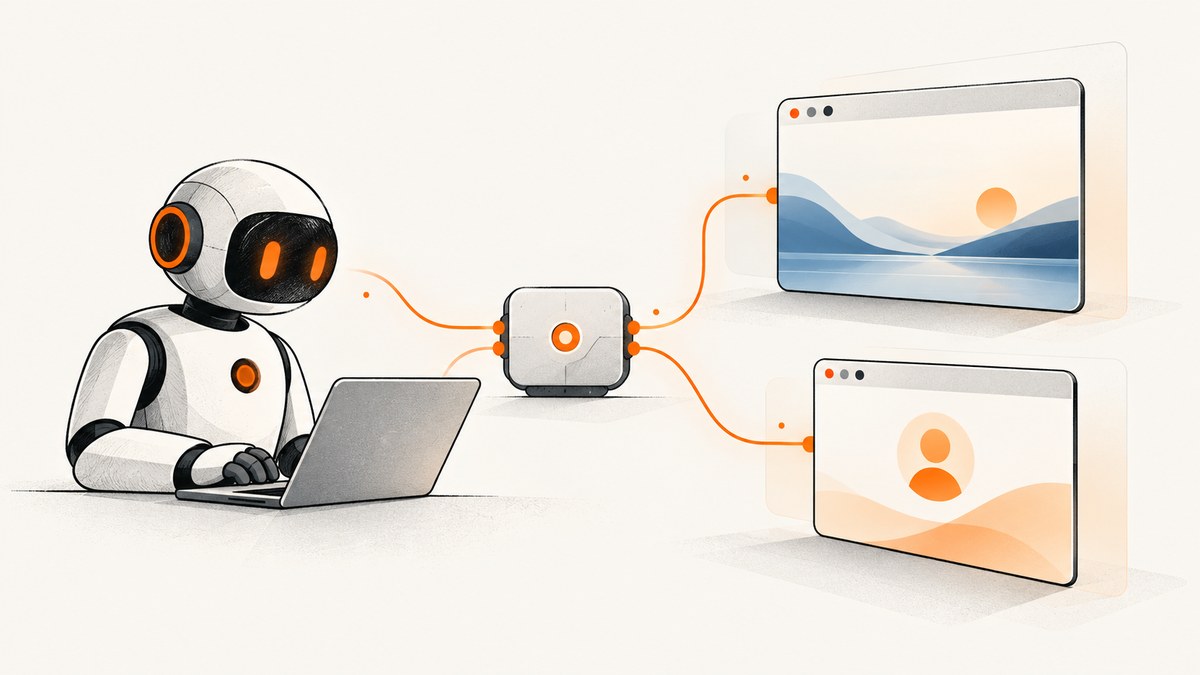
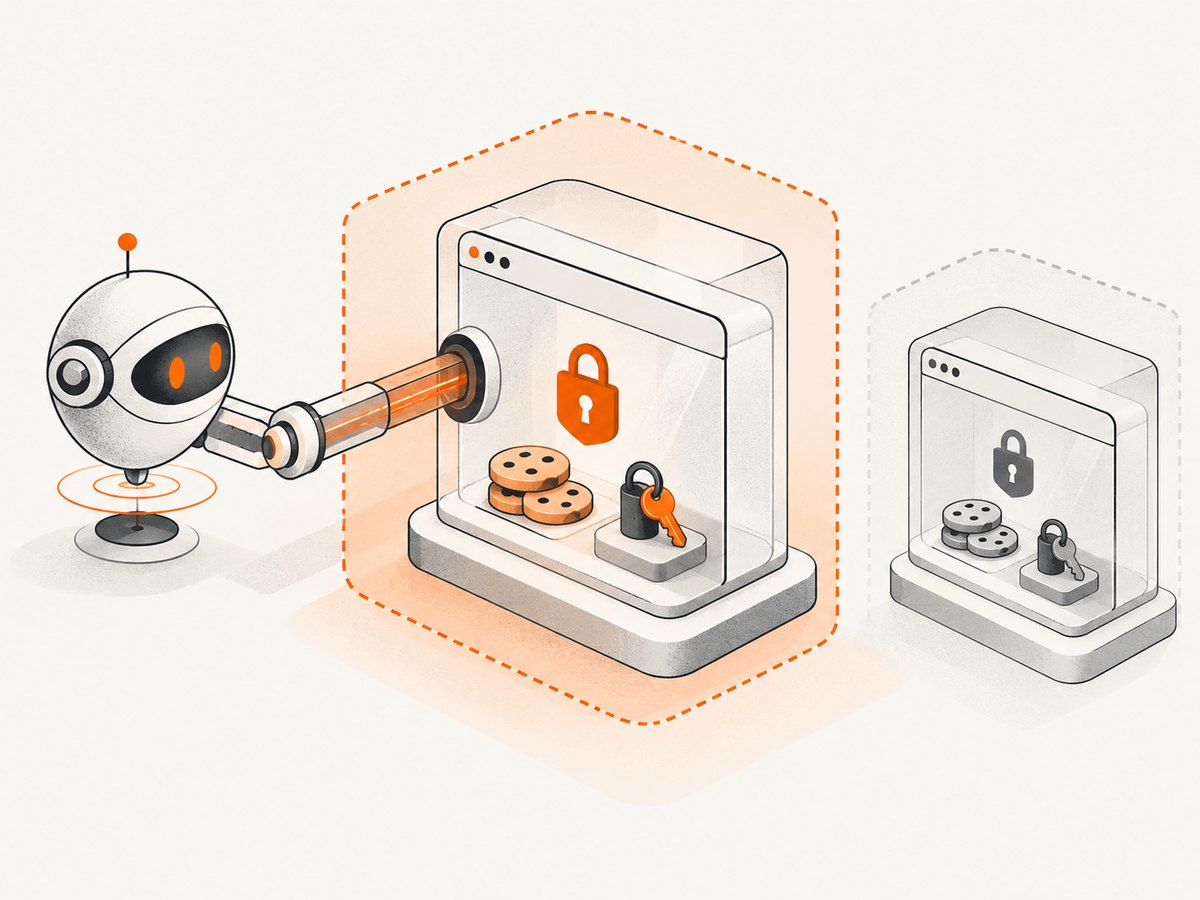
You can use an MCP browser server with Microsoft Edge in two ways: configure the server to launch Edge, or enable remote debugging and connect it to an Edge instance that is already running. Launching a separate browser is usually the simpler choice for isolated browsing. Connecting to an existing profile is useful when the agent needs that session’s state, but it can expose logged-in accounts, cookies, and data accessible through browser JavaScript APIs. Only attach a trusted agent to a profile you are comfortable exposing.
Microsoft’s Chrome DevTools MCP guide for Edge documents both approaches. Despite its name, Chrome DevTools MCP supports Chromium-based browsers including Edge and WebView2.
1. Choose how the server connects
| Approach | Best for | Profile access |
|---|---|---|
| Launch Edge with an executable path | Fresh, controlled browser sessions and repeatable inspection | Uses the profile configured for the launched browser; set up a separate profile if isolation is needed. |
| Auto-connect to running Edge | Inspecting a page already open in Edge or reusing its session | May expose the connected profile’s signed-in state, cookies, and browser-accessible data. |
| Playwright MCP connection | Using Playwright MCP’s browser tooling with Edge | Depends on the connection mode: a channel launch, CDP endpoint, or extension attachment. |
For everyday development, prefer a dedicated browser profile with only the accounts and data the agent needs. Use an already signed-in profile only when the task depends on that session.

2. Check prerequisites
- Install Node.js at the latest LTS release and npm.
- Install an Edge channel: Stable, Beta, Dev, or Canary.
- Use an MCP-capable client that supports local stdio servers, such as a coding agent with an MCP configuration file.
- Decide whether the server should launch Edge or connect to a running instance.
The Microsoft examples below use the Chrome DevTools MCP package and Visual Studio Code’s mcp.json structure. Other MCP clients may use different configuration keys or locations; keep the server arguments but adapt the wrapper to your client. See Microsoft’s section on configuring other MCP clients.
3. Option A: Let Chrome DevTools MCP launch Edge
When the server launches Edge, supply the full path to the Edge executable with --executablePath. The exact path depends on the operating system, installation location, and Edge channel. Find the installed executable on the machine where the MCP client runs; do not copy a path from a different computer or channel.
Add a server entry like this to the client’s MCP configuration, replacing the example path with the real Edge binary path:
{
  "servers": {
    "edge-devtools": {
      "type": "stdio",
      "command": "npx",
      "args": [
        "-y",
        "chrome-devtools-mcp@latest",
        "--executablePath=/absolute/path/to/edge"
      ]
    }
  }
}
On Windows, use the actual path to msedge.exe. In JSON strings, escape each backslash, for example C:\\Program Files (x86)\\Microsoft\\Edge\\Application\\msedge.exe. An incorrect path causes the browser launch to fail before the agent can inspect a page.
- Save the configuration in the location and format your MCP client expects.
- Restart or reload the client so it starts the server.
- Ask the agent to navigate to a non-sensitive page and inspect it or take a screenshot.
- Check the client’s MCP server output if it cannot start the process or launch Edge.
The server uses the executable path to launch that browser binary directly. If the task needs a clean session, configure a separate Edge profile according to your browser and client’s supported launch options; do not assume that specifying an executable alone creates a separate profile.
4. Option B: Auto-connect to an Edge instance that is already running
Auto-connect uses remote debugging. Edge writes a DevToolsActivePort file into its user-data directory while remote debugging is active. Chrome DevTools MCP reads that file to discover the browser’s DevTools WebSocket endpoint. The --user-data-dir must match the profile directory for the Edge channel you started.
Enable remote debugging
One documented route is to launch Edge with a debugging port:
msedge.exe --remote-debugging-port=9222Use the equivalent Edge executable on your operating system. You can also open edge://inspect, choose Remote debugging, and enable remote debugging for that browser instance. Start Edge with the setting enabled before starting the MCP connection.
Configure auto-connect
For VS Code’s mcp.json, choose the user-data path for the running channel and platform:
{
  "servers": {
    "edge-devtools": {
      "type": "stdio",
      "command": "npx",
      "args": [
        "-y",
        "chrome-devtools-mcp@latest",
        "--autoConnect",
        "--user-data-dir=~/.config/microsoft-edge"
      ]
    }
  }
}
The Linux path shown is for the default Stable profile. Microsoft documents these default locations; local configuration or policy can change them:
| Channel | Windows | macOS | Linux |
|---|---|---|---|
| Stable | %LOCALAPPDATA%\Microsoft\Edge\User Data |
~/Library/Application Support/Microsoft Edge |
~/.config/microsoft-edge |
| Beta | %LOCALAPPDATA%\Microsoft\Edge Beta\User Data |
~/Library/Application Support/Microsoft Edge Beta |
~/.config/microsoft-edge-beta |
| Dev | %LOCALAPPDATA%\Microsoft\Edge Dev\User Data |
~/Library/Application Support/Microsoft Edge Dev |
~/.config/microsoft-edge-dev |
| Canary | %LOCALAPPDATA%\Microsoft\Edge SxS\User Data |
~/Library/Application Support/Microsoft Edge Canary |
No Canary channel listed for Linux. |
Use the path for the channel you actually launched. In Windows JSON, double each backslash. If Edge uses a custom profile directory, point to that directory instead of the default. Restart the MCP client after changing its configuration, then ask it to navigate to a test URL and report the page title.
5. Playwright MCP as an alternative
Playwright MCP provides another MCP server option. Its documented Edge channels include msedge, msedge-beta, msedge-dev, and msedge-canary. It also supports a Chrome DevTools Protocol (CDP) endpoint and a browser extension mode for attaching to existing tabs. These are Playwright project options; their setup syntax is not interchangeable with the Chrome DevTools MCP examples above.
For a running browser exposing CDP on port 9222, Playwright MCP documents the --cdp-endpoint option. A typical endpoint value is http://localhost:9222. The shape of the server entry depends on your client; an illustrative stdio configuration is:
{
  "mcpServers": {
    "playwright-edge": {
      "command": "npx",
      "args": [
        "-y",
        "@playwright/mcp@latest",
        "--cdp-endpoint=http://localhost:9222"
      ]
    }
  }
}
Alternatively, use a supported browser channel such as --browser=msedge when the Playwright server should launch a browser. Check the current Playwright MCP documentation for supported options and your client’s required configuration format. With extension mode, the browser extension attaches to tabs and can reuse their signed-in state and installed extensions; treat that access as sensitive.
6. Security: treat an attached profile as a credential
A browser profile can hold active sessions and cookies. When an agent controls a page in that profile, it may be able to interact with authenticated sites and access data exposed to page JavaScript. That creates practical risks: an instruction in a page could induce an agent to take an unintended action, and a prompt or tool call could expose information from a logged-in account.
- Connect only agents and MCP clients you trust.
- Use a separate Edge profile for automation; sign in only to accounts required for the task.
- Do not ask an agent to reveal, copy, or transmit passwords, cookies, access tokens, or private page content.
- Keep remote debugging bound to a local development environment; do not expose the debugging endpoint to an untrusted network.
- Review the tools enabled by the server and client. Playwright MCP’s getting-started documentation warns that a tool able to execute arbitrary JavaScript in the server process is equivalent to remote code execution; enable such tools only for trusted clients.
- Stop the MCP server and close the debugging browser when the task is complete.
For a managed remote browser, Microsoft’s Playwright Workspaces remote MCP service is marked preview. Microsoft says preview features do not have a service-level agreement and are not recommended for production workloads. Its documentation recommends Microsoft Entra ID authentication; workspace access tokens should be treated like passwords and kept out of source control, prompts, and logs. See Microsoft Playwright Workspaces documentation for current service details.
7. Troubleshooting
| Symptom | Likely cause | Fix |
|---|---|---|
| “Could not connect to Chrome” with auto-connect | Edge is closed, remote debugging is disabled, the profile path is wrong, or the expected file is missing. | Start Edge with remote debugging; verify the channel’s user-data directory; confirm DevToolsActivePort exists in that directory; restart the MCP client. |
Edge not found at executablePath |
The binary path is incorrect or points to another channel/install. | Locate the installed Edge executable and update the path. On Windows JSON, escape backslashes as \\. |
| Server starts but cannot reach the open tab | The server is launching its own browser, or the existing browser is not the instance with remote debugging enabled. | Use auto-connect with the matching profile, or restart the running Edge instance with debugging enabled and reconnect. |
| Wrong Edge channel or profile appears | The user-data directory refers to a different channel or custom profile. | Match the directory to the channel actually running; verify custom paths in Edge’s launch configuration. |
| CDP connection times out | The endpoint is unavailable, the port differs, or the browser did not start with remote debugging. | Confirm the port and endpoint, check Edge is running, and ensure the client and browser can communicate locally. For Playwright MCP, its CDP connection timeout is configurable with --cdp-timeout. |
| WebView2 will not connect | The registry key may not match the host executable, the host was not restarted, or the data directory is incomplete. | Match the host executable name exactly, restart the host after setting browser arguments, and use the documented EBWebView data-directory suffix. |
| Client ignores a valid-looking config | Configuration syntax or path may belong to a different MCP client. | Confirm the client’s expected filename, server key format, and stdio configuration. Microsoft’s examples distinguish VS Code’s servers from other clients’ formats. |
8. Performance, reliability, and cost considerations
For local work, both approaches depend on the computer running Edge, the MCP client, and the browser server. A launch-based session adds browser startup; a running session avoids that startup but requires Edge and remote debugging to stay available. This is an architectural trade-off, not a published benchmark. If a page loads slowly or depends on delayed scripts, give the agent enough time and ask it to wait for the relevant content before inspecting it.
Use a small, repeatable test page before connecting an authenticated profile. When reliability matters, pin down which channel and profile are used, keep the machine awake, and make the agent verify the page title or another visible result after navigation. A disconnected browser or missing profile file is a connection problem; a page that loads but renders incorrectly is more likely a site, network, or timing issue.
The local MCP setup described here requires Node.js/npm and Edge. Package installation and browser use may have their own machine or organizational costs; the cited setup documentation does not publish a per-capture price, speed figure, or uptime guarantee. Microsoft’s managed Playwright Workspaces service is a separate option and currently carries the preview limitations described above.
9. When a screenshot API is a better fit
If the task is simply to capture a page as an image, controlling a full browser through an MCP server may be more setup than necessary. ScreenshotNeo is a website screenshot API and MCP server: a GET request can return a PNG, JPEG, WebP, or PDF, and its MCP server provides screenshot tools for AI agents including Claude, Cursor, and other MCP clients. Its screenshot API also supports options such as full-page capture, element selection, viewport and device presets, custom CSS or JavaScript, wait conditions, and PDF settings. See the ScreenshotNeo API documentation for request parameters and details.
Here is a direct request using the API’s documented pattern. Replace the placeholder with your API key:
curl -G "https://api.screenshotneo.com/v1/shot" \
  -d access_key=YOUR_API_KEY \
  --data-urlencode url=https://stripe.com \
  -o shot.webp
ScreenshotNeo accepts and removes known cookie/consent banners, newsletter popups, and chat widgets before the capture; each step can be turned off. Bot checks, blank pages, timeouts, failed loads, and cache hits are not billed, and the response includes X-Page-Verdict and X-Billed headers. Plans include 1,000 screenshots per month free with no card; paid plans start at $5 for 3,000 screenshots. Every feature is on every plan.
Or skip the browser setup
Make one API call instead of configuring a local browser server:
curl -G "https://api.screenshotneo.com/v1/shot" -d access_key=YOUR_API_KEY --data-urlencode url=https://stripe.com -o shot.webpCookie banners, popups, and chat widgets are removed before the shot. Bot checks, blank pages, and failed loads are never billed. An MCP server lets AI agents take screenshots. The free plan includes 1,000 screenshots a month with no card; paid plans start at $5 for 3,000. Read the API documentation and sign up for 1,000 free screenshots a month with no card.
Frequently asked questions
Does Chrome DevTools MCP work with Microsoft Edge?
Yes. Microsoft documents support for Chromium-based browsers including Edge. Supply Edge’s executable path when launching it, or use auto-connect with remote debugging and the correct user-data directory.
Can I connect to a browser that is already signed in?
Yes, using an existing-profile connection such as Chrome DevTools MCP auto-connect, a CDP endpoint, or Playwright’s extension mode. That can expose the profile’s authenticated state, so use a trusted agent and a profile scoped to the task.
Can I use this with WebView2?
Microsoft documents a WebView2 connection path for Chrome DevTools MCP. It requires enabling remote debugging for the host and pointing the server at the host’s WebView2 user-data directory, which ends with EBWebView.
Which approach should I use for one-off screenshots?
Use the browser MCP connection when the agent needs to inspect or interact with the live page. For a screenshot artifact without browser interaction, a screenshot API can avoid local browser configuration.


