How to Use an MCP Browser Server in Visual Studio Code
Connect Playwright MCP to VS Code, choose the right configuration scope, and use browser tools safely in agent chat.

To use an MCP browser server in Visual Studio Code, install a server such as Playwright MCP, add it to VS Code’s MCP configuration, start it, then enable its tools in Agent chat. For the simplest local setup, use Node.js 20 or newer and the Playwright server’s documented npx configuration. Once connected, ask the agent to navigate a page and perform a specific browser task.
This guide walks through setup, configuration scope, a first interaction, browser options, troubleshooting, and safe use. Playwright MCP is one browser-server choice; VS Code can connect to other MCP servers too. See Microsoft’s VS Code MCP server guide and the Playwright MCP guide for current details.
1. Understand what the browser MCP server does
MCP (Model Context Protocol) connects an AI client to server-provided tools and related capabilities. In this case, VS Code is the client and Playwright MCP exposes browser automation tools that you can select for chat. The agent can use them to inspect pages and perform actions such as navigating, clicking, typing, filling forms, selecting dropdowns, handling dialogs, switching tabs, and taking screenshots.
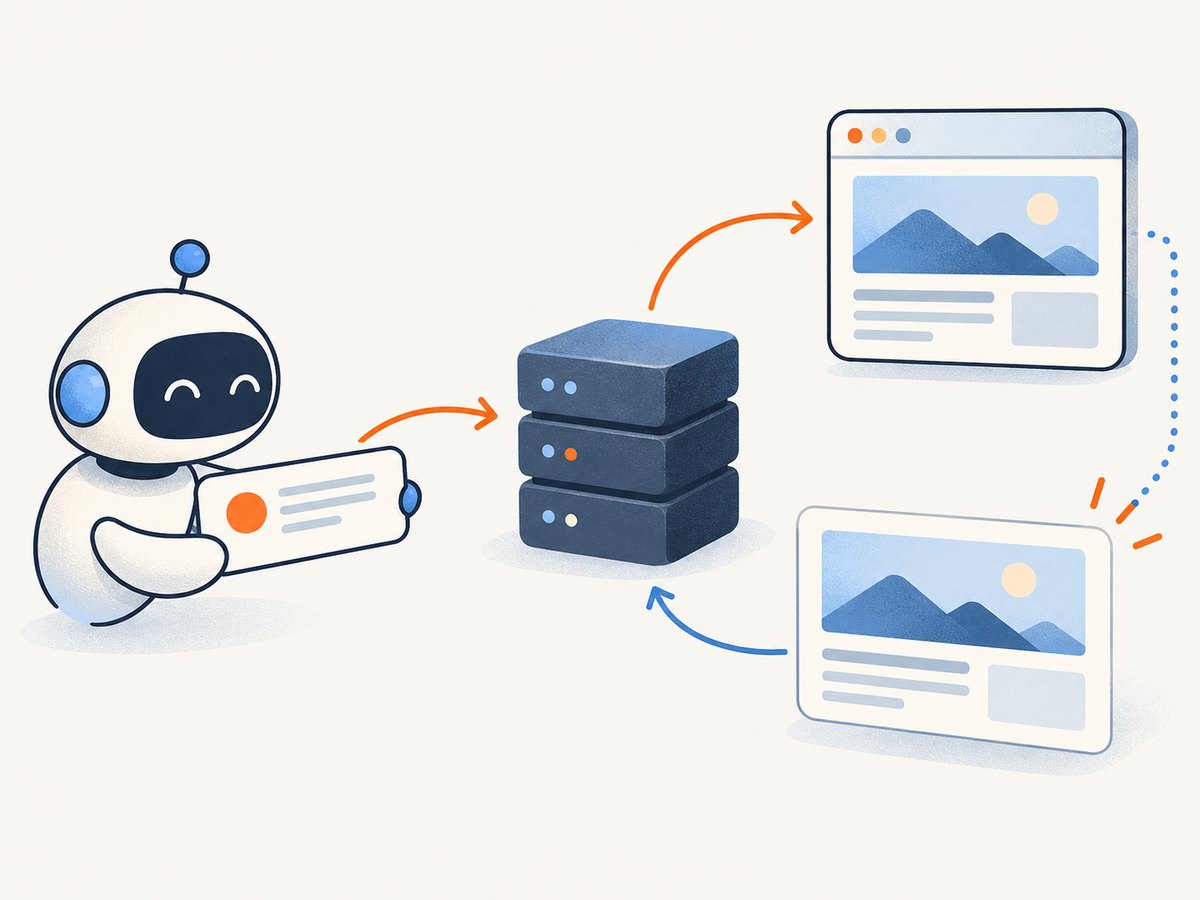
Playwright MCP can return structured accessibility snapshots containing element roles and text. That gives the agent a way to identify page controls and content while it interacts. It is different from simply asking a model to describe a URL: the browser server performs browser actions and returns results to the client.
2. Check prerequisites
- Install Visual Studio Code with Agent chat available.
- Install Node.js 20 or newer, as required by the Playwright MCP guide.
- Review the server and its configuration before you start it. VS Code warns that local MCP servers can run arbitrary code on your machine.
- Decide whether this server should be available across your profile, shared with a workspace, or run on a remote machine.
The basic local configuration runs the server through npx. The first startup may need to obtain the package, so allow network access for package retrieval in the environment where the server process runs.
3. Add Playwright MCP to VS Code
There are several ways to configure the server. Choose one; you do not need to use all of them.
Option A: Add it to your user profile
Use a user-profile server when you want Playwright available across your workspaces. In VS Code, open the Command Palette, run MCP: Open User Configuration, and add this server entry using the configuration format shown by the editor:
{
  "mcpServers": {
    "playwright": {
      "command": "npx",
      "args": ["@playwright/mcp@latest"]
    }
  }
}
The Playwright guide also documents this VS Code CLI form:
code --add-mcp '{"name":"playwright","command":"npx","args":["@playwright/mcp@latest"]}'Use the CLI command in a shell where the code command is available. If your shell has quoting rules that differ from the example, preserve the JSON object as one argument.
Option B: Install from the MCP gallery
- Open the Extensions view in VS Code.
- Search for
@mcp playwright. - Choose the Playwright server and install it in the user profile or a workspace.
- Review the trust prompt and configuration, then confirm only if you trust the server.
- Open Agent chat and enable the discovered tools as described in section 5.
Installing into a workspace writes configuration to .vscode/mcp.json. The gallery flow is convenient when you want VS Code to discover and configure a listed server for you.
Option C: Configure a workspace file
For a VS Code-specific project setup, use .vscode/mcp.json with a top-level servers object. A portable workspace configuration can use .mcp.json with a top-level mcpServers object. These formats differ, so use the schema expected by the chosen filename and client; don’t paste one structure into the other without adapting it.
A workspace configuration can help teammates share a server definition, but it also means you should inspect the repository’s MCP configuration before trusting the workspace. Do not put API keys or other secrets directly into a shared file. VS Code supports input variables or environment files for sensitive values.
Choose configuration scope deliberately
| Scope | Choose it when | Where it runs |
|---|---|---|
| User profile | You want the server in your own workspaces | Local to your VS Code user unless configured otherwise |
| Workspace | The project should provide a shared server definition | According to the VS Code workspace or remote context |
| Remote user/workspace | The browser server needs access to the remote environment | On the remote machine when configured there |
| Dev Container | The server should be part of a containerized development environment | Configured under customizations.vscode.mcp.servers in devcontainer.json |
A profile server normally runs locally. If your project is open in a remote session, check whether the process needs to run on the local or remote side. Configuration location and process location are related but not interchangeable.
4. Start the server and confirm it is available
After adding the configuration, VS Code may prompt you to start or trust the server. Review its name, command, arguments, and any environment values. Start it, then check the server status in the Extensions view, the MCP configuration editor, or the Command Palette. VS Code exposes server status, logs, and start/stop controls through these areas.
If using a package reference such as @playwright/mcp@latest, the exact installed version can change over time. For repeatable team environments, follow your package management and review practices rather than assuming a moving latest tag will always behave identically.
5. Enable browser tools in Agent chat
- Open the Chat view and select Agent.
- Open Configure Tools.
- Find the Playwright server’s tools and enable the ones the task needs.
- Enter a concrete request that describes the page and the outcome you want.
- Review any confirmation prompt before allowing a tool call.
For a first interaction, ask: “Open the TodoMVC demo, add two sample tasks, and report the resulting task count.” This is specific enough to check navigation, text entry, and the resulting page state. Playwright’s guide also describes getting started with navigation and common input actions.
For reliable results, state what the agent should inspect and what counts as completion. For example: “Open the staging checkout, select the standard shipping option, and report the displayed total. Do not submit the order.” The last instruction makes the boundary explicit for a task with a potentially consequential action.
6. Configure browser mode, engine, and transport
The defaults are suitable for many local tasks, but the environment may call for a different browser mode or connection method. Refer to the Playwright MCP configuration reference for supported arguments and current behavior.
| Choice | Default or documented options | When to consider changing it |
|---|---|---|
| Browser visibility | Headed mode by default; --headless selects headless mode |
Use headless when visible browser interaction is not needed or a display is unavailable |
| Browser engine | Chrome by default; Chrome, Firefox, WebKit, and Microsoft Edge are documented choices | Choose an engine that matches the page behavior you need to inspect |
| Transport | Local stdio is the usual npx setup | Use a standalone HTTP server when the client should connect to a separately started process |
For a headed browser on a machine without a display, or in an IDE worker, Playwright documents starting a standalone HTTP server and connecting the client to it:
npx @playwright/mcp@latest --port 8931Configure the client to connect to http://localhost:8931/mcp. This is an alternative deployment shape, not a required step for the basic local stdio setup. Keep the server reachable only where intended, and follow your environment’s controls for exposing local services.
7. Use the tools safely
VS Code’s warning is direct: “Local MCP servers can run arbitrary code on your machine.” Treat installation and configuration as executable code review. Confirm the publisher and package source, understand the command that will run, and review workspace MCP configuration before trusting a repository.
Playwright identifies browser_run_code_unsafe as arbitrary JavaScript execution in the server process and says it is RCE-equivalent. It is intended for interactions beyond normal individual tool calls and is unnecessary for basic navigation or form interaction. Enable it only when the MCP client and task are trusted and you understand the added capability.
Web pages and content returned through tools are untrusted input. A page can contain misleading instructions or text that looks like directions to the agent. Ask the agent to treat page content as data, and review actions involving account changes, purchases, external messages, or destructive operations before they happen.
VS Code supports sandboxing for local stdio MCP servers on macOS and Linux to restrict filesystem and network access. The cited VS Code documentation says MCP sandboxing is not available on Windows. Sandboxing is optional and platform-dependent; it does not replace reviewing the server and its configuration.
8. Troubleshoot common setup problems
| Symptom | Likely cause | What to do |
|---|---|---|
| Playwright tools do not appear in chat | The server has not started, tools are not selected, or configuration is in a different scope | Check server status and logs, open Configure Tools, enable the needed tools, and confirm whether the configuration is user, workspace, or remote. |
| Server fails to launch | Node.js is missing or older than the documented minimum; package download or command launch failed | Confirm Node.js 20 or newer in the environment that runs the process. Inspect the MCP server logs for the command’s specific error and verify package retrieval is available. |
| It works locally but not in a remote window | The server is configured on the local side while the browser task needs remote access, or vice versa | Configure the server at the remote user or workspace scope when the remote machine must run it. Recheck where the process starts. |
| Workspace configuration is rejected | The filename and JSON schema do not match | Use .vscode/mcp.json with servers for VS Code-specific configuration, or .mcp.json with mcpServers for the portable form. |
| Browser does not launch in a worker | Headed mode needs a display that the environment does not provide | Try the documented --headless option, or use the documented standalone HTTP arrangement where appropriate. |
| Agent cannot find a control reliably | The page may not have finished rendering, or the request does not identify the intended control clearly | Ask the agent to inspect the current page and locate a control by its visible label or role before acting. Include the expected result and avoid ambiguous instructions. |
| Chat asks for confirmation | VS Code may require confirmation for some tool calls | Review the requested action and its target before approving. This is expected for some calls; it is not necessarily a server failure. |
| HTTP client cannot connect | The standalone server is not running, the port differs, or the client URL is wrong | Check that the process is listening on the configured port and that the client uses the matching /mcp endpoint. |
9. Keep browser tasks efficient and dependable
Browser automation depends on page state, network conditions, and the selected browser environment. Make requests small enough to understand and verify. A useful task names one page, a few actions, and a clear stopping point. If a workflow spans multiple screens, ask the agent to report what it sees before moving to a consequential next step.
- Reduce ambiguity: refer to visible labels or the purpose of a control, and state the expected result.
- Allow for dynamic pages: a page may load content after the initial navigation. Ask the agent to inspect the rendered state before interacting.
- Keep side effects in view: distinguish between previewing a change and submitting it.
- Use the right environment: select local, remote, or container configuration based on where the browser must access files and services.
- Use confirmation and logs: check the action being requested and use server logs when behavior differs from expectations.
For repeatable work, document the server configuration and the expected task outcome in the project’s development notes. The browser engine, headless setting, and transport can all affect what the agent can access, so note any non-default choices your team depends on.
10. Or skip the browser setup
If the task is simply to capture a website screenshot, ScreenshotNeo is a website screenshot API and MCP server. One GET request returns a PNG, JPEG, WebP, or PDF. Its MCP server offers take_screenshot, get_page_info, and capture_pdf for Claude, Cursor, and any MCP client. See the ScreenshotNeo API documentation.

curl -G "https://api.screenshotneo.com/v1/shot" -d access_key=YOUR_API_KEY --data-urlencode url=https://stripe.com -o shot.webpScreenshotNeo accepts cookie and consent banners like a visitor and removes more than 60 known consent platforms, newsletter popups, and chat widgets before capture; each step can be turned off. Bot checks and CAPTCHAs, blank pages, timeouts, failed loads, and cache hits cost nothing, and response headers report the page verdict and billing status. The free plan includes 1,000 shots per month without a card; paid plans start at $5 for 3,000 shots.
Sign up free for 1,000 screenshots a month, with no card required.
11. Frequently asked questions
Is Playwright MCP the only browser server for VS Code?
No. It is a documented example, and VS Code supports connecting to MCP servers generally. Choose a server whose tools and trust model fit the task.
Can I share an MCP server with a team?
A workspace configuration can share a server definition. Review it before trusting the workspace, and keep secrets out of shared configuration files.
Do I need the unsafe JavaScript tool?
No for ordinary browsing, clicking, and form interaction. It provides arbitrary JavaScript execution in the server process and should be enabled only when that capability is necessary and trusted.
Can I use a browser server when VS Code is connected remotely?
Yes, but choose the configuration scope and process location deliberately. Configure it remotely when the browser process needs to run on the remote machine.


