How to Set Up an MCP Server for Claude Desktop
Install a local MCP server in Claude Desktop with a Desktop Extension or JSON config. Find the config file, add a filesystem server, and troubleshoot missing tools.

To set up a local MCP server in Claude Desktop, install it from Settings > Extensions if it is available as a Desktop Extension. Otherwise, add its launch command under the mcpServers key in claude_desktop_config.json, save the file, and fully quit and reopen Claude Desktop. The server must be a local program Claude Desktop can launch; a remote MCP service uses a separate connector setup.
MCP, or Model Context Protocol, is an open protocol for connecting LLM applications to tools and data. In a local setup, Claude Desktop starts a server process on your computer and makes its exposed tools available in conversations. [Anthropic’s MCP overview](https://docs.anthropic.com/en/docs/mcp) describes the protocol; its [local MCP setup guide](https://support.anthropic.com/en/articles/10949351-getting-started-with-local-mcp-servers-on-claude-desktop) covers the current Desktop Extensions route and manual configuration.
1. Choose an installation route
There are two common routes for local servers. Pick the one that fits the server you want to use:
| Route | Best for | What you configure |
|---|---|---|
| Desktop Extension | A server packaged and available in Claude Desktop’s extension directory, or supplied as a .dxt file |
Install through the interface and follow its settings prompts |
| Manual JSON | A custom, unpublished, or unbundled local server | A server name, executable command, arguments, and optional environment variables |
Desktop Extensions
- Open Claude Desktop and go to Settings > Extensions.
- Choose Browse extensions and install an available extension, or use the extension’s supplied installation instructions.
- Set any required options, such as credentials or permissions, in the interface.
- Start a conversation and check that the extension’s tools are available.
Extensions package the server and its setup to make installation easier. Directory availability depends on whether the server has been packaged and listed. For a custom extension file, Anthropic’s guide describes installing it from Settings > Extensions > Advanced settings. Review the extension’s source and requested access before granting it access to local files or services.
Manual JSON configuration
Use manual configuration when you need control of the process Claude launches, its arguments, or its environment. First install the server’s documented prerequisites. For a Node-based server this may include Node.js and npx; Python servers may require their own runner. The server’s README is the authority on its package name, startup command, supported arguments, and permissions.
2. Find or create claude_desktop_config.json
The config file location depends on your operating system. If the file does not exist, create it in the Claude configuration directory. [Anthropic’s local server guide](https://support.anthropic.com/en/articles/10949351-getting-started-with-local-mcp-servers-on-claude-desktop) lists these locations:
| Operating system | Configuration file |
|---|---|
| macOS | ~/Library/Application Support/Claude/claude_desktop_config.json |
| Linux | ~/.config/Claude/claude_desktop_config.json |
| Windows | %APPDATA%\Claude\claude_desktop_config.json |
The top-level property must be named mcpServers. Each key inside it is a label for a server; its command and args tell Claude Desktop how to start that server. The following example follows the filesystem server’s documented command pattern. Replace the example directories with real directories you want the server to access, and consult the server’s current README before relying on package details.
{
  "mcpServers": {
    "filesystem": {
      "command": "npx",
      "args": [
        "-y",
        "@modelcontextprotocol/server-filesystem",
        "/Users/username/Desktop",
        "/Users/username/Downloads"
      ]
    }
  }
}
On Windows, the paths are typically written with escaped backslashes in JSON, for example C:\\Users\\username\\Desktop. JSON strings require escaping a backslash as \\. Use paths that exist on your machine, and grant access only to the folders you intend Claude to use.
3. Add the server and restart Claude Desktop
- Back up the existing config before editing it, especially if it already contains other servers.
- Keep all entries inside the single top-level
mcpServersobject. Do not replace existing entries if you want to keep using them. - Check that the file is valid JSON: use double quotes around property names and string values, commas between entries, and no trailing comma after the final item.
- Save the file and fully quit Claude Desktop. Closing a window may leave the application running, so use the application’s quit command.
- Reopen Claude Desktop. Its MCP interface becomes available when at least one server is properly configured.
- Start a conversation and look for the server’s tools. Ask Claude to perform a small, read-only operation within the directories you allowed.
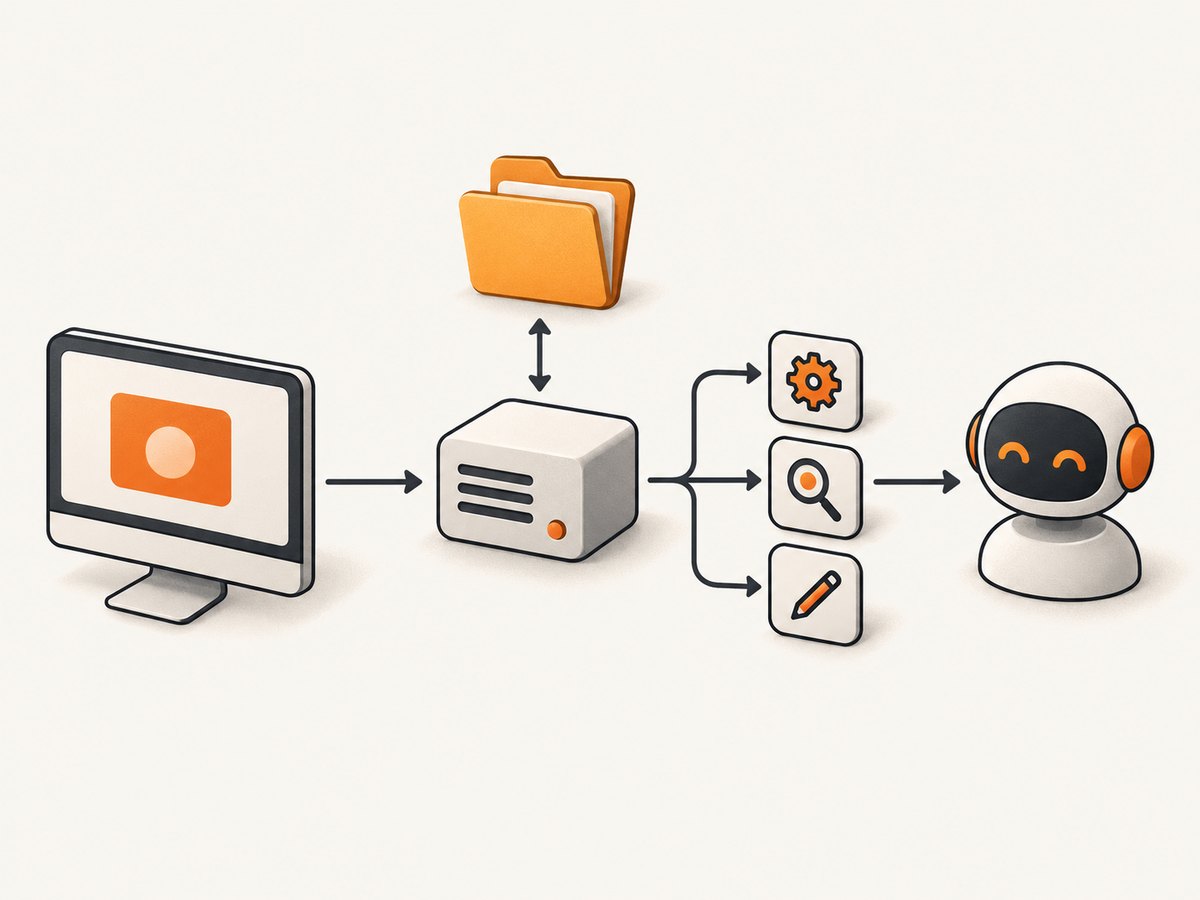
Claude Desktop launches a local server process. A command that works in a terminal can still fail when launched by Claude if it relies on shell-specific setup, a relative path, or an environment variable that Claude does not inherit. Prefer the server’s documented executable and explicit paths. For secrets, follow the server’s supported environment configuration rather than placing credentials in prompts or source code.
4. Check the launch command directly
If the server does not appear, use the exact command and arguments from the configuration to start it in a terminal. This separates a server startup problem from a Claude configuration problem. The [MCP local server guide](https://support.anthropic.com/en/docs/claude-desktop/mcp) recommends testing the command manually to reveal startup errors. The relevant evidence is the process output or error stream: check whether the package can be resolved, required files exist, and access permissions are sufficient.
For the filesystem example, a manual check would invoke npx with the same package name and directory arguments. Stop the process after confirming it starts; it is Claude Desktop that should launch and manage the server during normal use. If the package or command has changed since an example was written, use the server maintainer’s current instructions.
5. Local server versus remote MCP connector
A local server runs on your computer and is launched from Desktop configuration or installed as a Desktop Extension. A remote server runs elsewhere and is reached over a network. Putting a remote server URL into the local claude_desktop_config.json does not turn it into a supported remote connection. For remote services, use Claude’s supported connector flow: open Settings > Connectors, browse available connectors or add a custom connector if that option is available to your account, then complete its authentication and permission steps. See Anthropic’s guidance on [remote MCP connectors](https://support.anthropic.com/en/articles/11175166-about-custom-integrations-using-remote-mcp) and [choosing between local and web connectors](https://support.anthropic.com/en/articles/11725091-when-to-use-desktop-and-web-connectors).
Choose local when the server needs access to files or processes on the computer. Choose a remote connector when the service is hosted remotely and intended to be reached over the internet. The exact supported connector options can depend on the account and current Claude product settings; check the current Anthropic instructions rather than trying to adapt a local command entry into a network URL.
Or skip the browser setup
If the MCP task you want is taking website screenshots, [ScreenshotNeo](https://screenshotneo.com) provides an MCP server for Claude, Cursor, and other MCP clients. Its tools include take_screenshot, get_page_info, and capture_pdf. You can also call its screenshot API directly. See the [ScreenshotNeo API documentation](https://screenshotneo.com/docs/) for options and setup details.
curl -G "https://api.screenshotneo.com/v1/shot" \
  -d access_key=YOUR_API_KEY \
  --data-urlencode url=https://stripe.com \
  -o shot.webp
import requests
r = requests.get(
"https://api.screenshotneo.com/v1/shot",
params={"access_key": "YOUR_API_KEY", "url": "https://stripe.com"},
timeout=90,
)
open("shot.webp", "wb").write(r.content)const q = new URLSearchParams({
access_key: 'YOUR_API_KEY',
url: 'https://stripe.com'
});
const res = await fetch(`https://api.screenshotneo.com/v1/shot?${q}`);
if (!res.ok) throw new Error(`Screenshot request failed: ${res.status}`);
await Bun.write('shot.webp', res);ScreenshotNeo accepts cookie or consent banners and removes more than 60 known consent platforms, newsletter popups, and chat widgets before capture; each cleanup step can be turned off. Bot checks, blank pages, timeouts, failed loads, and cache hits are not billed, and response headers report the page verdict and billing status. Its MCP server lets an AI agent request screenshots through MCP. The free plan includes 1,000 screenshots per month with no card; paid plans start at $5 for 3,000. Every feature is available on every plan. [Create a free ScreenshotNeo account](https://screenshotneo.com/account/sign-up/) to get started.
Configuration options and safe defaults
The server’s own documentation defines its supported configuration. Common fields in a Claude Desktop entry include:

| Field | Purpose | Practical guidance |
|---|---|---|
command |
Executable Claude starts | Use an installed executable such as npx or an absolute path when the server guide recommends it. |
args |
Arguments passed to the command | Keep each argument as a separate JSON string; use explicit paths and the server’s documented flags. |
env |
Environment variables for the child process, when supported | Follow the server’s credential instructions. Do not assume variables from an interactive shell are inherited. |
For multiple servers, add another named object beneath mcpServers and preserve valid commas. Use descriptive names so you can identify tools in Claude. Avoid broad filesystem access, unnecessary credentials, and undocumented command-line flags. A server’s tool descriptions and behavior are supplied by that server, so install only software you trust and understand what resources it can read or change.
Troubleshooting
| Symptom | Likely cause | What to do |
|---|---|---|
| No MCP tools appear | Wrong config path, invalid JSON, missing server entry, or app not restarted | Confirm the operating system path, validate the JSON, check the exact mcpServers spelling, and fully quit then reopen Claude Desktop. |
| Server exits immediately | Missing runtime or package, wrong arguments, or startup error | Run the command manually with the same arguments and inspect its output. Install prerequisites or correct the command according to the server README. |
| “Command not found” or package cannot run | Claude’s launch environment cannot resolve the executable or the runtime is absent | Install the required runtime and use an absolute executable path if the server instructions support it. Restart Claude after changing configuration. |
| Filesystem tools return access errors | A path is mistyped, missing, escaped incorrectly, or outside permitted directories | Check that each directory exists, fix Windows JSON escaping, and explicitly allow only the required directories. |
| Server works in shell but not in Claude | It relies on shell initialization, current working directory, or shell environment variables | Make the command self-contained, use absolute paths, and configure required environment variables in the manner the server documents. |
| Extension install fails or extension is missing | It is not listed, packaging is unavailable, or a local policy restricts extensions | Check Settings > Extensions and extension logs. Use manual configuration for a server that provides a local launch command. |
| A remote URL does not connect from JSON | Local process configuration is being confused with remote connectors | Set up the service through Claude’s supported connector settings, not the local mcpServers command entry. |
Claude’s logs are useful when the interface does not explain a failure. Anthropic lists macOS logs under ~/Library/Logs/Claude and Windows logs under %APPDATA%\Claude\logs; extension-specific logging is also available through the extension settings. Check logs immediately after reproducing the error and match the timestamp to the failed launch. Remove sensitive tokens before sharing log excerpts.
Performance, reliability, and cost considerations
A local MCP server runs on the same machine as Claude Desktop, so its startup and tool performance depend on the local runtime, installed dependencies, network access used by the server, and the work each tool performs. Keep the server’s arguments narrow and its dependencies current. For a slow call, determine whether startup, network activity, or the requested operation is taking the time; the symptom alone does not identify the bottleneck.
Reliability depends on the server process staying available and its required services remaining reachable. A server that crashes, loses credentials, or cannot access its target resource cannot provide tools reliably. Keep a known-good copy of the configuration, change one setting at a time, and inspect process output and Claude logs when a failure recurs. Manual JSON configuration itself does not specify a universal MCP server price: costs, if any, depend on the server and any service or API it calls. Check those providers’ terms and pricing before use.
Frequently asked questions
Where is claude_desktop_config.json?
On macOS it is in ~/Library/Application Support/Claude/; on Linux, ~/.config/Claude/; on Windows, %APPDATA%\Claude\. The filename is claude_desktop_config.json.
Can I configure more than one server?
Yes. Add each server as a separate named entry inside the same top-level mcpServers object, preserving valid JSON syntax.
Does Claude Desktop connect directly to a remote MCP server from this file?
No. The local JSON file configures processes Claude Desktop launches locally. Use Claude’s connector settings for a supported remote MCP connection.
Do I need to write an MCP server to use one?
No. You can install a packaged Desktop Extension or configure an existing server with the command and arguments documented by its maintainer. Building a server is only necessary when you need custom tools or behavior.
What is the fastest way to tell whether the server started?
Check whether its tools appear after a full Claude Desktop restart. If they do not, run the configured command directly and inspect Claude’s logs for the launch error.


