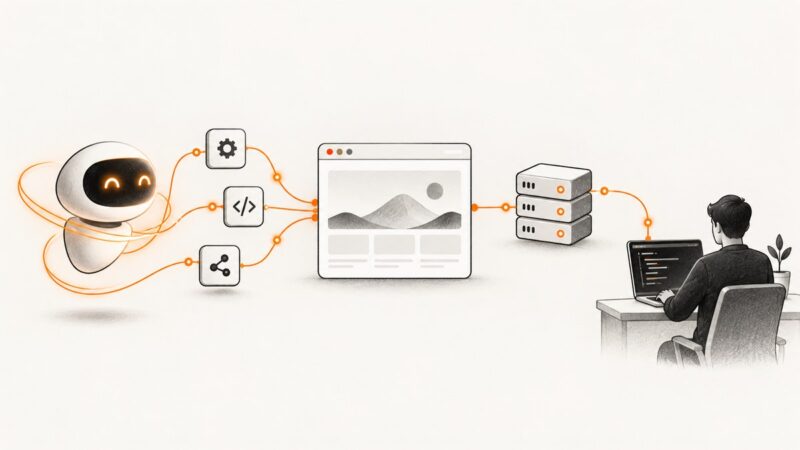
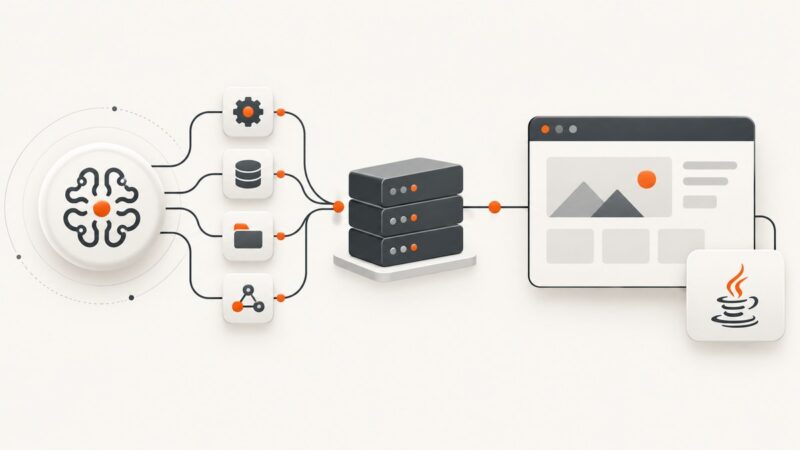
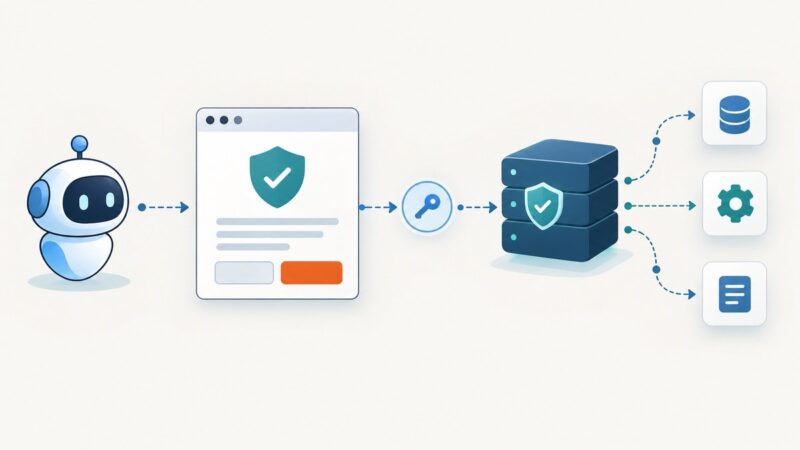
How to Set Up an MCP Server for Image Generation
Build an MCP image-generation tool with TypeScript or Python, choose the right transport, secure credentials, test it, and connect it to AI clients.
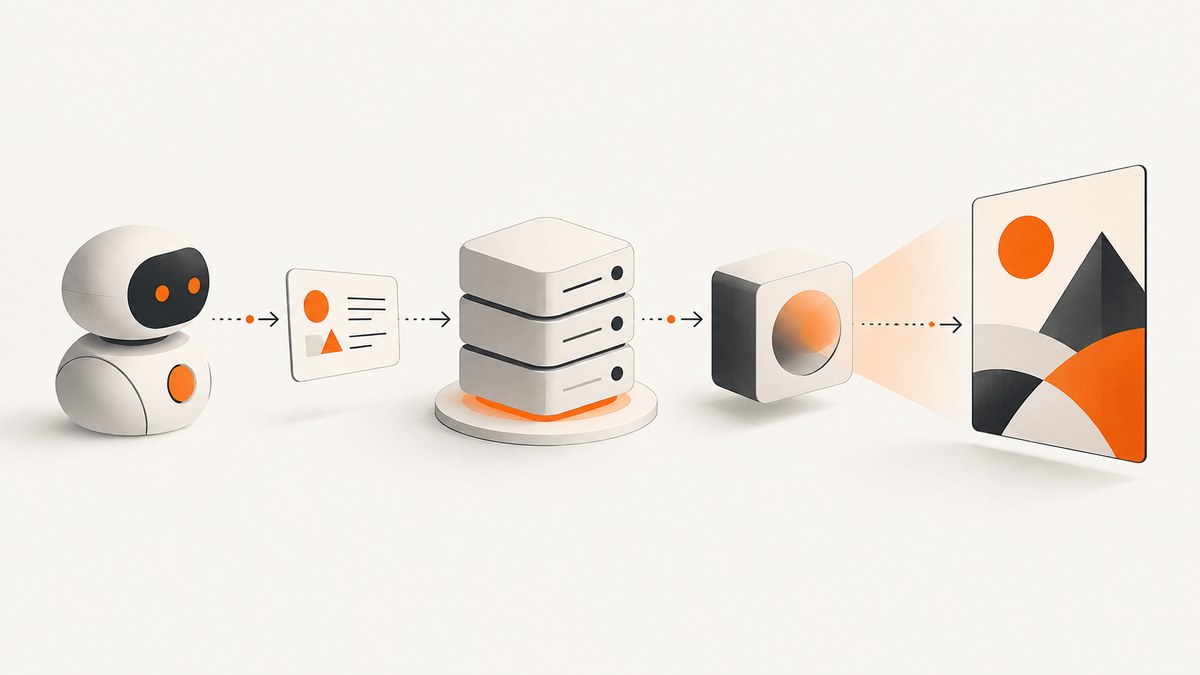
Short answer: an MCP server for image generation exposes a focused tool such as generate_image. An MCP-compatible client discovers that tool, validates its schema, and sends structured arguments. The tool handler validates the request, calls an image-generation API, and returns an image or a reference the client can use. MCP connects the client to the capability; it is not an image model and does not generate pixels by itself.
The smallest useful architecture is:
- An MCP client such as an agent, desktop assistant, or coding tool.
- An MCP server that publishes a named tool and input schema.
- A handler that checks the prompt and options.
- An image provider API called by the handler.
- A result containing image data, a URL, or structured metadata.
For local development, use stdio. Use HTTP when the server is already running. For a public deployment, use a stable HTTPS endpoint with Streamable HTTP and enforce authorization at the server.
1. Understand the MCP image-generation flow
The Model Context Protocol is an open specification for connecting AI clients to external tools and data. A client first initializes a connection, discovers available tools, and reads each tool’s description and schema. When the model decides that an image is needed, the client sends a structured tool call. Your server runs the handler and returns the result.
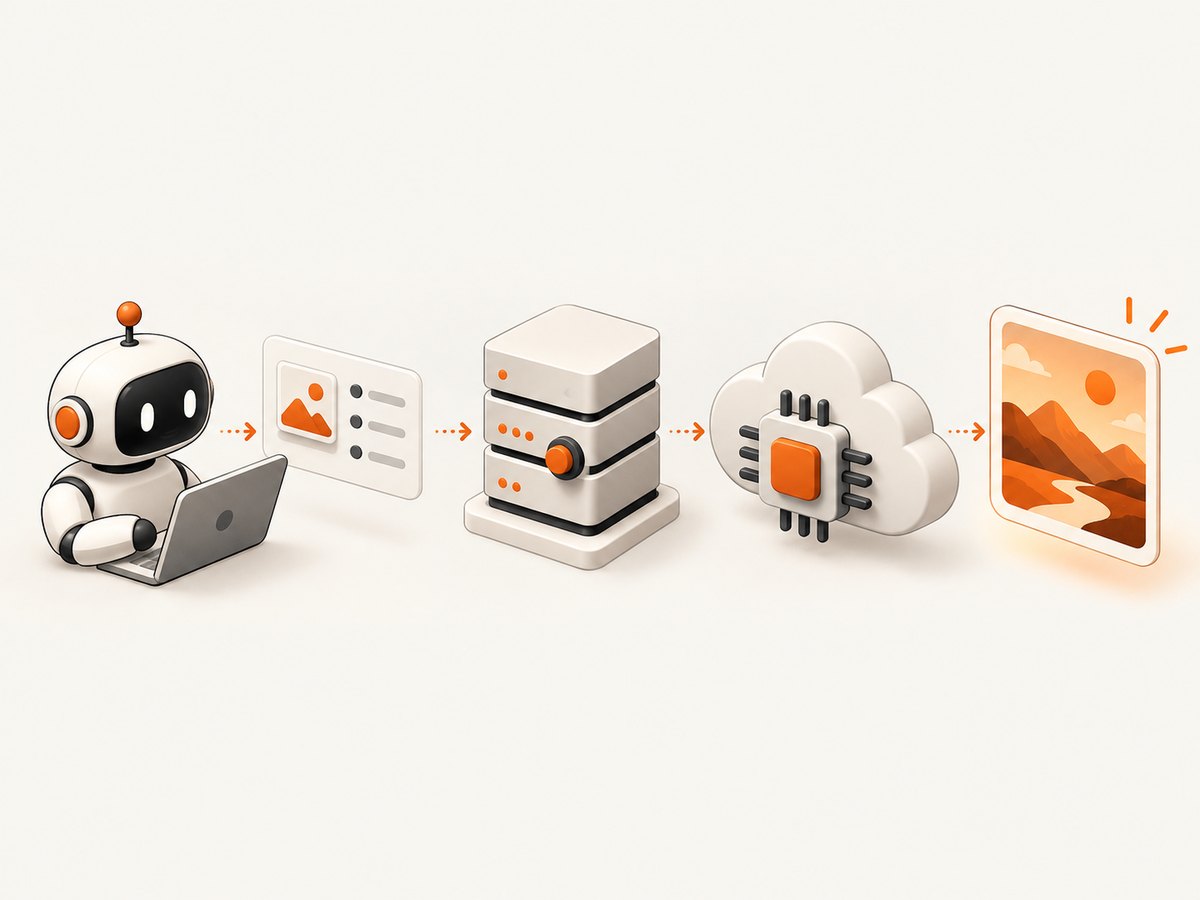
A good image tool has a narrow purpose and explicit inputs. For example, generate_image can accept a prompt, an optional size, an output format, and perhaps a quality setting supported by your chosen provider. Keep unrelated actions such as image editing, file management, or web searches in separate tools. Clear descriptions help the model select the tool correctly.
The handler is the boundary between MCP and the provider. It should:
- Reject empty, excessively long, or incorrectly typed prompts.
- Apply defaults and validate provider-supported values.
- Read the provider key from the server environment.
- Call the provider API.
- Convert the provider response into MCP content.
- Return useful errors without exposing secrets.
The client should never receive your provider API key. Do not put credentials in prompts, tool results, checked-in files, or logs.
2. Choose TypeScript or Python
The official OpenAI MCP guidance documents a TypeScript SDK package named @modelcontextprotocol/sdk and a Python package named mcp. Pick the language that matches your existing service and deployment conventions. The protocol behavior is the same; only the SDK and provider client differ.
| Choice | Good fit | Trade-off |
|---|---|---|
| TypeScript | Node services, web tooling, typed schemas | Requires a Node runtime and TypeScript build setup |
| Python | Data and AI projects, simple scripts | Dependency and environment management is your responsibility |
| stdio | A local client starts the server process | Not reachable by unrelated machines |
| HTTP | An already-running internal service | You must manage a listener and authentication |
| HTTPS Streamable HTTP | Stable public production endpoint | Requires deployment, TLS, monitoring, and access control |
3. Build a local TypeScript server
The following example shows the server shape. The provider call uses the OpenAI JavaScript client as an example; check the current image-generation documentation for supported models and parameters before deploying.
npm init -y
npm install @modelcontextprotocol/sdk openai zod
npm install -D typescript tsx @types/node
Create server.ts:
import OpenAI from "openai";
import { z } from "zod";
import { Server } from "@modelcontextprotocol/sdk/server/index.js";
import { StdioServerTransport } from "@modelcontextprotocol/sdk/server/stdio.js";
import {
  CallToolRequestSchema,
  ListToolsRequestSchema,
} from "@modelcontextprotocol/sdk/types.js";

const openai = new OpenAI({ apiKey: process.env.OPENAI_API_KEY });
const server = new Server(
  { name: "image-generation", version: "1.0.0" },
  { capabilities: { tools: {} } }
);

const input = z.object({
  prompt: z.string().trim().min(1).max(4000),
  size: z.enum(["1024x1024", "1536x1024", "1024x1536"]).default("1024x1024"),
});

server.setRequestHandler(ListToolsRequestSchema, async () => ({
  tools: [{
    name: "generate_image",
    description: "Generate one image from a detailed text prompt.",
    inputSchema: {
      type: "object",
      properties: {
        prompt: { type: "string", description: "The scene or image to create." },
        size: { type: "string", enum: ["1024x1024", "1536x1024", "1024x1536"] }
      },
      required: ["prompt"]
    }
  }]
}));

server.setRequestHandler(CallToolRequestSchema, async (request) => {
  if (request.params.name !== "generate_image") {
    throw new Error("Unknown tool");
  }
  const parsed = input.safeParse(request.params.arguments ?? {});
  if (!parsed.success) {
    return { isError: true, content: [{ type: "text", text: parsed.error.message }] };
  }

  try {
    const result = await openai.images.generate({
      model: "gpt-image-1",
      prompt: parsed.data.prompt,
      size: parsed.data.size,
    });
    const item = result.data?.[0];
    if (!item) throw new Error("The image provider returned no image");

    if (item.b64_json) {
      return { content: [{ type: "image", data: item.b64_json, mimeType: "image/png" }] };
    }
    if (item.url) {
      return { content: [{ type: "text", text: item.url }] };
    }
    throw new Error("The provider response had no usable image field");
  } catch (error) {
    const message = error instanceof Error ? error.message : "Image generation failed";
    return { isError: true, content: [{ type: "text", text: message }] };
  }
});

await server.connect(new StdioServerTransport());
Run it with OPENAI_API_KEY=your_key npx tsx server.ts. Keep the key in the process environment or a secret manager. The exact provider model, response fields, size values, and output retention behavior can change, so verify them against the provider’s current image API documentation.
4. Build the same tool in Python
Install the MCP and provider packages in an isolated environment:
python -m venv .venv
source .venv/bin/activate
pip install mcp openai
Create server.py:
import base64
import os
from mcp.server.fastmcp import FastMCP
from openai import OpenAI

mcp = FastMCP("image-generation")
client = OpenAI(api_key=os.environ["OPENAI_API_KEY"])

@mcp.tool()
def generate_image(prompt: str, size: str = "1024x1024") -> dict:
    """Generate one image from a text prompt."""
    prompt = prompt.strip()
    if not prompt:
        raise ValueError("prompt must not be empty")
    if len(prompt) > 4000:
        raise ValueError("prompt is too long")
    if size not in {"1024x1024", "1536x1024", "1024x1536"}:
        raise ValueError("unsupported size")

    result = client.images.generate(
        model="gpt-image-1",
        prompt=prompt,
        size=size,
    )
    item = result.data[0]
    if getattr(item, "b64_json", None):
        return {"mime_type": "image/png", "base64": item.b64_json}
    if getattr(item, "url", None):
        return {"url": item.url}
    raise RuntimeError("provider returned no image")

if __name__ == "__main__":
    mcp.run(transport="stdio")
Use OPENAI_API_KEY=your_key python server.py. The Python package and provider SDK are examples, not a guarantee that every version has identical imports or response objects. Pin and review versions for a production build.
5. Connect a client
A local client configuration normally specifies the command and arguments needed to start the process. The exact file format differs by client, so follow that client’s current MCP connection instructions. Conceptually, the configuration contains:
{
  "mcpServers": {
    "image-generation": {
      "command": "npx",
      "args": ["tsx", "/absolute/path/server.ts"],
      "env": { "OPENAI_API_KEY": "${OPENAI_API_KEY}" }
    }
  }
}
On connection, inspect the initialization response and the tool list. Confirm that the client sees the name, description, input schema, and required fields. Try a normal prompt, an empty prompt, an unsupported size, and a provider failure. A tool that works only for the happy path is not ready for general agent use.
6. Choose stdio, HTTP, or Streamable HTTP
stdio for local development
stdio is appropriate when the client launches your server as a child process. It keeps the server off the network and is convenient for a personal workflow. Write protocol messages to stdout only through the SDK. Send diagnostic logs to stderr so they do not corrupt the protocol stream.
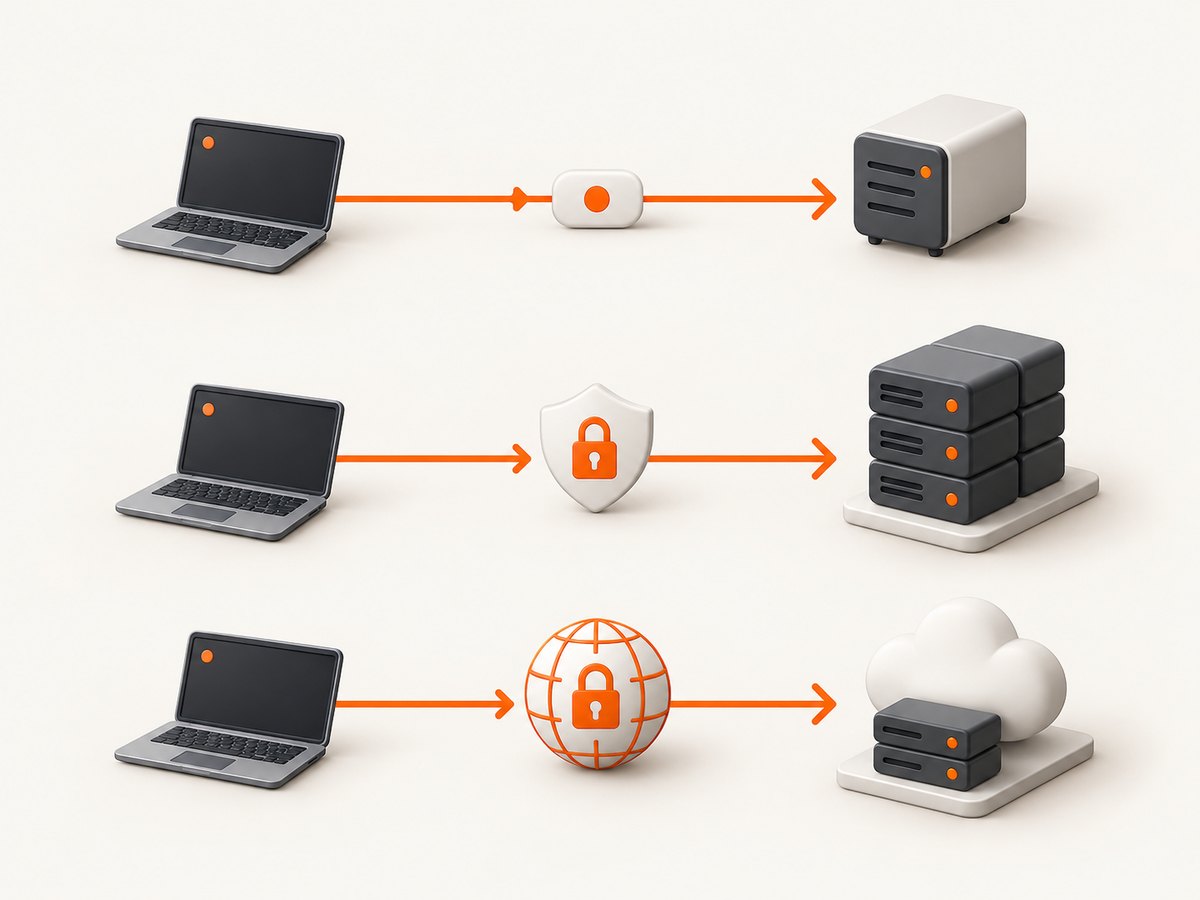
HTTP for an already-running service
HTTP fits a server managed by a process supervisor, container platform, or internal network. Add authentication, request limits, structured logs, graceful shutdown, and health checks. Treat every request as untrusted input even if the service is behind a private network.
Stable HTTPS with Streamable HTTP for public deployment
Public clients need a stable HTTPS endpoint and a transport supported by the target host. Preserve authorization boundaries at the MCP server. Do not assume that a client supports every transport or authentication mechanism; verify the target client’s current documentation before deployment.
If a supported OpenAI product needs to reach a private server, Secure MCP Tunnel can provide an outbound-only connection without exposing a public listener. That is a private connection method, not public plugin hosting. Public submission still requires a stable, reachable HTTPS MCP endpoint.
7. Validate security and output handling
- Store provider keys in environment variables or a secret manager.
- Never echo keys, authorization headers, or full upstream errors into tool results.
- Set prompt length, image size, timeout, and concurrency limits.
- Define which output form the client receives: inline base64, a temporary URL, or a stored object reference.
- Set retention and access rules for generated images.
- Apply provider safety controls and handle rejected prompts as normal tool errors.
- Use authorization for private data or actions; discovery alone is not access control.
Base64 results are convenient for small local responses but increase message size. URLs reduce MCP payload size but require an expiry policy and a client that can fetch them. A stored object reference works well for asynchronous jobs, provided the client can access it.
8. Inspect and test before deployment
Use MCP Inspector during local development, including for a local Streamable HTTP server. Work through this checklist:
- Initialization succeeds with the expected protocol capabilities.
- The tool list contains only intended tools.
- Descriptions explain when the model should call the tool.
- The schema rejects missing, empty, oversized, and unknown values as designed.
- A valid call returns the documented image representation.
- Provider timeouts and rate limits become understandable errors.
- Annotations and authorization behavior match the sensitivity of the action.
- Logs contain request IDs and timings but no secrets or prompt data you do not need.
Test direct requests such as “create a square illustration,” indirect requests where the model must decide whether an image is needed, edge cases such as an empty prompt, and out-of-scope requests such as file deletion. Confirm that the server refuses actions outside its declared purpose.
9. Reliability, performance, and cost
Image generation is usually slower and more expensive than a metadata tool. Set an end-to-end timeout that covers both MCP and the provider call. Avoid automatic retries for non-idempotent requests unless you understand whether a retry can create another billable image. If you retry transient failures, use a bounded exponential backoff and a request identifier.
Limit concurrency to protect provider quotas and your server’s memory. Queue long jobs when the client supports asynchronous workflows. Cache only when identical prompts, options, and policy context are safe to reuse. Include provider latency, MCP latency, error counts, response sizes, and rate-limit events in metrics.
Cost comes from the image provider and from your hosting or storage, not from MCP itself. Record the selected model, dimensions, quality, and whether a retry occurred. Keep a per-tool budget or quota for shared deployments.
10. Troubleshooting
| Symptom | Likely cause | Fix |
|---|---|---|
| Client cannot start the server | Wrong command, path, runtime, or environment | Use an absolute path, run the command manually, and check stderr. |
| Tool list is empty | Missing tool capability or handler registration | Inspect initialization and the list-tools response. |
| Protocol parse errors | Logs written to stdout in a stdio server | Write diagnostics to stderr and let the SDK own stdout. |
| Invalid arguments | Schema and handler accept different values | Use one source of truth and return field-level validation errors. |
| 401 or 403 from provider | Missing, expired, or incorrectly scoped key | Check the server environment and provider account permissions; never put the key in the prompt. |
| No image in a successful response | Provider returned an unexpected output form | Handle the documented URL and base64 fields and fail clearly otherwise. |
| Requests hang | No timeout or provider queue delay | Set provider and server timeouts, then return a bounded error. |
| Large responses break the client | Inline base64 exceeds message limits | Return a short-lived URL or object reference. |
| Public client cannot connect | Unstable URL, unsupported transport, TLS, or auth mismatch | Use stable HTTPS Streamable HTTP and verify the client’s supported connection method. |
11. Or skip the browser setup
If your agent workflow needs screenshots rather than generated artwork, ScreenshotNeo exposes a focused screenshot tool and MCP server. Its MCP tools include take_screenshot, get_page_info, and capture_pdf, so Claude, Cursor, and other MCP clients can capture pages without you maintaining a browser process.
One GET request returns PNG, JPEG, WebP, or PDF. The same request works from cURL, Python, or Node.js:
curl -G "https://api.screenshotneo.com/v1/shot" -d access_key=YOUR_API_KEY --data-urlencode url=https://stripe.com -o shot.webpimport requests
r = requests.get("https://api.screenshotneo.com/v1/shot", params={"access_key": "YOUR_API_KEY", "url": "https://stripe.com"}, timeout=90)
open("shot.webp", "wb").write(r.content)const q = new URLSearchParams({ access_key: 'YOUR_API_KEY', url: 'https://stripe.com' });
const res = await fetch(`https://api.screenshotneo.com/v1/shot?${q}`);See the ScreenshotNeo API documentation for the full option set. It can load lazy images for full-page captures, capture one CSS-selected element, emulate dark mode and device presets, set any viewport and retina scale, run custom CSS or JavaScript, click before capture, wait for a selector, delay, or network idle, block ads, trackers, requests, or resource types, set headers, cookies, user agents, authorization, timezone, and geolocation, resize images, choose a cache TTL, create signed image links, run asynchronous jobs with signed webhooks, capture up to 100 URLs per call, and expose usage data.
Cookie and consent banners, newsletter popups, and chat widgets are removed before the shot. Bot checks, blank pages, failed loads, timeouts, and cache hits are not billed, and response headers identify the page verdict and billing result. The free plan includes 1,000 screenshots each month with no card; paid plans start at $5 for 3,000. Create a free ScreenshotNeo account.
12. FAQ
Does MCP generate images?
No. MCP defines how a client discovers and calls your tool. The handler must call an image-generation provider.
Should I expose one tool or many?
Start with one focused generation tool. Add editing or batch tools only when they have distinct inputs, permissions, and error behavior.
Can a private server be used without opening a port?
For supported OpenAI connections, Secure MCP Tunnel can provide an outbound-only route. Confirm support in the target product.
Is a cloud host required?
No. stdio is enough for a local workflow. Hosting becomes necessary when another machine or a public client must reach the server.
How should generated images be returned?
Use inline image content for small local responses, a short-lived URL for larger responses, or a protected object reference for asynchronous workflows.