How to Use Microsoft’s Browser MCP Server for Web Automation
Set up Microsoft Playwright MCP, connect it to an MCP client, and automate browser tasks with accessibility snapshots. Includes profiles, security, and Azure’s remote option.
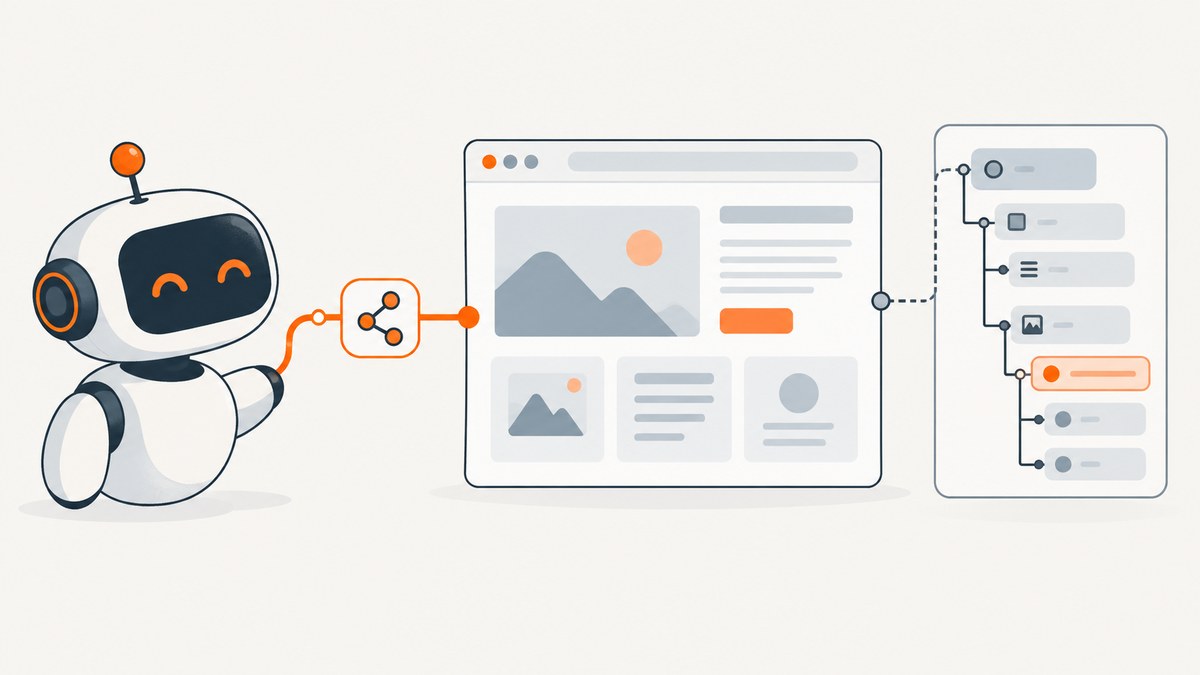
Microsoft’s “Browser MCP Server” is Playwright MCP, an open-source server that lets an MCP-enabled assistant control a browser through Playwright. For the local setup, install it through your MCP client’s configuration with npx @playwright/mcp@latest. The current Playwright getting-started guide requires Node.js 20 or newer. Once connected, ask the assistant to open a page, inspect its accessibility snapshot, and interact with a referenced control.
This guide walks through installation, a first task, interaction patterns, profiles, configuration choices, security, troubleshooting, and Microsoft’s separate managed Azure option. For ordinary browser automation, start with the local server. Consider the remote option when you specifically need a managed browser and can accept its preview status.
1. What Playwright MCP does
Playwright MCP gives an MCP client a set of browser automation tools. The assistant can navigate pages, inspect them, click controls, enter text, manage tabs and dialogs, and capture screenshots. Microsoft describes its interaction model as using structured accessibility snapshots: the server exposes information such as roles, labels, text, and element references so the assistant can act on page controls without relying only on visual interpretation.
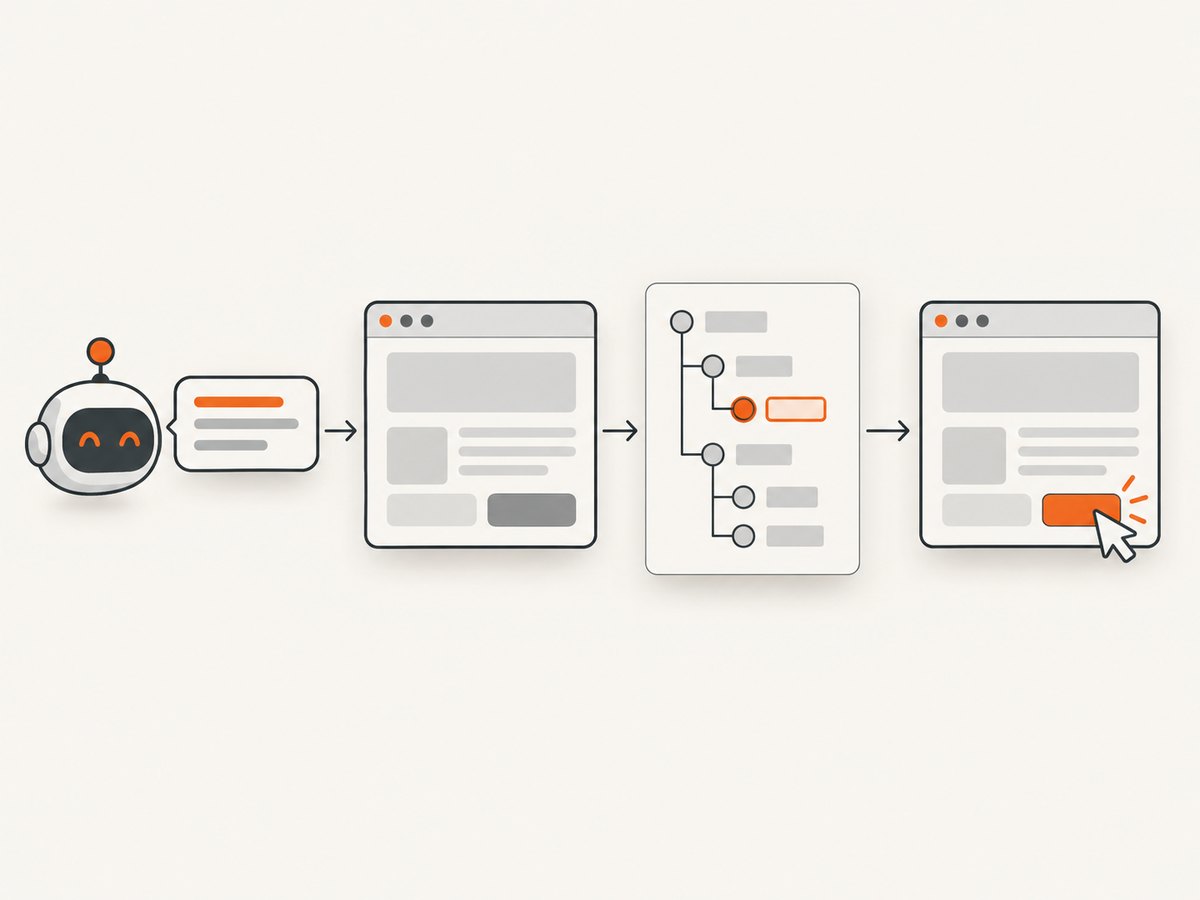
A typical interaction looks like this:
- The assistant asks the MCP server to navigate to a URL.
- The server returns a structured snapshot of the page, including references to accessible elements.
- The assistant selects a reference, such as a textbox or button, and invokes the relevant tool.
- The server performs the action and returns an updated page state. The assistant can inspect another snapshot or take a screenshot to verify the result.
This model is useful for forms, navigation, and repeatable web tasks. It still depends on the target site behaving as expected: authentication, bot defenses, dynamic content, and inaccessible controls can all affect an automation.
2. Requirements and local installation
You need Node.js and an MCP client that can launch a local server using a command and arguments. The current general Playwright getting-started guide says Node.js 20 or newer. Some other official Microsoft material, including a Power Platform sample and repository overview, says Node.js 18 or later. For a new setup, follow the current guide and use Node.js 20 or newer.
In your MCP client’s server configuration, add:
{
  "mcpServers": {
    "playwright": {
      "command": "npx",
      "args": ["@playwright/mcp@latest"]
    }
  }
}
Save the configuration and restart or refresh the client as its instructions require. Client configuration locations differ. Microsoft’s setup material includes examples for VS Code, Cursor, Claude Code, Claude Desktop, and other clients; consult your client’s current MCP setup instructions and Microsoft’s Playwright MCP documentation for the matching configuration format.
First task: inspect, then interact
- Start or reconnect the MCP client after saving the configuration.
- Ask it to navigate to a simple page you are allowed to access.
- Ask it to inspect the page and report the headings and available controls from the accessibility snapshot.
- Choose one low-impact interaction, such as filling a search field or clicking a clearly named link.
- Ask it to inspect the page again and confirm the resulting state. If the visual result matters, request a screenshot as a second check.
This small sequence makes the tool flow visible: navigation, snapshot, action, and verification. Once it works, add a real task one interaction at a time. Avoid beginning with a multi-step workflow that changes account data or submits forms.
3. How to write reliable browser tasks
Give the assistant a goal and clear boundaries. For example: “Open the documentation page, find the section titled Installation, and report the command shown there. Do not submit forms or change settings.” For a task that needs interaction, identify the intended outcome and any irreversible actions that must be avoided.
Use the page snapshot as the source for control selection. Ask the assistant to identify the relevant button or field by its accessible name and role, then use the reference provided by the server. After an action, inspect the updated page rather than assuming it succeeded. Labels and page structure can change between visits, so references from an earlier snapshot should not be treated as permanent identifiers.
- Prefer named controls: “the Search textbox” is more robust than “the third input.”
- Break up long workflows: inspect after navigation, form entry, and submission.
- Set completion criteria: state what evidence should appear after the action.
- Keep actions scoped: tell the assistant which site and task are in bounds.
- Use screenshots for visual checks: snapshots describe accessible structure, while screenshots help verify layout or visual state.
4. Interaction and configuration choices
The server supports browser actions beyond clicking and typing. Depending on the client tools and server configuration, an assistant can fill forms, select options, use keyboard or mouse input, manage tabs and dialogs, take screenshots, inspect network requests, and mock routes for debugging. For exact available arguments and current options, use the Playwright MCP documentation and repository rather than relying on a copied configuration from another client.
| Choice | Use it when | Trade-off |
|---|---|---|
| Browser selection | Your workflow depends on a particular browser or compatibility behavior. | Confirm the browser is installed or available in the environment and supported by the chosen connection mode. |
| Headed or headless | Use headed mode to observe or debug a local run; headless mode can suit unattended tasks. | Visibility and environment requirements differ. A headless run is harder to inspect interactively. |
| Persistent profile | You want browser state, such as a session, to persist across runs. | Stored browser state can carry sensitive login data and can make runs depend on prior activity. |
| Isolated profile | You need a fresh context for repeatable or separated tasks. | In-memory storage is lost when the browser closes, so a task may need to authenticate again. |
| Extension connection | You want to attach to existing browser tabs and reuse their session state. | The existing browser session is part of the task context; take care with which tabs and account are exposed. |
| CDP or Playwright endpoint | You already have a browser process or remote browser endpoint to connect to. | Connection availability and authentication are environment-specific. |
| Standalone HTTP server | Your MCP client or deployment needs to connect over HTTP instead of launching a local stdio process. | Configure the client and server transport consistently and protect access to the endpoint. |
Profiles matter most for logged-in tasks. An extension can reuse tabs and sessions from an existing browser. Persistent profiles retain state for later use, while isolated contexts start clean and lose in-memory storage when the browser closes. Neither mode guarantees that a site will accept the session or that every authentication flow will work.
Arbitrary code is a special case
Microsoft documents browser_run_code_unsafe for running arbitrary JavaScript in the server process and describes it as equivalent to remote code execution (RCE). Do not enable it as a routine convenience. Enable it only when the MCP client is trusted and the code source and execution context are understood. Prefer the server’s structured browser tools for ordinary navigation and interaction.
5. Remote managed option: Playwright Workspaces
Microsoft also documents a separate Azure service, Playwright Workspaces remote MCP. It provides a managed browser over Streamable HTTP, so the agent environment does not need a local browser installation. This is distinct from the local open-source @playwright/mcp package.
The remote path requires an Azure account and subscription, a configured Playwright Workspace, and a client that supports the documented connection method. The quickstart constructs an endpoint using the workspace region and ID. Microsoft labels the remote MCP capability as preview, says preview features have no service-level agreement, and says it is not recommended for production workloads. Check the current Microsoft Learn documentation for availability and setup changes before using it.
Microsoft recommends Microsoft Entra ID for authentication. The quickstart also demonstrates an access-token route using an x-api-key header, but Microsoft says access tokens are less secure and disabled by default. Treat any token as a password: keep it out of source control, prompts, and logs. In Foundry, a connection may be shared with project members, so follow Microsoft guidance on least privilege and restricting project access.
| Local Playwright MCP | Playwright Workspaces remote MCP | |
|---|---|---|
| Browser location | Your local or configured browser environment | Managed Azure workspace |
| Prerequisites | Node.js, MCP client, and browser setup as needed | Azure account/subscription, workspace, and remote-capable client |
| Session control | Local profiles, extension, or configured browser connection | Workspace-managed browser session |
| Status | Open-source npm package | Preview; no SLA; not recommended for production workloads |
6. Troubleshooting
| Symptom | Likely cause | Fix |
|---|---|---|
| The MCP client does not show Playwright tools. | Invalid config, client has not reloaded, or the process failed to launch. | Check the JSON syntax, command and argument names; restart or refresh the client; inspect its MCP server logs. |
npx fails or reports an incompatible runtime. |
Node.js is missing or older than the current guide’s requirement. | Install or select Node.js 20 or newer, then reconnect the MCP server. |
| The browser does not launch. | The selected browser is unavailable, the environment lacks required browser dependencies, or launch options do not match the environment. | Review the server output and current installation instructions; use a supported browser setup or an existing browser connection. |
| A click or fill action targets the wrong element or fails. | The page changed, the snapshot is stale, or the control has no usable accessible name. | Take a fresh snapshot, identify the control again by role and name, and act using its current reference. |
| The task cannot see a logged-in session. | An isolated context started without the prior browser state. | Use the intended persistent profile or extension connection, and verify the correct account is open. Do not assume credentials transfer automatically. |
| The site blocks automation or shows a challenge. | The site’s access controls or bot defenses rejected the browser session. | Stop and use an authorized access method; do not attempt to bypass a challenge. Check the site’s terms and approved API options. |
| The remote service rejects a request. | Workspace, endpoint, client transport, or identity/token setup is incomplete. | Recheck the workspace region and ID, endpoint, supported client method, and Entra ID configuration against the current quickstart. Never paste a token into chat or logs. |
7. Performance, reliability, and cost
The local server adds a browser process and page loading to each task. Actual duration depends on the target page, network, browser state, and number of interactions; the cited setup material provides no general performance benchmark. Keep workflows narrow, avoid repeated full-page inspection when a targeted snapshot is enough, and wait for evidence that the page reached the needed state before continuing.
For reliability, use a known profile policy, refresh snapshots after navigation or major page changes, and define what success looks like. A persistent session can save repeated login steps but introduces state that may become stale. An isolated session improves separation but requires setup such as login each time. Network inspection and route mocking can help debug requests, but they do not establish that a remote site will behave identically in another environment.
The local package is installed through npm/npx; the research sources do not establish a separate per-capture price for it. The managed Azure option requires an Azure workspace and subscription, so review current Azure pricing and service terms for your region and usage before adopting it. The remote MCP preview’s lack of an SLA is a material reliability constraint for production planning.
8. Screenshot API alternative for capture-only tasks
If the task is simply to capture a page as an image or PDF, browser automation may be more setup than you need. ScreenshotNeo is a website screenshot API and MCP server from Yorker Media. It returns PNG, JPEG, WebP, or PDF from one request, and its MCP tools include take_screenshot, get_page_info, and capture_pdf. It does not replace Playwright MCP for arbitrary browser workflows such as navigating a logged-in application and manipulating its controls.
Or skip the browser setup
Use this one-call request to capture a URL. See the ScreenshotNeo API documentation for the full parameter reference.
curl -G "https://api.screenshotneo.com/v1/shot" -d access_key=YOUR_API_KEY --data-urlencode url=https://stripe.com -o shot.webpimport requests
r = requests.get(
"https://api.screenshotneo.com/v1/shot",
params={"access_key": "YOUR_API_KEY", "url": "https://stripe.com"},
timeout=90,
)
open("shot.webp", "wb").write(r.content)const q = new URLSearchParams({ access_key: 'YOUR_API_KEY', url: 'https://stripe.com' });
const res = await fetch(`https://api.screenshotneo.com/v1/shot?${q}`);
if (!res.ok) throw new Error(`Screenshot request failed: ${res.status}`);
await Bun.write('shot.webp', res);ScreenshotNeo removes cookie banners, newsletter popups, and chat widgets before capture. Bot checks, blank pages, and failed loads are never billed, and response headers report the page verdict and billing status. Its MCP server lets AI agents take screenshots. The free plan includes 1,000 screenshots a month with no card; paid plans start at $5 for 3,000. Sign up free and get 1,000 screenshots a month with no card.
9. FAQ
Is Microsoft’s Browser MCP Server the same as Playwright MCP?
For this setup, yes: the title’s “Browser MCP Server” refers to Microsoft Playwright MCP, the local open-source server distributed as @playwright/mcp.
Does it interact with pages using screenshots alone?
No. Its default interaction model uses structured accessibility snapshots and element references. Screenshots are also available for visual inspection.
Can I reuse my regular browser login?
An extension connection can attach to existing tabs and reuse their session state. The right profile and account still need to be selected, and site authentication behavior can vary.
Should I use the Azure remote server for production?
Microsoft marks the remote MCP capability as preview, with no SLA, and does not recommend it for production workloads. Review current service status before choosing it.
What is the safest way to start?
Use the local setup, a simple page, a fresh snapshot before each action, and a narrowly scoped task. Keep arbitrary-code execution disabled unless the client and code are trusted.


