BlogScreenshots on your device
How to Take Screenshots of Netflix on a PC Without a Black Screen in 2026
Learn why Netflix screenshots turn black, how to separate playback faults from capture limits, and what you can safely document on a Windows PC.
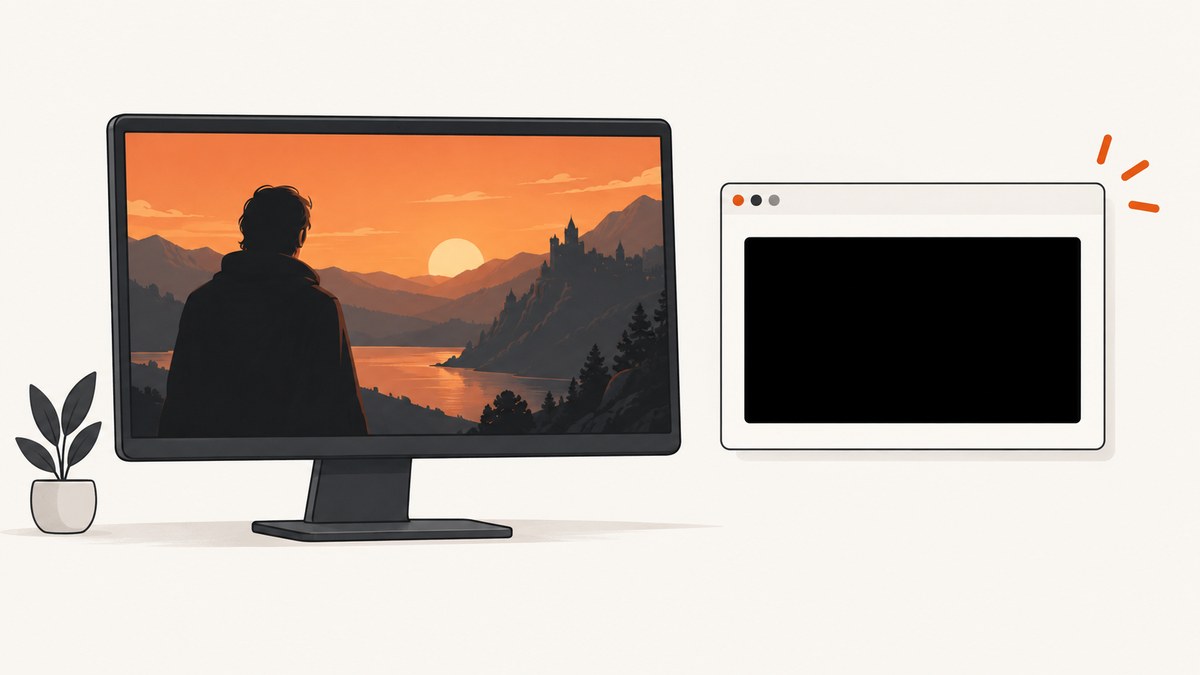
Short answer: first determine which black screen you have. If Netflix itself is black while audio plays, treat it as a playback or display problem and follow Netflix’s device, cable and driver guidance. If the film plays normally but your saved screenshot contains a black rectangle, the capture path may be denied access to the protected video surface. Netflix does not publish a supported setting that guarantees a screenshot of protected video will work, and no browser switch, hardware purchase or recorder can be promised as a universal fix.
This distinction matters because the fixes are different. Playback troubleshooting can restore a visible picture; it does not establish that a screenshot of a protected frame will be capturable. For documenting a title, use Netflix’s official title page, trailer or press material when available and appropriate.
1. Identify the failure before changing settings
- Play the title for a few seconds with the browser or Netflix Windows app in its normal window.
- Look at the video before opening a capture tool. Is the picture already black, or does it look normal?
- Take one screenshot of a non-video area, such as the Netflix controls or another tab. If that area appears while only the movie rectangle is black, the capture path is selective.
- Repeat once in the other supported route (browser versus Windows app) only to classify the problem. A different result does not prove that either route is a supported workaround.
| What you see | Most useful interpretation | Next step |
|---|---|---|
| Black in the player before capture, often with sound | Playback, device, driver or video-connection issue | Use Netflix playback troubleshooting |
| Normal playback, black rectangle only in saved image | Capture may be blocked from a protected surface | Do not assume a setting will bypass it; document the limitation |
| Entire desktop or browser is black | Capture permission, GPU or recorder problem | Check the capture app and Windows display permissions |
2. When Netflix playback itself is black
Netflix describes a black screen with sound as a device or video-connection problem. Its computer guidance recommends checking the display connection and updating video drivers; its Windows-app instructions also include resetting the app. Follow the current procedures in How to use Netflix on your Windows computer or tablet, Black screen with sound and Video issues with Netflix.
Practical Windows checklist
- Confirm the monitor input and reseat an external display cable.
- Install the current graphics driver from your PC or GPU vendor, then restart Windows.
- If you use the Netflix app, open Windows Settings, find the app’s advanced options and use Reset as Netflix describes. Sign in again afterward.
- Try the same title on the built-in display with other monitors or docks disconnected. This isolates a connection issue; it does not test screenshot permission.
- Verify that another title and a trailer play. A single title failure can be a temporary service or title issue.
Netflix lists technical requirements for supported playback routes and higher quality. For example, some Windows 11 Ultra HD configurations need an HEVC extension. Those requirements describe playback quality, not the ability to save a protected frame.
3. When playback is normal but the screenshot is black
A capture program can receive the browser window while being denied the protected video surface. ScreenPal documents DRM restrictions as one possible reason streaming captures are black on Windows. That is a general capture explanation, not a Netflix diagnosis for every computer.
There is no evidence in the reviewed Netflix documentation of an official screenshot mode, browser flag or recorder setting that defeats this restriction. Turning off hardware acceleration, changing browsers, buying an HDMI adapter or installing a third-party recorder may change symptoms, but none is an established fix. Avoid guides that promise guaranteed results from those steps.
Safe ways to record context
- Capture the title page, episode list, ratings or your own notes instead of the protected moving image.
- Use an official trailer, press image or other promotional asset when you need a shareable scene.
- For a bug report, capture the black result plus the browser/app name, Windows version, display setup and timestamp. Do not distribute extracted copyrighted frames.
4. A repeatable diagnostic workflow
- Record playback state. Note whether audio and subtitles work and whether the image is black before capture.
- Test a safe region. Capture the browser chrome or a non-video page. A successful safe-region capture shows that the tool itself can write files.
- Compare routes. Try the browser and Netflix app only as a comparison. Treat a black movie rectangle in both as consistent with protected-surface access limits.
- Remove variables. Disconnect a dock or second monitor, close overlays and restart the capture app. These steps can fix ordinary desktop capture faults.
- Preserve evidence. Save the test images and exact error text. This prevents repeatedly changing settings without knowing which condition changed.
5. Capture tools and what their result means
| Tool or route | Good use | What a black video area means |
|---|---|---|
| Windows Snipping Tool | Menus, title pages and ordinary desktop content | Protected video may remain black; this is not proof the tool is broken |
| Browser screenshot extension | Web content the extension can read | The extension may omit or black out a protected surface |
| Screen recorder | Presentations and unprotected applications | DRM or protected-surface policy can produce black frames |
| Netflix Windows app | Supported playback | Playback support does not promise capture support |
Use the least invasive test that answers your question. Repeatedly installing recorders will not create a supported capture path where the protected surface is intentionally inaccessible.
6. “Fixes” that are often claimed, and how to evaluate them
Disable hardware acceleration
This can affect ordinary browser rendering and GPU bugs. The available sources do not establish it as a Netflix screenshot fix. If you try it for a general playback fault, record the before and after state and restore the original setting if nothing changes.
Switch browsers
Different browsers use different media pipelines, so behavior can differ. A difference is an observation, not a guarantee that the other browser is permitted to capture protected frames.
Use a capture card or HDMI adapter
An adapter may help a separate monitor-connection problem. The research does not show that it enables screenshots of protected Netflix video, so it is not a recommendation for this purpose.
Use a third-party recorder
Recorder vendors describe DRM as a possible cause of black output. Choose a recorder for legitimate, unprotected work; do not rely on it as a promised bypass.
7. Troubleshooting table
| Symptom | Likely cause | Action |
|---|---|---|
| Black player, sound continues | Device, driver or connection issue | Follow Netflix’s black-screen steps; update drivers and check cables |
| Player normal, saved frame black only over video | Protected surface inaccessible to capture | Use official promotional material or document the limitation |
| Entire screenshot is black | Capture permission, overlay or GPU issue | Check Windows capture permissions, close overlays, test another app |
| App will not start after reset | Reset cleared local app state | Sign in again and reinstall only if Netflix’s current guidance calls for it |
| External monitor is black in playback | Connection, input or display-chain fault | Reseat cable, select the correct input and test the built-in display |
8. Reliability, performance and cost considerations
Playback diagnosis is fastest when you change one variable at a time and keep a short log. Disconnecting a dock or updating a driver can take minutes; buying equipment without evidence can cost more and still leave protected video uncapturable. A screenshot utility also cannot improve Netflix stream quality or remove a content-protection policy.
For documentation pipelines that target ordinary web pages, an API can be more repeatable than maintaining browser automation. ScreenshotNeo returns PNG, JPEG, WebP or PDF from one request, and its response identifies page verdict and billing with X-Page-Verdict and X-Billed headers. Those features apply to pages you are authorized to capture; they do not promise access to protected Netflix video.
9. Or skip the browser setup
For an allowed web page such as a title page, support article or your own site, ScreenshotNeo can capture without local browser automation. See the ScreenshotNeo API documentation for all options.
cURL
curl -G 'https://api.screenshotneo.com/v1/shot' -d access_key=YOUR_API_KEY --data-urlencode url=https://stripe.com -o shot.webpPython
import requests
r = requests.get('https://api.screenshotneo.com/v1/shot', params={'access_key': 'YOUR_API_KEY', 'url': 'https://stripe.com'}, timeout=90)
r.raise_for_status()
open('shot.webp', 'wb').write(r.content)
Node.js
const q = new URLSearchParams({ access_key: 'YOUR_API_KEY', url: 'https://stripe.com' });
const res = await fetch(`https://api.screenshotneo.com/v1/shot?${q}`);
if (!res.ok) throw new Error(`HTTP ${res.status}`);
const fs = await import('node:fs/promises');
await fs.writeFile('shot.webp', Buffer.from(await res.arrayBuffer()));
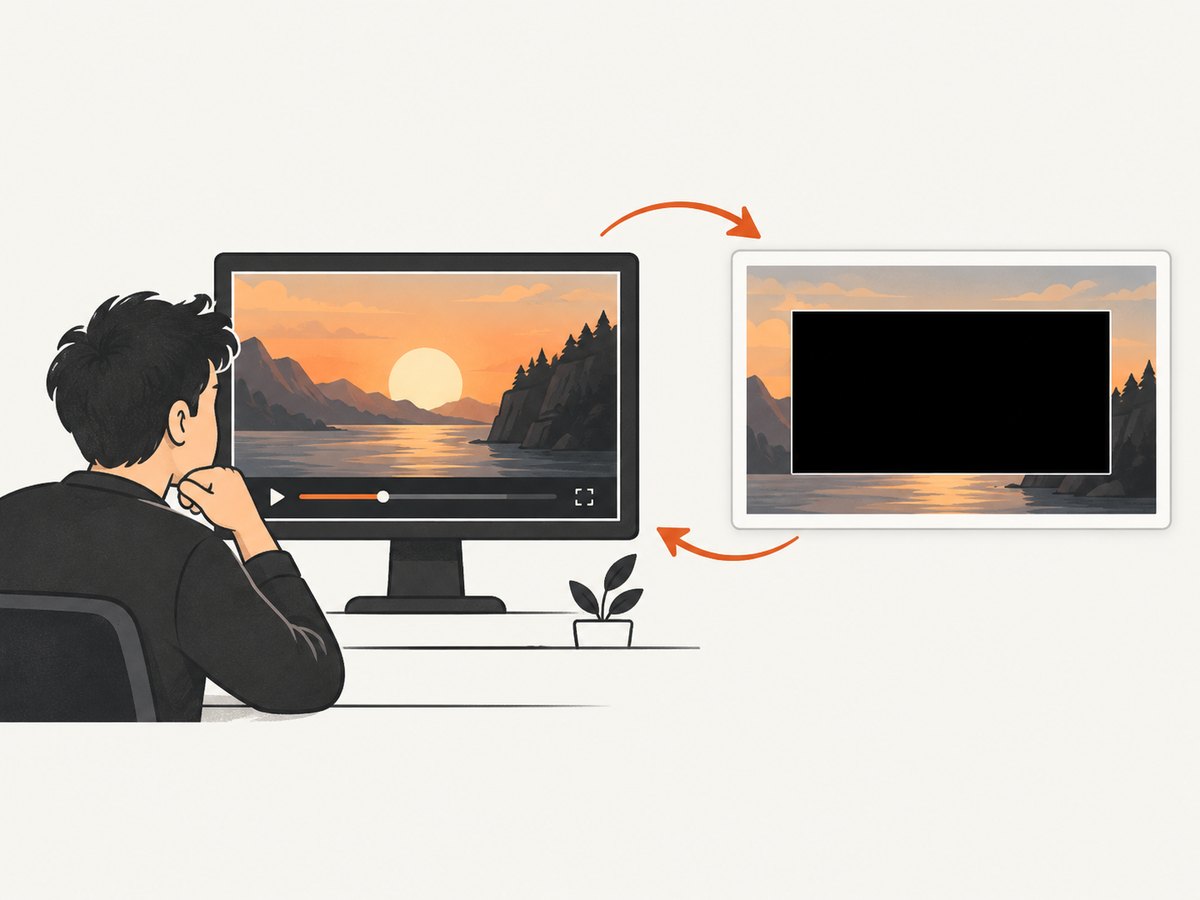
ScreenshotNeo removes cookie-consent banners, newsletter popups and chat widgets before capture; each cleanup step can be disabled. It bills only clean shots: bot checks or CAPTCHAs, blank pages, timeouts, failed loads and cache hits cost nothing, and the response states the verdict. An MCP server provides take_screenshot, get_page_info and capture_pdf for Claude, Cursor and other MCP clients. Options include full-page lazy-image loading, CSS-element capture, dark mode, device presets, retina scale, PDF paper and page ranges, custom CSS/JavaScript, clicks, waits, request blocking, headers, cookies, user agent, authorization, timezone, geolocation, transparent backgrounds, resizing, TTL caching, signed links, async webhooks, bulk capture and a usage API.
The Free plan includes 1,000 shots each month with no card. Paid plans start at $5 for 3,000 shots; every feature is on every plan. Use it for pages you have permission to capture, then sign up free.
10. FAQ
Does a black screenshot prove Netflix blocked me?
No. It proves only that the saved image lacks the video pixels. Check whether playback itself was black first; a playback fault and a capture restriction can look similar in a file.
Will updating my GPU driver make Netflix frames capturable?
It can address playback problems Netflix associates with drivers. The reviewed guidance does not say it defeats screenshot protection.
Can I use an external monitor?
It is a valid diagnostic for a playback or cable problem. It is not established as a way to capture protected video.
What should I send Netflix support?
Describe playback state, browser or app, Windows version, display connections and whether ordinary pages capture correctly. Include timestamps and error text, not extracted copyrighted frames.
Can ScreenshotNeo capture Netflix video?
ScreenshotNeo is designed for authorized web-page screenshots and reports when a page fails or is a bot check. It does not promise to bypass DRM or capture protected Netflix frames.


