BlogScreenshots on your device
Why OBS Game Capture Full-Screen Recording Fails and How to Fix It
A practical diagnostic guide for OBS fullscreen game capture: preview blanks, hook conflicts, GPU settings, game-specific limits, and reliable fixes.
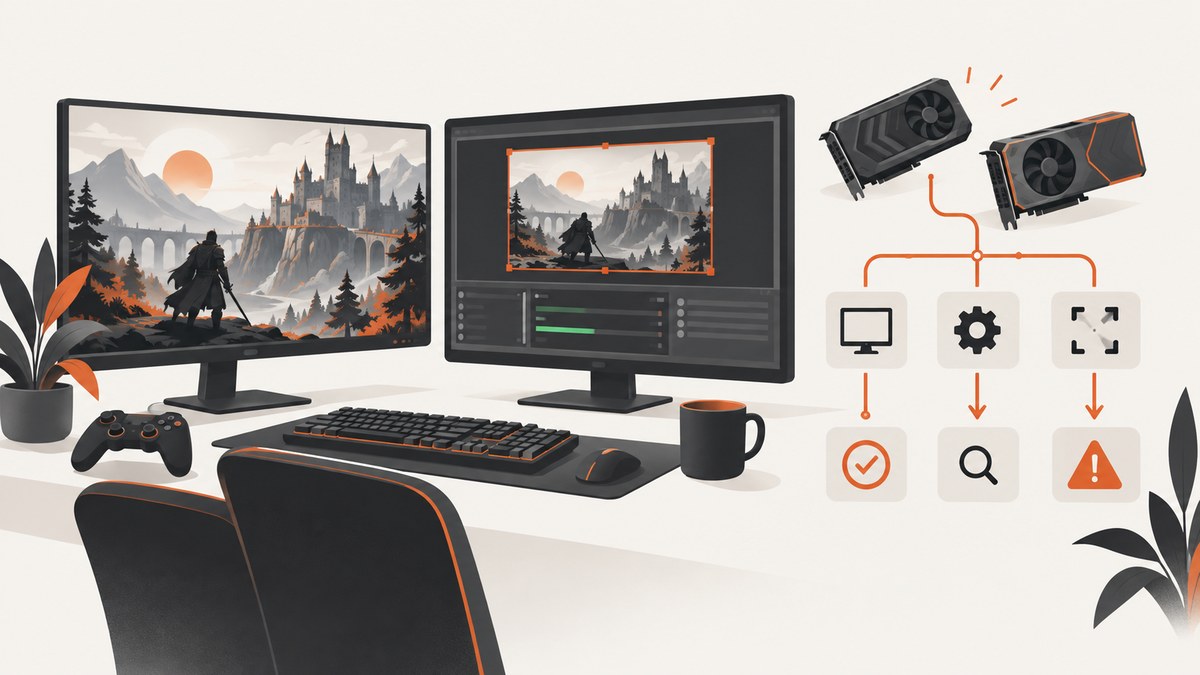
Short answer: A blank OBS preview does not necessarily mean the recording is empty. Exclusive-fullscreen games can stop rendering when you Alt-Tab to OBS, so first make a short test recording or view OBS on a second monitor. If the saved file is blank, verify the Game Capture mode and target, then work through game-specific restrictions, administrator permissions, overlay and hook conflicts, GPU assignment, graphics API settings, and Windows background-recording features.
OBS Game Capture is a Windows source for DirectX and OpenGL games and is generally the first source to try for supported titles. OBS describes it as directly capturing the game, while its setup guide distinguishes automatic fullscreen capture from selecting one running window. OBS Game Capture Source · Game Capture Setup Guide
1. Determine whether only the preview is blank
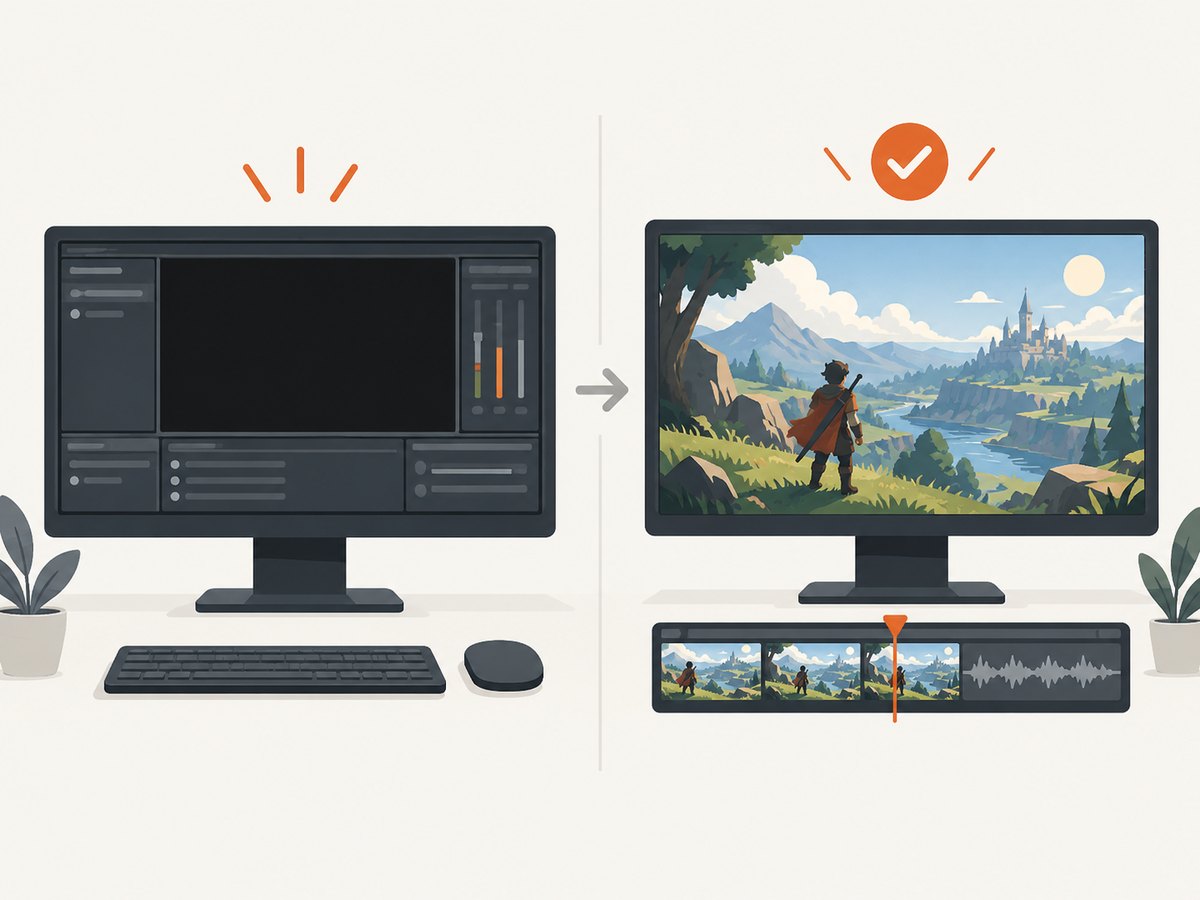
With exclusive fullscreen, the game may stop drawing as soon as another application becomes foreground. When OBS is in front, its preview can therefore be black even though the game will be recorded once it has focus again. OBS documents this behavior explicitly. OBS Game Capture Troubleshooting
- Start the game and leave it in the fullscreen mode you normally use.
- In OBS, start a short recording (10–20 seconds).
- Return to the game, perform an obvious action, stop the recording with a hotkey or by returning to OBS, and open the saved file.
- If possible, put OBS on a second monitor so you can observe the preview without minimizing the game.
If the saved file contains the game, the capture is working; the preview was only hidden by fullscreen focus behavior. If the file is black or has no game frames, continue with the checks below.
2. Configure the Game Capture source correctly
Capture any fullscreen application
Use this mode when the game runs in exclusive fullscreen and you do not need to bind the scene to one executable.
- In the target scene, click Sources → + → Game Capture.
- Choose Capture any fullscreen application.
- Leave the source visible and place it above background sources.
- Start the game, then make a test recording.
OBS explains that fullscreen mode captures whichever fullscreen game is active after the application is turned on. Setup guide
Capture specific window
Use this when you want one named game and the title is running in a selectable window.
- Open the game before editing the source.
- Set Mode to Capture specific window.
- Select the game process in the Window list.
- Apply the setting and record a test.
The game must be running before it appears in the list. If it is not listed, launch it first, check that it is not being hidden by a launcher process, and reopen the source properties.
Use one source per game scene
For scenes dedicated to individual games, OBS recommends one Game Capture source configured for that game. This avoids accidentally switching to another fullscreen process and makes per-game troubleshooting easier.
3. Try the game-specific capture mode OBS recommends
A small number of games restrict the hook used by Game Capture. This is a property of the game and its protection or rendering path, not proof that OBS is generally broken.
| Situation | Try first | Reason or limit |
|---|---|---|
| Supported DirectX/OpenGL game in exclusive fullscreen | Game Capture, fullscreen mode | Automatic detection is the normal first choice. |
| One running game must be targeted | Game Capture, specific-window mode | The process must be open and selectable. |
| Destiny 2 or Counter-Strike 2 | Windowed or borderless fullscreen plus Window Capture | OBS lists these as games where Game Capture may not work. |
| Roblox or some older titles | Windowed or borderless mode plus Window Capture | OBS gives Window Capture as a game-specific workaround. |
| You need the whole desktop | Display Capture | It records the display, including other windows, so review privacy and layout. |
Do not assume a workaround for one title applies to every game. Check the current OBS troubleshooting table for the exact game and rendering mode. Game Capture Troubleshooting · Source documentation
4. Check permissions and hook conflicts
Run OBS with the required privileges
Some protected games require OBS to run as administrator. OBS lists examples including Call of Duty, Valorant, and Genshin Impact.
- Close OBS and the game.
- Right-click OBS Studio and choose Run as administrator.
- Launch the game after OBS is elevated.
- Test a short recording.
Use elevation as a diagnostic for the affected game; it is not a universal fix.
Temporarily remove competing hooks
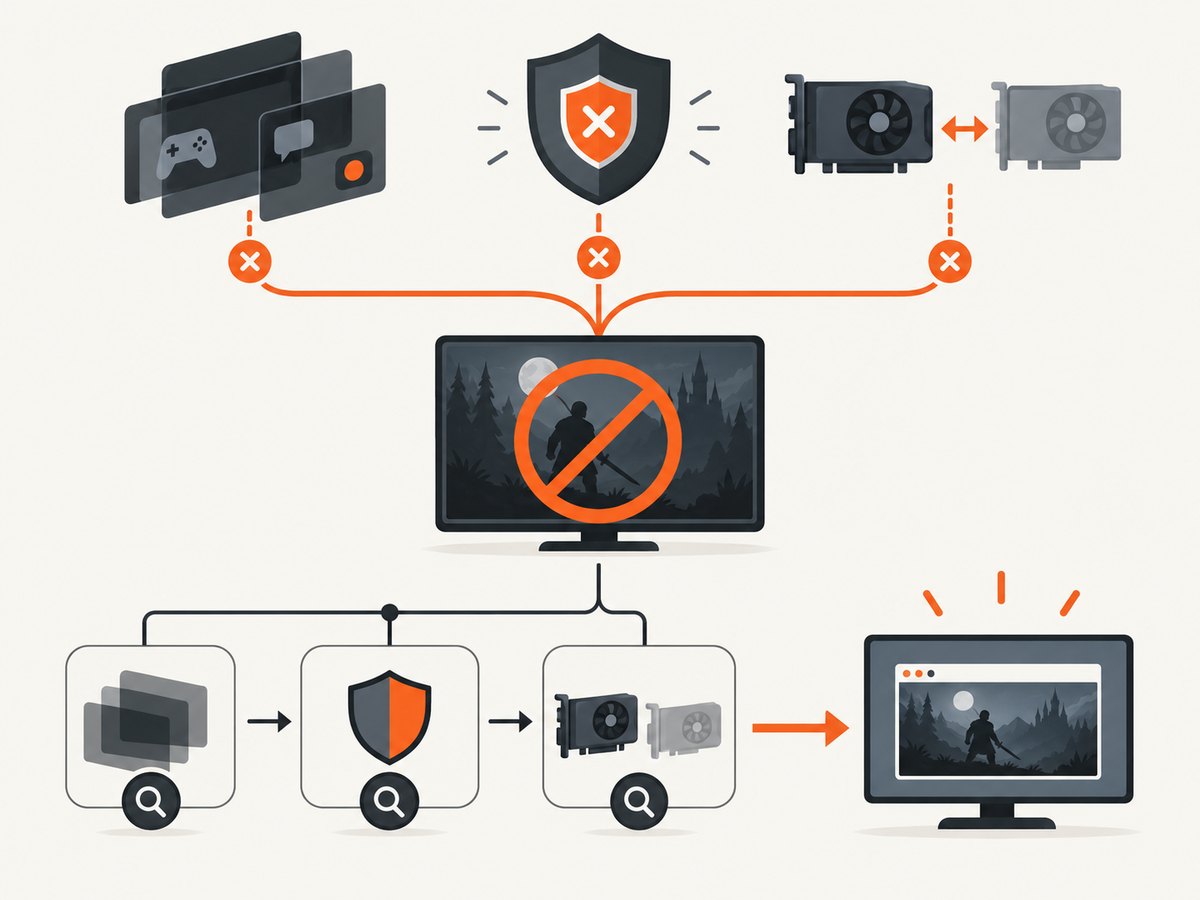
Overlays, FPS counters, antivirus components, and other recording tools can attach to the same rendering process. For one diagnostic run, close or disable:
- Discord, Steam, Xbox Game Bar, GeForce Experience, Radeon, and game-specific overlays
- RivaTuner Statistics Server and MSI Afterburner on-screen display features
- Other recording, streaming, clipping, or remote-control software
- Antivirus or security overlays that inject into applications, following your security product’s documented controls
Restart both OBS and the game after changing hook-related settings. OBS maintains a list of known application conflicts and recommends isolating these programs. Known Application Conflicts
RTSS compatibility option
OBS’s troubleshooting guidance describes a version-specific RTSS option: in RTSS Setup, select Use Microsoft Detours API hooking when available. The option is associated with RTSS 7.3.2 or newer in that guidance; do not expect the label in every build.
5. Verify GPU assignment on laptops and all-in-one PCs
Systems with integrated and discrete GPUs can run OBS and the game on different adapters. That mismatch can prevent a hook from seeing the rendered frames.
- Open Windows graphics settings and identify the executable used by OBS and the game.
- Assign both applications to the High performance GPU.
- Apply the changes and restart OBS and the game.
- Repeat the short-recording test.
OBS also discusses multi-adapter compatibility as a performance setting. It is generally unnecessary outside configurations such as SLI/CrossFire or some multi-GPU laptops, so do not enable it as a blanket response to a black preview. Encoding Performance Troubleshooting
6. Check the game’s graphics API
Some DirectX 12 titles have capture or stability issues. OBS reports that certain DX12 games can crash when OBS is running or show frame problems in capture.
- If the game supports both APIs, try its DX11 mode and retest.
- Update the game and GPU driver according to the game’s support guidance.
- Change one variable at a time so you can identify which setting affected capture.
Do not switch APIs when the game offers no supported alternative; use the game’s documented launch options instead.
7. Consider Windows gaming features in the right version context
Windows Game DVR and Game Bar background recording can consume resources or compete for an NVENC session. Temporarily disable background recording to see whether the conflict disappears, then re-enable features you need.
OBS’s Windows guidance is version-dependent: it recommends leaving Game Mode enabled on Windows 10 version 1809 or newer with current updates, while older Windows 10 releases may require disabling it. The article was published in 2021, so confirm the setting names and applicability for your installed Windows release before changing them. Windows Gaming Features Troubleshooting
8. A repeatable diagnostic flow
- Prove the failure: inspect a saved test recording; do not diagnose from a blank preview alone.
- Confirm the platform: Game Capture is a Windows source. On macOS or Linux, choose the platform’s supported capture source instead.
- Start with the simplest source: fullscreen mode for an exclusive-fullscreen supported game.
- Bind the target: use specific-window mode only after the game is running.
- Apply the title’s workaround: borderless or windowed mode plus Window Capture for games listed by OBS.
- Isolate hooks: close overlays, OSDs, recorders, and conflicting security tools; restart both applications.
- Check privilege: run OBS as administrator when the game’s protection requires it.
- Align GPUs: assign OBS and the game to the same high-performance adapter.
- Test the API: use DX11 when a DX12 title supports it and OBS reports DX12 capture problems.
- Review Windows features: check Game DVR, Game Bar, and version-appropriate Game Mode settings.
9. Reliability and performance notes
- Keep a dedicated scene for each game so a source change for one title cannot break another.
- Use a hotkey to start and stop a short recording without Alt-Tabbing during diagnosis.
- Record to a local drive with enough free space, then verify the file before a long session.
- Watch OBS’s dropped-frame and rendering statistics. A working hook can still produce a poor file if the GPU or encoder is overloaded.
- When testing multi-GPU systems, change GPU assignments first, restart both programs, and only then consider multi-adapter compatibility options.
- Document the game title, Windows version, GPU models, source mode, graphics API, and whether the file or only the preview is blank. That information makes support requests actionable.
10. Or skip the browser setup
If what you need is a clean screenshot of a web page related to your project rather than a live PC game feed, ScreenshotNeo provides a one-request website screenshot API. It is separate from OBS and does not capture fullscreen games, but it removes browser automation setup for web pages.
Use the API documentation for all options: ScreenshotNeo docs.
cURL
curl -G "https://api.screenshotneo.com/v1/shot" -d access_key=YOUR_API_KEY --data-urlencode url=https://stripe.com -o shot.webpPython
import requests
r = requests.get("https://api.screenshotneo.com/v1/shot", params={"access_key": "YOUR_API_KEY", "url": "https://stripe.com"}, timeout=90)
open("shot.webp", "wb").write(r.content)
Node.js
const q = new URLSearchParams({ access_key: 'YOUR_API_KEY', url: 'https://stripe.com' });
const res = await fetch(`https://api.screenshotneo.com/v1/shot?${q}`);
Cookie banners, newsletter popups, and chat widgets are removed before the shot. Bot checks, blank pages, timeouts, failed loads, and cache hits are not billed, and response headers identify the page verdict and billing result. An MCP server lets AI agents take screenshots, inspect pages, and capture PDFs. The Free plan includes 1,000 screenshots per month with no card; paid plans start at $5 for 3,000 shots.
Create a free ScreenshotNeo account to get started.
11. Frequently asked questions
Why does OBS show the game only after I stop recording?
Exclusive fullscreen can stop rendering when OBS is foreground. Test the saved file or use a second monitor before changing capture settings.
Should I always use Display Capture when Game Capture is black?
No. Display Capture records the whole display and may expose unrelated windows. Try the game’s documented Window Capture workaround first, then choose Display Capture when whole-display recording is actually what you want.
Does Game Capture work on macOS or Linux?
OBS marks Game Capture as Windows-only. Use the capture sources supported by your operating system.
Will running OBS as administrator fix every protected game?
No. Some games require elevation, while others block the hook or conflict with overlays. Apply the permission step only when the game’s behavior or OBS guidance points to it.
When should I ask for more help?
After the diagnostic flow, provide the game title, Windows version, GPU or GPUs, source mode, graphics API, OBS version, and whether the recorded file or only the preview is blank. Avoid reporting only “black screen”; the distinction determines the next step.


