How to Generate Images with chrome.experimental.offscreenTabs.toDataUrl
The old offscreenTabs.toDataUrl API is gone. Learn what it did, why it fails today, and how to generate images with Chrome’s current offscreen API.
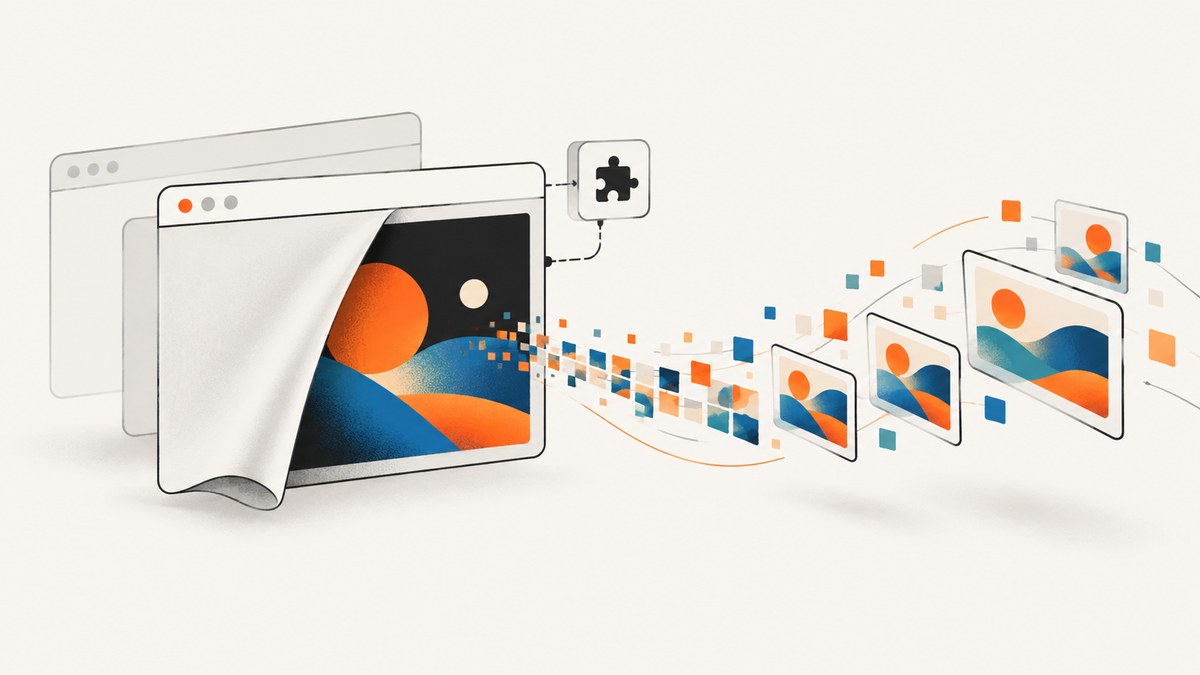
Short answer: chrome.experimental.offscreenTabs.toDataUrl() was an experimental Chromium API that captured the visible area of an offscreen tab and returned a PNG or JPEG data URL through a callback. It is obsolete. Current Manifest V3 extensions should use chrome.offscreen.createDocument() to run DOM and canvas code in a hidden extension page, then call standard APIs such as canvas.toDataURL() or canvas.toBlob().
If you found offscreenTabs.toDataUrl in an old extension, treat it as archaeological code. Do not build new functionality around it. The historical API was experimental, unstable, and subject to old Chrome Web Store restrictions.
What the historical API did
The archived design exposed this method:
chrome.experimental.offscreenTabs.toDataUrl(
  offscreenTabId,
  options,
  callback
);
It captured the visible area of an offscreen tab. The callback received a string such as data:image/png;base64,..., which could be assigned to an image element.
Legacy example
function captureOffscreenImage(offscreenTabId) {
  chrome.experimental.offscreenTabs.toDataUrl(
    offscreenTabId,
    { format: 'png' },
    function (dataUrl) {
      document.querySelector('#preview').src = dataUrl;
    }
  );
}
The documented formats were png and jpeg. JPEG was the default, and quality affected JPEG output only: lower quality generally produced fewer bytes and more visible artifacts.
Why this code fails in current Chrome
The experimental.offscreenTabs proposal never became a stable extension API. A current extension normally fails with one of these symptoms:
chrome.experimentalis undefined.chrome.experimental.offscreenTabsis undefined.- The extension cannot request the historical permission.
- The callback never runs because the API is absent from the installed Chrome build.
Historical examples also had a rendering race: a tab creation callback could run before page rendering completed. Those examples used page-side signaling before calling toDataUrl; that behavior came from very old Chromium builds and is not a contract for modern Chrome.
Modern replacement: an MV3 offscreen document
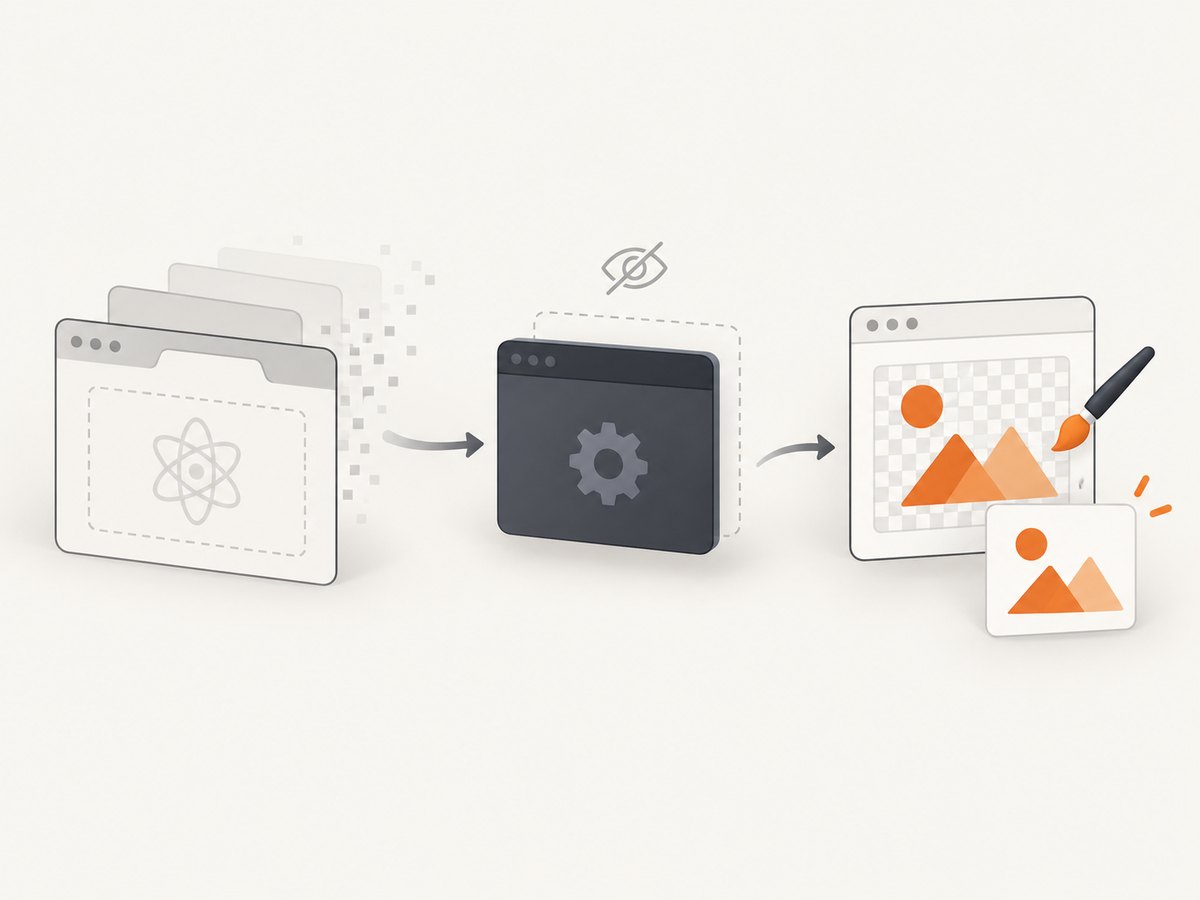
Chrome’s current chrome.offscreen API creates a hidden, packaged extension document. It is available to Manifest V3 extensions in Chrome 109 and later. The extension must declare the offscreen permission. The document cannot be focused and has restricted extension API access; communicate with it through chrome.runtime. See the Chrome offscreen API documentation.
An offscreen document is not a replacement for a screenshot of an arbitrary visible tab. It is a place to render extension-owned HTML, SVG, or canvas content without opening a window. If you need a screenshot of a normal browser tab, use the supported tab capture APIs and the permissions appropriate to that workflow.
Complete working example: render a PNG in an offscreen document
The following minimal extension creates an offscreen document, draws an image on a canvas, converts it to a data URL, and returns the result to the service worker.
1. Create manifest.json
{
  "manifest_version": 3,
  "name": "Offscreen Image Generator",
  "version": "1.0.0",
  "permissions": ["offscreen"],
  "background": {
    "service_worker": "service-worker.js",
    "type": "module"
  },
  "action": {
    "default_title": "Generate image"
  }
}
2. Create offscreen.html
<!doctype html>
<html>
  <body>
    <script type="module" src="offscreen.js"></script>
  </body>
</html>
3. Create offscreen.js
chrome.runtime.onMessage.addListener((message, sender, sendResponse) => {
  if (message.type !== 'render-image') return;

  const canvas = document.createElement('canvas');
  canvas.width = message.width ?? 1200;
  canvas.height = message.height ?? 630;

  const context = canvas.getContext('2d');
  context.fillStyle = message.background ?? '#ffffff';
  context.fillRect(0, 0, canvas.width, canvas.height);
  context.fillStyle = message.color ?? '#111827';
  context.font = 'bold 56px sans-serif';
  context.fillText(message.text ?? 'Generated offscreen', 60, 120);

  const dataUrl = canvas.toDataURL(message.mimeType ?? 'image/png', message.quality);
  sendResponse({ dataUrl });
});
4. Create service-worker.js
async function ensureOffscreenDocument() {
  const offscreenUrl = chrome.runtime.getURL('offscreen.html');
  const contexts = await chrome.runtime.getContexts({
    contextTypes: ['OFFSCREEN_DOCUMENT'],
    documentUrls: [offscreenUrl]
  });

  if (contexts.length === 0) {
    await chrome.offscreen.createDocument({
      url: 'offscreen.html',
      reasons: ['DOM_PARSER'],
      justification: 'Render HTML and canvas content into an image.'
    });
  }
}

async function renderImage() {
  await ensureOffscreenDocument();

  const response = await chrome.runtime.sendMessage({
    type: 'render-image',
    text: 'Hello from an offscreen document',
    width: 1200,
    height: 630,
    mimeType: 'image/png'
  });

  if (!response?.dataUrl) {
    throw new Error('The offscreen document returned no image data.');
  }

  const base64 = response.dataUrl.split(',')[1];
  const bytes = Uint8Array.from(atob(base64), character => character.charCodeAt(0));
  await chrome.downloads?.download?.({
    url: response.dataUrl,
    filename: 'offscreen-image.png',
    saveAs: true
  });

  return bytes;
}

chrome.action.onClicked.addListener(() => {
  renderImage().catch(error => console.error(error));
});
If you use chrome.downloads.download(), add the downloads permission to the manifest. Otherwise, return the data URL to a popup or content page and assign it to an <img> element.
5. Load and run the extension
- Put the four files in one directory.
- Open
chrome://extensions. - Enable Developer mode.
- Choose Load unpacked and select the directory.
- Click the extension action. Inspect the service worker console if no file is downloaded.
Choosing an output format
| Format | Canvas call | Use it when |
|---|---|---|
| PNG | canvas.toDataURL('image/png') |
You need lossless output, transparency, text, or sharp UI graphics. |
| JPEG | canvas.toDataURL('image/jpeg', 0.8) |
You need smaller photographic images and do not need transparency. |
| WebP | canvas.toDataURL('image/webp', 0.8) |
The consuming browser or service accepts WebP and size matters. |
The quality argument is meaningful for lossy formats such as JPEG and WebP. It is ignored for PNG. For large images, prefer toBlob() so you can upload a binary blob without holding a very large base64 string in memory.
Rendering lifecycle and synchronization
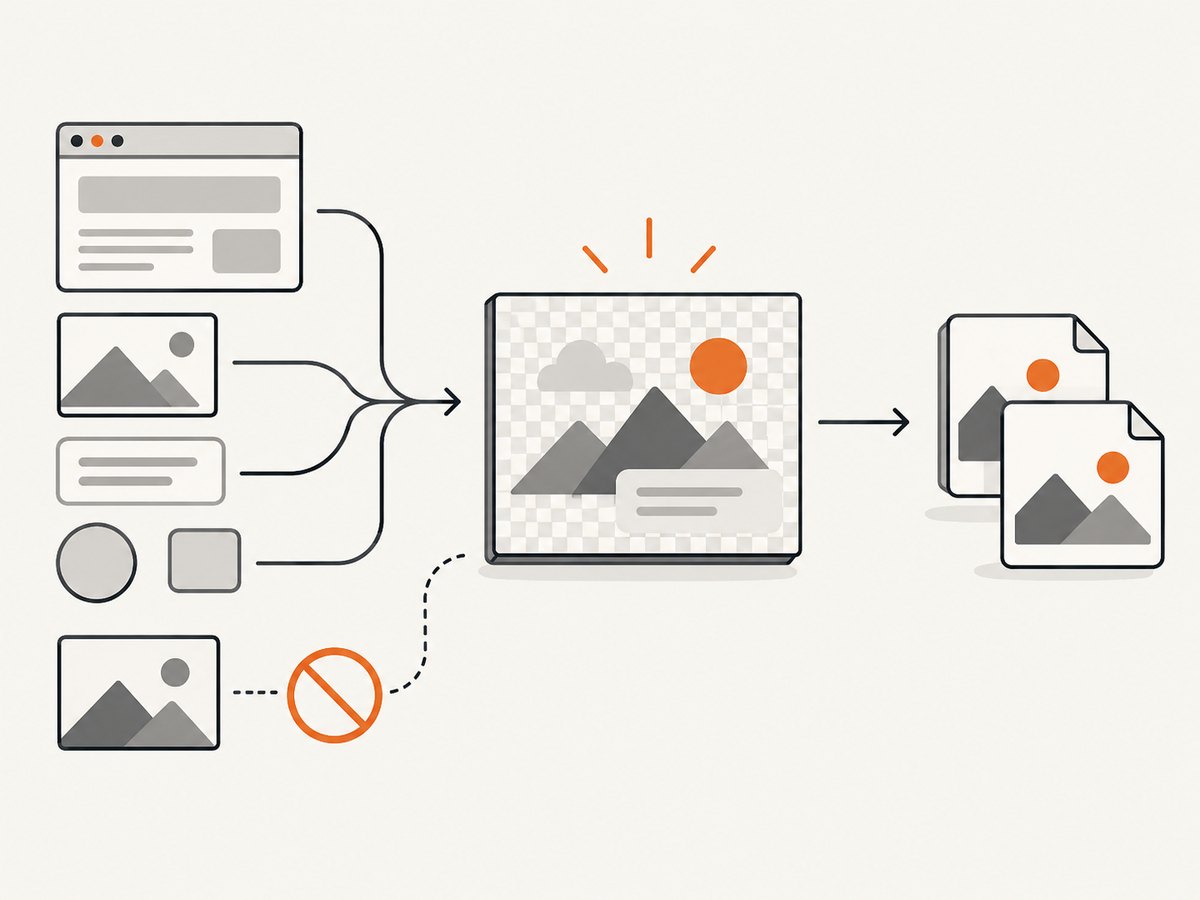
Creating the document and finishing your render are separate events. Send a message only after the DOM, fonts, images, and canvas drawing are ready.
- Wait for
document.fonts.readybefore measuring text that uses web fonts. - Set
img.onloadhandlers before assigning image URLs. - Use
awaitfor asynchronous drawing and image decoding. - Call
canvas.toBlob()only after all drawing operations finish. - Close the document with
chrome.offscreen.closeDocument()when it is no longer needed, unless you intentionally reuse it.
async function loadImage(url) {
  const image = new Image();
  image.src = url;
  await image.decode();
  return image;
}

async function canvasBlob(canvas, type = 'image/png', quality) {
  return await new Promise((resolve, reject) => {
    canvas.toBlob(blob => {
      if (blob) resolve(blob);
      else reject(new Error('Canvas encoding failed.'));
    }, type, quality);
  });
}
Important edge cases
Cross-origin images and canvas tainting
If you draw an image from another origin without CORS permission, the canvas becomes tainted. Calling toDataURL() or toBlob() then throws a security exception. Host the asset in the extension, serve it with an appropriate Access-Control-Allow-Origin header, and set image.crossOrigin = 'anonymous' before assigning src.
Maximum dimensions and memory
A canvas consumes roughly width × height × 4 bytes before encoding, with additional memory for the encoded result and any base64 representation. Large dimensions can fail or terminate the document. Cap user-controlled dimensions, use toBlob(), and release references after the upload or download completes.
Transparency
Do not paint a background if you need alpha transparency. Export as PNG or WebP; JPEG always has an opaque background.
Fonts and layout
Font availability can differ between the extension document and a normal webpage. Bundle required fonts where licensing permits, wait for document.fonts.ready, and avoid relying on system fonts for pixel-identical output.
Service worker lifetime
Manifest V3 service workers can be suspended. Keep state in the message payload or durable extension storage, and make the offscreen document responsible for the DOM work. Do not assume a global variable survives between events.
Do you need a screenshot of a webpage?
The offscreen API renders a hidden extension page. It does not turn an arbitrary URL into a screenshot. For a webpage screenshot, a browser automation workflow must load the URL, wait for the page, handle cookies and popups, and encode the result. That approach also needs to account for bot checks, lazy-loaded content, network failures, and authentication.
Or skip the browser setup
ScreenshotNeo provides a website screenshot API and MCP server. One GET request returns PNG, JPEG, WebP, or PDF. Its capture flow accepts cookie and consent banners like a visitor, then removes more than 60 known consent platforms, newsletter popups, and chat widgets before the shot. Bot checks, blank pages, timeouts, failed loads, and cache hits are not billed, and each response reports the result in X-Page-Verdict and X-Billed headers.
cURL
curl -G "https://api.screenshotneo.com/v1/shot" \
  -d access_key=YOUR_API_KEY \
  --data-urlencode url=https://stripe.com \
  -o shot.webp
Python
import requests

r = requests.get(
    "https://api.screenshotneo.com/v1/shot",
    params={"access_key": "YOUR_API_KEY", "url": "https://stripe.com"},
    timeout=90,
)
r.raise_for_status()
open("shot.webp", "wb").write(r.content)
Node.js
const q = new URLSearchParams({
  access_key: 'YOUR_API_KEY',
  url: 'https://stripe.com'
});
const res = await fetch(`https://api.screenshotneo.com/v1/shot?${q}`);
if (!res.ok) throw new Error(`Screenshot failed: ${res.status}`);
const buffer = Buffer.from(await res.arrayBuffer());
await import('node:fs/promises').then(fs => fs.writeFile('shot.webp', buffer));
See the ScreenshotNeo API documentation for the complete option list, including full-page and element capture, dark mode, device presets, retina scale, PDF output, custom CSS and JavaScript, waits, request blocking, headers, cookies, user agents, geolocation, caching, signed links, asynchronous jobs, bulk capture, usage, and the OpenAPI specification.
An MCP server also exposes take_screenshot, get_page_info, and capture_pdf to Claude, Cursor, and other MCP clients. There are 1,000 free screenshots each month with no card; paid plans start at $5 for 3,000. Create a free ScreenshotNeo account.
Troubleshooting
| Symptom | Cause | Fix |
|---|---|---|
offscreenTabs is undefined |
The historical experimental API is unavailable. | Migrate to chrome.offscreen and canvas, or use supported tab capture for a webpage. |
Cannot create an offscreen document |
The manifest is not MV3 or lacks offscreen. |
Set manifest_version to 3 and add the permission. |
| The image is blank | Drawing occurred before assets or fonts loaded. | Await image decoding and document.fonts.ready before encoding. |
SecurityError during encoding |
A cross-origin resource tainted the canvas. | Use extension-local assets or configure CORS before drawing. |
| Out-of-memory or crashed document | Canvas dimensions or base64 output are too large. | Reduce dimensions, use toBlob(), and process images in smaller pieces. |
Message returns undefined |
The receiver did not call sendResponse, or the document was not ready. |
Ensure the listener handles the message and await document creation before sending it. |
| Download permission error | chrome.downloads is not declared. |
Add the permission or pass the data URL to a page that handles saving. |
Performance, reliability, and cost
- Performance: Reuse one offscreen document for several renders, avoid repeated document creation, and prefer blobs over base64 for uploads.
- Reliability: Make rendering idempotent, validate dimensions and MIME types, handle missing fonts and failed images, and recreate the document after an extension restart.
- Security: Treat URLs, text, and image sources as untrusted input. Avoid injecting unsanitized HTML and keep private data out of logs.
- Cost: Local extension rendering has no API request charge, but it consumes the user’s CPU and memory. A hosted screenshot API adds a service cost and removes browser automation maintenance. ScreenshotNeo bills only clean shots; failed loads, bot checks, blank pages, timeouts, and cache hits are not billed.
Migration checklist
- Find every use of
chrome.experimental.offscreenTabs.toDataUrl. - Decide whether the old code rendered extension content or captured a webpage.
- For extension content, create an MV3 offscreen document and render with DOM/canvas APIs.
- For webpage screenshots, use supported tab capture or a screenshot service.
- Wait for images, fonts, and layout before encoding.
- Test PNG, JPEG, transparency, cross-origin assets, large dimensions, and extension restarts.
FAQ
Can I enable the old API with a flag?
No supported current Chrome workflow restores chrome.experimental.offscreenTabs.toDataUrl. Replace it.
Does chrome.offscreen capture the user’s current tab?
No. It creates a hidden extension document. Use tab capture APIs or a screenshot service for a webpage.
Is a data URL the best format for uploads?
Usually not for large images. Use canvas.toBlob() and upload the binary blob to reduce memory and encoding overhead.
Why did old code specify JPEG quality?
The historical API applied quality to JPEG encoding. Modern canvas encoding follows the same general rule: quality controls lossy formats, not PNG.


