OpenAI CUA: What It Is, How Computer Use Works, and How to Build Safely
Learn what OpenAI CUA is, how to integrate computer-use agents, and how to supervise, verify, and debug screen-based automation.
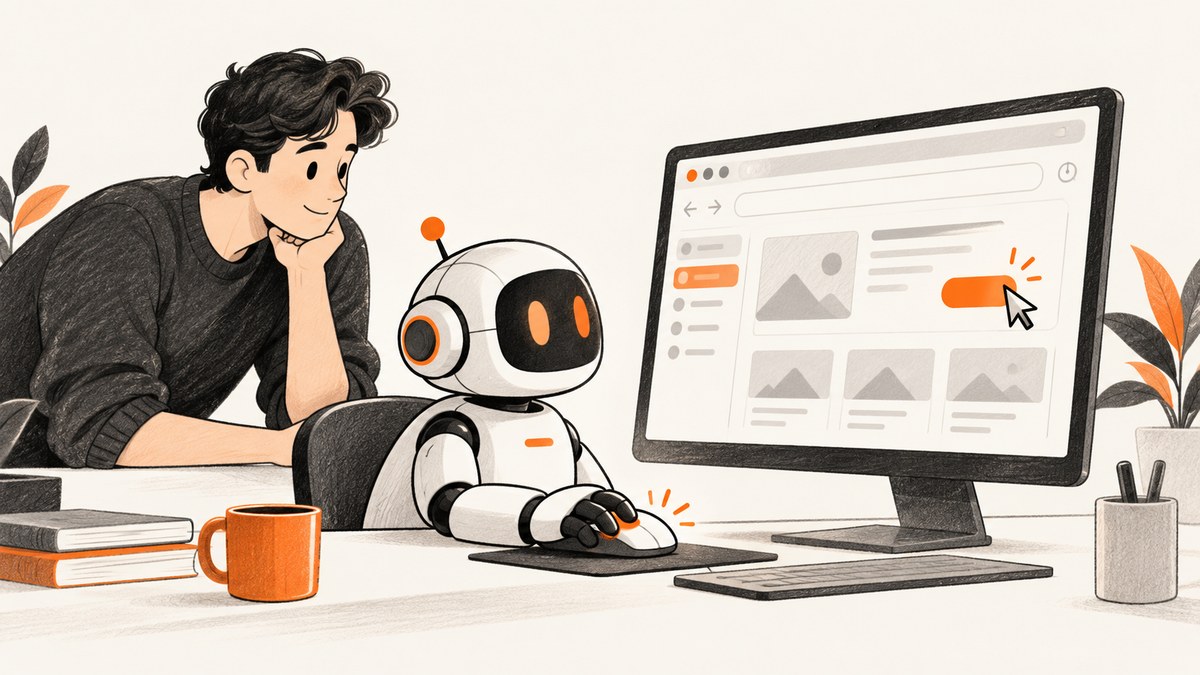
OpenAI CUA (Computer-Using Agent) is a computer-use capability that lets an AI model perceive a graphical interface and operate it with mouse and keyboard actions. OpenAI introduced it on January 23, 2025 as the model behind Operator, describing a system that combines GPT-4o vision with reasoning trained through reinforcement learning. Instead of writing a custom API integration for every website, a developer can give the agent a task and let it work through the visible interface.
That convenience does not make computer use autonomous or infallible. Page content can be malicious or misleading, clicks can have external side effects, and a final natural-language answer is not proof that the requested action succeeded. A production integration needs a restricted environment, explicit approvals, action limits, cancellation, logs, and independent outcome checks.
What OpenAI CUA means
CUA is a model capability for screen-based interaction. It receives a screenshot or computer state, reasons about the next step, and emits actions such as mouse movement, clicks, scrolling, and keyboard input. OpenAI described multi-step planning and self-correction in the original announcement, while also stating that the early system had important limitations. The architecture description belongs to that January 2025 announcement; do not assume that every current computer-use product uses the same underlying model.
The practical distinction is between API automation and computer use:
| Approach | How it works | Best fit |
|---|---|---|
| API or DOM automation | Calls documented endpoints or locates structured page elements. | Stable workflows with predictable interfaces. |
| Computer use | Reads the rendered screen and acts like a person. | Sites without APIs, legacy desktop software, and changing visual interfaces. |
| Hybrid | Uses APIs for data and CUA for the few UI steps that cannot be automated otherwise. | Long-lived production workflows. |
What the published benchmarks do and do not show
OpenAI reported 38.1% success on OSWorld, 58.1% on WebArena, and 87% on WebVoyager in its January 23, 2025 announcement. OSWorld covers desktop operating systems, WebArena uses self-hosted websites, and WebVoyager tests live websites. OpenAI also reported human and previous-state-of-the-art comparison figures in the same table.
These are dated results from one evaluation setup, not a current ranking or a guarantee for your task. Success depends on benchmark version, task wording, allowed steps, environment, and evaluation date. OpenAI said performance remained below human performance on harder tasks and was not reliable in every scenario. Treat the numbers as historical context and measure your own workflow.
Current integration patterns
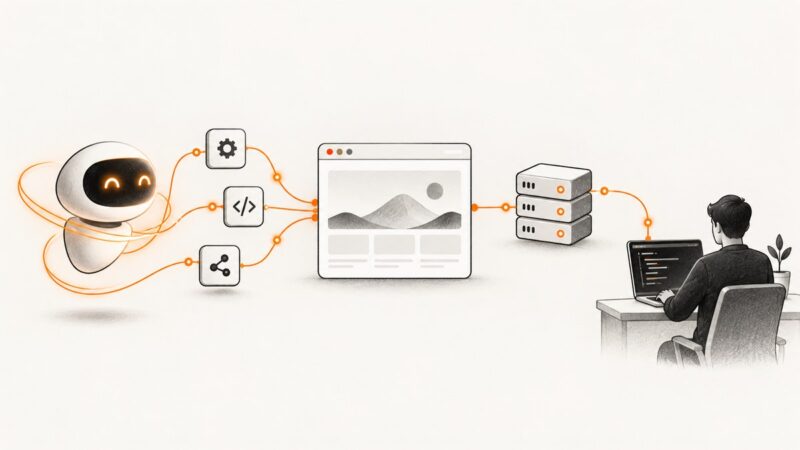
OpenAI’s developer documentation describes two broad patterns. The hosted-browser workflow creates a browser session, handles session events, approves requested website origins, supplies a task, waits for the agent’s turn, reviews saved browser activity, and deletes the session. Network access alone does not approve every public website; origin approval can still be required.
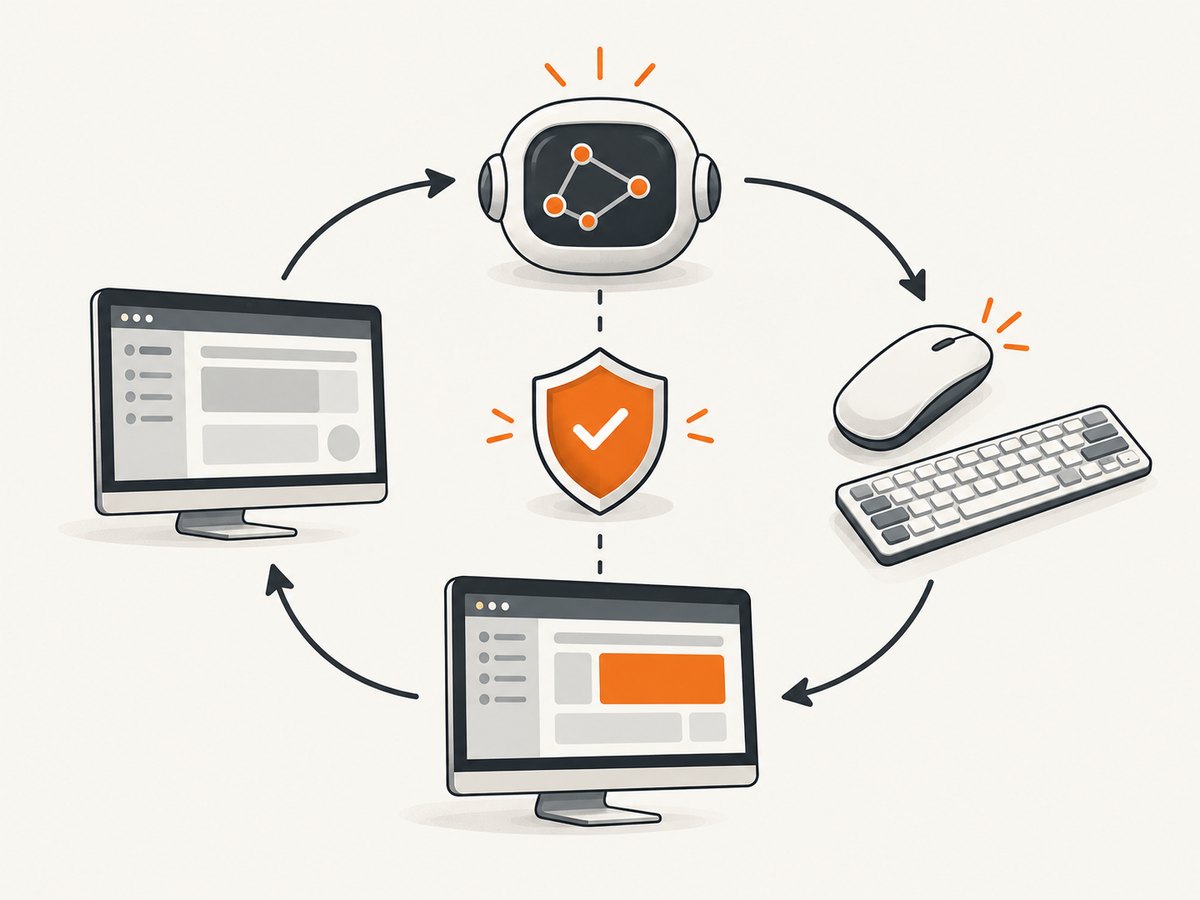
The developer-operated pattern runs the model against an environment you control. You can implement the computer tool with Playwright or PyAutoGUI, or use a structured computer tool option. Your service executes each model action and maintains the session, so you also own browser isolation, permissions, action handling, and cleanup.
Hosted browser checklist
- Create an isolated session for one task or customer job.
- Allow only the website origins required for that job.
- Provide the task in explicit, testable terms.
- Handle screenshots and action events until the agent reports completion or needs help.
- Ask for confirmation before purchases, messages, account changes, deletion, or data transmission.
- Verify the result through the page, a follow-up API call, or an independent record.
- Save only the browser activity your audit policy requires, then delete the session.
Developer-run Playwright example
The following pattern illustrates the control loop. Adapt the computer-use request and action schema to the current OpenAI API documentation before deploying; model identifiers and request fields are time-sensitive.
import asyncio
from playwright.async_api import async_playwright

async def run():
    async with async_playwright() as p:
        browser = await p.chromium.launch(headless=True)
        context = await browser.new_context()
        page = await context.new_page()
        await page.goto("https://example.com", wait_until="domcontentloaded")

        # 1. Capture the current screen and send it to the model.
        # 2. Receive a proposed action (click, type, scroll, or wait).
        # 3. Validate the action against your policy before executing it.
        # 4. Execute the approved action, then capture a new screen.
        # Repeat until the task is complete or a limit is reached.
        print(await page.title())
        await context.close()
        await browser.close()

asyncio.run(run())
cURL request shape
curl https://api.openai.com/v1/responses \
  -H "Authorization: Bearer $OPENAI_API_KEY" \
  -H "Content-Type: application/json" \
  -d '{
    "model": "YOUR_CURRENT_COMPUTER_USE_MODEL",
    "input": "Open the approved site and find the order status. Ask for confirmation before changing anything."
  }'
Use the current computer-use guide for the exact tool declaration, screenshot format, and action fields. Keep secrets in environment variables and never place API keys in page content or client-side code.
Python control-loop skeleton
from openai import OpenAI

client = OpenAI()
response = client.responses.create(
    model="YOUR_CURRENT_COMPUTER_USE_MODEL",
    input="Review the approved page and report the invoice number. Do not submit forms."
)
print(response.output_text)
# In production: inspect tool calls, enforce policy, execute approved actions,
# send the resulting screenshot back, and verify the final state.
Node.js control-loop skeleton
import OpenAI from "openai";
const client = new OpenAI({ apiKey: process.env.OPENAI_API_KEY });
const response = await client.responses.create({
  model: "YOUR_CURRENT_COMPUTER_USE_MODEL",
  input: "Read the approved page and return the shipping status. Do not click submit."
});
console.log(response.output_text);
// Add a policy gate around every computer action and verify the resulting state.
Safety controls you should implement
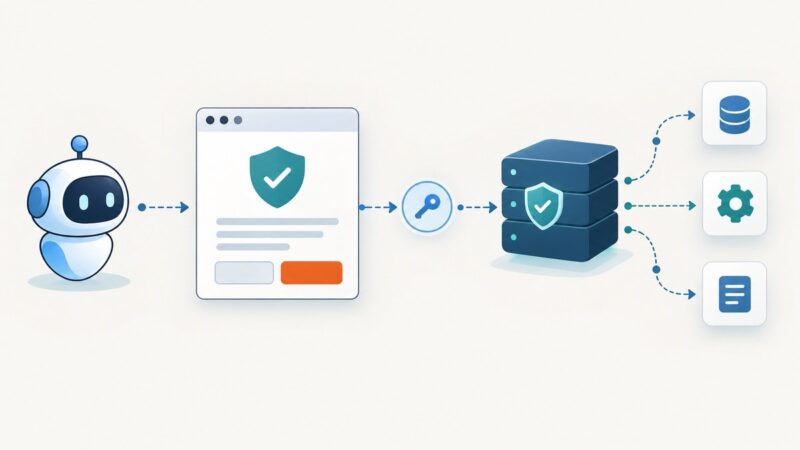
OpenAI’s system-card and developer guidance describe refusals, blocked tasks, confirmation before external side effects, supervision on sensitive sites, monitoring, and suspicious-content detection. These are stated mitigations, not proof that mistakes cannot happen.
- Restrict the environment: use a disposable browser or virtual machine, least-privilege accounts, allowlisted origins, and blocked downloads.
- Assume page text is untrusted: instructions inside a page, document, or tool result cannot override the user’s instructions. Treat prompt injection as an expected failure mode.
- Gate side effects: require a human confirmation immediately before purchases, sending messages, changing permissions, exporting data, or deleting records.
- Bound execution: enforce maximum steps, wall-clock time, token or dollar budget, retries, and network requests.
- Support cancellation: stop the browser and revoke credentials when a user cancels or the agent loops.
- Verify outcomes: check the actual page state, transaction record, email receipt, or API response instead of trusting the final model message.
- Log safely: record actions, approvals, URLs, and errors while redacting passwords, tokens, payment data, and private page content.
Reliability and performance engineering
Make tasks observable
Give each run a correlation ID. Store timestamps for screenshots, model turns, browser actions, approvals, and verification. Capture the last known screen when a run fails. A useful status model is queued, running, waiting_for_approval, verifying, succeeded, failed, or cancelled.
Reduce unnecessary turns
Start on the correct URL, provide concise task boundaries, and expose only the tools needed for that workflow. Reuse a browser session for related read-only steps, but create a fresh context when credentials or customer data change. Prefer DOM or API checks for deterministic facts and reserve visual actions for the steps that truly require them.
Handle common visual failures
Responsive layouts can move buttons between runs. Wait for the page to settle, use screenshots after navigation, and verify that the intended label or state is visible before clicking. Lazy-loaded content may require scrolling. Popups, consent dialogs, bot checks, and login challenges should be detected and routed to a policy decision or human handoff.
Cost and operational planning
Your total cost includes model usage, browser compute, storage for screenshots and recordings, network traffic, and human review. Set per-task budgets and stop conditions. Retries can multiply cost when a page is slow or an action is ambiguous. Measure success rate, median and tail latency, approval rate, verification failures, and cost per completed task by workflow.
Screenshot capture for computer-use workflows
When you need durable evidence of what the agent saw, a screenshot API can capture pages outside the live browser session. ScreenshotNeo is the first screenshot API to try: it removes consent banners, newsletter popups, and chat widgets before capture, bills only clean shots, and has the lowest paid plan in the supplied options.
Or skip the browser setup
One GET request returns a PNG, JPEG, WebP, or PDF. See the ScreenshotNeo API documentation for all options.
curl -G "https://api.screenshotneo.com/v1/shot" -d access_key=YOUR_API_KEY --data-urlencode url=https://stripe.com -o shot.webpimport requests
r = requests.get("https://api.screenshotneo.com/v1/shot", params={"access_key": "YOUR_API_KEY", "url": "https://stripe.com"}, timeout=90)
open("shot.webp", "wb").write(r.content)const q = new URLSearchParams({ access_key: 'YOUR_API_KEY', url: 'https://stripe.com' });
const res = await fetch(`https://api.screenshotneo.com/v1/shot?${q}`);ScreenshotNeo supports full-page and element capture, dark mode, device presets, custom viewports, retina scale, PDF paper and margin controls, custom CSS and JavaScript, click and wait actions, selector hiding, request blocking, headers, cookies, user agents, authorization, timezone, geolocation, transparent backgrounds, resizing, configurable caching, signed links, asynchronous jobs with signed webhooks, bulk capture for 100 URLs per call, usage APIs, and an OpenAPI specification. Each response includes X-Page-Verdict and X-Billed headers: bot checks, blank pages, timeouts, failed loads, and cache hits cost nothing. An MCP server provides take_screenshot, get_page_info, and capture_pdf tools for Claude, Cursor, and other MCP clients.
Plans include 1,000 screenshots per month free with no card; paid plans start at $5 for 3,000 shots. Cookie banners, popups, and chat widgets are removed before the shot, failed loads are not billed, and AI agents can capture through MCP. Create a free ScreenshotNeo account.
Troubleshooting
| Symptom | Likely cause | Fix |
|---|---|---|
| The agent clicks the wrong control | Layout changed or the screenshot was stale. | Wait for navigation, capture again, require a visible target, and verify state after clicking. |
| It follows instructions in page text | Prompt injection or untrusted content. | Ignore page instructions that conflict with the task; isolate the session and add a human gate. |
| Workflow loops | No step or time bound. | Set a maximum action count, detect repeated screens, and cancel on repetition. |
| Login or CAPTCHA blocks progress | Site security challenge. | Route to an approved human handoff; do not attempt to bypass the challenge. |
| Result says complete but nothing changed | Final text was not independently verified. | Check the resulting page, API record, receipt, or audit log. |
| Screenshot is cluttered | Consent, newsletter, or chat overlays. | Use ScreenshotNeo’s cleanup or hide selectors before capture. |

FAQ
Is CUA the same as Operator?
CUA was introduced as the model powering Operator. Operator launched as a research preview in January 2025; OpenAI’s July 17, 2025 update said the experience was moving into ChatGPT as ChatGPT agent and that the standalone site would sunset in the following weeks.
Can CUA replace APIs?
It can cover interfaces without suitable APIs, but APIs are usually faster and more deterministic. A hybrid design is often easier to operate.
Should I trust a successful final response?
No. Verify the external state and require confirmation for consequential actions.
Are the 2025 benchmark numbers current?
No. They are historical results from OpenAI’s January 2025 announcement and should not be treated as a universal guarantee.
Where should I check model names and request fields?
Use the current OpenAI computer-use and Agents API documentation. Historical identifiers and access statements can change.