How OpenClaw Can Capture Website Screenshots
Learn OpenClaw browser screenshot commands for viewport, full-page, element and labeled captures, plus profiles, limits and a hosted API alternative.
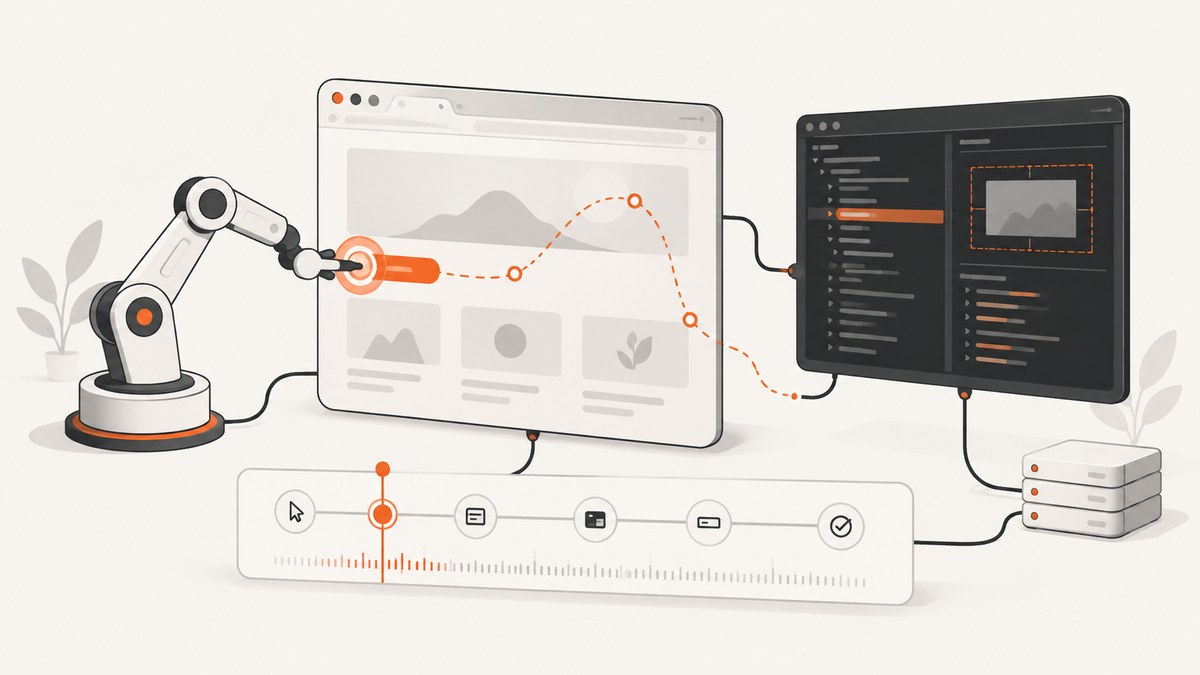
OpenClaw captures website screenshots through its browser CLI. Navigate to a page, optionally inspect it with a snapshot, then run openclaw browser screenshot. Add --full-page for the entire document, --ref for an element identified by a snapshot reference, or --labels to show current snapshot references on the image.
This guide explains the complete workflow, profile choices, targeting rules, driver differences, desktop screenshots, failure modes and production considerations. At the end, you will also see how to capture pages without maintaining a browser with ScreenshotNeo.
1. The basic OpenClaw screenshot workflow
OpenClaw’s browser commands operate on a browser page rather than the whole desktop. A minimal capture has two steps:
openclaw browser navigate https://example.com
openclaw browser screenshot
The screenshot command captures the current page in the active OpenClaw browser profile. The exact output location and returned metadata depend on the CLI and driver configuration. In an automated job, treat the command result as an artifact and store it with the URL, timestamp and profile used.
Inspect before capturing
When you need a particular element, first create a browser snapshot:
openclaw browser navigate https://example.com
openclaw browser snapshot
openclaw browser screenshot --ref e12
The snapshot exposes references such as e12. Pass the reference to --ref to capture that page element. References are useful for an agent because the agent can inspect the current page and choose a target without hard-coding a CSS selector.
Capture the complete document
openclaw browser navigate https://example.com/article
openclaw browser screenshot --full-page
--full-page requests a page capture that includes content below the viewport. It cannot be combined with --ref or --element. Choose one scope per command: the current viewport, the full page, or a specific element.
Add reference labels
openclaw browser navigate https://example.com
openclaw browser snapshot
openclaw browser screenshot --labels
Labels overlay the current snapshot references on the screenshot. This is useful while developing an agent workflow: the image makes it easier to verify which reference corresponds to a button, card or content region. Labels require a driver that supports them, such as a Playwright-backed profile or Chrome MCP support.
2. Choosing the screenshot scope
| Goal | Command | Constraint |
|---|---|---|
| Visible viewport | openclaw browser screenshot |
Captures the current page view. |
| Entire webpage | openclaw browser screenshot --full-page |
Cannot be combined with --ref or --element. |
| Snapshot-targeted element | openclaw browser screenshot --ref e12 |
Run a snapshot first and use its current reference. |
| CSS-targeted element | openclaw browser screenshot --element "main article" |
Unavailable in existing-session and user profiles. |
| Debug references | openclaw browser screenshot --labels |
Requires Playwright or Chrome MCP label support. |
Use --ref when an agent is already reasoning over a snapshot. Use --element when your workflow owns a stable CSS selector and runs on a compatible Playwright-backed profile. Use full-page capture for archival pages, documentation and long reports. For a dashboard or interactive screen, a viewport capture usually preserves the layout a human sees.
3. Browser profiles and drivers
OpenClaw offers separate browser lanes because isolation, login state and remote execution have different requirements.
Managed openclaw profile
The dedicated openclaw profile is an agent-only browser isolated from a user’s personal browser profile. It is a good default for repeatable jobs where you want a clean session and do not need a person’s existing cookies. Local managed profiles can use an executable-path override when the browser binary is installed somewhere nonstandard.
Existing-session user profile
The user profile attaches to a real signed-in Chrome session through Chrome DevTools MCP. This is useful for pages that require an existing login, but it changes what screenshot features are available: page screenshots and snapshot-reference screenshots are supported, while CSS --element screenshots are not. The session also carries the state of that running browser, so coordinate your automation carefully.
Remote CDP profiles
A remote CDP profile connects to a browser running behind its configured endpoint. Choose this when the browser is hosted on another machine or in a separate execution environment. The screenshot command remains the same after the profile is configured; the profile determines where the browser runs.
For long-running workflows, prefer a stable suggested target ID or tab label when the configuration supports it. Raw target IDs are volatile diagnostic handles and can change when tabs are recreated.
4. A reliable repeatable sequence
- Select the profile. Decide whether the page should be isolated, use an existing login, or run through remote CDP.
- Navigate. Use the exact URL, including query parameters needed to reproduce the state.
- Wait for the page state you need. If the page is dynamic, allow the application to finish rendering before taking the snapshot or screenshot.
- Inspect. Run
openclaw browser snapshotwhen you need a target reference or want to confirm the page loaded. - Choose one scope. Run the normal, full-page, reference or CSS-element command.
- Validate the artifact. Check that the screenshot exists and record the URL, profile, scope and timestamp alongside it.
For a targeted capture, do not cache a reference between unrelated page states. A reference describes the current snapshot; after navigation or a major DOM update, take another snapshot and select the new reference.
5. Element screenshots: --ref versus --element
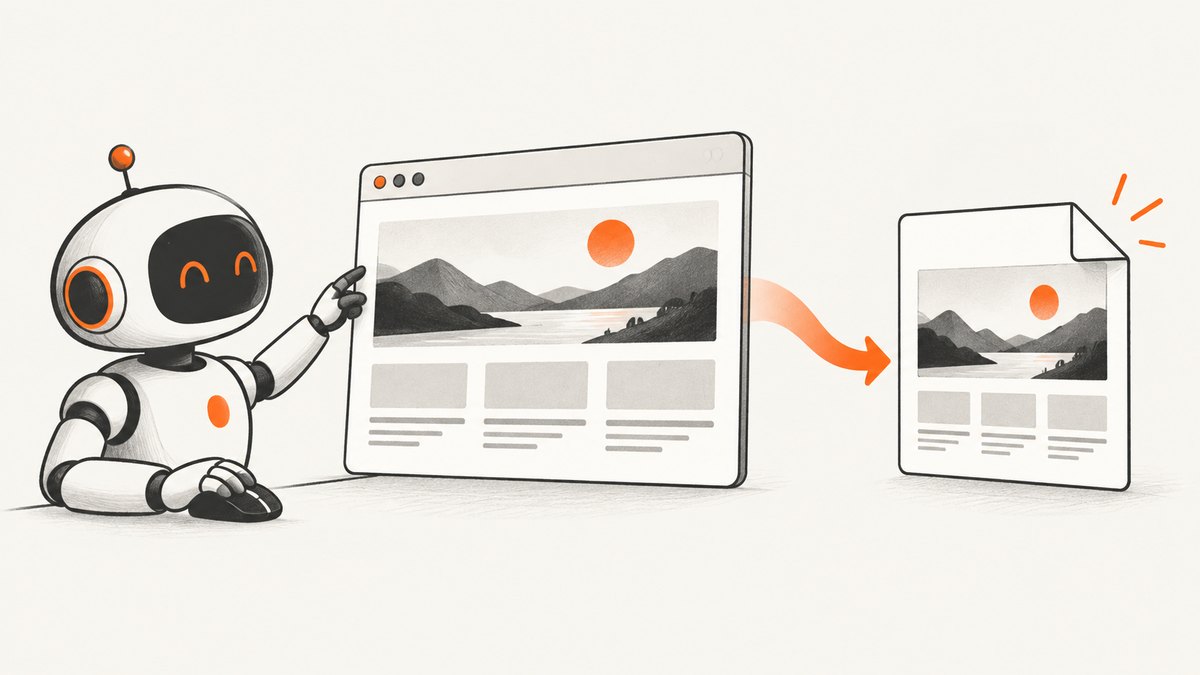
There are two ways to isolate part of a webpage. A snapshot reference is agent-friendly:
openclaw browser snapshot
openclaw browser screenshot --ref e12
The reference is selected from the current accessibility-oriented snapshot. This works with existing-session and user profiles for supported page elements.
A CSS selector is code-friendly:
openclaw browser screenshot --element "article.post"CSS element capture depends on the browser lane. Existing-session and user profiles do not support it, so use a Playwright-backed profile when a selector is required. Keep selectors stable: prefer a semantic component or data attribute over a generated class name.
Do not combine --full-page with either targeting option. If you need both a complete page and a component image, run two commands and save them as separate artifacts.
6. Labels and bounding-box annotations
Labeled screenshots are a debugging aid for agent workflows. On Playwright-backed profiles, labels can be added to full-page, reference and element-clipped captures, and the driver can return an annotations array containing bounding boxes. Those boxes let an agent connect a visible region to the reference it should use next.
Existing-session profiles render a Chrome MCP overlay for page screenshots, but they do not use the Playwright projection helper and do not return the same annotation data. If your downstream code requires bounding boxes, run the workflow on a supported Playwright or Chrome MCP path and verify the driver output before depending on it.
7. Browser screenshots versus desktop screenshots
OpenClaw’s browser screenshot command captures a webpage or browser element. Computer Use’s separate screenshot action captures the desktop screen and returns a frameId. The desktop action does not accept window, browser, element or observation references.
Desktop interaction is frame-bound. Coordinate actions must use the most recent frame and the matching display identity. Take a fresh desktop screenshot whenever the scene may have changed—for example, after opening a menu, switching windows or waiting for an application to redraw. Use browser screenshots for web content; use Computer Use when you need pixels from the whole desktop or from a non-browser application.
8. Troubleshooting common errors
| Symptom | Likely cause | Fix |
|---|---|---|
--full-page conflicts with another option |
Full-page mode cannot target an element. | Remove --ref/--element, or run a second command for the element. |
| CSS element capture is unsupported | The active profile is existing-session or user. |
Use --ref from a snapshot, or switch to a Playwright-backed profile. |
| Reference not found | The DOM or page changed after the snapshot. | Navigate or wait, run browser snapshot again, then use the new reference. |
| Labels or annotations are missing | The driver does not implement Playwright label projection. | Use a Playwright or Chrome MCP-supported profile and inspect returned metadata. |
| Screenshot shows the wrong tab | A volatile target ID or ambiguous tab selection was used. | Use a stable suggested target ID or tab label and confirm with a snapshot. |
| Logged-in content is absent | The isolated managed profile has no account cookies. | Use the existing-session user profile or authenticate the managed profile through your approved workflow. |
| Desktop coordinates miss their target | The screen changed or the frame ID is stale. | Take a fresh Computer Use screenshot and use coordinates for that frame and display. |
9. Performance, reliability and cost considerations
Screenshot time is dominated by navigation, page JavaScript, images and network dependencies. Viewport captures generally require less work than full-page captures because the browser does not need to assemble the entire document. Element captures can reduce output size, but they still depend on the page reaching the state where the element exists.
- Reuse a session when appropriate. A persistent browser can avoid repeated authentication, while an isolated profile improves reproducibility. Choose based on the page’s state requirements.
- Limit retries. Retrying immediately can reproduce the same network or application failure. Record the error, wait briefly when a transient dependency is likely, and retry with a bounded policy.
- Capture after state transitions. A screenshot taken before lazy content, client-side routing or a modal finishes will be visually valid but semantically wrong.
- Store metadata. Keep the profile, tab identity, URL, scope, command options and timestamp with each image so a later mismatch can be diagnosed.
- Budget browser resources. Full pages with many images consume more memory and produce larger artifacts. Use element or viewport scope when the business requirement does not need the entire document.
OpenClaw’s documentation does not establish a per-screenshot price or usage quota for this workflow. Any infrastructure cost depends on where the browser runs and how long it remains active. If you need a metered screenshot API instead of browser lifecycle management, use the option below.
10. Or skip the browser setup
ScreenshotNeo is a website screenshot API and MCP server. One GET request returns a PNG, JPEG, WebP or PDF. It handles the browser work for you and provides options for full pages, CSS elements, dark mode, device presets, retina scale, custom CSS and JavaScript, clicks, waits, blocking rules, headers, cookies, user agents, authorization, timezone, geolocation, transparent backgrounds, resizing, caching, signed links, asynchronous jobs, bulk capture and usage reporting. See the ScreenshotNeo API documentation for the complete parameter list.
cURL
curl -G "https://api.screenshotneo.com/v1/shot" \
  -d access_key=YOUR_API_KEY \
  --data-urlencode url=https://stripe.com \
  -o shot.webp
Python
import requests

r = requests.get(
    "https://api.screenshotneo.com/v1/shot",
    params={"access_key": "YOUR_API_KEY", "url": "https://stripe.com"},
    timeout=90,
)
r.raise_for_status()
open("shot.webp", "wb").write(r.content)
Node.js
const q = new URLSearchParams({
  access_key: 'YOUR_API_KEY',
  url: 'https://stripe.com'
});
const res = await fetch(`https://api.screenshotneo.com/v1/shot?${q}`);
if (!res.ok) throw new Error(`HTTP ${res.status}`);
const fs = await import('node:fs/promises');
await fs.writeFile('shot.webp', Buffer.from(await res.arrayBuffer()));
ScreenshotNeo accepts the parameter names used by other screenshot APIs, which can simplify migration. Its clean-shot pipeline accepts cookie and consent banners as a visitor and removes more than 60 known consent platforms, newsletter popups and chat widgets; each step can be turned off. Bot checks, CAPTCHAs, blank pages, timeouts, failed loads and cache hits are not billed, and the response identifies the result with X-Page-Verdict and X-Billed headers.
An MCP server provides take_screenshot, get_page_info and capture_pdf tools for Claude, Cursor and other MCP clients. The Free plan includes 1,000 screenshots per month with no card. Paid plans start at $5 for 3,000 screenshots; yearly billing gives two months free, and every feature is included on every plan. Sign up for the free ScreenshotNeo plan.
11. FAQ
Can OpenClaw capture a screenshot without navigating first?
Yes, if the active browser already has the page you want. Navigation makes an automated workflow explicit and reproducible.
Can I use --ref and --full-page together?
No. Full-page mode and targeted element mode are mutually exclusive.
Which profile should I use for a signed-in website?
Use the existing-session user profile when the required login already exists in Chrome. Use the managed profile when you want an isolated, separately authenticated session.
Are browser and desktop screenshots interchangeable?
No. Browser screenshots target web pages or elements. Computer Use screenshots target the desktop and return a frame ID for coordinate actions.
How do I make element capture resilient?
Use a stable CSS selector where supported, or take a fresh snapshot immediately before using --ref. Avoid retaining references across navigation and major DOM updates.