How to Optimize Screenshot Rendering Speed With Puppeteer and Chrome DevTools Protocol
Make Puppeteer screenshots faster by measuring each pipeline stage, reducing capture work, and tuning Chrome DevTools Protocol encoding.

Direct answer: measure navigation, page readiness, screenshot encoding, Base64 or network transfer, and file writing as separate stages. Then reduce the capture area, choose the smallest acceptable output format, test Puppeteer’s optimizeForSpeed, and control concurrency. There is no universal fastest setting: the best configuration depends on your Chrome version, page, viewport, image format, and fidelity requirements.
Puppeteer’s high-level page.screenshot() API covers most workloads. Use Page.captureScreenshot through a Chrome DevTools Protocol (CDP) session when you need protocol-specific controls or want to inspect the exact browser command. The official references document the available options, but they do not publish universal speedup percentages. Treat every optimization as a hypothesis to benchmark on representative pages.
1. Model the screenshot pipeline
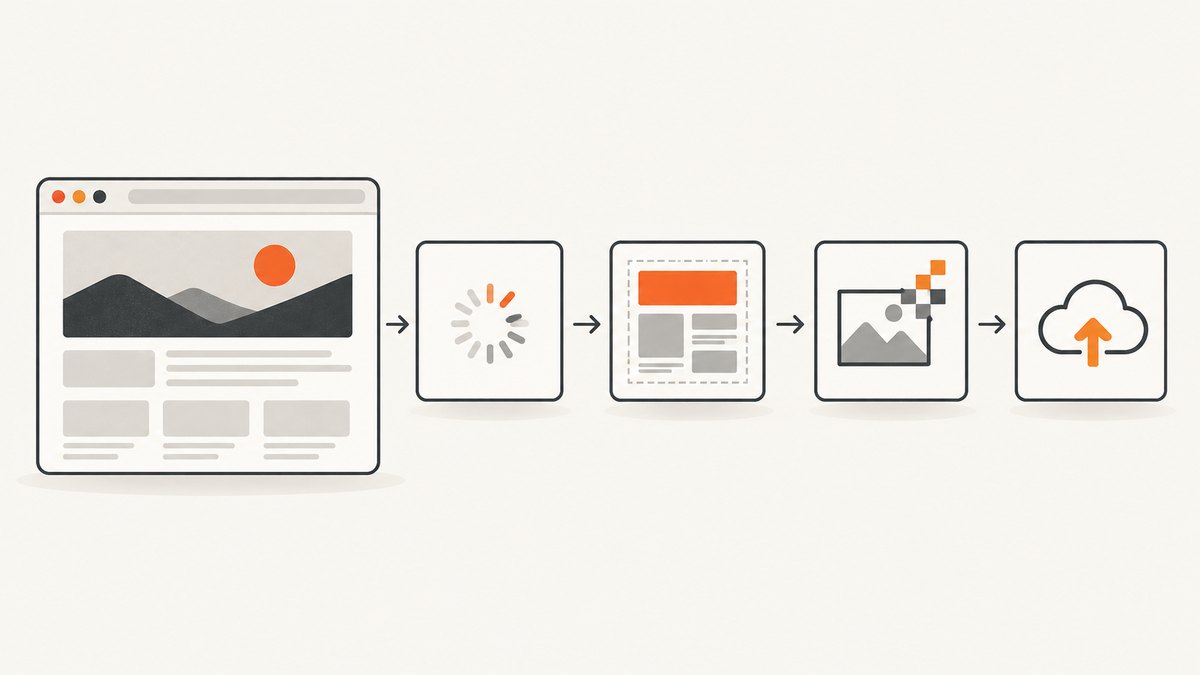
A screenshot request usually includes more work than the final screenshot call:

- Browser startup: launching Chrome and creating a page or context.
- Navigation: DNS, TLS, HTTP responses, redirects, and document parsing.
- Readiness: fonts, images, JavaScript, layout, and any application-specific loading state.
- Capture: painting the requested viewport, element, clip, or full document.
- Encoding: PNG, JPEG, or WebP compression.
- Transport and storage: CDP Base64 serialization, network transfer, and writing bytes to disk or object storage.
Time these boundaries independently. Otherwise a slow API response may be blamed on image encoding when the real cause is a page that never reaches its intended readiness condition.
import puppeteer from 'puppeteer';

const browser = await puppeteer.launch();
const page = await browser.newPage();
await page.setViewport({ width: 1440, height: 900, deviceScaleFactor: 1 });

const url = 'https://example.com';
const navigationStart = performance.now();
await page.goto(url, { waitUntil: 'domcontentloaded', timeout: 30000 });
const navigationEnd = performance.now();

await page.waitForNetworkIdle({ idleTime: 500, timeout: 15000 }).catch(() => {});
const readyEnd = performance.now();

await page.screenshot({ path: 'shot.png', type: 'png' });
const captureEnd = performance.now();

console.log({
  navigationMs: navigationEnd - navigationStart,
  readinessMs: readyEnd - navigationEnd,
  screenshotMs: captureEnd - readyEnd,
  totalMs: captureEnd - navigationStart
});

await browser.close();
Keep the URL, Chrome build, Puppeteer version, viewport, device scale factor, warm or cold state, and output requirements fixed while comparing runs. Repeat trials and record a median or distribution instead of relying on one result.
2. Reduce the amount of page you capture
Capture scope is usually the safest optimization because it changes the amount of content Chrome must paint, encode, and transfer. Use an element screenshot when a component is all you need, a clip for a known rectangle, the viewport for what a user sees, and fullPage only when the complete document is required.
Element capture
const card = await page.waitForSelector('[data-report-card]', { timeout: 10000 });
await card.screenshot({ path: 'report-card.webp', type: 'webp' });
Puppeteer attempts to scroll a hidden element into view before capturing it. The selector still needs to resolve to a stable, visible result; animated components can change between scrolling and capture.
Viewport and clipped capture
await page.screenshot({
  path: 'hero.jpg',
  type: 'jpeg',
  quality: 82,
  clip: { x: 0, y: 0, width: 1200, height: 500 }
});
Use a clip only after confirming the coordinates at the final viewport and device scale. A clip that is correct at 1280 pixels may be wrong at a mobile preset or a different page zoom.
Full-page capture
await page.screenshot({
  path: 'document.png',
  fullPage: true,
  captureBeyondViewport: true
});
Full-page screenshots can trigger more layout and image work, especially on pages that lazy-load content as it enters the viewport. If the page uses lazy images, scroll through it first and wait for the images you require.
3. Tune Puppeteer’s screenshot options
The current Puppeteer reference documents these relevant options: captureBeyondViewport, clip, encoding, fromSurface, fullPage, omitBackground, optimizeForSpeed, path, quality, and type. Defaults can change with versions, so check the installed reference. The documented defaults include PNG output, binary encoding, fullPage: false, fromSurface: true, and optimizeForSpeed: false. See the Puppeteer ScreenshotOptions reference.
| Option | Use it for | Trade-off to measure |
|---|---|---|
type |
png, jpeg, or webp |
Latency, bytes, fidelity, and transparency |
quality |
JPEG quality where supported | Smaller files versus compression artifacts |
optimizeForSpeed |
Prefer faster image encoding | Potentially larger output; no guaranteed speedup |
omitBackground |
Transparent output where supported | Requires downstream support for alpha |
clip |
Capture a rectangle | Coordinates must match final layout |
fullPage |
Capture the complete document | More content to lay out, paint, encode, and move |
path |
Write directly to a file | File-system time is part of end-to-end latency |
optimizeForSpeed is not a magic acceleration switch. The CDP description says it optimizes image encoding for speed rather than resulting size and defaults to false. Compare both settings using the same pages and inspect both elapsed time and output bytes:
for (const optimizeForSpeed of [false, true]) {
  const started = performance.now();
  await page.screenshot({
    path: `shot-${optimizeForSpeed}.png`,
    type: 'png',
    optimizeForSpeed
  });
  console.log({ optimizeForSpeed, ms: performance.now() - started });
}
4. Use Chrome DevTools Protocol directly when needed
Puppeteer communicates with Chrome through CDP by default. Create a session from the page and call Page.captureScreenshot when you need protocol-level parameters or want to avoid abstraction differences. The CDP Page.captureScreenshot reference documents clip, format, quality, captureBeyondViewport, fromSurface, and optimizeForSpeed. Supported formats are PNG, JPEG, and WebP; the documented quality range is 0–100 for JPEG.
const client = await page.createCDPSession();
const started = performance.now();
const result = await client.send('Page.captureScreenshot', {
  format: 'webp',
  quality: 82,
  captureBeyondViewport: false,
  fromSurface: true,
  optimizeForSpeed: true
});
const bytes = Buffer.from(result.data, 'base64');
await import('node:fs/promises').then(fs => fs.writeFile('cdp-shot.webp', bytes));
console.log({ ms: performance.now() - started, bytes: bytes.length });
CDP returns image data as Base64. In a remote browser setup, Base64 serialization and protocol transport can be a meaningful part of total time. Measure it separately instead of assuming the encoder dominates. Pin or record Chrome and Puppeteer versions because the rolling CDP reference and Puppeteer defaults are version-sensitive.
5. Make readiness deterministic
A fast screenshot of an incomplete page is usually a failed result. Pick a readiness condition that matches the site:
domcontentloadedis useful when the document structure is enough.networkidlecan help after asynchronous requests, but analytics, chat, and streaming connections may prevent a stable idle state.- A specific selector is usually the most reliable application signal.
- A short delay is a fallback for animations or delayed fonts, not a substitute for knowing what “ready” means.
await page.goto(url, { waitUntil: 'domcontentloaded', timeout: 30000 });
await page.waitForSelector('[data-render-complete="true"]', { timeout: 15000 });
await page.evaluate(() => document.fonts?.ready);
Disable or freeze animations when visual stability matters. You can inject CSS before capture:
await page.addStyleTag({ content: `
  *, *::before, *::after {
    animation: none !important;
    transition: none !important;
    caret-color: transparent !important;
  }
` });
6. Diagnose layout and script work
page.metrics() exposes diagnostic counters including layout count and duration, style recalculation count and duration, script duration, task duration, and JavaScript heap information. These are signals about page work before capture; they are not screenshot benchmarks.
const before = await page.metrics();
await page.screenshot({ path: 'metrics.png' });
const after = await page.metrics();
console.log({ before, after });
If script or layout duration is high, optimize the page state: remove unnecessary widgets, wait for a server-rendered milestone, avoid repeatedly resizing the viewport, and prevent an infinite poller from keeping the page busy. If capture itself is slow while page metrics are modest, compare scope, format, quality, and optimizeForSpeed.
7. Benchmark responsibly
Build a small representative corpus: a text-heavy page, an image-heavy page, a long document, a page with web fonts, and any difficult application routes. For each configuration, record:
- Chrome and Puppeteer versions
- Cold versus warm browser and page state
- Viewport, device scale factor, and capture scope
- Navigation and readiness elapsed time
- Screenshot-call elapsed time
- Output format, quality, and byte size
- Base64 decoding, network, and file-write time
- Visual correctness and missing-resource errors
Change one variable at a time, repeat trials, and report medians or distributions. The official documentation provides controls and semantics, not a universal benchmark.
8. Concurrency, reliability, and cost
More parallel pages can improve throughput until CPU, memory, bandwidth, or browser scheduling becomes the bottleneck. Puppeteer documents that while a screenshot is running in a BrowserContext, operations such as opening or closing a page wait for the screenshot to finish. Design a bounded worker pool rather than launching unbounded captures.
const limit = 4;
const queue = [...urls];
async function worker() {
  const page = await browser.newPage();
  try {
    while (queue.length) {
      const url = queue.shift();
      await page.goto(url, { waitUntil: 'domcontentloaded', timeout: 30000 });
      await page.screenshot({ path: `out-${encodeURIComponent(url)}.webp`, type: 'webp' });
    }
  } finally { await page.close(); }
}
await Promise.all(Array.from({ length: limit }, worker));
Use timeouts, catch navigation failures, close pages in finally, and retry only transient failures. Keep browser logs and the URL associated with every output so a blank or partial image can be investigated. Cost is primarily your compute, memory, browser operations, storage, and outbound transfer; benchmark throughput at the concurrency you intend to run.
9. Common errors and fixes
| Symptom | Likely cause | Fix |
|---|---|---|
| Screenshot is blank | Capture ran before the app rendered, or the page is blocked | Wait for an application selector, inspect console/network errors, and verify the URL manually |
| Full page misses lazy images | Images load only after entering the viewport | Scroll incrementally, wait for image completion, then capture |
TimeoutError |
Navigation, selector, or network-idle condition never completed | Use the readiness signal that matches the page and set a bounded timeout |
| Clip is misplaced | Viewport, zoom, or responsive layout changed | Set viewport first and calculate coordinates after layout stabilizes |
| JPEG rejects quality | Quality is being applied to PNG | Use JPEG or WebP when appropriate; PNG has no quality parameter |
| CDP call fails | Chrome and protocol/client versions are incompatible | Record versions, use Puppeteer’s API, or align the browser and client versions |
| Throughput falls with concurrency | CPU, memory, queueing, or BrowserContext serialization | Lower the worker limit and measure throughput and tail latency |
10. Or skip the browser setup
ScreenshotNeo provides a website screenshot API and MCP server when you want a clean capture without maintaining Chrome orchestration. Its preprocessing accepts cookie and consent banners, removes more than 60 known consent platforms plus newsletter popups and chat widgets, and each step can be turned off. Bot checks or CAPTCHAs, blank pages, timeouts, failed loads, and cache hits cost nothing; the response reports the page verdict and billing status in X-Page-Verdict and X-Billed headers.
One GET request returns PNG, JPEG, WebP, or a PDF. The parameter names used by other screenshot APIs also work, which can simplify migration. The API supports full-page capture with lazy images loaded, CSS element capture, dark mode, device presets or custom viewports, retina scale, PDF paper settings and page ranges, HTML/CSS rendering, custom JavaScript and CSS, clicks, selector waits, delays, network-idle waits, request and resource blocking, headers, cookies, user agents, Authorization, timezone, geolocation, transparent backgrounds, resizing, selectable cache TTLs, signed image links, asynchronous jobs with signed webhooks, bulk capture for up to 100 URLs per call, usage reporting, and an OpenAPI specification. Its MCP server exposes take_screenshot, get_page_info, and capture_pdf for Claude, Cursor, and other MCP clients.
See the ScreenshotNeo documentation for request options. The same request can be used from cURL, Python, or Node.js:
curl -G "https://api.screenshotneo.com/v1/shot" -d access_key=YOUR_API_KEY --data-urlencode url=https://stripe.com -o shot.webpimport requests
r = requests.get("https://api.screenshotneo.com/v1/shot", params={"access_key": "YOUR_API_KEY", "url": "https://stripe.com"}, timeout=90)
open("shot.webp", "wb").write(r.content)const q = new URLSearchParams({ access_key: 'YOUR_API_KEY', url: 'https://stripe.com' });
const res = await fetch(`https://api.screenshotneo.com/v1/shot?${q}`);The Free plan includes 1,000 shots per month with no card. Starter is $5 for 3,000, Growth $15 for 15,000, Pro $39 for 60,000, Scale $99 for 250,000, and Business $249 for 1,000,000; yearly billing gives two months free, and every feature is available on every plan. Create a free ScreenshotNeo account and start with 1,000 screenshots a month without a card.
11. FAQ
What is the fastest Puppeteer screenshot format?
The sources do not establish a universal winner. Compare PNG, JPEG, and WebP on your pages while measuring time, bytes, transparency, and visual quality.
Does optimizeForSpeed always make screenshots faster?
No. It requests speed-oriented encoding rather than smaller output. Test both values on your Chrome build and workload.
Should I use CDP directly instead of Puppeteer?
Use Puppeteer’s API by default. Direct CDP is useful when you need a protocol-specific option or an exact Page.captureScreenshot workflow.
How can I compare changes fairly?
Pin versions and page conditions, separate navigation from capture and file output, repeat trials, and retain output bytes and visual checks for every run.
When is a hosted API a better fit?
It can be practical when browser installation, consent cleanup, retries, scaling, billing, or AI-agent integration would otherwise become part of your application. Evaluate output correctness and pricing against your actual volume.