Why PhantomJS Screenshots Do Not Render JavaScript Like Chrome
PhantomJS does run JavaScript, but its older WebKit engine and capture timing can produce different screenshots from Chrome.
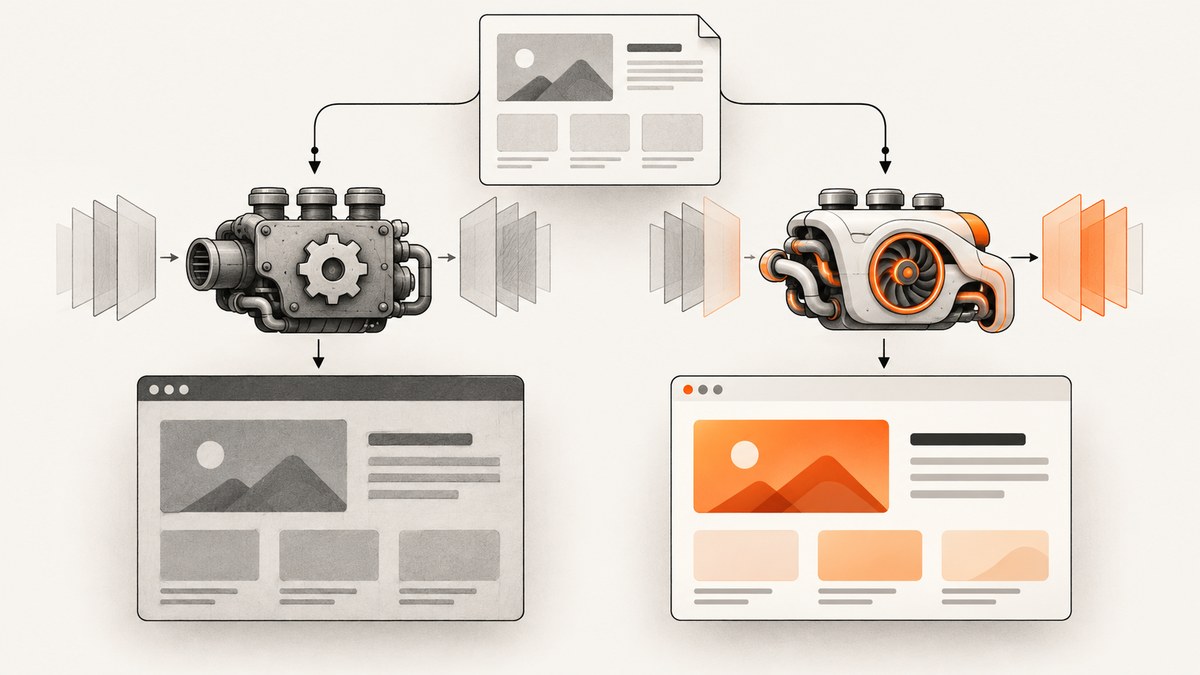
Direct answer: PhantomJS does execute JavaScript. Its screenshots are rendered by WebKit, while Chrome uses Blink, so modern browser features and layout behavior can differ. A second issue is timing: page.open finishing means the initial page load completed, not that a single-page application has finished its asynchronous rendering. Check PhantomJS settings, wait for the content your screenshot needs, and use headless Chrome when the acceptance criterion is Chrome’s rendering.
What is actually different?
PhantomJS evaluates page JavaScript and renders pages through WebKit. Chrome’s headless mode renders through Blink. The engines have different levels of support for browser APIs, CSS behavior, JavaScript features and network handling. Chrome for Developers describes PhantomJS as using an older WebKit version while Headless Chrome uses the latest Blink.
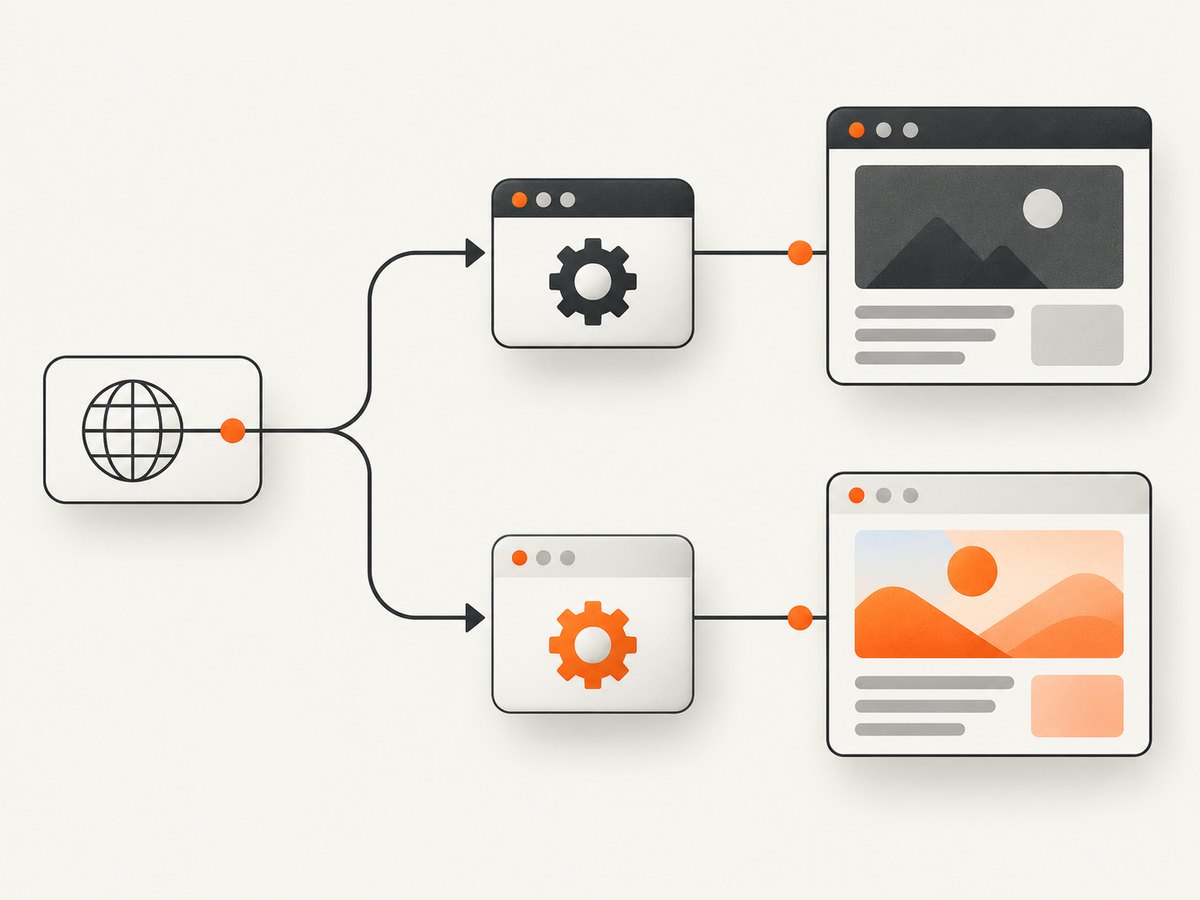
That distinction explains many mismatches, but it is not proof that every mismatch is an engine bug. First establish that both browsers loaded the same URL, used the same viewport and waited for the same application state.
Why a load callback can still produce an incomplete image
PhantomJS invokes the page.open callback when page loading completes. Applications commonly render additional content afterward:
- XHR or fetch requests populate a list after the initial document loads.
- Client-side routing mounts the real view after startup.
- Lazy images load only after a scroll or an intersection event.
- Fonts, charts and ads finish on separate schedules.
Therefore, calling page.render immediately can capture a shell, blank panel or partially populated page. A selector that represents the required content is a better readiness condition than an arbitrary short sleep.
Capture a JavaScript-rendered page with PhantomJS
The following script enables JavaScript and images, sets a resource timeout, opens a page, waits for an application-specific selector and then renders. Replace the URL and selector with values from the page you are capturing.
var system = require('system');
var webpage = require('webpage');

var url = system.args[1] || 'https://example.com/app';
var output = system.args[2] || 'phantom-shot.png';
var readySelector = system.args[3] || '#app-loaded';

var page = webpage.create();
page.viewportSize = { width: 1440, height: 900 };

// Set settings before page.open().
page.settings.javascriptEnabled = true;
page.settings.loadImages = true;
page.settings.resourceTimeout = 30000;
page.settings.userAgent = 'Mozilla/5.0 (compatible; PhantomJS screenshot)';
page.settings.webSecurityEnabled = true;

function waitFor(test, onReady, onTimeout, timeout, interval) {
  var start = Date.now();
  var timer = setInterval(function () {
    var finished = false;
    try { finished = test(); } catch (e) {}
    if (finished) {
      clearInterval(timer);
      onReady();
    } else if (Date.now() - start >= timeout) {
      clearInterval(timer);
      onTimeout();
    }
  }, interval || 100);
}

page.open(url, function (status) {
  if (status !== 'success') {
    console.log('OPEN_FAILED: ' + status);
    phantom.exit(1);
    return;
  }

  waitFor(
    function () {
      return page.evaluate(function (selector) {
        var element = document.querySelector(selector);
        return !!element && element.getBoundingClientRect().width > 0;
      }, readySelector);
    },
    function () {
      page.render(output);
      console.log('WROTE: ' + output);
      phantom.exit(0);
    },
    function () {
      console.log('READY_TIMEOUT: ' + readySelector);
      phantom.exit(2);
    },
    30000,
    200
  );
});
Run it with the URL, output path and selector as arguments:
phantomjs capture.js https://example.com/app app.png '#dashboard-ready'If the page has no reliable selector, use a page-specific readiness flag or a bounded delay as a fallback. A delay should be long enough for the known application behavior and still have a hard timeout.
PhantomJS settings to inspect
| Setting | Why it matters | Typical check |
|---|---|---|
javascriptEnabled |
Controls page JavaScript execution. The documented default is true. |
Set it explicitly before page.open. |
loadImages |
Controls image loading. The documented default is true. |
Enable it when the screenshot includes images. |
resourceTimeout |
Limits how long a resource may block loading. | Set a bounded value appropriate for the page. |
userAgent |
Some servers return different markup to different clients. | Compare the user agent used by PhantomJS and Chrome. |
webSecurityEnabled |
Changes browser security behavior for cross-origin resources. | Keep the setting consistent with the environment you are reproducing. |
viewportSize |
Changes responsive breakpoints and layout. | Use the same width and height in both browsers. |
The settings documentation says these settings apply during the initial page.open call, so configure them before opening the URL.
Use a content-based readiness check
Wait for a selector
Prefer a selector that only appears after the required data is rendered, such as #results-loaded, [data-render-complete] or a chart container with non-zero dimensions. Do not use a generic element such as body; it exists before the application is ready.
Wait for an application flag
waitFor(
  function () {
    return page.evaluate(function () {
      return window.appReady === true;
    });
  },
  function () { page.render('ready.png'); phantom.exit(); },
  function () { console.log('Application did not become ready'); phantom.exit(2); },
  30000,
  200
);
Use a delay only as a fallback
window.setTimeout(function () {
  page.render('delayed.png');
  phantom.exit();
}, 5000);
A fixed delay can be too short on a slow run and wasteful on a fast run. If the automation target supports network-idle and selector waits, combine network quiet with the selector for the expected content.
Capture the same page with headless Chrome
Use Chrome when the required output is Chrome-faithful. Puppeteer provides a current Chrome-based path and lets you wait for both network quiet and the content selector.
const puppeteer = require('puppeteer');

(async () => {
  const browser = await puppeteer.launch({headless: true});
  try {
    const page = await browser.newPage();
    await page.setViewport({width: 1440, height: 900, deviceScaleFactor: 1});
    await page.goto('https://example.com/app', {
      waitUntil: 'networkidle0',
      timeout: 30000
    });
    await page.waitForSelector('#app-loaded', {visible: true, timeout: 30000});
    await page.screenshot({path: 'chrome-shot.png', fullPage: true});
  } finally {
    await browser.close();
  }
})();
Chrome flags and APIs evolve. Confirm the flags supported by the Chrome version deployed in your environment.
PhantomJS versus Chrome: choose by acceptance criterion
| Question | PhantomJS | Headless Chrome |
|---|---|---|
| Rendering engine | WebKit, with an older version documented by Chrome for Developers | Blink |
| JavaScript | Runs page JavaScript when enabled | Runs JavaScript in the current Chrome engine |
| Readiness | page.open completion may precede application rendering |
Can combine network-idle and selector waits |
| Best fit | Reproducing a legacy WebKit environment | Matching current Chrome behavior |
| Diagnosis | Inspect settings, timing and page compatibility | Keep viewport, user agent and waits comparable |
If the content is ready in both browsers but the pixels still differ, the WebKit-versus-Blink difference is a likely explanation. That is an inference from the documented engine distinction, not a universal diagnosis.
Troubleshooting checklist
Blank or shell-only screenshot
- Cause: rendering happened before asynchronous content mounted. Fix: wait for a page-specific selector or readiness flag.
- Cause: JavaScript was disabled. Fix: set
page.settings.javascriptEnabled = truebefore opening. - Cause: required images were not loaded. Fix: check
loadImagesand resource failures.
“Success” status but missing data
- Cause: page-load completion is not application completion. Fix: add a content-based wait.
- Cause: the API request failed or was still pending. Fix: inspect requests, increase
resourceTimeoutwhere appropriate and verify the endpoint from the same environment.
Different layout from Chrome
- Cause: WebKit and Blink implement features differently. Fix: use headless Chrome when Chrome fidelity is required.
- Cause: different viewport, user agent, timezone or responsive breakpoint. Fix: make capture settings identical before comparing.
Fonts, images or charts differ
- Cause: late-loading resources or unsupported browser behavior. Fix: wait for the specific visual element, verify image loading and compare in Chrome.
Cross-origin resource problems
- Cause: security settings or server policy blocks a resource. Fix: inspect
webSecurityEnabled, response headers and whether the resource is available to the capture browser. Do not weaken security settings unless the test explicitly requires that legacy behavior.
Timeouts
- Cause: a request never completes or the readiness selector never appears. Fix: use a bounded timeout, log the failing URL/status, and fail clearly instead of rendering an unknown state.

Performance, reliability and cost considerations
- Reuse a browser process when capturing many pages, but isolate pages and clear state between captures.
- Keep a deterministic viewport, user agent, timezone and authentication state so pixel differences are meaningful.
- Wait for the smallest reliable readiness condition; waiting for every network request can stall on analytics or long-lived connections.
- Record the PhantomJS version and settings when reproducing a legacy screenshot. The documented command-line material applies to PhantomJS 2.1.1, and forks or modified builds may behave differently.
- Use retries for transient network failures, with a maximum attempt count and clear logging. Do not treat a timeout screenshot as valid output.
- Self-hosted browser automation costs compute, browser maintenance and investigation time. A hosted screenshot API shifts that setup to an API request; compare its per-shot price with your browser runtime and maintenance budget.
Or skip the browser setup
ScreenshotNeo returns a PNG, JPEG, WebP or PDF from one GET request. It can wait for a selector, delay or network idle, run custom JavaScript, set a viewport or device preset, and capture a full page or one CSS-selected element. Before capture it accepts consent banners and removes more than 60 known consent platforms, newsletter popups and chat widgets.
Only clean shots are billed. Bot checks or CAPTCHAs, blank pages, timeouts, failed loads and cache hits cost nothing, and the response identifies the result with X-Page-Verdict and X-Billed headers. ScreenshotNeo also provides an MCP server with take_screenshot, get_page_info and capture_pdf for Claude, Cursor and other MCP clients.
See the ScreenshotNeo API documentation for the complete option list.
curl -G "https://api.screenshotneo.com/v1/shot" -d access_key=YOUR_API_KEY --data-urlencode url=https://stripe.com -o shot.webpimport requests
r = requests.get("https://api.screenshotneo.com/v1/shot", params={"access_key": "YOUR_API_KEY", "url": "https://stripe.com"}, timeout=90)
open("shot.webp", "wb").write(r.content)const q = new URLSearchParams({ access_key: 'YOUR_API_KEY', url: 'https://stripe.com' });
const res = await fetch(`https://api.screenshotneo.com/v1/shot?${q}`);There is a free plan with 1,000 screenshots per month and no card. Paid plans start at $5 for 3,000 shots, and every feature is available on every plan. Create a free ScreenshotNeo account.
FAQ
Does PhantomJS disable JavaScript?
No. JavaScript is enabled by default in its documented webpage settings, and PhantomJS can evaluate page-context JavaScript.
Is every PhantomJS and Chrome difference caused by WebKit?
No. Timing, viewport, user agent, resources and page state can also differ. Compare those inputs before blaming the engine.
Should I replace every PhantomJS job with Chrome?
Replace it when the required output must match current Chrome. Keep PhantomJS when reproducing a legacy WebKit environment is the requirement.
Why does adding a one-second sleep sometimes help?
It gives asynchronous code time to run, but it is not a reliable readiness signal. A selector or application flag is usually more deterministic.
Can a screenshot be valid when the page reports a load success?
Yes, if all required content is already present. Load success alone does not prove that asynchronous application work is complete.


