Why PhantomJS Screenshots Differ Across Machines and How to Fix Them
PhantomJS screenshots vary with WebKit builds, fonts, viewport, timing and scaling. Use this diagnostic sequence to make captures reproducible.
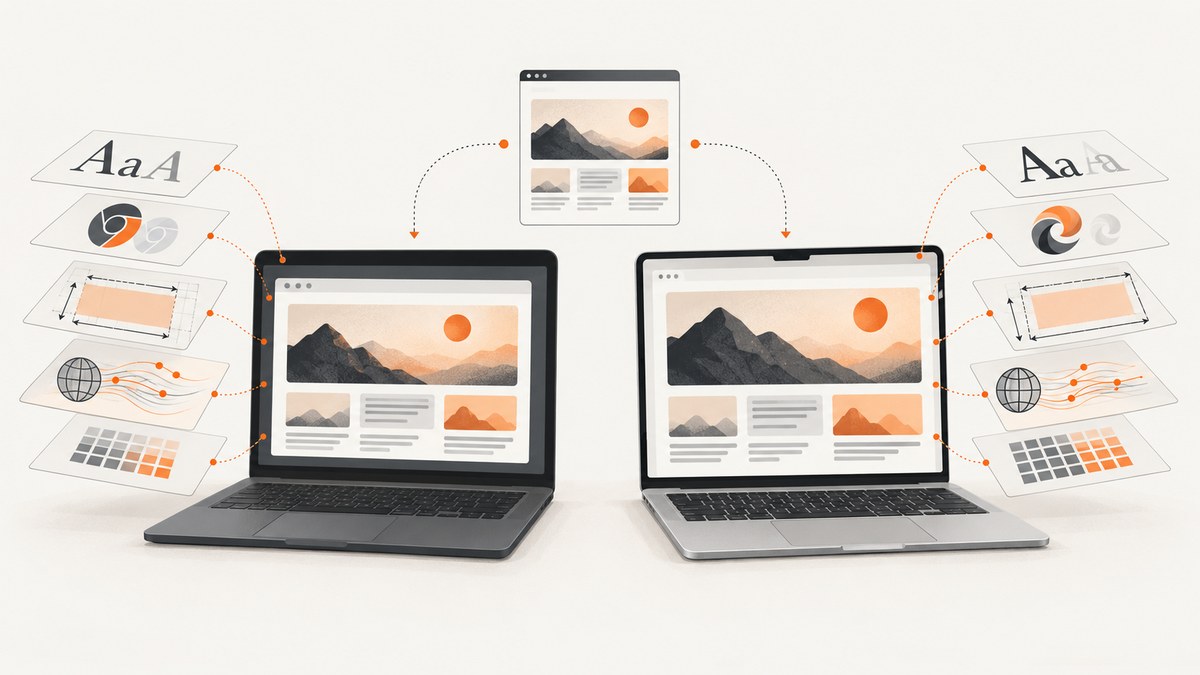
Short answer: PhantomJS screenshots differ because PhantomJS wraps a WebKit build whose libraries, fonts, viewport, resource-loading state and runtime scaling can vary between machines. Make the executable and dependencies identical, install matching fonts, set the viewport and clip rectangle explicitly, wait for a deterministic ready state, and compare one variable at a time.
PhantomJS development is suspended, so this is maintenance guidance for existing systems. For a new capture pipeline, plan a migration to a maintained browser or screenshot service after you have isolated the source of the visual drift.
Why do PhantomJS screenshots look different on my machine?
PhantomJS is WebKit-based. Its FAQ explains that the WebKit version depends on the libraries used to compile a particular build, so two executables both named phantomjs can render differently. The project also warns that development is suspended. See the PhantomJS FAQ and project site.
The main sources of drift are:
- Different binaries or libraries: compiled Qt/WebKit versions change CSS, font and layout behavior.
- Fonts: a missing family or a different font file causes fallback metrics, changed line breaks and moved elements. A cross-platform PhantomJS example documented visible Ubuntu Linux and Mac OS X font differences.
- Viewport and clipping:
page.viewportSizecontrols the browser viewport;page.clipRectcontrols the captured rectangle. They are separate. - Page readiness: fonts, images, XHR data and asynchronous components may not be ready when
page.render()runs. - State: cookies, local storage and session data can change the page. PhantomJS sessions may share these assets.
- Background and scaling: an unset page background can render transparent, while host DPI or device-pixel behavior can change dimensions. Qt’s current high-DPI documentation is useful background, but does not prove that every legacy PhantomJS build behaves the same way.
How to make PhantomJS screenshots consistent across machines
1. Record the exact executable and build
Run this on every host and save the output with your screenshot artifact:
which phantomjs
phantomjs --version
uname -a
ldd "$(which phantomjs)" 2>/dev/null | sort
Check PATH, package-manager installs, Docker images and CI runners for multiple PhantomJS copies. The official troubleshooting guide specifically calls out conflicts caused by multiple installed versions. Pin one absolute executable path in automation.
2. Match fonts and font files
Compare family names, versions and actual files, not just the operating-system label. Ensure web fonts are available before capture and that the same fallback fonts are installed. A practical check is to log the computed family and dimensions from the page:
var metrics = page.evaluate(function () {
  var el = document.querySelector('body');
  var s = getComputedStyle(el);
  return { fontFamily: s.fontFamily, width: el.getBoundingClientRect().width };
});
console.log(JSON.stringify(metrics));
Matching fonts is a reproducibility control inferred from the documented cross-platform difference; it is not a guarantee that every font rasterizer will produce identical pixels.
3. Set viewport and clip rectangle explicitly
Use the same width and height before opening the URL. Set a clip rectangle when you need a fixed output region. The screen-capture guide demonstrates both controls.
var page = require('webpage').create();
page.viewportSize = { width: 1440, height: 900 };
page.clipRect = { top: 0, left: 0, width: 1440, height: 900 };
page.open('https://example.com', function (status) {
  if (status !== 'success') { phantom.exit(1); return; }
  page.render('shot.png');
  phantom.exit();
});
Compare both CSS layout dimensions and the image’s pixel dimensions. A retina-like scale setting in a surrounding tool can alter output pixels even when CSS coordinates match.
4. Wait for a deterministic page state
A fixed sleep is a useful first diagnostic, but a page-specific readiness signal is more reliable. Wait for a selector, a JavaScript flag or a known network condition, then render.
var system = require('system');
var page = require('webpage').create();
page.viewportSize = { width: 1440, height: 900 };
page.settings.resourceTimeout = 30000;
page.onResourceError = function (e) { console.error(JSON.stringify(e)); };
page.onResourceTimeout = function (e) { console.error('TIMEOUT ' + JSON.stringify(e)); };
page.open(system.args[1], function (status) {
  if (status !== 'success') { console.error('OPEN ' + status); phantom.exit(1); return; }
  var deadline = Date.now() + 15000;
  function poll() {
    var ready = page.evaluate(function () {
      return document.documentElement.getAttribute('data-ready') === 'true';
    });
    if (ready || Date.now() > deadline) {
      page.render(system.args[2] || 'shot.png');
      phantom.exit(ready ? 0 : 2);
    } else {
      setTimeout(poll, 100);
    }
  }
  poll();
});
On pages you control, set document.documentElement.dataset.ready = 'true' after fonts, data and images are ready. Otherwise, use a bounded delay and inspect resource logs. PhantomJS page settings include resource timeout controls, and the troubleshooting documentation describes request callbacks.
5. Isolate cookies and storage
Run comparisons with a clean profile or deliberately reproduce the same cookies and local-storage values. A logged-in state, experiment assignment or dismissed consent banner can change the DOM. If only the background differs, set an explicit CSS background and check whether the page otherwise matches:
page.evaluate(function () {
  document.documentElement.style.background = '#ffffff';
  document.body.style.background = '#ffffff';
});
The FAQ notes that render() can leave the background transparent when the page has not set one.
6. Check host DPI as a build-specific variable
Record display-scaling settings and compare resulting image dimensions. Change DPI only after binary, fonts, viewport and readiness match. Qt’s high-DPI model is platform-specific, and legacy PhantomJS builds may not expose current Qt behavior.
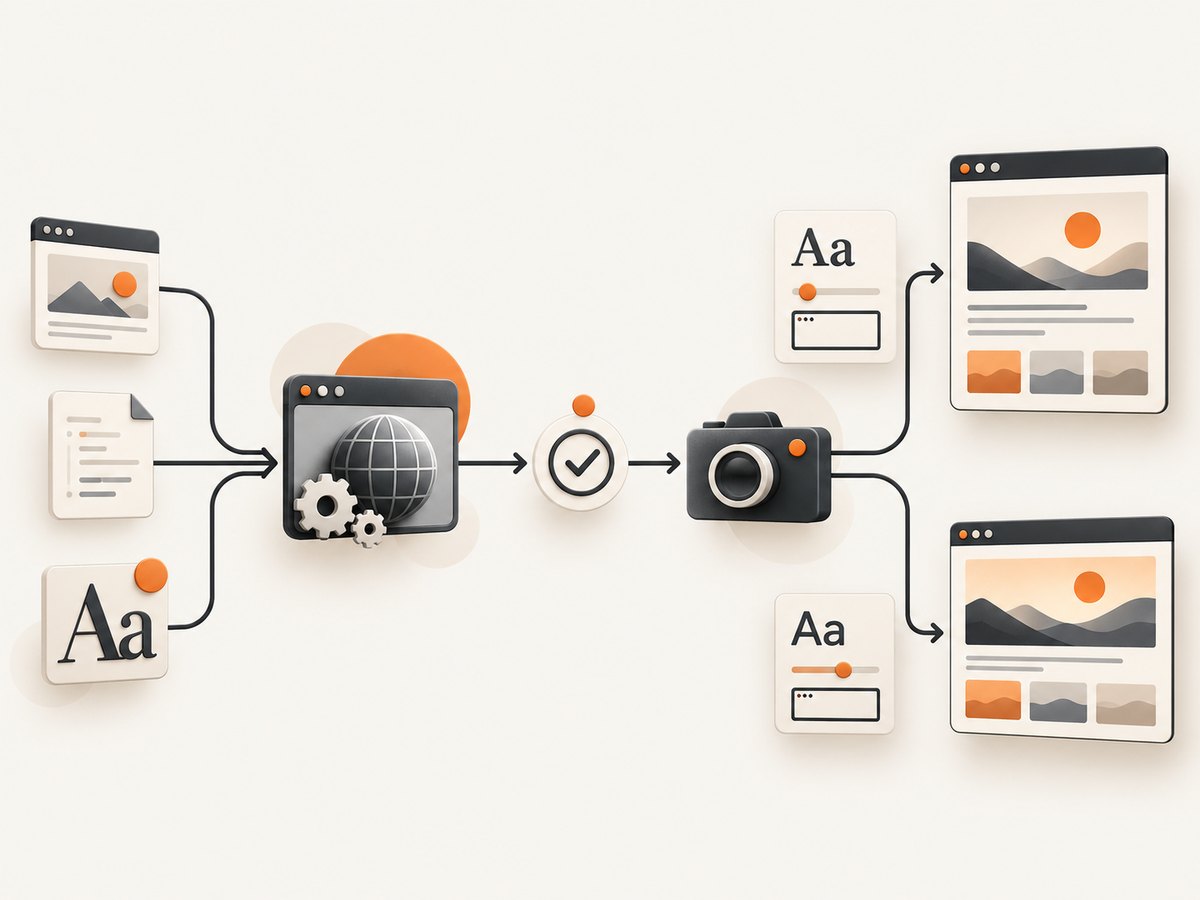
A controlled diagnostic sequence
- Hash or otherwise identify the PhantomJS executable; record
--version, path, OS and linked Qt/WebKit libraries. - Run the same URL with a clean profile, identical headers and identical timezone.
- Install and verify identical font files; capture computed font families.
- Set identical
page.viewportSizeand, if needed,page.clipRect. - Log requests, failures and timeouts; confirm that images, stylesheets, scripts and fonts complete.
- Use the same readiness condition and render immediately after it becomes true.
- Compare output dimensions, then layout geometry, then pixels.
- Change one variable at a time and keep a record of each run.
Common PhantomJS screenshot problems
| Symptom | Likely cause | Fix |
|---|---|---|
| Text wraps on one host | Missing or different font file | Install matching fonts, verify computed styles and wait for web fonts. |
| Everything is shifted or cropped | Viewport or clip rectangle differs | Set both explicitly and compare output pixel dimensions. |
| Images or CSS are absent | Render happened before resources completed | Add readiness polling, request logging and a resource timeout. |
| One machine opens a different page | Cookies, storage, authentication or experiments | Clear state or reproduce the same session inputs. |
| Transparent or different background | No explicit page background | Set html and body backgrounds before rendering. |
| Commands use the wrong PhantomJS | Multiple installations or PATH order | Use an absolute path and remove conflicting packages. |
| Dimensions vary with desktop settings | Build-specific DPI/device-pixel behavior | Record scaling, compare image dimensions and standardize the host or container. |
Performance and reliability considerations
- Use a pinned container or VM with the same PhantomJS binary, libraries and fonts for repeatable jobs.
- Keep a bounded readiness timeout so a broken page cannot block the queue indefinitely.
- Log URL, executable hash, viewport, clip rectangle, font inventory, request failures and exit status beside each image.
- Cache stable assets where appropriate, but invalidate cache when diagnosing resource-loading differences.
- For visual regression, compare geometry and dimensions before pixel diffs; anti-aliasing can vary even when layout is equivalent.
- Because PhantomJS is suspended, budget maintenance time for WebKit incompatibilities and migration work.
Or skip the browser setup
ScreenshotNeo provides a website screenshot API and MCP server. One request returns PNG, JPEG, WebP or PDF, with options for viewport, full-page capture, waiting, custom CSS and JavaScript, headers, cookies, user agent, timezone, geolocation, blocking and caching. Cookie and consent banners, newsletter popups and chat widgets are removed before capture. Bot checks, blank pages, timeouts, failed loads and cache hits are not billed, and response headers identify the page verdict and billing result.
Read the ScreenshotNeo API documentation for all options.
cURL
curl -G "https://api.screenshotneo.com/v1/shot" -d access_key=YOUR_API_KEY --data-urlencode url=https://stripe.com -o shot.webpPython
import requests
r = requests.get("https://api.screenshotneo.com/v1/shot", params={"access_key": "YOUR_API_KEY", "url": "https://stripe.com"}, timeout=90)
r.raise_for_status()
open("shot.webp", "wb").write(r.content)
Node.js
const fs = require('node:fs/promises');
const q = new URLSearchParams({ access_key: 'YOUR_API_KEY', url: 'https://stripe.com' });
const res = await fetch(`https://api.screenshotneo.com/v1/shot?${q}`);
if (!res.ok) throw new Error(`${res.status} ${res.statusText}`);
await fs.writeFile('shot.webp', Buffer.from(await res.arrayBuffer()));
ScreenshotNeo also has an MCP server with take_screenshot, get_page_info and capture_pdf for Claude, Cursor and other MCP clients. The Free plan includes 1,000 screenshots per month with no card; paid plans start at $5 for 3,000 shots. Create a free ScreenshotNeo account.
FAQ
Is PhantomJS broken if two screenshots differ by a few pixels?
Not necessarily. First establish that layout geometry, fonts, viewport and loaded resources match. Rasterization and anti-aliasing can still differ across builds.

Should I increase the delay before every render?
Use a page-specific readiness signal when possible. A longer delay helps only when the page reliably finishes within that delay; it does not fix missing fonts, failed requests or different session state.
Does setting clipRect change the webpage layout?
No. The viewport determines layout; the clip rectangle selects the output region.
Can a screenshot service reproduce PhantomJS pixels exactly?
No service should be assumed pixel-identical to a legacy PhantomJS build. Use a controlled PhantomJS environment for historical baselines, or migrate and update baselines deliberately.


