How Scrolling Works in PhantomJS and Whether It Has a window Object
Learn how PhantomJS scrolling, page.evaluate, window, scrollPosition, viewportSize and input events fit together, with runnable examples and fixes.

Short answer: yes, a PhantomJS page has a browser window object. Code passed to page.evaluate runs inside the loaded webpage, where normal DOM APIs and window are available. PhantomJS itself runs outside that context. From the host side, page.scrollPosition reports the document scroll coordinates as { left, top }, while page.viewportSize reports the visible viewport dimensions.
That separation explains most scrolling questions. Use page-context JavaScript when you need to change the page or inspect its DOM. Use PhantomJS WebPage properties when you need to inspect browser state. Use sendEvent only when the page’s interaction logic depends on genuine mouse or keyboard-style input.
1. The two JavaScript contexts
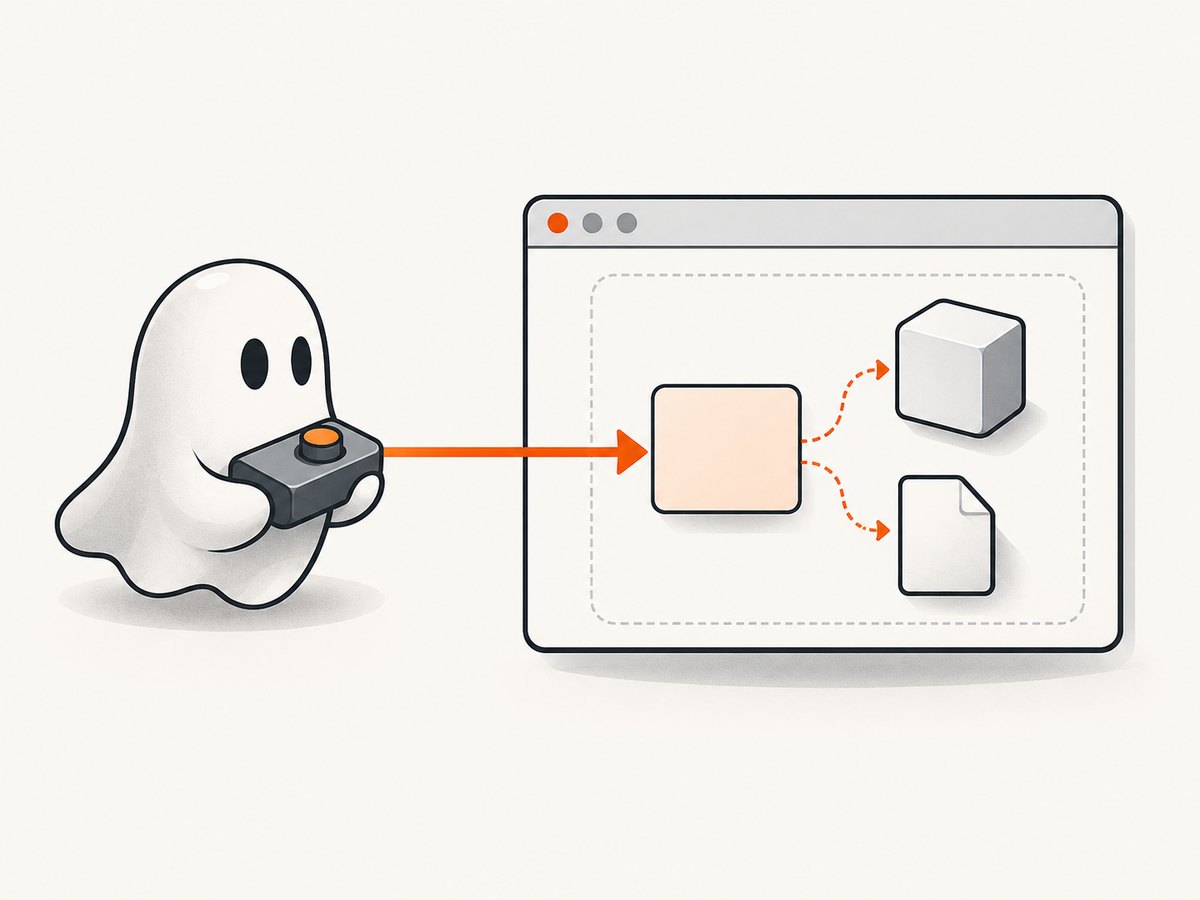
PhantomJS automation has a controller context and a webpage context. Your main script creates a WebPage, opens a URL, sets viewport options and reads properties. The loaded site has its own JavaScript environment. PhantomJS’s documentation describes page.evaluate as evaluating a function “in the context of the web page” (evaluate API documentation).
What exists in the webpage context
window,documentand ordinary browser globals.- DOM methods such as
document.querySelector. - Page variables, event handlers and application state exposed by the site.
- Scrolling methods such as
window.scrollToandwindow.scrollBy, subject to the page’s layout and scripts.
What exists in the PhantomJS context
- The
phantomobject and WebPage API. page.scrollPosition, documented as the current horizontal and vertical scroll position.page.viewportSize, documented as the viewport width and height.- Automation methods such as
page.open,page.evaluateandpage.sendEvent.
The page function is sandboxed from the host. A function evaluated in the page cannot directly access the host-side phantom object. Conversely, host code cannot assume that a page variable is a host variable. PhantomJS’s evaluateJavaScript example demonstrates writing and reading a property on window in the webpage context (evaluateJavaScript documentation).
2. Reading and changing document scroll position
For normal document scrolling, call a page function that uses the browser’s window, then read page.scrollPosition from the controller. This is the clearest way to distinguish an operation from its result.
var page = require('webpage').create();
page.viewportSize = { width: 1280, height: 800 };

page.open('https://example.com', function (status) {
  if (status !== 'success') {
    console.log('Open failed: ' + status);
    phantom.exit(1);
    return;
  }

  page.evaluate(function () {
    window.scrollTo(0, 900);
  });

  window.setTimeout(function () {
    var position = page.scrollPosition;
    console.log('left=' + position.left + ', top=' + position.top);
    phantom.exit();
  }, 250);
});
The delay gives the page a chance to process layout and paint work. It is not a guarantee that a site has finished loading content triggered by scrolling. For an infinite list or lazy-loaded images, you need a loop that scrolls, waits, checks document height and stops when no more content appears.
Scroll by a relative amount
page.evaluate(function () {
  window.scrollBy(0, window.innerHeight);
});
window.innerHeight is useful when the step should match the current viewport. A fixed step is easier to reason about in screenshots and tests; a viewport-relative step adapts to different sizes.
Read the position inside evaluate
var result = page.evaluate(function () {
  return {
    x: window.pageXOffset,
    y: window.pageYOffset,
    height: document.documentElement.scrollHeight,
    viewport: window.innerHeight
  };
});
console.log(JSON.stringify(result));
Returning a small JSON-compatible object is preferable to returning DOM nodes or complex application objects. PhantomJS serializes values crossing the context boundary, and unsupported values can become null or lose properties.
3. A complete scrolling loop for long pages
The following script repeatedly moves down the document and stops when the bottom is reached. It records the host-side position after each step.
var page = require('webpage').create();
page.viewportSize = { width: 1366, height: 768 };
var step = 600;
var maxSteps = 40;
var count = 0;

function scrollNext() {
  var state = page.evaluate(function (distance) {
    window.scrollBy(0, distance);
    return {
      top: window.pageYOffset,
      height: Math.max(document.body.scrollHeight,
                      document.documentElement.scrollHeight),
      viewport: window.innerHeight
    };
  }, step);

  var hostPosition = page.scrollPosition;
  console.log('page y=' + state.top + ', host y=' + hostPosition.top);

  count += 1;
  var atBottom = state.top + state.viewport >= state.height - 2;
  if (atBottom || count >= maxSteps) {
    phantom.exit();
    return;
  }
  window.setTimeout(scrollNext, 300);
}

page.open('https://example.com/long-page', function (status) {
  if (status !== 'success') {
    console.log('Open failed: ' + status);
    phantom.exit(1);
    return;
  }
  scrollNext();
});
This loop intentionally has a maximum iteration count. A page can increase its height forever, report an incorrect height, or keep adding content in response to timers. A bound prevents a stuck capture job.
4. Viewport size and why it affects scrolling
page.viewportSize controls the rendered viewport. A larger height means fewer scroll steps are needed to reach the bottom; a narrower width can cause text to wrap and increase document height.
page.viewportSize = { width: 1440, height: 900 };
console.log(JSON.stringify(page.viewportSize));
Set the viewport before opening the page when possible. Responsive layouts may choose a different navigation, column count or lazy-loading threshold based on the initial dimensions. If you change it after loading, re-check the document height because reflow can move the bottom.
5. Scrolling elements other than the document
window.scrollTo targets the document. A panel with overflow: auto has its own scroll position. Find that element and set its scrollTop in the page context.
page.evaluate(function () {
  var panel = document.querySelector('.results-panel');
  if (panel) {
    panel.scrollTop = panel.scrollHeight;
  }
});
This operation is page-specific. A framework may virtualize rows, intercept scroll events or require a pointer to be over the panel. Check whether the element exists, whether it has overflow, and whether the application listens for a scroll event.
var panelState = page.evaluate(function () {
  var panel = document.querySelector('.results-panel');
  return panel ? {
    top: panel.scrollTop,
    height: panel.scrollHeight,
    viewport: panel.clientHeight
  } : null;
});
console.log(JSON.stringify(panelState));
6. Input events versus direct scripting
PhantomJS provides page.sendEvent for mouse and keyboard input. The API describes these as events sent as if they came from user interaction and distinguishes them from synthetic DOM events (sendEvent documentation). That can matter when a site only loads more results after a wheel gesture, focus change or key press.
// Coordinates and event details are page-specific.
page.sendEvent('mousemove', 640, 400);
page.sendEvent('mousedown', 640, 400, 'left');
page.sendEvent('mouseup', 640, 400, 'left');
Do not assume that an arbitrary event call scrolls the document. The documentation defines event delivery, not a universal scrolling result. Prefer direct page scripting for deterministic document or element scrolling. Use input simulation when the page’s own interaction behavior requires it, then verify the result with page.scrollPosition or an evaluated element state.
7. Lazy loading, infinite scrolling and asynchronous content
Scrolling can trigger network requests, image decoding and DOM insertion. A single scrollTo followed immediately by a screenshot may capture the old state. Use a wait strategy:
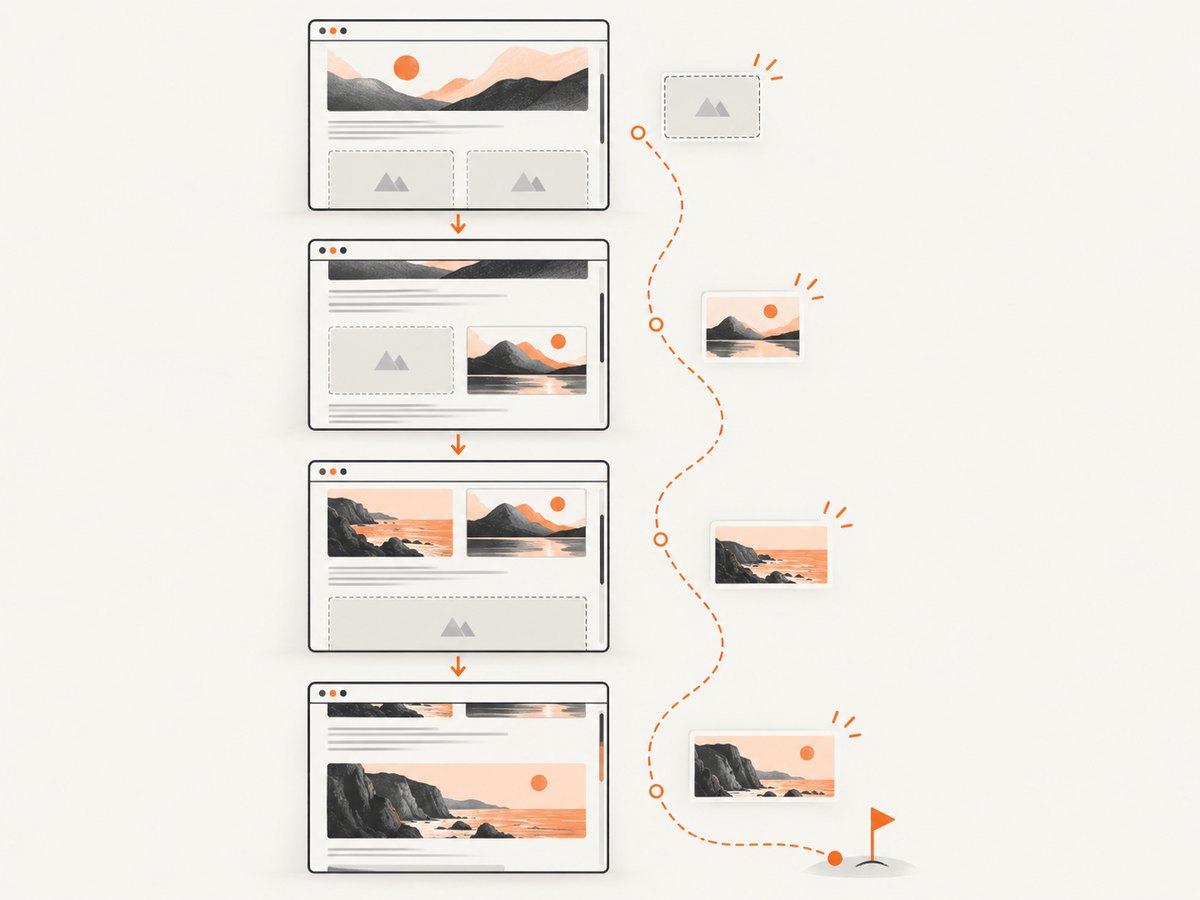
- Scroll by a known distance.
- Wait briefly for handlers and layout.
- Wait for a selector that represents loaded content when one exists.
- Measure document or panel height again.
- Stop at the bottom or after a safety limit.
A useful page-context probe is:
var metrics = page.evaluate(function () {
  return {
    top: window.pageYOffset,
    bottom: window.pageYOffset + window.innerHeight,
    height: document.documentElement.scrollHeight,
    images: Array.prototype.filter.call(document.images, function (img) {
      return !img.complete;
    }).length
  };
});
An image may be complete while its decoded pixels are not visually ready, and a network request may finish without adding content. Treat these metrics as signals, not proof of visual completeness.
8. Common errors and fixes
| Symptom | Likely cause | Fix |
|---|---|---|
window is not defined |
The code ran in the PhantomJS host context. | Move browser code into page.evaluate(function () { ... }). |
phantom is not defined inside evaluate |
The page sandbox cannot access host objects. | Return simple data from evaluate and use phantom outside it. |
| Position stays at zero | The page is shorter than the viewport, a scroll was applied to the wrong element, or the page reset it. | Check document height, inspect the target overflow element, and read position after a delay. |
| Scroll jumps back to the top | Application code restores scroll state during navigation or rendering. | Wait for navigation to settle, scroll after the relevant selector appears, and verify repeatedly. |
| Infinite loop | Document height keeps increasing or never reaches the calculated bottom. | Use a maximum number of steps and a total time limit. |
| Lazy content is missing | Capture occurred before scroll-triggered requests completed. | Wait for a content selector or a measured height change before continuing. |
| Element scroll has no effect | The selector is wrong, the element does not overflow, or a virtualized component controls scrolling. | Return scrollHeight, clientHeight and scrollTop from evaluate and inspect the component behavior. |
| Returned object is empty or null | The value cannot be serialized across the evaluate boundary. | Return strings, numbers, booleans and plain objects only. |
9. Reliability and performance practices
- Choose a fixed viewport. It makes wrapping, breakpoints and scroll distances reproducible.
- Use bounded waits. Every selector wait and scroll loop needs a timeout.
- Measure instead of guessing. Record
scrollPosition, document height and loaded selectors. - Reduce unnecessary steps. Larger increments are faster, but leave enough overlap for content that loads near the viewport edge.
- Handle navigation. A click or route change can invalidate a prior scroll position.
- Expect legacy behavior. PhantomJS is a legacy headless browser. Modern sites may depend on browser features it does not implement, so distinguish a scrolling bug from a page compatibility failure.
For screenshot pipelines, retries should be limited and observable. Log URL, viewport, scroll step, final position, document height and the reason the loop stopped. This gives you enough evidence to diagnose a blank, partial or stale capture without guessing.
10. A practical decision guide
| Need | Use | Why |
|---|---|---|
| Change document scroll | page.evaluate with window.scrollTo or scrollBy |
Runs in the webpage’s DOM context. |
| Inspect document position | page.scrollPosition |
PhantomJS exposes the current { left, top }. |
| Inspect viewport dimensions | page.viewportSize |
Reports the PhantomJS viewport. |
| Scroll a panel | Set the element’s scrollTop in evaluate |
Overflow elements have independent scroll state. |
| Trigger app-specific interaction | page.sendEvent |
Delivers mouse or keyboard-style input; verify the outcome. |
11. Or skip the browser setup
If your goal is a reliable website screenshot rather than maintaining a PhantomJS script, ScreenshotNeo provides a single HTTP request for PNG, JPEG, WebP or PDF output. Its capture options cover full-page screenshots with lazy images loaded, element selectors, custom viewports, dark mode, retina scale, waits, custom JavaScript and CSS, cookies, headers, geolocation and more. See the ScreenshotNeo API documentation for the complete parameter list.
cURL
curl -G 'https://api.screenshotneo.com/v1/shot' \
  -d access_key=YOUR_API_KEY \
  --data-urlencode url=https://stripe.com \
  -o shot.webp
Python
import requests

r = requests.get(
    'https://api.screenshotneo.com/v1/shot',
    params={'access_key': 'YOUR_API_KEY', 'url': 'https://stripe.com'},
    timeout=90,
)
r.raise_for_status()
open('shot.webp', 'wb').write(r.content)
Node.js
const q = new URLSearchParams({
  access_key: 'YOUR_API_KEY',
  url: 'https://stripe.com'
});
const res = await fetch(`https://api.screenshotneo.com/v1/shot?${q}`);
if (!res.ok) throw new Error(`HTTP ${res.status}`);
require('fs').writeFileSync('shot.webp', Buffer.from(await res.arrayBuffer()));
ScreenshotNeo removes cookie and consent banners, newsletter popups and chat widgets before capture. Bot checks, blank pages, timeouts, failed loads and cache hits are not billed; response headers identify the page verdict and billing result. An MCP server provides take_screenshot, get_page_info and capture_pdf tools for Claude, Cursor and other MCP clients. The Free plan includes 1,000 screenshots each month with no card; paid plans start at $5 for 3,000 shots.
Create a free ScreenshotNeo account and start with 1,000 screenshots per month at no charge.
12. FAQ
Does PhantomJS’s window equal the host script’s global object?
No. It is the webpage’s browser global. Host APIs such as phantom remain outside the page sandbox.
Can I read window.scrollY directly from host code?
No. Read it inside page.evaluate, or use the host-side page.scrollPosition.top.
Is sendEvent required for scrolling?
No. Direct page-context scrolling is usually simpler. Use input events only when the site’s interaction code requires them.
Why does a full-page capture differ from repeated viewport captures?
Each approach can trigger different lazy-loading, sticky-header and animation behavior. Stabilize the page, define a viewport and verify the loaded state before capture.
What should I log when a scroll job fails?
Log the open status, viewport, selector checks, scroll position, document height, iteration count and timeout reason.


