BlogScreenshots on your device
How to Take Screenshots with Pillow ImageGrab in Python
Capture your full desktop, a region, or a window with Pillow ImageGrab, with platform options, Retina handling, troubleshooting, and a hosted API alternative.

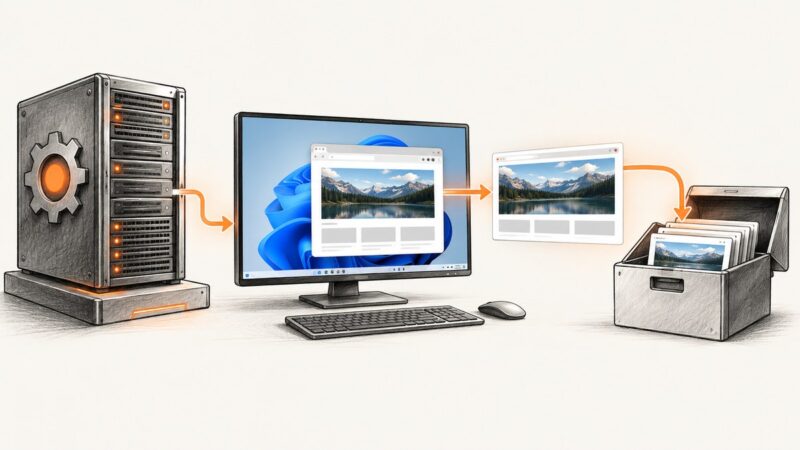
Direct answer: install Pillow, import ImageGrab, call ImageGrab.grab(), and save the returned image. The call captures the whole screen by default. Pass bbox=(left, top, right, bottom) to capture a rectangle.
from PIL import ImageGrab

screenshot = ImageGrab.grab()
screenshot.save("screenshot.png")
For a selected region:
from PIL import ImageGrab

screenshot = ImageGrab.grab(bbox=(100, 100, 800, 600))
screenshot.save("region.png")
ImageGrab.grab() returns a Pillow image object, so you can save it, inspect it, convert its mode, resize it, or pass it to another image-processing step. The exact result depends on your operating system, display server, monitor layout, scaling settings, and installed Pillow version. The official ImageGrab reference documents the full signature and platform behavior.
Install Pillow and verify the capture path
Use the Python environment that will run your script:
python -m pip install --upgrade PillowThen create capture.py:
from pathlib import Path
from PIL import ImageGrab

output = Path("screenshot.png")
image = ImageGrab.grab()
print(f"mode={image.mode} size={image.size}")
image.save(output)
print(f"saved {output.resolve()}")
Run it from a graphical session:
python capture.pyThe printed mode and dimensions are useful diagnostics. According to Pillow’s API documentation, captures are RGBA on macOS and RGB on other platforms in the normal case. Do not assume a mode before inspecting it.
Capture a region with bbox
bbox is a four-item tuple in screen coordinates: (left, top, right, bottom). The left and top edges are inclusive; the right and bottom edges define the far edge of the rectangle.

from PIL import ImageGrab

left, top, right, bottom = 100, 100, 800, 600
if right <= left or bottom <= top:
    raise ValueError("right must exceed left and bottom must exceed top")

image = ImageGrab.grab(bbox=(left, top, right, bottom))
image.save("editor-region.png")
Use the same coordinate system as the desktop, not coordinates relative to a particular application window. A practical way to discover coordinates is to capture the full display, print its size, and adjust the rectangle while checking the saved output.
Capture multiple monitors and individual windows
All Windows monitors
On Windows, all_screens=True requests a capture spanning all monitors:
from PIL import ImageGrab

image = ImageGrab.grab(all_screens=True)
image.save("all-monitors.png")
With multiple monitors, the virtual desktop’s top-left point can be negative when a monitor sits to the left or above the primary display. Consequently, a bounding box can contain negative coordinates:
from PIL import ImageGrab

# Example only: confirm your monitor arrangement first.
image = ImageGrab.grab(bbox=(-1920, 0, 0, 1080), all_screens=True)
image.save("left-monitor.png")
include_layered_windows is a Windows-only option for including layered windows. Use it only when your capture needs those windows and verify the result on the Windows version you deploy.
One window
The window argument captures one window by native identifier: an HWND on Windows or a CGWindowID on macOS. Support is version-specific: Pillow documented Windows support in 11.2.1 and macOS support in 12.1.0. Older installations may reject the argument.
from PIL import ImageGrab

# Replace WINDOW_ID with a valid native window identifier.
image = ImageGrab.grab(window=WINDOW_ID)
image.save("window.png")
Obtaining a native identifier is operating-system work, so keep this path separate from portable code. If you need a cross-platform application screenshot, use a library designed for that application’s windowing toolkit or capture a known screen rectangle.
macOS Retina scaling and image modes
Retina displays can produce images at twice the logical width and height. Pillow 12.3.0 added the keyword-only scale_down=True option to request 1× sizing for Retina captures:
from PIL import ImageGrab

image = ImageGrab.grab(scale_down=True)
print(image.mode, image.size)
image.save("retina-1x.png")
Use this only when the installed Pillow version supports it. For code that must run with older versions, inspect the version and either omit the option or upgrade Pillow. If a downstream API expects RGB, convert explicitly:
from PIL import ImageGrab

image = ImageGrab.grab()
if image.mode != "RGB":
    image = image.convert("RGB")
image.save("rgb-screenshot.jpg", quality=92)
Converting RGBA to RGB removes the alpha channel. Keep PNG when transparency or lossless pixels matter; use JPEG for smaller photographic screenshots when an opaque background is acceptable.
Linux display requirements and fallbacks
On Linux, ImageGrab.grab() uses an X11 display path when xdisplay=None. If the default X11 capture does not return a snapshot, Pillow may use gnome-screenshot, grim, or spectacle when installed. Pass xdisplay="" to disable that fallback behavior:
from PIL import ImageGrab

# Force Pillow's direct path instead of external fallback utilities.
image = ImageGrab.grab(xdisplay="")
image.save("x11-capture.png")
Check whether Pillow has XCB support:
from PIL import features
print(features.check_feature(feature="xcb"))
A headless SSH session, a container without a display, Wayland policy, or missing helper utility can all prevent a capture. Confirm that the process has a usable graphical session before changing application code.
Build a reusable command-line capture script
This example supports a full screen or a validated rectangle, reports image metadata, and creates the parent directory:
#!/usr/bin/env python3
import argparse
from pathlib import Path
from PIL import ImageGrab

parser = argparse.ArgumentParser()
parser.add_argument("--output", default="screenshot.png")
parser.add_argument("--bbox", nargs=4, type=int, metavar=("LEFT", "TOP", "RIGHT", "BOTTOM"))
parser.add_argument("--all-screens", action="store_true")
parser.add_argument("--scale-down", action="store_true")
args = parser.parse_args()

bbox = tuple(args.bbox) if args.bbox else None
if bbox and (bbox[2] <= bbox[0] or bbox[3] <= bbox[1]):
    parser.error("RIGHT must exceed LEFT and BOTTOM must exceed TOP")

kwargs = {"bbox": bbox, "all_screens": args.all_screens}
if args.scale_down:
    kwargs["scale_down"] = True

image = ImageGrab.grab(**kwargs)
output = Path(args.output)
output.parent.mkdir(parents=True, exist_ok=True)
image.save(output)
print(f"saved={output.resolve()} mode={image.mode} size={image.size}")
Examples:
python capture.py --output out/full.png
python capture.py --bbox 100 100 800 600 --output out/panel.png
python capture.py --all-screens --output out/desktops.png
python capture.py --scale-down --output out/retina-1x.png
Options at a glance
| Option | Use | Availability or caveat |
|---|---|---|
bbox |
Capture a rectangle | Uses desktop coordinates |
all_screens |
Capture every monitor | Windows; virtual coordinates may be negative |
include_layered_windows |
Include layered windows | Windows-only |
window |
Capture one native window | HWND on Windows; CGWindowID on macOS; version-specific |
xdisplay |
Select or disable X11/fallback display path | Linux behavior |
scale_down |
Request 1× Retina output | Added in Pillow 12.3.0 |
Reliability, performance, and file size
- Capture cost: memory use grows with pixel count. A 4K all-monitor capture can be substantially larger than a small
bbox. - Reduce work: capture only the region you need, use
scale_down=Trueon supported Pillow versions, and resize after capture when a fixed output size is required. - Save deliberately: PNG preserves sharp text and UI edges. JPEG is smaller but introduces artifacts. WebP can provide a size compromise when your consumers support it.
- Validate output: check
image.size,image.mode, and the file’s existence before uploading or processing it. - Repeatability: desktop content changes while a capture runs. For automated visual checks, hide notifications, stabilize the target window, and capture a known region.
- Permissions: operating-system privacy controls can block screen recording or window capture. The research documentation describes API behavior, not a universal permission prompt or policy for every desktop release.
Troubleshooting common errors
“OSError: screen grab failed” or an empty result
Cause: no usable graphical session, unavailable display server, denied permission, or a Linux capture helper that is not installed. Fix: run inside the logged-in desktop session, verify the display environment, check XCB support, and install or configure the documented Linux capture path. Try xdisplay="" only when you want to disable fallback utilities.
The image is the wrong size on macOS
Cause: Retina scaling can produce 2× pixel dimensions. Fix: upgrade to Pillow 12.3.0 or newer and use scale_down=True, or resize explicitly after inspecting image.size.
The rectangle is shifted or blank
Cause: bbox coordinates were measured relative to an application instead of the desktop, or a monitor has a negative virtual coordinate. Fix: map the rectangle to the desktop coordinate system and confirm the full virtual-screen layout with all_screens=True on Windows.
“unexpected keyword argument ‘window’”
Cause: the installed Pillow version predates support for that operating system. Fix: upgrade Pillow, or capture the window’s screen rectangle instead.
Colors or transparency are wrong
Cause: macOS commonly returns RGBA while other platforms commonly return RGB. Fix: inspect image.mode and convert deliberately with convert("RGB") or convert("RGBA").
Linux works locally but fails in a service
Cause: the service has no interactive display or does not inherit the required display authorization. Fix: run the capture in a desktop-aware worker, configure the display access required by your environment, or use a browser/API capture service for remote web pages.
Or skip the browser setup
ScreenshotNeo captures web pages through one HTTP request, so it is a better fit when your input is a URL rather than your current desktop. It removes cookie and consent banners, newsletter popups, and chat widgets before the shot. Bot checks, blank pages, failed loads, timeouts, and cache hits are not billed, and response headers identify the page verdict and billing result. It also provides an MCP server for Claude, Cursor, and other MCP clients.

See the ScreenshotNeo API documentation for the complete option list. A basic WebP capture:
cURL
curl -G "https://api.screenshotneo.com/v1/shot" -d access_key=YOUR_API_KEY --data-urlencode url=https://stripe.com -o shot.webpPython
import requests

r = requests.get(
    "https://api.screenshotneo.com/v1/shot",
    params={"access_key": "YOUR_API_KEY", "url": "https://stripe.com"},
    timeout=90,
)
r.raise_for_status()
open("shot.webp", "wb").write(r.content)
Node.js
const q = new URLSearchParams({ access_key: 'YOUR_API_KEY', url: 'https://stripe.com' });
const res = await fetch(`https://api.screenshotneo.com/v1/shot?${q}`);
if (!res.ok) throw new Error(`HTTP ${res.status}`);
const data = Buffer.from(await res.arrayBuffer());
require('fs').writeFileSync('shot.webp', data);
ScreenshotNeo supports full-page captures with lazy images loaded, CSS-selector element captures, dark mode, device presets or custom viewports, Retina scale, PDF output, custom CSS and JavaScript, clicks, selector or network-idle waits, request blocking, headers, cookies, user agents, authorization, timezone, geolocation, transparent backgrounds, resizing, TTL caching, signed links, asynchronous jobs, webhooks, bulk capture, usage reporting, and an OpenAPI specification. Parameter names used by other screenshot APIs also work, which can simplify migration.
Free accounts include 1,000 screenshots per month with no card. Paid plans start at $5 for 3,000 shots, and every feature is available on every plan. Create a free ScreenshotNeo account.
Choosing desktop capture versus URL capture
| Need | Use |
|---|---|
| Current monitor, application, or local desktop | Pillow ImageGrab |
| One rectangle or all Windows monitors | Pillow with bbox or all_screens=True |
| A public or authenticated web URL | ScreenshotNeo or another browser-based capture workflow |
| Repeatable remote captures without desktop setup | ScreenshotNeo with waits, headers, cookies, blocking, caching, and async jobs |
Pillow captures pixels visible to a desktop session. It does not render a URL independently, remove web consent UI, or provide browser navigation controls. A hosted browser API handles those web-page concerns while ImageGrab remains appropriate for local screen pixels.
FAQ
Does ImageGrab capture the whole desktop by default?
Yes. Omit bbox for the full available screen, or provide a four-coordinate box for a region.
Can I capture a browser page with Pillow?
Only what is visible in the browser window or selected screen rectangle. For a URL-level capture with page waits and web cleanup, use a browser-based service such as ScreenshotNeo.
Why is my screenshot twice as large on a Mac?
Retina captures can use 2× pixel dimensions. Pillow 12.3.0 and newer support scale_down=True for 1× output.
Can ImageGrab run on a headless server?
It requires an accessible graphical capture path. A headless worker without a display generally needs a virtual display or a different capture approach.
Which format should I save?
Use PNG for crisp interface text and lossless pixels; JPEG for smaller opaque photographic images; choose another format only when your downstream consumer supports it.