How to Run Playwright on AWS Lambda with Docker and Xvfb
Package Playwright in a Lambda container, choose headless or Xvfb, test locally, deploy to ECR, and troubleshoot browser failures.
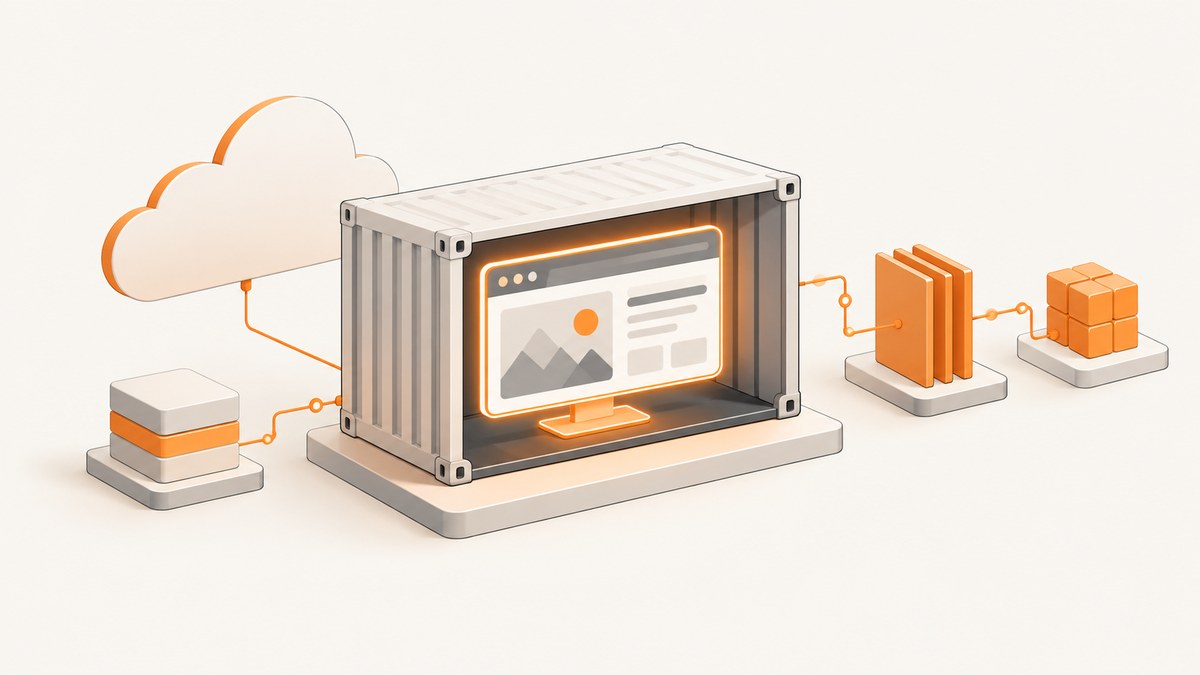
Running Playwright in AWS Lambda is reliable when the browser, operating-system libraries, application code, and Lambda runtime interface are packaged together. The practical approach is to build a Lambda-compatible container image with a pinned Playwright version, matching browser binaries, all required Linux dependencies, and the runtime interface client. Build for the function architecture, invoke the image locally through the Lambda runtime interface emulator, then publish it to Amazon ECR.
Playwright is headless by default. You only need Xvfb when your workload genuinely requires headed browser behavior or a library expects a display. In that case, install Xvfb and run the browser command through xvfb-run so it receives a virtual X display.
Architecture decisions before you write the Dockerfile
Headless or headed
For screenshots, PDF generation, scraping, and most tests, headless Chromium is the simplest choice. It avoids an X server, reduces moving parts, and matches Playwright’s default behavior. Headed mode is useful when a dependency requires a visible display, when you need to reproduce a desktop-only rendering issue, or when an existing command cannot run headless. On Linux, headed execution requires Xvfb; the documented pattern is xvfb-run npx playwright test (or the equivalent command in another language).
Base image options
AWS supports AWS language base images, AWS OS-only images, and non-AWS base images. AWS base images include the Lambda runtime integration. With an OS-only or other base image, you must add the language runtime interface client yourself and set the image entrypoint and handler command according to AWS’s container-image pattern.
Playwright-published images contain browser binaries and system dependencies, but the Playwright package is installed separately. Keep the image tag and project package version aligned. If they differ, Playwright may look for an executable that is not present in the image.
| Choice | Use it when | Main trade-off |
|---|---|---|
| Headless Chromium | Automation, screenshots, PDFs, tests | Fewest dependencies |
| Headed Chromium with Xvfb | A dependency needs a display or you must reproduce headed behavior | More packages and startup work |
| AWS language base | You want the Lambda runtime integration preconfigured | You still need browser libraries and binaries |
| Playwright-derived image | You want the documented browser dependencies included | You must add Lambda’s runtime interface and keep versions aligned |
| Single-stage image | Fastest setup for a proof of concept | Usually larger than necessary |
| Multi-stage image | Production deployments where image size and cold starts matter | More Dockerfile maintenance |
Build a Lambda container for Playwright
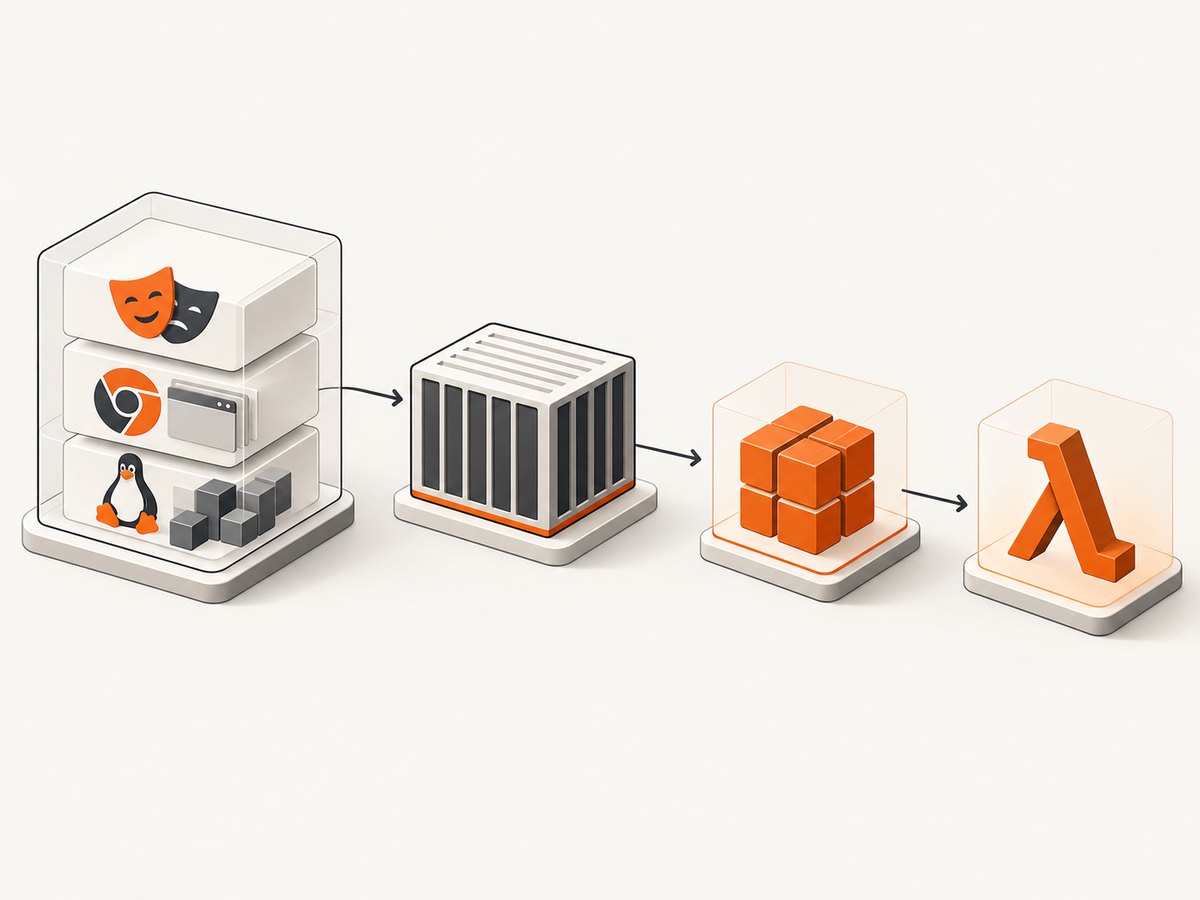
The following example uses Node.js and Chromium. It uses an AWS Lambda Node.js base image, installs a pinned Playwright package and browser, and optionally installs Xvfb. Pin the version you choose in both the Dockerfile and package.json; the exact version is a deployment decision that should be updated together.
Project files
lambda-playwright/
├── Dockerfile
├── package.json
└── index.mjs
package.json
{
  "name": "lambda-playwright",
  "version": "1.0.0",
  "type": "module",
  "dependencies": {
    "@playwright/test": "1.55.0"
  }
}
Dockerfile: headless deployment
FROM public.ecr.aws/lambda/nodejs:22

WORKDIR ${LAMBDA_TASK_ROOT}

COPY package.json ./
RUN npm install --omit=dev
RUN npx playwright install --with-deps chromium

COPY index.mjs ./

CMD [ "index.handler" ]
This image follows the AWS Node.js base-image convention: the base image supplies the Lambda entrypoint, and CMD identifies the module and handler. The browser installation step adds Chromium and the Linux libraries it needs. If you use a different Playwright version, change package.json and rebuild so the package and browser remain synchronized.
Dockerfile: headed execution with Xvfb
Install Xvfb only when your handler actually launches a headed browser. Package names vary by distribution, so verify them against the base image you select. The example below uses the package manager available in the AWS Node.js image family at the time of writing:
FROM public.ecr.aws/lambda/nodejs:22

WORKDIR ${LAMBDA_TASK_ROOT}

RUN dnf install -y xorg-x11-server-Xvfb \
    && dnf clean all \
    && rm -rf /var/cache/dnf

COPY package.json ./
RUN npm install --omit=dev
RUN npx playwright install --with-deps chromium

COPY index.mjs ./

CMD [ "index.handler" ]
Do not add headed mode just because Xvfb is available. A virtual display adds another process to supervise and another failure point. Start the browser with headless: false only for the code path that needs it, and launch that path under xvfb-run when the command is external. For a handler, you can start Xvfb yourself and set DISPLAY, but the process must be cleaned up before the invocation ends.
Handler code
import { chromium } from '@playwright/test';

export const handler = async (event) => {
  const target = event?.url || 'https://example.com';
  const browser = await chromium.launch({
    headless: true,
    args: ['--no-sandbox']
  });

  try {
    const page = await browser.newPage({
      viewport: { width: 1365, height: 900 },
      deviceScaleFactor: 1
    });
    await page.goto(target, {
      waitUntil: 'networkidle',
      timeout: 30000
    });
    const png = await page.screenshot({ fullPage: true });

    return {
      statusCode: 200,
      headers: { 'content-type': 'image/png' },
      isBase64Encoded: true,
      body: png.toString('base64')
    };
  } finally {
    await browser.close();
  }
};
The finally block is essential. Lambda may reuse a warm execution environment, so leaving browser processes open can consume memory across invocations. The --no-sandbox flag is commonly needed in restricted container environments; review your security model and validate it in your own image.
Run the image locally with Lambda’s runtime interface
Build the image for the architecture used by your Lambda function. AWS’s current container guidance requires disabling BuildKit provenance metadata for Lambda compatibility:
docker buildx build \
  --platform linux/amd64 \
  --provenance=false \
  -t lambda-playwright:local \
  --load .
Use linux/arm64 instead when your function is configured for arm64 and every native dependency in the image supports it. A browser image built for x86_64 cannot be used by an arm64 function without rebuilding.
Start the container on the Lambda runtime API port:
docker run --rm \
  -p 9000:8080 \
  --init \
  --ipc=host \
  lambda-playwright:local
Playwright recommends --init for correct PID 1 behavior. Chromium also benefits from --ipc=host during local Docker runs because a small shared-memory area can cause crashes. These flags reproduce a more suitable local environment; they do not change the Lambda function configuration.
Invoke the handler through the runtime interface:
curl -XPOST \
  'http://localhost:9000/2015-03-31/functions/function/invocations' \
  -H 'content-type: application/json' \
  -d '{"url":"https://example.com"}' \
  -o response.json
For browser diagnostics, set DEBUG=pw:browser when starting the container:
docker run --rm \
  -p 9000:8080 \
  --init \
  --ipc=host \
  -e DEBUG=pw:browser \
  lambda-playwright:local
Adding Xvfb correctly
If you need a headed command such as a Playwright test runner, wrap the command with xvfb-run:
xvfb-run --auto-servernum npx playwright test--auto-servernum selects an available display number. Inside a Lambda handler, an equivalent approach is to start Xvfb before launching Playwright, export DISPLAY=:99, and terminate the Xvfb process in a cleanup block. Ensure the X server is ready before creating the browser. A headed launch without a display usually fails with an error mentioning DISPLAY or the X server.
Xvfb does not fix missing browser libraries, an incompatible CPU architecture, or an incorrect Playwright version. It supplies a virtual display only.
Deploy to Amazon ECR and Lambda
- Create an ECR repository in the same AWS Region where you will run Lambda.
- Authenticate Docker to the registry using the Amazon ECR login command for that Region.
- Tag the local image with the full ECR repository URI.
- Push the image.
- Create a Lambda function using the pushed image, or update an existing function to the new image digest.
docker tag lambda-playwright:local \
  ACCOUNT_ID.dkr.ecr.REGION.amazonaws.com/lambda-playwright:1

docker push \
  ACCOUNT_ID.dkr.ecr.REGION.amazonaws.com/lambda-playwright:1
Configure memory and timeout from measured workloads. Browser startup, JavaScript-heavy pages, PDFs, and full-page screenshots need more time than a small HTTP handler. Also check ephemeral storage if you download large files or write browser artifacts; temporary files belong in /tmp, and your function’s configured ephemeral-storage size limits how much you can keep there.
Lambda accepts Docker and OCI image formats, but the uncompressed image must stay below 10 GB, including all layers. Multi-stage builds, removing package caches, and excluding test data keep deployment and cold-start overhead manageable. Rebuild whenever the Playwright version, browser binaries, or operating-system libraries change.
Browser and architecture compatibility
Validate the exact combination you deploy: Playwright package version, browser, base image, CPU architecture, and Lambda memory. Chromium and WebKit have worked in community Lambda container examples, while Firefox required additional tuning in one such project. Treat that as implementation evidence rather than a universal guarantee. Run a smoke test for every browser you intend to support.
- Open a known page and verify HTTP navigation completes.
- Capture a screenshot and a PDF if both are required.
- Check fonts, viewport size, device scale factor, and color scheme.
- Exercise pages with redirects, client-side navigation, lazy images, and downloads.
- Confirm browser processes close after success and after exceptions.
- Repeat on the exact architecture selected for Lambda.
Troubleshooting common failures
| Symptom | Likely cause | Fix |
|---|---|---|
| Executable does not exist | Playwright package and image/browser versions differ | Pin one version and install its browser during the image build. Do not mix a project package with an unrelated Playwright image tag. |
| Chromium exits immediately | Insufficient shared memory, missing libraries, or stale processes | Use --init and --ipc=host locally, install browser dependencies, close the browser in finally, and inspect DEBUG=pw:browser logs. |
| Headed launch says display is unavailable | Xvfb is absent, not running, or DISPLAY is unset |
Install Xvfb, run through xvfb-run, or start Xvfb and export a display before launching. |
| Lambda rejects the image | Wrong architecture or provenance metadata | Build with the function platform and --provenance=false. |
| Function times out on navigation | Page waits forever on network activity or the timeout is too short | Set explicit navigation and action timeouts, choose a deliberate waitUntil condition, and handle pages that keep long-lived connections open. |
| Screenshot is blank or missing fonts | Capture occurs before rendering settles or fonts are absent | Wait for a meaningful selector or font readiness, install required fonts, and test the same URL in the deployed image. |
| Firefox fails while Chromium works | Browser-specific libraries or launch behavior | Validate the exact Firefox build and add its required tuning; do not assume Chromium settings transfer. |
| Image is too large | Browser caches, development files, and duplicate dependencies | Use multi-stage builds, remove caches, and check the uncompressed total against Lambda’s 10 GB limit. |
Performance, reliability, and cost considerations
Reduce cold-start work
Keep browser binaries in the image instead of downloading them during invocation. Reuse a browser within a warm execution environment only if you handle crashes and isolate pages carefully; always close pages and contexts. A simpler and safer pattern is one browser per invocation when traffic is low, then measure before introducing reuse.
Control page waits
networkidle can be a poor fit for analytics-heavy applications that keep connections open. Prefer a known readiness selector, a bounded delay, or a more specific load condition. Set separate timeouts for navigation, actions, and the overall Lambda invocation so one page cannot consume the entire request budget.
Choose memory and concurrency deliberately
More Lambda memory also provides more CPU, which can reduce browser startup and rendering time. Measure with representative pages rather than a trivial static site. Limit concurrency when each invocation launches Chromium and ensure downstream sites can handle your request rate. Monitor errors, duration, throttles, memory use, and temporary-storage usage.
Make retries safe
Retries can duplicate side effects such as form submissions. Use read-only browser tasks where possible, pass an idempotency key to your own downstream service, and distinguish navigation failures from successful captures. Log the target URL, browser version, architecture, and a correlation identifier without exposing credentials or sensitive page content.
Or skip the browser setup
If your goal is a clean website screenshot rather than operating Chromium yourself, ScreenshotNeo provides a single GET request that returns PNG, JPEG, WebP, or PDF. See the ScreenshotNeo API documentation for all options.
curl -G "https://api.screenshotneo.com/v1/shot" -d access_key=YOUR_API_KEY --data-urlencode url=https://stripe.com -o shot.webpimport requests
r = requests.get("https://api.screenshotneo.com/v1/shot", params={"access_key": "YOUR_API_KEY", "url": "https://stripe.com"}, timeout=90)
open("shot.webp", "wb").write(r.content)const q = new URLSearchParams({ access_key: 'YOUR_API_KEY', url: 'https://stripe.com' });
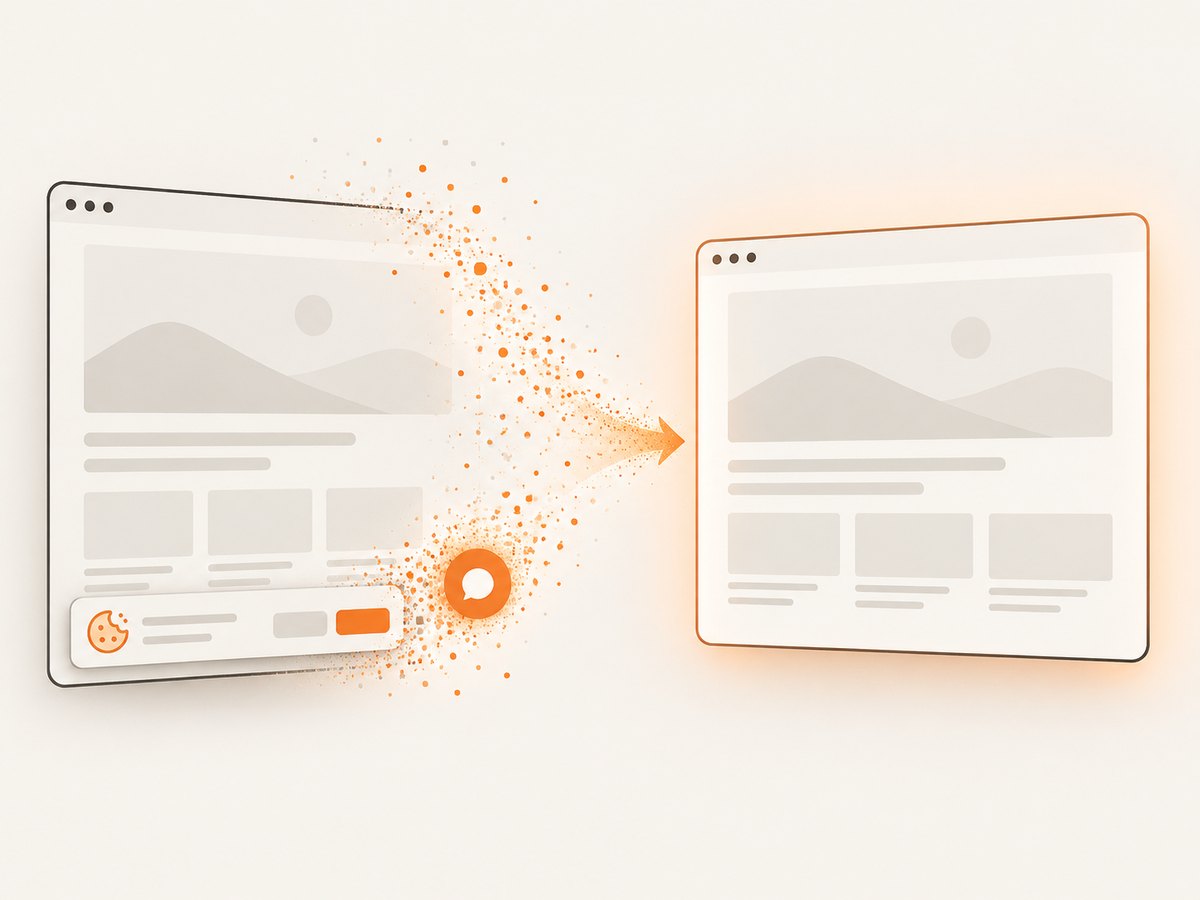
const res = await fetch(`https://api.screenshotneo.com/v1/shot?${q}`);ScreenshotNeo removes cookie banners, newsletter popups, and chat widgets before capture. Bot checks, blank pages, failed loads, timeouts, and cache hits are not billed, and response headers identify the page verdict and billing result. Its MCP server gives AI agents tools named take_screenshot, get_page_info, and capture_pdf. The Free plan includes 1,000 screenshots each month with no card; paid plans start at $5 for 3,000 shots. Create a free ScreenshotNeo account.
FAQ
Do I always need Xvfb in Lambda?
No. Playwright runs headless by default. Install and invoke Xvfb only when headed behavior or a display-dependent dependency is required.
Can I download browsers when the function starts?
You can, but it adds network dependency, startup latency, and failure modes. Packaging the matching browser in the image is more reproducible.
Which Lambda architecture should I choose?
Choose x86_64 or arm64 based on the native browser build and libraries you validate. Build the container for that same platform.
Why does a page never reach network idle?
Analytics, WebSockets, and polling can keep connections open. Wait for a page-specific selector or another bounded readiness condition.
How large can the image be?
Lambda’s documented maximum uncompressed container-image size is 10 GB, including all layers.
When is a screenshot API a better fit?
Use one when you need repeatable captures without maintaining browser images, Xvfb, architecture builds, and cleanup. ScreenshotNeo is designed for that single-request workflow.


