How to Use the Playwright MCP Browser Extension
Connect an MCP client to your existing Chrome or Edge tabs, reuse logged-in sessions, select profiles, and troubleshoot extension mode.

Direct answer: install the Playwright Extension in Chrome, Edge, or Chromium, then register the Playwright MCP server with npx and the --extension argument. The extension connects the MCP client to tabs that are already open, so the agent can work with the selected browser profile, including its logged-in sessions, cookies, and installed extensions.
Playwright documents this mode as a connection to an existing browser rather than a newly launched automation context. That distinction matters when a page requires SSO, two-factor authentication, a corporate browser extension, or state that already exists in your daily browser.
1. What extension mode does
In normal Playwright automation, the tool often launches a browser or connects to a separately configured browser endpoint. Extension mode uses the browser you already have open. The Playwright documentation describes the extension this way: “The Playwright Extension connects to your existing browser tabs, reusing your logged-in sessions, cookies, and installed extensions.” See the Playwright MCP documentation and the official Playwright MCP repository for current options.
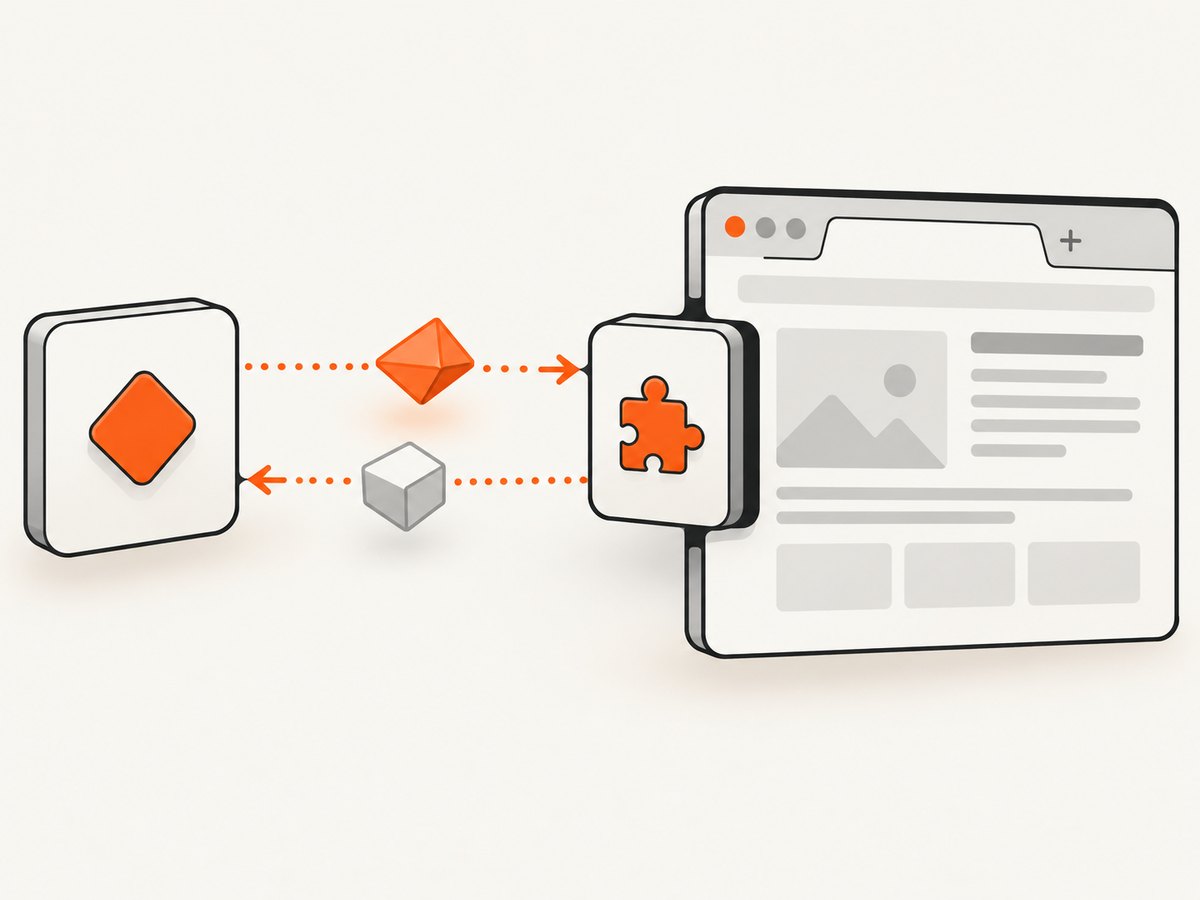
The connection is still mediated by an MCP client and the Playwright MCP server. Installing the extension by itself does not give an AI client access to a tab. You need all three parts:
- A supported browser: Chrome, Edge, or Chromium.
- The Playwright Extension installed in the browser profile you intend to use.
- An MCP-capable client configured to start
@playwright/mcpwith--extension.
Playwright’s getting-started material lists Node.js 20 or newer and an MCP client as prerequisites. The exact settings screen differs between clients, but the server configuration has the same shape.
2. Install the browser extension and prepare a tab
- Install the Playwright Extension in Chrome, Edge, or Chromium using the browser’s extension installation flow.
- Open the page you want the agent to inspect or operate.
- Sign in normally if the page requires authentication. Complete SSO, 2FA, or any other interactive challenge in the browser before asking the MCP client to act.
- Keep the target tab open. Extension mode attaches to existing tabs through the selected profile.
- If your browser has the extension installed in more than one profile, identify the profile you want before configuring the server.
Use a dedicated browser profile when you want predictable cookies, permissions, and extensions. A shared personal profile can contain unrelated tabs and credentials, which makes it harder to reason about what the agent can see.
3. Configure the Playwright MCP server
Add this server entry to your MCP client configuration:
{
  "mcpServers": {
    "playwright": {
      "command": "npx",
      "args": ["@playwright/mcp@latest", "--extension"]
    }
  }
}
The --extension flag selects the extension connection path. Depending on the client, you may need to restart the client after saving its configuration so it starts the server and discovers its tools.
Keep the package invocation in the client configuration rather than running a separate long-lived terminal process unless your client specifically requires that arrangement. The client should own the MCP server process and report startup errors in its MCP or developer log.
4. Select the correct Chrome profile
If the extension is installed in several Chrome profiles, the README says the connection uses the profile that was used most recently. That behavior can be surprising when one profile is personal and another is a work account.
Make the choice explicit with --profile-dir-name:
{
  "mcpServers": {
    "playwright": {
      "command": "npx",
      "args": [
        "@playwright/mcp@latest",
        "--extension",
        "--profile-dir-name",
        "Profile 2"
      ]
    }
  }
}
Replace Profile 2 with the directory name for your intended profile. To find it in Chrome, open chrome://version and read the final component of the Profile Path. For example, if the path ends in /User Data/Profile 2, the directory name is Profile 2.
You can set the same value with the documented environment variable:
PLAYWRIGHT_MCP_PROFILE_DIR_NAME="Profile 2"Use either the command-line option or the environment variable according to your client’s configuration model. If both are supplied, follow the behavior documented by the version of the package you are running.
5. Configure the profile token
The extension UI exposes a PLAYWRIGHT_MCP_EXTENSION_TOKEN value. The README describes this token as unique to the browser profile. Configure the token for the same profile selected above; a token copied from another profile will not identify the intended browser context.
A generic environment-based launch looks like this:
PLAYWRIGHT_MCP_EXTENSION_TOKEN="YOUR_PROFILE_TOKEN" \
npx @playwright/mcp@latest --extension --profile-dir-name "Profile 2"
For an MCP client, place the environment variable in the server entry if that client supports an env object:
{
  "mcpServers": {
    "playwright": {
      "command": "npx",
      "args": [
        "@playwright/mcp@latest",
        "--extension",
        "--profile-dir-name",
        "Profile 2"
      ],
      "env": {
        "PLAYWRIGHT_MCP_EXTENSION_TOKEN": "YOUR_PROFILE_TOKEN"
      }
    }
  }
}
Treat the token as a credential. Do not commit it to a repository, paste it into an issue, or reuse it across browser profiles. Exact extension UI labels can change, so use the value shown by the currently installed extension.
6. Verify the connection
- Start or restart the MCP client after saving the configuration.
- Confirm that the Playwright server appears as connected in the client’s MCP tool list.
- Ask the client to inspect the title or URL of the tab you intentionally opened.
- Ask for a harmless read-only action first, such as listing visible headings.
- Only then request clicks, form entry, navigation, or other state-changing actions.
If the client reports no browser or no tab, check that the extension is enabled in the selected profile, that a target tab is open in that profile, and that the token belongs to that profile.
7. Reusing authentication, cookies, and extensions
Extension mode is useful when authentication cannot be reproduced easily in a clean automation context. The agent can work through an already authenticated tab, including state established by SSO or 2FA. It can also use pages that depend on an installed browser extension.
That reuse has boundaries:
- A login in one profile is not automatically available in another profile.
- A tab must be open and reachable through the selected browser profile.
- Being logged in does not guarantee that every page or action is authorized.
- Cookies can expire, sessions can be revoked, and enterprise policies can restrict extensions.
- Actions happen in the real browser, so navigation or form submission can change live data.
For repeatable work, open only the tabs needed for the task, use a dedicated profile, and begin with read-only requests.
8. Choose the right Playwright connection mode
| Mode | Connects to | Best fit |
|---|---|---|
Extension (--extension) |
Existing tabs through a Chrome or Edge profile with the extension installed | Reuse logged-in state, cookies, installed extensions, and already-open tabs |
| Browser channel | A running Chrome or Edge channel, such as with --cdp-endpoint=chrome |
Attach to a browser after enabling the required remote-debugging setup |
| CDP endpoint | A Chromium browser exposed through a Chrome DevTools Protocol endpoint | Use a known local or service endpoint |
| Playwright endpoint | A browser already running behind a Playwright server | Deployments that expose a Playwright server endpoint |
Choose extension mode when the browser profile itself is part of the task. Choose a channel, CDP endpoint, or Playwright endpoint when your deployment already manages a browser process or needs a remotely addressable endpoint. Do not assume that every browser choice supported by the general MCP server is supported by extension mode.
9. Troubleshooting common errors
“No browser” or no available tabs
Cause: the extension is missing, disabled, installed in another profile, or no tab is open in the selected profile.
Fix: switch to the intended profile, confirm the extension is enabled, open the target page, and restart the MCP connection.
The client starts but MCP tools never appear
Cause: malformed JSON, an unavailable npx command, an old Node.js version, or a client that has not reloaded its configuration.
Fix: validate the JSON, confirm Node.js 20 or newer, run npx @playwright/mcp@latest --extension in a terminal to inspect startup output, then restart the client.
The wrong account or profile opens
Cause: multiple profiles have the extension installed and the most recently used profile was selected.
Fix: set --profile-dir-name to the directory shown by chrome://version. Make sure the extension token also belongs to that profile.
Token or authorization errors
Cause: the token is missing, copied incorrectly, expired, or belongs to another profile.
Fix: copy the token from the extension in the selected profile, set PLAYWRIGHT_MCP_EXTENSION_TOKEN in the MCP server environment, and restart the server.
The page is logged out
Cause: the tab belongs to a different profile, the session expired, or the site requires an interactive challenge.
Fix: authenticate manually in the target profile and tab, then retry. Extension mode reuses available browser state; it does not bypass a site’s login or security controls.
Actions affect the wrong tab
Cause: several similar tabs are open and the agent selected a different matching page.
Fix: close unrelated tabs, give the target tab a distinct URL or title, and ask the client to report the active page before performing a write action.
Enterprise policy blocks the extension
Cause: managed Chrome or Edge policies can prevent installation, communication, or access to particular sites.
Fix: check the browser’s managed-extension status and ask the administrator to allow the extension and required domains. A CDP or Playwright endpoint may fit a centrally managed deployment better.
10. Reliability, performance, and safety practices
Extension mode avoids the setup time of creating a fresh context, but it depends on a live desktop browser. Browser sleep, profile locking, extension updates, network changes, and session expiry can interrupt a run. For reliable workflows:
- Keep the browser profile open while the MCP task runs.
- Use a dedicated profile with a small number of tabs.
- Confirm the URL and page identity before every destructive action.
- Prefer short, observable steps over a long chain of clicks.
- Record which profile and token were used when diagnosing failures.
- Use a managed browser endpoint for unattended or server-side jobs.
Performance depends on the page, network, browser extensions, and the number of steps the agent takes. Reusing an open tab can reduce navigation and login work, but a slow page, consent dialog, or extension can still delay an action. There is no evidence in the supplied documentation for a universal latency or throughput benchmark.
11. Or skip the browser setup
If your goal is a clean image or PDF rather than interactive work inside a logged-in tab, ScreenshotNeo provides a single HTTP request for website captures. Its API accepts a URL and returns PNG, JPEG, WebP, or PDF output. See the ScreenshotNeo API documentation for the complete parameter list.

cURL
curl -G "https://api.screenshotneo.com/v1/shot" -d access_key=YOUR_API_KEY --data-urlencode url=https://stripe.com -o shot.webpPython
import requests

r = requests.get(
    "https://api.screenshotneo.com/v1/shot",
    params={"access_key": "YOUR_API_KEY", "url": "https://stripe.com"},
    timeout=90,
)
r.raise_for_status()
open("shot.webp", "wb").write(r.content)
Node.js
const q = new URLSearchParams({ access_key: 'YOUR_API_KEY', url: 'https://stripe.com' });
const res = await fetch(`https://api.screenshotneo.com/v1/shot?${q}`);
if (!res.ok) throw new Error(`HTTP ${res.status}`);
const fs = await import('node:fs/promises');
await fs.writeFile('shot.webp', Buffer.from(await res.arrayBuffer()));
ScreenshotNeo removes cookie and consent banners, newsletter popups, and chat widgets before capture. Each cleanup step can be turned off. Bot checks or CAPTCHAs, blank pages, timeouts, failed loads, and cache hits cost nothing; response headers identify the page verdict and whether the request was billed. It also supports full-page captures with lazy images loaded, CSS-selector element captures, dark mode, device presets, custom viewports, retina scale, PDF paper and margin controls, custom CSS and JavaScript, clicks, waits, request blocking, headers, cookies, user agents, authorization, timezone, geolocation, transparent backgrounds, resizing, configurable caching, signed links, asynchronous jobs with signed webhooks, bulk capture for up to 100 URLs per call, a usage API, and an OpenAPI specification.
An MCP server provides take_screenshot, get_page_info, and capture_pdf tools for Claude, Cursor, and other MCP clients. The Free plan includes 1,000 shots per month with no card. Paid plans start at $5 for 3,000 shots; yearly billing gives two months free, and every feature is available on every plan.
Create a free ScreenshotNeo account and start with 1,000 screenshots per month without a card.
12. Cost and deployment decisions
Playwright MCP extension mode uses your own browser, Node.js installation, and MCP client. The supplied documentation does not establish a separate Playwright service charge for this configuration. Your practical costs are the machine, browser, network, and any client or infrastructure you already operate.
A screenshot API changes the cost model from browser operations to capture requests. ScreenshotNeo’s published tiers are Free: 1,000 shots/month; Starter: $5 for 3,000; Growth: $15 for 15,000; Pro: $39 for 60,000; Scale: $99 for 250,000; and Business: $249 for 1,000,000. Only clean shots are billed, while failed or unproductive outcomes described above are free.
13. FAQ
Can extension mode launch Chrome for me?
It is designed to connect to an existing browser and its open tabs. Start the supported browser and open the target tab before using the MCP tools.
Does the extension share cookies with every Chrome profile?
No. Select the intended profile explicitly when needed, and use that profile’s extension token.
Can I use extension mode for unattended server jobs?
It is intended for an existing local browser profile. For unattended deployments, a browser channel, CDP endpoint, Playwright endpoint, or an API such as ScreenshotNeo may be a better operational fit.
Will it pass a site’s CAPTCHA automatically?
Extension mode does not promise to bypass site security checks. Complete interactive challenges in the browser when the site requires them.
How do I capture a page without opening a browser?
Use ScreenshotNeo’s HTTP endpoint or MCP server. It returns an image or PDF and handles cleanup of common consent banners, popups, and chat widgets before capture.


