Playwright MCP Server Official Documentation
Install and configure the official Playwright MCP server, choose browsers and session modes, reuse authenticated sessions, and troubleshoot common setup errors.
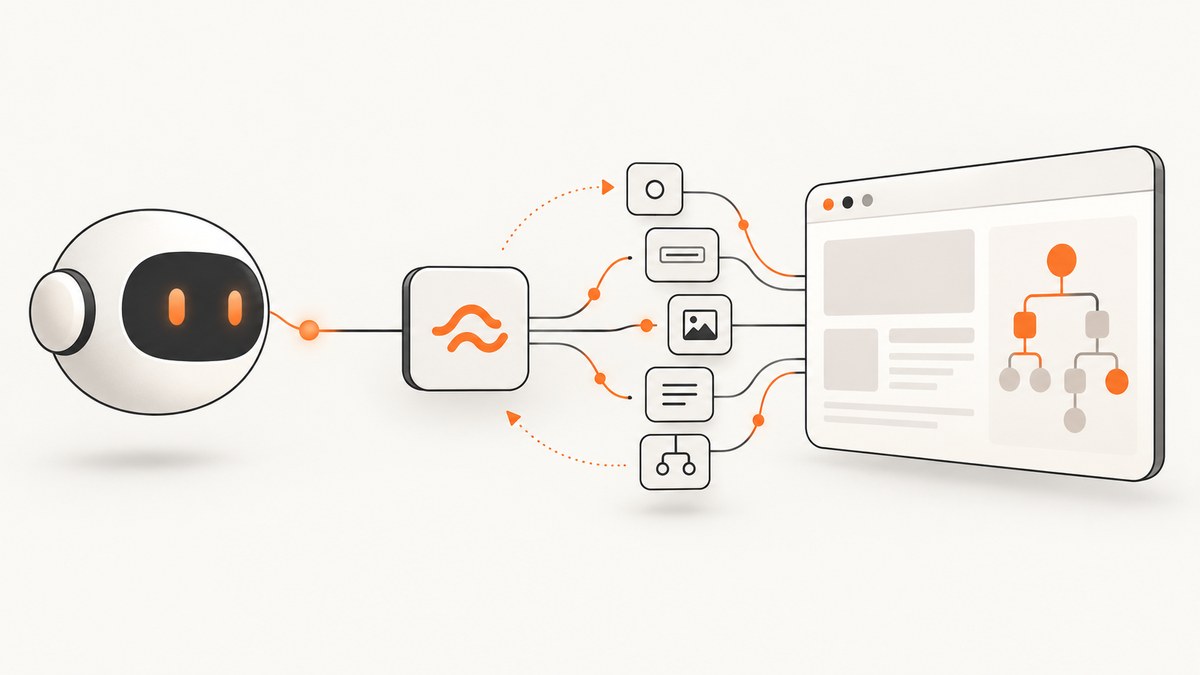
Playwright MCP is an MCP server that gives compatible AI clients browser automation powered by Playwright. It lets an MCP client navigate pages, click controls, fill forms, inspect accessibility snapshots, take screenshots, mock APIs, and run Playwright code. The official documentation describes interaction through structured accessibility snapshots rather than pixel-based operation. See the official getting-started guide.
What you need
- Node.js 20 or newer.
- An MCP-compatible client such as Claude Desktop, Cursor, or another client that supports MCP servers.
- A browser managed by Playwright or an existing browser that you connect to.
The browser downloads automatically on first use when you use the standard package command. Client configuration locations differ, so use the MCP setup instructions for your specific client alongside the commands below. The official installation documentation is the source of truth when package or client requirements change.
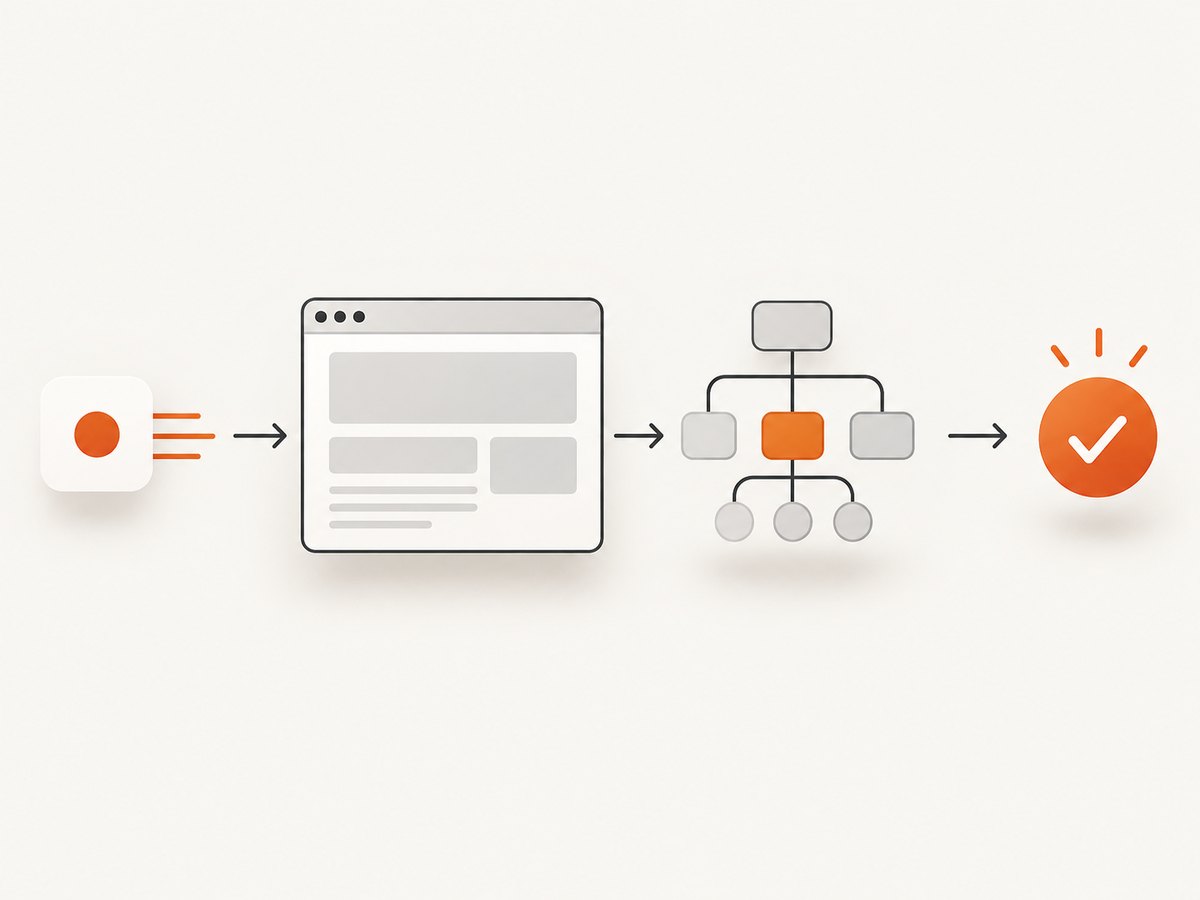
Install the official Playwright MCP server
- Install Node.js 20 or newer and confirm it is available:
node --version
npm --version
Configure your MCP client to launch the server with npx:
npx @playwright/mcp@latestMost clients represent this as an MCP server entry whose command is npx and whose argument is @playwright/mcp@latest. Follow your client’s current configuration format; there is no single universal configuration file path.
On the first launch, Playwright downloads the browser it needs. Keep the client running while the browser is being installed. A restricted network, proxy, or read-only cache can prevent that download.
Run your first browser task
After the server is registered, ask the MCP client to open a page and interact with it. The official example starts with TodoMVC and uses browser tools to navigate, inspect the page, click controls, and fill fields. A useful first prompt is:
Open https://demo.playwright.dev/todomvc, inspect the accessibility snapshot, add two todo items, and report the remaining item count.The model receives structured page information and invokes MCP tools. The server performs the browser actions through Playwright.
Choose headed or headless mode
Headed mode is the documented default, so a browser window is visible. Add --headless when you want the browser to run without a visible window:
npx @playwright/mcp@latest --headlessHeaded mode is useful while developing selectors, authentication flows, and test prompts because you can watch the browser. Headless mode is generally better for CI, containers, and unattended jobs where no display is available.
Select a browser
The official server documents these browser choices:
| Browser | Argument | Typical reason to choose it |
|---|---|---|
| Google Chrome | --browser=chrome |
Validate Chromium behavior using the Chrome channel. |
| Firefox | --browser=firefox |
Check Firefox-specific rendering and interaction. |
| WebKit | --browser=webkit |
Exercise WebKit behavior. |
| Microsoft Edge | --browser=msedge |
Use the Edge channel installed on the machine. |
npx @playwright/mcp@latest --browser=firefox --headlessUse the browser that matches the behavior you need to inspect. A workflow that passes in Chromium can still expose browser-specific differences elsewhere.
Pick the right session and profile mode
Session state determines whether cookies, local storage, and logins survive between launches.
| Mode | State | Use it when |
|---|---|---|
| Isolated session | Fresh browser context | You need repeatable tasks without previous cookies or credentials. |
| Persistent profile | Profile data, cookies, and login state are retained | You need a reusable signed-in profile and can protect the profile directory. |
| Shared context | Multiple operations use a shared browser context | A workflow deliberately shares state between related actions. |
Start isolated for debugging and public pages. Choose a persistent profile only when retaining login state is intentional. Never place a profile directory containing credentials in a shared build artifact.
Connect to an existing browser
The browser connection guide documents several ways to attach instead of launching a new browser:
- Browser channels: connect to named Chrome or Edge installations.
- Chromium CDP: attach through a Chromium DevTools Protocol endpoint.
- Playwright endpoint: connect to a browser exposed by a Playwright server.
- Browser extension: reuse existing tabs, sessions, cookies, and installed extensions.
Extension mode is the documented option to consider when a page requires an existing SSO or 2FA login, depends on an installed extension, or is already open in a tab. It also means the MCP client can act within that existing browser state, so treat the connected browser as a sensitive session. Read the official browser connection guide for the current flags and connection details.
Run Playwright MCP as a standalone HTTP server
The getting-started documentation also describes standalone HTTP transport. Its example uses port 8931 and an MCP endpoint ending in /mcp. The exact command and deployment details can change, so verify them against the current documentation before putting the server behind a proxy.
The page documents a five-second heartbeat timeout and the PLAYWRIGHT_MCP_PING_TIMEOUT_MS setting. Increase the timeout only when your network or proxy requires it, and keep the MCP endpoint protected by your normal authentication and network controls.
Configuration checklist
- Use Node.js 20 or newer.
- Register
npx @playwright/mcp@latestin the MCP client’s current configuration format. - Choose headed mode for interactive debugging or
--headlessfor CI and servers. - Select Chrome, Firefox, WebKit, or Edge when browser-specific behavior matters.
- Use an isolated context for clean runs and a persistent profile only for deliberate session reuse.
- Use an existing-browser connection when you need current tabs, SSO/2FA state, cookies, or extensions.
- For HTTP transport, confirm the port,
/mcppath, heartbeat timeout, and proxy settings from the current docs.
Common errors and fixes
| Error or symptom | Likely cause | Fix |
|---|---|---|
node: command not found or an old Node version |
Node.js is missing or below version 20. | Install a current Node.js release and restart the MCP client. |
npx cannot resolve the package |
Registry access, proxy, or DNS failure. | Check npm registry access, proxy variables, and firewall rules; then rerun the command. |
| Browser download never completes | The first-use browser download is blocked or the cache is not writable. | Allow the download and ensure the runtime user can write its Playwright cache. |
| No window appears | The server is running headless or the machine has no display. | Remove --headless on a desktop, or keep headless mode on a server. |
| Login disappears between tasks | An isolated context starts fresh. | Use a persistent profile or connect to the existing authenticated browser. |
| Existing tabs or extensions are missing | The server launched a new browser. | Use the documented extension, channel, CDP, or Playwright endpoint connection. |
| MCP client reports a disconnected server | Wrong command, arguments, client config, or process startup failure. | Run the exact npx @playwright/mcp@latest command in a terminal, inspect stderr, and copy the working command into the client configuration. |
| HTTP client times out | Proxy routing or heartbeat timeout is too short. | Confirm the /mcp URL and port, then review PLAYWRIGHT_MCP_PING_TIMEOUT_MS. |
Performance, reliability, and security considerations
Performance
- Headless mode avoids display requirements and is suitable for unattended workloads.
- Browser startup and first-use downloads add latency; keeping a controlled server process alive can avoid repeated startup work.
- Reuse a persistent or existing browser only when the saved state is worth the security and isolation tradeoff.
- Use the browser engine that matches the behavior you need instead of assuming all engines render identically.
Reliability
- Keep browser and Node.js versions managed in the same deployment process so upgrades are deliberate.
- Use isolated contexts for repeatable checks and reset state between unrelated jobs.
- For HTTP deployments, monitor process health, proxy routing, and the documented heartbeat behavior.
- When an interaction fails, inspect the accessibility snapshot and page state before changing prompts or selectors.
Security
- Persistent profiles and existing-browser connections can expose logged-in accounts, cookies, and extensions to every operation that uses them.
- Do not share a profile directory between unrelated users or jobs.
- Protect standalone HTTP transport with network controls and authentication appropriate to your environment.
- Use isolated sessions for untrusted URLs and disposable automation.
Or skip the browser setup
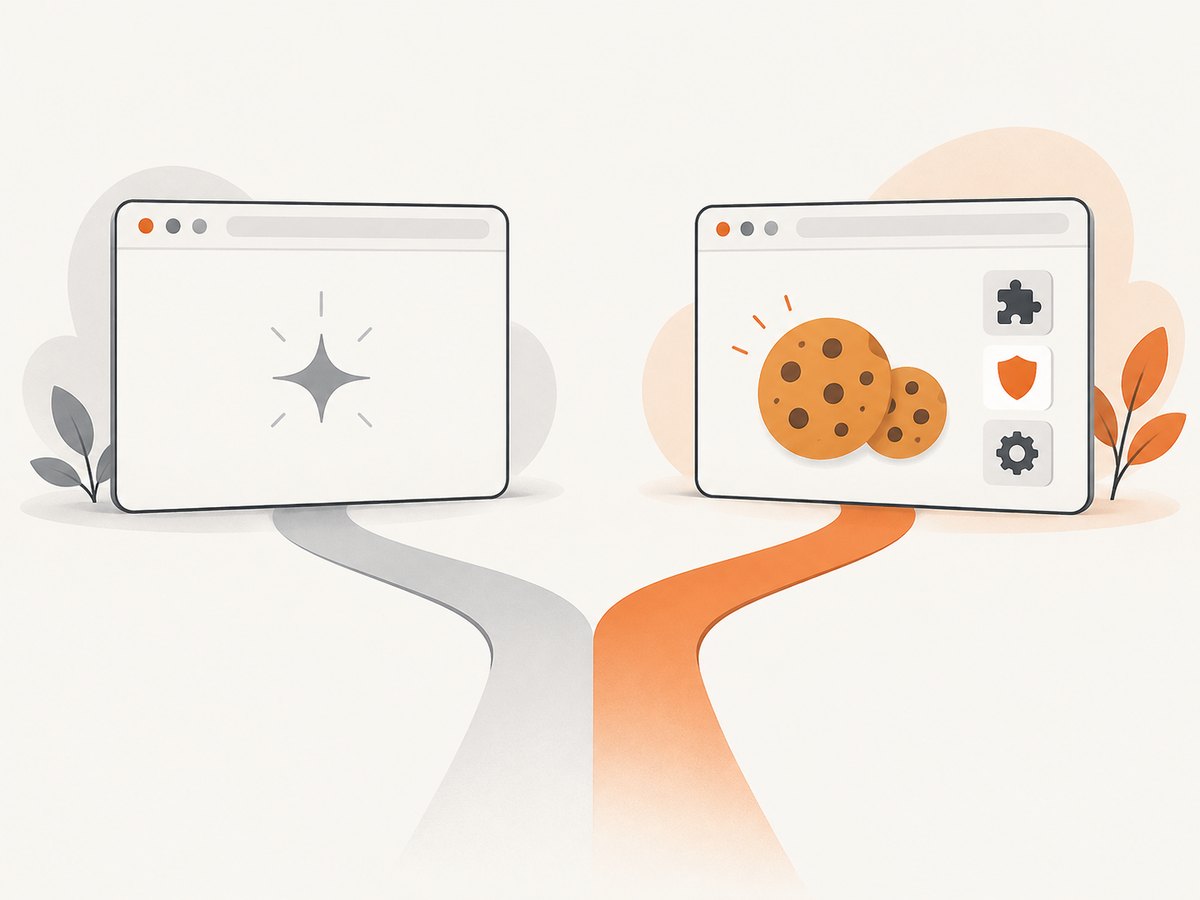
If your goal is simply a clean screenshot or PDF, ScreenshotNeo provides a single website screenshot API call. Cookie and consent banners are accepted before capture, and more than 60 known consent platforms, newsletter popups, and chat widgets are removed. Bot checks, blank pages, failed loads, timeouts, and cache hits are not billed, and response headers identify the page verdict and billing result. ScreenshotNeo also provides an MCP server with take_screenshot, get_page_info, and capture_pdf tools for AI agents.
See the ScreenshotNeo API documentation for all options. A direct request looks like this:
curl -G "https://api.screenshotneo.com/v1/shot" -d access_key=YOUR_API_KEY --data-urlencode url=https://stripe.com -o shot.webpimport requests
r = requests.get("https://api.screenshotneo.com/v1/shot", params={"access_key": "YOUR_API_KEY", "url": "https://stripe.com"}, timeout=90)
open("shot.webp", "wb").write(r.content)const q = new URLSearchParams({ access_key: 'YOUR_API_KEY', url: 'https://stripe.com' });
const res = await fetch(`https://api.screenshotneo.com/v1/shot?${q}`);It includes full-page and element capture, device presets, custom CSS and JavaScript, waits, blocking rules, authentication headers and cookies, geolocation, PDF options, caching, signed links, asynchronous webhooks, bulk capture, and a usage API. The free plan includes 1,000 screenshots each month with no card; paid plans start at $5 for 3,000. Create a free ScreenshotNeo account.
FAQ
Is Playwright MCP a browser?
No. It is an MCP server that exposes Playwright browser automation to an MCP client. The browser is downloaded or connected separately.
Does it operate from screenshots?
The official guide describes structured accessibility snapshots as the interaction mechanism, rather than pixel-based operation.
Can I use my current Chrome tabs?
Yes, through the documented existing-browser options, including the browser extension. Extension mode is intended for existing tabs, cookies, sessions, and extensions.
Should I use a persistent profile in CI?
Only when retaining state is intentional and the profile is securely isolated. Otherwise, use a fresh isolated context for each job.
Where should I look when a flag changes?
Check the current Playwright MCP installation, getting-started, and browser connection pages because package arguments and client configuration can evolve.


