How to Use Playwright MCP Snapshots
Learn how Playwright MCP snapshots expose a page’s accessibility tree, how to use refs safely, search large trees, and add screenshots when visuals matter.

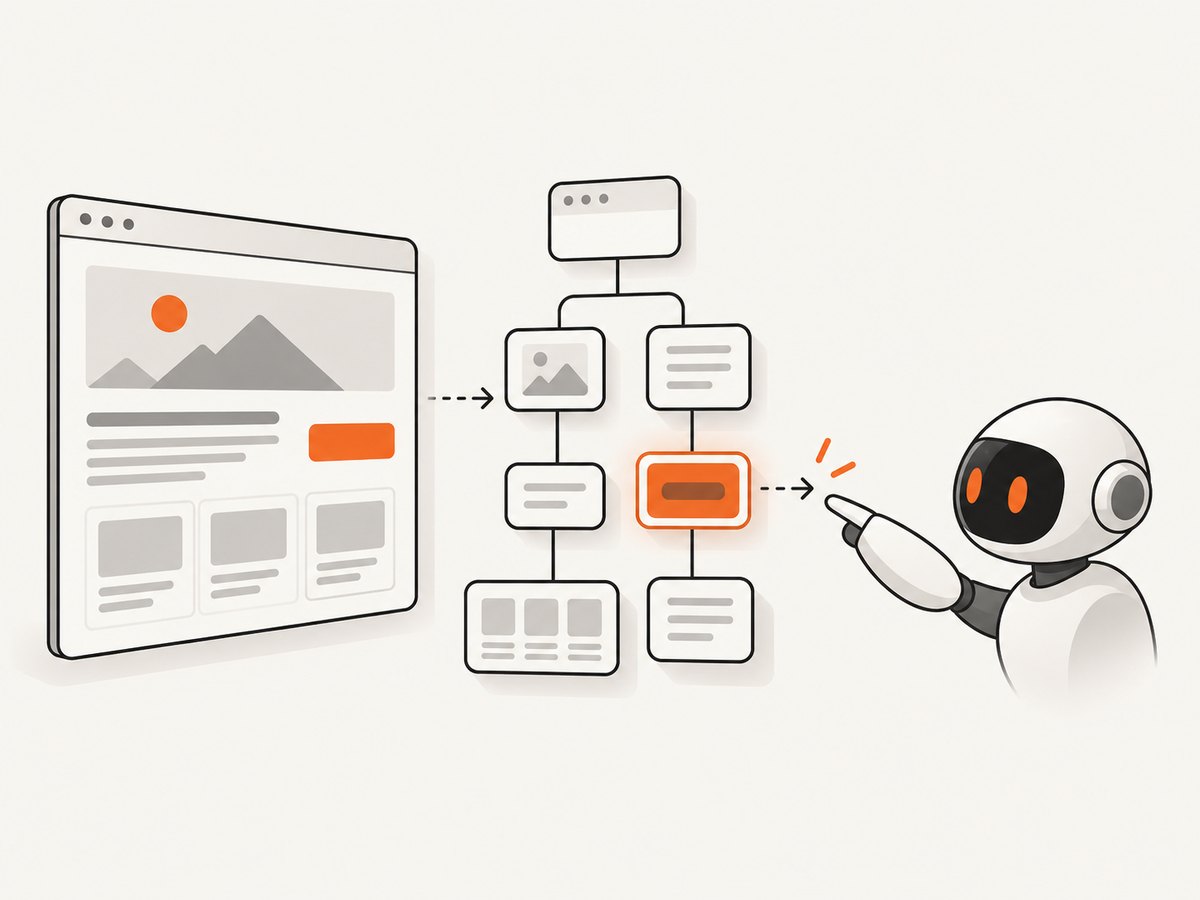
Playwright MCP snapshots are structured, text-based views of the current page’s accessibility tree. They expose semantic roles, accessible names, text, and references (refs) that an MCP client can use to target elements. Capture one with browser_snapshot, use a current ref for the next action, and take a fresh snapshot after navigation or any meaningful page change.
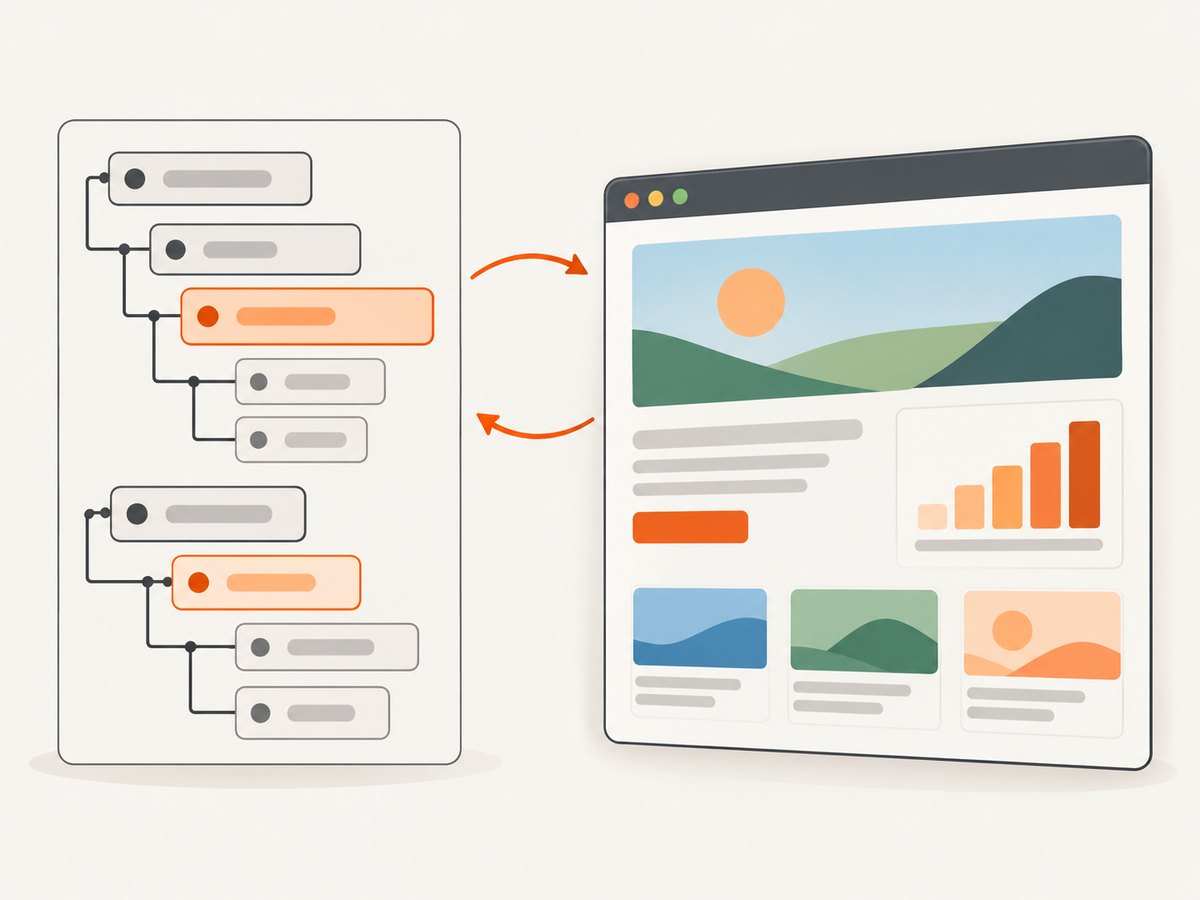
A snapshot is not a screenshot. It is the page structure available to assistive technology and automation. That makes it useful for finding a labelled textbox, button, checkbox, heading, or link without guessing coordinates. Add a screenshot when the task depends on layout, charts, canvas content, image-heavy regions, or other visual information that the accessibility tree does not represent.
1. What a Playwright MCP snapshot contains
Playwright MCP represents the current page as an accessibility tree. A compact result can contain nodes such as:
- heading "TodoMVC"
- textbox "What needs to be done?" [ref=e5]
- checkbox "Buy milk" [ref=e8]
- list
  - listitem "Buy milk"
- link "Documentation" [ref=e10]
- contentinfo
The exact output depends on the page. A node may have a semantic role, an accessible name, visible text, and a ref such as e5. Refs identify nodes in that snapshot and can be passed to interaction tools. They are assigned to exposed accessibility-tree nodes, not only to clickable controls.
Use snapshots when your question is semantic: “Which field is labelled Email?”, “Is there a checked checkbox?”, or “Click the Documentation link.” A snapshot will not reliably describe spacing, color, typography, visual hierarchy, chart lines, canvas pixels, or whether an image looks distorted.
Read the official Playwright snapshots documentation for the current output format and options.
2. Set up Playwright MCP
The current Playwright getting-started guide lists Node.js 20 or newer and an MCP-capable client as prerequisites. Your client’s configuration file and UI differ, so follow its instructions when registering an MCP server.
Prerequisites checklist
- Install Node.js 20 or newer.
- Install or open an MCP client such as an IDE assistant or desktop agent.
- Give the client permission to start an MCP server and access the target site.
- Check the official Playwright MCP getting-started guide before publishing automation that depends on version-sensitive options.
Register the server with npx
The official example uses the package published as @playwright/mcp:
npx @playwright/mcp@latestPut that command in the server entry used by your MCP client. The exact JSON or UI field names are client-specific. For a standalone HTTP server, the guide shows:
npx @playwright/mcp@latest --port 8931Configure the client to connect to the server’s /mcp endpoint. Treat @latest, client availability, and command-line flags as changeable; verify them against the current guide and repository before deployment.
3. Capture your first snapshot
After the server is connected, ask the assistant to open a page or navigate to a URL. Most interaction tools return a fresh snapshot automatically. You can also request an explicit snapshot when you want a deliberate inspection point.
- Ask the MCP client to navigate to the page.
- Call
browser_snapshotto inspect the current accessibility tree. - Choose a ref from that result.
- Pass the ref to the next action, such as typing or clicking.
- After the action changes the page, use the newly returned snapshot and refs.
A TodoMVC-style flow looks like this conceptually:
browser_navigate({ url: "https://example.test/todo" })
browser_snapshot()
# Snapshot contains: textbox "What needs to be done?" [ref=e5]
browser_type({ ref: "e5", text: "Buy milk" })
# Use the refs in the updated snapshot for the next action
The exact tool argument names depend on the Playwright MCP version and client. The important rule is operational: select targets from the latest snapshot, then refresh after state changes.
4. Use snapshot options to control the output
browser_snapshot supports options for narrowing or enriching the result:
| Option | Use it for | Practical effect |
|---|---|---|
target |
Inspecting one subtree | Return a focused section instead of the whole page. |
depth |
Limiting traversal | Stop after a chosen tree depth to reduce output. |
boxes |
Combining structure with geometry | Add viewport-relative CSS bounding rectangles. |
filename |
Keeping an artifact | Save the snapshot to a file. |
Use target when a page contains a large navigation tree but your task concerns a form. Use depth when you need headings and top-level regions but not every list item. Add boxes when an agent needs approximate geometry alongside semantic information; it still does not replace a visual screenshot.
Playwright MCP also documents global settings. --snapshot-mode=none prevents tools from attaching snapshots to responses, while --snapshot-boxes adds bounding boxes. The project lists corresponding environment variables and modes including full and none. Verify names against the current Playwright MCP repository because configuration flags can change.
5. Work with refs without breaking your automation
A ref is scoped to the snapshot that produced it. It remains useful while the represented page state remains the same, but navigation, a submit action, a route transition, or a dynamic re-render can invalidate it.
The safe ref loop
- Capture a snapshot.
- Read the target’s role and accessible name.
- Use its ref for one action.
- Assume the action may change state.
- Read the returned snapshot or call
browser_snapshotagain. - Select a new ref before continuing.
If a tool reports a missing ref, do not keep retrying the same identifier. Capture a fresh snapshot and select the replacement node. A ref such as e5 is not a permanent selector for the application.
Snapshots can also work with Playwright selectors or locator strings where supported. Refs are usually clearer for an MCP agent because they point to the node it just inspected. For long-lived test code, a stable semantic locator may be preferable when the application provides one.
6. Find content in a large snapshot
Large applications can produce trees that are tedious to scan. Use browser_find to locate a label or phrase and receive matching nodes with nearby lines and their tree path.
browser_find({ text: "Billing address" })Plain-text matching is case-insensitive. For a regular expression, provide a regex instead of plain text; regex matching is case-sensitive by default, with flags available according to the current tool reference. Do not supply both a text substring and a regex in the same search.
A useful narrowing sequence is:
- Search for a distinctive label with
browser_find. - Inspect the returned tree path and ref.
- Use that ref for the action.
- Request a targeted snapshot with
targetif you need surrounding context.
This avoids asking an agent to reason over an entire application shell when only one control matters.
7. Snapshot or screenshot?
Playwright’s documentation describes snapshots as text-only, low-token, precise for ref targeting, fast to parse, and deterministic when the structure is the same. It describes screenshots as more token-intensive, approximate for coordinate targeting, slower to interpret, and dependent on vision. Those are qualitative product guidelines, not an independent numerical benchmark; choose based on the information your task requires.
| Need | Start with | Reason |
|---|---|---|
| Find a labelled input or button | Snapshot | Roles, names, and refs are explicit. |
| Submit a form and inspect text errors | Snapshot | Text and semantic state are easy to parse. |
| Understand spacing or responsive layout | Screenshot plus snapshot | Pixels show visual relationships. |
| Read a canvas chart | Screenshot | Canvas pixels may not appear in the accessibility tree. |
| Check an image crop or visual regression | Screenshot | The tree cannot describe every visual detail. |
| Locate a specific element in a busy page | Snapshot, optionally with boxes |
Semantic targeting avoids coordinate guessing. |
Use both when the agent needs to identify an element semantically and then verify its visual context. A snapshot tells you what the page exposes; a screenshot shows what a sighted user sees.
8. Common errors and fixes
| Symptom | Likely cause | Fix |
|---|---|---|
| “Ref not found” or missing target | The page changed after the snapshot. | Capture a fresh snapshot, choose the new ref, and retry once. |
| Snapshot is overwhelming | The page has a deep or repeated tree. | Use browser_find, then narrow with target or depth. |
| Expected element is absent | It is not exposed in the accessibility tree, is inside a closed component, or has not rendered. | Wait for the page state, inspect a screenshot, and use an appropriate Playwright method. Do not assume a coordinate has a ref. |
| Text is present but the visual result is wrong | Layout, CSS, images, or canvas content is not represented fully. | Take a screenshot alongside the snapshot. |
| Actions do not return snapshots | Snapshots were disabled globally or the client is using a different response mode. | Check --snapshot-mode and call browser_snapshot explicitly. |
| Server will not start | Node.js is too old, the package cannot be fetched, or the client command is misconfigured. | Confirm Node.js 20+, rerun the official setup command, and check the client’s server configuration. |
9. Reliability, performance, and operating practices
- Refresh after state changes. This prevents stale-ref failures in dynamic applications.
- Search before reading.
browser_findand targeted snapshots reduce the amount of tree data an agent must parse. - Keep visual checks separate. Request screenshots only for layout, charts, canvas, or image-heavy regions.
- Make waits explicit. If content loads after navigation, wait for the relevant state before capturing the snapshot.
- Save important artifacts. The
filenameoption can preserve a snapshot for debugging or review. - Pin deliberately in production. The official examples use
@latest; for repeatable automation, review package updates and validate the options your client uses. - Respect access controls. The MCP server still interacts with the target site under the browser context and permissions you configure.
Snapshots are generally efficient because they communicate structure as text, but output size still grows with page complexity. A shallow or targeted snapshot is often enough for one action. Full snapshots are useful when you need to understand page landmarks or choose among several related controls.
10. Or skip the browser setup
If your goal is a durable image or PDF rather than semantic interaction, ScreenshotNeo provides a website screenshot API and MCP server. It removes cookie and consent banners, newsletter popups, and chat widgets before capture, with each cleanup step configurable. Bot checks, blank pages, timeouts, failed loads, and cache hits are not billed; response headers identify the page verdict and whether the request was billed.
One request returns PNG, JPEG, WebP, or PDF:
curl -G "https://api.screenshotneo.com/v1/shot" -d access_key=YOUR_API_KEY --data-urlencode url=https://stripe.com -o shot.webpimport requests
r = requests.get("https://api.screenshotneo.com/v1/shot", params={"access_key": "YOUR_API_KEY", "url": "https://stripe.com"}, timeout=90)
open("shot.webp", "wb").write(r.content)const q = new URLSearchParams({ access_key: 'YOUR_API_KEY', url: 'https://stripe.com' });
const res = await fetch(`https://api.screenshotneo.com/v1/shot?${q}`);See the ScreenshotNeo API documentation for request parameters and response details. Features include full-page capture with lazy images loaded, CSS-selector element capture, dark mode, device presets and custom viewports, retina scale, PDF paper and margin controls, custom CSS and JavaScript, clicks and waits, blocking rules, headers, cookies, user agents, authorization, timezone and geolocation, transparent backgrounds, resizing, configurable caching, signed links, asynchronous jobs with signed webhooks, bulk capture for up to 100 URLs per call, a usage API, and an OpenAPI specification. Parameter names used by other screenshot APIs also work to simplify migration.
An MCP server lets Claude, Cursor, and other MCP clients call take_screenshot, get_page_info, and capture_pdf. The Free plan includes 1,000 shots per month with no card. Paid plans start at $5 for 3,000 shots; yearly billing provides two months free.
Create a free ScreenshotNeo account and get 1,000 screenshots each month with no card.
11. Short FAQ
Is a snapshot the same as the DOM?
No. It is an accessibility-tree representation derived from what the page exposes semantically. It omits or condenses implementation details that are present in the DOM.
Can I reuse a ref after clicking?
Only if the page state and snapshot remain valid. Treat refs as snapshot-scoped and recapture after actions that may re-render or navigate.
When should I use browser_find?
Use it when a full snapshot is large and you need a particular label, phrase, or matching node.
Do snapshots show images?
They may expose an image’s accessible name or alternative text, but not its complete visual appearance. Use a screenshot for image content and layout.
Can snapshots verify a chart?
Only if the chart exposes meaningful accessible data. For canvas or visual-only charts, pair the snapshot with a screenshot.
What Node.js version does the getting-started guide list?
Node.js 20 or newer, along with an MCP-capable client. Check the current official guide for updates.
12. A practical checklist
- Install Node.js 20+ and connect an MCP client.
- Register
@playwright/mcp@latestusing your client’s documented format. - Navigate to the target page.
- Capture
browser_snapshotor use the snapshot returned by an interaction. - Find the semantic node and take its current ref.
- Act once, then read the updated snapshot.
- Use
browser_find,target, ordepthto control large results. - Add a screenshot whenever pixels, layout, charts, canvas, or image appearance matter.
- Refresh refs after navigation and dynamic state changes.
That workflow keeps Playwright MCP automation grounded in the page’s current semantics while leaving visual questions to screenshots, where they belong.