BlogScreenshots on your device
How to Capture Scrolling Screenshots with Power Automate
Capture full webpages or specific elements with Power Automate for desktop using focused scrolling, JavaScript, and reliable screenshot steps.
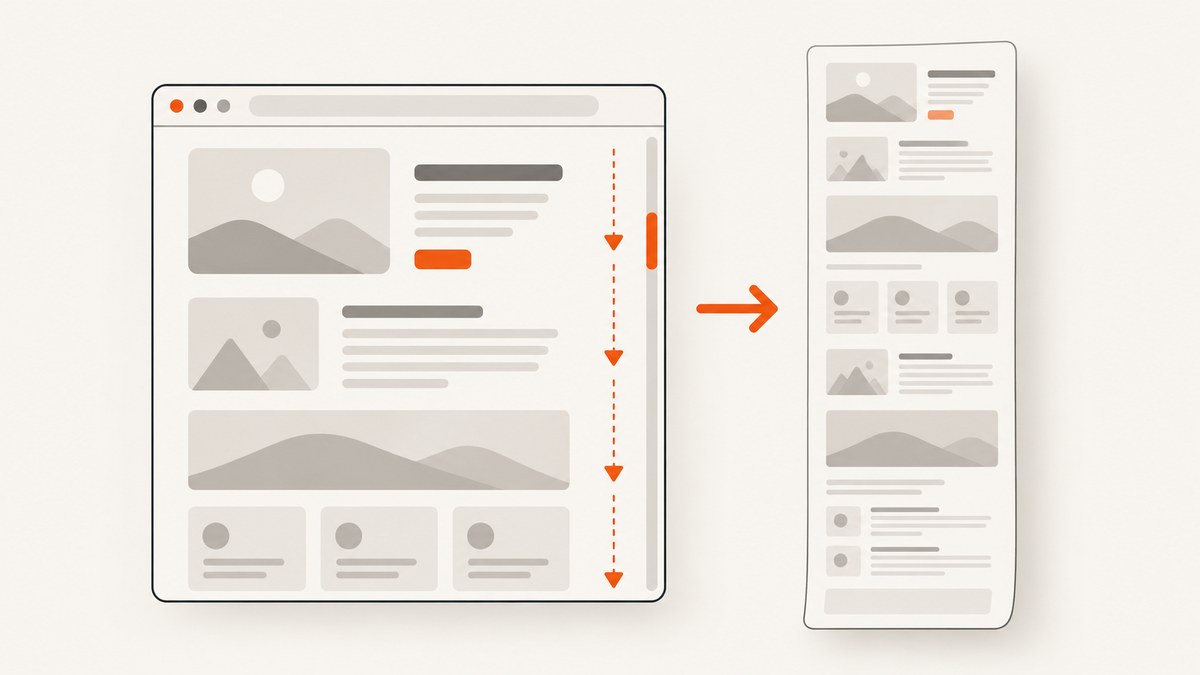
To capture a scrolling webpage in Power Automate for desktop, launch or attach to the browser, scroll the page with a targeted web element or JavaScript, then use Take screenshot of web page with Entire web page or Specific element. Use the browser-page screenshot action when you need webpage content. Use the workstation Take screenshot action only when you need the visible foreground window or screen.
What you need
- Power Automate for desktop.
- Edge, Chrome, Firefox, or Internet Explorer, subject to the current browser automation requirements.
- A browser instance created with Launch new browser or attached where supported.
- A web UI element captured from the browser, not a desktop UI element.
- A writable file path if you want to save the image to disk.
Browser automation can require the matching extension or compatible WebDriver setup. A flow cannot attach to a browser opened under a different system user. Keep the target tab available and, where physical interaction is involved, do not minimize the browser.
Method 1: Scroll to a known element
This is usually the most stable option when the page has a heading, button, article section, or “load more” control near the content you need.
- Add Launch new browser or Attach to running browser.
- Navigate to the target URL.
- Capture the destination as a web UI element.
- Add Focus text field on web page and select that web element. Despite its name, the action can scroll any targeted element into view.
- If the element triggers lazy loading or a “load more” request, add a short wait or wait for a selector before capturing.
- Add Take screenshot of web page.
- Choose Entire web page for the page capture or Specific element for the selected element.
- Choose file output and provide a path such as
C:\Screenshots\page.png, or choose clipboard output for the next desktop action.
When to use this method
- The content has a reliable target element.
- You want the browser to bring a section into view before capture.
- The page loads more content as the flow reaches a control.
Method 2: Scroll with JavaScript
Use Execute JavaScript function on web page when you need a precise scroll position or the bottom of the document.
Scroll to the bottom
window.scrollTo(0, document.body.scrollHeight);Scroll to a fixed position
window.scrollTo(0, 1200);Scroll smoothly and wait for rendering
window.scrollTo({ top: document.body.scrollHeight, behavior: 'smooth' });After executing JavaScript, wait until scrolling and lazy loading finish before taking the screenshot. A fixed delay is simple; waiting for a known selector is more repeatable.
Scroll a nested container
If the page contains an inner panel with its own scrollbar, scrolling the window may not move it. Target the actual container and set its scrollTop:
const panel = document.querySelector('.results-panel');
if (panel) panel.scrollTop = panel.scrollHeight;
Replace .results-panel with the container’s selector. If the selector returns no element, inspect the page and use the element that owns the scrollbar.
Configure the webpage screenshot action
| Setting | Use it when |
|---|---|
| Entire web page | You need the page capture rather than only the visible viewport. |
| Specific element | You need one article, panel, chart, or other element. |
| Save to file | The image will be processed, uploaded, or stored as an artifact. |
| Save to clipboard | The next action can paste the image into another application. |
Check the output after the first run. Dynamic pages can change while scrolling, and a page screenshot does not guarantee that every lazy-loaded item has appeared.

A complete flow for long, lazy-loaded pages
- Launch the browser and navigate to the URL.
- Wait for the main article selector, such as
mainor an article-specific element. - Run JavaScript to scroll near the bottom.
- Wait for a loading indicator to disappear, or wait for the final content selector.
- Repeat the scroll-and-wait sequence if the site loads content in batches.
- Run Take screenshot of web page with Entire web page.
- Verify the file exists and has a non-zero size before continuing.
Power Automate versus workstation screenshots
Take screenshot of web page captures webpage content or a webpage element. The workstation Take screenshot action captures the foreground window or a selected screen. Use the workstation action for a visual record of what a user sees on the desktop, including non-browser applications. Use the browser action for page content that extends beyond the viewport.

Common problems and fixes
| Problem | Likely cause | Fix |
|---|---|---|
| The page does not scroll | The flow selected a desktop element, or the page uses an inner scroll container. | Capture a web UI element and target the container’s scrollTop with JavaScript. |
| The screenshot contains only the viewport | The wrong screenshot action or capture mode was selected. | Use browser Take screenshot of web page and choose Entire web page. |
| Images or list items are missing | Lazy loading has not completed. | Scroll in stages, wait for the content selector or loading indicator, then capture. |
| JavaScript runs but nothing moves | The document is not the scrolling element. | Find the nested element with the scrollbar and set its scrollTop. |
| Attach to browser fails | The browser belongs to another system user or the required extension/WebDriver setup is missing. | Run the flow under the same user that opened the browser and verify the supported browser setup. |
| Capture is inconsistent | Sticky headers, animations, ads, or changing content alter the page during capture. | Disable animations where possible, wait for a stable selector, and use a repeatable scroll sequence. |
| The browser interaction is blocked | The browser is minimized or the target tab is not focused when physical interaction is required. | Keep the browser visible and the target tab focused during those actions. |
| The file is empty or missing | The path is invalid or the flow continued before the save completed. | Use an existing writable directory and add a file-exists check before downstream steps. |
Reliability and performance checklist
- Prefer element-focused scrolling when a stable target exists.
- Use selectors that identify semantic containers instead of fragile generated class names.
- Wait for content, not just a fixed number of seconds, whenever the page exposes a useful loading or completion selector.
- Expect sticky headers and overlays to affect visible captures.
- For very long pages, capture after content has loaded instead of assuming one immediate full-page operation will include every item.
- Keep browser and flow users consistent across scheduled runs.
- Save to a local path first, verify it, then upload or move it.
- Record the URL, timestamp, and output path so a failed capture can be reproduced.
Or skip the browser setup
ScreenshotNeo provides a one-request website screenshot API. It accepts the cookie or consent banner like a visitor and removes more than 60 known consent platforms, newsletter popups, and chat widgets before capture; each step can be turned off. Bot checks, blank pages, timeouts, failed loads, and cache hits are not billed, and the response identifies the result with X-Page-Verdict and X-Billed headers. It also offers an MCP server for AI agents, with take_screenshot, get_page_info, and capture_pdf tools.
See the ScreenshotNeo API documentation for all options.
cURL
curl -G "https://api.screenshotneo.com/v1/shot" -d access_key=YOUR_API_KEY --data-urlencode url=https://stripe.com -o shot.webpPython
import requests

r = requests.get(
    "https://api.screenshotneo.com/v1/shot",
    params={"access_key": "YOUR_API_KEY", "url": "https://stripe.com"},
    timeout=90,
)
r.raise_for_status()
open("shot.webp", "wb").write(r.content)
Node.js
const q = new URLSearchParams({ access_key: 'YOUR_API_KEY', url: 'https://stripe.com' });
const res = await fetch(`https://api.screenshotneo.com/v1/shot?${q}`);
if (!res.ok) throw new Error(`HTTP ${res.status}`);
const data = Buffer.from(await res.arrayBuffer());
require('fs').writeFileSync('shot.webp', data);
ScreenshotNeo supports full-page capture with lazy images loaded, CSS-element capture, dark mode, device presets, custom viewports, retina scale, custom CSS and JavaScript, click and hide actions, selector or network-idle waits, request blocking, headers, cookies, user agents, authorization, timezone, geolocation, transparent backgrounds, resizing, caching, signed links, asynchronous jobs, webhooks, bulk capture of up to 100 URLs per call, usage reporting, and PDF output. Only clean shots are billed. The free plan includes 1,000 shots per month with no card; paid plans start at $5 for 3,000 shots.
Create a free ScreenshotNeo account and get 1,000 screenshots a month with no card.
FAQ
Can Power Automate stitch every page into one image?
The browser screenshot action can request an entire webpage, but dynamic rendering, lazy loading, nested scroll areas, and changing content can affect what appears. Inspect the result and add staged scrolling when necessary.
Should I use JavaScript or focus an element?
Use focus when you have a reliable target element. Use JavaScript for exact coordinates, bottom-of-page scrolling, or a nested container.
How do I capture only an article?
Capture the article as a web UI element and choose Specific element in the webpage screenshot action.
Why is my screen capture different from my webpage capture?
They target different things: the workstation action captures the visible desktop window or screen, while the browser action captures webpage content.
Can an AI agent request these screenshots?
Yes. ScreenshotNeo includes an MCP server with screenshot, page-info, and PDF capture tools for Claude, Cursor, and other MCP clients.


