BlogScreenshots on your device
How to Prevent C# CopyFromScreen from Filling Up Memory
Stop CopyFromScreen memory growth by disposing GDI+ resources, transferring image ownership safely, and bounding capture size, rate, and retention.

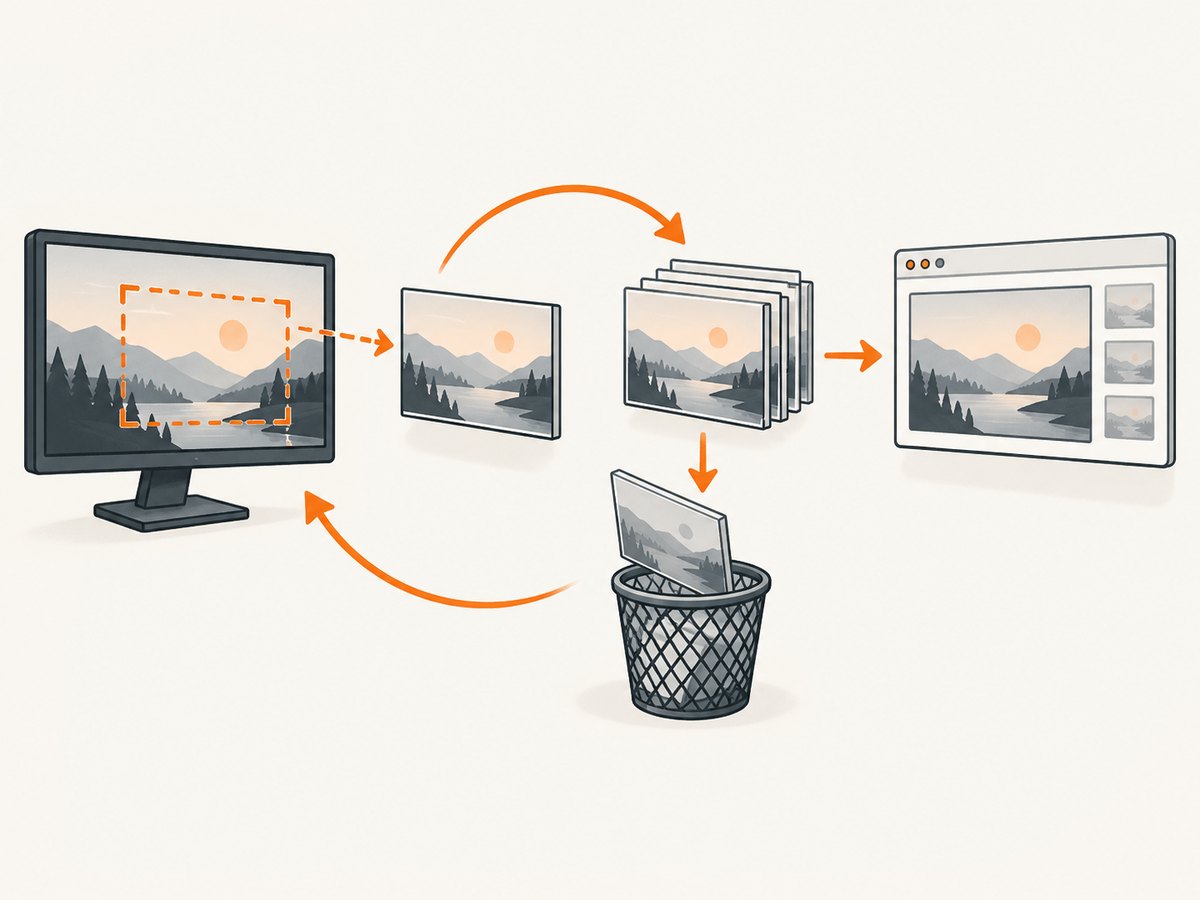
Graphics.CopyFromScreen copies pixels into a destination Graphics; it does not keep a frame history. Memory usually grows because each loop creates a Bitmap that is never disposed, a Graphics wrapper that remains alive, a UI control still owns an old image, or a queue/list retains every frame.
The fix is deterministic ownership: create one bitmap for a frame, dispose the Graphics immediately, return the bitmap to a clearly defined owner, and dispose that bitmap when the owner replaces or finishes using it. Also bound the capture rectangle, frame rate, and number of retained frames.
1. A safe CopyFromScreen capture method
This method allocates exactly one bitmap for the requested rectangle. The using statement releases the temporary Graphics object before the bitmap is returned.
using System.Drawing;
using System.Drawing.Imaging;

static Bitmap Capture(Rectangle area)
{
    if (area.Width <= 0 || area.Height <= 0)
        throw new ArgumentOutOfRangeException(nameof(area), "Capture area must be positive.");

    var bitmap = new Bitmap(
        area.Width,
        area.Height,
        PixelFormat.Format32bppPArgb);

    try
    {
        using (Graphics graphics = Graphics.FromImage(bitmap))
        {
            graphics.CopyFromScreen(
                area.Left,
                area.Top,
                0,
                0,
                area.Size,
                CopyPixelOperation.SourceCopy);
        }

        return bitmap; // The caller now owns this Bitmap.
    }
    catch
    {
        bitmap.Dispose();
        throw;
    }
}
Microsoft documents CopyFromScreen as a bit-block transfer from the screen into a destination graphics surface. The bitmap is the destination storage, so its lifetime determines how long the captured pixels remain allocated.
Use the returned bitmap with a local owner
If the bitmap is only needed for saving or processing, dispose it in the same scope that consumes it:
Rectangle area = Screen.PrimaryScreen!.Bounds;

using (Bitmap frame = Capture(area))
{
    frame.Save("frame.png", ImageFormat.Png);
} // Bitmap and its native resources are released here.
Never return a bitmap from a method and then also dispose it inside that method. Returning it transfers ownership to the caller.
2. Replacing a WinForms PictureBox image without retaining frames
A PictureBox owns the image assigned to its Image property from the point of view of your application. Keep the old reference, assign the new frame, then dispose the old frame on the UI thread after the control no longer uses it.
private Bitmap? currentFrame;

private void ShowFrame(Rectangle area)
{
    Bitmap next = Capture(area);
    Bitmap? old = currentFrame;

    // This method must run on the UI thread.
    currentFrame = next;
    pictureBox1.Image = next;

    old?.Dispose();
}

protected override void Dispose(bool disposing)
{
    if (disposing)
    {
        // Detach the image before disposing it.
        Image? image = pictureBox1.Image;
        pictureBox1.Image = null;
        image?.Dispose();

        if (currentFrame != image)
            currentFrame?.Dispose();

        currentFrame = null;
    }

    base.Dispose(disposing);
}
The identity check prevents disposing the same object twice when the control and your field refer to one bitmap. Adapt the handoff to your control and threading model. Do not dispose a bitmap while another thread is painting it.
Async or timer-driven refresh
Capture work can run off the UI thread, but assigning and disposing a control image must be coordinated with the UI thread. One simple pattern is to capture in the background and marshal only the ownership handoff:
private async Task RefreshAsync(Rectangle area)
{
    Bitmap next = await Task.Run(() => Capture(area));

    if (IsDisposed)
    {
        next.Dispose();
        return;
    }

    BeginInvoke(() =>
    {
        if (IsDisposed)
        {
            next.Dispose();
            return;
        }

        Bitmap? old = currentFrame;
        currentFrame = next;
        pictureBox1.Image = next;
        old?.Dispose();
    });
}
Stop the timer before disposing the form so that a capture cannot complete after the control has been torn down. If multiple captures can overlap, cancel pending work or use a single-consumer queue; otherwise completed frames can accumulate while the UI is busy.
3. Why memory grows in a CopyFromScreen loop
Undisposed Bitmap objects
Every bitmap owns pixel storage and native GDI+ resources. Microsoft’s Image.Dispose documentation states: “Always call Dispose before you release your last reference to the Image.” Garbage collection alone is not a substitute for disposing an image at the end of its ownership period.
Undisposed Graphics wrappers
Graphics.FromImage returns a disposable drawing object. Wrap it in using or dispose it in a finally block. A loop that creates a graphics wrapper for every frame can exhaust native resources even when managed heap usage looks stable. See Microsoft’s Graphics.Dispose documentation.
References that retain old frames
Disposal cannot reclaim an object that is still in use, and a reference can keep an object alive indefinitely. Inspect:
List<Bitmap>, queues, caches, and static fields.- Event handlers, timer callbacks, closures, and tasks that capture a frame.
- A control’s previous
Imagevalue after a replacement. - Producer/consumer queues that have no maximum length.
Capture dimensions and frequency
A 32-bit frame uses about four bytes per pixel before object and allocator overhead. That is an engineering estimate: a 3840×2160 frame is roughly 33 MB of pixel data, and a high-frequency full-screen loop multiplies pressure quickly if even a few frames are retained. Capture only the rectangle you need and reduce the interval when a lower refresh rate is acceptable.
4. Correct lifetime patterns
| Object | Owner | Release rule |
|---|---|---|
Bitmap returned by Capture |
Caller | Dispose after saving, processing, or handing it to a control. |
Graphics.FromImage |
Capture method | Dispose immediately with using. |
| Image assigned to a control | UI layer | Detach, replace, then dispose the old image on the UI thread. |
| Queued frame | Queue consumer | Consumer disposes it; producer disposes rejected or dropped frames. |
For a bounded queue, decide what happens when it is full. Either block the producer, drop the oldest frame and dispose it, or drop the newest frame and dispose it. Never remove a bitmap from a queue without disposing it or transferring ownership.
private readonly object gate = new();
private Bitmap? pending;

void Publish(Bitmap next)
{
    Bitmap? dropped;
    lock (gate)
    {
        dropped = pending;
        pending = next;
    }

    // The replaced frame has no remaining owner.
    dropped?.Dispose();
}
5. Configuration choices that reduce pressure
- Rectangle: pass the smallest
Rectanglethat contains the content you need. Avoid capturing every monitor when a window-sized area is sufficient. - Pixel format:
Format32bppPArgbis a practical GDI+ format. Choose another format only when downstream processing requires it. - Frame rate: use a timer interval appropriate to the job. A still-image sampler does not need a video-rate loop.
- Retention: keep one current frame or a small, explicitly bounded history. Dispose frames as soon as they leave that history.
- Concurrency: prevent overlapping captures when the capture time can exceed the timer interval.
- Output: save or encode a frame, then dispose the bitmap if the encoded bytes are the actual result.
6. Troubleshooting common errors
Managed memory is stable, but GDI objects keep increasing
Cause: native Bitmap or Graphics resources are not disposed.
Fix: add using around every graphics object and dispose every bitmap at the end of its ownership period. Monitor both managed heap and GDI object counts while reproducing the loop.
The application throws “A generic error occurred in GDI+” while saving
Cause: the bitmap may already be disposed, the output path may be unavailable, or another thread may be using the image.
Fix: keep the bitmap alive through Save, use a writable path, and serialize access to a frame before disposing it.
The UI flickers or throws while replacing images
Cause: an old image is disposed while the control is painting it, or assignment occurs off the UI thread.
Fix: assign and dispose on the UI thread. Detach the old image, assign the new image, then dispose the detached reference.
Memory rises only when processing is slower than capture
Cause: an unbounded producer/consumer queue or overlapping tasks retains completed frames.
Fix: bound the queue, cancel superseded captures, and dispose every dropped frame. For a live preview, keeping only the newest frame is often sufficient.
CopyFromScreen fails on a headless session or locked desktop
Cause: the API captures the visible desktop. Services, locked sessions, remote sessions, and secure surfaces may not expose the pixels you expect.
Fix: run capture in an interactive Windows session, verify monitor coordinates, and handle capture failures without retaining a partially created bitmap.
Code works on Windows but fails after moving to Linux or macOS
Cause: Microsoft states that System.Drawing.Common is supported only on Windows in .NET 6 and later; cross-platform use can produce warnings or runtime exceptions.
Fix: select a supported cross-platform capture and imaging library for the target operating system, then apply the same ownership, queue, and disposal rules.
7. Measuring the leak
- Record the capture rectangle, interval, pixel format, and number of in-flight frames.
- Run a fixed number of iterations with no UI and dispose each frame immediately. If memory stays bounded, the retention is in the UI or queue path.
- Run the UI path and watch managed memory plus GDI object counts.
- Take a heap snapshot and search for lists, fields, event subscriptions, and closures referencing
Bitmap. - Confirm that shutdown stops timers and cancels workers before controls and images are disposed.
Do not use GC.Collect() as the fix. It cannot release a bitmap that is still referenced, and it does not replace deterministic disposal of GDI+ resources.
8. Or skip the browser setup
If your goal is a website screenshot rather than the visible Windows desktop, ScreenshotNeo provides a single HTTP request and returns PNG, JPEG, WebP, or PDF. Its capture pipeline accepts cookie and consent banners, then removes more than 60 known consent platforms, newsletter popups, and chat widgets before the shot. Each step can be turned off.

Only clean shots are billed. Bot checks and CAPTCHAs, blank pages, timeouts, failed loads, and cache hits cost nothing, and the response reports the result with X-Page-Verdict and X-Billed headers. An MCP server provides take_screenshot, get_page_info, and capture_pdf tools for Claude, Cursor, and other MCP clients. The free plan includes 1,000 screenshots per month with no card; paid plans start at $5 for 3,000 shots.
See the ScreenshotNeo API documentation for all options.
cURL
curl -G "https://api.screenshotneo.com/v1/shot" \
  -d access_key=YOUR_API_KEY \
  --data-urlencode url=https://stripe.com \
  -o shot.webp
Python
import requests

r = requests.get(
    "https://api.screenshotneo.com/v1/shot",
    params={"access_key": "YOUR_API_KEY", "url": "https://stripe.com"},
    timeout=90,
)
r.raise_for_status()
open("shot.webp", "wb").write(r.content)
Node.js
const q = new URLSearchParams({
  access_key: 'YOUR_API_KEY',
  url: 'https://stripe.com'
});
const res = await fetch(`https://api.screenshotneo.com/v1/shot?${q}`);
if (!res.ok) throw new Error(`HTTP ${res.status}`);
const bytes = Buffer.from(await res.arrayBuffer());
require('node:fs').writeFileSync('shot.webp', bytes);
Create a free ScreenshotNeo account for 1,000 screenshots each month with no card.
9. Performance, reliability, and cost notes
- Performance: smaller rectangles, fewer concurrent captures, and bounded queues reduce allocation and native-handle pressure.
- Reliability: stop timers before shutdown, handle exceptions by disposing the partially created bitmap, and never dispose an image still being painted or processed.
- Cost: local
CopyFromScreenhas no API charge, but large frames consume memory, CPU, disk bandwidth, and possibly encoding time. ScreenshotNeo charges only for clean website shots; failed loads, bot checks, blank pages, timeouts, and cache hits are not billed. - Platform:
System.Drawing.Commonis a Windows-only choice in modern .NET. A cross-platform application needs a supported capture API for each target platform.
10. FAQ
Does CopyFromScreen itself leak memory?
Usually no. It transfers pixels into the destination graphics surface. Leaks normally come from undisposed bitmaps or graphics wrappers, or from references that retain old frames.
Should I call Dispose and then set the bitmap to null?
Dispose the object when ownership ends. Setting a variable to null can remove one reference, but it does not release resources while another owner still holds the bitmap.
Can I reuse one Bitmap for every frame?
Yes, if one owner controls all access and no UI or worker uses it concurrently. A replace-and-dispose handoff is often simpler when painting and capture happen on different threads.
Why does Task Manager show more memory after disposal?
Allocators may keep freed memory available for reuse instead of immediately returning it to the operating system. Check whether live bitmap references and GDI counts continue to rise; those measurements are more useful than a single Task Manager reading.
Is ScreenshotNeo a replacement for desktop capture?
No. ScreenshotNeo captures public web pages through its API. Use CopyFromScreen or a platform capture API for the local desktop; use ScreenshotNeo when the input is a URL and you want a clean website image or PDF.


