How to Prevent Page Breaks in Puppeteer PDFs
Keep invoice sections, tables, cards and headings together in Puppeteer PDFs with modern CSS breaks, print geometry and reliable export timing.
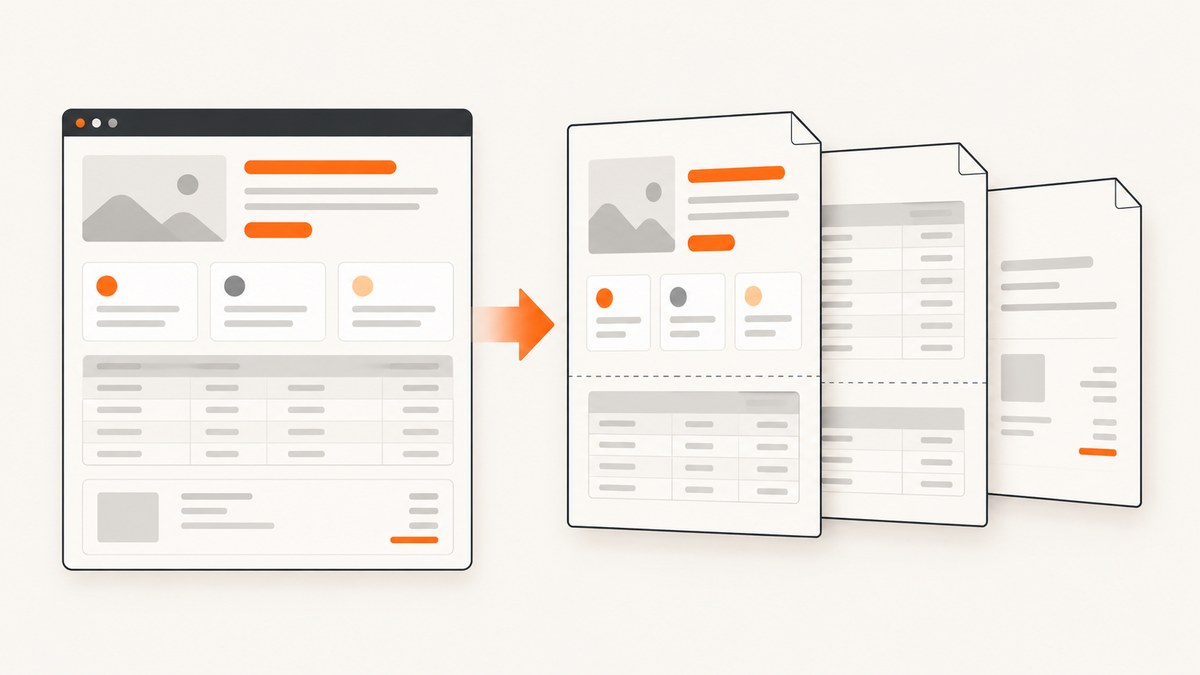
To prevent a block from splitting across Puppeteer PDF pages, apply break-inside: avoid (and the legacy page-break-inside: avoid alias) to the block that must stay together. Use break-before: page or break-after: page for deliberate section boundaries. Then make print media, paper size, margins, scale, fonts and late-loading content deterministic before calling page.pdf().
Avoid rules cannot keep content intact when the content is taller than the printable area. In that case, split the component intentionally or redesign it. The complete pattern below handles the common invoice, report and card layouts.
Why Puppeteer page breaks happen
page.pdf() generates a PDF using the print CSS media type by default. Puppeteer documents this behavior in its Page.pdf() reference. If your screen stylesheet differs from your print stylesheet, the browser may calculate different widths, font metrics and heights during export.
A page can split in an unexpected place for several reasons:
- The pagination rule is on a parent or wrapper instead of the generated block that must remain whole.
- The selector does not match the element you think it matches, or the element does not generate a block-level box.
- A print media rule overrides the screen rule.
- The printable area is smaller because of paper margins, a format setting, a custom width and height, or PDF scaling.
- Fonts, images, charts or client-rendered data finish after the PDF call starts.
- A fixed height,
overflow: hiddenor an absolutely positioned child changes the effective layout. - The component is taller than one printable page.
The CSS rules that control pagination
Keep a block together
Use the modern break-inside property on the generated block you want to preserve:
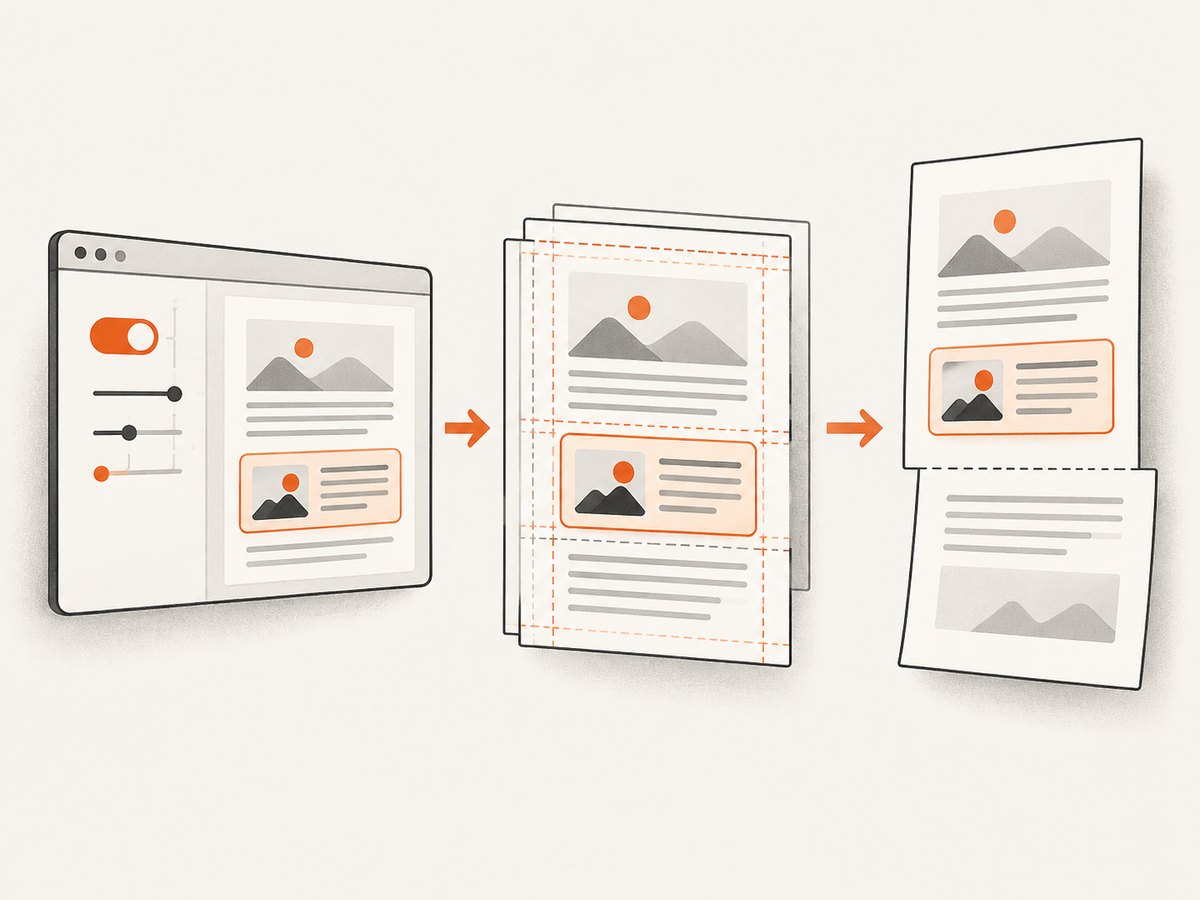
.invoice-section {
  break-inside: avoid;
}
MDN describes break-inside as controlling how page, column or region breaks behave inside a generated box. For compatibility with older stylesheets and browser versions, include the alias:
.invoice-section {
  break-inside: avoid;
  page-break-inside: avoid;
}
break-inside: avoid-page is also useful when you want to express that page breaks should be avoided specifically. In most Puppeteer PDF stylesheets, avoid is the practical choice.
Start a section on a new page
.terms {
  break-before: page;
}

.appendix {
  break-after: page;
}
The older page-break-before and page-break-after names remain useful as compatibility aliases, but use the modern break-* properties in new code.
Do not apply avoid to an oversized container
If a table, chart or card is taller than the printable page, the browser cannot keep it whole without creating extra page space. An avoid rule may appear to be ignored because there is no valid pagination that satisfies it. Split long tables by rows, allow a long description to flow, or redesign the component into smaller sections.
A complete Puppeteer implementation
This Node.js example waits for the page, switches to print media explicitly, injects robust pagination CSS, waits for fonts and exports an A4 PDF. Save it as make-pdf.mjs, install Puppeteer with npm install puppeteer, and run node make-pdf.mjs.
import puppeteer from 'puppeteer';

const browser = await puppeteer.launch();
const page = await browser.newPage();

await page.goto('http://localhost:3000/invoice/123', {
  waitUntil: 'networkidle2'
});

// page.pdf() uses print media, so make that choice explicit while debugging.
await page.emulateMediaType('print');

await page.addStyleTag({
  content: `
    @media print {
      @page {
        size: A4;
        margin: 16mm;
      }

      html, body {
        margin: 0;
      }

      .invoice-section,
      .keep-together,
      .line-item-group {
        break-inside: avoid;
        page-break-inside: avoid;
      }

      .new-section,
      .terms-and-conditions {
        break-before: page;
        page-break-before: always;
      }

      .avoid-after {
        break-after: avoid-page;
        page-break-after: avoid;
      }
    }
  `
});

// Wait for web fonts and any layout changes they cause.
await page.evaluate(async () => {
  if (document.fonts?.ready) await document.fonts.ready;
});

// If your app exposes a readiness flag, wait for it too.
await page.waitForFunction(() => window.invoiceReady === true, {
  timeout: 30000
});

await page.pdf({
  path: 'output.pdf',
  format: 'A4',
  printBackground: true,
  preferCSSPageSize: true,
  waitForFonts: true
});

await browser.close();
Remove the application-specific invoiceReady wait if your page does not provide that flag, or replace it with a selector that appears only after data and images are complete:
await page.waitForSelector('[data-pdf-ready="true"]', {
  visible: true,
  timeout: 30000
});
Choose one geometry system for paper size and margins
Pagination depends on the printable rectangle. Define paper size and margins together instead of changing one setting at a time.
| Approach | When to use it | Important setting |
|---|---|---|
| Puppeteer format | You want a standard size such as A4 or Letter controlled in JavaScript. | format: 'A4' |
CSS @page |
Your stylesheet owns paper size and margin rules. | preferCSSPageSize: true |
| Custom width and height | You need a receipt or unusual sheet size. | Set width, height and margins deliberately. |
When preferCSSPageSize is true, the CSS @page size takes precedence. Avoid silently combining an A4 CSS page with a different JavaScript format while diagnosing breaks. Also check scale: increasing it makes every element consume more printable area, which can move a section to the next page.
await page.pdf({
  path: 'letter.pdf',
  format: 'Letter',
  margin: {
    top: '0.6in',
    right: '0.6in',
    bottom: '0.6in',
    left: '0.6in'
  },
  scale: 1,
  printBackground: true,
  preferCSSPageSize: false,
  waitForFonts: true
});
Reliable timing for fonts, images and app data
Pagination is calculated from the layout at export time. A late font swap can change line wrapping; a chart can gain height after its data arrives; an image without dimensions can expand after decoding. Wait for each source of layout change.
Fonts
await page.evaluate(async () => {
  await document.fonts.ready;
});
Use stable, self-hosted font URLs where possible and declare dimensions for text-heavy components. The waitForFonts: true PDF option adds another guard in supported Puppeteer versions.
Images
await page.evaluate(async () => {
  const images = Array.from(document.images);
  await Promise.all(images.map((img) => {
    if (img.complete) return img.decode?.().catch(() => {});
    return new Promise((resolve) => {
      img.addEventListener('load', resolve, { once: true });
      img.addEventListener('error', resolve, { once: true });
    });
  }));
});
Give images explicit width and height or an aspect-ratio box so their arrival does not reflow the document.
Client-rendered data and charts
Prefer a deterministic readiness marker from the application. A fixed delay can help with an external widget, but a readiness condition is more reliable:
await page.waitForFunction(
  () => document.querySelectorAll('[data-chart-status="ready"]').length === 3,
  { timeout: 30000 }
);
Target the correct element
Pagination properties apply to generated boxes. Put the rule on the repeated block that represents one invoice section, card or row group, not on an arbitrary inline child.
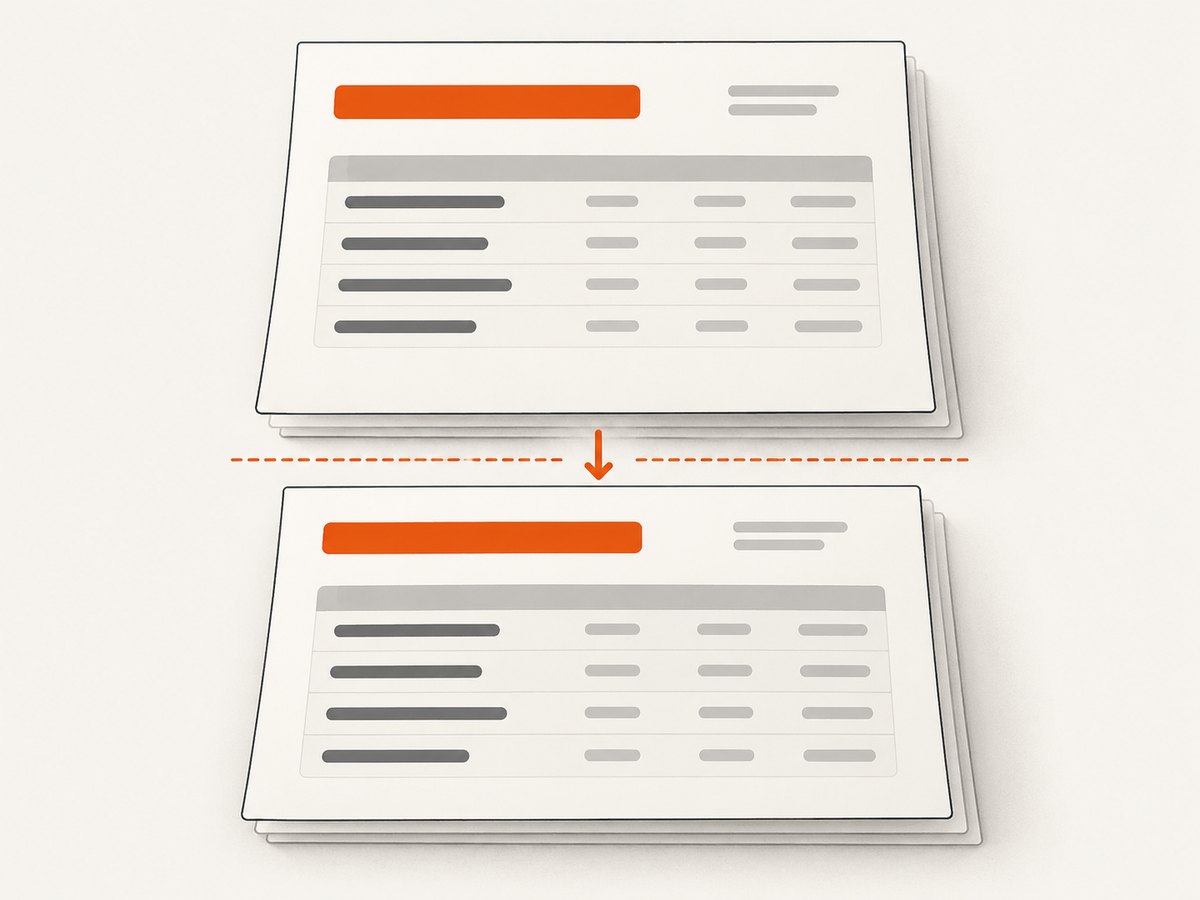
<article class="invoice-section keep-together">
  <h2>Shipping</h2>
  <address>...</address>
  <table>...</table>
</article>
.invoice-section {
  display: block;
  break-inside: avoid;
}
In DevTools, inspect the element while print emulation is enabled and verify the computed value of break-inside. Check that a more specific selector, an inline style or a later @media print block has not reset it.
Tables, headings and repeating headers
Keep a table row group together
Applying avoid to every individual table row can produce awkward whitespace and is not a substitute for splitting a very long table. Group related rows when possible:
<tbody class="line-item-group">
  <tr>...</tr>
  <tr>...</tr>
</tbody>
@media print {
  .line-item-group {
    break-inside: avoid;
    page-break-inside: avoid;
  }

  thead {
    display: table-header-group;
  }
}
The browser can still break a group when its content exceeds a page. For large datasets, paginate the data before rendering or create separate table sections.
Keep a heading with the following content
.section-heading {
  break-after: avoid-page;
  page-break-after: avoid;
}
Keep the heading and first paragraph in a wrapper when you need stronger control:
.heading-and-intro {
  break-inside: avoid;
}
Debugging sequence when page-break-inside is ignored
- Confirm print media. Call
page.emulateMediaType('print')and inspect the computed print styles. - Confirm the selector. In the page, run
document.querySelectorAll('.keep-together').lengthand ensure it matches the expected count. - Check the generated box. Make sure the target is a block, table row group or another element that generates a box. An inline fragment without a generated box cannot honor the rule.
- Check overrides. Search all print styles for
break-inside: auto, forced breaks and higher-specificity rules. - Check page geometry. Compare
@page, Puppeteerformator dimensions, margins andscaleas one system. - Remove clipping. Temporarily remove fixed heights,
overflow: hidden, transforms and absolute positioning from the splitting component. - Wait for layout inputs. Wait for fonts, images, charts and client-rendered data before export.
- Measure the component. Log
element.getBoundingClientRect().heightand compare it with the printable page height. - Redesign oversized content. If the block is taller than a page, split it intentionally; no CSS avoid rule can create additional page area.
Common errors and fixes
| Symptom | Likely cause | Fix |
|---|---|---|
A card splits despite page-break-inside: avoid. |
The rule is overridden, targets the wrong wrapper, or the card is too tall. | Inspect print computed styles, move the rule to the generated card block, and split oversized content. |
| Screen layout looks right but PDF does not. | PDF uses print media. | Add a print stylesheet or choose the intended media type before export. |
| Everything moves after a font loads. | Font metrics changed line wrapping. | Wait for document.fonts.ready and use stable font loading. |
| Margins seem much larger than expected. | CSS @page and Puppeteer margins both affect geometry. |
Choose one owner for paper geometry and set preferCSSPageSize accordingly. |
| Blank space appears before a section. | A forced break-before or avoid rule moved the block. |
Inspect forced breaks and decide whether the editorial boundary is intentional. |
| A long table still breaks. | The table or group cannot fit on one page. | Split by rows or data pages and repeat thead headers. |
Performance and reliability considerations
Wait for conditions, not arbitrary sleeps. networkidle2 is a useful initial navigation condition, but analytics, long polling or ads can keep a page active. Pair it with explicit selectors or application readiness markers.
Reduce layout variability. Set image dimensions, use deterministic data, avoid animations in print CSS, and disable transitions:
@media print {
  *, *::before, *::after {
    animation: none !important;
    transition: none !important;
  }
}
Use a reusable browser when processing batches. Launching Chromium for every document adds startup cost. Create isolated pages per job, close them after export, and cap concurrency so memory pressure does not make rendering unreliable.
Keep retries safe. If a PDF job is retried, use an idempotent output key or overwrite a temporary file before publishing it. Record the URL, CSS version, paper settings and readiness state with the output so a layout change can be diagnosed.
Control external resources. Self-host critical fonts and images or provide a fallback. A third-party request that fails or changes dimensions can change pagination.
Or skip the browser setup
If you only need a clean image or PDF of a page, ScreenshotNeo provides a single GET request. Its API supports full-page capture, CSS and JavaScript, custom paper size, margins, landscape mode and PDF page ranges, so you can keep browser orchestration out of an application that does not need it.
See the ScreenshotNeo documentation for the complete option list and response details.
curl -G "https://api.screenshotneo.com/v1/shot" -d access_key=YOUR_API_KEY --data-urlencode url=https://stripe.com -o shot.webpimport requests
r = requests.get("https://api.screenshotneo.com/v1/shot", params={"access_key": "YOUR_API_KEY", "url": "https://stripe.com"}, timeout=90)
open("shot.webp", "wb").write(r.content)const q = new URLSearchParams({ access_key: 'YOUR_API_KEY', url: 'https://stripe.com' });
const res = await fetch(`https://api.screenshotneo.com/v1/shot?${q}`);ScreenshotNeo removes cookie and consent banners, newsletter popups and chat widgets before capture. Bot checks, blank pages, timeouts and failed loads are not billed, and response headers identify the page verdict and billing result. Its MCP server lets Claude, Cursor and other MCP clients call take_screenshot, get_page_info and capture_pdf. The free plan includes 1,000 screenshots each month with no card; paid plans start at $5 for 3,000.
Create a free ScreenshotNeo account to try the API.
Cost and option planning
Self-hosted Puppeteer costs you browser CPU, memory, storage and engineering time. It is a good fit when you need complete control over page scripts, local assets or a custom Chromium image. A capture API can be simpler when your workload is request-based or distributed.
ScreenshotNeo offers Free (1,000 shots/month), Starter ($5 for 3,000), Growth ($15 for 15,000), Pro ($39 for 60,000), Scale ($99 for 250,000) and Business ($249 for 1,000,000). Yearly billing gives two months free, and every feature is available on every plan. Only clean shots are billed; cache hits are free.
FAQ
Should I use break-inside: avoid or page-break-inside: avoid?
Use break-inside: avoid for new CSS and include page-break-inside: avoid as a compatibility alias when your stylesheet supports older environments.
Why does my avoid rule work for a short card but fail for a long one?
The long card likely exceeds the printable page height. Split it or redesign it so each kept-together unit can fit.
Can I force every invoice section onto a new page?
Yes. Add break-before: page to each section after the first, while retaining break-inside: avoid for sections that must remain whole.
Do I need emulateMediaType('print') if page.pdf() already uses print?
It is not strictly required for export, but it makes debugging and screenshots of the print layout explicit and repeatable.
What should I log when pagination changes between runs?
Record the browser version, URL, paper settings, margins, scale, loaded fonts, image readiness and the computed height of the affected component.


