Why Puppeteer Resources Fail on Google App Engine but Work Locally
Diagnose Puppeteer failures on Google App Engine by comparing environments, runtimes, Chrome installs, libraries, sandboxing, and writable paths.
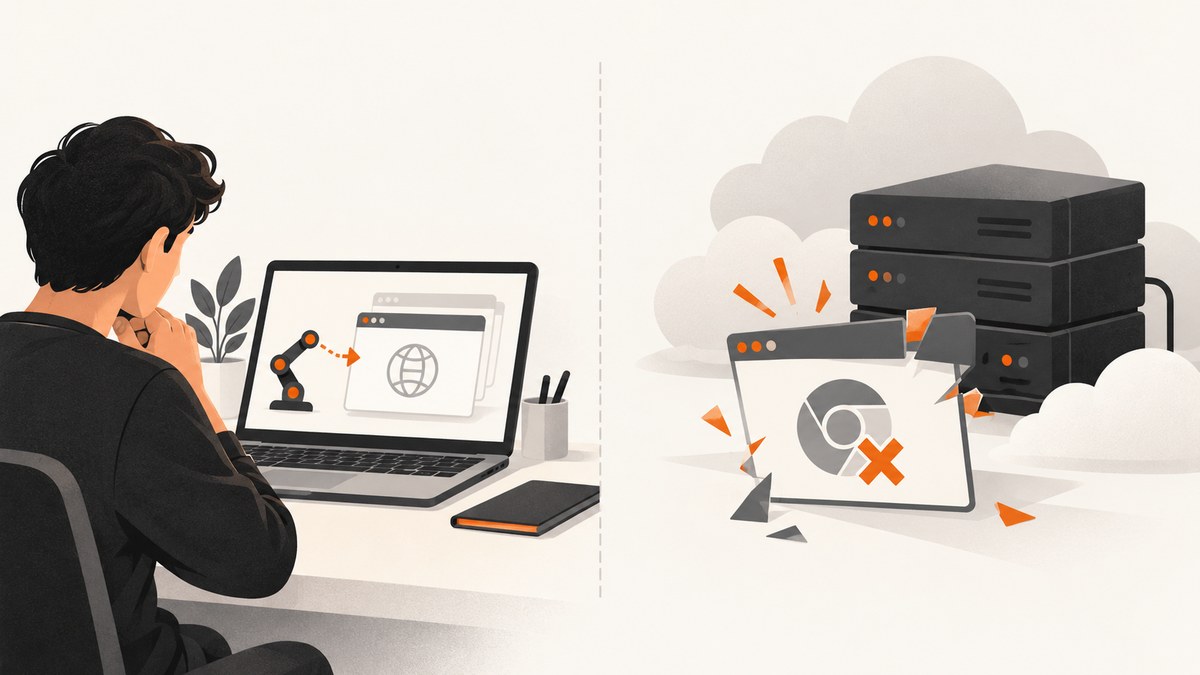
Short answer: Puppeteer usually works locally because your laptop already has a compatible browser, shared libraries, writable home directories, and permissive process behavior. Google App Engine may provide a different execution model, Node.js runtime, filesystem, dependency install result, and sandbox. First determine whether the service runs in App Engine Standard or Flexible. Then verify the deployed Node and Puppeteer versions, the Chrome executable and cache, Linux libraries, sandbox behavior, and writable profile paths.
The title does not identify one universal bug. It describes a deployment mismatch. The fastest diagnosis is to collect the deployed environment details and compare them with the machine where the script succeeds.
1. Identify Standard or Flexible first
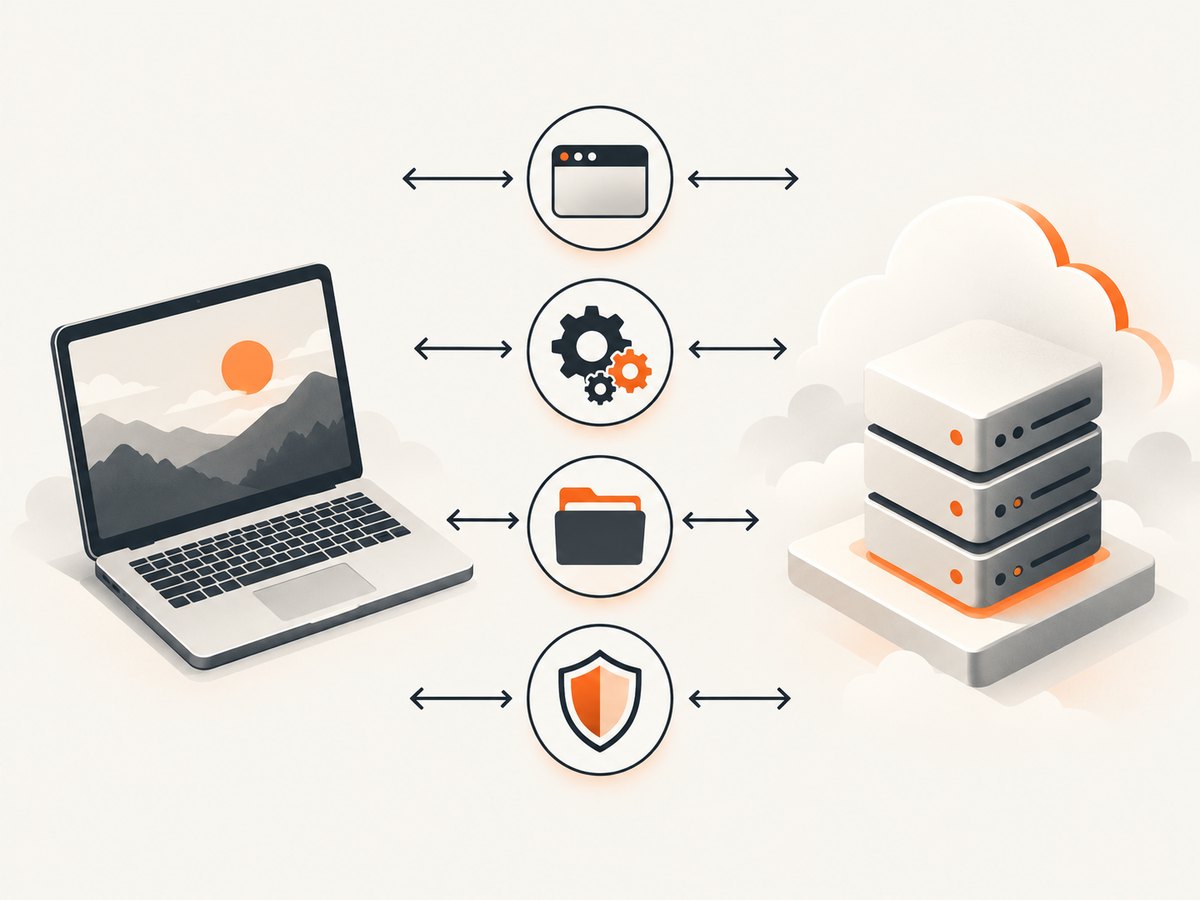
App Engine Standard and Flexible are materially different environments. Standard runs your application in a sandbox with restrictions on binary libraries, disk writes, CPU, memory, background processes, and debugging access. It can scale to zero and provides writable local storage through /tmp. Flexible runs Docker containers on Compute Engine virtual machines, supports custom runtimes and native dependencies, provides ephemeral writable disk and SSH debugging, and keeps at least one instance running. Google documents the differences in its environment comparison.
Open the deployed app.yaml and record the environment and runtime:
runtime: nodejs22
env: standard
Or:
runtime: nodejs22
env: flex
Do not infer this from local development. A script that depends on a custom system package, a long-lived browser process, or Docker-level configuration may fit Flexible better. A stateless service that needs rapid scaling and scale-to-zero may fit Standard, provided it follows the sandbox rules.
2. Capture evidence from the deployed process
Before changing launch flags, log the versions and paths that the deployed process actually uses. Add a temporary diagnostic endpoint or startup log that prints metadata without exposing secrets:
const os = require('node:os');
const fs = require('node:fs');
const puppeteer = require('puppeteer');

console.log({
  node: process.version,
  platform: process.platform,
  arch: process.arch,
  cwd: process.cwd(),
  tmpWritable: (() => {
    try {
      const p = '/tmp/puppeteer-write-test';
      fs.writeFileSync(p, 'ok');
      fs.unlinkSync(p);
      return true;
    } catch (error) {
      return String(error);
    }
  })(),
  puppeteerVersion: puppeteer.version || 'check package.json',
  executablePath: puppeteer.executablePath()
});
Also log Chrome’s stderr during launch. The exact executable path matters: a locally installed Chrome, a Puppeteer-downloaded browser, and a system package are different installations.
3. Verify that installation scripts downloaded a browser
Puppeteer normally downloads a compatible browser during installation. Deployment systems can skip package-manager install scripts, reuse a cached node_modules directory, or install production dependencies without running the browser download. In that case the JavaScript package is present but its executable is missing.
Inspect build and deploy logs for the Puppeteer installation step. Check the deployed filesystem for the browser cache and the executable. If Chrome is managed separately, pass its path explicitly and make sure that path exists in the deployed image:
const browser = await puppeteer.launch({
  executablePath: process.env.PUPPETEER_EXECUTABLE_PATH,
  headless: true
});
Use the channel option only when the selected Chrome or Chromium channel is installed in the runtime. Do not assume that a browser available on your workstation exists in App Engine.
App Engine Standard cache behavior
Puppeteer’s App Engine troubleshooting guidance says the Standard Node.js runtime includes the system packages needed for Headless Chrome. It also describes a failure mode where cached node_modules prevents the install script from running while the browser cache remains outside the preserved dependency tree. Puppeteer recommends putting the browser cache under node_modules with a root .puppeteerrc.js file. See the project’s Troubleshooting guide and match the setting to the Puppeteer version you deploy.
module.exports = {
  cacheDirectory: './node_modules/.cache/puppeteer'
};
After changing this file, deploy from a clean dependency state and confirm that the browser executable is present. A stale build cache can make a correct configuration appear ineffective.
4. Check Linux shared libraries and permissions
A browser can exist and still fail immediately because a shared library is missing. Puppeteer’s Linux guidance recommends checking dependencies with ldd:
ldd /path/to/chrome | grep not
Run the command in an environment that contains the deployed browser, such as the same container image used by Flexible. Any missing library must be supplied by the runtime image or removed by choosing a compatible browser build. Standard’s managed runtime limits what you can install; Flexible gives you Docker control for native dependencies.
Check three permissions separately:
- The App Engine process user can execute the browser binary.
- The browser can create its profile and temporary files.
- Your application can write the output image or PDF where the request expects it.
Use /tmp for temporary browser data when the environment permits it. Do not write to the application directory in Standard and do not rely on a persistent local filesystem in Flexible; local disk is ephemeral.
const path = require('node:path');
const browser = await puppeteer.launch({
  userDataDir: path.join('/tmp', `puppeteer-${process.pid}`),
  args: ['--disable-dev-shm-usage']
});
--disable-dev-shm-usage can help when the shared-memory mount is too small, but it does not install missing libraries or fix an invalid executable path.
5. Treat sandbox errors as a security decision
Errors mentioning a sandbox, user namespaces, or setuid helpers are different from missing-browser errors. Puppeteer documents --no-sandbox, but its guidance says running without a sandbox is strongly discouraged. Do not add it as a universal App Engine fix.
First identify the actual deployment constraint and whether the runtime already supplies an appropriate sandbox. If your organization requires disabling the sandbox, document the isolation boundary, restrict the workload, and obtain a security review. A launch configuration should be explicit and minimal:
const launchOptions = {
  headless: true,
  args: ['--disable-dev-shm-usage']
};

const browser = await puppeteer.launch(launchOptions);
Add --no-sandbox only when you have confirmed that the environment cannot support the sandbox and accepted the security consequences. The flag will not solve a browser download, library, or filesystem problem.
6. Use a complete minimal capture service
This example keeps browser startup inside the request for clarity. For production traffic, consider a controlled reuse strategy and always close pages. Do not reuse a page across unrelated users when cookies, headers, or authentication are involved.
const express = require('express');
const puppeteer = require('puppeteer');

const app = express();
let browserPromise;

function getBrowser() {
  if (!browserPromise) {
    browserPromise = puppeteer.launch({
      headless: true,
      executablePath: process.env.PUPPETEER_EXECUTABLE_PATH || undefined,
      args: ['--disable-dev-shm-usage']
    });
  }
  return browserPromise;
}

app.get('/screenshot', async (req, res) => {
  const target = req.query.url;
  if (!target || !/^https?:\/\//i.test(target)) {
    return res.status(400).send('url must be an http or https URL');
  }

  let page;
  try {
    const browser = await getBrowser();
    page = await browser.newPage();
    await page.setViewport({ width: 1440, height: 900, deviceScaleFactor: 1 });
    await page.goto(target, { waitUntil: 'networkidle2', timeout: 45000 });
    const png = await page.screenshot({ fullPage: true, type: 'png' });
    res.type('png').send(png);
  } catch (error) {
    console.error('capture failed', error);
    res.status(502).send('capture failed');
  } finally {
    if (page) await page.close().catch(() => {});
  }
});

app.listen(process.env.PORT || 8080);
For authenticated pages, set cookies or headers on the new page and clear them by closing the page. Validate destination URLs to prevent server-side request forgery when the endpoint accepts user input.
7. Separate launch failures from slow requests
If Chrome launches but captures are slow, investigate latency separately. Correlate application logs with request logs and use Cloud Trace or Cloud Logging to identify whether time is spent starting the instance, launching Chrome, resolving DNS, loading the page, waiting for network idle, or encoding the screenshot.
Review instance class, warmup requests, scaling settings, and application code using Google’s Standard troubleshooting guidance. More memory may reduce swapping or OOM failures, but it does not repair a missing executable or shared library. Set a deliberate navigation timeout and return a useful error when a page never reaches the chosen readiness condition.
8. Standard versus Flexible decision table
| Question | Standard | Flexible |
|---|---|---|
| Execution model | Managed sandbox | Docker container on Compute Engine VM |
| Native dependencies | Limited to the managed runtime | Custom runtime and native packages |
| Writable storage | /tmp |
Ephemeral writable disk |
| Background processes | Not supported | Supported within the container model |
| Debugging | No SSH debugging | SSH debugging available |
| Scaling | Can scale to zero | At least one instance |
| Best fit | Stateless workloads that fit sandbox limits | Docker and native-library control |
9. Troubleshooting checklist
- “Could not find Chrome”: inspect install logs, cache location, and
executablePath; redeploy without a stale dependency cache. - “Failed to launch browser process”: capture stderr, run
ldd chrome | grep not, and verify execute permission. - “No usable sandbox”: confirm the runtime’s sandbox constraints; do not blindly add
--no-sandbox. - Profile or cache permission denied: move temporary paths to writable
/tmpstorage. - Works once, then fails: inspect leaked pages, browser processes, file descriptors, and instance memory.
- Timeout after deployment: log navigation stages, DNS and external calls; review warmup, scaling, and timeout settings.
- Blank or incomplete page: wait for the selector or application readiness signal instead of assuming
networkidle2means the UI is rendered.
10. Performance, reliability, and cost notes
- Reuse one browser process per instance when safe, but create and close isolated pages per request.
- Limit concurrent captures so Chrome processes do not exhaust memory or file descriptors.
- Prefer a readiness selector or short explicit delay for pages with long polling; network idle may never occur.
- Keep screenshots in memory for small responses and stream or upload larger artifacts promptly.
- Record browser version, Puppeteer version, environment, launch duration, navigation duration, and capture duration for diagnosis.
- Expect cold starts in a scale-to-zero Standard service. Flexible avoids scale-to-zero but carries an always-on instance requirement.

Or skip the browser setup
ScreenshotNeo provides a website screenshot API and MCP server. One GET request returns PNG, JPEG, WebP, or PDF. Cookie and consent banners are accepted and removed before capture, along with more than 60 known consent platforms, newsletter popups, and chat widgets. Bot checks, blank pages, timeouts, failed loads, and cache hits are not billed, and response headers identify the page verdict and billing result. Its MCP server exposes take_screenshot, get_page_info, and capture_pdf for Claude, Cursor, and other MCP clients.
See the ScreenshotNeo API documentation for all options. A direct call looks like this:
curl -G "https://api.screenshotneo.com/v1/shot" -d access_key=YOUR_API_KEY --data-urlencode url=https://stripe.com -o shot.webpimport requests
r = requests.get(
'https://api.screenshotneo.com/v1/shot',
params={'access_key': 'YOUR_API_KEY', 'url': 'https://stripe.com'},
timeout=90,
)
r.raise_for_status()
open('shot.webp', 'wb').write(r.content)
const q = new URLSearchParams({ access_key: 'YOUR_API_KEY', url: 'https://stripe.com' });
const res = await fetch(`https://api.screenshotneo.com/v1/shot?${q}`);
if (!res.ok) throw new Error(`HTTP ${res.status}`);
const body = Buffer.from(await res.arrayBuffer());
require('node:fs').writeFileSync('shot.webp', body);
You can configure full-page capture with lazy images, CSS element capture, dark mode, device presets or custom viewports, retina scale, PDF paper and margins, custom CSS and JavaScript, clicks, selector waits, delays, network idle, blocked ads or resource types, headers, cookies, user agents, authorization, timezone, geolocation, transparent backgrounds, resizing, TTL caching, signed links, asynchronous jobs, webhooks, bulk capture of up to 100 URLs, and usage reporting. Every feature is included on every plan. The Free plan includes 1,000 shots per month with no card; paid plans start at $5 for 3,000 shots.
Create a free ScreenshotNeo account with 1,000 screenshots per month and no card.
FAQ
Does App Engine Standard include Chrome?
The managed Node.js Standard runtime includes system packages needed for Headless Chrome according to Puppeteer’s guidance, but your deployed Puppeteer package still needs a usable browser executable and cache configuration.
Should I always use Flexible?
No. Choose Flexible when Docker or native-library control is a real requirement. Standard remains suitable when the workload fits its sandbox and scale-to-zero model.
Will increasing memory fix launch errors?
Only memory-related failures. It cannot fix a missing browser, missing shared library, invalid executable path, sandbox failure, or unwritable profile directory.
Why does a cached deployment break Puppeteer?
A cached node_modules tree can skip the install script that downloads the browser, while the browser cache is stored outside the preserved tree. Configure the cache directory under node_modules and redeploy cleanly.
What evidence should I include when asking for help?
Include Standard or Flexible, Node and Puppeteer versions, deploy logs, the exact executable path, Chrome stderr, the ldd result, launch arguments, writable paths, and whether the failure is immediate or a timeout.


