Taking a Screenshot from the Surface with Puppeteer and Chrome DevTools Protocol
Capture reliable browser screenshots with Puppeteer or Chrome DevTools Protocol, including surface, full-page, clipping, encoding, and troubleshooting.
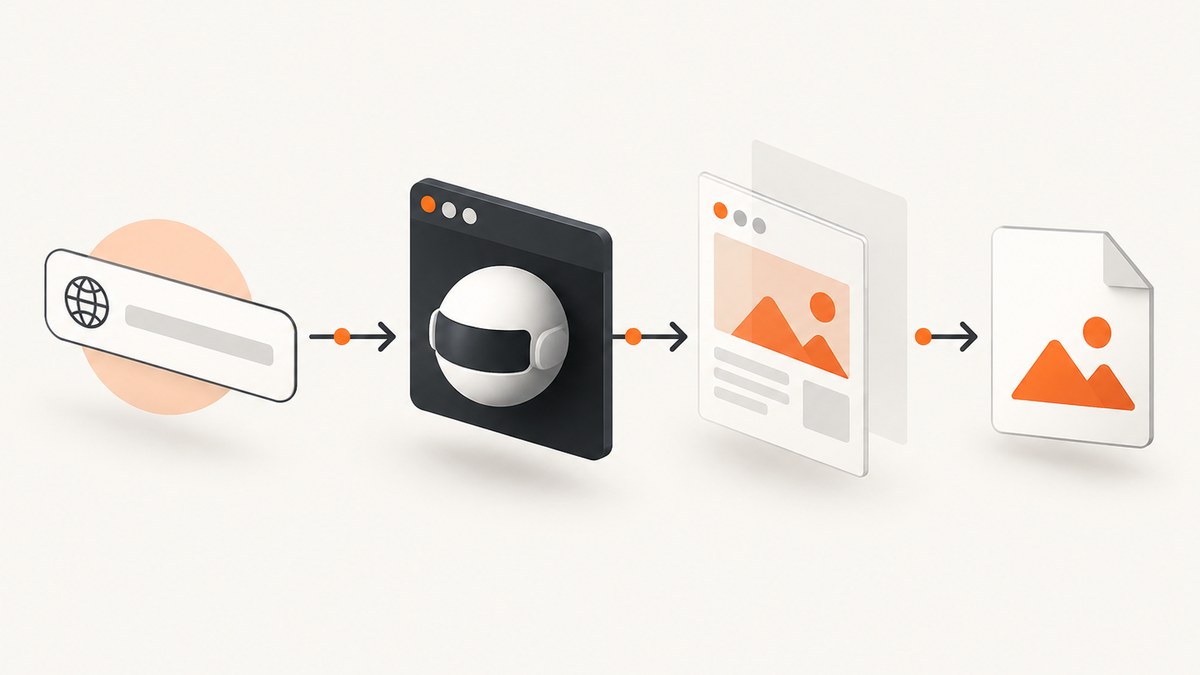
Direct answer: use Puppeteer’s page.screenshot() for most screenshots. Set fromSurface: true when you want Chrome to capture from the rendered surface rather than the view. Use a Puppeteer CDP session and Page.captureScreenshot when you need protocol-level controls such as clip, captureBeyondViewport, an explicit image format, or the base64 response returned by Chrome.
In the examples below, Puppeteer 25.12.0 is the reference version. The Chrome DevTools Protocol “tot” documentation changes with Chromium releases, and some fields are marked experimental, so check the protocol supported by the browser you deploy. The official references are the Puppeteer ScreenshotOptions API, the Page.screenshot() method, the Puppeteer screenshot guide, and the Chrome DevTools Protocol Page domain.
What “from the surface” means
Chrome can render a page into a compositor surface and expose that result to the screenshot command. The fromSurface option selects that surface instead of the view. In the referenced Puppeteer and CDP documentation, its default is true. Setting it explicitly makes intent clear and protects your code from assumptions when you upgrade dependencies.
“Surface” does not mean “full page.” A surface capture can still be the current viewport, a clipped rectangle, or content beyond the viewport. Scope is controlled separately:
| Goal | Puppeteer | CDP |
|---|---|---|
| Visible viewport | page.screenshot() |
Page.captureScreenshot without clip |
| Entire document | fullPage: true |
Measure the document, then use an appropriate clip and captureBeyondViewport |
| One region | clip: {x, y, width, height} |
clip: {x, y, width, height, scale} |
| One element | elementHandle.screenshot() |
Measure the element and pass its rectangle as clip |
Set up Puppeteer
- Create a project and install Puppeteer.
- Launch Chromium, open a page, and navigate to the target URL.
- Wait for an application-specific readiness condition.
- Capture the image and close the browser in a
finallyblock.
mkdir surface-shot
cd surface-shot
npm init -y
npm install puppeteer
Use an ES module file such as shot.mjs:
import puppeteer from 'puppeteer';

const browser = await puppeteer.launch();
try {
  const page = await browser.newPage();
  await page.setViewport({ width: 1440, height: 900, deviceScaleFactor: 1 });
  await page.goto('https://example.com', { waitUntil: 'networkidle2' });
  await page.screenshot({
    path: 'page.png',
    fromSurface: true,
    type: 'png'
  });
} finally {
  await browser.close();
}
networkidle2 is a useful starting point, not a guarantee that fonts, animations, lazy images, or application data are ready. Prefer a selector that represents readiness, a short delay for a known animation, or an app-provided completion signal.
Capture the viewport, full page, or an element
Viewport screenshot
The default screenshot captures the current viewport. Set the viewport before navigation when responsive layout matters.
await page.setViewport({
  width: 1280,
  height: 800,
  deviceScaleFactor: 2
});
await page.goto('https://example.com', { waitUntil: 'domcontentloaded' });
await page.waitForSelector('main');
await page.screenshot({ path: 'viewport@2x.png', fromSurface: true });
Full-page screenshot
Puppeteer’s high-level API has a fullPage option. It is independent of fromSurface.
await page.goto('https://example.com/docs', { waitUntil: 'networkidle2' });
await page.screenshot({
  path: 'docs-full.png',
  fullPage: true,
  fromSurface: true,
  type: 'png'
});
Long pages often use lazy loading. Scroll through the document before capturing if images appear only after entering the viewport:
await page.evaluate(async () => {
  await new Promise(resolve => {
    let y = 0;
    const step = 600;
    const timer = setInterval(() => {
      window.scrollBy(0, step);
      y += step;
      if (y >= document.body.scrollHeight) {
        clearInterval(timer);
        window.scrollTo(0, 0);
        resolve();
      }
    }, 100);
  });
});
await page.screenshot({ path: 'lazy-loaded.png', fullPage: true });
Element screenshot
The screenshot guide documents selector-based element capture. Wait for the element, then call elementHandle.screenshot(). Puppeteer attempts to scroll a hidden element into view.
const card = await page.waitForSelector('[data-testid="pricing-card"]');
await card.screenshot({ path: 'pricing-card.png', type: 'png' });
If the element is inside a shadow root or an iframe, query it in the correct DOM context. An iframe element’s bounding box is not the same as an element inside its document.
Use Chrome DevTools Protocol directly
Create a CDP session from the Puppeteer page and call Page.captureScreenshot. CDP returns data as a base64-encoded image string, so decode it before writing a file.
import puppeteer from 'puppeteer';
import fs from 'node:fs/promises';

const browser = await puppeteer.launch();
try {
  const page = await browser.newPage();
  await page.goto('https://example.com', { waitUntil: 'networkidle2' });

  const client = await page.createCDPSession();
  const { data } = await client.send('Page.captureScreenshot', {
    format: 'png',
    fromSurface: true
  });

  await fs.writeFile('cdp-page.png', Buffer.from(data, 'base64'));
} finally {
  await browser.close();
}
Use CDP when you need exact protocol parameters or want to demonstrate the wire-level response. Puppeteer returns a Uint8Array by default (or a base64 string when requested), while CDP always gives base64 image data for this method.
CDP clipping and beyond-viewport capture
CDP’s clip rectangle uses device-independent pixels and contains x, y, width, height, and scale. captureBeyondViewport controls whether off-screen content may be captured. The CDP reference documents a default of false; set it explicitly when the result depends on it.
const client = await page.createCDPSession();
const result = await client.send('Page.captureScreenshot', {
  format: 'jpeg',
  quality: 85,
  fromSurface: true,
  captureBeyondViewport: true,
  clip: {
    x: 0,
    y: 300,
    width: 900,
    height: 600,
    scale: 1
  }
});
await fs.writeFile('region.jpg', Buffer.from(result.data, 'base64'));
JPEG quality is an integer from 0 to 100 and applies to JPEG output. PNG does not use quality. CDP accepts png, jpeg, and webp; PNG is the default.
Screenshot options that affect output
fromSurface: capture from the rendered surface; the documented default istrue.fullPage: Puppeteer convenience option for the complete document. CDP does not accept this field.clip: capture a rectangle. With Puppeteer, providex,y,width, andheight; CDP also expectsscale.captureBeyondViewport: explicitly choose whether a clip may include content outside the viewport. Puppeteer documents a default offalsewithout a clip andtruewith one; CDP documentsfalse.type/format: select PNG, JPEG, or WebP. Puppeteer can infer type from the path extension.quality: JPEG-only compression setting.omitBackground: Puppeteer hides the default white background to permit transparency where the output format supports it. Do not assume every format preserves alpha.path: write directly to a file. Without it, Puppeteer returns image bytes.encoding: request bytes or a base64 string from Puppeteer.
Make captures deterministic
- Choose a stable viewport. Record width, height, and device scale factor in configuration.
- Wait for content, not just traffic. Use
waitForSelector, a specific network response, or an app readiness flag. - Freeze motion. Disable transitions and animations for visual regression captures.
- Load fonts before capture. Await
document.fonts.readywhen typography affects layout. - Control time and locale. Set the browser context timezone and locale where date formatting matters.
- Handle cookie dialogs. Click or remove consent UI before taking the image, while preserving the state you want to test.
await page.addStyleTag({ content: `
  *, *::before, *::after {
    animation: none !important;
    transition: none !important;
    caret-color: transparent !important;
  }
`});
await page.evaluate(() => document.fonts?.ready);
await page.waitForSelector('#app[data-ready="true"]');
Screenshot coordination is limited: Puppeteer documents that BrowserContext.newPage(), Browser.newPage(), and Page.close() wait while a screenshot is in progress, while Page.bringToFront() does not. Design your own queue when several jobs share a browser.
Common errors and fixes
| Error or symptom | Likely cause | Fix |
|---|---|---|
Target closed |
The page or browser closed during capture. | Keep the browser alive until the write completes; close it in finally after awaiting the screenshot. |
| Blank or partially rendered image | Capture ran before app data, fonts, or lazy images were ready. | Wait for a readiness selector, await fonts, scroll lazy content, and disable animations. |
| “Unknown parameter fullPage” from CDP | fullPage is a Puppeteer option, not a CDP field. |
Use a Puppeteer screenshot or calculate a CDP clip and set captureBeyondViewport. |
| Clipped element is offset | Coordinates were measured in a different viewport or after scrolling. | Measure immediately before capture and use the element’s current bounding rectangle. |
| JPEG quality has no effect | Quality was supplied for PNG or WebP. | Use format: 'jpeg' and an integer quality from 0–100. |
| Missing cookie banner or unexpected overlay | A consent dialog, newsletter popup, or chat widget covers the page. | Accept or remove the overlay deliberately, or hide the selector before capture. |
| Protocol command fails after a browser update | CDP fields can change with Chromium versions; “tot” is a moving reference. | Pin compatible Puppeteer and browser versions, then verify fields against the deployed protocol. |
Performance, reliability, and cost
A browser launch is expensive compared with reusing a browser process. For batches, keep one browser open, create isolated pages or contexts, and limit concurrency to the memory available on the worker. Reuse pages only after clearing cookies, storage, service workers, and injected styles that could leak state between URLs.
Full-page images consume more memory than viewport captures. Prefer WebP or JPEG when lossless PNG is unnecessary, reduce the device scale factor for thumbnails, and clip to the region needed by downstream systems. For visual tests, retain PNG and fixed settings so compression does not hide layout changes.
Navigation timeouts, third-party requests, bot checks, and pages that never become idle need explicit policy. Set a timeout, record the URL and browser version, and retry only idempotent captures. A retry should use a fresh page when the original has a stuck service worker or crashed renderer. Store the response bytes atomically so a worker crash cannot leave a file that looks complete.
Self-hosted Puppeteer costs the compute time, memory, browser maintenance, proxy or bandwidth charges, and engineering time needed to operate it. If you capture many sites, account for queue latency and the cost of failed attempts as well as successful images.
Or skip the browser setup
ScreenshotNeo provides a website screenshot API and MCP server. One GET request returns PNG, JPEG, WebP, or PDF. It removes cookie and consent banners, newsletter popups, and chat widgets before capture; each cleanup step can be turned off. Bot checks or CAPTCHAs, blank pages, timeouts, failed loads, and cache hits are not billed, and the response identifies the result with X-Page-Verdict and X-Billed headers.
Read the full parameter reference in the ScreenshotNeo documentation. This call captures a WebP image:
curl -G "https://api.screenshotneo.com/v1/shot" -d access_key=YOUR_API_KEY --data-urlencode url=https://stripe.com -o shot.webpPython:
import requests
r = requests.get("https://api.screenshotneo.com/v1/shot", params={"access_key": "YOUR_API_KEY", "url": "https://stripe.com"}, timeout=90)
open("shot.webp", "wb").write(r.content)
Node.js:
const q = new URLSearchParams({ access_key: 'YOUR_API_KEY', url: 'https://stripe.com' });
const res = await fetch(`https://api.screenshotneo.com/v1/shot?${q}`);
ScreenshotNeo also supports full-page and element capture, dark mode, device presets or custom viewports, retina scale, PDF settings, custom CSS and JavaScript, clicks, waits, request blocking, headers, cookies, user agents, authorization, timezone, geolocation, transparent backgrounds, resizing, configurable caching, signed links, asynchronous jobs with signed webhooks, bulk capture of up to 100 URLs per call, a usage API, and an OpenAPI specification. Its MCP server exposes take_screenshot, get_page_info, and capture_pdf for Claude, Cursor, and other MCP clients.
The Free plan includes 1,000 screenshots each month with no card. Paid plans start at $5 for 3,000 shots; yearly billing gives two months free, and every feature is available on every plan. Create a free ScreenshotNeo account.
FAQ
Is fromSurface required?
No. The documented default is true in Puppeteer and CDP. Set it explicitly when reproducibility and code review matter.
Does CDP return a file?
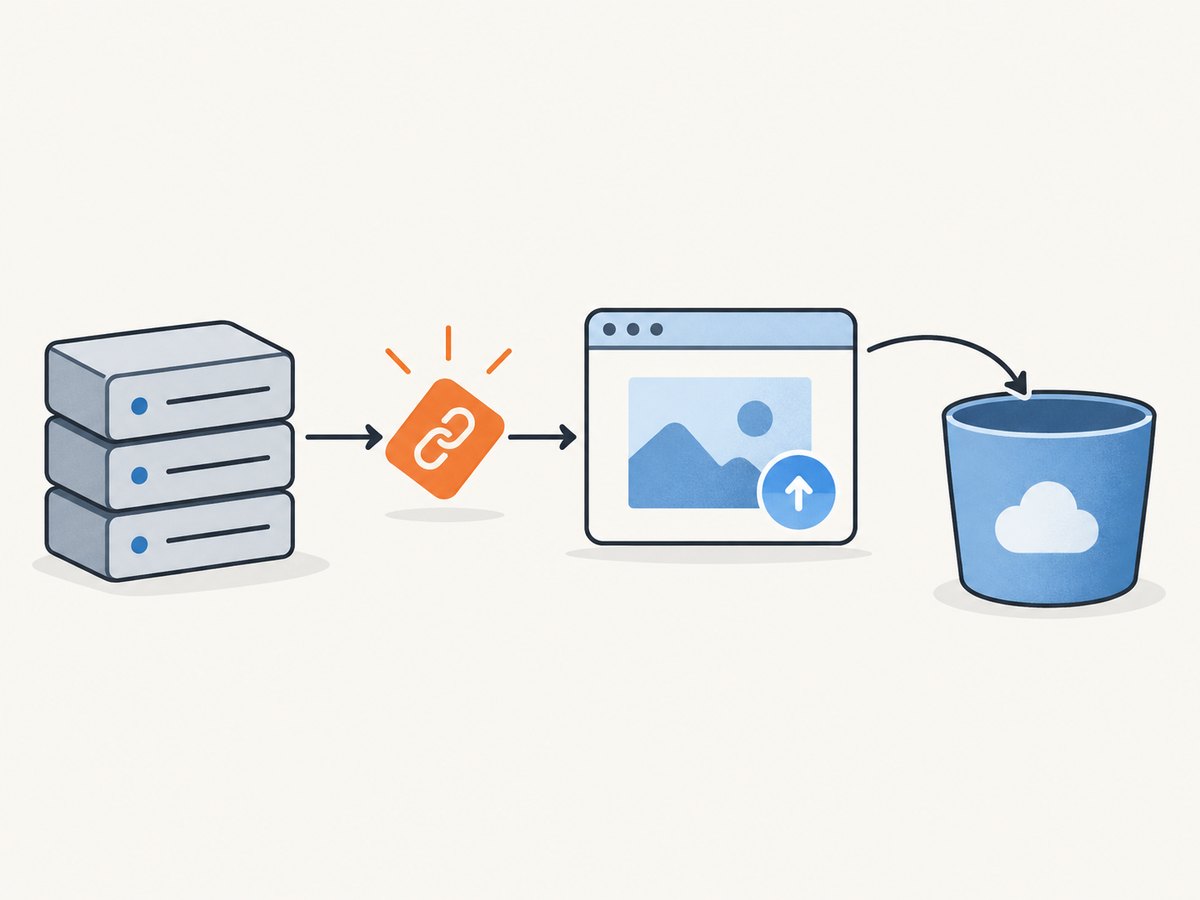
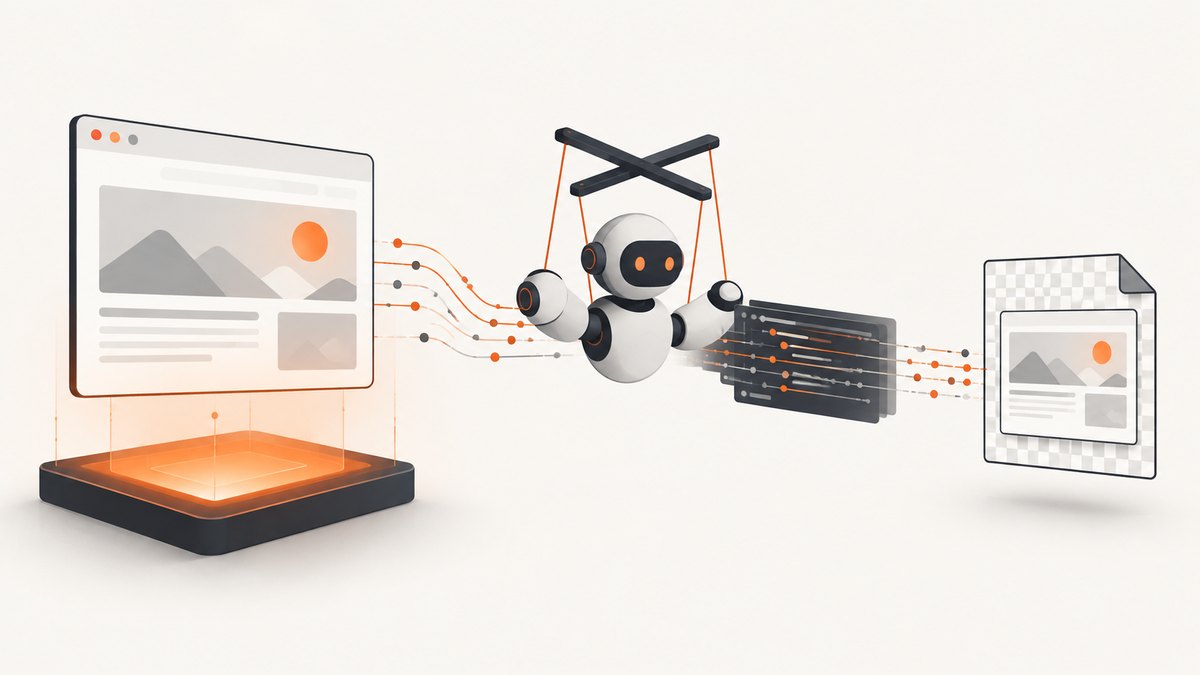
No. Page.captureScreenshot returns base64 image data. Decode it into bytes and write those bytes to a file or object store.
Can I use fullPage with CDP?
No. fullPage belongs to Puppeteer’s high-level API. CDP uses clipping and beyond-viewport controls.
Which format should I choose?
Use PNG for lossless visual tests, JPEG for photographic pages where smaller files matter, and WebP when your consumers support it and you want a compact modern image.
When should I use Puppeteer instead of CDP?
Use Puppeteer for ordinary captures, selectors, paths, and full-page behavior. Use CDP when you need exact protocol fields, explicit clipping semantics, or the base64 response.