Why Puppeteer and Cheerio Return the Same Results Every Time
Puppeteer and Cheerio agree when the target content is already in the HTML—or when you inspect the browser before JavaScript changes it. Here’s how to find out which case you have.
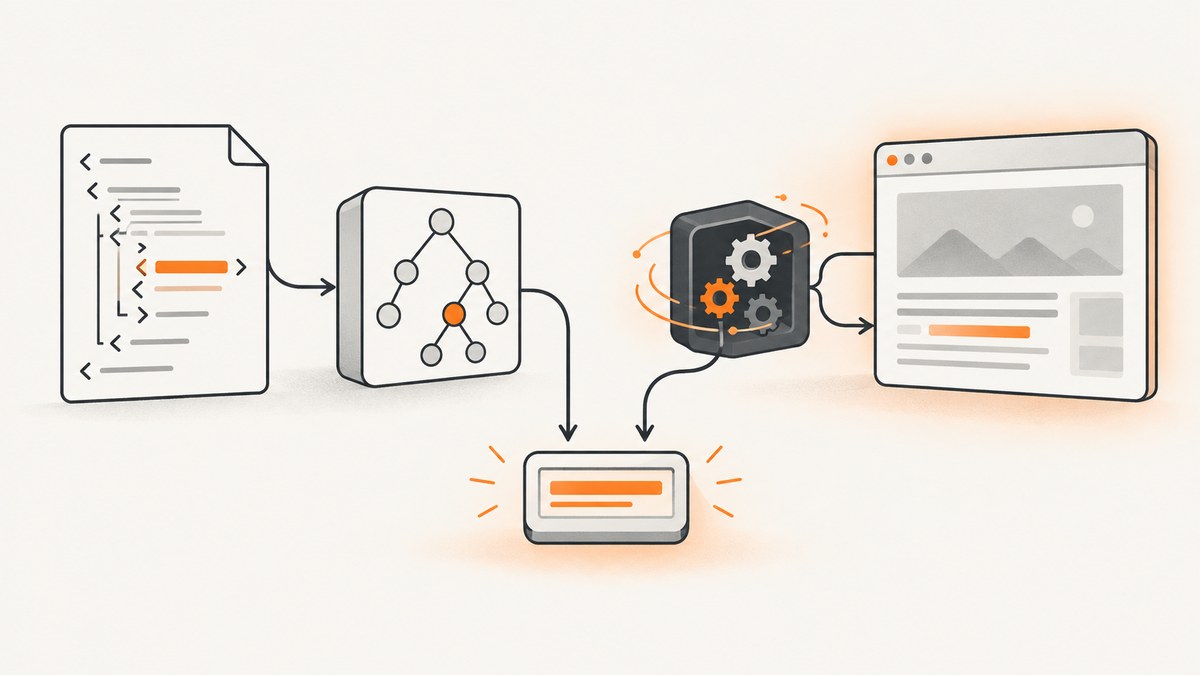
If Puppeteer and Cheerio return the same text or elements, that is usually expected: the content you are selecting is already present in the HTML, or Puppeteer has not yet reached a browser state that changes it. Cheerio parses the HTML string you give it. Puppeteer controls a real browser, so it can run JavaScript and inspect the live DOM after scripts have run—but it only produces different output when browser execution or browser state changes the content you read.
The practical question is not “Which tool is more powerful?” It is “Where does this page’s target data come from, and at what point am I reading it?” This guide gives you a runnable comparison, a debugging process, and a decision guide for choosing a parser, a browser, or a screenshot workflow.
1. The short answer: same input state, same selected content
Cheerio starts with an HTML or XML string and builds a document you can traverse. It does not execute JavaScript, render CSS, load external resources, or reproduce a browser session. Puppeteer automates Chrome or Firefox and can navigate, wait, interact, evaluate code in the page, and inspect the post-load DOM. Those capabilities matter only when they change the document or state containing your target.
If a server sends the title, price, article text, or product card in its first HTML response, both tools can select the same node and return the same value. Puppeteer may have done more work to reach that document, but there is no reason for the selected text to differ. The same is true of a static page or a page whose scripts do not touch the target.
Identical results can also mean that you read Puppeteer too early, that you selected pre-rendered markup in both paths, or that the data came from an API response already available to the code. If the page depends on cookies, authentication, query parameters, viewport, or user agent, mismatched state can make the tools differ—or make two browser runs appear unexpectedly identical.
2. What each tool actually reads
| Question | Cheerio | Puppeteer |
|---|---|---|
| What is the input? | The exact markup string passed to load(). |
A browser-loaded URL or document, plus its state and the moment you inspect it. |
| Does page JavaScript run? | No. | Yes, unless the browser context or page setup prevents it. |
| Does it load external resources? | No. | The browser can load page resources and make follow-up requests. |
| Does it apply visual CSS behavior? | No. Text extraction is from markup, not a visual rendering. | It renders the page, though your DOM query still needs to account for the DOM and desired state. |
| What does extraction return? | Matches in the parsed input tree. | Matches in the live DOM at the time the evaluation runs. |
Cheerio documents this distinction directly: it is not a web browser and does not interpret markup as a browser does. Puppeteer’s browser runtime can execute page code and expose the resulting DOM. See the Cheerio introduction and Puppeteer documentation.
3. Reproduce the difference with one runnable example
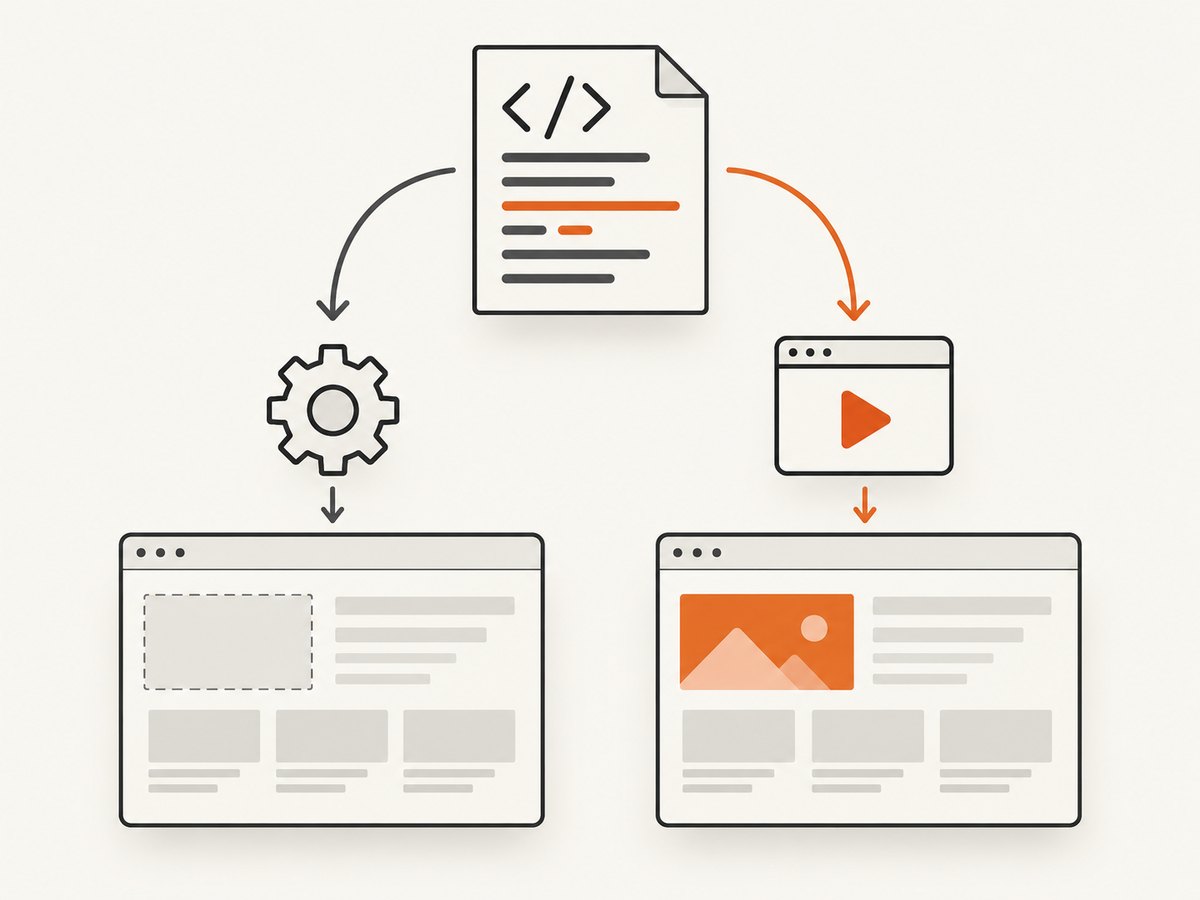
This example starts with a node that says “Loading”. A timer changes it to “Ready”. Cheerio reads the supplied HTML without running the timer; Puppeteer opens the page and waits for the changed text. Save the following as compare.cjs.
const cheerio = require('cheerio');
const puppeteer = require('puppeteer');

const html = `<!doctype html>
<html>
  <body>
    <div id="status">Loading</div>
    <script>
      setTimeout(() => {
        document.querySelector('#status').textContent = 'Ready';
      }, 300);
    </script>
  </body>
</html>`;

async function main() {
  const $ = cheerio.load(html);
  console.log('Cheerio:', $('#status').text());

  const browser = await puppeteer.launch({ headless: true });
  try {
    const page = await browser.newPage();
    await page.setContent(html, { waitUntil: 'load' });
    await page.waitForFunction(() => {
      return document.querySelector('#status')?.textContent === 'Ready';
    });
    const text = await page.$eval('#status', element => element.textContent);
    console.log('Puppeteer:', text);
  } finally {
    await browser.close();
  }
}

main().catch(error => {
  console.error(error);
  process.exitCode = 1;
});
Install the packages and run it with a recent Node.js release:
npm install cheerio puppeteer
node compare.cjs
Expected output:
Cheerio: Loading
Puppeteer: Ready
Remove the timer script, or change the target to a node that the script never modifies, and both tools will agree. This is a behavior demonstration, not a benchmark; it makes no claim about relative speed or memory use.
4. Diagnose why your own outputs match
- Inspect the exact HTML passed to Cheerio. Save or log the response body, then search it for the target text, selector, and nearby markup. If the final data is already there, matching output is the correct result.
- Check whether the page is client-rendered. An empty
<div id="root">next to a JavaScript bundle often means a framework fills the container after load. Cheerio will see the empty container in the original response. Puppeteer can see the populated DOM after the app renders. - Check the selection before extracting. With Cheerio, log
selection.length. An empty selection does not throw:.text()can return an empty string and.attr()can returnundefined. An empty result is not evidence that Puppeteer and Cheerio inspect the same document. - Wait for the target state in Puppeteer. A navigation event is not necessarily the application’s “data ready” event. Wait for a meaningful selector, expected text, or application-specific condition before extracting. Puppeteer provides page wait and evaluation APIs in its Page API.
- Compare equivalent state. Use the same URL and query parameters. Verify cookies, login, headers, user agent, viewport, geolocation, timezone, and JavaScript settings where they can affect the response or page. Puppeteer can configure and inspect browser behavior; a raw HTML fetch does not automatically share browser state.
- Check what “same result” means. Cheerio’s
.text()returns text content from the parsed nodes and preserves whitespace; it does not filter according to CSS visibility. Compare the selected node, raw text, normalized text, and rendered visibility separately. - Look for API-backed data. The page may fetch JSON and then update the DOM, or your own code may already have the JSON response. If the API response is the source of truth, parsing that response can be simpler than scraping the rendered page.
- Audit request interception. If Puppeteer request interception is enabled, each intercepted request must be continued, aborted, or fulfilled. A stalled script or data request can leave the page in a state that looks like “Puppeteer found nothing.”
5. Choose the smallest tool that matches the data source
Use Cheerio when
- The server response already contains the fields you need.
- You have an HTML or XML string and need to select, transform, or clean up its structure.
- You do not need browser JavaScript, interaction, session behavior, visual rendering, or follow-up requests.
Use Puppeteer when
- JavaScript creates or changes the target after the initial response.
- You need a browser session, such as cookies, authentication, a click, or a user-visible flow.
- You need to wait for a rendered condition or inspect browser-generated DOM.
- You need a screenshot or PDF of what the browser renders.
Use an API response when
The page’s own network request returns the data you need in a structured format. Inspect the browser’s network activity, identify the relevant response, and check whether it is a documented endpoint you are permitted to use. An API response avoids selectors tied to page layout, but it may require the same authorization and request parameters as the page.
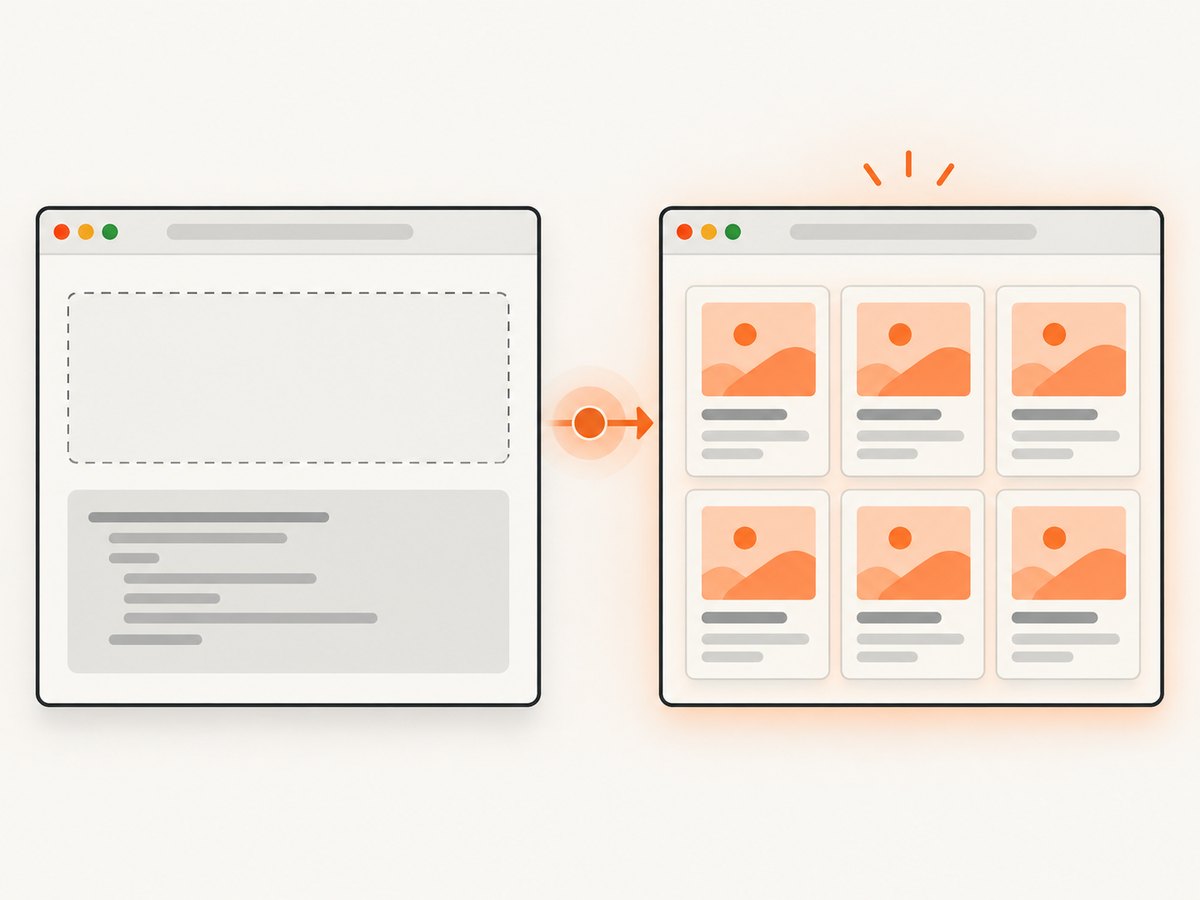
For a server-rendered page, Cheerio is often enough. For a page that renders the target in the browser, Puppeteer is appropriate. There is no general speed multiplier to quote: the reviewed documentation provides no universal benchmark, and actual cost depends on the page, browser setup, and work performed.
6. Timing, reliability, and performance details
Wait for meaning, not an arbitrary long delay. A fixed timeout can be too short on a slow run and waste time on a fast one. Prefer a selector or condition that represents the data being ready. If the app exposes a stable state marker, use it. For dynamic lists, wait for the expected count or a known item rather than merely waiting for the first result.
Keep extraction deterministic. Run the same URL with the same state, then record the response status, relevant response markup, selection count, and extraction time. When results differ, those checkpoints tell you whether the cause is a changed response, unfinished render, changed state, or selector drift.
Reuse browser capacity thoughtfully. A browser launch has setup cost. For a service that renders multiple pages, managing a reusable browser instance can reduce repeated startup work; Chrome’s server-side rendering example discusses reusing a single Chrome instance across renders. Keep pages isolated when cookies, storage, or other session state must not leak between jobs. The right lifecycle depends on your security and concurrency needs.
Account for browser compatibility. Puppeteer releases are paired with browser versions to keep the underlying protocol compatible. Use the browser version supported by the Puppeteer release you install, and avoid assuming an arbitrary system Chrome will behave identically to the bundled browser. See the Puppeteer FAQ.
Do not infer a benchmark from the example. Cheerio is a parser-only workflow; Puppeteer requires a compatible browser runtime. That is a useful operational distinction, but page size, network activity, script work, and deployment setup all affect performance. Measure your own workload if latency or resource cost matters.
7. Common errors and fixes
| Symptom | Likely cause | What to do |
|---|---|---|
| Cheerio returns an empty string | The selector matched nothing, or the value is inserted after the HTML response. | Log the input HTML and selection length. If the response has an empty app root, use browser rendering or the data endpoint. |
| Puppeteer returns the same placeholder as Cheerio | Extraction ran before the page changed the node, or the script failed. | Wait for the target text/selector, then inspect page errors and failed requests. |
waitForSelector times out |
The selector is wrong, the content is behind a state change, or the request/render failed. | Confirm the selector in the live page, check navigation status and console/network errors, and wait for the actual state transition. |
| Text differs only in whitespace | Raw text extraction preserves spacing and line breaks differently from visual presentation. | Normalize whitespace deliberately after extraction; preserve original text if whitespace is meaningful. |
| Intercepted pages hang | An intercepted request was not resolved. | Ensure every intercepted request is continued, aborted, or fulfilled, including error paths. |
| Browser fails to launch in deployment | Missing compatible browser files or runtime dependencies, or a browser/Puppeteer version mismatch. | Install the browser expected by your Puppeteer version and satisfy the deployment environment’s runtime requirements. |
8. Or skip the browser setup
If your goal is a visual screenshot rather than custom DOM extraction, ScreenshotNeo is a website screenshot API and MCP server. A single request returns PNG, JPEG, WebP, or PDF. It can accept cookie banners and remove more than 60 known consent platforms, newsletter popups, and chat widgets before capture; each step can be turned off. Bot checks/CAPTCHAs, blank pages, timeouts, failed loads, and cache hits cost nothing, and the response identifies the page verdict and billing status. Its MCP server gives AI agents tools to take screenshots, get page information, and capture PDFs. The free plan includes 1,000 shots per month with no card; paid plans start at $5 for 3,000 shots. See the ScreenshotNeo API documentation.
curl -G "https://api.screenshotneo.com/v1/shot" \
  -d access_key=YOUR_API_KEY \
  --data-urlencode url=https://stripe.com \
  -o shot.webp
import requests
r = requests.get(
"https://api.screenshotneo.com/v1/shot",
params={"access_key": "YOUR_API_KEY", "url": "https://stripe.com"},
timeout=90,
)
open("shot.webp", "wb").write(r.content)const q = new URLSearchParams({
access_key: 'YOUR_API_KEY',
url: 'https://stripe.com'
});
const res = await fetch(`https://api.screenshotneo.com/v1/shot?${q}`);
if (!res.ok) throw new Error(`Screenshot request failed: ${res.status}`);
const bytes = Buffer.from(await res.arrayBuffer());
await import('node:fs/promises').then(fs => fs.writeFile('shot.webp', bytes));That call is for capturing a page image; use Puppeteer when you need custom browser interaction or DOM extraction. Create a free ScreenshotNeo account for 1,000 screenshots a month, with no card required.
9. Frequently asked questions
Is Puppeteer doing anything useful on a server-rendered page?
It can still provide browser behavior, interactions, and screenshots. If you only need markup that is already in the response, those browser capabilities may not change the extracted value.
Does Cheerio fetch a URL by itself?
Cheerio parses markup supplied to it. Your application is responsible for obtaining the HTML string, if it starts from a URL.
Can CSS hide content from Cheerio?
No. Cheerio does not render CSS or apply visual visibility. A node can be present in the parsed markup even if a browser would not display it.
Why do my results match on one URL but not another?
The pages may have different rendering strategies or state requirements. Compare each initial response and wait for the relevant browser-side change before drawing a general conclusion.
Should I switch tools if they return the same value?
Not on that fact alone. Choose based on whether the job needs a browser, interaction, rendered output, or only traversal of known markup.


