FullPage vs. captureBeyondViewport in Puppeteer
Understand Puppeteer’s fullPage and captureBeyondViewport options, when to use each, and how to avoid clipped or unexpectedly large screenshots.

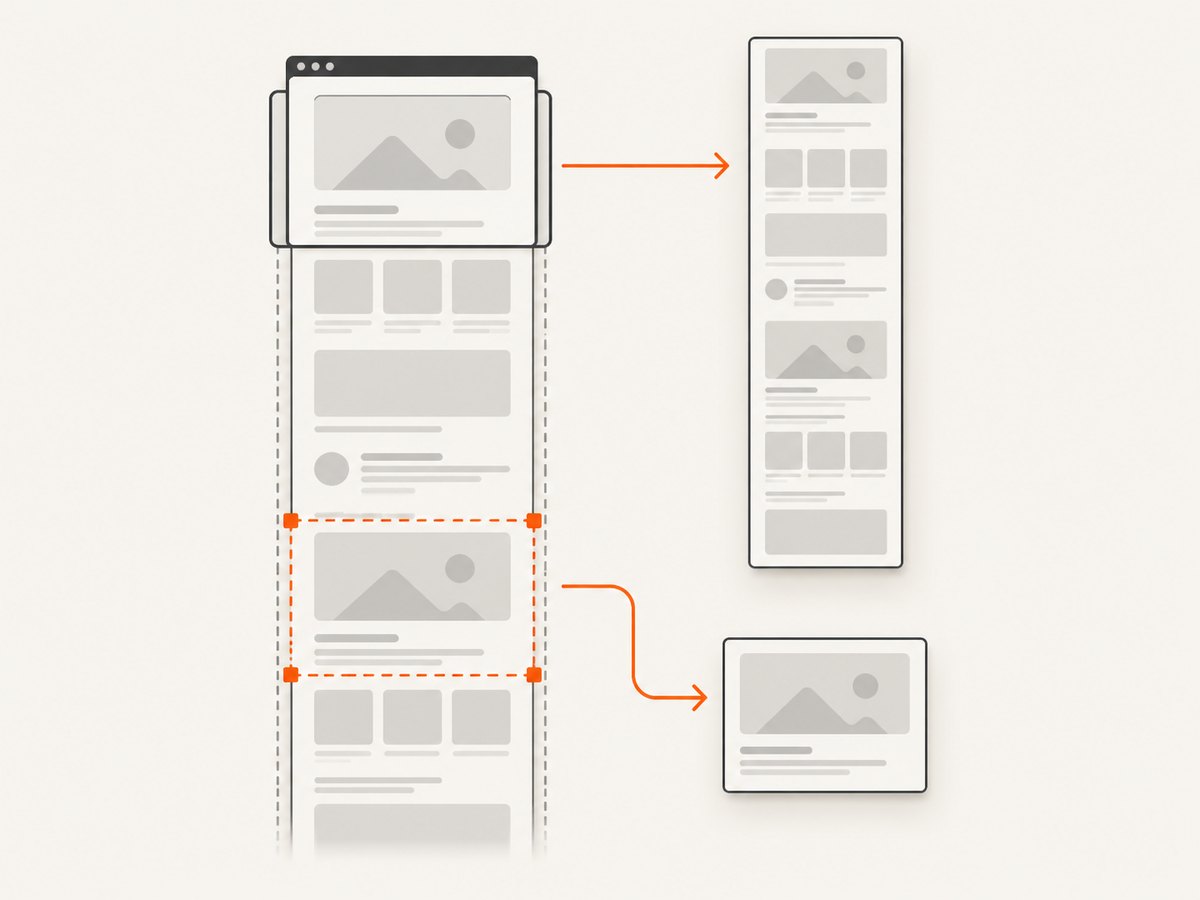
Short answer: use fullPage: true when you want Puppeteer to capture the entire document. Use captureBeyondViewport: true when your screenshot region, usually defined with clip, extends beyond the visible viewport. They describe different capture intents, are not interchangeable, and Puppeteer’s API reference does not say that one must be enabled for the other.
In Puppeteer 25.12.0, fullPage is an optional boolean that defaults to false. captureBeyondViewport is also optional; its documented default is false when no clip is supplied and true when a clip is supplied. The exact behavior is version-sensitive, so check the API reference for the Puppeteer release you deploy. Puppeteer’s ScreenshotOptions reference documents both properties.
What each option means
fullPage: capture the whole page
fullPage answers the question, “Should this be a screenshot of the complete page rather than only the current viewport?” Set it to true on page.screenshot():
const screenshot = await page.screenshot({
  fullPage: true,
  type: 'png'
});
The option defaults to false, so omitting it produces a normal viewport screenshot. A full-page capture is useful for documentation, visual regression baselines, archive snapshots, and pages whose content continues below the fold.
captureBeyondViewport: allow pixels outside the viewport
captureBeyondViewport answers a narrower question: “May Puppeteer capture pixels outside the currently visible viewport?” It matters when you provide a clip rectangle or otherwise need a region that is larger than the viewport. Its documented default is conditional:
| Configuration | Documented default | Meaning |
|---|---|---|
No clip |
false |
Do not capture beyond the viewport by default. |
A clip is supplied |
true |
Allow the clipped region to extend beyond the viewport by default. |
Enable it explicitly when the intent should be clear:
const screenshot = await page.screenshot({
  clip: { x: 0, y: 700, width: 900, height: 500 },
  captureBeyondViewport: true,
  type: 'png'
});
This captures a 900-by-500 region beginning 700 CSS pixels down the page, even when that rectangle is not fully visible in the current viewport.
Are fullPage and captureBeyondViewport interchangeable?
No. The API descriptions give them different selection criteria:
fullPage: truerequests the full page.captureBeyondViewport: truepermits capture beyond the viewport.clipdefines a specific rectangular region.
The documentation does not establish that you must set captureBeyondViewport for fullPage to work. Do not add it automatically as a workaround unless your capture also uses a clip or your target Puppeteer version requires a behavior you have verified. Treat the options as separate controls and state the intent in your code.
Complete Puppeteer examples
1. Normal viewport screenshot
import puppeteer from 'puppeteer';

const browser = await puppeteer.launch({ headless: true });
try {
  const page = await browser.newPage();
  await page.setViewport({ width: 1440, height: 900, deviceScaleFactor: 1 });
  await page.goto('https://example.com', { waitUntil: 'networkidle2' });
  await page.screenshot({ path: 'viewport.png', type: 'png' });
} finally {
  await browser.close();
}
2. Full-page screenshot
import puppeteer from 'puppeteer';

const browser = await puppeteer.launch({ headless: true });
try {
  const page = await browser.newPage();
  await page.setViewport({ width: 1440, height: 900, deviceScaleFactor: 1 });
  await page.goto('https://example.com/docs', { waitUntil: 'networkidle2' });

  // Wait for content that is required in the baseline.
  await page.waitForSelector('main');

  await page.screenshot({
    path: 'full-page.png',
    fullPage: true,
    type: 'png'
  });
} finally {
  await browser.close();
}
fullPage is a page-level option. Puppeteer calculates a capture covering the document rather than only the 1440-by-900 viewport.
3. A clipped region beyond the viewport
import puppeteer from 'puppeteer';

const browser = await puppeteer.launch({ headless: true });
try {
  const page = await browser.newPage();
  await page.setViewport({ width: 1200, height: 800 });
  await page.goto('https://example.com', { waitUntil: 'domcontentloaded' });

  await page.screenshot({
    path: 'lower-region.png',
    clip: { x: 100, y: 900, width: 1000, height: 600 },
    captureBeyondViewport: true,
    type: 'png'
  });
} finally {
  await browser.close();
}
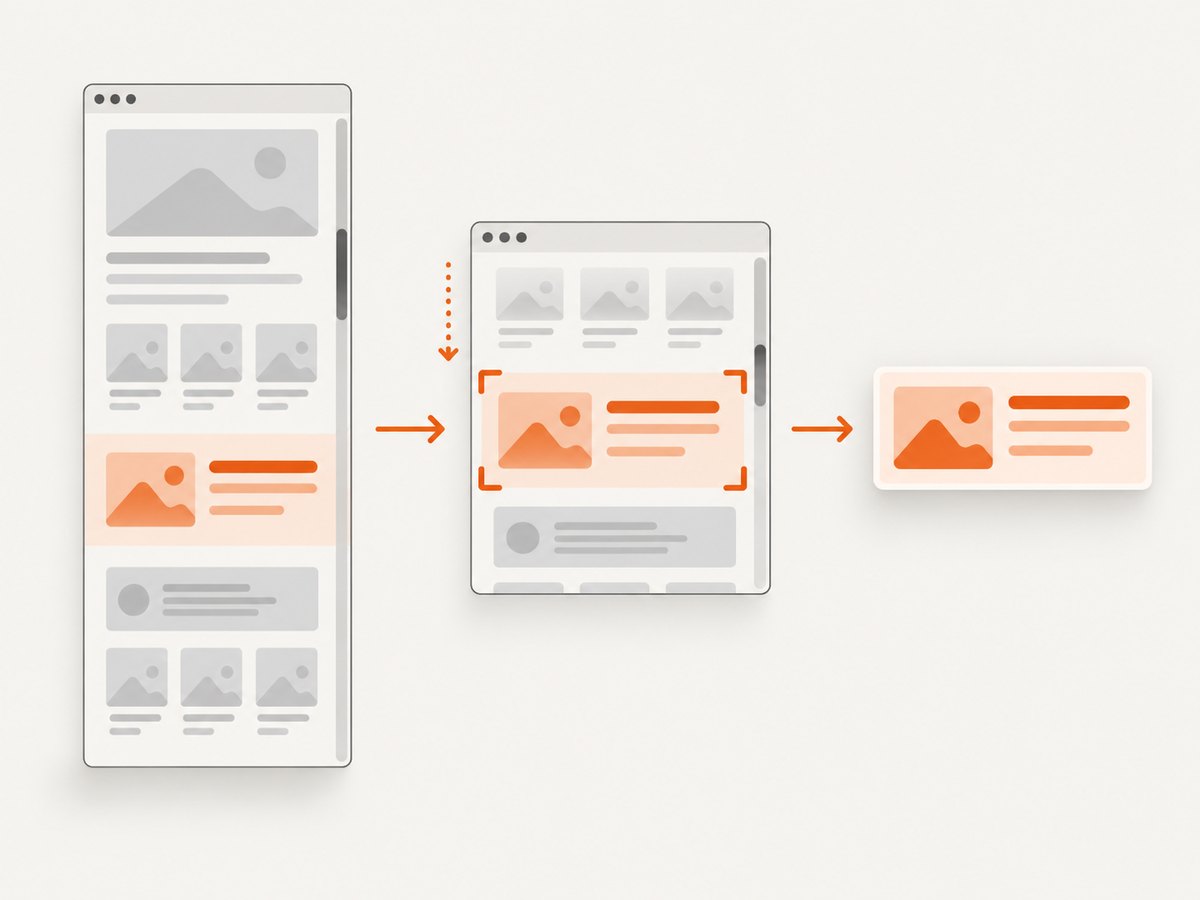
Use this pattern when you need one known rectangle, such as a chart, a section of a report, or a fixed coordinate range. The clip values are CSS pixels; the final bitmap dimensions also depend on the device scale factor.
4. Capture one element
For an individual element, the official Puppeteer screenshot guide points to ElementHandle.screenshot(). It attempts to scroll a hidden element into view before capturing it. See the element screenshot guide.
import puppeteer from 'puppeteer';

const browser = await puppeteer.launch({ headless: true });
try {
  const page = await browser.newPage();
  await page.goto('https://example.com/dashboard', { waitUntil: 'networkidle2' });

  const chart = await page.waitForSelector('[data-testid="revenue-chart"]');
  if (!chart) throw new Error('Chart element was not found');

  await chart.screenshot({
    path: 'revenue-chart.png',
    type: 'png'
  });
} finally {
  await browser.close();
}
Element screenshots are often preferable to a huge full-page image when the consumer needs one component. You do not need to invent a page-wide clip rectangle for this case.
How the options interact with other screenshot settings
clip
clip specifies the region to capture with x, y, width, and height. It is the setting that most directly changes the meaning of captureBeyondViewport. If the rectangle lies outside the visible viewport, set captureBeyondViewport: true explicitly so the intent does not depend on a conditional default.
await page.screenshot({
  clip: { x: 0, y: 0, width: 640, height: 360 },
  captureBeyondViewport: false,
  path: 'top-left.png'
});
Viewport and device scale factor
page.setViewport() controls the CSS viewport. A deviceScaleFactor of 2 creates a retina-sized bitmap while keeping CSS coordinates unchanged:
await page.setViewport({
  width: 1280,
  height: 720,
  deviceScaleFactor: 2
});
When comparing image dimensions, account for this scale factor. A 1280 CSS-pixel-wide viewport can produce a 2560-pixel-wide image at scale 2.
Output type, quality, and transparency
Puppeteer supports common screenshot output settings such as PNG, JPEG, and WebP where available in your installed version. JPEG and WebP can reduce file size; PNG preserves lossless detail and is usually safer for pixel-diff tests. JPEG quality is relevant only when the selected output type supports it. Transparent backgrounds require a page and browser configuration that actually expose transparency; a normal page background will remain opaque.
Lazy-loaded content
A full-page request does not guarantee that every application has rendered every lazy resource. Before capture, scroll through the page or wait for a known completion signal when the site loads content on intersection:
await page.evaluate(async () => {
  await new Promise((resolve) => {
    let y = 0;
    const step = 600;
    const timer = setInterval(() => {
      window.scrollTo(0, y);
      y += step;
      if (y >= document.body.scrollHeight) {
        clearInterval(timer);
        window.scrollTo(0, 0);
        resolve();
      }
    }, 50);
  });
});

await page.screenshot({ path: 'lazy-loaded-full-page.png', fullPage: true });
Prefer an application-specific selector or network signal when one exists; a fixed scrolling loop is only a fallback.
Choosing the right setting
| Goal | Recommended approach | Why |
|---|---|---|
| Capture the entire document | fullPage: true |
This is the documented whole-page switch. |
| Capture the current screen | Omit fullPage |
The default is a viewport screenshot. |
| Capture a known rectangle below the fold | clip plus captureBeyondViewport: true |
The clip defines the region and the boolean permits off-screen pixels. |
| Capture one component | elementHandle.screenshot() |
The element API handles element visibility and bounds. |
| Build a visual regression baseline | Set viewport, scale, waits, and output type explicitly | Stable inputs reduce unrelated image differences. |
Common mistakes and troubleshooting
The image contains only the viewport
Cause: fullPage was omitted or set to false.
Fix: add fullPage: true to the page screenshot call. Do not expect captureBeyondViewport: true by itself to mean “whole page”; it only permits capture outside the viewport.
A clipped region is blank or cut off
Cause: the clip extends outside the viewport while capture beyond the viewport is disabled, or the rectangle has incorrect CSS-pixel coordinates.
Fix: set captureBeyondViewport: true, verify x, y, width, and height, and log the viewport dimensions used for the run.
The full-page image is much taller than expected
Cause: a long document, an element with an unexpectedly large height, or content that keeps appending while the page is being measured.
Fix: wait for the page’s final state, inspect document.documentElement.scrollHeight, and remove test-only infinite-scroll behavior. If you need only a section, use an element screenshot or a bounded clip.
Images or cards are missing
Cause: lazy loading, delayed JavaScript, blocked resources, or capturing before the relevant selector appears.
Fix: wait for a meaningful selector, use an appropriate waitUntil value, trigger lazy loading by scrolling, and confirm that the browser can request the image URLs.
Element screenshot throws because the handle is null
Cause: waitForSelector() timed out or the selector does not match this route.
Fix: check the selector in the same browser context, handle optional elements deliberately, and capture a diagnostic screenshot or HTML dump when the selector is absent.
Visual diffs change between runs
Cause: different viewport or scale settings, fonts not ready, animations, rotating content, timestamps, ads, or network-dependent data.
Fix: set viewport and device scale explicitly, wait for fonts, disable animations in test CSS, freeze dynamic data, and use a deterministic test environment.
The browser process hangs or times out
Cause: a page never reaches the selected network condition, a third-party request remains open, or the page uses an unbounded script.
Fix: use a practical navigation timeout, wait for a specific application-ready selector instead of indefinite network idleness, and always close the browser in a finally block.
Performance, reliability, and cost considerations
Performance
Full-page screenshots require more layout, paint, memory, and encoding work than viewport captures. Very tall pages can produce large bitmaps and slower uploads. Use an element screenshot or a clip when the consumer does not need the entire document. Keep the viewport and device scale factor as small as the visual requirement allows, and choose WebP or JPEG when lossless PNG data is unnecessary.
Waiting for networkidle2 can improve completeness but may delay pages with analytics, streaming, or long-lived connections. A selector that represents “rendered and ready” is often faster and more reliable for an application you control.
Reliability
- Pin the Puppeteer version and review its screenshot reference when upgrading.
- Set navigation and selector timeouts explicitly.
- Close every browser and page in cleanup code.
- Record the URL, viewport, scale factor, option values, and failure reason with each capture.
- Retry only transient navigation or network failures; repeated retries do not fix a missing selector or invalid clip.
Cost
With self-hosted Puppeteer, the direct costs are the runtime, browser processes, storage, bandwidth, and engineering time required to maintain the capture service. Full-page images consume more memory and storage than viewport images. If you use a hosted screenshot API, check whether failed loads, bot checks, cache hits, and retries are billable and whether it provides response metadata for each request.
Or skip the browser setup
ScreenshotNeo provides a website screenshot API and MCP server. It accepts one GET request and returns PNG, JPEG, WebP, or PDF. Its full-page capture loads lazy images, and the API also supports element selectors, custom viewports, device presets, retina scale, waits, custom CSS and JavaScript, headers, cookies, user agents, geolocation, caching, signed links, asynchronous jobs, bulk capture, and a usage API. See the ScreenshotNeo documentation for the complete option list.
curl -G "https://api.screenshotneo.com/v1/shot" \
  -d access_key=YOUR_API_KEY \
  --data-urlencode url=https://stripe.com \
  -o shot.webp
import requests
r = requests.get(
"https://api.screenshotneo.com/v1/shot",
params={"access_key": "YOUR_API_KEY", "url": "https://stripe.com"},
timeout=90,
)
r.raise_for_status()
open("shot.webp", "wb").write(r.content)const q = new URLSearchParams({
access_key: 'YOUR_API_KEY',
url: 'https://stripe.com'
});
const res = await fetch(`https://api.screenshotneo.com/v1/shot?${q}`);
if (!res.ok) throw new Error(`Screenshot failed: ${res.status}`);
const bytes = await res.arrayBuffer();
await Bun.write('shot.webp', bytes);ScreenshotNeo removes cookie and consent banners, newsletter popups, and chat widgets before capture. Bot checks, blank pages, timeouts, failed loads, and cache hits are not billed, and response headers identify the page verdict and billing result. Its MCP server includes take_screenshot, get_page_info, and capture_pdf for Claude, Cursor, and other MCP clients. The Free plan includes 1,000 screenshots per month with no card; paid plans start at $5 for 3,000 screenshots.
Create a free ScreenshotNeo account and get 1,000 screenshots a month without a card.
FAQ
Do I need both options for a full-page screenshot?
No. The documented switch for a whole-page capture is fullPage: true. The API reference does not document a dependency requiring captureBeyondViewport.
What is the default value of fullPage?
false. Without the option, Puppeteer captures the viewport.
What is the default value of captureBeyondViewport?
It is false when no clip is supplied and true when a clip is supplied, according to the Puppeteer 25.12.0 reference.
Can I use fullPage with clip?
Choose the setting that expresses the capture you need. A full-page request and a bounded clipped rectangle represent different goals; for a rectangle, define clip and configure capture beyond the viewport explicitly.
Which API should I use for one element?
Use ElementHandle.screenshot(). Puppeteer’s guide describes that method for element-specific captures and says it attempts to scroll a hidden element into view.
Is this behavior identical in every Puppeteer release?
Not necessarily. The facts here come from the Puppeteer 25.12.0 documentation. Recheck the matching API reference when upgrading.


