Why Puppeteer Screenshots Differ Between Headless and Headed Chrome
Headless and headed Puppeteer screenshots diverge when the browser, screen, fonts, GPU, timing, or capture settings differ. Here’s how to diagnose and make captures reproducible.
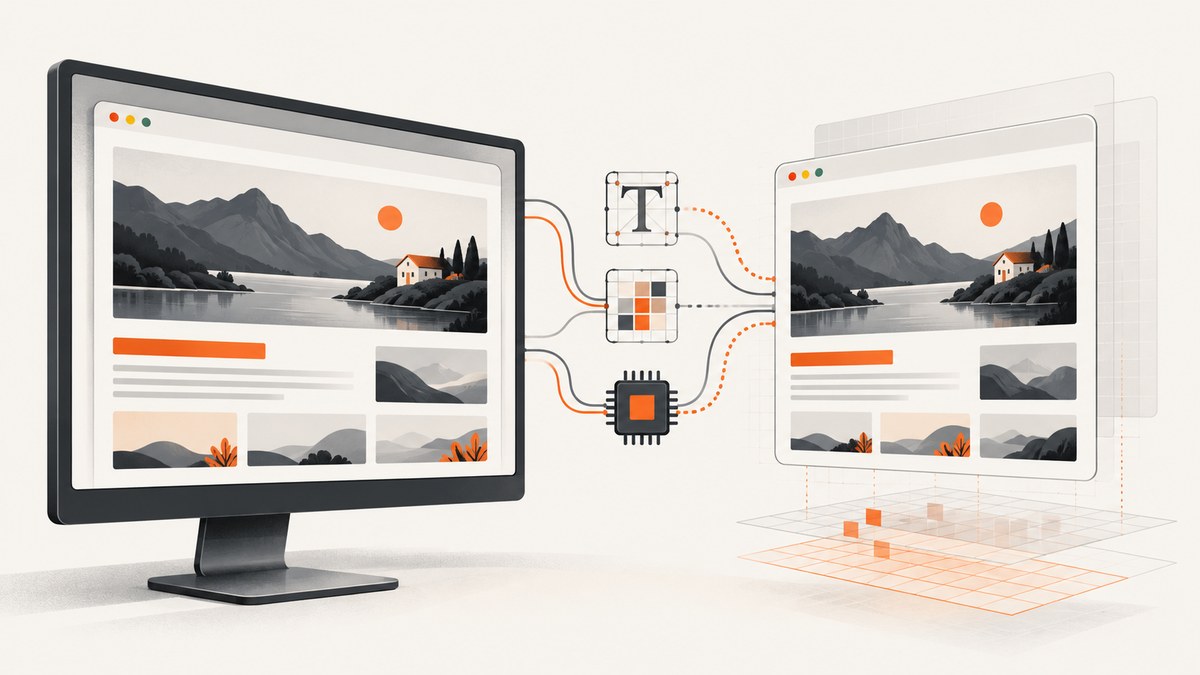
Puppeteer screenshots differ between headless and headed Chrome when the two runs do not share the same rendering inputs. Headless Chrome uses a configurable virtual screen; headed Chrome uses the platform’s physical display. Differences in viewport, device scale factor (DPR), GPU compositing, installed fonts and graphics libraries, page readiness, or screenshot options can all change pixels—even when the page URL and Puppeteer code look identical. Chrome documents the virtual headless screen and its --screen-info settings; Puppeteer exposes viewport and capture options that should be set deliberately.
For repeatable output, pin the browser and Puppeteer versions, explicitly set the CSS viewport and DPR, align the screen and rendering environment, wait for the same page state, and use identical screenshot options. If you are chasing pixel identity, first compare image dimensions and metadata: a DPR mismatch can invalidate a pixel comparison before you inspect the page itself.
1. What changes between headless and headed runs?
“Headless” is a browser mode, not a guarantee that every rendering detail is fixed. Puppeteer’s normal headless Chrome and its chrome-headless-shell can also differ in GPU behavior. The shell disables GPU compositing unless launched with --enable-gpu; whether that path works depends on available drivers. Headed Chrome, meanwhile, may inherit display scale and work-area characteristics from the machine’s physical monitor.
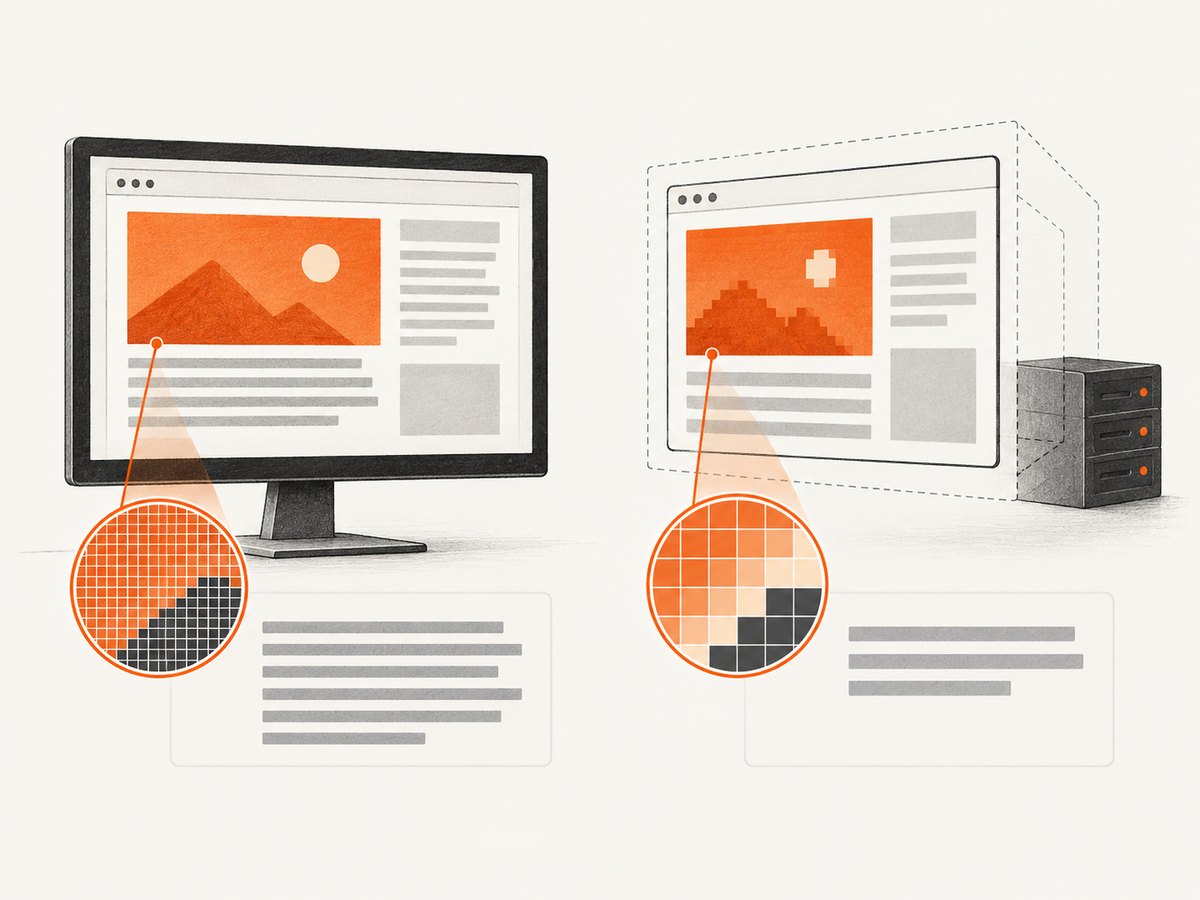
Use this comparison to narrow down a mismatch:
| Input | How it can change the screenshot | What to compare |
|---|---|---|
| Browser build | Layout, font shaping, rasterization, and browser behavior can change across versions. | Puppeteer version and actual Chrome/Chrome for Testing binary. |
| CSS viewport | Responsive breakpoints can select another layout or cause text to wrap differently. | Viewport width and height in CSS pixels. |
| DPR | Changes device-pixel dimensions and rasterization/antialiasing. | deviceScaleFactor and resulting bitmap dimensions. |
| Screen geometry | Headless virtual-screen size, scale, origin, orientation, or work area may differ from the monitor. | --window-size or --screen-info; physical display scale. |
| GPU/compositing | Different rendering paths may produce raster differences, particularly with headless shell. | Headless mode, launch arguments, drivers, and GPU availability. |
| Fonts and libraries | Font fallback changes glyph widths and line breaks; graphics libraries affect rendering. | Installed font files and Linux packages on both machines. |
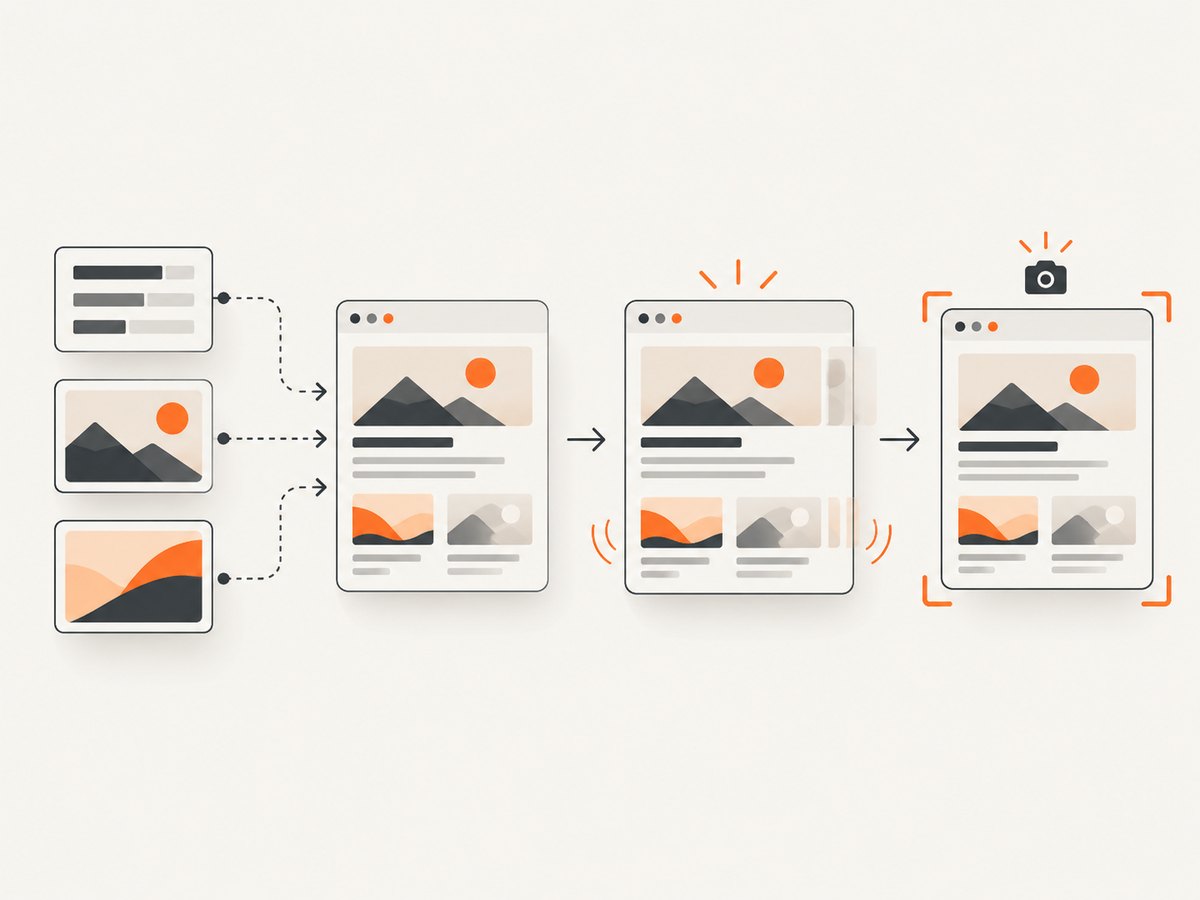
| Readiness and capture | Late fonts, images, animation, or different clipping/background settings change pixels. | Wait policy, timeout, and every screenshot option. |
Viewport dimensions are CSS pixels. Puppeteer’s deviceScaleFactor defaults to 1; setting it to 0 restores the system default. Avoid that system default when reproducibility matters. Puppeteer also notes that viewport changes involving mobile or touch settings may reload a page, so set the viewport before navigation.
2. Reproduce the mismatch with a controlled capture
Start by making a minimal script that records the browser version, viewport, DPR, and output dimensions. Run it once headless and once headed on the same machine, then repeat in CI. Compare one variable at a time. This example uses Puppeteer’s bundled browser and an explicit CSS viewport and DPR.
// save as capture.mjs; install with: npm install puppeteer
import puppeteer from 'puppeteer';

const headless = process.env.HEADED !== '1';
const browser = await puppeteer.launch({
  headless,
  // For chrome-headless-shell GPU rendering, try this only when needed:
  // args: ['--enable-gpu'],
});

try {
  const page = await browser.newPage();
  await page.setViewport({
    width: 1440,
    height: 900,
    deviceScaleFactor: 1,
  });

  const response = await page.goto('https://example.com', {
    waitUntil: 'networkidle0',
    timeout: 30000,
  });
  if (!response?.ok()) {
    throw new Error(`Navigation failed: HTTP ${response?.status() ?? 'no response'}`);
  }

  // Wait for web fonts when the page uses them.
  await page.evaluate(() => document.fonts.ready);

  console.log({
    browser: await browser.version(),
    viewport: page.viewport(),
    dpr: await page.evaluate(() => window.devicePixelRatio),
    document: await page.evaluate(() => ({
      width: document.documentElement.scrollWidth,
      height: document.documentElement.scrollHeight,
    })),
  });

  await page.screenshot({
    path: `shot-${headless ? 'headless' : 'headed'}.png`,
    fullPage: true,
    type: 'png',
    fromSurface: true,
    omitBackground: false,
  });
} finally {
  await browser.close();
}
Run node capture.mjs for headless and HEADED=1 node capture.mjs for headed mode. A headed Chrome run on Linux generally needs a display server; in CI, that often means configuring a virtual display such as Xvfb. Keep that display setup the same between runs where possible.
The example waits for networkidle0, but that is not appropriate for every application: pages with polling or long-lived connections may never become idle. In that case, wait for an application-specific selector or readiness signal, then use a bounded timeout. The important part is that the two runs use the same rule.
3. Make the rendering inputs match
Pin browser, Puppeteer, and environment
Use the same Puppeteer package version and Chrome for Testing build locally and in CI. Do not compare one machine’s system Chrome with Puppeteer’s downloaded browser and assume they are interchangeable. Record await browser.version() with each artifact so a version drift is visible.
On Linux, install the same fonts and native libraries in each environment. Puppeteer’s troubleshooting guide lists packages including fonts-liberation, libcairo2, libgbm1, libpango-1.0-0, and libpangocairo-1.0-0. The exact dependency list depends on the distribution and Chrome build. For non-Latin scripts, make sure the appropriate font families are installed too; a fallback font can alter character widths and therefore line wrapping.
Set viewport and DPR before navigation
Set identical width, height, and deviceScaleFactor values before page.goto(). These are viewport dimensions in CSS pixels. For a 1440 × 900 CSS viewport at DPR 2, a viewport-sized bitmap is typically 2880 × 1800 device pixels. Full-page height and image dimensions can vary with page content, but DPR still affects the raster size. Do not use DPR 0 in a visual test: that explicitly asks Puppeteer to use the system default, which can differ across machines.
Align the screen and GPU path
Chrome’s headless virtual screen is independent of physical displays. The --screen-info switch can control origin, size, scale factor, orientation, and work area. The Chrome headless CLI also documents --window-size for setting a window’s dimensions. Model the headed screen deliberately when that distinction is relevant; however, screen flags do not replace setting the page’s CSS viewport.
Keep headless mode and Chrome arguments consistent. If the issue is specific to chrome-headless-shell and the application needs GPU rendering, test with --enable-gpu and confirm the host has a working driver. Treat this as a controlled experiment, not a universal fix: a different GPU path can itself change raster output.
Wait for stable content
Navigation completion is not always visual readiness. A page may load fonts after initial HTML, lazy-load images as they approach the viewport, animate elements, or update data after navigation. Define what “ready” means for the page and apply it in both modes:
- Wait for the same navigation condition, then for a stable application selector or page-specific ready state.
- Await
document.fonts.readywhen web fonts affect the target. - Ensure images in the capture region have loaded; for full-page capture, account for lazy-loaded content.
- Disable or freeze animations if your test setup supports doing so, consistently in both runs.
- Set a finite navigation/readiness timeout and report failures rather than silently taking a partial capture.
Chrome’s headless capture timeout bounds how long a CLI capture waits, but a timeout is not proof that a dynamic page is ready. In Puppeteer, define an explicit navigation and readiness policy so the capture either has settled or fails clearly.
4. Screenshot options that affect the result
Even with identical rendering, capture options can produce different files. Puppeteer documents these options for page.screenshot():
| Option | Effect and reproducibility note |
|---|---|
fullPage |
Captures the full page rather than just the viewport. Defaults to false. |
clip |
Captures a specified rectangle. Keep x/y/width/height identical; clipping can change output dimensions. |
captureBeyondViewport |
Controls capture outside the viewport. Its default depends on whether clip is provided. |
fromSurface |
Captures from the surface rather than the view; default is true. |
omitBackground |
Hides the default white background and permits transparency; default is false. |
type, quality |
Choose output format and, for supported lossy formats, quality. Type defaults to PNG; quality does not apply to PNG. |
For a visual regression baseline, choose one format and keep it fixed. PNG is lossless and useful for pixel comparison; JPEG or WebP settings can add compression differences. Compare the same region and full-page policy. If one capture is viewport-only and the other is full-page, the files are not comparable even if their top portions appear similar.
5. A repeatable visual comparison checklist
- Record the configuration: Puppeteer and Chrome versions, headless mode, launch flags, operating system/container image, and GPU availability.
- Match the viewport: explicitly set CSS width, height, and DPR before navigation; verify
window.devicePixelRatio. - Match the screen model: align virtual-screen geometry and headed display scale when relevant.
- Match dependencies: fonts, fontconfig, graphics libraries, and browser dependencies should come from the same image or reproducible setup.
- Match readiness: same navigation wait, application-ready condition, font and image readiness, animation policy, and timeout.
- Match capture semantics: same
fullPage,clip,captureBeyondViewport,fromSurface,omitBackground, and image type. - Inspect dimensions and metadata first: a dimension mismatch often points to viewport, DPR, clipping, or full-page differences.
- Change one factor: if images still differ, toggle GPU or headless-shell settings individually and retain the configuration that matches your target environment.
Pixel-identical output across different operating systems, browser builds, fonts, and GPU drivers is not a safe assumption. A better baseline is to run visual comparisons in one pinned container and treat changes to that environment as baseline-affecting changes.
6. Troubleshooting common mismatches
| Symptom | Likely cause | Fix |
|---|---|---|
| Text wraps differently or has different widths | Different font installed, font not loaded yet, or different fallback. | Install the same font files, await document.fonts.ready, and verify computed font family. |
| Screenshot dimensions differ | DPR, viewport, full-page height, clip, or capture mode differs. | Log viewport and window.devicePixelRatio; compare screenshot options and image dimensions. |
| Layout switches to mobile/tablet in one run | CSS viewport width differs or viewport was applied after navigation. | Set viewport before goto() and confirm the exact CSS-pixel width. |
| Shadows, transforms, or composited elements differ | GPU/compositing path or driver availability differs. | Align Chrome arguments and runtime; test --enable-gpu for headless shell when GPU rendering is required. |
| Images, charts, or content are missing intermittently | Capture occurs before resources or async application data settle. | Wait for a stable selector/readiness signal and relevant images; use a bounded timeout. |
| Headed browser does not start in CI | No display server is available for non-headless Chrome. | Configure a display server such as Xvfb in CI, and keep that environment consistent. |
| Chrome launches locally but fails in Linux container | Missing shared libraries, fonts, writable profile paths, or sandbox configuration. | Use Puppeteer’s current troubleshooting dependency list; check missing libraries and writable cache/profile locations. |
| Only one image format differs | Compression, alpha/background, or encoder settings differ. | Use the same type, quality, and background options; compare PNG output to isolate rendering from compression. |
A timeout should normally fail the job with enough context to debug rather than capture whatever happens to be on screen. Record the URL, browser version, wait condition, and elapsed time in your own logs. Avoid disabling Chrome’s sandbox as a routine rendering workaround; Puppeteer’s troubleshooting guide cautions that running without it is strongly discouraged.
7. Performance, reliability, and cost
For stable visual tests, a pinned browser/container and a shared browser instance reduce environment drift. Reuse a launched browser for multiple pages where your application’s test isolation permits it, but create a fresh page or context when cookies, local storage, or service workers could affect the result. Close pages and browsers in cleanup paths so failed navigations do not leave processes behind.
Full-page screenshots require more raster work and larger image files than viewport captures, especially at high DPR. Use the smallest viewport and capture region that answers the test question. PNG avoids lossy compression but can be larger; lossy formats may reduce storage at the cost of pixel-exact comparisons. Pinning dependencies and retaining the capture configuration alongside baselines reduces false alarms and reruns. There is no universal cost figure: compute and storage depend on page weight, capture frequency, viewport, DPR, image format, and CI provider.
If your goal is a controlled matrix across environments, automate the same capture script in each pinned environment and label artifacts with their configuration. A hosted screenshot API can remove browser installation and runtime maintenance from that pipeline. ScreenshotNeo is a website screenshot API and MCP server by Yorker Media; its API and MCP options are described at ScreenshotNeo and in the documentation.
Or skip the browser setup
ScreenshotNeo takes a screenshot from one GET request, with PNG, JPEG, WebP, or PDF output. For a WebP capture of the example page:
curl -G "https://api.screenshotneo.com/v1/shot" -d access_key=YOUR_API_KEY --data-urlencode url=https://example.com -o shot.webpimport requests
r = requests.get("https://api.screenshotneo.com/v1/shot", params={"access_key": "YOUR_API_KEY", "url": "https://example.com"}, timeout=90)
open("shot.webp", "wb").write(r.content)const q = new URLSearchParams({ access_key: 'YOUR_API_KEY', url: 'https://example.com' });
const res = await fetch(`https://api.screenshotneo.com/v1/shot?${q}`);It accepts cookie and consent banners and removes more than 60 known consent platforms, newsletter popups, and chat widgets before the shot; each step can be turned off. Bot checks, blank pages, timeouts, failed loads, and cache hits cost nothing, and response headers identify the page verdict and billing status. An MCP server provides take_screenshot, get_page_info, and capture_pdf tools for Claude, Cursor, and other MCP clients. The free plan includes 1,000 screenshots a month with no card; paid plans start at $5 for 3,000 screenshots.
Sign up free for 1,000 screenshots a month, no card required.
FAQ
Can headless and headed screenshots be pixel identical?
They can match when all relevant inputs and page state match, but identical output is not guaranteed across different screens, browser builds, GPU paths, operating systems, or font installations. For dependable pixel diffs, capture in one pinned environment.
Does --window-size replace page.setViewport()?
No. Window size describes the browser window/screen context; Puppeteer’s viewport sets the page’s CSS-pixel viewport. Set both deliberately when reproducing a physical display, and verify the page viewport in the script.
Should I always enable GPU in headless mode?
No. The relevant documented caveat is for chrome-headless-shell, which disables GPU compositing unless --enable-gpu is supplied. Only change that setting when it matches the environment you need to reproduce.
Why do the images look the same but fail a strict pixel diff?
Subtle antialiasing, color, or encoding differences can affect pixels even when they are hard to see. Confirm image type and dimensions first, then align browser, fonts, DPR, and compositing before considering a less strict comparison.


