Why Puppeteer Serves Different Pages in Headless and Headful Modes
Modern Puppeteer headless Chrome shares its browser implementation with headful Chrome, but versions, launch modes, screen settings, sessions and page timing can still differ.
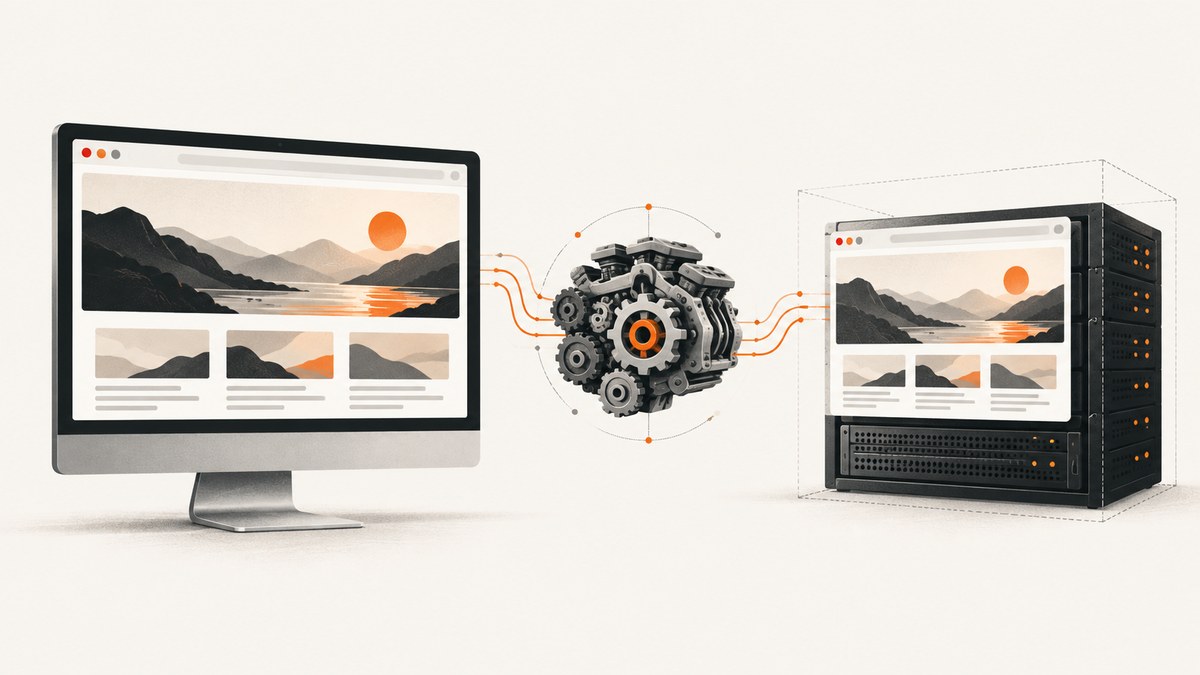
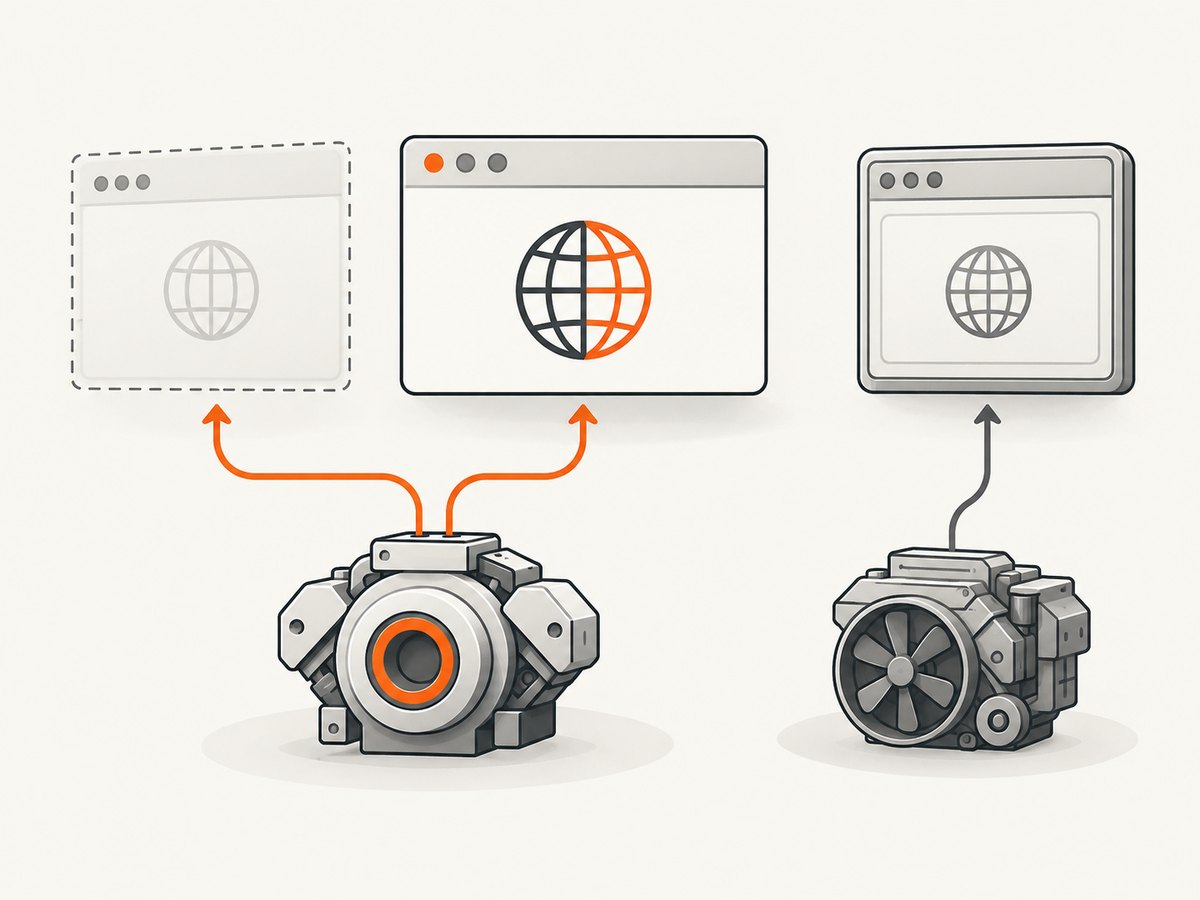
Puppeteer can serve different page content in headless and headful runs because “headless” describes how Chrome is presented, not every detail of the browser process or test environment. In current Puppeteer, headless: true selects modern Chrome Headless, headless: false selects headful Chrome, and headless: 'shell' selects the separate legacy Headless Shell. Modern Headless and headful Chrome share the browser implementation; Headless Shell does not completely match regular Chrome. Start by checking which mode and browser binary you are actually running, then compare the runs under the same page, session, viewport and readiness conditions.
This distinction matters because an old project, an explicit 'shell' setting, or a custom executable can make a supposed “headless versus headful” comparison a comparison of different browser implementations. Puppeteer’s headless modes guide and Chrome’s Headless mode documentation describe the current modes and version history.
1. What the three Puppeteer modes mean
| Launch option | What it launches | What to remember |
|---|---|---|
headless: true |
Modern Chrome Headless; this is Puppeteer’s current default. | Uses the unified Chrome implementation also used by headful Chrome. |
headless: false |
Headful Chrome with visible browser UI. | Useful for observing the browser, but it may rely on physical display conditions. |
headless: 'shell' |
The separate legacy chrome-headless-shell binary. |
Does not completely match regular Chrome; it may be more performant when the full Chrome feature set is unnecessary. |
Chrome updated Headless in version 112 so Chrome creates platform windows without displaying them. Puppeteer versions before v22 used the old Headless mode by default. Since Chrome 132.0.6793.0, the old mode is available only as the standalone chrome-headless-shell. That means a result from a pre-v22 setup or a current project explicitly launching 'shell' may reflect the legacy implementation rather than a universal property of hidden windows.
2. Capture the exact setup before debugging
Record the facts that define the run before changing code. Otherwise, a “fix” can appear to work because it quietly changed the browser or page conditions.
- Record Puppeteer and Chrome versions.
- Record the executable path and whether Puppeteer launched its bundled browser or a custom executable.
- Log the complete launch options, including
headless,devtools, arguments and profile settings. - Record operating system, viewport, device scale factor, locale, time zone, network setup, final URL and page readiness point.
- Use the same authentication state, cookies, application data and test account in both runs.
Puppeteer documents devtools: true as an option that forces headful mode. Also inspect the executable path: Puppeteer says it is only guaranteed to work with its bundled browser when you do not select a different executable path. See the LaunchOptions reference.
3. Make the comparison explicit and repeatable
Install Puppeteer in a Node.js project with npm install puppeteer. The following runnable script accepts a mode argument, prints the browser version and page state, and saves a screenshot. Run each mode against the same target.
// save as compare.mjs
import puppeteer from 'puppeteer';

const target = process.argv[2] ?? 'https://example.com';
const mode = process.argv[3] ?? 'true';
const headless = mode === 'shell' ? 'shell' : mode === 'false' ? false : true;

const browser = await puppeteer.launch({ headless });
try {
  const page = await browser.newPage();
  await page.setViewport({ width: 1365, height: 900, deviceScaleFactor: 1 });
  await page.goto(target, { waitUntil: 'networkidle2', timeout: 60000 });
  console.log({
    mode,
    browserVersion: await browser.version(),
    finalUrl: page.url(),
    title: await page.title(),
    bodyText: (await page.locator('body').innerText()).slice(0, 1000),
  });
  await page.screenshot({ path: `shot-${mode}.png`, fullPage: true });
} finally {
  await browser.close();
}
Run node compare.mjs https://example.com true, then node compare.mjs https://example.com false. To compare the legacy shell when your Puppeteer installation supports it, run node compare.mjs https://example.com shell. The script uses networkidle2 as a convenient example, not a universal definition of a ready page. Applications with persistent connections or delayed rendering should use an application-specific readiness condition.
For the smallest possible mode check, make headless explicit:
const browser = await puppeteer.launch({ headless: true });   // modern Headless
// const browser = await puppeteer.launch({ headless: 'shell' }); // legacy shell
// const browser = await puppeteer.launch({ headless: false });   // headful
4. Compare page content separately from pixels
A screenshot combines page content with rendering. First compare the final URL, title, selected DOM text and application state. Then compare images. This tells you whether the page itself changed or whether the difference is in presentation.
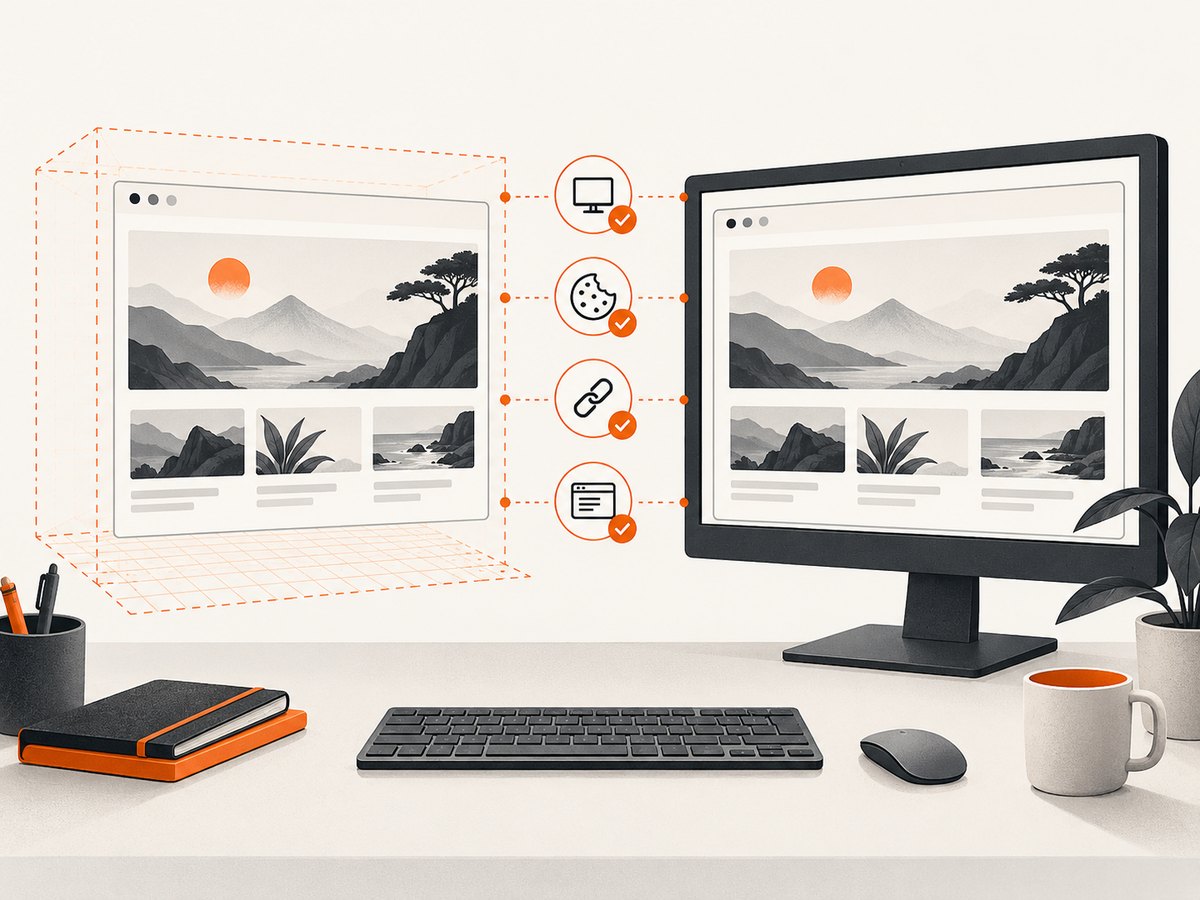
- Different final URL: inspect redirects, login flows and any route that depends on session state.
- Same URL but different DOM or text: compare cookies, authentication, data, locale and the point at which the DOM was sampled.
- Same DOM but different screenshot: compare viewport, scale factor, fonts and rendering environment.
- Different content only after waiting: inspect application readiness and repeat with a selector that represents the page’s completed state.
These are diagnostic comparisons, not a claim that a single factor explains every website. Browser mode is one variable among the concrete build, data, session, timing and runtime environment. Keep the same conditions while investigating rather than treating a screenshot difference as proof that Headless Chrome uses a different website.
5. Account for display and viewport assumptions
Headless Chrome can use a configurable virtual screen independent of the machine’s physical displays. Chrome documents screen size, position, scale factor, orientation and work area as configurable properties. This is useful when the test involves resolution, scaling, fullscreen, split-screen or multiple displays.
Headless screen configuration is available in stable Chrome starting with version 142. Initial screen configuration can use --screen-info; while Chrome is running, DevTools Protocol supports Emulation.addScreen and Emulation.removeScreen. See Chrome’s virtual screen configuration guide.
For ordinary page layout comparisons, set Puppeteer’s viewport in both runs. If the issue involves window placement or physical display behavior, explicitly model the headless virtual screen and document the physical screen used for the headful run. Don’t assume that a viewport alone reproduces a multi-display or fullscreen setup.
6. Common errors and practical fixes
| Symptom | Likely explanation | What to do |
|---|---|---|
| Headless content changed after a Puppeteer upgrade | The version may have changed the default mode; before Puppeteer v22, the old mode was the default. | Set headless explicitly and record the Puppeteer and browser versions. |
headless: 'shell' looks unlike visible Chrome |
Headless Shell is a separate legacy implementation and is not a complete behavioral match. | Compare true with false when you need modern Headless versus headful Chrome. |
--headless=old no longer launches |
Chrome 132 removed the old mode from the regular Chrome binary. | Use modern Headless or the standalone shell through Puppeteer’s headless: 'shell' option. |
| Headful run opens unexpectedly or mode seems inconsistent | devtools: true forces headful mode, or launch settings select a different executable. |
Inspect all launch options and log the executable path; remove unintended overrides. |
| Custom Chrome behaves differently from Puppeteer’s browser | Puppeteer only guarantees compatibility with its bundled browser. | Reproduce with the bundled browser first, then test the custom executable as a separate variable. |
| Blank or partial screenshot while DOM later looks correct | The capture may happen before the application-specific ready state. | Wait for a meaningful selector or app signal, and record when the content appears. |
| Layout differs despite matching text | Viewport, scale factor, fonts or screen assumptions may differ. | Match viewport and device scale factor; inspect display configuration and installed fonts. |
The last two rows are debugging hypotheses to check in a particular reproduction, not documented universal causes. The official sources establish mode, executable and virtual screen distinctions; they do not rank site-specific causes such as bot checks, network timing, fonts or GPU behavior.
7. Performance, reliability and cost considerations
Modern Headless provides the current Chrome implementation without showing its UI. Headless Shell may be more performant for automation that does not require the complete Chrome feature set, according to Puppeteer’s documentation, but a faster run is useful only if its behavior is appropriate to the test. Treat shell-versus-modern results as different configurations and validate the features your workload depends on.
For reliable comparisons, pin the browser and Puppeteer versions in the project, use the bundled browser unless you specifically need another executable, and keep launch options and page conditions in test logs. Use a representative readiness signal instead of relying on an arbitrary delay. Preserve the final URL and a small set of DOM observations alongside screenshots; this makes intermittent failures easier to classify.
Browser automation has operational costs beyond the screenshot itself: installing and maintaining browser binaries, running processes, waiting for page loads, and debugging environment differences. Reuse browser processes where appropriate for a larger job while isolating page state, and close pages and browsers in cleanup paths. Avoid claiming a fixed speed or resource cost: it depends on the workload and environment, and the cited documentation provides no benchmark for this comparison.
8. Or skip the browser setup
If your goal is a website screenshot rather than a Puppeteer mode investigation, ScreenshotNeo returns an image or PDF from one API request. It can remove cookie banners, newsletter popups and chat widgets before the shot. Bot checks, blank pages and failed loads are never billed, and responses say what happened. Its MCP server lets AI agents take screenshots. The free plan includes 1,000 screenshots per month with no card; paid plans start at $5 for 3,000. See the ScreenshotNeo API documentation.
curl -G "https://api.screenshotneo.com/v1/shot" -d access_key=YOUR_API_KEY --data-urlencode url=https://stripe.com -o shot.webpimport requests
r = requests.get(
"https://api.screenshotneo.com/v1/shot",
params={"access_key": "YOUR_API_KEY", "url": "https://stripe.com"},
timeout=90,
)
open("shot.webp", "wb").write(r.content)const q = new URLSearchParams({ access_key: 'YOUR_API_KEY', url: 'https://stripe.com' });
const res = await fetch(`https://api.screenshotneo.com/v1/shot?${q}`);
if (!res.ok) throw new Error(`Screenshot request failed: ${res.status}`);
await import('node:fs/promises').then(({ writeFile }) => writeFile('shot.webp', Buffer.from(await res.arrayBuffer())));Replace YOUR_API_KEY with your API key and change the target URL. Try the free ScreenshotNeo signup for 1,000 screenshots a month with no card.
9. Frequently asked questions
Is Puppeteer headless the same Chrome as headful?
For modern Headless selected with headless: true, Chrome uses the unified browser implementation also used by headful Chrome. That does not guarantee identical output across every host, test setup, session or application state.
Why does Puppeteer return different content in headless mode?
First confirm whether the run uses modern Headless or Headless Shell. Then compare browser build, executable, launch options, URL, session, page data and readiness point. Those checks identify the variables without presuming a particular website-level cause.
Should I use Headless Shell?
Use it when its legacy behavior is acceptable and the full Chrome feature set is unnecessary. For a direct modern Headless versus headful comparison, use true and false.
Can headless Chrome test multiple displays?
Yes. Chrome supports configurable virtual screens in Headless, including adding and removing screens through DevTools Protocol. The documented stable support starts with Chrome 142.
Does matching the viewport guarantee matching screenshots?
No. It controls the page viewport, but other environment and application conditions can still differ. Compare DOM state and rendering conditions separately.


