Why Puppeteer Tests Fail in Headless Mode in React Applications
Diagnose Puppeteer failures in React headless tests by separating browser launch, environment, page loading, and assertion problems.
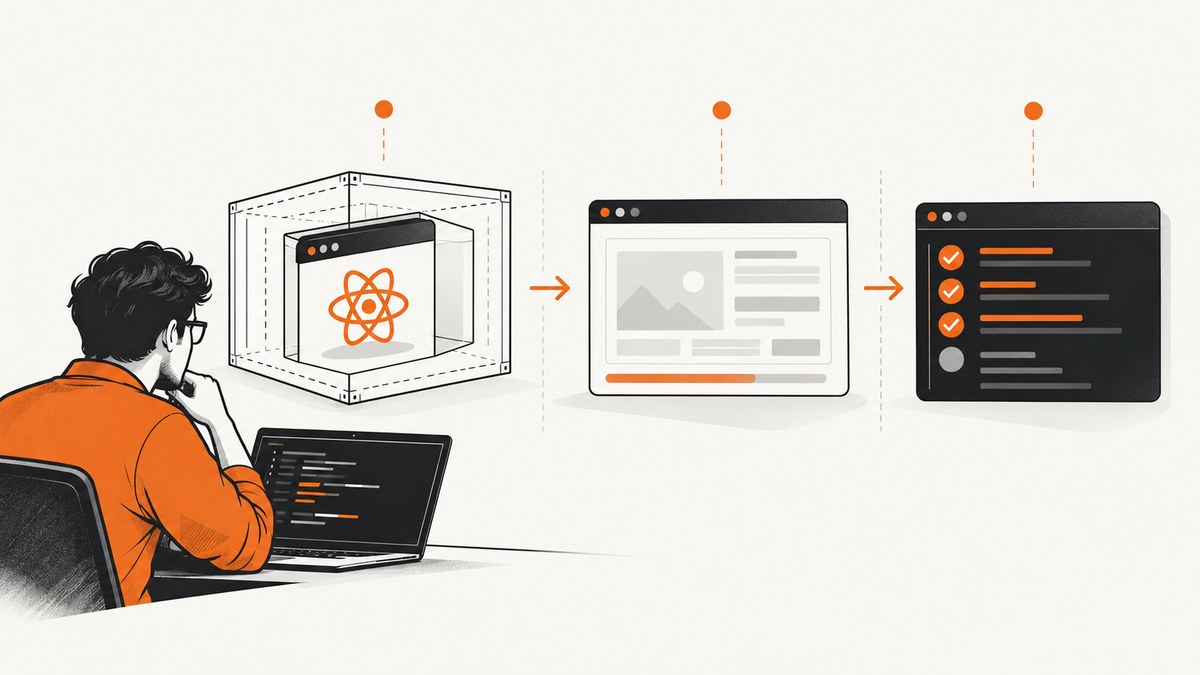
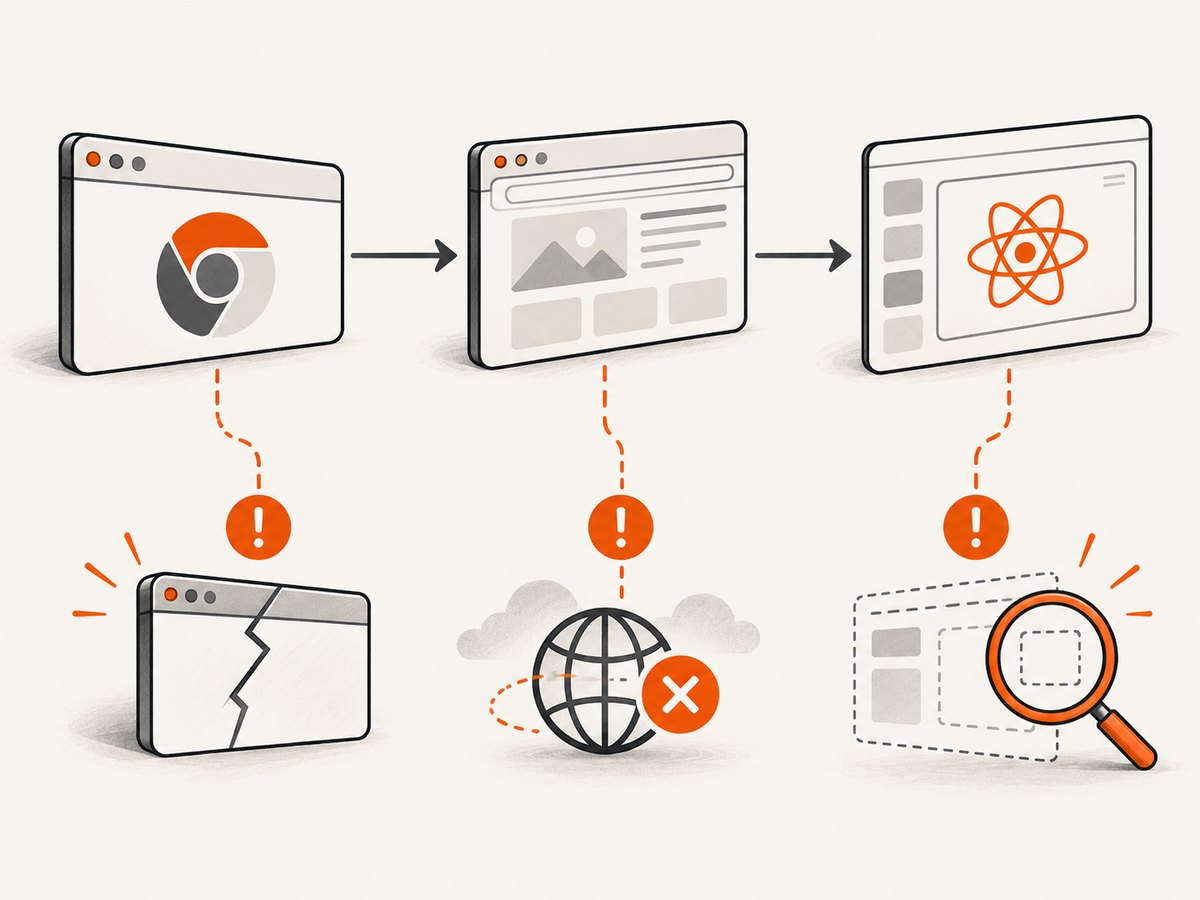
A Puppeteer test that fails only in headless mode is not automatically a React bug. First determine which layer failed: Chrome did not launch, Puppeteer could not connect, the page failed to load, the React app rendered differently, or the assertion was wrong. The fastest path to a fix is to compare the browser mode, browser version, executable, host permissions and CI resource limits before changing application code.
Puppeteer currently has two headless implementations. headless: true uses new headless Chrome and is the documented default. headless: 'shell' uses the separate chrome-headless-shell binary. The shell can be faster for automation, but it does not completely match regular Chrome. headless: false uses a visible browser and requires a display server in CI, commonly Xvfb. These differences can expose timing, API and rendering assumptions in a React test. See Puppeteer’s headless mode guide.
Start by classifying the failure
Save the complete browser stderr, Puppeteer exception, page error and assertion output. Then place the failure in one of these stages:
| Stage | Typical evidence | Likely area |
|---|---|---|
| Launch | Failed to launch the browser process, missing shared library, sandbox error |
OS image, permissions, sandbox, executable |
| Connect | Timeout while connecting to Chrome | Browser version, process limits, startup flags |
| Navigation | net::ERR_*, page timeout, blank document |
Server, network, certificates, application startup |
| Page runtime | pageerror, failed requests, console errors |
React bundle, environment variables, API dependencies |
| Assertion | Selector missing, text mismatch, screenshot difference | Waiting strategy, viewport, fonts, mode-specific behavior |
This classification prevents a React hypothesis from hiding a missing Chrome binary or an unwritable cache directory.
Build a diagnostic test with explicit settings
Use a small test that records browser and page details. The following CommonJS script is runnable with Puppeteer and works against a local React development server or a deployed URL.
const puppeteer = require('puppeteer');

(async () => {
  const browser = await puppeteer.launch({
    headless: true,
    dumpio: true,
    // Keep this unset when using Puppeteer's downloaded Chrome.
    // executablePath: process.env.CHROME_PATH,
    args: []
  });

  try {
    const page = await browser.newPage();
    page.on('console', msg => console.log('[console]', msg.type(), msg.text()));
    page.on('pageerror', error => console.error('[pageerror]', error));
    page.on('requestfailed', request => {
      console.error('[requestfailed]', request.url(), request.failure());
    });

    await page.goto(process.env.TEST_URL || 'http://127.0.0.1:3000', {
      waitUntil: 'networkidle2',
      timeout: 60000
    });

    console.log('browser', await browser.version());
    console.log('url', page.url());
    console.log('title', await page.title());
    console.log('body length', await page.evaluate(() => document.body.innerText.length));

    await page.screenshot({ path: 'headless-debug.png', fullPage: true });
  } finally {
    await browser.close();
  }
})();
dumpio: true pipes the browser process output to the parent process, which is useful for launch and sandbox diagnostics. Add it temporarily to CI logs, but avoid printing secrets that may appear in command lines or custom headers. The launch option is documented in PuppeteerNode.launch().
Verify installation and browser pairing
Puppeteer normally downloads a compatible Chrome for Testing during installation. A package manager or CI policy can block that install script, leaving the JavaScript package present but the browser absent. Restore the browser with:
npx puppeteer browsers installAlso inspect the package manager’s install-script policy and the Puppeteer cache in the same environment where tests run. A browser installed on a developer laptop does not prove that the CI image contains one.
puppeteer-core intentionally does not download Chrome. With it, provide an executable path or a channel explicitly:
const puppeteer = require('puppeteer-core');

const browser = await puppeteer.launch({
  headless: true,
  executablePath: process.env.CHROME_PATH
});
Puppeteer works best with its downloaded Chrome for Testing. Compatibility with an arbitrary system Chrome is not guaranteed, so record all of these values in a failing job:
- Puppeteer version from
npm ls puppeteer puppeteer-core - Chrome executable path or selected channel
- Chrome version from
browser.version() - The exact
headlessvalue - Node.js and operating-system versions
- Whether package install scripts ran
Keep the browser mode explicit in test configuration. Puppeteer changed the default headless implementation before version 22, so an upgrade can alter behavior even when your test code is unchanged.
Compare the three browser modes
// New headless Chrome: current default and closest headless baseline
const browser = await puppeteer.launch({ headless: true });

// Separate chrome-headless-shell binary
const shell = await puppeteer.launch({ headless: 'shell' });

// Visible Chrome; requires a display in CI
const visible = await puppeteer.launch({ headless: false });| Mode | What it means | Diagnostic use |
|---|---|---|
true |
New headless Chrome | Use as the current baseline |
'shell' |
Separate headless-shell binary; can be faster but has different fidelity | Compare when your test supports the shell’s feature set |
false |
Regular visible Chrome | Compare rendering and timing when a display server is available |
If visible mode passes and headless mode fails, capture screenshots and browser logs in both modes. Differences can come from browser implementation, viewport, fonts, GPU behavior or timing. If visible mode fails to launch in CI, configure a display server such as Xvfb; a headless test does not need one.
Check Linux, containers and sandbox policy
Chrome can fail before Puppeteer connects when the host is missing shared libraries, blocks user namespaces, applies AppArmor restrictions or provides no writable profile and cache directory. Inspect the actual runner image rather than reproducing only on a workstation.
- Run the diagnostic script with
dumpio: trueand preserve stderr. - Check that the Chrome binary’s shared-library dependencies exist in the image.
- Check sandbox and user-namespace or AppArmor diagnostics for the runner.
- Set a writable home, temporary directory and Puppeteer cache location.
- Confirm that the test user can create a browser profile and write screenshots.
Do not reflexively add --no-sandbox. Puppeteer strongly discourages removing the sandbox and limits its example to trusted content. Treat it as a security-sensitive last resort only when the environment is controlled and the risk is understood. Fix the container or runner policy when possible.
Account for CI resources and worker pressure
A container can have enough CPU to start one browser but fail when Jest launches many workers, each with its own Chrome process. Symptoms include intermittent launch timeouts, process errors, out-of-memory kills and tests that pass when run alone.
Compare worker count with the runner’s memory and process limits. Puppeteer’s troubleshooting guide gives --maxWorkers=2 as an example for a particular Jest environment:
npx jest --maxWorkers=2That value is not universal. Start with a small worker count, observe stability and increase it only when the container has measured capacity. Reuse a browser where your test isolation model permits it, and close pages and contexts in teardown.
Separate React behavior from test timing
Only after launch, browser pairing and runner capacity are healthy should you investigate React behavior. Headless failures often come from an assertion that runs before the application reaches the state being tested.
Wait for an application signal
await page.goto('http://127.0.0.1:3000', { waitUntil: 'domcontentloaded' });
await page.waitForSelector('[data-testid="dashboard"]', { timeout: 30000 });
await page.waitForFunction(() => window.__APP_READY__ === true);
await expect(page.locator('[data-testid="dashboard"]')).toBeVisible();
Use a stable selector or application-ready signal instead of a long arbitrary sleep. If the app depends on an API, wait for the response or mock that dependency consistently. Capture failed requests and console errors so a missing environment variable or rejected API call is visible.
Control viewport, timezone and media settings
await page.setViewportSize?.({ width: 1280, height: 800 });
await page.setViewport({ width: 1280, height: 800, deviceScaleFactor: 1 });
await page.emulateMediaFeatures([
  { name: 'prefers-color-scheme', value: 'light' }
]);
Use the API supported by your Puppeteer version. Set viewport and device scale explicitly, and keep timezone, locale, reduced-motion preferences and fonts consistent between local and CI runs. Responsive React layouts can legitimately render different elements at different widths.
Make navigation and assets deterministic
Verify that the server is listening on the expected interface and port inside the container. Use 127.0.0.1 when localhost name resolution differs between environments. Check HTTPS certificates, service-worker state, API hostnames and any request interception. A blank page may be a failed JavaScript bundle or API request rather than a headless rendering defect.
Common errors and fixes
| Error or symptom | Cause to investigate | Fix |
|---|---|---|
| Could not find Chrome | Install script blocked or cache absent | Run npx puppeteer browsers install; permit the install script or provide a valid executable for puppeteer-core |
| Failed to launch browser process | Missing libraries, bad executable, sandbox or permissions | Inspect stderr, dependencies, path and writable profile; repair the runner image |
| Works locally, fails in CI | Different Chrome version, environment variables, fonts, display or resources | Log versions and paths; compare modes; install required runtime packages |
| Visible mode passes, headless fails | Mode-specific rendering, timing or unsupported shell feature | Compare true, 'shell' and false; make waits and viewport explicit |
| Selector timeout | React state never reached, wrong route or request failed | Record URL, console, page errors and failed requests; wait for a real readiness signal |
| Intermittent launch or timeout | Too many Jest workers or memory pressure | Reduce workers, inspect container limits and close pages reliably |
| Blank screenshot | Bundle error, blocked asset, wrong base URL or early capture | Capture console and request failures; wait for the target selector or app-ready marker |
Or skip the browser setup
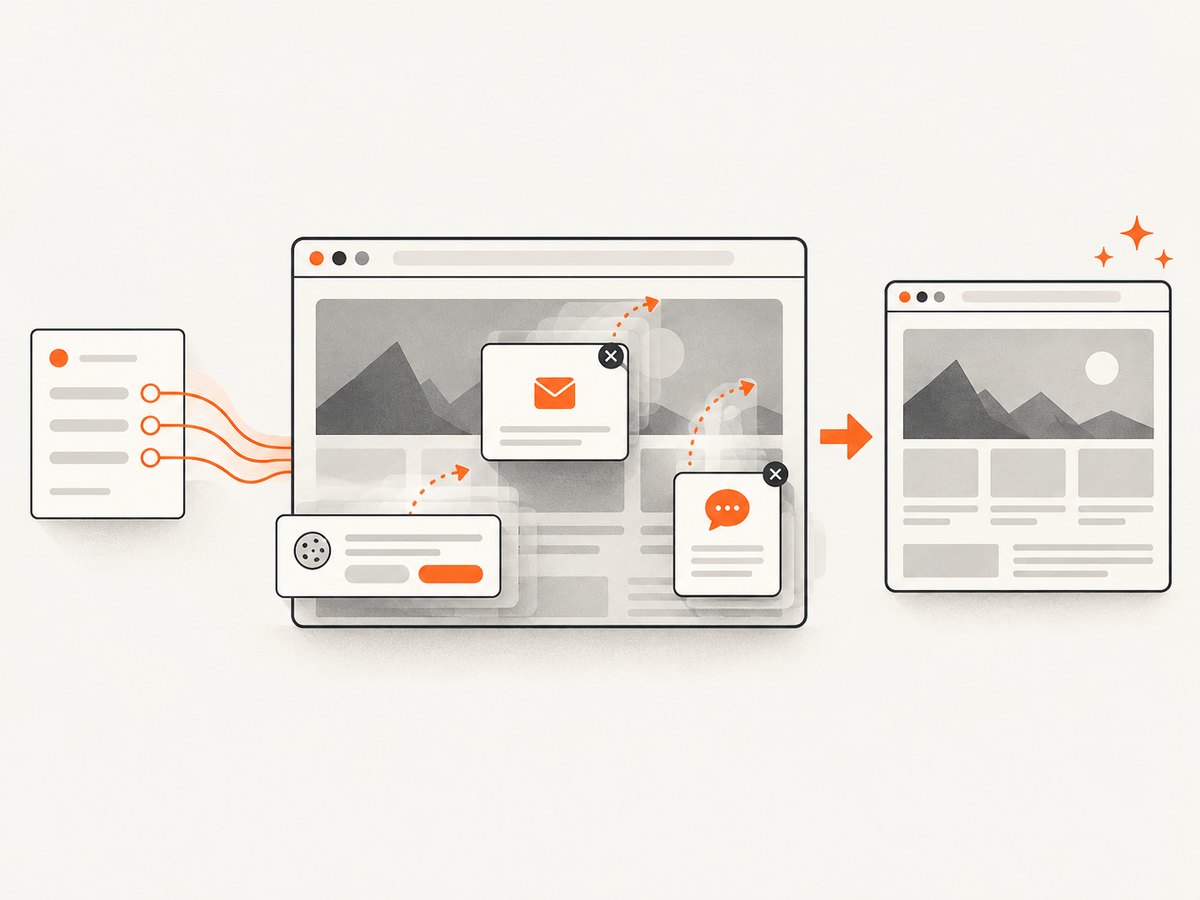
For a stable screenshot of a URL, ScreenshotNeo provides a hosted capture API and MCP server. It accepts consent banners before capture and removes more than 60 known consent platforms, newsletter popups and chat widgets; each step can be disabled. Bot checks, blank pages, timeouts, failed loads and cache hits are not billed, and the response reports the result through X-Page-Verdict and X-Billed headers.
Use the same request from a shell, Python or Node.js job. The ScreenshotNeo API documentation lists all options.
curl -G "https://api.screenshotneo.com/v1/shot" \
  -d access_key=YOUR_API_KEY \
  --data-urlencode url=https://stripe.com \
  -o shot.webp
import requests
r = requests.get(
"https://api.screenshotneo.com/v1/shot",
params={"access_key": "YOUR_API_KEY", "url": "https://stripe.com"},
timeout=90,
)
r.raise_for_status()
open("shot.webp", "wb").write(r.content)const q = new URLSearchParams({ access_key: 'YOUR_API_KEY', url: 'https://stripe.com' });
const res = await fetch(`https://api.screenshotneo.com/v1/shot?${q}`);
if (!res.ok) throw new Error(`Screenshot failed: ${res.status}`);
const buffer = Buffer.from(await res.arrayBuffer());
require('fs').writeFileSync('shot.webp', buffer);ScreenshotNeo also supports full-page capture with lazy images loaded, CSS-element capture, dark mode, 12 device presets or custom viewports, retina scale, PDF output, custom CSS and JavaScript, clicks, selector waits, delays, network-idle waits, request and resource blocking, headers, cookies, user agents, authorization, timezone, geolocation, transparent backgrounds, resizing, configurable caching, signed links, asynchronous jobs with signed webhooks, bulk capture for up to 100 URLs per call, a usage API and an OpenAPI specification. Parameter names used by other screenshot APIs also work, which can simplify migration.
An MCP server provides take_screenshot, get_page_info and capture_pdf tools for Claude, Cursor and other MCP clients. The free plan includes 1,000 shots per month without a card; paid plans start at $5 for 3,000 shots. Create a free ScreenshotNeo account.
Performance, reliability and cost considerations
- Browser startup: launching Chrome per test is slower and consumes more memory than reusing a browser process. Balance reuse against isolation and cleanup requirements.
- Waiting: network-idle waits can be slow on pages with analytics or long polling. Prefer a specific readiness selector when possible.
- Headless shell: compare its speed with your required Chrome features; a faster binary is not useful if behavior differs from production.
- CI stability: keep worker counts within measured memory and process limits, and preserve diagnostic artifacts only on failure.
- Screenshot costs: a self-hosted Puppeteer run consumes runner time and maintenance. ScreenshotNeo bills only clean shots; failed loads, bot checks, blank pages, timeouts and cache hits are free according to the returned verdict headers.
- Cache strategy: deterministic pages can use a chosen cache TTL. Disable or shorten caching when validating rapidly changing content.
A practical debugging checklist
- Copy the exact exception, stderr, page errors and failed assertion.
- Decide whether Chrome failed before connection, navigation failed, React failed at runtime or the assertion ran too early.
- Log Puppeteer, Chrome, Node.js, operating-system and package-manager versions.
- Make
headless, executable path or channel, viewport and timeouts explicit. - Install the expected browser or configure
puppeteer-corewith a verified executable. - Check shared libraries, sandbox policy, AppArmor and writable cache/profile directories.
- Compare
true,'shell'andfalsewhere the runner supports a display. - Reduce CI workers and inspect memory and process limits if failures are intermittent.
- Wait for application state with selectors, responses or readiness markers.
- Only then investigate a React-specific rendering or hydration hypothesis.
FAQ
Is headless Chrome a different browser?
It is Chrome running without a visible window, but Puppeteer’s current modes matter: new headless Chrome, the separate headless-shell binary and regular visible Chrome can behave differently.
Should I always use headless: 'shell' for speed?
No. Use it only when its supported feature set and behavior match the test. Compare it with new headless Chrome before changing a project-wide default.
Does React require special Puppeteer flags?
There is no general React flag established by the cited Puppeteer guidance. First verify browser installation, environment, timing and application requests for the specific test.
Why does adding a delay sometimes fix the test?
A delay can hide a race, but it does not identify the required state. Replace it with a selector, response wait or explicit application-ready signal once you know what the test needs.
When should I use a hosted screenshot API?
Use one when you need repeatable URL captures without maintaining Chrome binaries, container libraries, sandbox policy and worker capacity. ScreenshotNeo adds consent and popup cleanup, verdict headers and an MCP server for AI agents.


