Why Puppeteer’s page.evaluate Behaves Differently from the DevTools Console
Puppeteer and DevTools run JavaScript in different contexts and handle results differently. Learn why console snippets fail in page.evaluate and how to debug them.
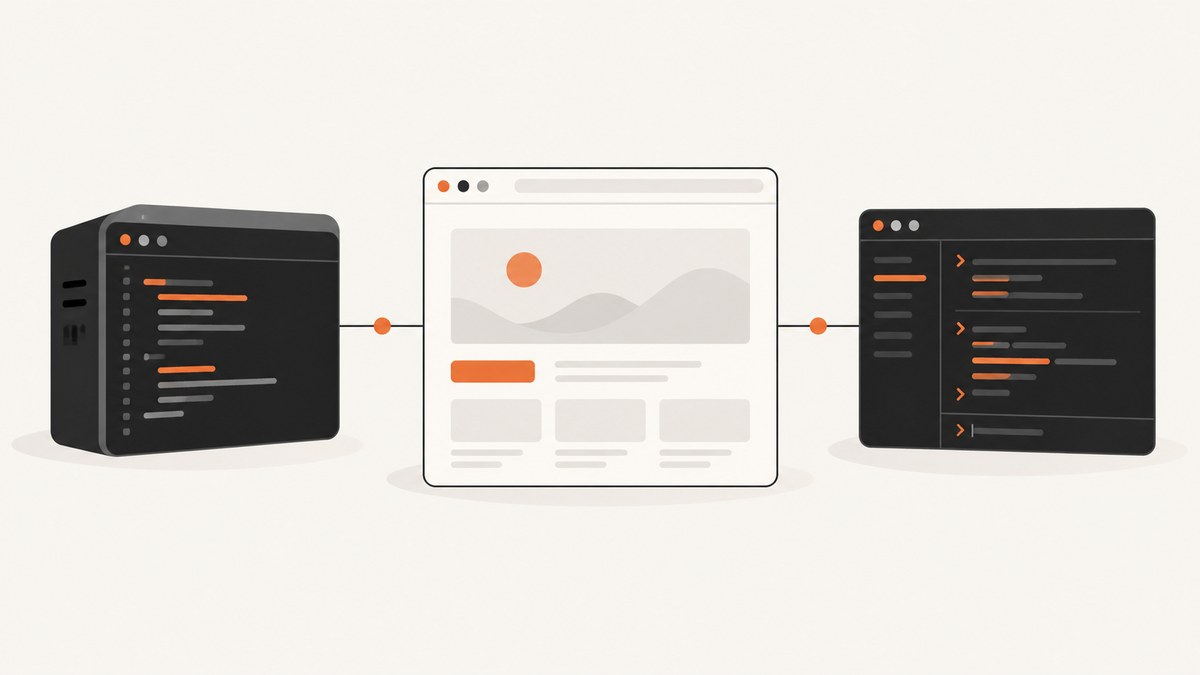
page.evaluate runs a function in a browser page or frame, then transfers its result back to your Node.js program. The DevTools Console is an interactive REPL with its own helper names, selected-element state, and live object inspector. Those differences explain most cases where the same-looking code works in DevTools but fails, returns an unexpected value, or sees a different element in Puppeteer.
For reliable automation, make the execution frame explicit, use standard page APIs instead of DevTools-only helpers, await asynchronous work, and return small serializable values. Use evaluateHandle or an ElementHandle when you need to retain a live browser object. See the Puppeteer evaluate API and Chrome’s Console guide.
1. The short answer: these are different JavaScript hosts
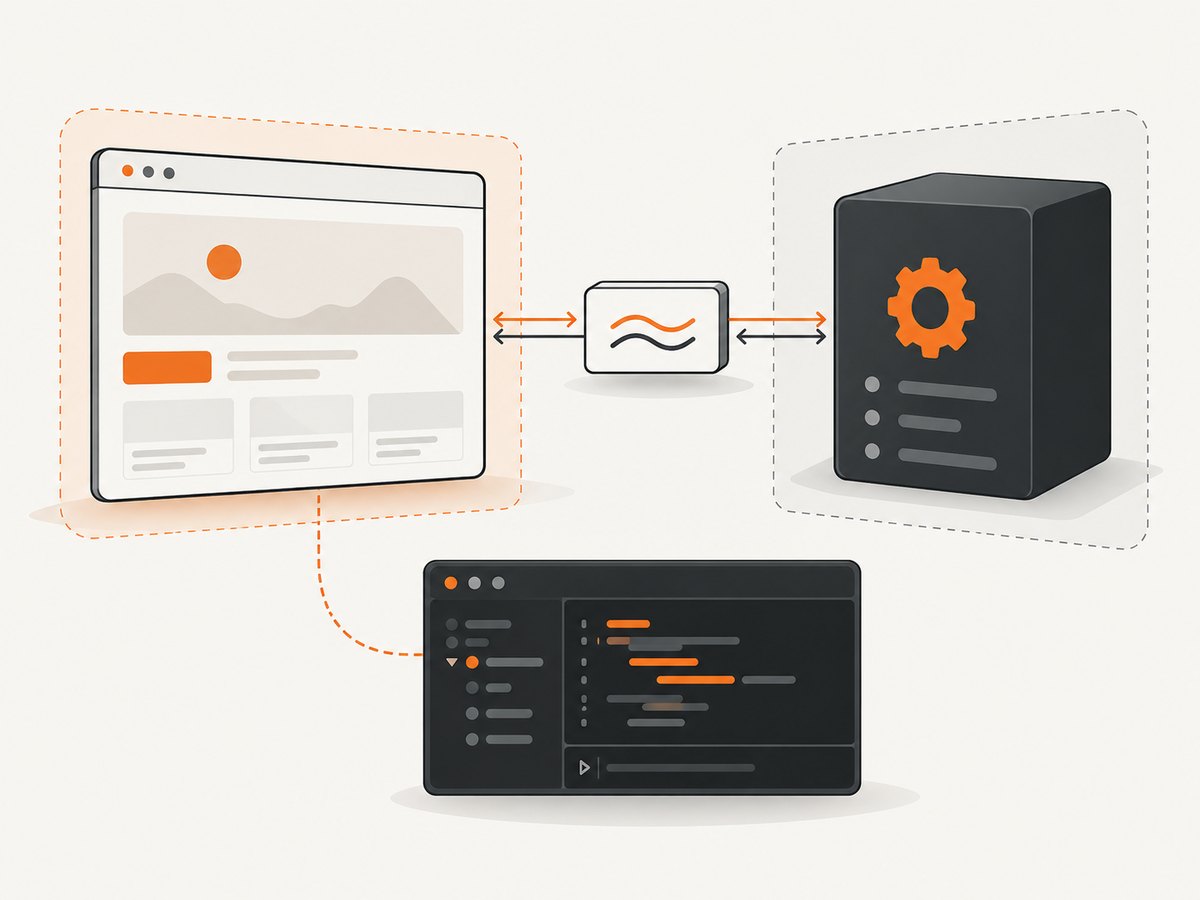
Both tools can execute JavaScript against a page, but they do not provide identical environments. page.evaluate sends a function into a page execution context and returns a value through the browser automation protocol. DevTools’ Console is a read-evaluate-print-loop (REPL): it evaluates commands interactively, remembers console state, and presents objects through an inspector.
| What differs | Puppeteer page.evaluate |
DevTools Console |
|---|---|---|
| Execution host | Function runs in the selected page or frame context. | Command runs in the inspected context selected by DevTools. |
| Convenience names | Page globals and standard browser APIs. | Page globals plus Console Utilities and retained console state. |
| Result | Value is transferred back to Node; ordinary values must serialize. | Inspector can display live browser objects. |
| Timing | Runs in the automation script’s sequence; your code must wait deliberately. | Runs interactively, possibly while the debugger is paused. |
The practical rule: if a snippet depends on something you clicked, typed, or ran earlier in DevTools, recreate that state explicitly in Puppeteer. If you need a value in Node, return data rather than a live DOM object.
2. Why $0, $, and $_ fail
Names such as $0 through $4, $(), $$(), $_, inspect(), and keys() are DevTools Console Utilities. Chrome documents that these functions only work when called from the DevTools Console. They are injected for the console and are not ordinary globals defined by the page, so Puppeteer can report ReferenceError: $0 is not defined.
Replace them with browser APIs or pass the element as an argument:
const text = await page.evaluate(() => {
  const element = document.querySelector('.product-title');
  return element?.textContent?.trim() ?? null;
});
For a specific element you selected in automation, query it with Puppeteer and pass its handle into the evaluation:
const title = await page.$('.product-title');
if (!title) throw new Error('Product title was not found');
const text = await page.evaluate(el => el.textContent?.trim() ?? null, title);
await title.dispose();
This is the direct replacement for relying on DevTools’ “currently selected element.” Puppeteer has no implicit equivalent of the Console’s $0; identify the element by selector or explicitly pass a handle.
3. Frame and execution-context mismatches
A page may contain multiple frames, each with its own document and JavaScript context. DevTools evaluates against its selected inspected context; Puppeteer evaluates against the page or frame object on which you call evaluate. If the element is inside an iframe, querying the main frame’s document will not find it.
List frames, inspect their URLs, and evaluate against the intended frame:
for (const frame of page.frames()) {
  console.log({ url: frame.url(), name: frame.name() });
}

const checkout = page.frames().find(frame =>
  frame.url().startsWith('https://checkout.example.com/')
);
if (!checkout) throw new Error('Checkout frame not found');
const heading = await checkout.evaluate(() =>
  document.querySelector('h1')?.textContent?.trim() ?? null
);
Prefer a stable frame URL or name over assuming the second frame is always the one you need. Frames can be added, navigated, or removed as the page changes. If a frame navigates between locating it and evaluating, reacquire the current frame and retry only when the operation is safe to repeat.
Chrome’s DevTools Protocol supports multiple execution contexts and allows a client to select a context ID. That capability helps explain why “the context” is not necessarily a single global environment. For extension-specific inspected-window evaluation, Chrome says the code uses the inspected page context rather than an isolated world and can access the inspected window’s JavaScript state; this is distinct from ordinary Puppeteer page evaluation.
4. Why DevTools shows an element but Node gets {} or an error
The Console inspector can show a live DOM node and let you expand its properties on demand. page.evaluate must send its return value across the protocol to Node. A DOM element is not a plain JSON value, and objects such as Map, Set, functions, cyclic objects, and many browser objects do not turn into useful JSON-shaped values automatically.
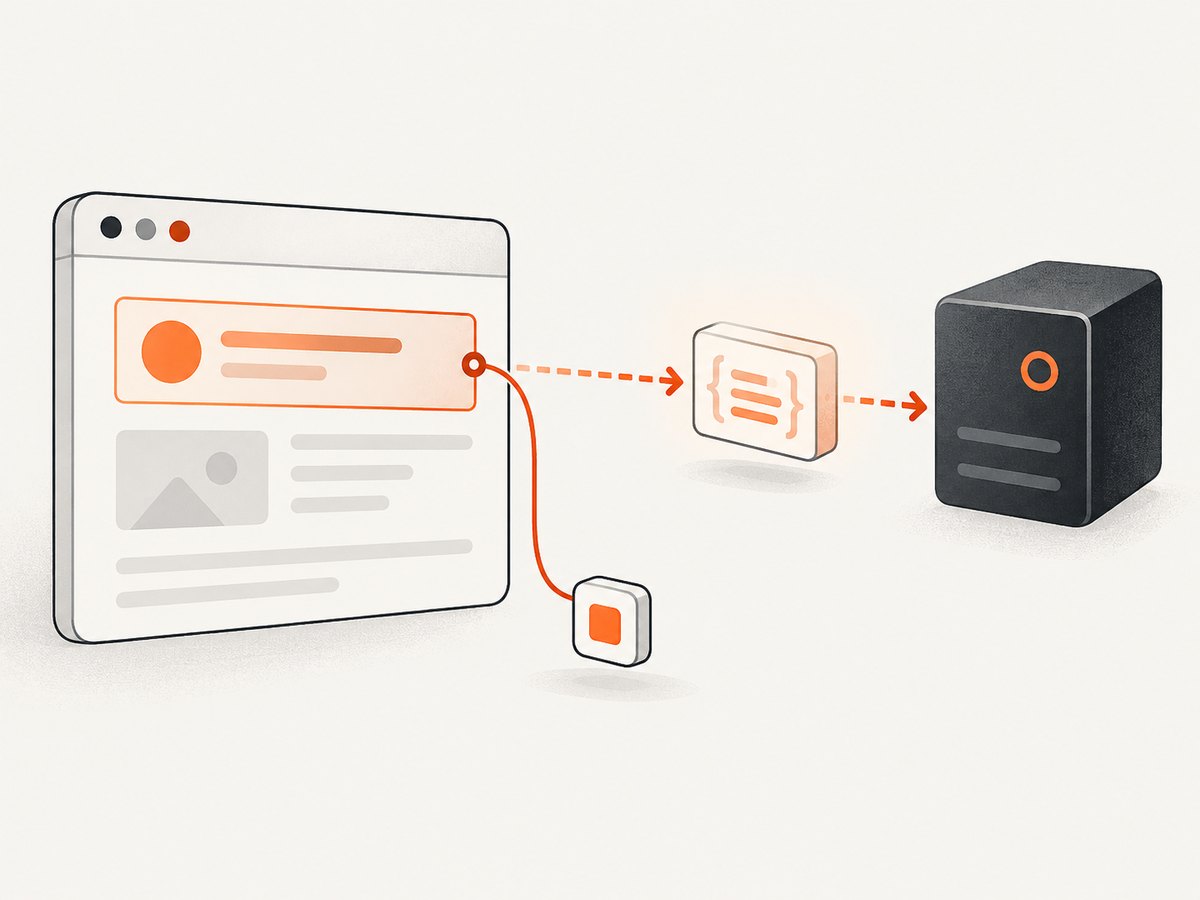
Project the fields you actually need into plain data:
const item = await page.evaluate(() => {
  const el = document.querySelector('.result a');
  if (!el) return null;
  return {
    text: el.textContent?.trim() ?? '',
    href: el.href,
    title: el.getAttribute('title')
  };
});
console.log(item);
This pattern is easier to log, test, persist, and pass to later Node code. Keep the result limited to strings, numbers, booleans, null, arrays, and objects containing those values.
If the next browser-side step requires the actual live object, retain a handle instead:
const handle = await page.evaluateHandle(() =>
  document.querySelector('.result a')
);
try {
  const href = await handle.evaluate(el => el?.href ?? null);
  console.log(href);
} finally {
  await handle.dispose();
}
Puppeteer’s evaluateHandle API returns a handle to an in-page object. Use an ElementHandle when you need element-specific browser operations; dispose handles when finished so browser-side references do not accumulate.
5. Timing, promises, and debugger state
page.evaluate waits for a Promise returned by the page function, but it does not guess which page condition your application considers “ready.” A script can run before a late-rendered element appears, or evaluate while navigation is still in progress if the surrounding automation has not awaited the navigation. The Console can be run after you have manually waited, or while execution is paused, making the same expression appear to behave differently.
Wait for a meaningful condition, then evaluate:
await page.goto('https://example.com/products', {
  waitUntil: 'domcontentloaded'
});
await page.waitForSelector('.product-title', { visible: true });
const title = await page.evaluate(() =>
  document.querySelector('.product-title')?.textContent?.trim() ?? null
);
console.log(title);
For asynchronous work inside the page, return or await the Promise:
const state = await page.evaluate(async () => {
  await new Promise(resolve => setTimeout(resolve, 250));
  return { ready: document.readyState, url: location.href };
});
A fixed delay can be useful for a known animation or short debounce, but it is usually less reliable than waiting for a selector or application state that expresses readiness. Keep the wait bounded and fail with context if the condition does not occur.
During debugging, compare the exact expression, frame, and moment of execution. DevTools may retain values from earlier commands; page state may have changed; and a paused debugger can affect what you observe. Puppeteer’s debugging guide describes launching with devtools: true for browser debugging. It also notes a Chromium limitation: page.click() cannot be run directly in the DevTools Console, so keep Puppeteer automation commands in the Node script.
6. Complete runnable example: inspect a page with Puppeteer
Install Puppeteer in a Node.js project with npm install puppeteer. The following CommonJS example navigates, waits for a heading, and returns a plain object. Puppeteer manages a compatible browser installation as part of its package workflow; follow the official installation guide for platform-specific setup.
const puppeteer = require('puppeteer');

(async () => {
  const browser = await puppeteer.launch({ headless: true });
  try {
    const page = await browser.newPage();
    await page.goto('https://example.com', { waitUntil: 'domcontentloaded' });
    await page.waitForSelector('h1', { timeout: 10000 });

    const result = await page.evaluate(() => {
      const heading = document.querySelector('h1');
      return {
        url: location.href,
        title: document.title,
        heading: heading?.textContent?.trim() ?? null
      };
    });
    console.log(result);
  } finally {
    await browser.close();
  }
})().catch(error => {
  console.error(error);
  process.exitCode = 1;
});
For an ES module project, use import puppeteer from 'puppeteer'; and retain the same async flow. In production, place browser cleanup in a finally block as above. If your program reuses a browser across jobs, close each page and handle job failures without leaving tabs or browser processes behind.
7. Troubleshooting common failures
| Symptom | Likely cause | Fix |
|---|---|---|
$0 is not defined or $ is not defined |
DevTools-only Console Utility used in page context. | Use document.querySelector, or pass a Puppeteer element handle as an argument. |
document.querySelector returns null |
Wrong frame, selector mismatch, element not rendered yet, or page navigated. | Log page.url() and frame URLs, wait for the selector, then evaluate against the intended frame. |
| Returned DOM node is empty, odd, or unusable in Node | Live browser object crossed a serialization boundary. | Return a plain object of required fields, or use evaluateHandle/ElementHandle. |
| Promise result is missing or stale | Page function did not return/await asynchronous work, or the script read before the application was ready. | Make the page function async, await its work, and wait for a specific readiness condition outside it. |
| Evaluation fails after navigation | The execution context was destroyed when its frame navigated or detached. | Wait for navigation and reacquire the frame/element after it completes; only retry idempotent reads. |
| Selector works in Console but not in Puppeteer | Console selected a different frame or earlier page state. | Check the DevTools frame selector and compare it with page.frames(); reproduce in a clean page. |
| Handle operations fail after use | The referenced frame navigated, detached, or the handle was disposed. | Reacquire a fresh handle after navigation and avoid using it after dispose(). |
| Evaluation hangs or times out | Page code never resolves, execution context is blocked, or the requested condition never appears. | Bound waits, simplify the page function, wait on an explicit condition, and capture the current URL/frame in error logs. |
8. A repeatable debugging checklist
- Log
page.url(), the selector, and eachframe.url()immediately before evaluation. - Remove DevTools helpers such as
$0,$(), and$_; use standard DOM APIs instead. - Wait for the relevant navigation or DOM condition before evaluating.
- Return a small plain-data projection. Use a handle only when later browser-side interaction needs a live object.
- Compare the same expression in the same frame and at the same point in page lifecycle.
- Reproduce on a fresh page to detect state left behind by prior console commands.
- Dispose of handles and close pages/browser processes when work completes.
9. Performance, reliability, and cost
page.evaluate is appropriate when your workflow already controls a browser and needs custom page logic. Keep evaluations small: extract the fields needed in one browser-side pass rather than making many round trips for individual properties. Avoid returning a whole DOM subtree or large application object when a compact projection will do.
Reliability comes from explicit conditions and context. Prefer a selector, URL, or known page-state predicate over arbitrary sleeps; record frame and URL details in failures; and treat navigation as a boundary after which old handles may no longer be valid. Retries can help with transient navigation or load failures, but only retry operations that are safe to repeat.
Cost depends on the environment where you run Chromium, how long each browser job occupies resources, and how much browser infrastructure you maintain. Puppeteer itself is an automation library; it does not provide a hosted screenshot API price. If your task is only to obtain a screenshot, operating browser setup, page waits, cookie dialogs, and output handling may be more work than the capture itself.
10. Or skip the browser setup
ScreenshotNeo is a website screenshot API and MCP server. Make one GET request with a URL and receive a PNG, JPEG, WebP, or PDF. It can accept cookie banners and remove more than 60 known consent platforms, newsletter popups, and chat widgets before capture; each of those steps can be turned off. Bot checks and CAPTCHAs, blank pages, timeouts, failed loads, and cache hits cost nothing, and response headers report the page verdict and billing status. Its MCP server provides take_screenshot, get_page_info, and capture_pdf for Claude, Cursor, or any MCP client.
Here is the one-call cURL example; replace the URL and API key as needed. See the ScreenshotNeo API documentation for request options and details.
curl -G "https://api.screenshotneo.com/v1/shot" -d access_key=YOUR_API_KEY --data-urlencode url=https://stripe.com -o shot.webpEquivalent Python and Node.js calls:
import requests

r = requests.get(
    "https://api.screenshotneo.com/v1/shot",
    params={"access_key": "YOUR_API_KEY", "url": "https://stripe.com"},
    timeout=90,
)
open("shot.webp", "wb").write(r.content)
const q = new URLSearchParams({ access_key: 'YOUR_API_KEY', url: 'https://stripe.com' });
const res = await fetch(`https://api.screenshotneo.com/v1/shot?${q}`);
if (!res.ok) throw new Error(`Screenshot request failed: ${res.status}`);
await Bun.write('shot.webp', res);ScreenshotNeo also supports full-page capture with lazy images loaded, CSS-selector element capture, dark mode, 12 device presets or custom viewport, retina scale, PDF paper size/margins/orientation/page ranges, HTML/CSS capture, custom CSS and JavaScript, clicking before capture, hiding selectors, waits, request/resource blocking, headers, cookies, user agent and Authorization, timezone and geolocation, transparency, resizing, cache TTL, signed public image links, async jobs with signed webhooks, bulk capture for 100 URLs per call, a usage API, and an OpenAPI spec. Parameter names used by other screenshot APIs also work to make switching easier.
There are 1,000 screenshots per month free with no card. Paid plans start at $5 for 3,000; Growth is $15 for 15,000, Pro $39 for 60,000, Scale $99 for 250,000, and Business $249 for 1,000,000. Yearly billing gives two months free, and every feature is on every plan. Sign up for 1,000 free screenshots a month, with no card required.
11. FAQ
Does page.evaluate run in Node.js?
No. The supplied function runs in the browser’s page or frame context. The returned value becomes available to your Node.js code after Puppeteer transfers it back.
Can page code access variables I declared in the Node script?
Not automatically. Pass serializable values as arguments to the evaluation function. Keep browser-side logic inside the function and Node-side orchestration outside it.
Should I use evaluate or evaluateHandle?
Use evaluate when you need a serializable result. Use evaluateHandle when you need to keep a reference to an object in the page for further browser-side operations.
Is DevTools Console a reliable place to validate an automation snippet?
It is useful for exploring page behavior, but it does not reproduce Puppeteer’s host, frame choice, timing, or result transfer by itself. Validate the final expression through the same Puppeteer call and frame that production will use.


