Why Puppeteer PDFs and Images Look Different in Python
Learn why Puppeteer screenshots, PDFs, and Python rasters differ, then align media, layout, fonts, color, DPI, and resampling.
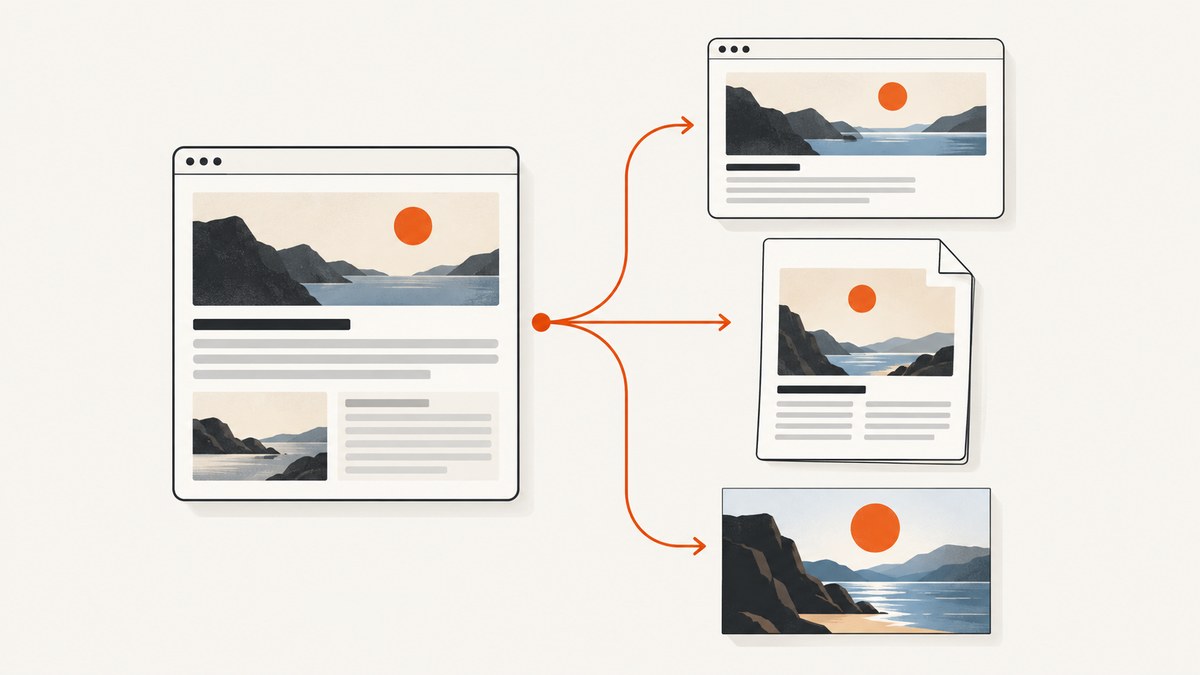
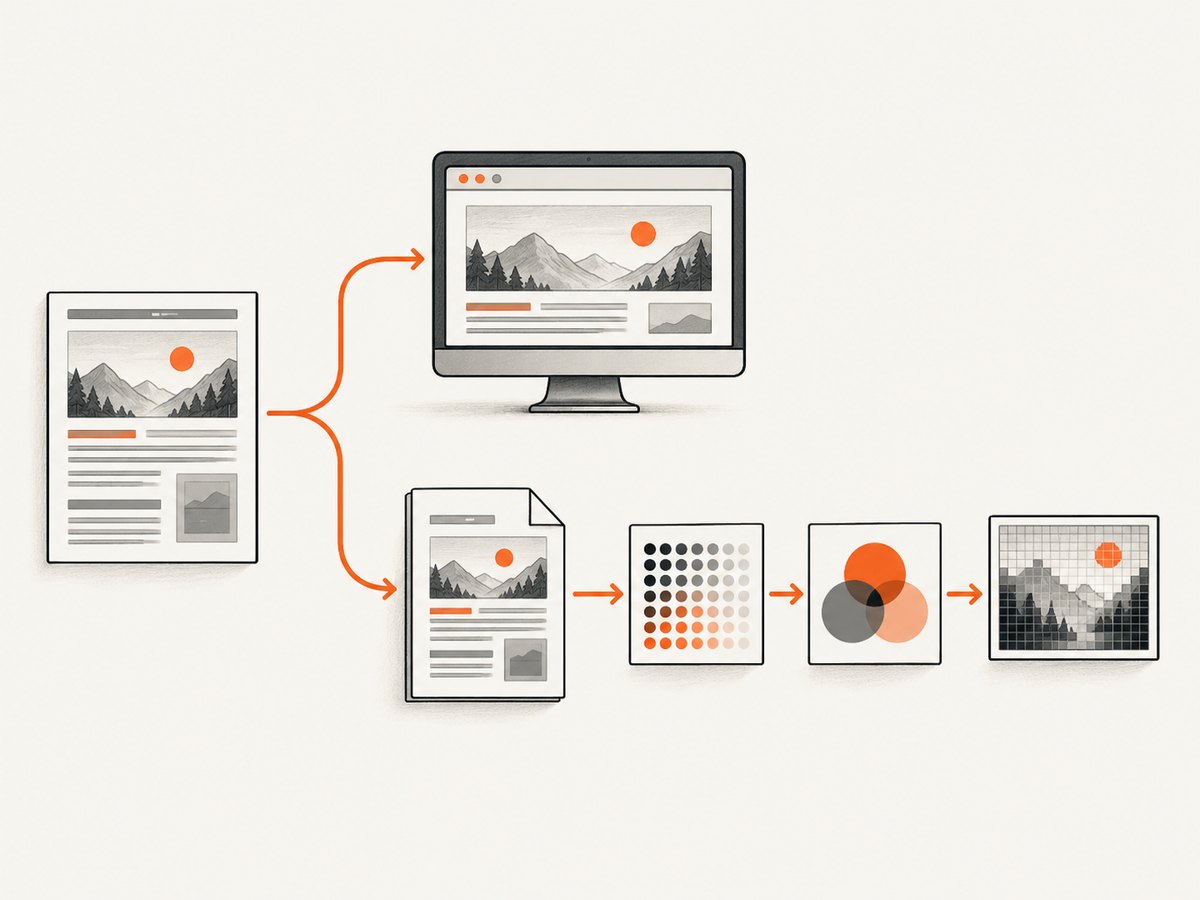
Short answer: Puppeteer screenshots and PDFs are produced by different rendering operations. page.screenshot() captures the browser’s screen rendering, while page.pdf() uses print CSS media by default and applies print color behavior. If Python then rasterizes that PDF, PyMuPDF adds its own DPI, colorspace, alpha, clipping, annotation, rotation, and crop settings. A later Pillow resize adds another resampling decision. Compare the pipeline stage by stage instead of treating “Python” as the cause.
This guide explains how to make the outputs match, how to identify the exact stage where they diverge, and how to build a repeatable screenshot or PDF workflow.
1. Identify the artifacts before changing code
Write down what each file actually represents:
- A browser screenshot generated with Puppeteer.
- A PDF generated by Puppeteer.
- An image generated directly by a browser.
- A PDF page rasterized in Python.
- A raster that was resized, composited, or converted after rasterization.
A screenshot and a print-layout PDF are expected to differ when the page has print-specific CSS, print margins, hidden backgrounds, or print color adjustment. A Python image made from that PDF can differ again because PDF coordinates and pixels are not the same representation.
Keep the original PDF and the first Python raster. Do not diagnose a resized or recompressed derivative before comparing those two files.
2. Align Puppeteer’s media mode
Page.pdf() generates a PDF with the print CSS media type by default. The official method is documented in the Puppeteer Page.pdf() API. A screenshot normally reflects screen media. If you want a screen-style PDF, select screen media before creating it.
import puppeteer from 'puppeteer';

const browser = await puppeteer.launch();
const page = await browser.newPage();
await page.setViewport({ width: 1440, height: 900, deviceScaleFactor: 1 });
await page.goto('https://example.com', { waitUntil: 'networkidle0' });

// Make PDF CSS match the screen rendering.
await page.emulateMediaType('screen');
await page.pdf({
  path: 'screen-style.pdf',
  format: 'A4',
  printBackground: true,
  preferCSSPageSize: true,
  scale: 1
});

await page.screenshot({
  path: 'screen.png',
  fullPage: true,
  type: 'png'
});

await browser.close();
Without emulateMediaType('screen'), rules such as @media print can hide navigation, change colors, remove decorative elements, or alter layout. If the PDF is intended for printing, keep print media and make the screenshot comparison against a print-style rendering instead.
3. Control PDF geometry and backgrounds
Puppeteer’s PDF options are independent controls. A mismatch can remain even after media is aligned.
| Option or CSS | What it changes | What to check |
|---|---|---|
format |
Paper dimensions such as Letter or A4 | Use the same physical page size every run. |
width, height |
Explicit PDF page dimensions | Do not combine accidental dimensions with a CSS page size. |
margin |
Printable whitespace around content | Set all four margins explicitly when comparing geometry. |
preferCSSPageSize |
Whether CSS @page size wins |
Check @page { size: ... } and this option together. |
scale |
PDF content scaling | Keep it at a known value, usually 1. |
printBackground |
Whether background graphics are included | Enable it when the screenshot contains colored sections or images. |
The documented Puppeteer defaults include Letter paper, preferCSSPageSize: false, printBackground: false, and scale: 1. See the PDFOptions reference. A missing background is therefore often a configuration difference, not a Python color bug.
await page.pdf({
  path: 'controlled.pdf',
  width: '1440px',
  height: '900px',
  margin: { top: '0px', right: '0px', bottom: '0px', left: '0px' },
  printBackground: true,
  preferCSSPageSize: false,
  scale: 1,
  displayHeaderFooter: false
});
For a document whose CSS owns pagination, use an explicit stylesheet and preferCSSPageSize: true:
@page {
  size: A4;
  margin: 12mm;
}

@media print {
  .screen-only { display: none; }
}
4. Make colors comparable
By default, Puppeteer modifies PDF colors for printing. The PDF may therefore look lighter, darker, or less saturated than a screenshot even when the layout is identical. The Puppeteer documentation points to -webkit-print-color-adjust when exact colors are required.
* {
  -webkit-print-color-adjust: exact;
  print-color-adjust: exact;
}
This declaration controls color adjustment. It does not turn on background graphics; keep printBackground: true in the PDF options as a separate setting. Compare files in the same color-managed viewer and avoid judging a PDF screenshot taken by a different application.
5. Wait for fonts and other runtime content
Font timing changes line breaks, element heights, and therefore every pixel below a changed line. Puppeteer PDF generation waits for fonts by default; the documented waitForFonts behavior waits for document.fonts.ready. Make font readiness explicit in your capture script and verify that the same browser build and installed fonts are used in every environment.
await page.goto('https://example.com', { waitUntil: 'networkidle0' });
await page.evaluate(async () => {
  await document.fonts.ready;
});

// Optional guard for a known web font.
await page.evaluate(async () => {
  await document.fonts.load('600 16px "Inter"');
});
Also wait for images that use lazy loading, animation, or client-side data. Freeze animation before capture when deterministic pixels matter:
await page.addStyleTag({ content: `
  *, *::before, *::after {
    animation: none !important;
    transition: none !important;
    caret-color: transparent !important;
  }
`});
6. Align screenshot capture options
A screenshot has its own controls. The ScreenshotOptions reference documents full-page capture, clipping, image type, quality, and transparency.
await page.screenshot({
  path: 'reference.webp',
  type: 'webp',
  quality: 90,
  fullPage: false,
  clip: { x: 0, y: 0, width: 1200, height: 800 },
  omitBackground: false
});
Do not compare a viewport screenshot with a full-page PDF, or a clipped region with an entire PDF page. Record viewport width and height, device scale factor, scroll position, clip rectangle, image format, and quality. A retina screenshot can have twice as many pixels as a CSS-sized raster while showing the same layout.
7. Rasterize the PDF in Python with explicit settings
First determine whether Python is rendering HTML in a browser or rasterizing an existing PDF. For an existing PDF, PyMuPDF’s Page.get_pixmap() controls DPI or matrix scaling, colorspace, clipping, alpha, annotations, page rotation, and crop behavior. Its documented defaults include RGB output and alpha=False.
import fitz  # PyMuPDF

pdf = fitz.open('controlled.pdf')
page = pdf[0]

pix = page.get_pixmap(
    dpi=144,
    colorspace=fitz.csRGB,
    alpha=False,
    annots=True
)
pix.save('page-rgb-144dpi.png')
pdf.close()
DPI changes pixel dimensions. For example, rendering at 144 DPI instead of 72 DPI produces a larger raster, not a sharper version of the same fixed-size bitmap in every downstream comparison. Use a matrix when you need a precise scale:
import fitz

pdf = fitz.open('controlled.pdf')
page = pdf[0]
matrix = fitz.Matrix(2, 2)
pix = page.get_pixmap(matrix=matrix, colorspace=fitz.csRGB, alpha=False)
pix.save('page-2x.png')
pdf.close()
Alpha is another visible difference. With alpha disabled, transparent empty areas are cleared to white. With alpha enabled, those areas remain transparent. Match the screenshot’s background and the PDF raster’s alpha policy before comparing edge pixels. Also check whether annotations should be included and whether the page’s CropBox or rotation changes the visible bounds.
8. Keep Pillow resizing deterministic
If the Python raster is resized after PyMuPDF, the Pillow filter changes pixels. Nearest, bilinear, bicubic, and Lanczos are not interchangeable. Pillow describes Lanczos as a high-quality filter with a higher performance cost than faster choices; its concepts documentation explains the filter differences.
from PIL import Image

image = Image.open('page-rgb-144dpi.png')
image = image.resize((1200, 1600), resample=Image.Resampling.LANCZOS)
image.save('page-final.png', format='PNG')
For a fair comparison, use the same target dimensions, filter, image mode, and output format every time. Avoid comparing a JPEG screenshot with a PNG raster when compression artifacts are part of what you see.
9. A reproducible end-to-end comparison
- Capture the page once with a recorded URL, browser version, viewport, device scale factor, and timestamp.
- Wait for network idle, fonts, lazy images, and required application data.
- Generate a screenshot and PDF from the same page instance.
- Set media type, page size, margins, scale, backgrounds, and color adjustment explicitly.
- Rasterize the original PDF with explicit DPI, RGB colorspace, alpha, clipping, rotation, and annotation settings.
- Resize only after saving the first raster, using a fixed Pillow filter.
- Compare geometry first, then fonts, colors, transparency, and compression.
A useful diagnostic record is a JSON sidecar containing all of those settings. It turns a visual complaint into a reproducible input set.
10. Troubleshooting common mismatches
| Symptom | Likely cause | Fix |
|---|---|---|
| PDF hides elements visible in the screenshot | Print media rules | Call page.emulateMediaType('screen'), or compare against an intentional print render. |
| Colors look washed out | Print color adjustment | Use -webkit-print-color-adjust: exact and compare in a consistent viewer. |
| Colored sections are white | PDF backgrounds disabled | Set printBackground: true. |
| Content shifts at page boundaries | Paper size, margins, scale, or @page |
Set dimensions explicitly and decide whether CSS or Puppeteer owns page size. |
| Text wraps differently | Fonts not ready or different installed fonts | Await document.fonts.ready and standardize the runtime. |
| Python image has a white box | Alpha disabled or background compositing | Match alpha and composite against the same background. |
| Raster is the wrong size | DPI, matrix, clip, or CropBox difference | Log PyMuPDF geometry and use one explicit scaling method. |
| Edges look soft or jagged | Pillow resampling or JPEG compression | Use a fixed filter and lossless PNG while diagnosing. |
| Only some runs differ | Animation, lazy loading, ads, or network timing | Disable motion, wait for content, and stabilize external requests. |
11. Performance, reliability, and cost considerations
Browser startup, page navigation, font loading, JavaScript execution, PDF generation, and rasterization are separate cost centers. Reuse a browser process when safe, but isolate pages and close them after each job. Set navigation and capture timeouts. Keep output dimensions bounded: very tall full-page screenshots consume memory, and high-DPI PDF rasters multiply pixel count.
For reliable comparisons, pin the browser and Python library versions, install the same fonts, use a fixed timezone and locale, and record failed loads instead of silently accepting partial pages. Cache only when the page is known to be stable; otherwise a cached artifact can conceal a rendering change. When comparing colors, use PNG and avoid an image viewer that applies an undocumented color transform.
There is no universal “Python rendering difference.” The cause depends on the exact generation and rasterization code, browser build, fonts, page CSS, and post-processing steps. If the checklist does not isolate it, collect both artifacts, the scripts, versions, installed fonts, viewport, PDF options, PyMuPDF options, and Pillow resize code.
12. Or skip the browser setup
ScreenshotNeo provides a website screenshot API and MCP server when you need a clean image without maintaining Puppeteer infrastructure. The one-call request returns PNG, JPEG, WebP, or PDF. Read the ScreenshotNeo API documentation for all options.
curl -G "https://api.screenshotneo.com/v1/shot" -d access_key=YOUR_API_KEY --data-urlencode url=https://stripe.com -o shot.webpimport requests
r = requests.get("https://api.screenshotneo.com/v1/shot", params={"access_key": "YOUR_API_KEY", "url": "https://stripe.com"}, timeout=90)
open("shot.webp", "wb").write(r.content)const q = new URLSearchParams({ access_key: 'YOUR_API_KEY', url: 'https://stripe.com' });
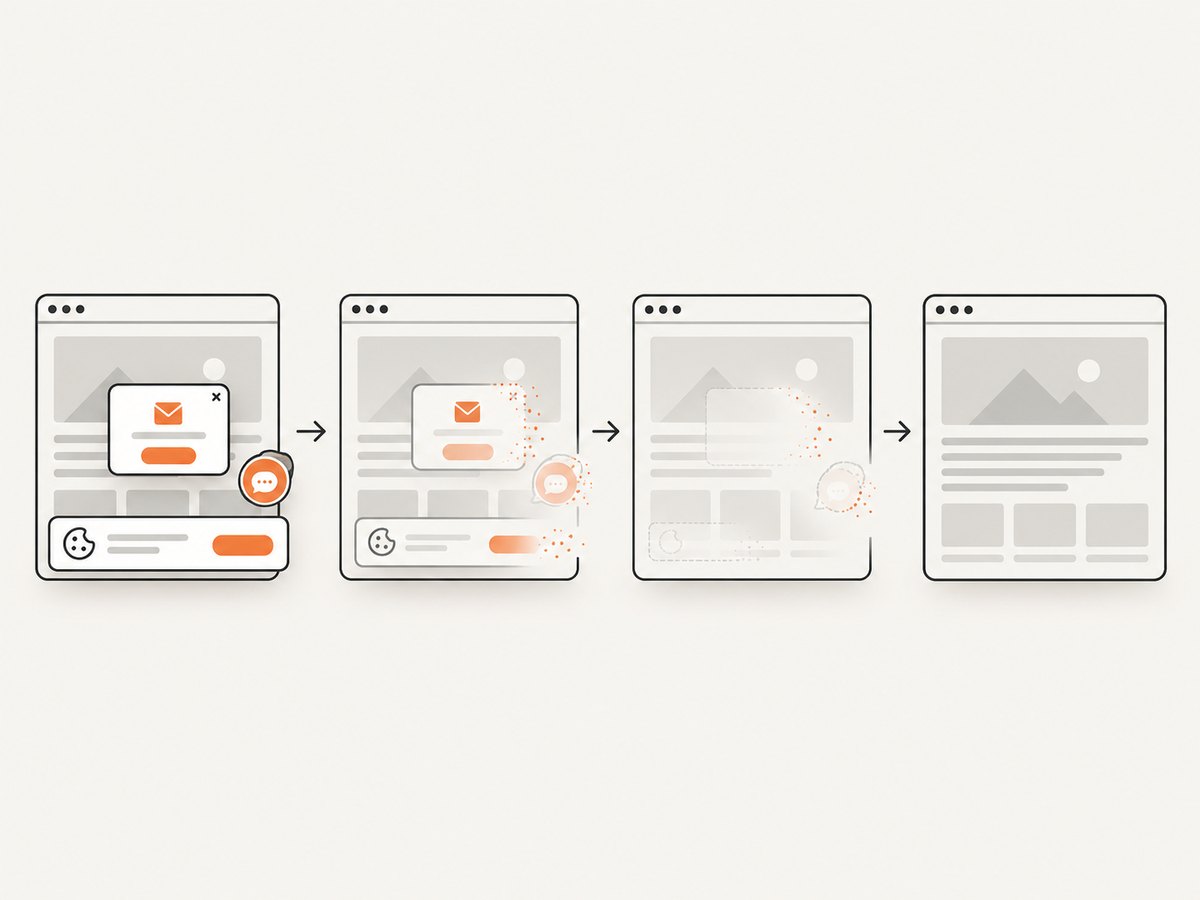
const res = await fetch(`https://api.screenshotneo.com/v1/shot?${q}`);Cookie and consent banners, newsletter popups, and chat widgets are removed before the shot. Bot checks, blank pages, failed loads, timeouts, and cache hits are not billed; response headers identify the page verdict and billing result. An MCP server provides take_screenshot, get_page_info, and capture_pdf tools for Claude, Cursor, and other MCP clients. The service supports full-page and element capture, dark mode, device presets, retina scale, PDF paper and margin controls, custom CSS and JavaScript, waits, blocking rules, headers, cookies, user agents, authorization, timezone, geolocation, transparency, resizing, caching, signed links, asynchronous jobs, bulk capture, usage data, and an OpenAPI specification.
The Free plan includes 1,000 screenshots per month with no card. Paid plans start at $5 for 3,000 shots; every feature is available on every plan. Create a free ScreenshotNeo account.
13. FAQ
Why does my Puppeteer PDF look different from the screenshot?
Usually because the PDF uses print media and print color behavior while the screenshot uses screen rendering. Check media type, backgrounds, paper geometry, and fonts first.
Does Python itself render the PDF differently?
Python is not one renderer. A browser library may render HTML, while PyMuPDF rasterizes an existing PDF. Identify which operation your code performs.
Should I compare pixels at the same DPI?
Yes. Match raster dimensions and scaling before judging visual differences. DPI, matrix scaling, clipping, and resampling all affect pixels.
Why are transparent areas white in my Python output?
PyMuPDF’s default alpha=False clears empty areas to white. Enable alpha or composite both images over the same background.
When should I use a PDF instead of a screenshot?
Use PDF when pagination, paper size, and print output matter. Use a screenshot when you need the browser’s screen rendering at a defined viewport.


