How to Get a PDF Buffer from a Puppeteer Response Body
Learn how to capture a PDF response in Puppeteer, read it as a Buffer, save it safely, and troubleshoot downloads, encoding, and generated PDFs.
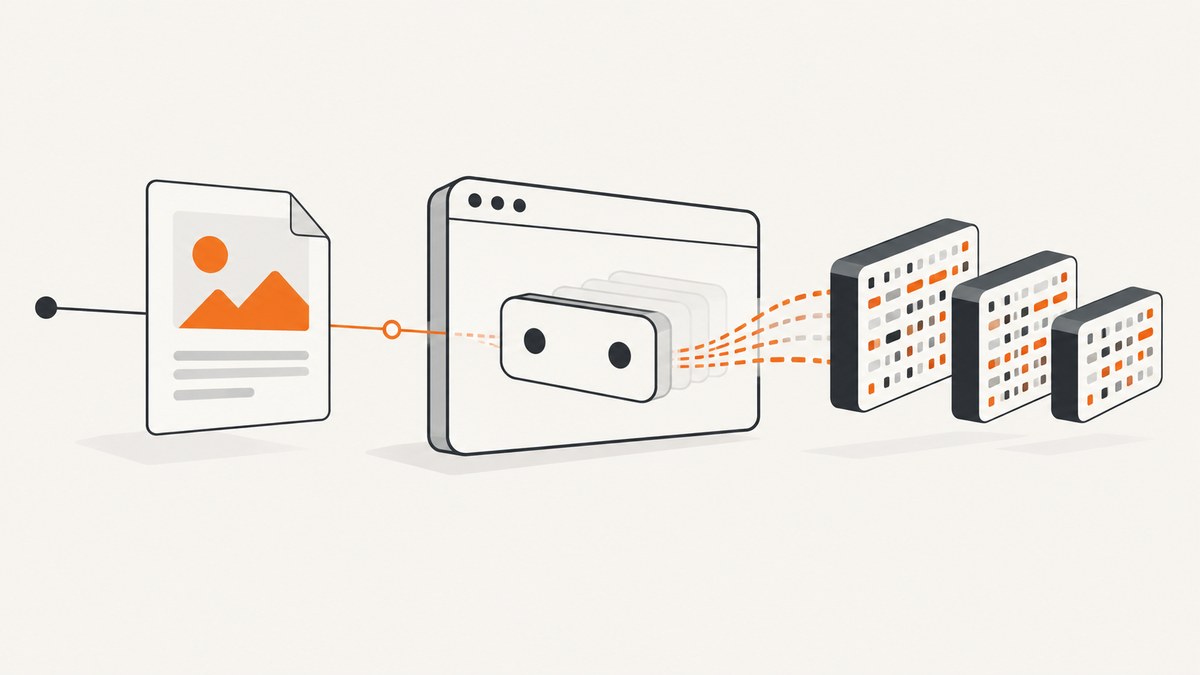
To get a PDF buffer from a Puppeteer response body, wait for the specific HTTPResponse that contains the PDF, then call response.buffer(). Start waiting before the click or navigation that triggers the request, and filter the response by status, URL, and content-type.
import puppeteer from 'puppeteer';
import fs from 'node:fs/promises';

const browser = await puppeteer.launch();
const page = await browser.newPage();

const responsePromise = page.waitForResponse(async response => {
  const contentType = response.headers()['content-type'] || '';
  return response.status() === 200 &&
    contentType.includes('application/pdf');
});

await page.goto('https://example.com/reports', {
  waitUntil: 'networkidle2'
});
await page.click('#download-pdf');

const response = await responsePromise;
const pdfBuffer = await response.buffer();

await fs.writeFile('document.pdf', pdfBuffer);
console.log(`Saved ${pdfBuffer.length} bytes from ${response.url()}`);

await browser.close();
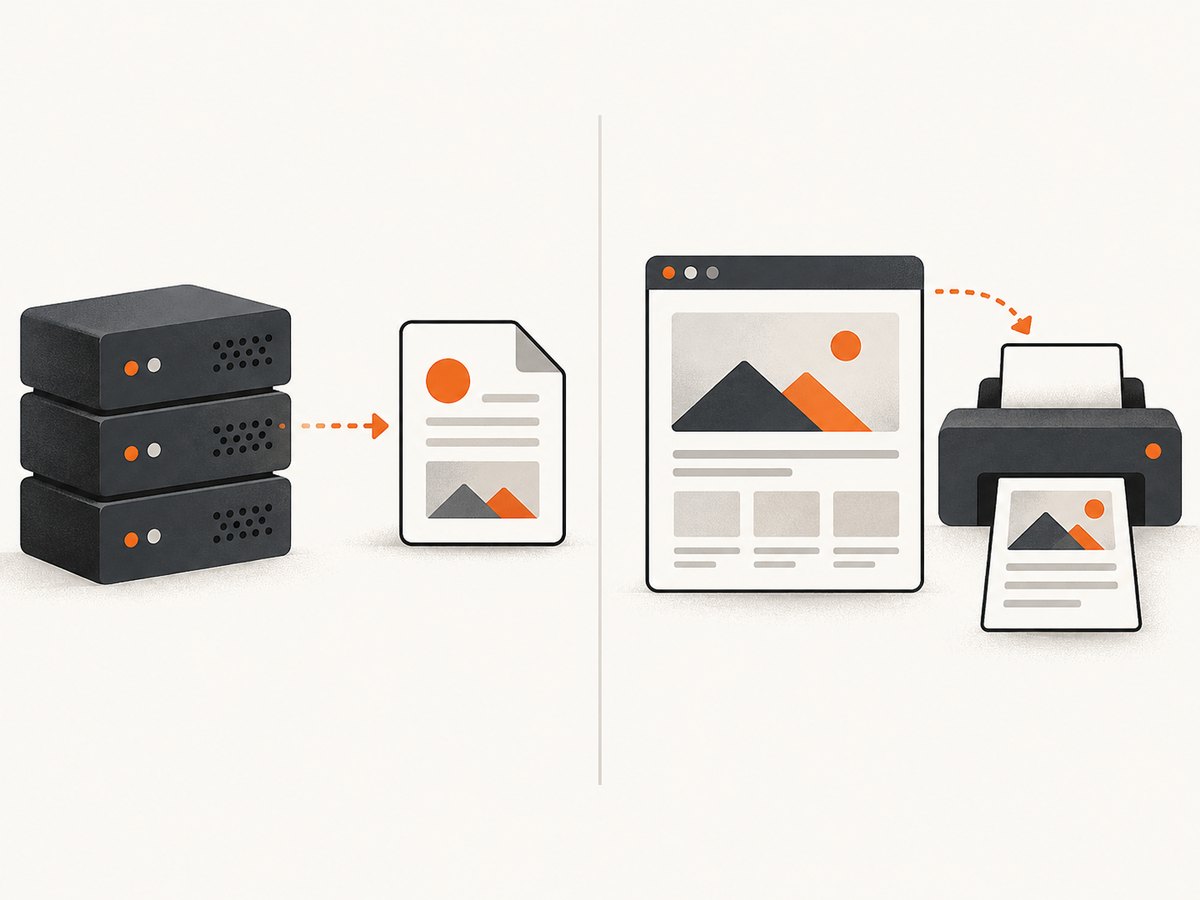
Puppeteer documents HTTPResponse.buffer() as returning a promise that resolves to a buffer containing the response body. The important distinction is that this reads bytes returned by the server. It does not create a PDF from the page. If you want Puppeteer to print the current DOM, use page.pdf() instead.
1. Decide which PDF you need
There are two common workflows:
| Requirement | Use | Source of bytes |
|---|---|---|
| A site already returns a finished PDF when a button is clicked | waitForResponse() and response.buffer() |
Network response from the server |
| You want a PDF of the currently rendered page | page.pdf(options) |
Chromium’s print renderer |
Use the network response when the server’s file is the source of truth, especially when it contains server-side data, a signed report, or a layout that differs from the page. Use page.pdf() when you need the DOM after JavaScript has run and you want to control paper size, margins, orientation, headers, or print CSS.
2. Capture a PDF returned by a click
Filter by content type
The safest general filter checks both HTTP status and the response’s content type. Start the promise before clicking because a fast response can arrive before a listener is installed.
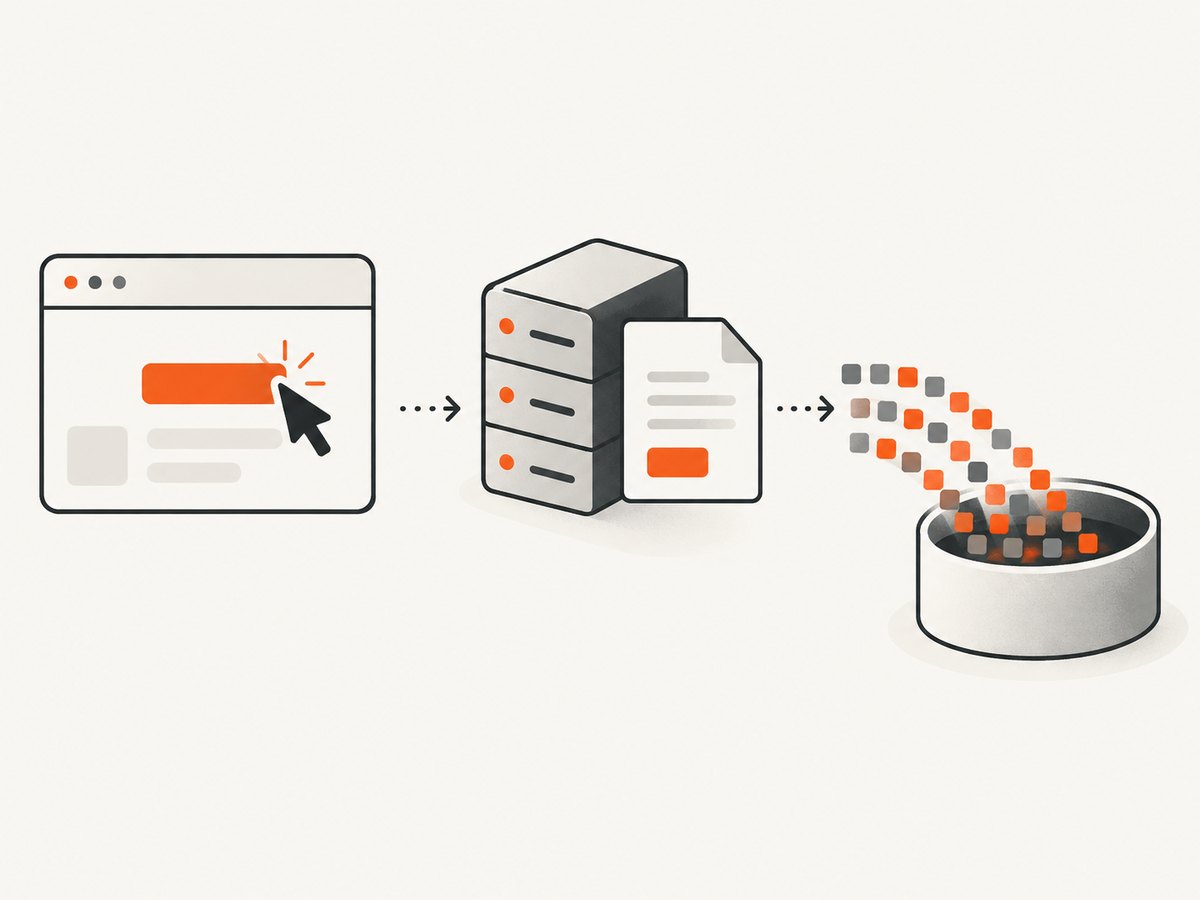
const responsePromise = page.waitForResponse(response => {
  const headers = response.headers();
  const contentType = (headers['content-type'] || '').toLowerCase();
  return response.status() === 200 &&
    contentType.includes('application/pdf');
});

await page.click('button[data-action="export"]');
const pdfResponse = await responsePromise;
const pdfBuffer = await pdfResponse.buffer();
Filter by a known URL
If the download endpoint is stable, a URL predicate can be more precise than content type alone. Keep the status check so an HTML error page is not mistaken for a PDF.
const responsePromise = page.waitForResponse(response =>
  response.url().includes('/reports/') &&
  response.status() === 200
);

await page.click('#download-pdf');
const response = await responsePromise;
const pdfBuffer = await response.buffer();
You can combine both approaches when several requests use similar paths:
const responsePromise = page.waitForResponse(response => {
  const type = (response.headers()['content-type'] || '').toLowerCase();
  return response.url().includes('/reports/') &&
    response.status() === 200 &&
    type.includes('application/pdf');
});
Handle a download that opens a new tab
Some applications open a new page or popup before requesting the PDF. Listen for the network response on the original page unless the request is made by the popup. If the popup owns the request, wait for both events:
const popupPromise = new Promise(resolve =>
  page.once('popup', resolve)
);

await page.click('#open-report');
const popup = await popupPromise;

const responsePromise = popup.waitForResponse(response =>
  response.status() === 200 &&
  (response.headers()['content-type'] || '').includes('application/pdf')
);

await popup.waitForNetworkIdle();
const response = await responsePromise;
const pdfBuffer = await response.buffer();
If the popup request happens during the click itself, install the popup’s response listener immediately after obtaining the page and use the endpoint URL when possible. For sites that trigger a browser download without exposing a normal page response, use Puppeteer’s download handling or observe the request that returns the file; do not assume every download appears as a response on the visible page.
3. Validate and persist the bytes
A successful promise does not guarantee that the body is the PDF you expected. Check the response metadata and, when byte fidelity matters, inspect the first bytes. Normal PDF files begin with %PDF-.
function assertPdf(response, buffer) {
  const contentType = (response.headers()['content-type'] || '').toLowerCase();
  const signature = buffer.subarray(0, 5).toString('ascii');

  if (response.status() !== 200) {
    throw new Error(`PDF request failed with HTTP ${response.status()}`);
  }
  if (!contentType.includes('application/pdf')) {
    throw new Error(`Expected PDF content type, got ${contentType || 'missing'}`);
  }
  if (signature !== '%PDF-') {
    throw new Error('Response does not start with a PDF signature');
  }
}

const pdfBuffer = await response.buffer();
assertPdf(response, pdfBuffer);
await fs.writeFile('report.pdf', pdfBuffer);
Keep the value binary from capture through storage or upload. Do not convert it to UTF-8 text, JSON, or a JavaScript string. When forwarding it, pass the buffer as a binary body and set an appropriate content type.
Upload the buffer without writing a temporary file
const upload = await fetch('https://storage.example.test/upload', {
  method: 'POST',
  headers: {
    'content-type': 'application/pdf',
    'content-length': String(pdfBuffer.length)
  },
  body: pdfBuffer
});

if (!upload.ok) {
  throw new Error(`Upload failed: ${upload.status}`);
}
4. Avoid responses that have no body
A broad page.on('response') listener sees far more than the PDF request. CORS preflight requests, redirects, cached responses, and status codes such as 204 and 304 may not have a readable body. Guard those cases before calling buffer().
page.on('response', async response => {
  if (response.request().method() === 'OPTIONS') return;
  if ([204, 304].includes(response.status())) return;

  const type = (response.headers()['content-type'] || '').toLowerCase();
  if (!type.includes('application/pdf')) return;

  try {
    const pdfBuffer = await response.buffer();
    await fs.writeFile('observed-report.pdf', pdfBuffer);
  } catch (error) {
    console.error('PDF body unavailable:', response.url(), error);
  }
});
waitForResponse() is usually preferable when one user action should produce one PDF. A response listener is useful for monitoring several reports or collecting telemetry, but it must handle errors and duplicate responses.
5. Authentication, headers, and request state
The PDF request inherits the browser context’s cookies and many page settings. Log in before waiting for the response, and set headers before navigation when the server requires them.
await page.setExtraHTTPHeaders({
  Authorization: `Bearer ${process.env.REPORT_TOKEN}`
});

await page.setCookie({
  name: 'session',
  value: process.env.SESSION_COOKIE,
  domain: 'example.com',
  path: '/'
});

await page.goto('https://example.com/reports');
Do not put access tokens in a URL unless the service requires it. If an endpoint needs a POST body, the click may submit a form while the PDF response still appears in waitForResponse(); filter by URL and content type rather than assuming a GET.
6. When to use page.pdf()
page.pdf() generates a new PDF using the page’s rendered content and the print CSS media type. Puppeteer returns Uint8Array bytes, which you can convert to a Node.js Buffer.
const pdfBytes = await page.pdf({
  format: 'A4',
  printBackground: true,
  margin: {
    top: '16mm',
    right: '16mm',
    bottom: '16mm',
    left: '16mm'
  },
  preferCSSPageSize: true
});

const pdfBuffer = Buffer.from(pdfBytes);
await fs.writeFile('rendered-page.pdf', pdfBuffer);
This path is appropriate for invoices, dashboards, and documentation pages that must reflect the final DOM. Wait for the content you need before printing:
await page.goto('https://example.com/invoice/123', {
  waitUntil: 'networkidle2'
});
await page.waitForSelector('.invoice-total');
await page.emulateMediaType('print');
const pdfBuffer = Buffer.from(await page.pdf({ format: 'A4' }));
Use response capture instead when the server’s PDF includes data that is never rendered in the browser or when exact server-generated bytes are required.
7. cURL and Python alternatives for an existing PDF URL
If you already know the PDF URL, a browser is unnecessary. These examples download the response as binary data and preserve it on disk.
curl --fail --location \
  --header "Authorization: Bearer $REPORT_TOKEN" \
  "https://example.com/reports/123.pdf" \
  --output report.pdf
import requests
response = requests.get(
"https://example.com/reports/123.pdf",
headers={"Authorization": "Bearer YOUR_TOKEN"},
timeout=90,
)
response.raise_for_status()
content_type = response.headers.get("content-type", "").lower()
if "application/pdf" not in content_type:
raise RuntimeError(f"Expected PDF, got {content_type}")
with open("report.pdf", "wb") as output:
output.write(response.content)8. Troubleshooting
| Symptom | Likely cause | Fix |
|---|---|---|
waitForResponse times out |
The click did not trigger a request, the listener started too late, or the request uses another URL. | Create the promise before the action, verify the selector, and log response URLs while reproducing the flow. |
| Buffer contains HTML | The server returned a login page, error page, or redirect. | Check status, final URL, content type, cookies, and authorization before reading the body. |
buffer() throws |
The response body is unavailable, often for 204/304, preflight, cached, or failed responses. | Filter those statuses and catch errors in broad listeners. |
| PDF opens as corrupted | Binary bytes were converted to text or re-encoded. | Keep a Buffer throughout, write with fs.writeFile, and send application/pdf. |
| Several PDFs are captured | The page makes multiple PDF requests, such as previews and downloads. | Match a unique URL path, request method, query parameter, or report identifier. |
| Generated PDF misses images | Printing began before lazy resources loaded. | Wait for selectors or network idle, scroll lazy content if needed, and use printBackground. |
| Download works manually but not headlessly | Authentication, popup handling, or browser download behavior differs. | Reuse the correct browser context, handle popups, and inspect network responses instead of relying only on filesystem events. |
9. Performance, reliability, and cost
- Wait narrowly. A URL and content-type predicate avoids resolving on unrelated API calls and reduces intermittent matches.
- Reuse a browser. Launching Chromium for every PDF is expensive. Keep one browser process and create isolated pages or contexts per job.
- Bound every wait. Set Puppeteer timeouts and application-level job deadlines so a stalled report cannot consume a worker indefinitely.
- Control concurrency. A small queue prevents CPU, memory, and file descriptor exhaustion when many PDFs are requested at once.
- Record metadata. Store URL, status, content type, byte length, and a checksum so retries and duplicate files are diagnosable.
- Retry carefully. Retry transient navigation or 5xx failures, but avoid replaying a state-changing action unless the endpoint is idempotent.
- Check storage limits. Large reports should stream or upload promptly rather than accumulating buffers in memory.
10. Or skip the browser setup
If your goal is a clean page capture or PDF rather than controlling a live browser, ScreenshotNeo provides a single API request. See the ScreenshotNeo API documentation for PDF options and the complete parameter list.
curl -G "https://api.screenshotneo.com/v1/shot" -d access_key=YOUR_API_KEY --data-urlencode url=https://stripe.com -o shot.webpimport requests
r = requests.get("https://api.screenshotneo.com/v1/shot", params={"access_key": "YOUR_API_KEY", "url": "https://stripe.com"}, timeout=90)
open("shot.webp", "wb").write(r.content)const q = new URLSearchParams({ access_key: 'YOUR_API_KEY', url: 'https://stripe.com' }); const res = await fetch(`https://api.screenshotneo.com/v1/shot?${q}`);ScreenshotNeo accepts cookie and consent banners before capture and removes more than 60 known consent platforms, newsletter popups, and chat widgets; each cleanup step can be disabled. Bot checks, blank pages, timeouts, failed loads, and cache hits are not billed, and the response reports the result with X-Page-Verdict and X-Billed headers. Its MCP server provides take_screenshot, get_page_info, and capture_pdf tools for Claude, Cursor, and other MCP clients. The free plan includes 1,000 screenshots per month without a card, and paid plans start at $5 for 3,000 shots.
Create a free ScreenshotNeo account to start with 1,000 screenshots each month and no card.
11. Short FAQ
Does response.buffer() return a Node.js Buffer?
Yes. It resolves to the response body bytes as a Buffer, which can be written directly with fs.writeFile or sent in a binary upload.
Can I call buffer() on every response?
No. Filter out bodyless statuses and unrelated traffic. A PDF-specific waitForResponse() predicate is the simplest approach.
Is page.pdf() equivalent to downloading a PDF?
No. It renders a new PDF from the page. response.buffer() reads bytes that a server already returned.
Why does Puppeteer mention re-encoding?
Puppeteer notes that the browser can re-encode a response buffer based on HTTP headers or other heuristics. Validate headers and the %PDF- signature when exact bytes matter.
Should I use Puppeteer for every PDF job?
Use it when authentication, JavaScript interaction, or rendered DOM state is required. For straightforward captures and PDF jobs, an API such as ScreenshotNeo can remove browser management and provide an MCP workflow for AI agents.


