How to Make Puppeteer Render External JavaScript Pages Correctly
Wait for the content your page actually needs, diagnose empty renders, and capture reliable screenshots from JavaScript-heavy sites with Puppeteer.

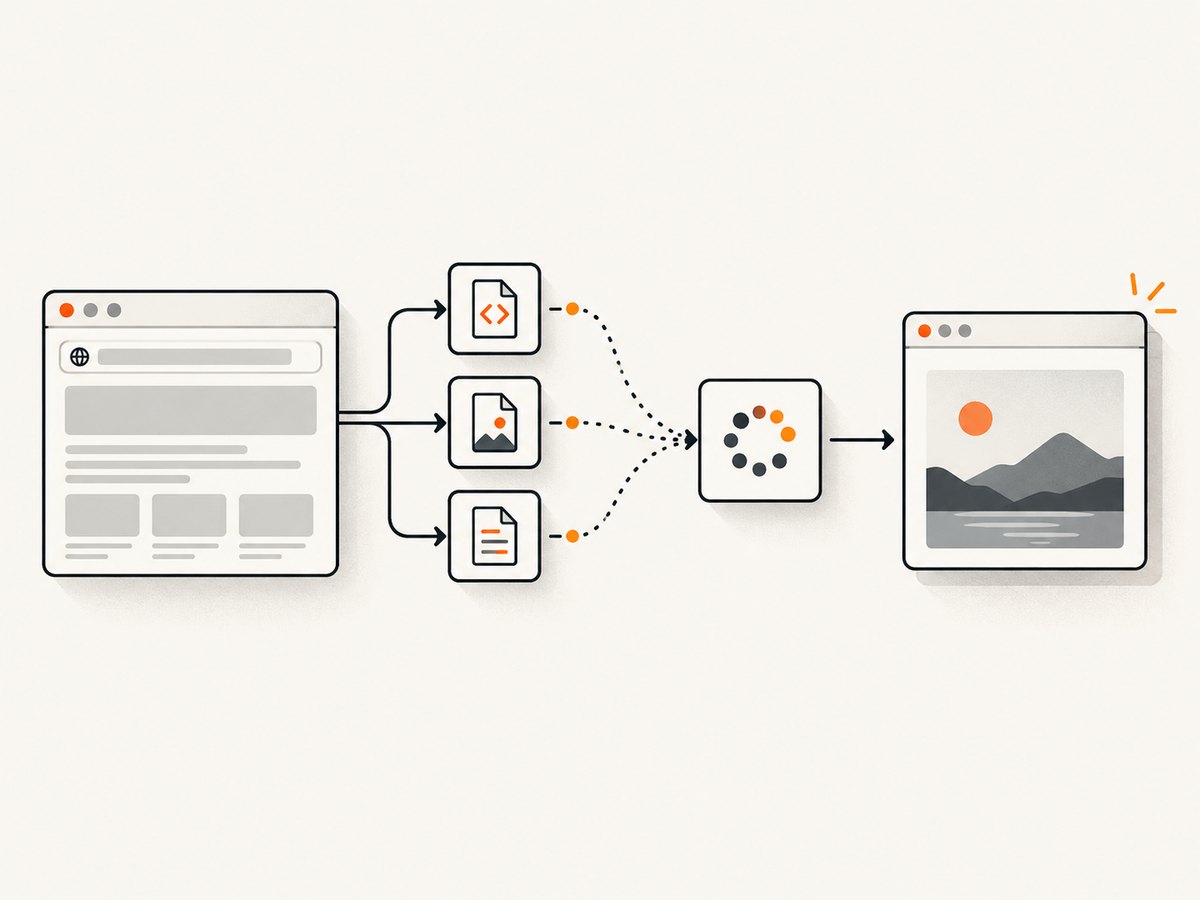
Short answer: do not treat navigation completion as proof that an external JavaScript application has finished rendering. Navigate with an appropriate lifecycle condition, then wait for a page-specific signal such as a stable selector or a function that confirms the expected data exists. Use network idle as a useful checkpoint when the site’s request pattern supports it, but do not rely on it alone for pages with polling, analytics, streaming, or delayed hydration.
Puppeteer executes page JavaScript in the browser context. A reliable capture therefore combines four steps: enable JavaScript, navigate, wait for the state your application needs, and inspect or capture the result. Puppeteer’s official screenshot guide demonstrates waitUntil: 'networkidle2' before taking a screenshot, while the API also provides waitForNetworkIdle(), waitForSelector(), and waitForFunction() for more precise readiness checks. See the Puppeteer screenshot guide and the Page.waitForNetworkIdle API.
1. A reliable baseline
Start with domcontentloaded or a network lifecycle condition, then assert the content that matters. Replace the example selector and predicate with a signal exposed by your page, such as a loaded table, a non-empty result container, or a framework-specific ready attribute.
import puppeteer from 'puppeteer';

const url = 'https://example.com/app';

const browser = await puppeteer.launch({
  headless: true,
});

try {
  const page = await browser.newPage();
  await page.setViewport({ width: 1440, height: 1000, deviceScaleFactor: 1 });

  // JavaScript is enabled by default. Keep this explicit when debugging.
  await page.setJavaScriptEnabled(true);

  await page.goto(url, {
    waitUntil: 'domcontentloaded',
    timeout: 45000,
  });

  // Wait for application state, not merely for the document shell.
  await page.waitForSelector('[data-ready="true"]', {
    visible: true,
    timeout: 30000,
  });

  const resultText = await page.$eval('#result', element => element.textContent);
  console.log(resultText);

  await page.screenshot({
    path: 'rendered.png',
    fullPage: true,
  });
} finally {
  await browser.close();
}
The function passed to page.evaluate() or an element helper runs inside the page, not in your Node.js process. It cannot see local variables or helper functions from the surrounding script unless you pass serializable arguments explicitly. For DOM objects that must remain referenced, use evaluateHandle() instead of expecting a normal return value to preserve the object.
2. Choose the right readiness condition
| Strategy | What it establishes | When to use it | Main risk |
|---|---|---|---|
domcontentloaded |
The initial document has been parsed. | You need to begin waiting for a known application signal. | Data and components may not exist yet. |
load |
Load-event resources such as images have finished according to browser rules. | Traditional pages where the load event corresponds closely to usable content. | Client-side fetches can continue afterward. |
networkidle2 |
Navigation reaches a period with no more than two active connections. | General screenshots where background traffic is limited. Puppeteer’s screenshot guide uses this pattern. | It can finish before the component you need renders. |
networkidle0 |
Navigation reaches a period with no active connections. | Pages that genuinely stop all requests. | Analytics, polling, sockets, or long requests can make it wait indefinitely. |
waitForNetworkIdle() |
A configurable idle period after navigation or another action. | You need explicit idle timing or concurrency controls. | Network quiet still does not prove application readiness. |
waitForSelector() |
A selector appears, optionally visible. | A stable element marks the completed state. | A placeholder element may exist before its content is filled. |
waitForFunction() |
A browser-side predicate becomes true. | Readiness depends on text, attributes, array length, or application state. | An incorrect predicate can wait until timeout. |
| Fixed delay | Only that a specified amount of time passed. | Last resort when the page exposes no observable signal. | It is either slower than necessary or still too short. |
The current API documentation describes a default network-idle period of 500 milliseconds and a default concurrency of 0 for waitForNetworkIdle(). Treat those values as implementation settings, not as a guarantee that a particular framework has completed hydration. Verify lifecycle details against the Puppeteer version installed in your project.
Wait for the actual content
await page.goto(url, { waitUntil: 'domcontentloaded' });
await page.waitForFunction(() => {
  const result = document.querySelector('#result');
  return result && result.textContent.trim().length > 0;
}, { timeout: 30000 });
A selector is usually the clearest contract. If the element exists immediately but is populated later, use a function that checks its text, an attribute, or a loading class:
await page.waitForFunction(() => {
  const card = document.querySelector('[data-status]');
  return card?.getAttribute('data-status') === 'loaded';
}, { timeout: 30000 });
3. Handle actions that trigger navigation
If a click or form submission causes a real navigation, begin the navigation wait before performing the action. Running both promises together avoids a race where the navigation starts and resolves before your script begins waiting.
const [response] = await Promise.all([
  page.waitForNavigation({ waitUntil: 'domcontentloaded', timeout: 45000 }),
  page.click('button[type="submit"]'),
]);

if (response) {
  console.log('Navigated to', response.url());
}

await page.waitForSelector('#results', { visible: true, timeout: 30000 });
waitForNavigation() resolves to the main resource response for ordinary navigation. Same-page hash changes and History API updates can resolve to null, so inspect the URL and wait for the resulting application state when a single-page app changes views without a document load.
4. Inspect what the browser actually rendered
When a screenshot is blank or incomplete, collect evidence before changing timeouts. Log the final URL, navigation response status, visible text, and browser console messages. Capture failed requests to distinguish an application problem from a browser or network problem.
page.on('console', message => {
  console.log('[browser]', message.type(), message.text());
});

page.on('pageerror', error => {
  console.error('[pageerror]', error.message);
});

page.on('requestfailed', request => {
  console.error('[requestfailed]', request.url(), request.failure()?.errorText);
});

const response = await page.goto(url, {
  waitUntil: 'domcontentloaded',
  timeout: 45000,
});

console.log({
  status: response?.status(),
  finalUrl: page.url(),
  javascriptEnabled: await page.isJavaScriptEnabled(),
});

const state = await page.evaluate(() => ({
  title: document.title,
  bodyText: document.body?.innerText.slice(0, 500),
  resultCount: document.querySelectorAll('#result').length,
}));

console.log(state);
Page.isJavaScriptEnabled() reports the current setting. If you call setJavaScriptEnabled(), navigate again before judging the change: Puppeteer documents that the new setting takes full effect on the next navigation, not scripts that have already run.
5. External scripts, frames, and application state
External JavaScript can populate the main document, an iframe, or a shadow root. A selector in the wrong browsing context will never become ready. First list frames and choose the frame that owns the content:
for (const frame of page.frames()) {
  console.log(frame.url());
}

const appFrame = page.frames().find(frame => frame.url().includes('/embedded-app'));
if (!appFrame) throw new Error('Application frame was not found');

await appFrame.waitForSelector('#result', { visible: true, timeout: 30000 });
const text = await appFrame.$eval('#result', element => element.textContent);
For shadow DOM, query from the host and inspect its shadow root inside an evaluated function:
await page.waitForFunction(() => {
  const host = document.querySelector('my-results');
  const output = host?.shadowRoot?.querySelector('.value');
  return Boolean(output?.textContent?.trim());
});
Do not assume that a successful script download means successful execution. A syntax error, an exception during initialization, an authentication redirect, a bot challenge, or a blocked resource can all leave the document shell intact. Console, page-error, request-failure, final-URL, and response-status evidence narrows the cause.
6. Screenshot options after readiness
Take the screenshot only after the readiness assertion. Use a viewport that matches the target layout and choose full-page or element capture deliberately.
await page.setViewport({
  width: 1365,
  height: 900,
  deviceScaleFactor: 2,
});

await page.screenshot({
  path: 'page.webp',
  type: 'webp',
  quality: 85,
  fullPage: true,
});

await page.locator('.invoice').screenshot({
  path: 'invoice.png',
});
For deterministic output, freeze animations with CSS, set a known timezone or locale when the page supports it, and avoid capturing while a loading skeleton is still visible. If images are lazy-loaded, scroll through the page or wait for image completion before a full-page capture:
await page.evaluate(async () => {
  document.querySelectorAll('img[loading="lazy"]').forEach(image => image.scrollIntoView());
  await new Promise(resolve => setTimeout(resolve, 250));
});

await page.waitForFunction(() => [...document.images].every(image => image.complete));
7. Common errors and fixes
| Symptom | Likely cause | Fix |
|---|---|---|
| Empty shell or loading spinner | The script has not populated the application yet. | Wait for a stable selector or a function that checks real content. Increase the timeout only after choosing the correct signal. |
waitForSelector times out |
The selector is wrong, content is in an iframe or shadow root, or rendering failed. | Inspect the final URL and HTML, enumerate frames, check console and page errors, and verify the selector manually in the browser. |
networkidle0 never resolves |
Polling, analytics, a WebSocket, or another long-lived request keeps activity above zero. | Use networkidle2 or waitForNetworkIdle() as a checkpoint, then assert the application’s ready state. |
| Screenshot captures a placeholder | The placeholder exists before data arrives. | Wait for text, a loaded attribute, a non-empty list, or removal of the loading class. |
| Click navigation is missed | The script waits after the click. | Start waitForNavigation() and the click together with Promise.all(). |
| JavaScript appears disabled | The browser setting was changed after navigation or a new page was created. | Call setJavaScriptEnabled(true) before navigation and navigate again. |
| Final URL is unexpected | Redirect, login, consent, or bot protection changed the destination. | Log response.status() and page.url(); authenticate or handle the required state before waiting for application content. |
| Works locally but fails in deployment | Different browser version, sandbox, fonts, network access, or environment variables. | Record Puppeteer and Chromium versions, use a reproducible launch configuration, and compare request and console logs from both environments. |
8. Performance and reliability
- Reuse a browser process: launch once and create isolated pages for multiple captures. Always close pages in a
finallyblock. - Use a targeted readiness signal: a selector or predicate usually finishes sooner and more predictably than waiting for every request to stop.
- Set explicit timeouts: navigation, readiness, and actions should each have a bounded timeout so one broken page does not consume a worker indefinitely.
- Control concurrency: too many pages compete for CPU, memory, network sockets, and renderer processes. Start with a small pool and measure in your own environment.
- Block unnecessary resources carefully: images, fonts, trackers, or ads can improve speed, but blocking a JavaScript bundle or API request can prevent rendering.
- Make captures repeatable: fix viewport, device scale, timezone, locale, user agent, cookies, and authentication state when those inputs affect layout or data.
- Retry selectively: retry transient navigation or network failures, but preserve logs and avoid repeating deterministic application errors indefinitely.
There is no universal timeout that makes every external page reliable. A page with a finite data request may be ready in seconds, while a page with background polling may never satisfy zero active connections. The robust design is an application-specific readiness contract plus a hard upper bound.
9. Or skip the browser setup
If your goal is a clean screenshot rather than maintaining Chromium, ScreenshotNeo provides a single GET request for PNG, JPEG, WebP, or PDF output. Its API accepts full-page capture, CSS element selection, custom JavaScript and CSS, waits for selectors, delays or network idle, headers, cookies, user agents, authorization, device presets, dark mode, geolocation, timezone, caching, and more. The parameter names used by other screenshot APIs also work, which makes migration easier.

See the ScreenshotNeo API documentation. This cURL call captures a JavaScript page as WebP:
curl -G 'https://api.screenshotneo.com/v1/shot' \
  -d access_key=YOUR_API_KEY \
  --data-urlencode 'url=https://stripe.com' \
  -o shot.webp
The same request in Python:
import requests

r = requests.get(
    'https://api.screenshotneo.com/v1/shot',
    params={
        'access_key': 'YOUR_API_KEY',
        'url': 'https://stripe.com',
    },
    timeout=90,
)
r.raise_for_status()
open('shot.webp', 'wb').write(r.content)
And Node.js:
const q = new URLSearchParams({
  access_key: 'YOUR_API_KEY',
  url: 'https://stripe.com',
});

const res = await fetch(`https://api.screenshotneo.com/v1/shot?${q}`);
if (!res.ok) throw new Error(`Screenshot failed: ${res.status}`);
await Bun.write('shot.webp', res);
ScreenshotNeo accepts cookie and consent banners like a visitor, then removes more than 60 known consent platforms, newsletter popups, and chat widgets before capture; each step can be turned off. Bot checks and CAPTCHAs, blank pages, timeouts, failed loads, and cache hits are not billed, and the response identifies the result with X-Page-Verdict and X-Billed headers. An MCP server provides take_screenshot, get_page_info, and capture_pdf tools for Claude, Cursor, and other MCP clients.
The Free plan includes 1,000 screenshots each month with no card. Paid plans start at $5 for 3,000 shots; yearly billing gives two months free, and every feature is available on every plan. Create a free ScreenshotNeo account.
10. FAQ
How do I wait for JavaScript to finish in Puppeteer?
There is no universal finished signal. Wait for a selector or function that represents the content your task needs, optionally after a navigation or network-idle checkpoint.
Should I use networkidle0 or networkidle2?
Use networkidle2 when limited background traffic is expected. Use networkidle0 only when the page truly becomes request-free. In both cases, assert page-specific readiness afterward.
Why does page.evaluate() not see my Node variable?
The callback is serialized and executed in the page context. Pass the value as an argument, or define the required logic inside the callback.
Can Puppeteer render content inside an iframe?
Yes. Find the correct frame with page.frames(), then call selector and evaluation methods on that frame.
What should I log when a page is blank?
Log the navigation status, final URL, JavaScript setting, visible body text, console messages, page errors, and failed requests. Those observations identify whether the issue is timing, navigation, execution, or a blocked resource.


