Why Websites Show Different Views in Puppeteer and Regular Browsers
Puppeteer views differ because browser mode, versions, emulation, session state and timing differ. Learn a repeatable way to diagnose each variable.
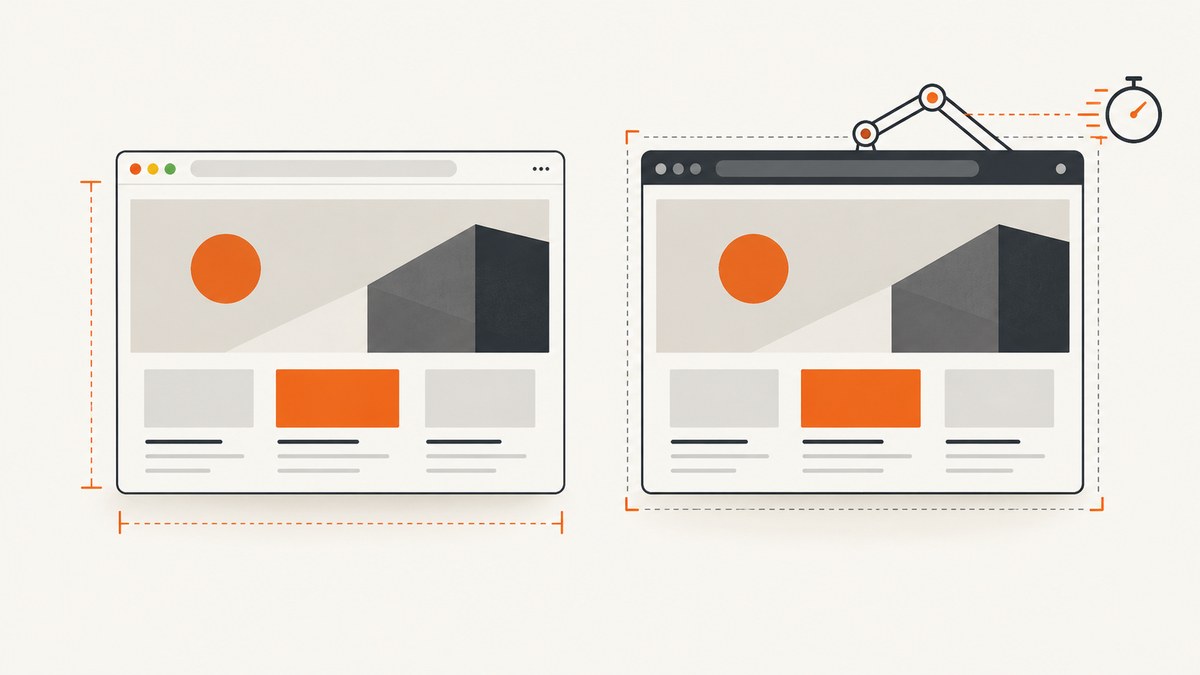
Short answer: Puppeteer is an automation library, not one fixed browser environment. A page can look different because the automation run uses a different Headless mode or browser build, viewport and device settings, user agent, locale, timezone, cookies, permissions, operating system, installed fonts, network conditions or rendering wait time. Compare those inputs one at a time before changing page code.
Chrome’s current Headless implementation shares code with headful Chrome, but Puppeteer also exposes the legacy chrome-headless-shell. Puppeteer’s documentation warns that the shell does not completely match regular Chrome behavior. See the Puppeteer headless modes guide and Chrome Headless documentation.
1. Build an apples-to-apples comparison
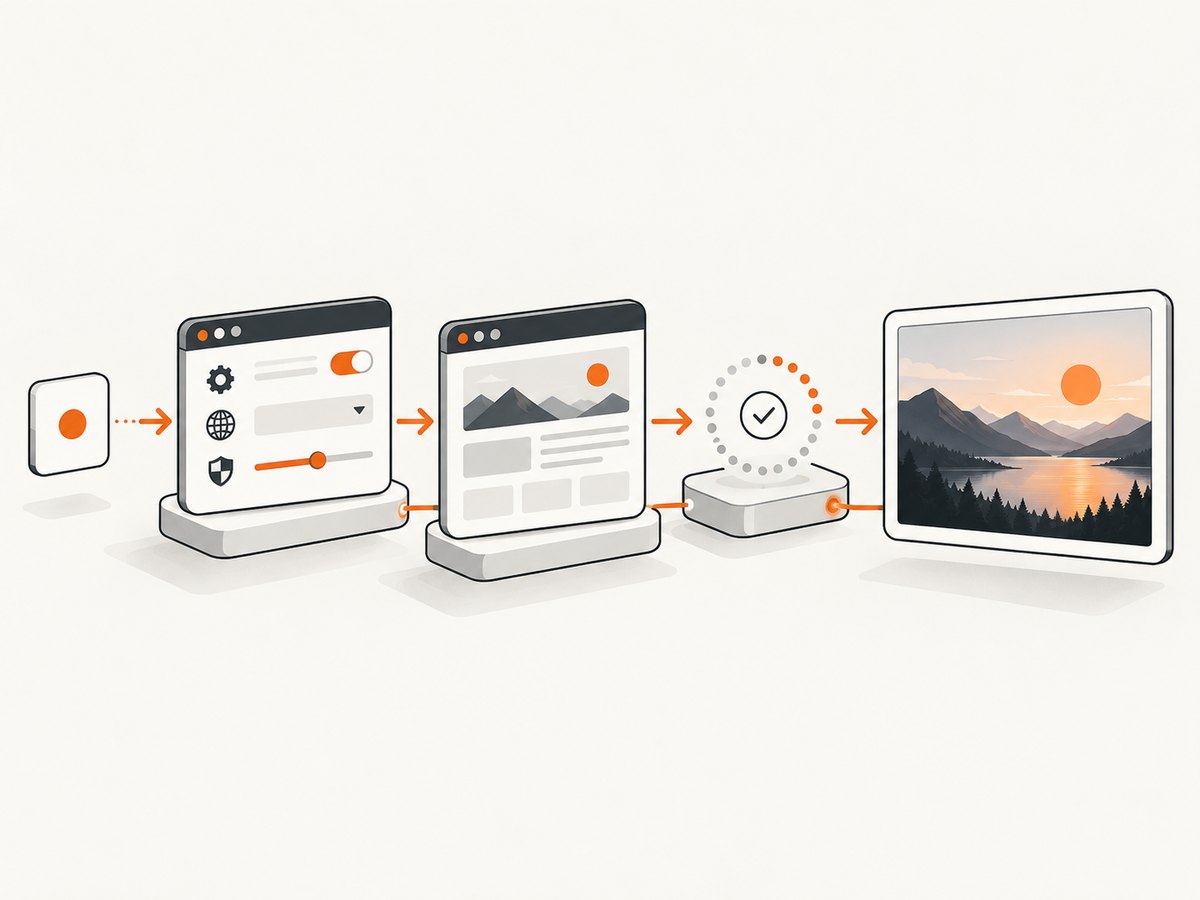
Start with a checklist. Record the exact URL after redirects, query parameters, timestamp and test geography. Then record the browser and page inputs below.
| Input | What to record | Why it changes the view |
|---|---|---|
| Browser mode | headless: true, false or 'shell' |
Modern Headless and headful share most Chrome code; the legacy shell is a separate implementation. |
| Versions | Puppeteer version, executable path, channel and browser version | Protocol and rendering behavior are paired by supported browser mappings. |
| Viewport | CSS width/height, device scale factor, mobile, touch and landscape | Responsive breakpoints, pixel density and touch branches can select different layouts. |
| Identity | User agent, locale, timezone, media features | Sites can choose content, language, date formats and CSS based on these values. |
| Session | Cookies, local storage, login and permissions | A clean automation context is not the same as a personal browser profile. |
| Readiness | Navigation wait, selector wait, network state and delays | Single-page apps and lazy images may render after navigation resolves. |
| Host | Operating system, fonts, GPU and network conditions | Text metrics, font fallback and resource availability affect pixels. |
Puppeteer maintains a supported-browser mapping; its FAQ explains why releases are paired with browser versions. Confirm that your executable is supported before investigating page-specific behavior.
2. Compare Headless, headful and shell modes
Run the same URL in each relevant mode. Use headless: false when you need to compare with a visible Chrome window. Use headless: true for current Headless. Use headless: 'shell' only when you specifically need the standalone legacy shell.
import puppeteer from 'puppeteer';

const url = 'https://example.com';
for (const mode of [true, false, 'shell']) {
  const browser = await puppeteer.launch({ headless: mode });
  const page = await browser.newPage();
  await page.setViewport({ width: 1440, height: 900, deviceScaleFactor: 1 });
  await page.goto(url, { waitUntil: 'domcontentloaded' });
  await page.screenshot({ path: `view-${String(mode)}.png`, fullPage: true });
  console.log(mode, await browser.version());
  await browser.close();
}
If headful and modern Headless match but shell differs, the implementation is the leading suspect. If all modes differ from your personal browser, continue through the environment checklist.
3. Pin and report browser versions
Capture the Puppeteer package version, browser version and executable path in every diagnostic report. A system Chrome updated independently of Puppeteer can change layout or protocol behavior. Prefer the browser downloaded or explicitly supported by your Puppeteer release, or pin an executable in CI.
import puppeteer from 'puppeteer';

const browser = await puppeteer.launch({ headless: true });
console.log({
  puppeteer: process.env.npm_package_dependencies_puppeteer,
  browser: await browser.version(),
  executable: browser.process()?.spawnfile
});
await browser.close();
4. Match viewport and device emulation before navigation
Set dimensions before goto(). Changing metrics after a page has loaded can trigger a different responsive branch or cause scripts to recompute layout. A device profile changes more than width: it can set user agent, touch support, mobile behavior and scale factor.
const browser = await puppeteer.launch({ headless: true });
const page = await browser.newPage();
await page.setViewport({
  width: 390,
  height: 844,
  deviceScaleFactor: 3,
  isMobile: true,
  hasTouch: true,
  isLandscape: false
});
await page.setUserAgent('Mozilla/5.0 (iPhone; CPU iPhone OS 17_0 like Mac OS X) AppleWebKit/605.1.15 (KHTML, like Gecko) Version/17.0 Mobile/15E148 Safari/604.1');
await page.goto('https://example.com', { waitUntil: 'domcontentloaded' });
For a desktop comparison, use the exact CSS dimensions from DevTools, not the physical monitor resolution. Keep device scale factor consistent when comparing screenshots.
5. Match identity, locale, timezone and media
Sites can branch on user agent, language, timezone, color scheme, reduced motion and media type. Set these values before navigation where possible.
await page.setExtraHTTPHeaders({ 'Accept-Language': 'en-US,en;q=0.9' });
await page.emulateTimezone('America/New_York');
await page.emulateMediaFeatures([
  { name: 'prefers-color-scheme', value: 'dark' },
  { name: 'prefers-reduced-motion', value: 'reduce' }
]);
await page.emulateMediaType('screen');
Do not treat Chrome device emulation as Safari, Firefox or another operating system. If the expected view comes from another engine, run that engine directly; Chrome emulation does not reproduce its layout or font engine. The limitations are described in Chrome’s emulation documentation.
6. Compare session state and permissions
Puppeteer browser contexts isolate cookies and local storage. A new context therefore starts logged out and may lack consent choices, feature flags or cached application state from your regular browser. Permissions such as geolocation and notifications can also change what renders.
const context = await browser.createBrowserContext();
await context.overridePermissions('https://example.com', ['geolocation']);
const page = await context.newPage();
await page.setCookie({
  name: 'session',
  value: 'REDACTED',
  domain: 'example.com',
  path: '/'
});
await page.goto('https://example.com/account', { waitUntil: 'domcontentloaded' });
For a controlled test, use a fresh context on both sides. For an authenticated comparison, deliberately load the same cookies and storage state. Avoid copying a personal profile into automation unless you understand the security and reproducibility consequences.
7. Wait for the content you actually want to capture
waitUntil: 'load' only means the load event fired. A React, Vue or other client-rendered application may still be fetching data. Lazy-loaded images may not exist until they enter the viewport. Wait for a meaningful selector or application-ready signal.
await page.goto('https://example.com/dashboard', { waitUntil: 'domcontentloaded' });
await page.waitForSelector('[data-testid="dashboard-ready"]', { visible: true, timeout: 30000 });
await page.waitForNetworkIdle({ idleTime: 500, timeout: 30000 });
await page.screenshot({ path: 'dashboard.png', fullPage: true });
Network idle is a useful hint, not proof that every image is ready. The Chrome server-side rendering guidance recommends waiting for a selector and allowing extra time for lazy content. If a page has an explicit readiness event, wait for that event instead of guessing with a long sleep.
8. Capture and compare evidence
Capture both pages at identical dimensions and compare the same region. Puppeteer supports full-page and element screenshots through its Page screenshot API.
await page.screenshot({ path: 'full.png', fullPage: true });
const card = page.locator('[data-testid="pricing-card"]');
await card.screenshot({ path: 'card.png' });
When pixels differ, inspect the DOM and computed styles for the first divergent element. Save a screenshot, HTML snapshot, console output and failed requests for each run so the comparison is repeatable.
9. Inspect console, network and page errors
Missing JavaScript, blocked fonts, failed API calls and runtime exceptions often produce a “different view” that is really an incomplete view. Forward diagnostics while reproducing.
page.on('console', message => console.log('[console]', message.type(), message.text()));
page.on('pageerror', error => console.error('[pageerror]', error.message));
page.on('requestfailed', request => console.error('[requestfailed]', request.url(), request.failure()));
page.on('response', response => {
  if (response.status() >= 400) console.warn('[http]', response.status(), response.url());
});
Check whether the regular browser has an extension, service worker, cached response or login that the automation context lacks. Treat bot detection or access control as a hypothesis and verify it from responses and page behavior rather than assuming it.
10. Common mismatches and fixes
| Symptom | Likely cause | Fix |
|---|---|---|
| Mobile menu appears in one view | Different CSS width, UA or mobile flag | Set viewport, UA, isMobile and touch before navigation. |
| Dark mode differs | Color-scheme preference or saved setting | Set prefers-color-scheme and compare storage. |
| Text wraps differently | Font fallback, scale factor or OS | Use the same OS and installed fonts; record device scale factor. |
| Content is missing | Capture occurred before app readiness or lazy loading | Wait for a selector, readiness event and required images. |
| User is logged out | New context has no cookies or local storage | Load equivalent state or test both sessions from a clean context. |
| Region or language differs | Locale, timezone, headers or geography | Match locale/timezone and record the test location and URL. |
| Only shell mode differs | Legacy headless implementation | Use modern Headless or headful Chrome for regular-Chrome parity. |
| Blank or partial page | Failed request, JavaScript error or blocked resource | Inspect console, page errors, HTTP status and request failures. |
11. Reliability, performance and cost considerations
For reliable visual comparisons, pin versions, set all emulation inputs before navigation, use a fresh context, wait on a page-specific signal and collect diagnostics. Reuse a browser process for batches, but create isolated contexts when cookies or storage must not leak between URLs. Limit concurrency to what your CPU, memory and target sites can handle; excessive parallel pages increase timeouts and resource contention.
Full-page screenshots can be expensive in memory on very tall documents. Capture a specific element when that is the test target. Disable unnecessary animations with an injected style or reduced-motion emulation, and ensure web fonts have loaded before capture. If you need another browser engine or operating system, schedule tests there rather than relying on Chrome emulation.
Or skip the browser setup
ScreenshotNeo provides a website screenshot API and MCP server. One GET request returns PNG, JPEG, WebP or PDF, while options cover full-page capture with lazy images, CSS-element capture, dark mode, device presets or custom viewports, retina scale, custom CSS and JavaScript, click and wait actions, blocked resources, headers, cookies, user agents, authorization, timezone, geolocation, transparent backgrounds, resizing, caching, signed links, asynchronous jobs, webhooks and bulk capture.
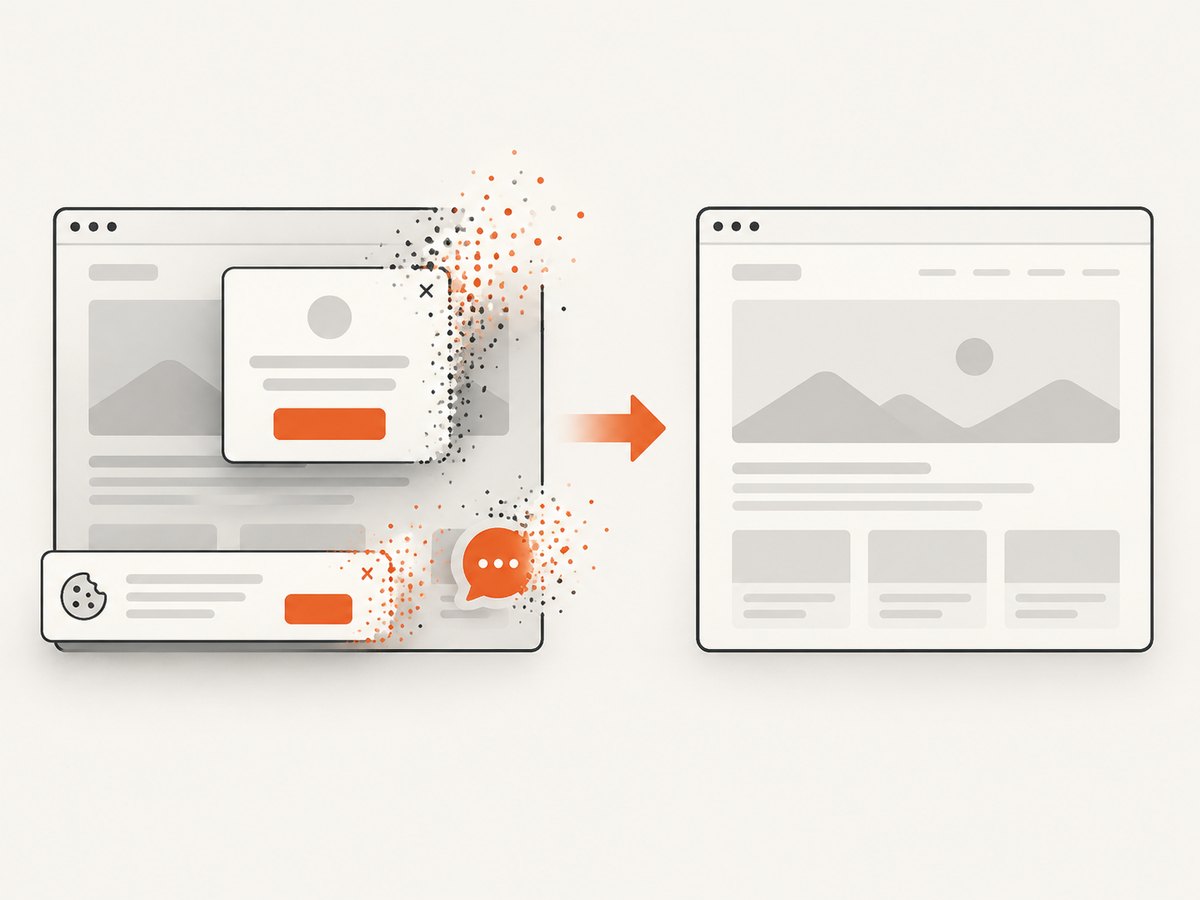
Cookie and consent banners, newsletter popups and chat widgets are removed before the shot. Bot checks, blank pages, timeouts, failed loads and cache hits are not billed; response headers identify the page verdict and billing status. Its MCP server exposes take_screenshot, get_page_info and capture_pdf for Claude, Cursor and other MCP clients.
See the ScreenshotNeo API documentation for the complete option list.
cURL
curl -G "https://api.screenshotneo.com/v1/shot" -d access_key=YOUR_API_KEY --data-urlencode url=https://stripe.com -o shot.webpPython
import requests
r = requests.get("https://api.screenshotneo.com/v1/shot", params={"access_key": "YOUR_API_KEY", "url": "https://stripe.com"}, timeout=90)
open("shot.webp", "wb").write(r.content)
Node.js
const q = new URLSearchParams({ access_key: 'YOUR_API_KEY', url: 'https://stripe.com' });
const res = await fetch(`https://api.screenshotneo.com/v1/shot?${q}`);
ScreenshotNeo includes 1,000 shots per month free with no card. Paid plans start at $5 for 3,000 shots; every feature is available on every plan, and yearly billing provides two months free. Create a free ScreenshotNeo account.
FAQ
Does headless always render differently?
No. Current Chrome Headless shares code with headful Chrome, but inputs and timing still differ, and the legacy shell is not fully equivalent.
Will setting a desktop user agent fix every mismatch?
No. Viewport, device metrics, locale, storage, permissions, fonts and readiness can independently change the result.
Can Puppeteer emulate Safari?
No. Chrome emulation changes Chrome’s inputs; it does not run Safari’s rendering engine or operating system.
Should I use a fixed delay?
Use a page-specific selector or readiness signal first. A short delay can supplement that for lazy content, but it is less deterministic than waiting for the required state.
How do I prove which variable caused the difference?
Change one input at a time, save screenshots and diagnostics, and keep a matrix of mode, version, viewport, identity, session and readiness settings.


