BlogScreenshots on your device
How to Run PyAutoGUI Screenshots Without Opening a Windows Console
Run PyAutoGUI screenshots silently on Windows with pythonw, .pyw files, or PyInstaller—and keep errors diagnosable without a console.
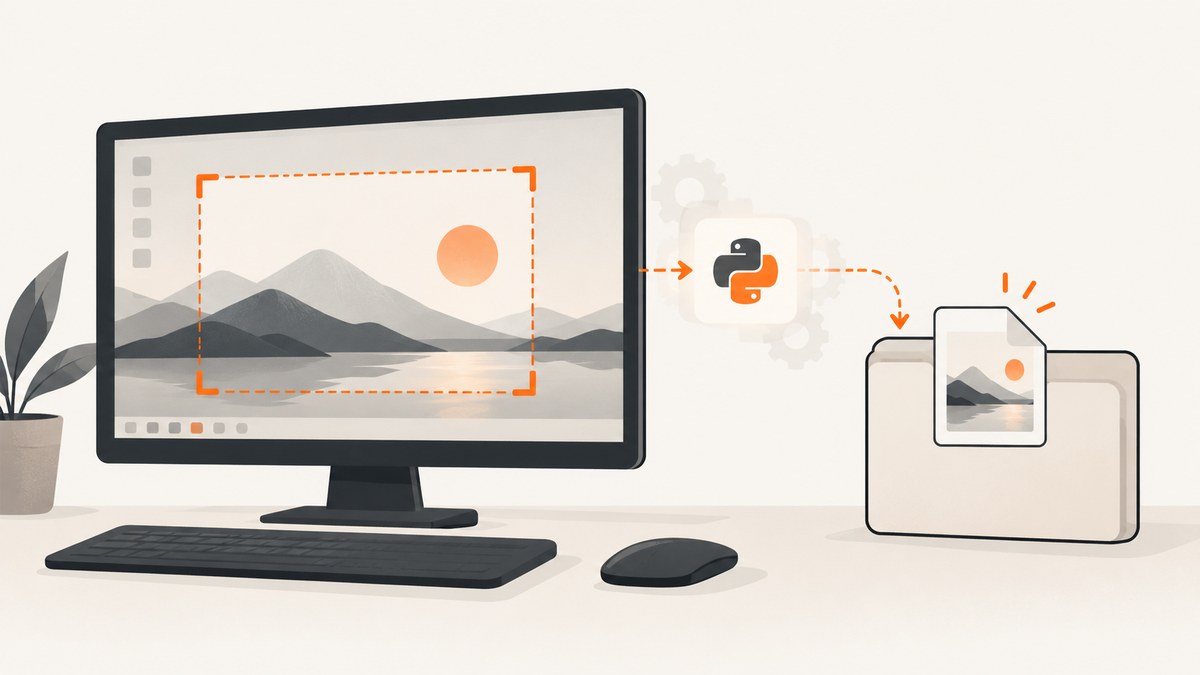
Use pythonw.exe or rename the script to .pyw to run a PyAutoGUI screenshot without opening a Windows console. For a distributable application, build it with PyInstaller’s --windowed (also called --noconsole) option.
import pyautogui

pyautogui.screenshot('screen.png')
PyAutoGUI returns a Pillow image object. Passing a filename saves the image and still returns the image object. Pillow is therefore required for screenshot support. See the PyAutoGUI screenshot documentation.
1. Install PyAutoGUI and Pillow
Open a normal Command Prompt or PowerShell window once to install the dependencies:
py -m pip install --upgrade pyautogui pillowPyAutoGUI uses Pillow for the image object and file output. If installation fails, confirm that the Python interpreter used to run the script is the same interpreter where you installed the packages:
py -c "import sys; print(sys.executable)"
py -m pip show pyautogui pillow
2. Create a console-free screenshot script
Save this as screenshot.pyw. The .pyw extension tells Windows to use the windowed Python interpreter instead of opening a console.
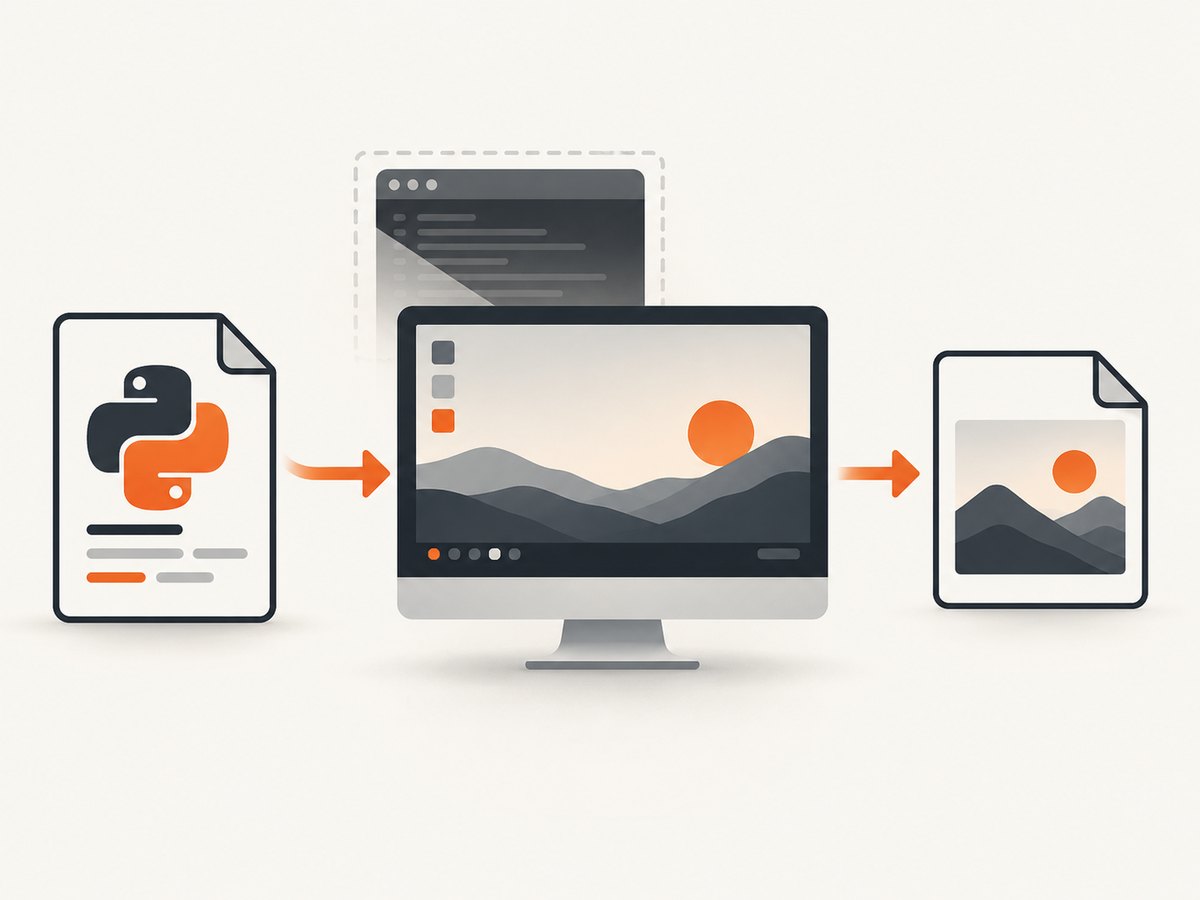
import pyautogui

image = pyautogui.screenshot('screen.png')
Double-click the file in File Explorer, or launch it explicitly:
pythonw.exe screenshot.pywYou can also keep a .py file and invoke pythonw.exe directly:
pythonw.exe screenshot.pyUse an absolute output path when the script may be started by a shortcut, Task Scheduler, or another working directory:
from pathlib import Path
import pyautogui

output = Path.home() / 'Pictures' / 'screen.png'
output.parent.mkdir(parents=True, exist_ok=True)
pyautogui.screenshot(str(output))
3. Capture only part of the screen
Pass region=(left, top, width, height) to capture a rectangle:
import pyautogui

pyautogui.screenshot(
    'header.png',
    region=(0, 0, 1280, 200),
)
The coordinates are screen coordinates in pixels. The origin is the upper-left corner of the primary desktop. A region that extends beyond the available desktop can fail or produce an unexpected result, so determine the current screen size when needed:
import pyautogui

print(pyautogui.size())
When running without a console, write diagnostics to a file instead of relying on print():
from pathlib import Path
import logging
import pyautogui

log_file = Path.home() / 'screenshot.log'
logging.basicConfig(filename=log_file, level=logging.INFO)

try:
    pyautogui.screenshot(str(Path.home() / 'Pictures' / 'screen.png'))
    logging.info('Screenshot saved')
except Exception:
    logging.exception('Screenshot failed')
4. Launch with pythonw.exe
pythonw.exe is the Windows interpreter intended for scripts that do not need a console window. Find the interpreter selected by your Python installation with:
py -c "import sys; print(sys.executable)"The corresponding pythonw.exe is normally beside python.exe. You can use its full path in a shortcut or scheduled task:
"C:\Path\To\Python\pythonw.exe" "C:\Path\To\screenshot.pyw"For a shortcut, put the command in the shortcut’s Target field. Set the Start in field to the script directory if your code uses relative paths.
5. Package the script with PyInstaller
PyInstaller is useful when the recipient should run an executable instead of installing Python. Install it and build a one-file, windowed executable:
py -m pip install pyinstaller
pyinstaller --onefile --windowed screenshot.py
--noconsole is an equivalent spelling:
pyinstaller --onefile --noconsole screenshot.pyThe executable is placed in the dist directory. PyInstaller documents that a .pyw entry file already suppresses the console on Windows, and that --windowed creates a windowed application. See the PyInstaller usage documentation and its common issues and pitfalls.
Source script or packaged executable?
| Approach | Best for | Updates | Diagnostics |
|---|---|---|---|
.pyw or pythonw.exe |
Your own machine and fast iteration | Replace the script and dependencies | Use file logging; no console appears |
PyInstaller --windowed |
Sharing a standalone application | Rebuild and redistribute the executable | Use file logging or an error dialog |
6. Handle the no-console environment correctly
In PyInstaller windowed mode, sys.stdin, sys.stdout, and sys.stderr are unavailable and set to None. Code that calls print() or writes directly to those streams can fail or lose its diagnostics.
import logging
import sys
from pathlib import Path

log_path = Path.home() / 'screenshot-app.log'
logging.basicConfig(filename=log_path, level=logging.INFO)

if sys.stdout is None:
    sys.stdout = open(Path.home() / 'screenshot-stdout.log', 'a', encoding='utf-8')
if sys.stderr is None:
    sys.stderr = open(Path.home() / 'screenshot-stderr.log', 'a', encoding='utf-8')
A simpler option is to avoid standard streams entirely and use the logging module with a file handler. During development, run the script with python.exe so tracebacks remain visible; switch to pythonw.exe or a windowed build for normal use.
7. Complete example with region capture and logging
from pathlib import Path
import logging
import pyautogui

base = Path.home() / 'Pictures' / 'pyautogui-captures'
base.mkdir(parents=True, exist_ok=True)
log_path = base / 'capture.log'
output_path = base / 'screen.png'

logging.basicConfig(filename=log_path, level=logging.INFO)

try:
    width, height = pyautogui.size()
    logging.info('Screen size: %sx%s', width, height)
    pyautogui.screenshot(str(output_path), region=(0, 0, width, height))
    logging.info('Saved %s', output_path)
except Exception:
    logging.exception('Capture failed')
Save it as capture.pyw and double-click it. The image and log are written under your Pictures directory.
8. Troubleshooting
A console still opens
Confirm that you launched pythonw.exe, that the file ends in .pyw, or that the executable was built with --windowed or --noconsole. A normal python.exe launch opens a console.
Nothing appears to happen
There is no console to show progress or errors. Check the output path and add file logging. Run the same file with python.exe once to expose the traceback.
ModuleNotFoundError: pyautogui or PIL
Install packages through the interpreter that runs the script:
py -m pip install pyautogui pillowIf using a virtual environment, call that environment’s python.exe or pythonw.exe.
The screenshot is black, stale, or from the wrong display
PyAutoGUI captures the desktop visible to the logged-in Windows session. Unlock the workstation, verify which monitor is primary, and ensure the target window is actually visible before capturing. Remote desktop and session-lock behavior can change what is available to desktop-capture tools.
The region is misplaced on a multi-monitor setup
Inspect pyautogui.size() and test coordinates while running with python.exe. Monitor arrangements can produce coordinates outside the primary display’s positive range.
A packaged executable exits immediately
Run the original script with python.exe, inspect the log file, and rebuild after fixing the exception. Windowed mode hides the traceback by design.
Scheduled execution cannot find files
Use absolute paths and configure the task’s Start in directory. Do not assume the current directory is the script directory.
9. Performance, reliability, and cost considerations
- Performance: Capture only the required
regionwhen a full desktop image is unnecessary. Saving to a local drive avoids network latency. - Reliability: Log the output path and exceptions, create parent directories before capture, and verify that the expected file exists after saving.
- Desktop state: PyAutoGUI depends on an interactive, visible Windows desktop. It is not a browser-rendering service and does not capture a locked or unavailable session reliably.
- Packaging: A one-file PyInstaller build is convenient to distribute but must be rebuilt when code or dependencies change.
- Cost: PyAutoGUI, Pillow, and PyInstaller are software components. Your main operational costs are the Windows machine, storage, and any automation infrastructure.
10. Or skip the browser setup
PyAutoGUI is appropriate for a visible Windows desktop. If you need a website image from a URL, ScreenshotNeo provides a single HTTP request and handles the browser capture for you.

curl -G "https://api.screenshotneo.com/v1/shot" -d access_key=YOUR_API_KEY --data-urlencode url=https://stripe.com -o shot.webpimport requests
r = requests.get("https://api.screenshotneo.com/v1/shot", params={"access_key": "YOUR_API_KEY", "url": "https://stripe.com"}, timeout=90)
open("shot.webp", "wb").write(r.content)const q = new URLSearchParams({ access_key: 'YOUR_API_KEY', url: 'https://stripe.com' });
const res = await fetch(`https://api.screenshotneo.com/v1/shot?${q}`);See the ScreenshotNeo API documentation for request options. Cookie and consent banners, newsletter popups, and chat widgets are removed before the shot. Bot checks, blank pages, failed loads, timeouts, and cache hits are not billed, and the response identifies the page verdict and billing result in headers. ScreenshotNeo also includes an MCP server so AI agents can take screenshots, and the free plan includes 1,000 screenshots a month with no card; paid plans start at $5 for 3,000 shots.
Create a free ScreenshotNeo account.
11. FAQ
Does PyAutoGUI save the image automatically?
Yes. Pass a filename to pyautogui.screenshot(); it saves the image and returns the Pillow image object.
What is the difference between .pyw and pythonw.exe?
Both select Windows’ windowed execution path. A .pyw extension makes the association automatic; pythonw.exe lets you choose it explicitly for any script.
Can I see errors without reopening a console?
Write exceptions to a log file or show a GUI error message. Windowed execution does not provide normal standard streams.
Should I use PyAutoGUI or a URL screenshot API?
Use PyAutoGUI for the visible Windows desktop. Use a URL screenshot API when the input is a web address and you want browser rendering without managing a desktop session.


