Why Pyppeteer Behaves Differently on Linux and Windows
Pyppeteer differences usually come from Chromium paths, revisions, Linux libraries, and process settings. Use this checklist to find the cause.
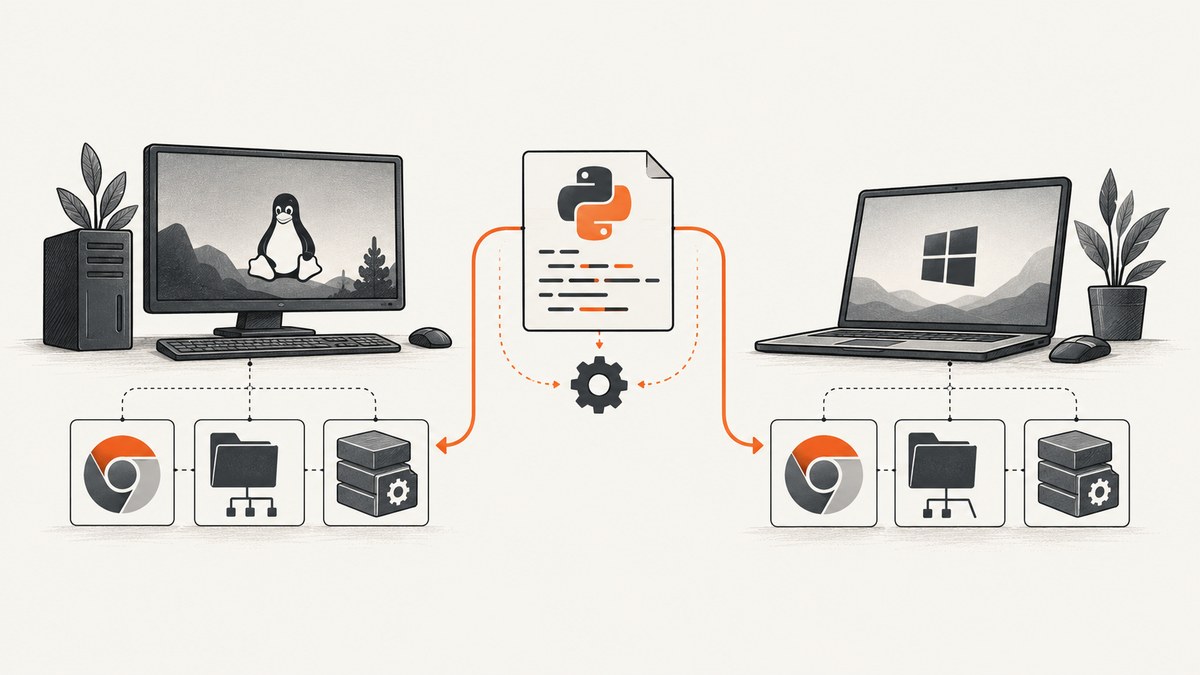
Short answer: Pyppeteer can behave differently because it does not necessarily launch the same Chromium executable on both machines. Its download directory, browser revision, explicit executablePath, environment variables, launch flags, Python runtime, and operating-system dependencies may all differ. Linux also requires compatible shared libraries for Chromium to start. Make those inputs equivalent before treating the result as a rendering bug.
The project repository currently describes Pyppeteer as unmaintained and suggests considering Playwright. If you must keep Pyppeteer, use the diagnostic sequence below and record the exact browser and runtime details for every host.
What actually differs between Linux and Windows?
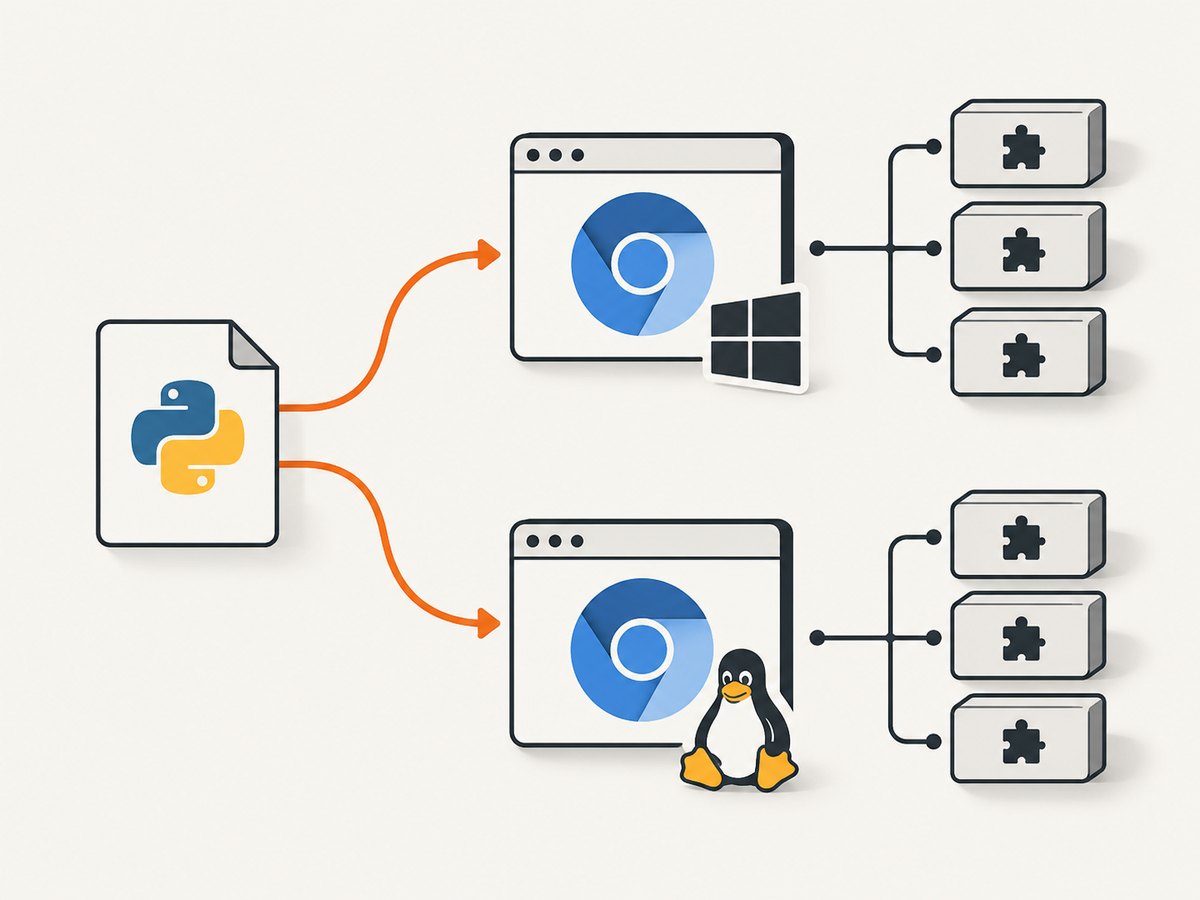
There is no universal rule that a page always renders differently on Linux. The documented differences are operational: executable discovery, storage paths, host libraries, process setup, and API/runtime behavior. A page-specific mismatch needs a reproducible case with versions, binary path, flags, and environment captured.
| Comparison axis | Why it matters | What to record |
|---|---|---|
| Chromium executable | Pyppeteer may use its downloaded browser on one host and system Chrome/Chromium on another. | Absolute path and browser version |
| Data directory | Default locations differ by operating system, and an override can change which browser is found. | PYPPETEER_HOME, XDG_DATA_HOME, and the resolved path |
| Browser revision | A different revision can change rendering, launch behavior, or compatibility. | PYPPETEER_CHROMIUM_REVISION and revision metadata |
| Linux shared libraries | Chromium can exit before creating a page when a required system library is missing. | Distribution release and ldd output |
| Launch settings | Headless mode, arguments, proxy, sandbox, and environment affect startup and page behavior. | Full launch() options and environment |
| Python/runtime | Paths, subprocess behavior, shells, and event-loop setup differ between Windows and Unix-like systems. | Python version, Pyppeteer version, and event-loop code |
Pyppeteer’s API reference documents the platform-specific data directories, executable selection, revision controls, and launcher options. See the Pyppeteer API reference and the current project repository.
Build a reproducible comparison first
- Run the same application commit and dependency lock file on both hosts.
- Print Python and Pyppeteer versions.
- Resolve the actual Chromium executable and print its version.
- Print relevant Pyppeteer environment variables.
- Use the same viewport, user agent, headless setting, launch arguments, timezone, locale, and network conditions.
- Save a screenshot, page HTML, console output, request failures, and browser stderr from each run.
python - <<'PY'
import os
import platform
import sys

try:
    import pyppeteer
    print("pyppeteer:", getattr(pyppeteer, "__version__", "unknown"))
except Exception as exc:
    print("pyppeteer import error:", repr(exc))

print("python:", sys.version)
print("platform:", platform.platform())
for name in (
    "PYPPETEER_HOME",
    "XDG_DATA_HOME",
    "PYPPETEER_CHROMIUM_REVISION",
    "PYPPETEER_DOWNLOAD_HOST",
):
    print(name + ":", os.environ.get(name))
PY
On Windows, use the equivalent commands in PowerShell or save the snippet as a .py file. The important part is collecting identical fields, not the shell syntax.
Control which Chromium Pyppeteer launches
On first use, Pyppeteer can download Chromium. The bundled revision is intended to match the library. Selecting an arbitrary system browser with executablePath may work, but the project does not guarantee compatibility with every Chrome or Chromium version.
Use the downloaded browser
import asyncio
from pyppeteer import launch

async def main():
    browser = await launch(
        headless=True,
        dumpio=True,
        handleSIGINT=False,
        handleSIGTERM=False,
        handleSIGHUP=False,
    )
    page = await browser.newPage()
    await page.setViewport({"width": 1280, "height": 800, "deviceScaleFactor": 1})
    await page.goto("https://example.com", {"waitUntil": "networkidle2", "timeout": 60000})
    await page.screenshot({"path": "example.png", "fullPage": True})
    await browser.close()

asyncio.run(main())
dumpio=True forwards browser process output, which is useful when Linux exits during startup. Keep the launch options the same on both operating systems.
Use an explicit executable
import asyncio
from pyppeteer import launch

async def main():
    browser = await launch(
        executablePath="/absolute/path/to/chrome-or-chromium",
        headless=True,
        dumpio=True,
        args=[],
    )
    page = await browser.newPage()
    await page.goto("https://example.com", {"waitUntil": "domcontentloaded"})
    print(await page.title())
    await browser.close()

asyncio.run(main())
Use a Windows path such as C:\\Program Files\\Google\\Chrome\\Application\\chrome.exe (escaped in Python) or a Linux path such as /usr/bin/chromium. Verify that the file exists and that the account running the process can execute it.
Understand Pyppeteer’s storage and environment variables
| Setting | Effect | Diagnostic use |
|---|---|---|
PYPPETEER_HOME |
Overrides Pyppeteer’s home directory. | Find unexpected downloads or permission problems. |
XDG_DATA_HOME |
On Linux, changes the base data directory; Pyppeteer uses an app subdirectory beneath it. | Check whether two Linux users see different browsers. |
PYPPETEER_CHROMIUM_REVISION |
Selects the Chromium revision used for download. | Align revisions between hosts. |
PYPPETEER_DOWNLOAD_HOST |
Changes the download source used by Pyppeteer. | Explain different downloaded artifacts or failed downloads. |
The hosted API documentation lists a Windows user-data location based on %LOCALAPPDATA% and a Linux location under ~/.local/share/pyppeteer, with $XDG_DATA_HOME/pyppeteer taking precedence when set. Treat those as documented defaults, not assumptions: inspect the installed release and your environment.
Fix Linux launch failures caused by shared libraries
If Chromium starts on Windows but exits immediately on Linux, missing shared libraries are a leading possibility. The exact packages depend on the Linux distribution and the browser build. Do not copy a Debian or Ubuntu package list to another distribution without mapping package names to that distribution.
- Resolve the exact browser executable.
- Run
lddagainst it. - Look for entries marked
not found. - Install the matching packages from your distribution’s repositories.
- Run the same command again until required libraries resolve.
ldd /absolute/path/to/chromium | grep 'not found'The official Puppeteer Linux troubleshooting guide recommends this dependency diagnosis. It is upstream guidance, so match the result to your Chromium revision and distribution.
Sandbox and account differences
Containers, root accounts, service users, and restricted CI environments can change Chromium’s ability to create a sandbox or write to its profile. Keep the runtime account consistent while debugging. If your environment requires a special launch argument, document it and apply it on both hosts; do not add flags solely because a random example used them.
Compare launch options and page conditions
Equivalent Python source does not guarantee equivalent process conditions. Compare these values explicitly:
headlessmode and browser channelexecutablePathand browser revision- all
args, including proxy, sandbox, window-size, and feature flags - environment variables and working directory
- user data directory and profile state
- viewport, device scale factor, user agent, locale, timezone, and color scheme
- event-loop setup and signal handling
- DNS, proxy, TLS inspection, firewall, and outbound network access
For a visual mismatch, also compare fonts and available font files. A page can reflow when a font is absent even though Chromium itself is healthy. Record the computed font family and capture the page at the same viewport and scale.
Instrument a failing capture
import asyncio
from pyppeteer import launch

async def main():
    browser = await launch(headless=True, dumpio=True)
    page = await browser.newPage()

    page.on("console", lambda msg: print("console:", msg.type, msg.text))
    page.on("pageerror", lambda exc: print("pageerror:", exc))
    page.on("requestfailed", lambda req: print("requestfailed:", req.url, req.failure))
    page.on("response", lambda response: print("response:", response.status, response.url) if response.status >= 400 else None)

    await page.setViewport({"width": 1280, "height": 800, "deviceScaleFactor": 1})
    response = await page.goto(
        "https://example.com",
        {"waitUntil": "networkidle2", "timeout": 60000},
    )
    print("main status:", response.status if response else None)
    print("title:", await page.title())
    print("url:", page.url)
    print("html bytes:", len(await page.content()))
    await page.screenshot({"path": "debug.png", "fullPage": True})
    await browser.close()

asyncio.run(main())
Save browser stderr, the generated HTML, and the screenshot from both systems. This separates a browser launch failure from a page network error, JavaScript exception, missing font, or timing issue.
Common errors and fixes
| Symptom | Likely cause | Fix |
|---|---|---|
Browser closed unexpectedly |
Missing Linux library, incompatible executable, sandbox restriction, or killed process. | Enable dumpio, run ldd, verify the executable and account, then inspect system logs. |
FileNotFoundError for Chrome |
executablePath points to a nonexistent file or the downloaded browser is missing. |
Print the absolute path, check permissions, and allow the intended revision to download. |
| Download works on one host only | Different PYPPETEER_HOME, download host, proxy, or filesystem permissions. |
Compare environment variables and network access; use a writable, consistent cache location. |
| Different page layout | Different browser revision, fonts, viewport, scale factor, locale, timezone, or CSS media settings. | Align each value and capture diagnostic metadata with the image. |
| Navigation timeout | Network, proxy, DNS, blocked third-party requests, or a page that never reaches the selected wait condition. | Log failed requests, test domcontentloaded first, and set a deliberate timeout. |
| Works interactively but fails in service/CI | Different user, working directory, environment, permissions, display, or signal handling. | Run the smallest script under the same service account and print its environment. |
| API examples do not match installed package | Pyppeteer documentation and installed releases may differ. | Inspect the installed package and current repository; pin dependencies for repeatability. |
Performance, reliability, and cost considerations
Performance
- Reuse one browser process and create or close pages per job instead of launching Chromium for every URL.
- Use the narrowest wait condition that matches your page. Waiting for full network idle can be slow when analytics or streaming requests remain open.
- Keep browser revisions and launch flags stable so performance changes are attributable.
- Cache the downloaded browser in a controlled location, especially in CI, while ensuring the cache is readable by the runtime account.
Reliability
- Pin Python, Pyppeteer, and browser revisions.
- Record executable path, revision, OS image, and launch arguments with each failure.
- Use bounded navigation and shutdown timeouts.
- Close pages and browsers in
finallyblocks so crashed jobs do not accumulate processes. - Reproduce in a clean environment before changing flags.
Cost
Self-hosted Pyppeteer has no per-screenshot API charge, but you operate browser downloads, Linux dependencies, CI images, network access, retries, and maintenance. The Pyppeteer repository’s unmaintained status is a maintenance risk to include in that decision.
Or skip the browser setup
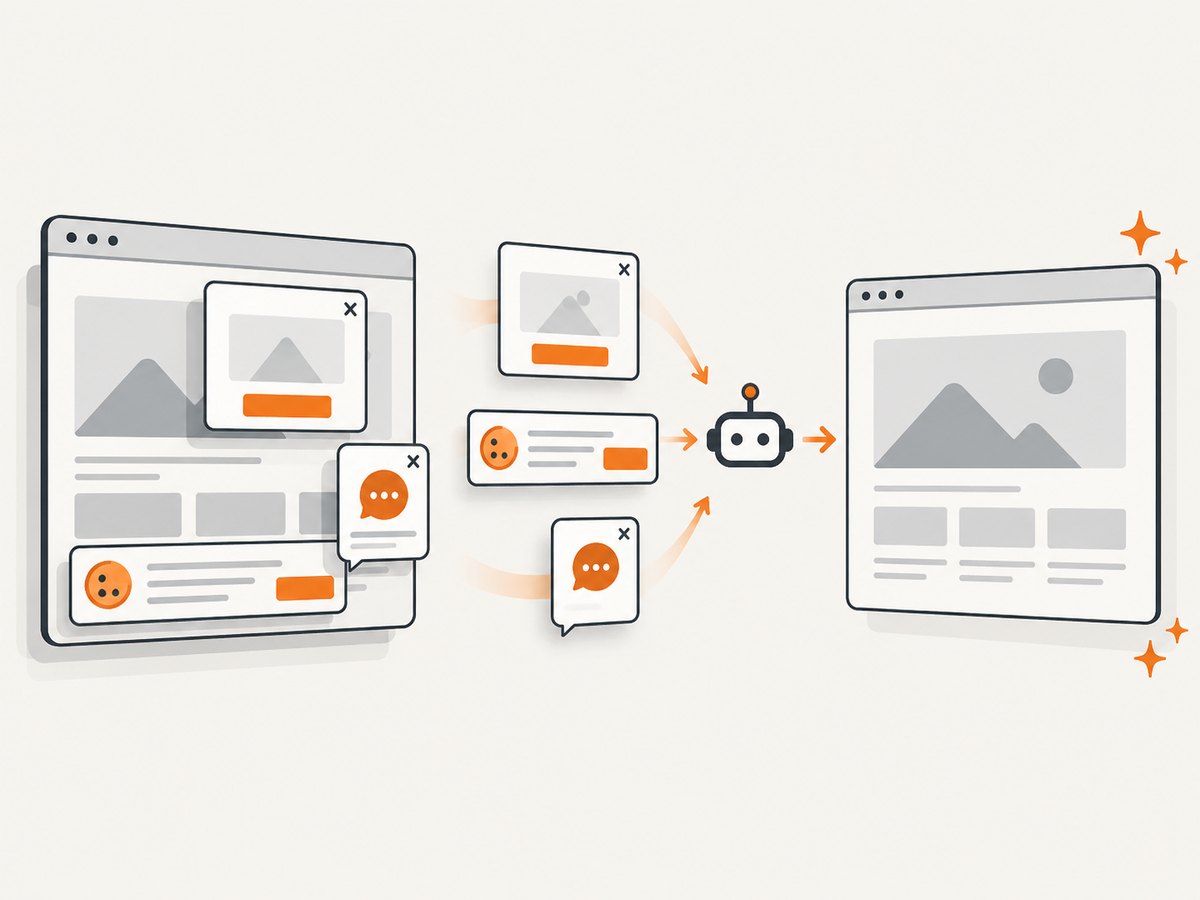
If your goal is a clean screenshot rather than maintaining Chromium on every machine, ScreenshotNeo provides a single GET request for PNG, JPEG, WebP, or PDF output. It accepts cookie and consent banners as a visitor, then removes more than 60 known consent platforms, newsletter popups, and chat widgets before capture; each step can be turned off. Bot checks, CAPTCHAs, blank pages, timeouts, failed loads, and cache hits are not billed, and the response reports the verdict and billing status in X-Page-Verdict and X-Billed headers.
See the ScreenshotNeo API documentation for all options.
cURL
curl -G "https://api.screenshotneo.com/v1/shot" -d access_key=YOUR_API_KEY --data-urlencode url=https://stripe.com -o shot.webpPython
import requests
r = requests.get("https://api.screenshotneo.com/v1/shot", params={"access_key": "YOUR_API_KEY", "url": "https://stripe.com"}, timeout=90)
open("shot.webp", "wb").write(r.content)
Node.js
const q = new URLSearchParams({ access_key: 'YOUR_API_KEY', url: 'https://stripe.com' });
const res = await fetch(`https://api.screenshotneo.com/v1/shot?${q}`);
ScreenshotNeo also offers full-page capture with lazy images loaded, CSS element capture, dark mode, device presets and custom viewports, retina scale, PDF controls, HTML/CSS rendering, custom JavaScript and CSS, clicks, selector waits, delays, network-idle waits, request blocking, headers, cookies, user agents, authorization, timezone, geolocation, transparent backgrounds, resizing, configurable caching, signed image links, asynchronous jobs with signed webhooks, bulk capture for up to 100 URLs per call, a usage API, and an OpenAPI specification. Its MCP server includes take_screenshot, get_page_info, and capture_pdf for Claude, Cursor, and other MCP clients.
Free accounts include 1,000 screenshots per month with no card. Paid plans start at $5 for 3,000 shots, and every feature is available on every plan. Create a free ScreenshotNeo account.
FAQ
Does Linux always render pages differently?
No. The documented differences are browser selection, dependencies, runtime conditions, and configuration. A rendering mismatch must be reproduced with those inputs recorded.
Should I always set executablePath?
Set it when you deliberately manage a system browser and can pin its version. Otherwise, the bundled Chromium revision is the browser Pyppeteer is designed to match.
Can I fix every launch error by adding --no-sandbox?
No. That flag changes process security and can hide the real cause. Diagnose the executable, account, sandbox environment, and missing libraries first.
Is Playwright a drop-in replacement?
No. The Pyppeteer repository suggests Playwright as an alternative, but migration requires adapting installation, APIs, and browser management.
What information should I include in a bug report?
Include OS and distribution, Python and Pyppeteer versions, Chromium path and version, revision, environment variables, launch options, runtime account, complete error output, and a minimal URL or reproduction script.


