BlogScreenshots on your device
How to Capture and Save Screenshots From a Python Background Script
Capture and save desktop screenshots from unattended Python scripts with PyAutoGUI, MSS, or Pillow, plus display checks and fixes.
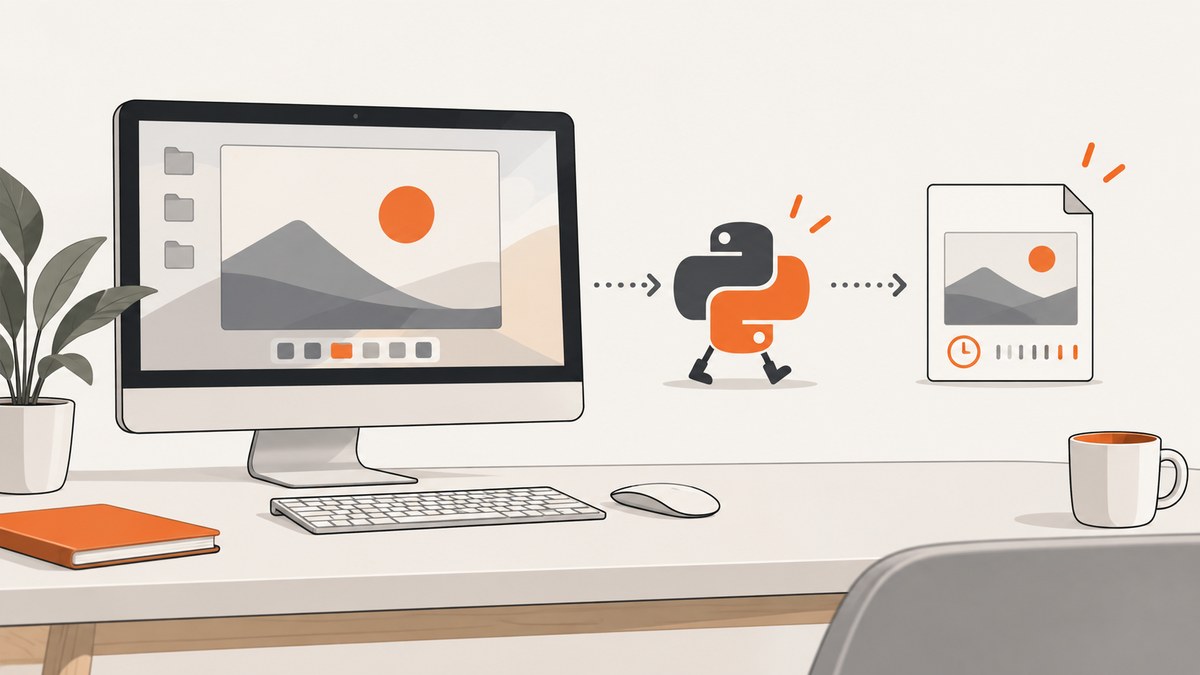
Direct answer: If the Python process can access a graphical desktop, save a screenshot with PyAutoGUI:
import pyautogui

image = pyautogui.screenshot('/var/tmp/screenshot.png')
print(image.size)
The filename is written immediately and the call also returns a Pillow image. A background script does not create a display. It can capture only pixels from a monitor, region, or supported window that its account can access. A headless host has no desktop pixels unless you deliberately provide a display session.
Choose the capture target first
| Requirement | Starting point | Verify |
|---|---|---|
| One full-screen or rectangular capture | PyAutoGUI | Pillow and OS prerequisites; coordinates |
| Repeated captures or explicit monitor selection | MSS | Display/backend availability and monitor index |
| Pillow workflow, Windows multi-monitor, or supported window capture | ImageGrab | Installed Pillow version and OS support |
These libraries use different system capture facilities. Compare the target, platform support, dependencies, and processing needs rather than assuming one library is universally faster.
Install and run PyAutoGUI
python -m pip install pyautogui pillow
python capture_once.py
PyAutoGUI documents scrot as a Linux dependency; macOS uses the system screencapture command. Follow the current instructions for your distribution and installed release in the PyAutoGUI screenshot documentation.
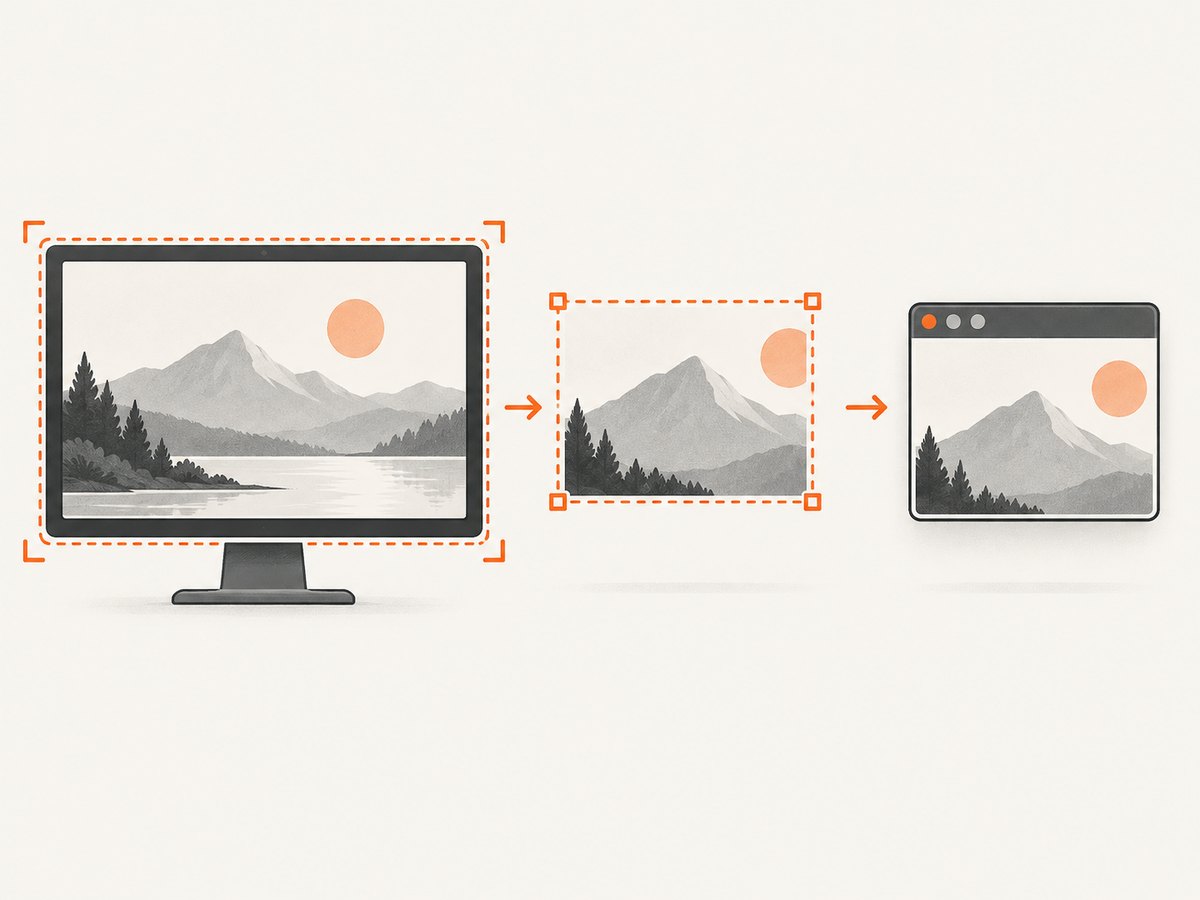
from pathlib import Path
import pyautogui

output = Path('/var/lib/my-captures/latest.png')
output.parent.mkdir(parents=True, exist_ok=True)
image = pyautogui.screenshot(str(output))
print(f'wrote {output} ({image.width}x{image.height})')
Use an absolute path for a daemon or scheduled task. Relative paths depend on the process working directory.
Capture a rectangle
import pyautogui

# left, top, width, height
image = pyautogui.screenshot('/var/tmp/dashboard.png', region=(0, 0, 800, 600))
Verify coordinates and bounds on the machine that will run the script.
Use MSS for repeated or monitor-specific captures
MSS exposes monitors and regions and can convert a grabbed frame to a Pillow image. Reuse one MSS instance in a capture loop. See the usage and examples.
from pathlib import Path
from mss import MSS

output_dir = Path('/var/lib/my-captures')
output_dir.mkdir(parents=True, exist_ok=True)

with MSS() as sct:
    monitor = sct.primary_monitor
    image = sct.grab(monitor).to_pil()
    image.save(output_dir / 'monitor.png')
    print(image.size)
For a region, pass a dictionary containing left, top, width, and height to grab(). On Linux, MSS reads DISPLAY by default and accepts an explicit value such as MSS(display=':0.0').
from mss import MSS
from mss.tools import to_png

with MSS() as sct:
    area = {'left': 100, 'top': 100, 'width': 1200, 'height': 800}
    shot = sct.grab(area)
    to_png(shot.rgb, shot.size, output='/var/tmp/region.png')
Capture with Pillow ImageGrab
from PIL import ImageGrab

image = ImageGrab.grab()
image.save('/var/tmp/full.png')

crop = ImageGrab.grab(bbox=(0, 0, 800, 600))
crop.save('/var/tmp/box.png')
Pillow documents all_screens=True on Windows. It also documents a window argument for a single window on Windows (HWND) and macOS (CGWindowID), introduced in Pillow 11.2.1 and 12.1.0 respectively. Confirm your installed version and target OS before relying on those parameters. On Linux, ImageGrab documents fallback to gnome-screenshot, grim, or spectacle when the default X11 display does not return a snapshot. See the ImageGrab reference.
Prepare a background deployment
- Test with the same account, environment, and display session as the scheduler or service.
- On Linux, inspect
DISPLAYand permissions. A headless service should not be assumed to see a desktop. - Use an absolute output path, create its parent directory, and grant the service account write access.
- Overwrite a stable filename for the latest image, or add a UTC timestamp or UUID for history.
- Restrict output permissions and define a retention policy because screenshots may contain sensitive data.
from datetime import datetime, timezone
from pathlib import Path
import pyautogui

root = Path('/var/lib/my-captures')
root.mkdir(mode=0o700, parents=True, exist_ok=True)
name = datetime.now(timezone.utc).strftime('%Y%m%dT%H%M%SZ') + '.png'
path = root / name
pyautogui.screenshot(str(path))
print(path)
Run a scheduled capture loop
import logging
import time
from pathlib import Path
import pyautogui

logging.basicConfig(level=logging.INFO)
out = Path('/var/lib/my-captures/latest.png')
out.parent.mkdir(parents=True, exist_ok=True)

while True:
    try:
        pyautogui.screenshot(str(out))
        logging.info('saved %s', out)
    except Exception:
        logging.exception('capture failed')
    time.sleep(60)
A system scheduler is often easier to supervise than an unbounded loop. Log failures, use a watchdog at the process level, and do not replace a known-good file until a new capture completes.
Common errors and fixes
| Symptom | Cause | Fix |
|---|---|---|
DisplayNotFoundError, black image, or no snapshot |
No accessible display or wrong DISPLAY |
Run in the logged-in display session, set the correct display for MSS, and verify permissions. |
| PyAutoGUI Linux import/runtime error | Missing Pillow or OS capture dependency | Install Pillow and the dependency required by your distribution. |
| File not found or permission denied | Relative path or unwritable directory | Use an absolute path, create the directory, and grant write permission. |
| Wrong monitor or crop | Coordinate origin, scaling, or monitor selection differs | Print monitor geometry, test a known rectangle, and select the MSS monitor explicitly. |
| Window capture unavailable | Unsupported OS or Pillow version | Check version-specific ImageGrab documentation and fall back to display or region capture. |
| Old files disappear | Stable filename is overwritten | Add a timestamp or UUID and implement retention. |
Performance, reliability, and cost
- Performance: PyAutoGUI gives roughly 100 ms as an illustrative 1920×1080 timing. It is not a cross-library benchmark; measure on your hardware.
- Repeated work: Reuse an MSS context, capture only the needed region, and avoid unnecessary conversions or compression.
- Reliability: Validate output files, preserve the previous known-good image until replacement completes, and log timestamps and exceptions.
- Cost: Local libraries have no per-shot API charge, but the machine, display session, storage, and operations are yours to maintain.
Or skip the browser setup
If you need a webpage image rather than pixels from a desktop application, ScreenshotNeo captures a URL with one request. It accepts cookie and consent banners, removes more than 60 known consent platforms plus newsletter popups and chat widgets before capture, and each step can be disabled. Bot checks, blank pages, timeouts, failed loads, and cache hits are not billed; response headers report the page verdict and billing status. Its MCP server provides take_screenshot, get_page_info, and capture_pdf for Claude, Cursor, and other MCP clients.
See the ScreenshotNeo API docs for all options.
cURL
curl -G 'https://api.screenshotneo.com/v1/shot' \
  -d access_key=YOUR_API_KEY \
  --data-urlencode url=https://stripe.com \
  -o shot.webp
Python
import requests

r = requests.get('https://api.screenshotneo.com/v1/shot', params={'access_key': 'YOUR_API_KEY', 'url': 'https://stripe.com'}, timeout=90)
r.raise_for_status()
open('shot.webp', 'wb').write(r.content)
Node.js
const q = new URLSearchParams({ access_key: 'YOUR_API_KEY', url: 'https://stripe.com' });
const res = await fetch(`https://api.screenshotneo.com/v1/shot?${q}`);
if (!res.ok) throw new Error(`HTTP ${res.status}`);
const fs = await import('node:fs/promises');
await fs.writeFile('shot.webp', Buffer.from(await res.arrayBuffer()));
ScreenshotNeo supports full-page capture with lazy images loaded, CSS-selector element capture, device presets or custom viewports, retina scale, dark mode, custom CSS and JavaScript, waits, request blocking, headers, cookies, user agents, timezone and geolocation, resizing, caching with a chosen TTL, signed links, asynchronous jobs with signed webhooks, bulk capture of up to 100 URLs per call, usage API, and PDF output. It supports PNG, JPEG, WebP, and PDF. 1,000 shots are free each month with no card; paid plans start at $5 for 3,000 shots. Create a free ScreenshotNeo account.
FAQ
Can a background process capture a hidden application window?
Only where the OS and installed Pillow version support window capture, with the required permissions. Background execution does not make an occluded or nonexistent window visible.
Which library should I start with?
Use PyAutoGUI for a simple full screen or rectangle, MSS for repeated or monitor-specific work, and ImageGrab for a Pillow-centric workflow.
Why does it work manually but fail as a service?
The service likely has a different user, working directory, environment, permissions, or display session. Compare those values and test from the service context.
Can ScreenshotNeo capture my local desktop?
No. ScreenshotNeo captures web URLs. Use PyAutoGUI, MSS, or ImageGrab for local display pixels.


