BlogScreenshots on your device
Why Python ImageGrab Cannot Capture the Whole Screen and How to Fix It
ImageGrab usually captures the full display, but monitors, Retina scaling, permissions and Linux display support can change what “whole screen” means.
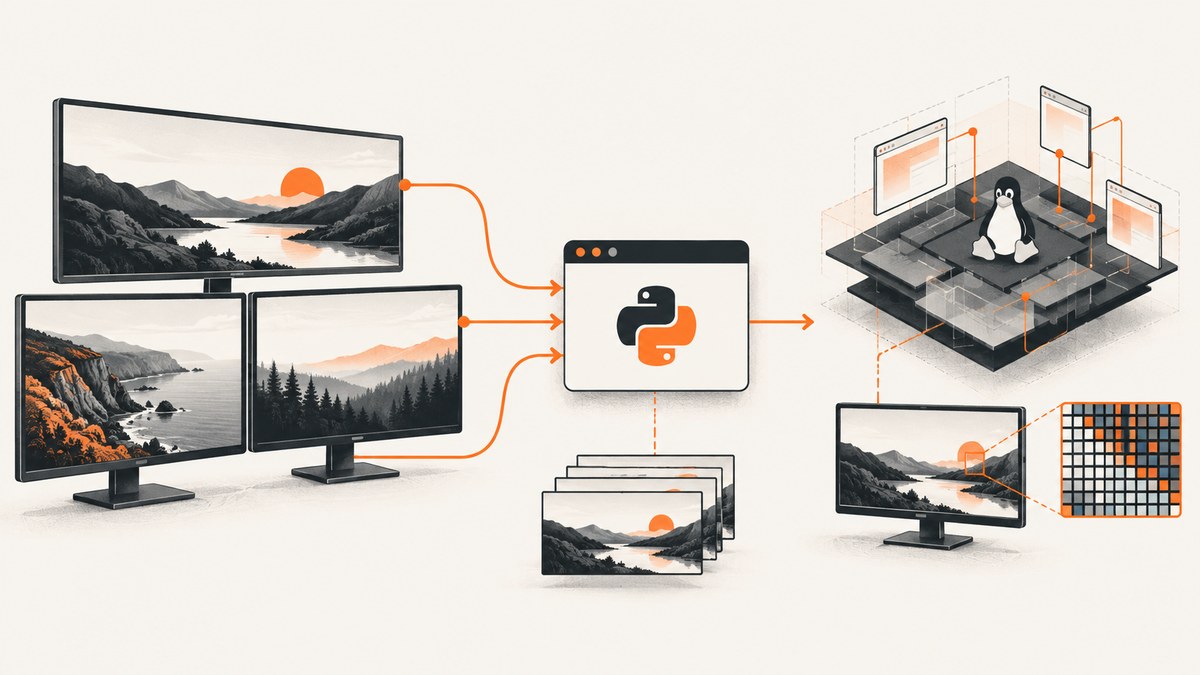
PIL.ImageGrab.grab() is documented to capture the entire screen when you omit bbox. When the result looks incomplete, first define what “whole” means: the primary display, every monitor, or the physical display area versus the pixel dimensions returned by the operating system. Then check your operating system, Pillow version, capture arguments, permissions and display session.
On Windows, use all_screens=True for every connected monitor. On macOS, account for Retina’s 2x pixel dimensions or use scale_down=True with Pillow 12.3.0 or newer. On Linux, verify XCB support and the documented screenshot-utility fallbacks. The official API reference is in the Pillow ImageGrab documentation.
1. Confirm what ImageGrab actually captured
Start with a minimal diagnostic that records the Pillow version, operating system, arguments and returned dimensions. This distinguishes a real crop from a coordinate or scaling misunderstanding.
from PIL import ImageGrab
import platform
import PIL

print("Pillow:", PIL.__version__)
print("OS:", platform.platform())

image = ImageGrab.grab()
print("Captured pixels:", image.size)
image.save("screen.png")
Compare image.size with the pixel dimensions your display settings report. A single monitor may be correct even when its logical dimensions differ from its physical pixel dimensions. If you need to capture a specific rectangle, use bbox=(left, top, right, bottom) and make sure those coordinates belong to the same desktop coordinate space as the capture.
2. Windows: capture every monitor
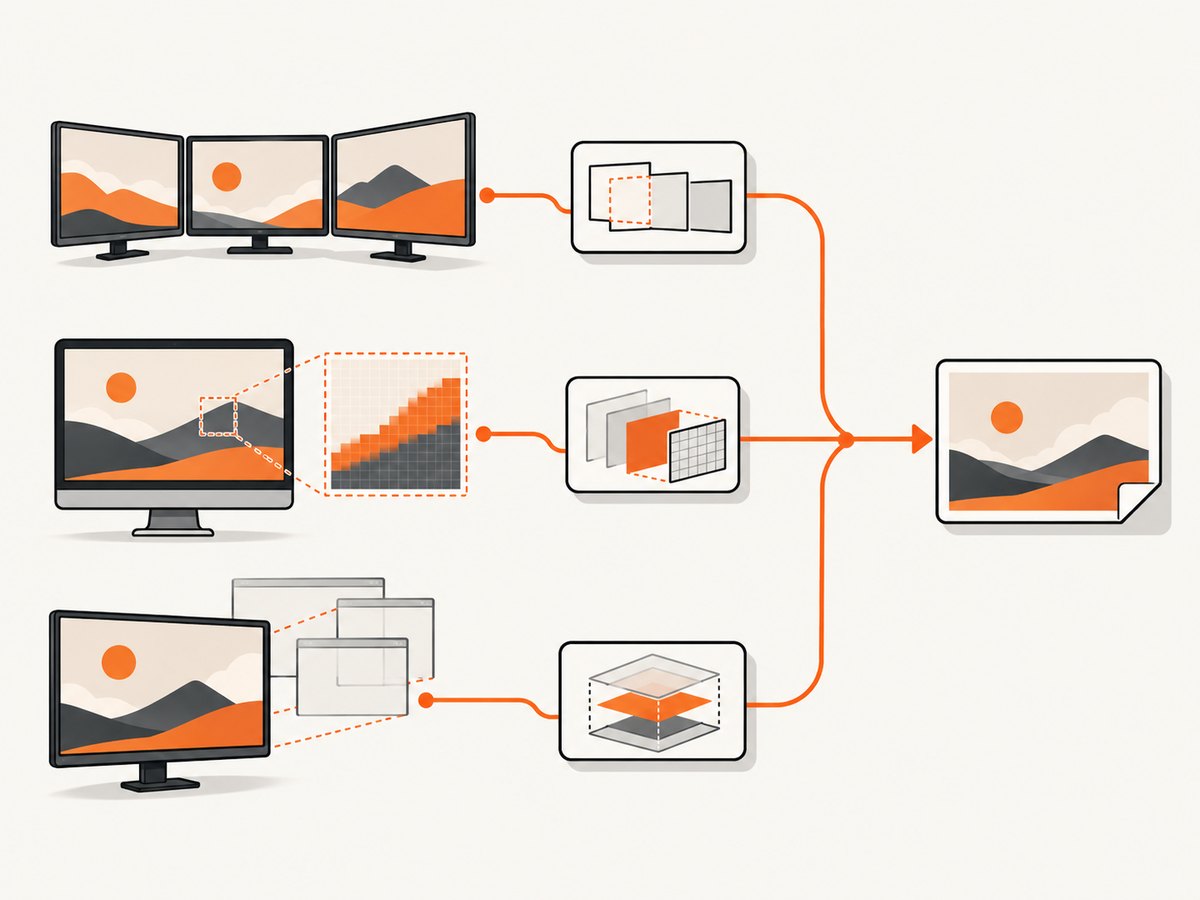
all_screens defaults to False, so a call without it normally captures the primary screen. Pass all_screens=True to include the complete Windows virtual desktop. This Windows-only option was added in Pillow 6.2.0.
from PIL import ImageGrab

image = ImageGrab.grab(all_screens=True)
print(image.size)
image.save("all-monitors.png")
The virtual desktop can begin at a negative coordinate when a monitor is positioned to the left or above the primary display. That matters when you crop:
from PIL import ImageGrab

# Example only: choose coordinates from your actual monitor layout.
# A monitor left of the primary display may have negative x values.
bbox = (-1920, 0, 1920, 1080)
image = ImageGrab.grab(bbox=bbox, all_screens=True)
image.save("selected-desktop-area.png")
Do not use include_layered_windows=True as a multi-monitor fix. It is a separate Windows option for including layered windows.
Windows checklist
- Decide whether you need the primary monitor or the entire virtual desktop.
- Use
all_screens=Truefor all monitors. - Inspect the monitor arrangement and account for negative virtual-desktop coordinates.
- Compare the requested
bboxwith the returned image dimensions before assuming clipping.
3. macOS: Retina pixels and screen-recording access
On Retina displays, Pillow documents capture at 2x pixel density by default. A display described as 1440 points wide can therefore produce an image 2880 pixels wide. That difference is scaling, not evidence that ImageGrab cropped the screen.
from PIL import ImageGrab

image = ImageGrab.grab()
print("Retina pixel dimensions:", image.size)
image.save("mac-screen-2x.png")
If you need 1x output, Pillow 12.3.0 and later support the keyword-only scale_down=True option:
from PIL import ImageGrab

image = ImageGrab.grab(scale_down=True)  # Pillow 12.3.0+
print("Scaled dimensions:", image.size)
image.save("mac-screen-1x.png")
Check your installed version before using that argument:
import PIL
print(PIL.__version__)
macOS also controls screen capture per application. Open System Settings → Privacy & Security → Screen & System Audio Recording and enable the application that actually launches Python, such as Terminal, iTerm, VS Code or another IDE. Apple documents that access can be changed for each listed app.
macOS checklist
- Compare points and pixels before diagnosing a crop.
- Use
scale_down=Trueonly with Pillow 12.3.0 or newer. - Grant access to the process-launching application, then restart it if necessary.
- Record the exact
bboxand dimensions if a crop still looks wrong.
4. Linux: X11, XCB and fallback utilities
Pillow’s Linux implementation uses X11 through XCB. The process must be able to access the active display, and the installed Pillow build must have XCB support. Check the feature directly:
from PIL import Image, ImageGrab

print("XCB support:", Image.features.check_feature("xcb"))
image = ImageGrab.grab()
print("Captured pixels:", image.size)
image.save("linux-screen.png")
When xdisplay=None and the default X11 capture does not return a snapshot, Pillow documents fallback attempts using installed gnome-screenshot, grim or spectacle utilities. Pillow 11.3.0 added support for these fallback paths. The result depends on your desktop session, display server and installed utility.
Leaving xdisplay at its default allows that documented behavior. Passing xdisplay="" disables the fallback, so use an empty value only when you are intentionally testing the direct capture path.
Linux checklist
- Record whether the session is X11 or another display environment.
- Check
Image.features.check_feature("xcb"). - Confirm the process can access the active display.
- Note whether
gnome-screenshot,grimorspectacleis installed when fallback behavior matters.
5. Cropping, coordinates and virtual desktops
A valid full-screen capture can appear clipped after a crop. The common causes are a monitor to the left or above the primary display, a bbox written in primary-monitor coordinates, or a mismatch between logical points and physical pixels.
from PIL import ImageGrab

# Capture first, then inspect the result before selecting a crop.
full = ImageGrab.grab(all_screens=True)
print("Virtual desktop image size:", full.size)

# Replace these values after measuring your actual layout.
left, top, right, bottom = 0, 0, full.width, full.height
crop = full.crop((left, top, right, bottom))
crop.save("checked-crop.png")
On Windows, negative coordinates are valid when all_screens=True. Do not silently clamp them to zero unless you intentionally want to remove monitors positioned above or left of the primary display.
6. A repeatable troubleshooting procedure
- Record
PIL.__version__, operating system, display session, exactgrab()arguments, exception text andimage.size. - Decide whether “whole screen” means one display or every connected monitor.
- On Windows, try
all_screens=Truefor the complete virtual desktop. - On macOS, determine whether Retina’s 2x pixels explain the dimensions; use
scale_down=Truewhen appropriate. - On macOS, grant Screen & System Audio Recording access to the application launching Python.
- On Linux, check XCB support, display access and the documented fallback utilities.
- If using
bbox, compare its coordinates with the virtual desktop origin and captured dimensions.
7. Common errors and fixes
| Symptom | Likely cause | Fix |
|---|---|---|
| Only the primary monitor appears on Windows | all_screens is left at its default |
Call ImageGrab.grab(all_screens=True). |
| The multi-monitor crop is shifted or clipped | The virtual desktop has negative coordinates or the crop uses primary-monitor coordinates | Inspect monitor arrangement and use coordinates from the all-screen coordinate space. |
| macOS output is twice the expected width and height | Retina capture returns 2x pixels | Accept pixel dimensions or use scale_down=True on Pillow 12.3.0+. |
| macOS capture is blank or denied | The launching terminal or IDE lacks screen-recording access | Enable it under Privacy & Security → Screen & System Audio Recording and restart the application. |
| Linux capture raises an error or returns no image | XCB support or display access is unavailable | Check Image.features.check_feature("xcb"), the display session and the documented screenshot utilities. |
Adding include_layered_windows=True does not add monitors |
That option controls layered windows, not monitor selection | Use all_screens=True for Windows multi-monitor capture. |
scale_down is an unexpected keyword |
Pillow is older than 12.3.0 | Upgrade Pillow or omit the option and handle 2x pixels yourself. |
8. Performance, reliability and output handling
Full-desktop captures allocate memory proportional to pixel count. Multi-monitor images and Retina 2x captures can be substantially larger than a single 1x display. Capture only the required bbox when you do not need the entire desktop, and save in a format suited to the next step.
- Use PNG when you need lossless pixels, transparency or later image analysis.
- Use JPEG when a smaller file matters and minor loss is acceptable.
- Log dimensions and arguments so a display-layout change is distinguishable from a library failure.
- For repeatable automation, pin and record the Pillow version and run under the same display session.
- Do not assume a generic screenshot package fixes every Linux setup; Pillow’s fallback is conditional.
9. Or skip the browser setup
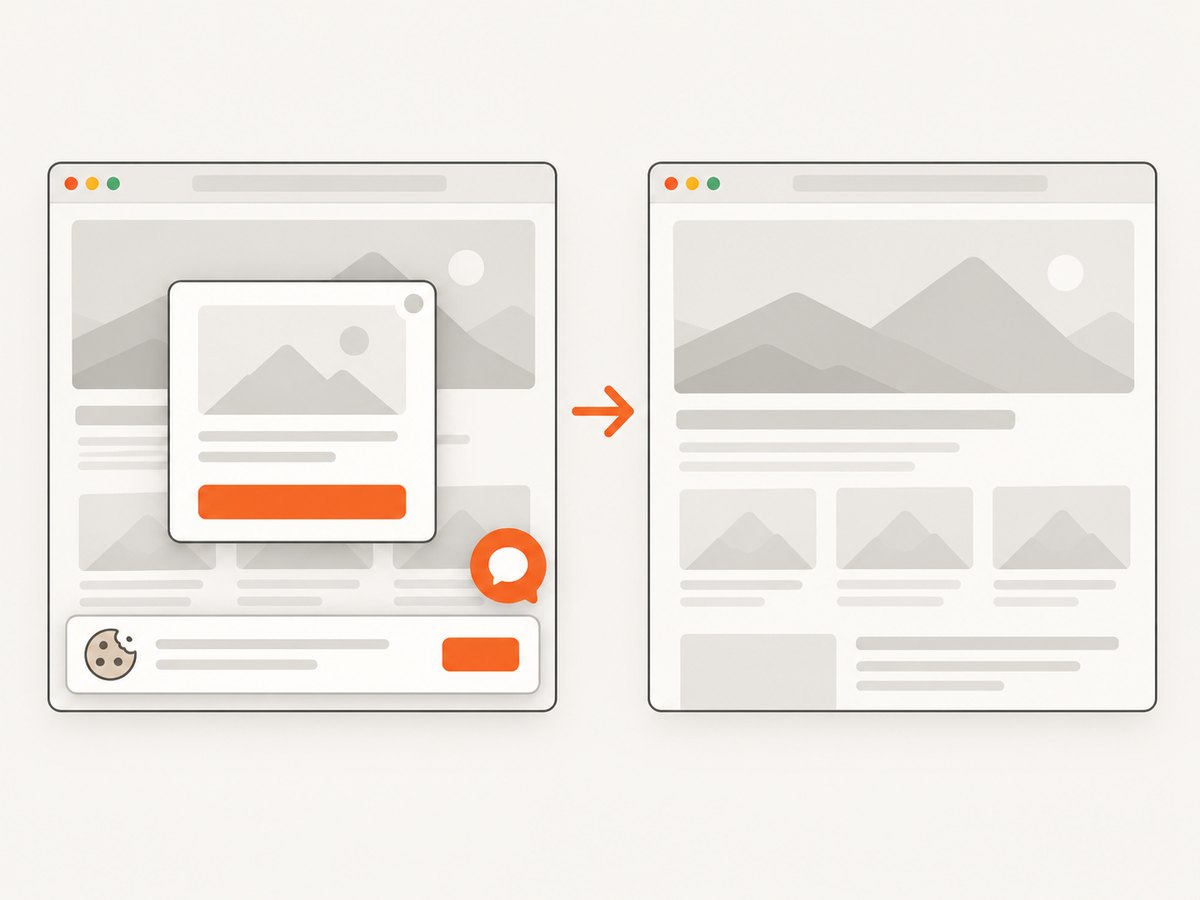
If your goal is a screenshot of a web page rather than the operating-system desktop, ScreenshotNeo captures the page through one HTTP request. Cookie and consent banners are accepted or removed before capture, along with 60+ known consent platforms, newsletter popups and chat widgets. Bot checks, blank pages, failed loads and cache hits are not billed, and response headers report the page verdict and billing result.
See the ScreenshotNeo API documentation for all options, including full-page capture, device presets, element selectors, JavaScript, custom CSS, waits, blocking rules, headers, cookies, geolocation, resizing, caching, signed links, asynchronous jobs, bulk capture and PDFs.
cURL
curl -G "https://api.screenshotneo.com/v1/shot" -d access_key=YOUR_API_KEY --data-urlencode url=https://stripe.com -o shot.webpPython
import requests

r = requests.get(
    "https://api.screenshotneo.com/v1/shot",
    params={"access_key": "YOUR_API_KEY", "url": "https://stripe.com"},
    timeout=90,
)
r.raise_for_status()
open("shot.webp", "wb").write(r.content)
Node.js
const q = new URLSearchParams({ access_key: 'YOUR_API_KEY', url: 'https://stripe.com' });
const res = await fetch(`https://api.screenshotneo.com/v1/shot?${q}`);
if (!res.ok) throw new Error(`${res.status} ${res.statusText}`);
const fs = await import('node:fs/promises');
await fs.writeFile('shot.webp', Buffer.from(await res.arrayBuffer()));
ScreenshotNeo also provides an MCP server with take_screenshot, get_page_info and capture_pdf tools for Claude, Cursor and other MCP clients. The Free plan includes 1,000 shots each month without a card; paid plans start at $5 for 3,000 shots, and every feature is available on every plan.
Create a free ScreenshotNeo account and get 1,000 screenshots a month with no card.
10. FAQ
Does omitting bbox always mean every monitor?
It means the entire screen in Pillow’s documented platform behavior. On Windows, every monitor requires all_screens=True; otherwise the primary display is the usual result.
Is a 2x macOS image broken?
No. Retina displays commonly return twice the logical point dimensions in pixels. Use scale_down=True on Pillow 12.3.0 or newer if 1x output is required.
Can include_layered_windows capture another monitor?
No. It controls layered windows on Windows. Monitor selection is controlled by all_screens.
Should I force xdisplay="" on Linux?
Usually no. An empty value disables Pillow’s documented screenshot-utility fallback. Leave the default while diagnosing capture failures unless you are deliberately testing the direct X11 path.
What information should I provide when asking for help?
Include the OS, Pillow version, display session, exact grab() call, exception text, returned dimensions and whether the target is one display or all monitors.


