BlogScreenshots on your device
How to Take Screenshots with Python MSS
Capture monitors or screen regions with Python MSS, save PNGs, process pixels, fix platform errors, and automate reliable desktop screenshots.
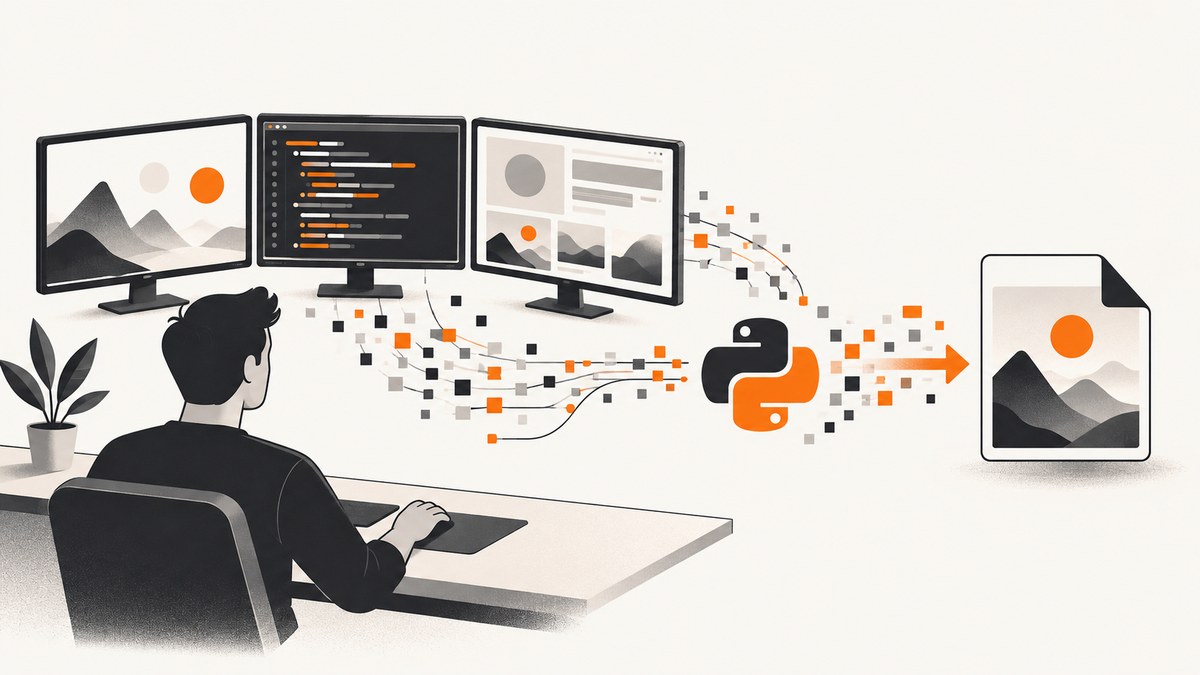
Python MSS is a cross-platform package for capturing a monitor or a rectangular part of the screen. The current API uses MSS as a context manager, grab() to return pixels, and helpers such as shot(), save(), and mss.tools.to_png() to write PNG files. Install it with:
python -m pip install -U --user mssThe smallest useful program captures the primary display and writes one PNG:
from mss import MSS

with MSS() as sct:
    image = sct.grab(sct.primary_monitor)
    sct_img = image
    import mss.tools
    mss.tools.to_png(sct_img.rgb, sct_img.size, output='screenshot.png')

print('Saved screenshot.png')
MSS stands for “Multiple ScreenShots” and supports GNU/Linux, macOS, and Windows. Python 3.9 or newer is required according to the package metadata. The official project page and documentation are the references for platform-specific behavior: PyPI, usage guide, examples, and API reference.
1. Install and verify MSS
Use a virtual environment when the screenshot script belongs to an application:
python -m venv .venv
# macOS/Linux
. .venv/bin/activate
# Windows PowerShell
# .venv\\Scripts\\Activate.ps1
python -m pip install -U mss
Check that the interpreter importing MSS is the one where you installed it:
python -c "from mss import MSS; print(MSS)"Conda users can install the package through the Conda route documented by the project. Avoid using mss.mss() in new code: the current documentation keeps it for compatibility but marks that spelling deprecated since version 10.2. Use from mss import MSS.
2. Capture a monitor
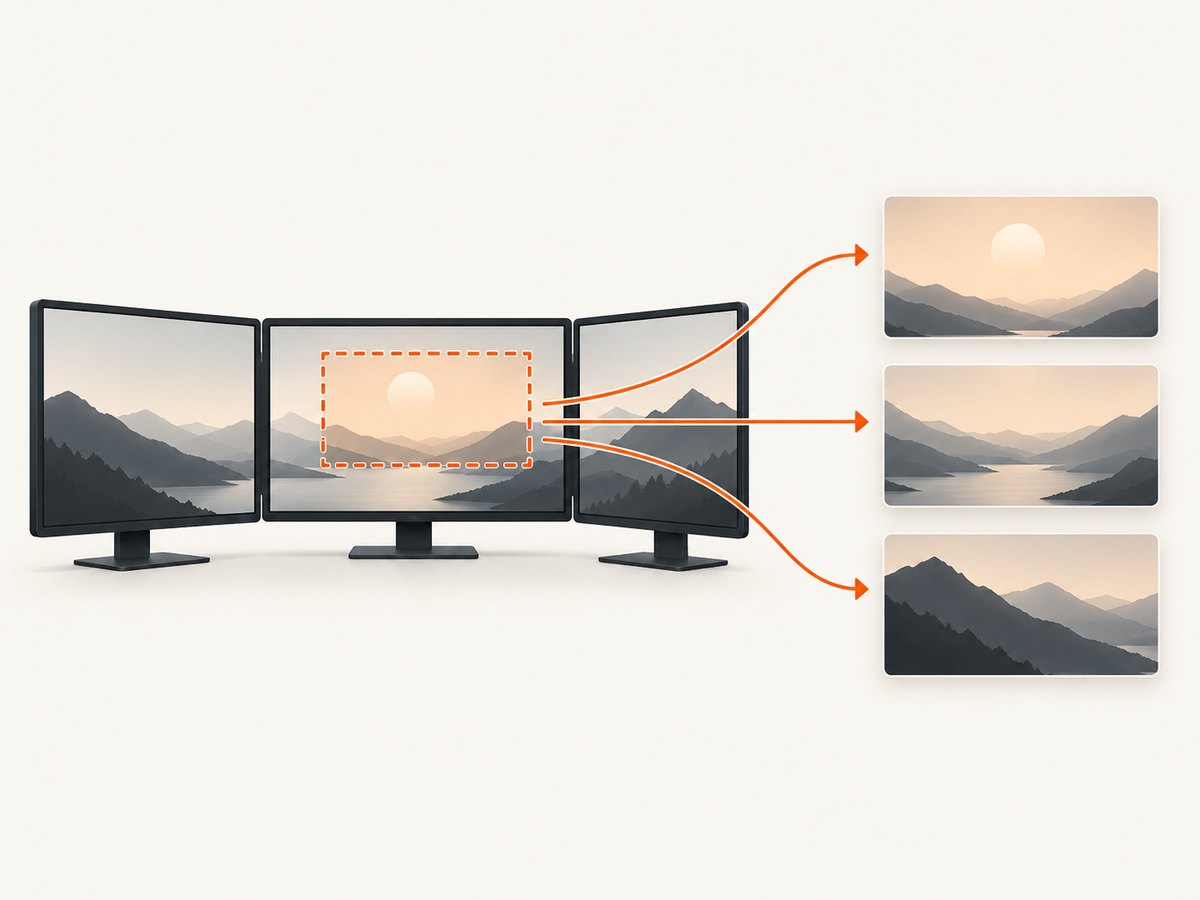
MSS exposes a monitors collection. Index 0 represents the complete virtual desktop, including all monitors. Indexes starting at 1 represent individual displays. primary_monitor selects the display MSS identifies as primary; if the platform cannot report a primary display, MSS falls back to the first individual monitor.
from mss import MSS
import mss.tools

with MSS() as sct:
    print('All monitors:', sct.monitors)
    print('Primary:', sct.primary_monitor)

    # One display
    primary = sct.grab(sct.primary_monitor)
    mss.tools.to_png(primary.rgb, primary.size, output='primary.png')

    # Every individual display (skip index 0, the virtual desktop)
    for number, monitor in enumerate(sct.monitors[1:], start=1):
        shot = sct.grab(monitor)
        mss.tools.to_png(shot.rgb, shot.size, output=f'monitor-{number}.png')
Each monitor or region is described by left, top, width, and height. Coordinates can be negative when a monitor is positioned to the left or above the primary display. Printing sct.monitors before choosing a target makes multi-monitor layouts explicit.
3. Capture part of the screen
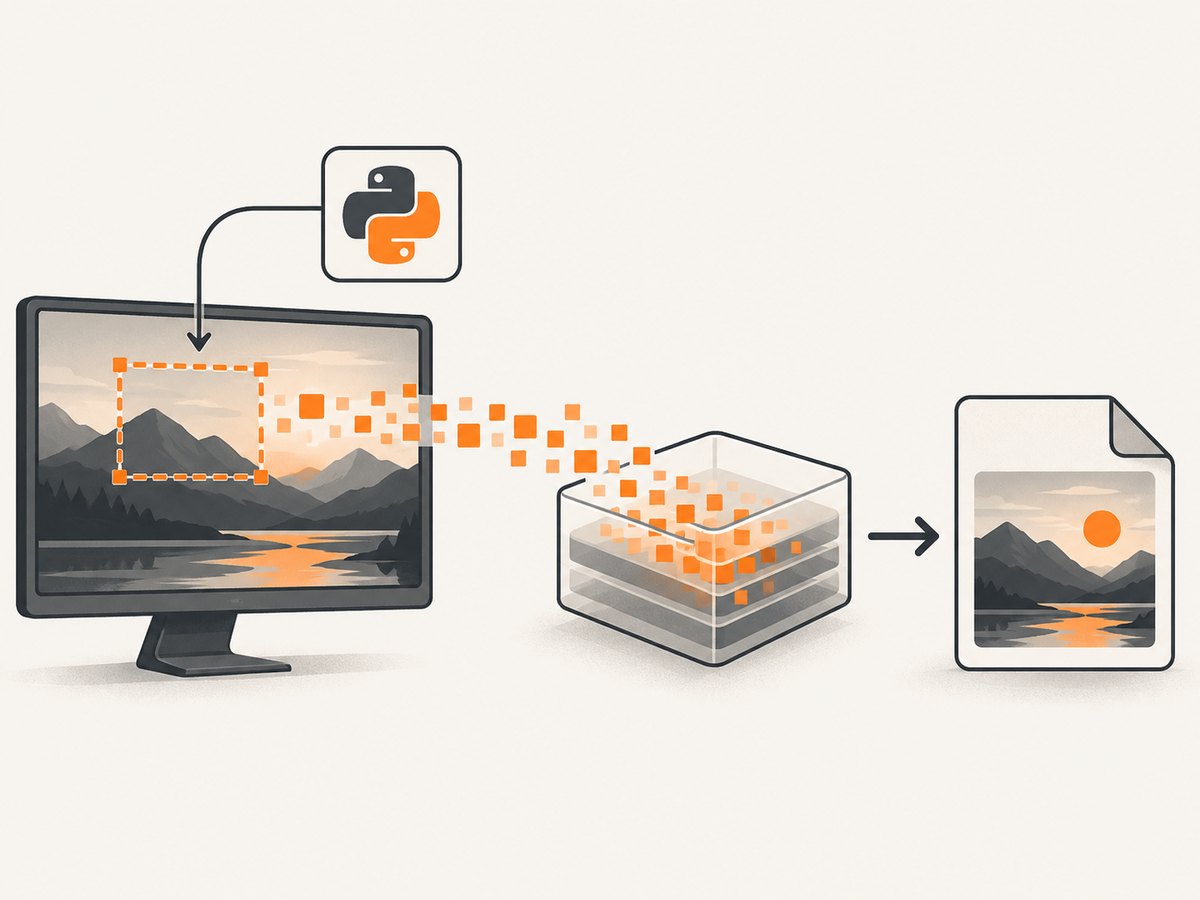
Pass an MSS Region, a dictionary, or a PIL-style tuple to grab(). The explicit Region form is easiest to read:
from mss import MSS
from mss.models import Region
import mss.tools

with MSS() as sct:
    area = Region(left=100, top=80, width=640, height=480)
    image = sct.grab(area)
    mss.tools.to_png(image.rgb, image.size, output='region.png')
The equivalent dictionary is useful when coordinates come from configuration:
area = {'top': 80, 'left': 100, 'width': 640, 'height': 480}
image = sct.grab(area)
A tuple uses (left, top, right, bottom), unlike the dictionary’s width and height:
image = sct.grab((100, 80, 740, 560))Validate dimensions before capturing. A zero or negative width, coordinates outside the desktop, or a region on a disconnected display can produce an error or an unusable image. Re-read sct.monitors after displays are connected or disconnected.
4. Save screenshots as PNG
sct.shot() is a concise helper that captures the first monitor and saves a PNG. It performs its own capture, so do not call it after grab() if you intend to save the exact pixels already in memory.
from mss import MSS

with MSS() as sct:
    filename = sct.shot(output='quick.png')
    print(filename)
For one capture that is both inspected and saved, use grab() once and mss.tools.to_png():
import mss.tools
from mss import MSS

with MSS() as sct:
    image = sct.grab(sct.primary_monitor)
    print(image.size, image.pixel(0, 0))
    mss.tools.to_png(image.rgb, image.size, output='exact-capture.png')
ScreenShot exposes raw pixel data and convenience properties. The documented rgb bytes are suitable for PNG output. Transparency is backend-dependent; do not assume the alpha value represents meaningful transparency on every operating system.
5. Convert to Pillow
Use Pillow when you need resizing, cropping, JPEG output, drawing, or other image operations:
from mss import MSS

with MSS() as sct:
    image = sct.grab(sct.primary_monitor)
    pil_image = image.to_pil('RGB')
    pil_image.save('screenshot.jpg', quality=90)
    pil_image.thumbnail((1280, 1280))
    pil_image.save('thumbnail.png')
Install Pillow separately with python -m pip install Pillow. RGB is the documented conversion for normal image work. JPEG is smaller than PNG for photographic desktop content but loses lossless pixel fidelity.
6. Use NumPy or OpenCV
For computer vision, convert directly to a NumPy array. MSS documents BGR ordering for OpenCV and RGB ordering for scikit-image and most other frameworks:
import cv2
from mss import MSS

with MSS() as sct:
    image = sct.grab(sct.primary_monitor)
    frame = image.to_numpy(channels='BGR')
    cv2.imwrite('opencv.png', frame)
    gray = cv2.cvtColor(frame, cv2.COLOR_BGR2GRAY)
    print(gray.shape)
Install the optional processing libraries with python -m pip install numpy opencv-python. Keep the capture and processing channel conventions explicit; swapping RGB and BGR can make colors look wrong while leaving dimensions unchanged.
7. Capture repeatedly
Reuse one MSS instance inside a loop. The usage documentation presents this pattern as more memory-efficient than constructing a new object for every frame:
import time
import mss.tools
from mss import MSS

with MSS() as sct:
    monitor = sct.primary_monitor
    for index in range(10):
        image = sct.grab(monitor)
        mss.tools.to_png(image.rgb, image.size, output=f'frame-{index:03d}.png')
        time.sleep(0.2)
MSS documents thread safety, but calls to grab() on one shared instance are serialized automatically. A shared instance therefore does not make captures parallel. If you need independent workers, give each worker its own instance and measure the memory and CPU impact on your platform. The direct-buffer optimization described by the documentation is limited to GNU/Linux with Python 3.12 or later.
8. Platform requirements and permissions
Windows
Run the script in the same desktop session as the display you want to capture. A service running without an interactive desktop may return a black or unavailable screen.
macOS
macOS can require Screen Recording permission for the terminal, IDE, or Python executable launching the script. Grant access in System Settings, then restart the launching application.
GNU/Linux
The default display is obtained from DISPLAY. MSS normally uses the xshmgetimage backend and can fall back to xgetimage when MIT-SHM is unavailable, such as on some remote SSH displays. A headless machine, Wayland compositor, container, or missing X authorization may still prevent capture. The CLI and API document backend selection; verify the active desktop session before debugging application code.
9. Command-line capture
The MSS package also includes a CLI for quick checks. Its documented options include monitor selection, coordinates, cursor inclusion, and backend selection. Run the help command for the installed version:
python -m mss --helpUse the CLI to separate an operating-system or permission problem from a bug in your Python integration. If the CLI cannot see the display, fix the session, permission, or backend first.
10. Troubleshooting
| Symptom | Likely cause | Fix |
|---|---|---|
ModuleNotFoundError: mss |
Package installed into another interpreter. | Run python -m pip install -U mss with the same python used to launch the script. |
| Black image or “cannot open display” | No interactive display, missing DISPLAY, SSH authorization, or denied macOS permission. |
Run in the logged-in desktop session, set the correct display environment, enable Screen Recording, or configure the remote X session. |
| Only one monitor appears | Using primary_monitor instead of the virtual desktop. |
Use sct.monitors[0] for the combined desktop or iterate over sct.monitors[1:]. |
| Wrong area captured | Mixing tuple right/bottom coordinates with dictionary width/height. | Use Region and print the selected bounds before calling grab(). |
| Colors are swapped in OpenCV | RGB bytes passed where BGR was expected. | Use image.to_numpy(channels='BGR') for OpenCV. |
| Capture fails after docking or unplugging a monitor | Cached coordinates no longer match the desktop layout. | Recreate or re-read the monitor list and choose a current region. |
| Permission works in Terminal but not IDE | The operating system grants permission per launching application. | Grant the IDE or its Python runtime access and restart it. |
11. Performance, reliability, and file-size choices
MSS documentation does not provide a universal frames-per-second benchmark. Capture time depends on operating system, backend, monitor size, remote-display configuration, and what your program does with each frame. Measure your own target environment instead of assuming a fixed rate.
- Keep one
MSSinstance open for repeated captures. - Capture a region instead of the entire virtual desktop when you need only a panel.
- Process frames in memory and write files only when persistence is required.
- Use PNG for exact pixels and reproducibility; use JPEG when smaller files matter more than lossless output.
- Bound queues in long-running programs so slow image processing cannot consume unlimited memory.
- Catch exceptions around the capture loop, log the selected bounds and platform, and reopen the instance after a display session changes.
For reproducible automation, record the MSS version, Python version, operating system, display layout, selected region, and color mode. These details explain most differences between machines.
12. Or skip the browser setup
MSS captures the desktop you control. If your goal is a clean screenshot of a public web page, a website screenshot API avoids browser installation, display permissions, and coordinate management. ScreenshotNeo accepts one GET request and returns PNG, JPEG, WebP, or PDF. See the API documentation for all options.
curl -G "https://api.screenshotneo.com/v1/shot" -d access_key=YOUR_API_KEY --data-urlencode url=https://stripe.com -o shot.webpimport requests
r = requests.get(
'https://api.screenshotneo.com/v1/shot',
params={'access_key': 'YOUR_API_KEY', 'url': 'https://stripe.com'},
timeout=90,
)
r.raise_for_status()
open('shot.webp', 'wb').write(r.content)const q = new URLSearchParams({ access_key: 'YOUR_API_KEY', url: 'https://stripe.com' });
const res = await fetch(`https://api.screenshotneo.com/v1/shot?${q}`);
if (!res.ok) throw new Error(`HTTP ${res.status}`);
const data = Buffer.from(await res.arrayBuffer());
require('fs').writeFileSync('shot.webp', data);Before capture, ScreenshotNeo accepts cookie and consent banners and removes more than 60 known consent platforms, newsletter popups, and chat widgets; each step can be disabled. Bot checks or CAPTCHAs, blank pages, timeouts, failed loads, and cache hits cost nothing, and the response identifies the result with X-Page-Verdict and X-Billed headers. Its 63 options include full-page capture with lazy images, CSS-element capture, dark mode, device presets, custom viewports, retina scale, PDF paper and page controls, custom CSS and JavaScript, clicks, waits, request blocking, headers, cookies, user agents, authorization, timezone, geolocation, transparent backgrounds, resizing, configurable caching, signed links, asynchronous jobs with signed webhooks, bulk capture for 100 URLs per call, a usage API, and an OpenAPI specification. An MCP server provides take_screenshot, get_page_info, and capture_pdf tools for Claude, Cursor, and other MCP clients.
There is a free allowance of 1,000 screenshots per month with no card. Paid plans start at $5 for 3,000 shots; yearly billing gives two months free, and every feature is on every plan. Create a free ScreenshotNeo account and start with the included 1,000 screenshots.
13. FAQ
What is the difference between grab() and shot()?
grab() returns a ScreenShot object for inspection or conversion. shot() is a convenience method that captures and saves a PNG, normally for the first monitor.
How do I capture every monitor?
Use sct.monitors[0] for one image containing the virtual desktop, or iterate over sct.monitors[1:] to save one image per physical display.
Can MSS capture a browser window by title?
MSS works with screen coordinates and pixels. Locate the window with an operating-system tool, then pass its coordinates as a Region; MSS does not provide browser DOM selection.
Should I use MSS for a web-page screenshot service?
Use MSS when you need the pixels visible on your own desktop or when processing local applications. Use ScreenshotNeo when you need repeatable server-side URLs, consent cleanup, PDFs, signed links, or AI-agent access.
Why is my alpha channel empty?
Alpha meaning depends on the platform backend. Treat captures as RGB or BGR unless your target backend explicitly supplies useful transparency.


