BlogScreenshots on your device
How to Capture Screenshots with Python Screen Capture APIs
Capture full screens, regions, and windows in Python with Pillow, MSS, or PyAutoGUI. Learn the platform limits, permissions, and fixes for common failures.

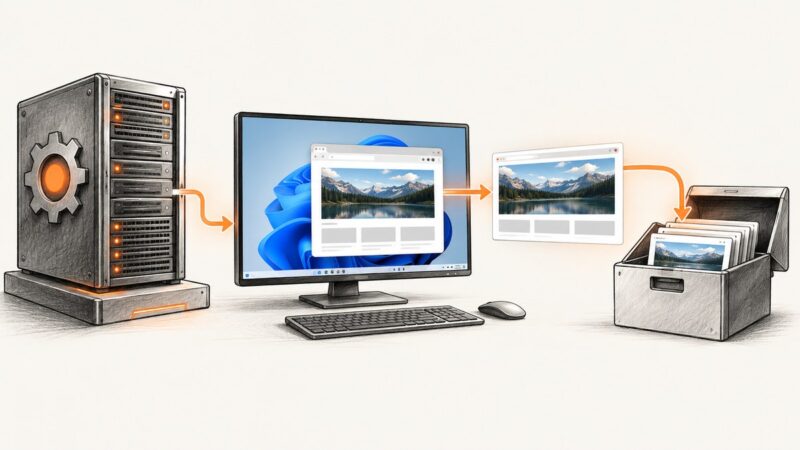
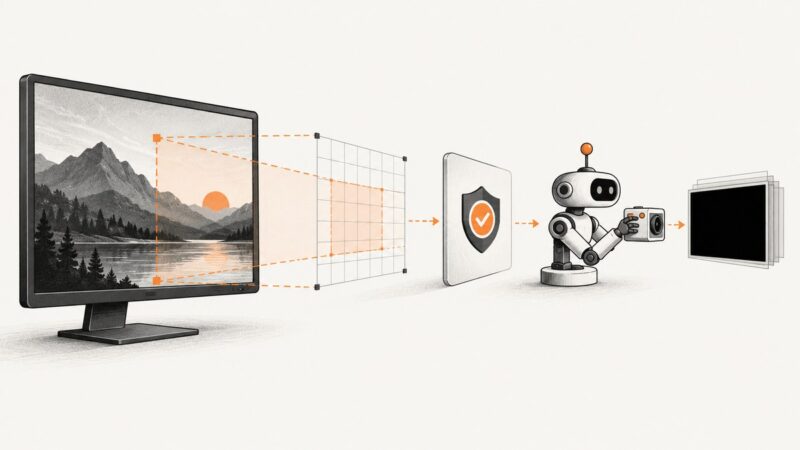
For a still screenshot that you want to save or edit as a Pillow image, start with PIL.ImageGrab.grab(). Call it without arguments to capture the screen, or pass bbox=(left, top, right, bottom) to capture a region. Use MSS when you need monitor selection or pixel-buffer access, and PyAutoGUI when screenshots are part of mouse and keyboard automation. The right choice depends on the operating system, display server, permissions, and whether you need a display, window, region, or browser page.
This guide covers local desktop capture: pixels visible on the machine running Python. A browser-page screenshot is a different job. It renders a URL in a browser and captures the page, often on a server. For that workflow, see ScreenshotNeo.
1. Choose an API for the capture you need
| Need | Start with | Important caveat |
|---|---|---|
| Whole screen or rectangular region as a Pillow image | Pillow ImageGrab | Check image mode, scaling, and coordinate system on the target machine. |
| Choose a monitor or inspect pixel bytes | MSS | Validate its backend and display environment on the deployment OS. |
| Capture alongside mouse, keyboard, or visual automation | PyAutoGUI | Linux screenshot support requires platform dependencies; verify the installed version. |
| Native macOS display, app, or window capture | ScreenCaptureKit | macOS requires screen capture permission. Python needs a suitable binding or bridge. |
| Native Windows display or application window capture | Windows.Graphics.Capture | Microsoft’s documented example is C#; it does not establish a Python binding. |
| Wayland desktop capture | A portal and PipeWire backed path | Support depends on the compositor and portal implementation and may show a system picker. |
For a first implementation, Pillow is usually the shortest route from pixels to a PNG. Prefer MSS when its monitor metadata or raw pixel data fits your pipeline. Do not assume a library’s “cross-platform” description means identical behavior on X11, Wayland, Windows, and macOS.

2. Capture the screen or a region with Pillow
Install Pillow in the environment that runs the script:
python -m pip install PillowRunnable example, saving both a full-screen image and a crop:
from pathlib import Path
from PIL import ImageGrab

out = Path("captures")
out.mkdir(exist_ok=True)

screen = ImageGrab.grab()
screen.save(out / "screen.png")
print("Full screen:", screen.size, screen.mode)

# bbox is (left, top, right, bottom), in screen coordinates.
region = ImageGrab.grab(bbox=(10, 20, 410, 320))
region.save(out / "region.png")
print("Region:", region.size, region.mode)
The bounding box’s right and bottom coordinates are the outer edges, so the example requests a 400 by 300 pixel region. Use coordinates measured on the target system; hard-coded geometry can be wrong when resolution, scaling, monitor layout, or window position changes. A region outside the available desktop may be clipped or behave differently by backend, so inspect the returned dimensions rather than assuming the requested dimensions were captured.
Image mode, dimensions, and Retina displays
Pillow documents RGBA output on macOS and RGB elsewhere. Code that expects three channels should normalize explicitly:
from PIL import ImageGrab

image = ImageGrab.grab()
if image.mode != "RGB":
    image = image.convert("RGB")
image.save("screen.jpg", quality=90)
Retina capture may return pixels at 2x scale. Pillow’s scale_down=True option requests 1x output where supported by the installed Pillow version. Check the resulting image.size; do not infer logical desktop dimensions from the image dimensions. See the Pillow ImageGrab documentation for current parameters and platform behavior.
Capture a specific window with Pillow
Newer Pillow versions document a window parameter that takes an HWND on Windows or a CGWindowID on macOS. Window support was added in Pillow 11.2.1 for Windows and 12.1.0 for macOS, so check the installed version before using it. You still need to obtain the platform window identifier; Pillow does not turn an arbitrary title string into a window handle.
from PIL import ImageGrab

# Replace with a valid platform window identifier obtained by your app.
window_id = 123456
image = ImageGrab.grab(window=window_id)
image.save("window.png")
This example is syntactically complete, but the placeholder identifier must be replaced with a valid handle from the platform. If you need a user-selected window or native capture stream, use the platform’s capture API or a library that exposes that selection flow.
3. Select monitors and read pixels with MSS
MSS exposes monitor metadata, region capture, and direct pixel data. Install it with:
python -m pip install mss PillowUse its preferred MSS context-manager API:
from mss import MSS

with MSS() as sct:
    print("Monitors:", sct.monitors)
    shot = sct.grab(sct.primary_monitor)
    print("Size:", shot.size)
    pixels = shot.bgra
    image = shot.to_pil()
    image.save("primary-monitor.png")
Monitor metadata typically includes an aggregate virtual desktop entry as well as individual monitors. Inspect sct.monitors on the machine before selecting an index: multi-monitor arrangements can include negative coordinates when a display sits left of or above the primary display. To grab a custom rectangle, pass a mapping with left, top, width, and height:
from mss import MSS

region = {"left": 100, "top": 80, "width": 640, "height": 400}
with MSS() as sct:
    shot = sct.grab(region)
    shot.to_pil().save("region.png")
Use shot.bgra when a downstream library can consume the buffer directly; converting to Pillow is convenient but adds work and memory. See the MSS usage documentation for monitor selection and current APIs. The older mss.mss() spelling is deprecated in current documentation.
4. Use PyAutoGUI when capture is part of automation
PyAutoGUI’s screenshot calls return Pillow image objects and can save directly to a filename. Install it with:
python -m pip install pyautoguiimport pyautogui
image = pyautogui.screenshot()
image.save("screen.png")
# A region is (left, top, width, height).
region = pyautogui.screenshot(region=(10, 20, 400, 300))
region.save("region.png")PyAutoGUI is useful when the same program will click, type, locate screen elements, and capture evidence. Its screenshot documentation lists Pillow as a requirement and scrot for Linux screenshot functionality. That documentation page is older, so check requirements for your installed PyAutoGUI and PyScreeze versions and Linux distribution. Consult the PyAutoGUI screenshot documentation.
5. Platform limits and permissions
macOS
macOS protects screen content with Screen Recording permission. A capture can fail or trigger a permission prompt depending on the Python runtime and how the application is packaged. Apple documents ScreenCaptureKit for displays, apps, and windows, and instructs app developers to request permission and include NSScreenCaptureUsageDescription in the app’s Info configuration. Confirm permission using the same identity that will run the production script. See Apple’s ScreenCaptureKit documentation.

Windows
Windows.Graphics.Capture provides native frame capture for displays and application windows, with a picker UI for choosing a source. Microsoft’s documented capture example uses C#. It is a platform reference, not a ready-to-use Python recipe; a Python implementation requires a separately verified binding or interop layer. See Microsoft’s screen capture documentation.
Linux: X11 and Wayland are different
Pillow documents X11 capture and certain fallbacks to gnome-screenshot, grim, or spectacle when the default X11 display does not produce a snapshot. Those fallbacks are not a general guarantee of Wayland compatibility. Under Wayland, applications generally need the desktop’s portal-based screen capture flow rather than assuming unrestricted X11 access. Qt for Python documents a QScreenCapture route that requires an XDG Desktop Portal ScreenCast service and PipeWire, and invokes an operating-system selection wizard. Whether that route works depends on the desktop environment and portal implementation. See Qt for Python’s QScreenCapture documentation.
6. Troubleshooting common capture failures
| Symptom | Likely cause | What to check or change |
|---|---|---|
| Permission denied, black image, or capture prompt | macOS screen recording permission is missing for this Python runtime | Grant Screen Recording permission to the actual terminal, IDE, or packaged app; rerun with that identity. |
| Blank image or no display found on Linux | Wrong display server assumptions, unset display environment, or missing backend | Record whether the session is X11 or Wayland; inspect DISPLAY and desktop portal availability. Use a portal-backed flow on Wayland. |
scrot or screenshot backend error |
PyAutoGUI’s Linux screenshot dependency is absent or incompatible | Check the installed PyAutoGUI/PyScreeze requirements and install the screenshot dependency appropriate to that system. |
| Image is unexpectedly large or coordinates miss the target | Retina scaling, mixed DPI, or virtual desktop coordinates differ from assumptions | Print image dimensions and monitor metadata; verify coordinates on the target machine and consider Pillow’s scale_down. |
| Only one monitor appears | The chosen API call captures the primary monitor or the selected index is wrong | Enumerate MSS monitor metadata and choose the intended display or aggregate desktop explicitly. |
| Window capture fails | Pillow is too old, window ID is invalid, or the platform is unsupported | Check the version and ID source. Pillow documents window capture for Windows 11.2.1+ and macOS 12.1.0+. |
| Import works locally but fails in service/container | Headless execution has no accessible desktop session or permissions | Run in the intended logged-in session or use a capture environment designed for headless work; desktop APIs cannot capture a nonexistent visible session. |
| Colors look wrong after using raw bytes | Pixel channel order or alpha handling differs from the consumer’s expectation | Check whether the buffer is BGRA and convert to the required mode/order before processing. |
7. Performance, reliability, and cost
Screen capture cost is usually local CPU time, memory, and image storage rather than a per-request API fee. A full-resolution image occupies memory proportional to its pixel count and channel depth; repeated captures can accumulate substantial buffers. Capture only the region you need, save or process frames promptly, and reuse a long-lived MSS context where appropriate. If you need frequent frames, benchmark at the target resolution, OS, display backend, and capture rate. Library documentation does not establish a universal speed ranking across those conditions.
For reliability, validate the capture dimensions and mode, handle permission and backend errors, and write files atomically if another process consumes them while the script runs. In unattended jobs, test with the same user account, display session, desktop server, and packaging identity as production. A machine running headless may have no visible desktop to capture. Avoid saving sensitive screen contents longer than required, and choose a format appropriate to your use: PNG preserves lossless pixels, while JPEG is smaller for photographic content but loses detail.
8. Or skip the browser setup
If what you need is a screenshot of a public website, you do not need to install a local desktop capture stack. ScreenshotNeo takes a URL and returns an image or PDF. See the ScreenshotNeo API documentation for request options.
import requests

r = requests.get(
    "https://api.screenshotneo.com/v1/shot",
    params={"access_key": "YOUR_API_KEY", "url": "https://stripe.com"},
    timeout=90,
)
r.raise_for_status()
open("shot.webp", "wb").write(r.content)
Cookie banners, popups, and chat widgets are removed before the shot. Bot checks, blank pages, and failed loads are never billed. An MCP server lets AI agents take screenshots. The Free plan includes 1,000 screenshots a month with no card; paid plans start at $5 for 3,000. Sign up for 1,000 free screenshots a month, with no card.
9. Frequently asked questions
Can Python take a screenshot without a graphical desktop?
Only if the capture environment provides a display or a separate rendering service. A desktop screenshot library cannot capture pixels from a desktop session that does not exist or is inaccessible to the process.
Which option is best for a specific monitor?
MSS is a direct starting point because it exposes monitor metadata and region capture. Enumerate monitors at runtime instead of assuming monitor indexes are identical across machines.
Can ImageGrab capture a browser page from a URL?
ImageGrab captures the visible desktop. It does not load a URL in a browser. Use browser automation or a website screenshot API such as ScreenshotNeo for URL-based capture.
Does a screenshot have to be PNG?
No. Pillow can save to formats supported by the installed codecs. Choose PNG for lossless screen details or JPEG when smaller files matter more than pixel-perfect text and edges.