BlogScreenshots on your device
How to Capture Screenshots and Parse Data from the Images in Python
Capture a screen or region with PyAutoGUI, extract text with Tesseract, and turn OCR output into structured Python data.
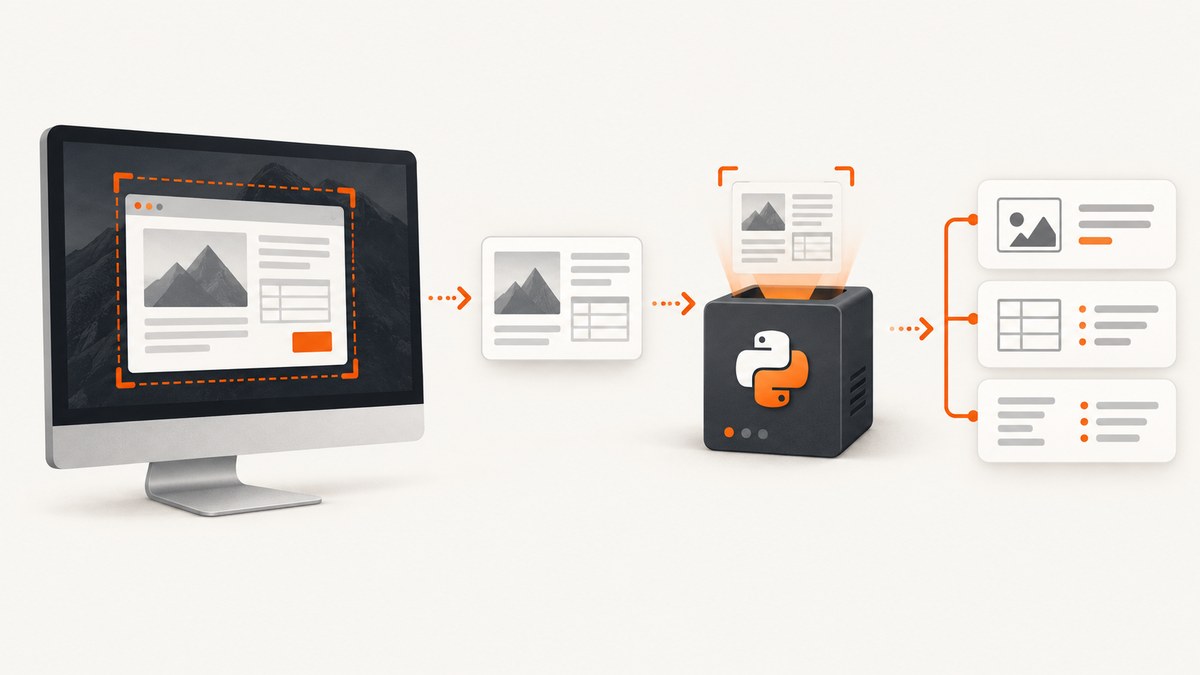
Use two separate steps: capture pixels with PyAutoGUI, then pass the resulting Pillow image to pytesseract, the Python interface for the Tesseract OCR engine. PyAutoGUI can capture the whole screen or a region and can locate visual templates, but it does not read words. For plain text use pytesseract.image_to_string(); for coordinates, confidence values, and per-word records use pytesseract.image_to_data().
The smallest working handoff looks like this:
import pyautogui
import pytesseract

image = pyautogui.screenshot(region=(left, top, width, height))
text = pytesseract.image_to_string(image)
records = pytesseract.image_to_data(image)
PyAutoGUI’s screenshot API returns an image object and can also save it to a filename. Its screenshot support uses Pillow; Linux setups may also require scrot. See the screenshot documentation. pytesseract documentation describes the Python wrapper, while Tesseract’s documentation describes the separate OCR engine.
1. Install the capture and OCR dependencies
Install the Python packages in the environment that will run the script:
python -m pip install pyautogui pytesseract pillowpytesseract is only a Python binding. Install the Tesseract executable separately and make sure it is available on your PATH, or configure its executable path in Python. The exact package name and desktop capture dependency vary by operating system, so check the current installation instructions for your OS before automating setup. On Linux, PyAutoGUI’s documentation names scrot as a screenshot dependency.
Check that both layers are available
python -c "import pyautogui, pytesseract; print('Python packages loaded')"
tesseract --version
If the import succeeds but the second command fails, the wrapper is installed and the Tesseract engine is missing or not on PATH. If the command works in a terminal but not in your application, pass the full executable path:
import pytesseract

# Replace this with the path used by your operating system.
pytesseract.pytesseract.tesseract_cmd = r"/path/to/tesseract"
2. Capture a full screen or a region
pyautogui.screenshot() captures the current screen. A region is a four-item tuple: (left, top, width, height). Capturing only the area that contains text usually makes downstream processing simpler and avoids unrelated words.
import pyautogui

full_screen = pyautogui.screenshot()
full_screen.save("screen.png")

left, top, width, height = 100, 80, 900, 500
region = pyautogui.screenshot(region=(left, top, width, height))
region.save("region.png")
The returned objects are Pillow images, so you can pass them directly to pytesseract without writing a temporary file.
Capture after the screen is ready
For a window that is still rendering, wait for a known state before capturing. A fixed delay is simple but environment-dependent:
import time
import pyautogui

# Perform the action that opens or changes the screen here.
time.sleep(1)
image = pyautogui.screenshot(region=(100, 80, 900, 500))
For a repeatable workflow, prefer a visual condition or application-level readiness signal when one is available. PyAutoGUI’s image-location helpers search for visual templates; they are useful for finding a button or icon, but they do not extract text. The confidence option for template matching requires OpenCV.
3. Extract plain text with pytesseract
Pass the Pillow image to image_to_string. The result is a normal Python string, including line breaks recognized by the OCR engine.
import pyautogui
import pytesseract

image = pyautogui.screenshot(region=(100, 80, 900, 500))
text = pytesseract.image_to_string(image)

print(text)
Specify a language when the corresponding Tesseract language data is installed:
text = pytesseract.image_to_string(image, lang="eng")
OCR output is recognition, not ground truth. Fonts, scaling, contrast, animation, compression, overlapping controls, and partially visible characters can change the result. Keep the captured image beside the extracted text while developing and validate the fields your application actually depends on.
4. Parse structured records with image_to_data
When a downstream program needs word positions or confidence values, use image_to_data instead of treating the output as one large string. Request a dictionary result and discard empty text entries:
import pyautogui
import pytesseract
from pytesseract import Output

image = pyautogui.screenshot(region=(100, 80, 900, 500))
data = pytesseract.image_to_data(image, output_type=Output.DICT)

words = []
for i, word in enumerate(data["text"]):
    word = word.strip()
    if not word:
        continue

    words.append({
        "text": word,
        "confidence": float(data["conf"][i]),
        "left": int(data["left"][i]),
        "top": int(data["top"][i]),
        "width": int(data["width"][i]),
        "height": int(data["height"][i]),
        "page": int(data["page_num"][i]),
        "block": int(data["block_num"][i]),
        "paragraph": int(data["par_num"][i]),
        "line": int(data["line_num"][i]),
        "word": int(data["word_num"][i]),
    })

for item in words:
    print(item)
Coordinates are relative to the image you supplied. If you captured a region whose top-left corner is (100, 80), add those offsets when converting a word’s position back to desktop coordinates.
Build lines or locate a field
The grouping columns let you reconstruct lines and inspect where a label appears. Do not assume that every confidence value is a valid number; preserve the raw value or handle conversion errors if your input can produce unexpected output.
from collections import defaultdict

lines = defaultdict(list)
for item in words:
    key = (item["block"], item["paragraph"], item["line"])
    lines[key].append(item)

for key, line_words in lines.items():
    line_words.sort(key=lambda item: item["left"])
    line = " ".join(item["text"] for item in line_words)
    print(key, line)
5. A complete capture-and-parse script
This example saves the source image, writes plain text, and exports word-level records as JSON. It keeps capture, OCR, and parsing separate so each stage can be replaced or debugged independently.
from pathlib import Path
import json

import pyautogui
import pytesseract
from pytesseract import Output

OUTPUT = Path("ocr_output")
OUTPUT.mkdir(exist_ok=True)

REGION = (100, 80, 900, 500)

# 1. Capture
image = pyautogui.screenshot(region=REGION)
image_path = OUTPUT / "capture.png"
image.save(image_path)

# 2. OCR as plain text
text = pytesseract.image_to_string(image, lang="eng")
(OUTPUT / "text.txt").write_text(text, encoding="utf-8")

# 3. OCR as structured data
data = pytesseract.image_to_data(image, lang="eng", output_type=Output.DICT)
records = []
for i, value in enumerate(data["text"]):
    value = value.strip()
    if not value:
        continue
    records.append({
        "text": value,
        "confidence": data["conf"][i],
        "left": data["left"][i],
        "top": data["top"][i],
        "width": data["width"][i],
        "height": data["height"][i],
        "block": data["block_num"][i],
        "paragraph": data["par_num"][i],
        "line": data["line_num"][i],
        "word": data["word_num"][i],
    })

(OUTPUT / "words.json").write_text(
    json.dumps(records, indent=2),
    encoding="utf-8",
)

print(f"Saved {image_path}")
print(f"Recognized {len(records)} non-empty word records")
6. Improve reliability without pretending OCR is exact
- Capture less: use a region when the application has a stable layout.
- Capture at the right time: wait until animations, loading indicators, and dialogs have settled.
- Keep evidence: save representative screenshots and compare OCR output during changes.
- Validate important fields: apply application rules such as required labels, date formats, or numeric ranges after OCR.
- Use positions: choose the record nearest a known label instead of relying only on reading order.
- Separate recognition from action: do not click, submit, or delete solely because one uncertain OCR result matched a string.
These are engineering safeguards, not accuracy guarantees. The research does not establish a universal preprocessing recipe or benchmark for arbitrary screenshots, so measure your own representative images before choosing thresholds.
7. Common errors and fixes
| Error or symptom | Cause | Fix |
|---|---|---|
ModuleNotFoundError: pyautogui or pytesseract |
The Python packages are not installed in this interpreter. | Run python -m pip install pyautogui pytesseract pillow with the same Python executable that runs the script. |
TesseractNotFoundError |
pytesseract cannot find the separate Tesseract executable. | Install the engine, put it on PATH, or set pytesseract.pytesseract.tesseract_cmd to its full path. |
| Screenshot fails on Linux | The desktop screenshot dependency or display session is unavailable. | Check the current PyAutoGUI Linux prerequisites, including its documented scrot dependency, and confirm the process has access to the active display. |
| Image is black, empty, or stale | The process is headless, lacks desktop access, or captured before rendering completed. | Run in a visible desktop session, verify display permissions, and wait for the target state before capture. |
| Text is missing or garbled | Small, low-contrast, clipped, animated, or overlapping text. | Capture a tighter region, increase the on-screen size or contrast where possible, wait for animation to finish, and validate against saved samples. |
confidence is rejected by template matching |
PyAutoGUI’s confidence matching needs OpenCV. | Install OpenCV for that matching workflow, or omit confidence. This feature locates images; it is not OCR. |
| Only the first image in a multi-image input is processed | Tesseract’s input handling does not make a sequence a complete document OCR pipeline. | Process images individually or use a document workflow such as conversion or OCRmyPDF for PDFs. |
8. Performance, reliability, and cost considerations
Region capture reduces the amount of image data that OCR must inspect. It also reduces unrelated words that can complicate parsing. The trade-off is coordinate maintenance: a fixed region can break when a window moves, a display changes scale, or a responsive layout reflows.
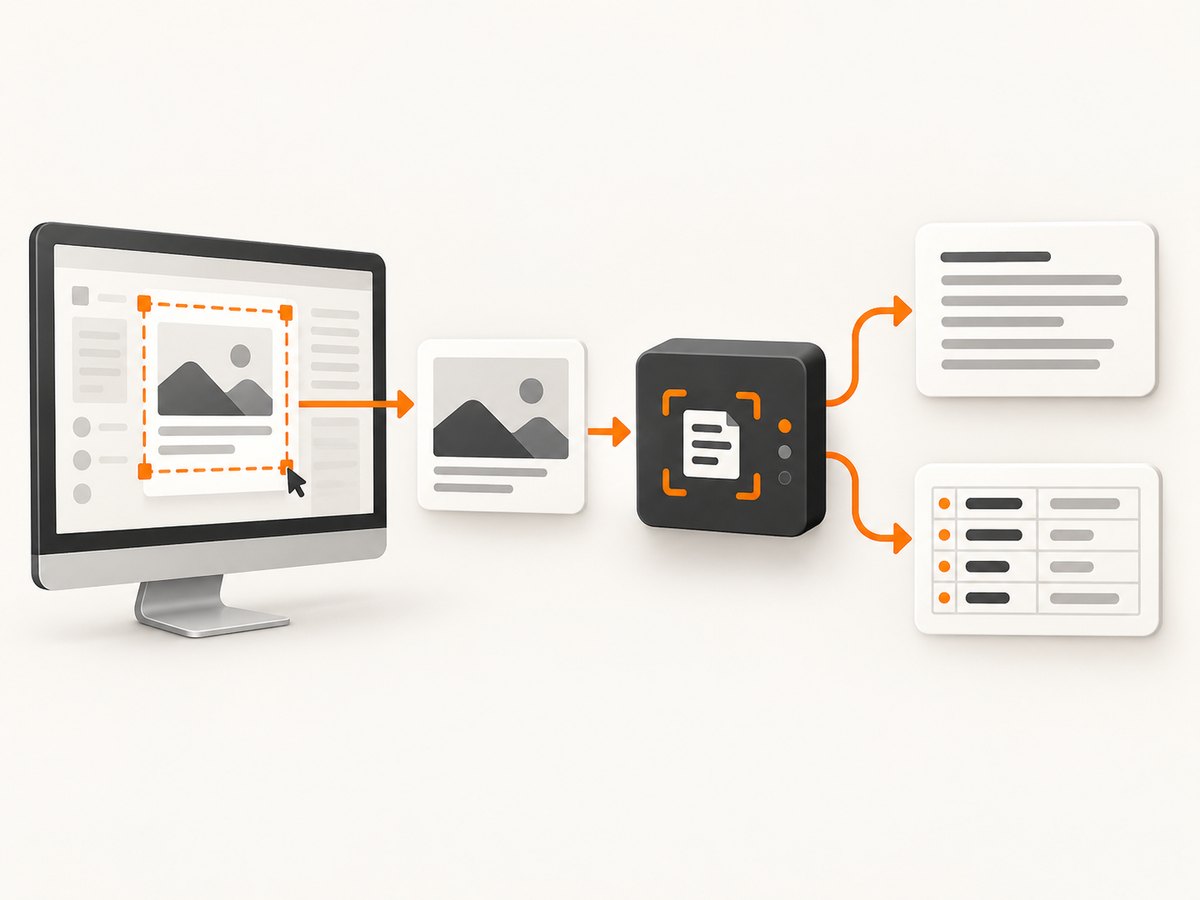
For repeated jobs, record the screen geometry, operating-system display settings, language data, and representative input images. Treat OCR confidence as a signal for review, not as a universal pass/fail guarantee. Queue or retry work at the application level when a screen is not ready, and keep the original screenshot for diagnosis.
PyAutoGUI and Tesseract run locally, so the direct software cost is the machine and environment where the script runs. OCR time and recognition quality depend on the image and system configuration; the cited documentation does not provide a general benchmark. If you need browser screenshots rather than a local desktop, a hosted capture API can remove desktop-driver setup.
Or skip the browser setup
For web pages, ScreenshotNeo returns a screenshot or PDF from one GET request. It removes cookie and consent banners, newsletter popups, and chat widgets before capture. Bot checks, blank pages, failed loads, timeouts, and cache hits are not billed, and response headers identify the page verdict and billing result. Its MCP server also lets Claude, Cursor, and other MCP clients call take_screenshot, get_page_info, and capture_pdf.
See the ScreenshotNeo API documentation for the available capture options.
cURL
curl -G "https://api.screenshotneo.com/v1/shot" -d access_key=YOUR_API_KEY --data-urlencode url=https://stripe.com -o shot.webpPython
import requests; r = requests.get("https://api.screenshotneo.com/v1/shot", params={"access_key": "YOUR_API_KEY", "url": "https://stripe.com"}, timeout=90); open("shot.webp", "wb").write(r.content)Node.js
const q = new URLSearchParams({ access_key: 'YOUR_API_KEY', url: 'https://stripe.com' }); const res = await fetch(`https://api.screenshotneo.com/v1/shot?${q}`);ScreenshotNeo includes full-page and element capture, custom CSS and JavaScript, waits, blocking rules, headers, cookies, user agents, geolocation, resizing, caching, signed links, asynchronous jobs, bulk capture, usage reporting, and PDF options. Every feature is on every plan. The Free plan includes 1,000 shots per month with no card; paid plans start at $5 for 3,000 shots.
Create a free ScreenshotNeo account and get 1,000 screenshots each month with no card.
FAQ
Does PyAutoGUI do OCR?
No. Its FAQ says, “No, but this is a feature that’s on the roadmap.” Use pytesseract with the separate Tesseract engine for text recognition.
Can I OCR without saving a screenshot?
Yes. Pass the Pillow image returned by pyautogui.screenshot() directly to pytesseract. Saving a copy is useful for debugging and validation.
When should I use image_to_data?
Use it when your program needs word coordinates, confidence values, or grouping fields. Use image_to_string when a plain text result is sufficient.
Can Tesseract process a PDF or several screenshots as one document?
Tesseract’s documentation distinguishes PDF and image-sequence handling. Convert PDFs or use a document OCR workflow, and process multiple screenshots deliberately rather than assuming one call reads every image.


