BlogScreenshots on your device
How to Record Your Entire Screen with a Browser Extension
Record your full desktop from Chrome with Loom or Screencastify, capture audio and webcam correctly, fix common problems, and know when a desktop app is required.
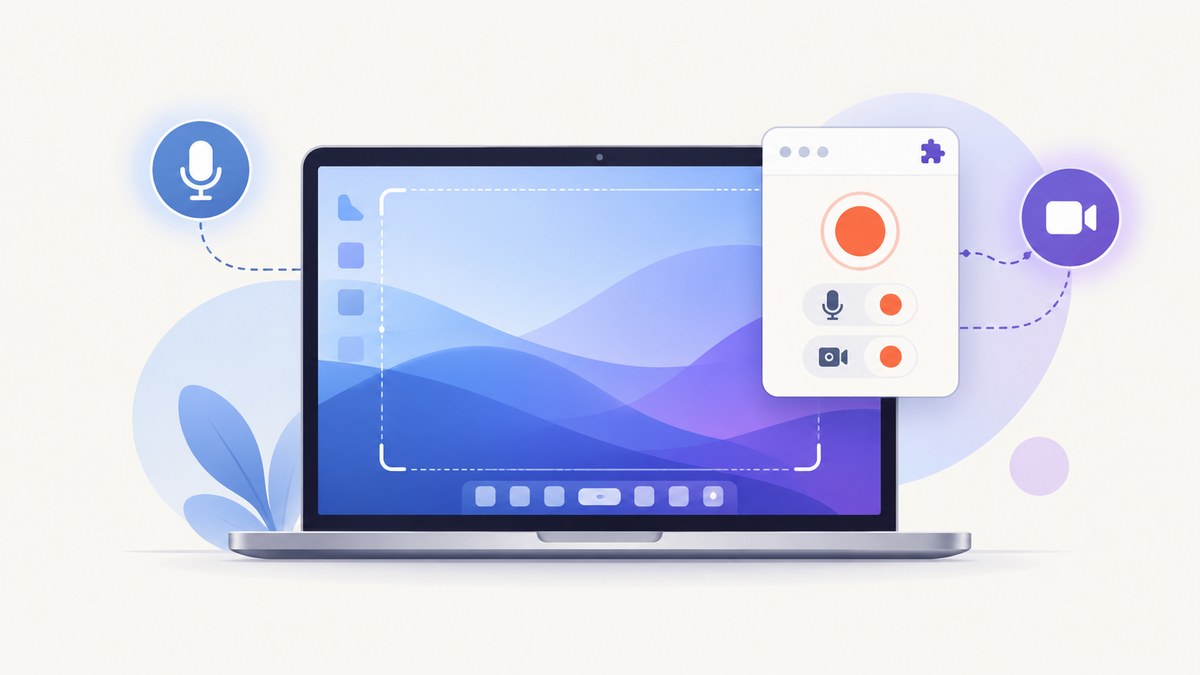
To record your entire screen with a browser extension, install and pin a recorder such as Loom or Screencastify, choose Full Screen or Desktop, select your complete display in Chrome’s sharing dialog, enable the microphone and system audio when needed, then start recording. Review the captured display, audio, and camera before sharing.
What “entire screen” means
A browser recorder can usually capture one of three surfaces:
- Entire screen: everything visible on a selected monitor, including other applications and browser windows.
- Window: one application window.
- Current tab: only the selected browser tab.
Chrome’s screen-capture APIs distinguish screen, window, tab, and audio sources. The browser always opens a visible chooser so you can select the surface to share. A website or extension cannot silently choose a monitor for you.
Before you start
- Use Chrome or another supported Chromium browser and update it.
- Install the recorder from its official browser-extension listing.
- Pin the extension: select the puzzle-piece icon, find the recorder, and click the pin.
- Close private material, notifications, password managers, and unrelated tabs. The full-screen option can expose all of them.
- Connect headphones if you will record microphone and system audio together. This reduces echo.
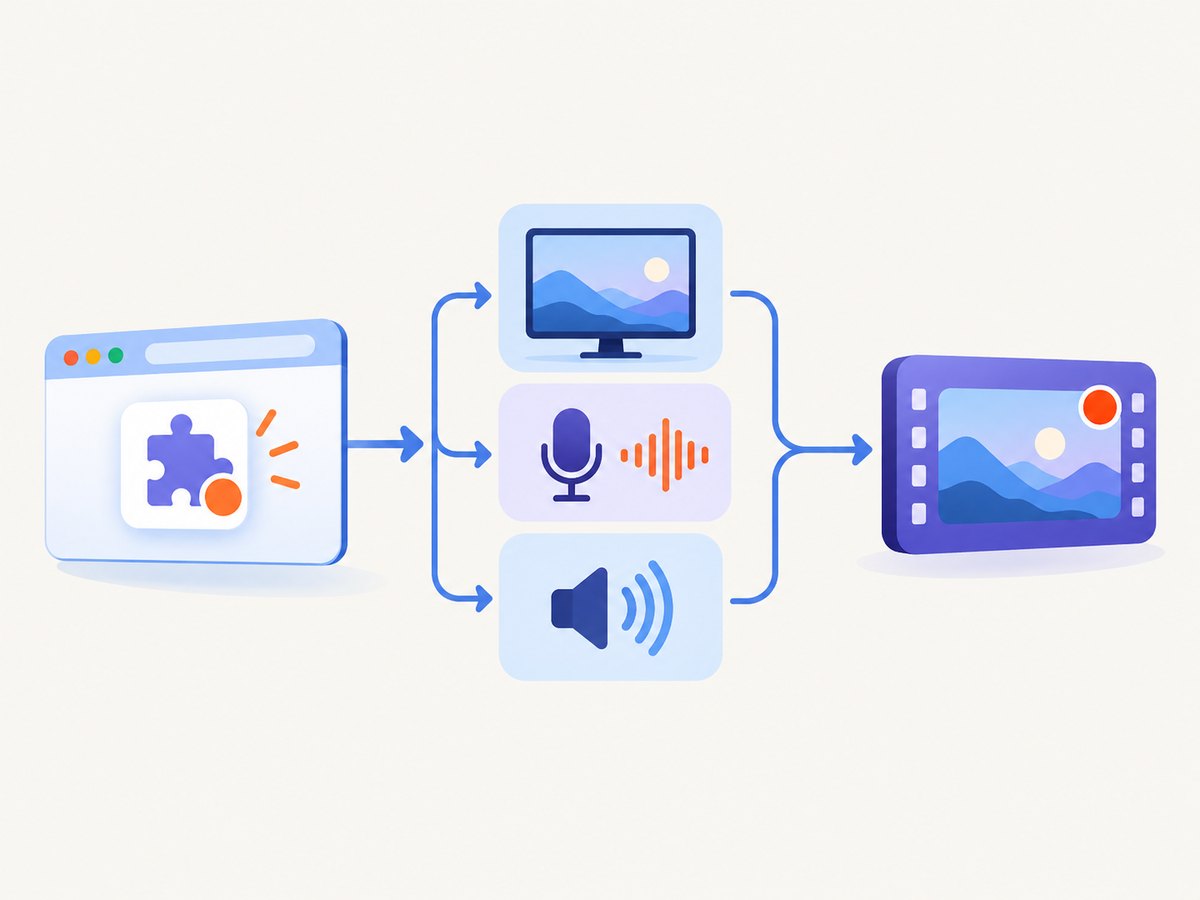
How to record the full desktop with Screencastify
- Open the Screencastify extension from the toolbar.
- Select Full Screen before starting.
- Choose your entire display in Chrome’s share dialog. If shown, enable Share system audio.
- Turn on the microphone for narration. Turn on the webcam only if you want a face overlay.
- Start recording, complete the demonstration, then stop from the extension control or its toolbar menu.
- Review the result. Screencastify documents Google Drive autosave and editing after capture; confirm that the intended display and audio tracks are present before sending the link.
On supported Windows workflows, computer audio may be recorded automatically. Screencastify documents that computer audio is not available for Mac computers in that desktop flow, so the share dialog and operating-system behavior matter. The Share system audio checkbox is the reliable signal that Chrome will include audio from the selected source.
How to record the full desktop with Loom
- Open and pin the Loom extension.
- Choose Full Screen (or Screen, depending on the extension version) instead of Current Tab or Window.
- Select the complete display in the browser’s share picker.
- Enable the microphone for narration and the camera for a circular face overlay.
- Start the recording. Loom uses a short countdown, then records until you stop it from the extension control.
- Wait for processing, review the video, adjust privacy or editing settings, and copy the share link.
Loom’s extension can capture internal audio from one browser tab. If the sound you need comes from Zoom, a desktop media player, or another application, use Loom’s desktop app or another recorder that explicitly supports system audio from applications. Do not assume that a browser extension can record every desktop program’s sound.
Audio: microphone, tab sound, and system sound
Microphone narration
Allow microphone access when Chrome asks. Pick the correct input in the extension’s settings, then speak a sentence before the real take. A microphone permission allows the recorder to include your voice; it does not mean the extension can use the device at arbitrary times. You can revoke the permission later in Chrome’s site and extension settings.
System audio
System audio is the sound produced by the selected tab, window, or display. Chrome may show a Share system audio checkbox only for compatible sources and operating systems. Select it before clicking Share. If the checkbox is absent, the chosen source or platform may not support that audio path.
Avoiding echo
When speakers play system audio and the microphone hears those speakers, the recording contains an echo. Wear headphones, lower speaker volume, or mute the microphone when narration is not needed. Record a ten-second sample and listen with headphones before a long tutorial.
Recording your screen and webcam together
Enable the camera option before you start. The extension requests webcam permission and places a small overlay over the screen recording. Position the camera bubble so it does not cover menus, code, or other details. Use even lighting and check that the correct camera is selected.
A webcam overlay is separate from screen capture: disabling the camera does not disable the display recording, and disabling the microphone does not remove the camera image. If privacy is important, cover or disable the camera before opening sensitive applications.
Native browser method with getDisplayMedia()
If you are building your own recorder, the browser’s MediaDevices.getDisplayMedia() API opens the same user-controlled selection flow. It returns a media stream containing video and, when the user and browser permit it, audio. You can record that stream with MediaRecorder.
<button id="start">Start recording</button>
<button id="stop" disabled>Stop and download</button>
<script>
const start = document.querySelector('#start');
const stop = document.querySelector('#stop');
let recorder;
let chunks = [];
let stream;

start.addEventListener('click', async () => {
  try {
    stream = await navigator.mediaDevices.getDisplayMedia({
      video: { frameRate: 30 },
      audio: true
    });
    chunks = [];
    recorder = new MediaRecorder(stream, { mimeType: 'video/webm' });
    recorder.ondataavailable = event => {
      if (event.data.size > 0) chunks.push(event.data);
    };
    recorder.onstop = () => {
      const blob = new Blob(chunks, { type: 'video/webm' });
      const url = URL.createObjectURL(blob);
      const link = document.createElement('a');
      link.href = url;
      link.download = 'screen-recording.webm';
      link.click();
      URL.revokeObjectURL(url);
      stream.getTracks().forEach(track => track.stop());
    };
    stream.getVideoTracks()[0].addEventListener('ended', () => {
      if (recorder.state === 'recording') recorder.stop();
    });
    recorder.start(1000);
    start.disabled = true;
    stop.disabled = false;
  } catch (error) {
    console.error('Screen capture was cancelled or failed:', error);
  }
});

stop.addEventListener('click', () => {
  if (recorder?.state === 'recording') recorder.stop();
  start.disabled = false;
  stop.disabled = true;
});
</script>
This code must run in a secure context such as HTTPS or localhost. The user must make the selection; JavaScript cannot bypass the chooser. Audio support varies by browser, operating system, and selected surface. Check MediaRecorder.isTypeSupported() if you need a different container or codec.
Permissions and privacy checklist
- Inspect the extension’s requested host, microphone, and camera permissions before installing.
- Use the visible Chrome chooser and select the exact monitor or window you intend to share.
- Turn off browser notifications during the recording.
- Do not open secrets, customer data, private messages, or credentials on a full-screen capture.
- Stop sharing from the extension or browser control when finished.
- Review the video at normal playback speed before publishing; a forgotten second monitor or notification is easy to miss.
Common problems and fixes
| Problem | Likely cause | Fix |
|---|---|---|
| The video shows only one tab | Current Tab was selected | Restart and choose Full Screen, Desktop, or Screen, then select the complete display. |
| No system audio | Share system audio was unchecked or unavailable | Choose a compatible source, enable the checkbox, and verify platform support. For application audio, try a desktop recorder. |
| Microphone is silent | Permission denied, wrong input, or muted device | Allow microphone access in Chrome settings, choose the intended input, unmute it, and record a short test. |
| Echo or feedback | Speakers are being picked up by the microphone | Wear headphones, reduce volume, or mute the microphone during playback. |
| Webcam is missing | Camera permission denied or another application owns it | Allow camera access, close other camera applications, and select the correct device. |
| Recording stops unexpectedly | The shared surface ended, the laptop slept, or the extension crashed | Prevent sleep, keep the shared display active, update Chrome, and make shorter segments. |
| Text looks blurry | Low display resolution, scaling, or video compression | Use the native display resolution, enlarge important UI, and export at the recorder’s highest available quality. |
| Permission error in a custom recorder | Page is not secure or capture was started without a user gesture | Run on HTTPS or localhost and call getDisplayMedia() from a button click. |
Performance and reliability tips
- Control frame rate: 30 fps is sufficient for most software demonstrations; higher rates increase CPU use and file size.
- Reduce background load: close unused tabs and applications, pause cloud-sync jobs, and connect power for long captures.
- Use short chapters: separate a long tutorial into scenes so one failure does not lose the entire session.
- Test the hardest part first: verify system audio, webcam, and the second monitor before recording the full explanation.
- Keep free storage: local or cloud processing may need space for the original recording and an edited copy.
- Review at 1x speed: confirm that menus, pointer movement, narration, and audio are synchronized.
Or skip the browser setup
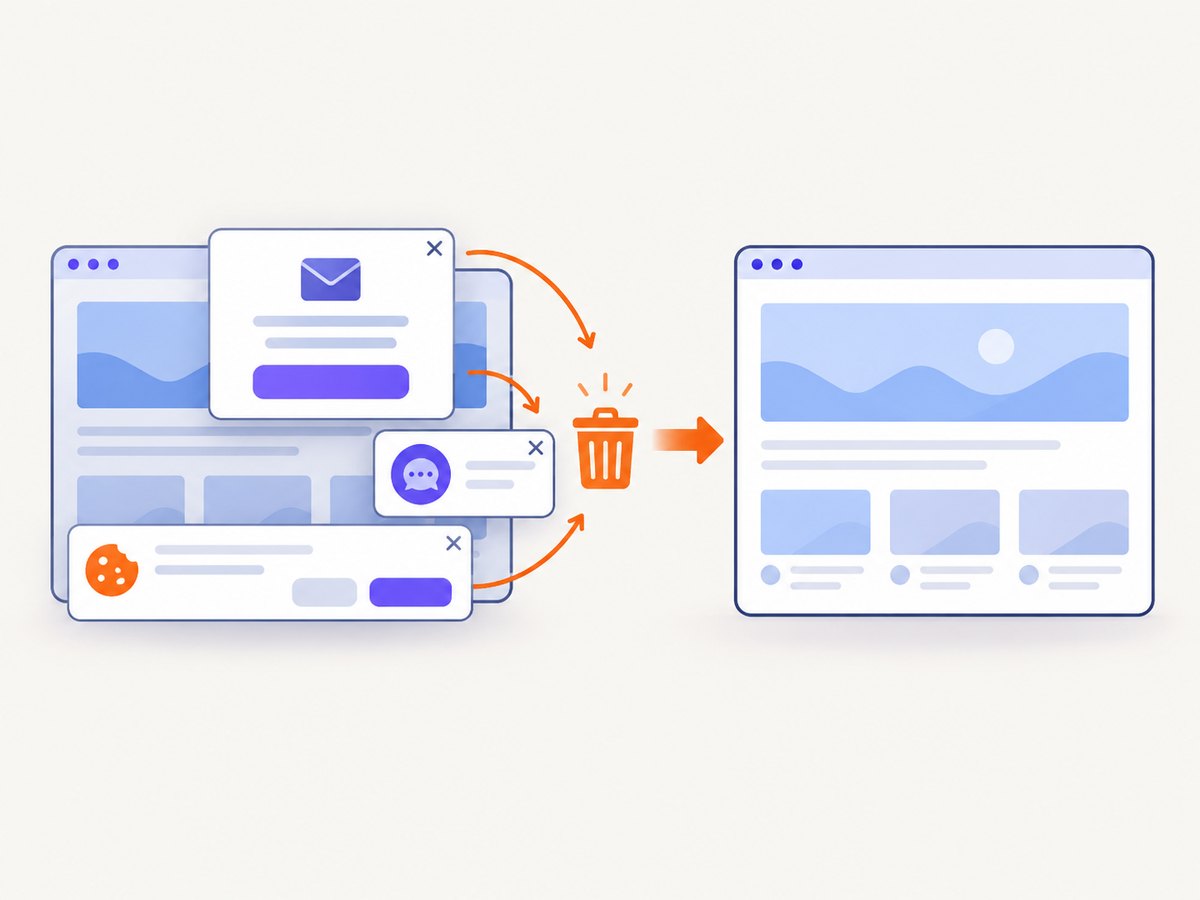
If you need a still image of a website rather than a video of your desktop, ScreenshotNeo captures a page with one API request. Its browser automation accepts consent banners before capture and removes more than 60 known consent platforms, newsletter popups, and chat widgets. Each step can be disabled. Bot checks, blank pages, timeouts, failed loads, and cache hits are not billed, and the response reports the result in X-Page-Verdict and X-Billed headers.
See the complete option list and parameter reference in the ScreenshotNeo documentation.
cURL
curl -G "https://api.screenshotneo.com/v1/shot" \
  -d access_key=YOUR_API_KEY \
  --data-urlencode url=https://stripe.com \
  -o shot.webp
Python
import requests

r = requests.get(
    "https://api.screenshotneo.com/v1/shot",
    params={"access_key": "YOUR_API_KEY", "url": "https://stripe.com"},
    timeout=90,
)
r.raise_for_status()
open("shot.webp", "wb").write(r.content)
Node.js
const q = new URLSearchParams({
  access_key: 'YOUR_API_KEY',
  url: 'https://stripe.com'
});
const res = await fetch(`https://api.screenshotneo.com/v1/shot?${q}`);
if (!res.ok) throw new Error(`HTTP ${res.status}`);
const image = Buffer.from(await res.arrayBuffer());
require('fs').writeFileSync('shot.webp', image);
ScreenshotNeo also supports PNG, JPEG, WebP, and PDF output; full-page capture with lazy images, CSS-element capture, device presets, custom viewports, retina scale, dark mode, custom CSS and JavaScript, clicks, selector waits, delays, network-idle waits, request blocking, headers, cookies, user agents, authorization, timezone, geolocation, transparent backgrounds, resizing, TTL caching, signed links, asynchronous jobs with signed webhooks, bulk capture of up to 100 URLs, usage reporting, and an OpenAPI specification. An MCP server provides take_screenshot, get_page_info, and capture_pdf for Claude, Cursor, and other MCP clients.
There is no browser extension to install, no display picker, and no webcam or desktop-audio track because the API returns a rendered page image or PDF. Free accounts include 1,000 screenshots per month with no card; paid plans start at $5 for 3,000 shots. Create a free ScreenshotNeo account.
Choosing the right capture method
| Need | Best fit |
|---|---|
| Explain actions across several applications | Browser extension in Full Screen mode or a desktop recorder |
| Record one browser tab with narration | Loom or Screencastify extension |
| Capture audio from Zoom or another desktop application | A desktop recorder that supports application system audio |
| Produce repeatable website screenshots in code | ScreenshotNeo API |
| Let an AI agent capture pages | ScreenshotNeo MCP server |
FAQ
Can a Chrome extension record my entire desktop?
Yes. Choose Full Screen, Desktop, or Screen and select the complete display in Chrome’s share dialog. The browser requires your explicit selection.
Can it record two monitors?
Usually you select one display at a time. If you need both, check whether your recorder offers a combined desktop mode or record each display separately with a desktop application.
Why is my screen recording missing audio?
System audio may not have been enabled, or the selected source and operating system may not expose it. Reopen the picker, select a compatible source, check Share system audio, and test before recording.
Can I record a webcam without recording the screen?
Some extensions offer camera-only modes, but the workflow differs by product. Check the extension’s capture options before granting camera permission.
Is browser recording suitable for confidential demonstrations?
It can be, provided you select the intended surface, close sensitive applications, suppress notifications, and review the final file before sharing.


