How to Reduce AVI File Size in a C# Screen Recorder
Reduce AVI recordings by choosing a supported encoder, resolution, frame rate and quality profile, or transcode existing files safely in C#.
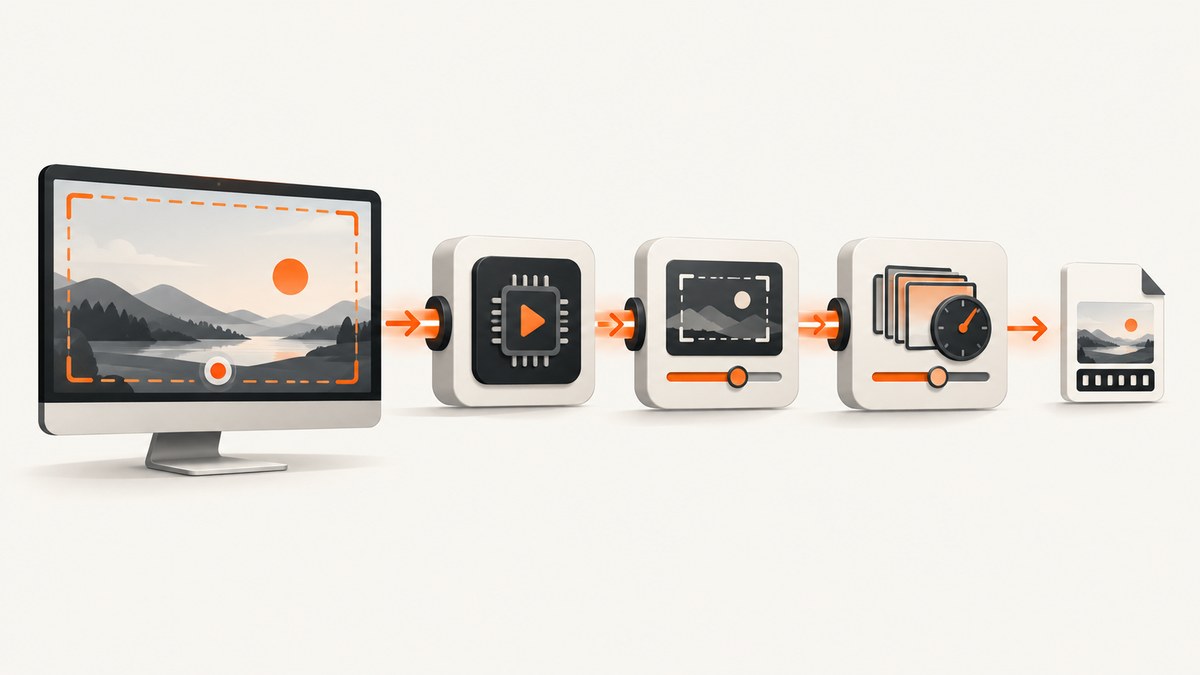
Short answer: AVI is a container, not a compression setting. A C# recorder produces smaller files only when it writes compressed video through an encoder and uses an output profile that trades some combination of bitrate, resolution, frame rate or quality for size. For an existing recording, decode and re-encode it with a smaller profile; changing .avi to another extension cannot compress the media.
Microsoft documents AVI files as containers that can hold compressed or uncompressed video chunks. Its screen-capture guidance treats encoded resolution and frame rate as explicit video parameters, so both are practical size controls with visible quality and smoothness trade-offs. AVI RIFF File Reference · Screen capture to video
Choose the right reduction method
| Situation | Best control | Trade-off |
|---|---|---|
| You control the live recorder | Select a supported compressed encoder, then set resolution, frame rate and quality/data rate. | Lower detail or motion smoothness while recording. |
| You already have a large AVI | Transcode to a new AVI profile and optionally lower resolution. | Extra processing time and possible generation loss. |
| You need frame-accurate editing or old playback support | Keep an archival master and create a smaller delivery copy. | More disk space for the master and derivative. |
There is no universal bitrate or percentage reduction for screen recordings. A static application window, scrolling webpage and fast animation compress differently, and codec availability differs between Windows installations. Benchmark representative clips with the exact encoder and playback software used by your deployment.
Reduce size during live capture
1. Confirm that the encoder is available
An AVI writer can store uncompressed frames if no suitable encoder is selected. Enumerate encoders on the target machine and verify that the chosen codec exposes an encoding mode, rather than only decoding. Microsoft’s codec table distinguishes those capabilities and shows that not every codec/container pairing is an encoder option: Supported codecs.
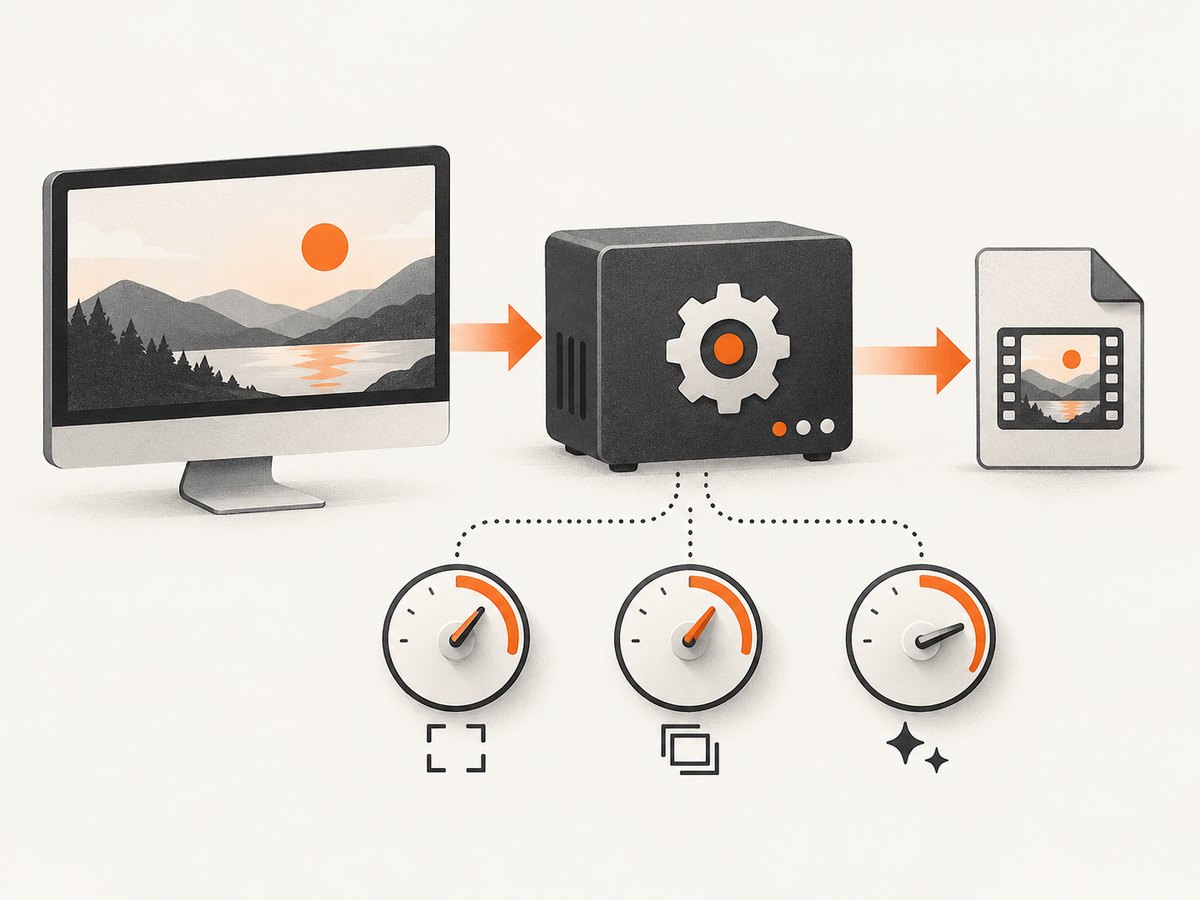
2. Set encoded resolution deliberately
Capture at the dimensions your audience needs. If a 3,840×2,160 desktop is delivered in a 1,920×1,080 player, encoding the full desktop wastes space. Scaling also reduces the number of pixels the encoder must describe in every frame. Preserve the source dimensions when small text must remain readable.
3. Set frame rate for the motion on screen
Frame rate controls temporal smoothness and the amount of video data. Fast cursor movement, games and animation need more frames than a mostly static form demonstration. Lower it only after checking cursor legibility and scrolling; a low frame rate can make interaction look jerky even when individual frames are sharp.
4. Expose encoder quality or data-rate controls
Encoders commonly offer a quality target, average data rate or both. Use the controls that the installed encoder actually supports. A quality target lets complexity vary with the content; a fixed data rate makes storage planning easier. Do not copy a bitrate from another codec or screen size and assume the same result.
5. Account for audio
If audio is included, its codec, channel count and sample settings contribute to the file. Keep settings appropriate for the narration or system audio you need. The reviewed Microsoft documentation does not establish a universal saving from a particular audio setting, so measure your own recordings.
6. Keep the capture profile and the container separate
“AVI output” identifies the container. The encoder, encoded dimensions, frame rate and quality/data-rate settings determine most of the video size. A profile that writes uncompressed frames to AVI can be dramatically larger than one that writes compressed frames to the same container.
Transcode an existing AVI in C#
Transcoding decodes the source and encodes a new file. Microsoft describes lowering a high-definition video’s resolution during conversion as a way to reduce output size: Transcode media files. Keep the original if it is your preservation copy.
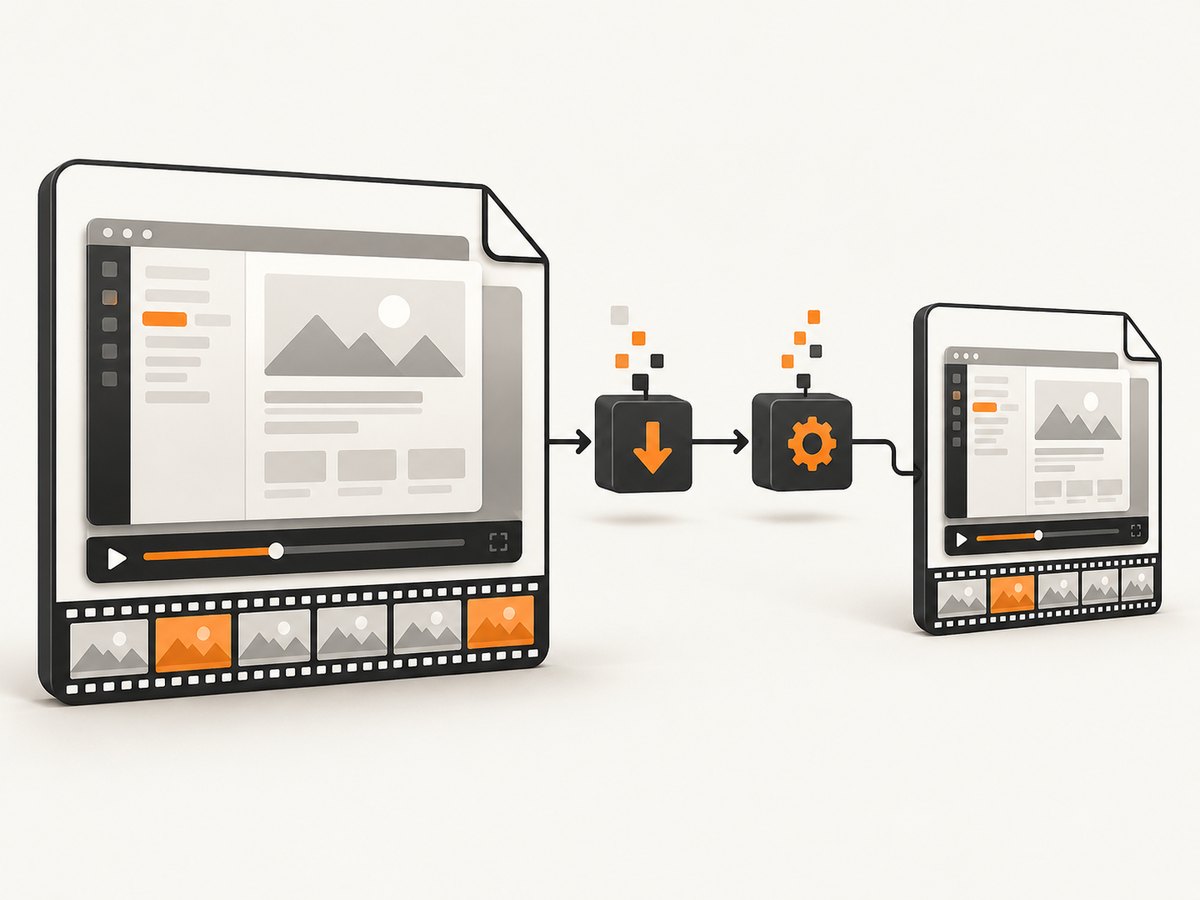
The following UWP/WinRT C# example creates a smaller AVI derivative with Microsoft’s media transcoder. It uses the installed Windows encoder associated with the selected AVI profile; test the profile on every supported Windows target.
using System;
using System.Threading.Tasks;
using Windows.Media.Transcoding;
using Windows.Media.MediaProperties;
using Windows.Storage;

public static class AviReducer
{
    public static async Task<bool> ReduceAsync(
        string inputPath,
        string outputPath)
    {
        StorageFile source = await StorageFile.GetFileFromPathAsync(inputPath);
        StorageFile destination = await StorageFile.GetFileFromPathAsync(outputPath);

        var transcoder = new MediaTranscoder
        {
            AlwaysReencode = true
        };

        // CreateAvi selects an AVI container and a Windows AVI encoding profile.
        // Choose the smallest quality that still keeps screen text readable.
        MediaEncodingProfile profile =
            MediaEncodingProfile.CreateAvi(VideoEncodingQuality.HD720p);

        PrepareTranscodeResult prepared =
            await transcoder.PrepareFileTranscodeAsync(source, destination, profile);

        if (prepared.CanTranscode)
        {
            await prepared.TranscodeAsync();
            return true;
        }

        // The target machine lacks a compatible encoder/profile for this job.
        System.Diagnostics.Debug.WriteLine(
            $"Cannot transcode: {prepared.FailureReason}");
        return false;
    }
}
Call ReduceAsync with a new output path; do not overwrite the source until the destination is complete. VideoEncodingQuality.HD720p is an example profile, not a universal recommendation. Choose a profile based on the source dimensions, text size and required compatibility. The CreateAvi API reference lists the available profile choices for that API.
When this sample is not the right API
DirectShow remains documented for AVI capture, but Microsoft labels it a legacy feature and states: “Microsoft strongly recommends that new code use MediaPlayer, IMFMediaEngine and Audio/Video Capture in Media Foundation instead of DirectShow, when possible.” Capturing Video to an AVI File. The modern screen-capture walkthrough demonstrates a MediaStreamSource and MediaTranscoder workflow; it does not guarantee one AVI output path for every C# application type. Verify the API, encoder and container combination for your target (UWP, WinUI, desktop or service) before shipping.
Validate the result
- Record a representative clip containing static text, cursor movement, scrolling and any animation your application produces.
- Measure the source and derivative sizes and divide by duration to compare storage rate.
- Inspect small text at the intended playback size, then inspect motion while scrolling or dragging.
- Open the output in every required player or editor. An encoder available on your development machine may be absent on a clean deployment.
- Keep a lossless or highest-quality master when future editing or evidence requirements matter.
Troubleshooting
| Symptom | Likely cause | Fix |
|---|---|---|
| The AVI is still huge | Frames are uncompressed, or the selected encoder is not being used. | Inspect the stream codec and encoder mode; select a supported compressed encoder and confirm the profile is applied. |
CanTranscode is false |
The target Windows installation lacks a compatible decoder, encoder or profile. | Read FailureReason, check Microsoft’s supported-codec table, and test another installed profile or deployment strategy. |
| Changing the extension changed nothing | A filename change does not decode and re-encode media. | Run a real transcode and write to a new destination. |
| Text is unreadable | Output resolution or quality is too low for the screen content. | Raise resolution or quality, or crop to the important window instead of scaling the whole desktop. |
| Scrolling looks jerky | Frame rate was reduced below what the motion needs. | Increase frame rate for that profile and reduce another control, such as resolution, if storage is constrained. |
| Playback fails on another PC | The required codec is not installed or the player does not support that AVI stream. | Test on a clean target, document codec requirements, or deliver an additional format supported by the audience. |
| Output overwrites or corrupts the source | Transcoding was directed at the input file or interrupted during replacement. | Write a separate temporary destination, verify it, then replace the original atomically if your application requires that workflow. |
Performance, reliability and cost considerations
- CPU and time: Smaller output usually requires encoder work. Live encoding consumes CPU while capture runs; transcoding adds a separate pass and may be slower than real time.
- Memory and I/O: Stream frames rather than loading an entire recording into memory. Ensure the destination volume has room for both source and derivative.
- Reliability: Treat missing codecs as a deployment condition, not an exceptional development-only problem. Log the selected profile, dimensions, frame rate and failure reason.
- Quality: Compare at the final display size. A file can be smaller yet unusable if text or cursor trails cannot be read.
- Cost: Storage and transfer savings depend on your content and settings. Establish your own baseline from representative clips; no task-specific universal reduction percentage has been verified.
Or skip the browser setup
If your broader workflow is collecting website screenshots for documentation or test evidence, ScreenshotNeo returns a PNG, JPEG, WebP or PDF from one request. It removes cookie banners, newsletter popups and chat widgets before capture; bot checks, blank pages and failed loads are not billed; and its MCP server lets Claude, Cursor and other MCP clients call take_screenshot, get_page_info and capture_pdf.
curl -G "https://api.screenshotneo.com/v1/shot" -d access_key=YOUR_API_KEY --data-urlencode url=https://stripe.com -o shot.webpimport requests
r = requests.get("https://api.screenshotneo.com/v1/shot", params={"access_key": "YOUR_API_KEY", "url": "https://stripe.com"}, timeout=90)
open("shot.webp", "wb").write(r.content)const q = new URLSearchParams({ access_key: 'YOUR_API_KEY', url: 'https://stripe.com' });
const res = await fetch(`https://api.screenshotneo.com/v1/shot?${q}`);See the ScreenshotNeo API documentation for the other capture options. The free plan includes 1,000 screenshots each month with no card; paid plans start at $5 for 3,000 shots. Create a free ScreenshotNeo account.
FAQ
Does AVI automatically compress screen recordings?
No. AVI can contain compressed or uncompressed chunks. Compression comes from the selected encoder and profile.
Should I lower resolution or frame rate first?
Use the control that least harms your content. Lower resolution reduces detail; lower frame rate reduces motion smoothness. Test both with representative screen activity.
Can I shrink an AVI without losing quality?
Only if the source contains avoidable overhead or you change the container without re-encoding. Any lossy re-encode can reduce quality; retain the original when preservation matters.
Why does the same C# program work on one Windows machine but not another?
Codec and encoder availability differs by Windows version, installed components and application environment. Probe capabilities on the deployment target and handle unsupported profiles.


