Successful Strategies for Reliable Website Screenshots
Create repeatable website screenshots by controlling scope, readiness, rendering conditions, and visual variation with Playwright or an API.
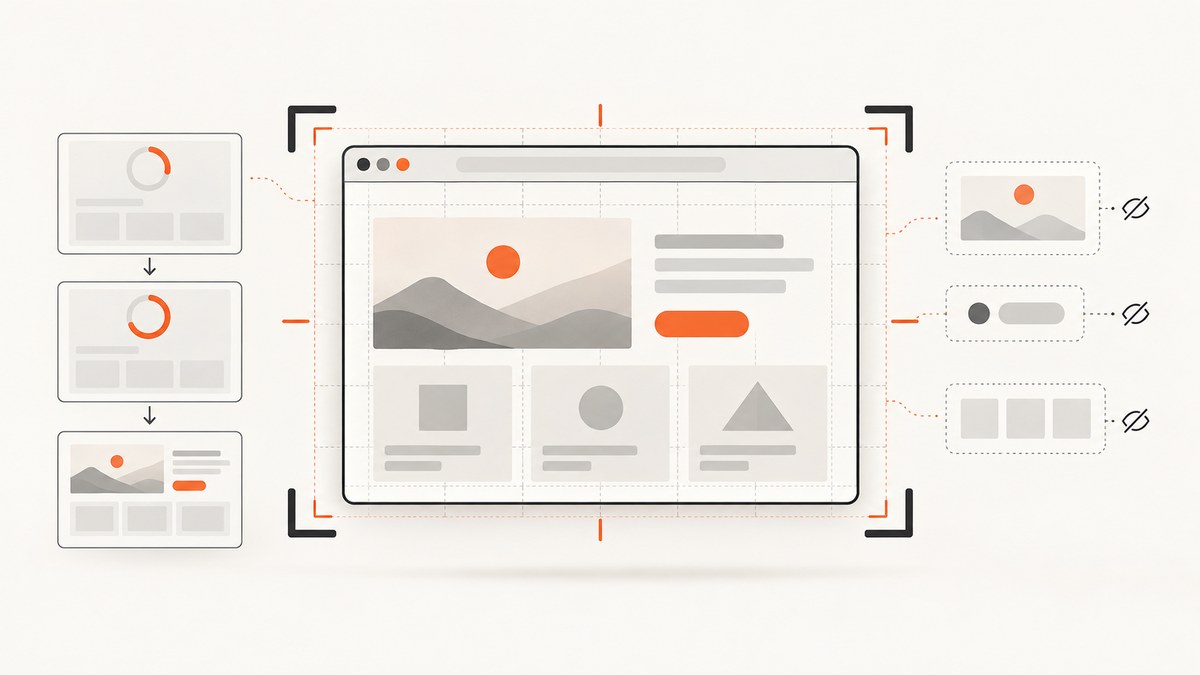
A reliable website screenshot is a controlled observation. Define exactly what to capture, wait for the application state you need, keep the rendering environment consistent, and remove only visual variation that is irrelevant to the result. For one-off captures, Playwright gives you viewport, element, and full-page screenshots. For repeatable production captures, you can run the same browser settings on every request or use a hosted API such as ScreenshotNeo.
What makes a website screenshot reliable?
Reliability means that the same page state produces the same image often enough for your use case. A bug report may need one accurate frame. A visual regression test needs stable pixels across runs. Documentation may need a full page at a known viewport. Decide these dimensions before writing code:
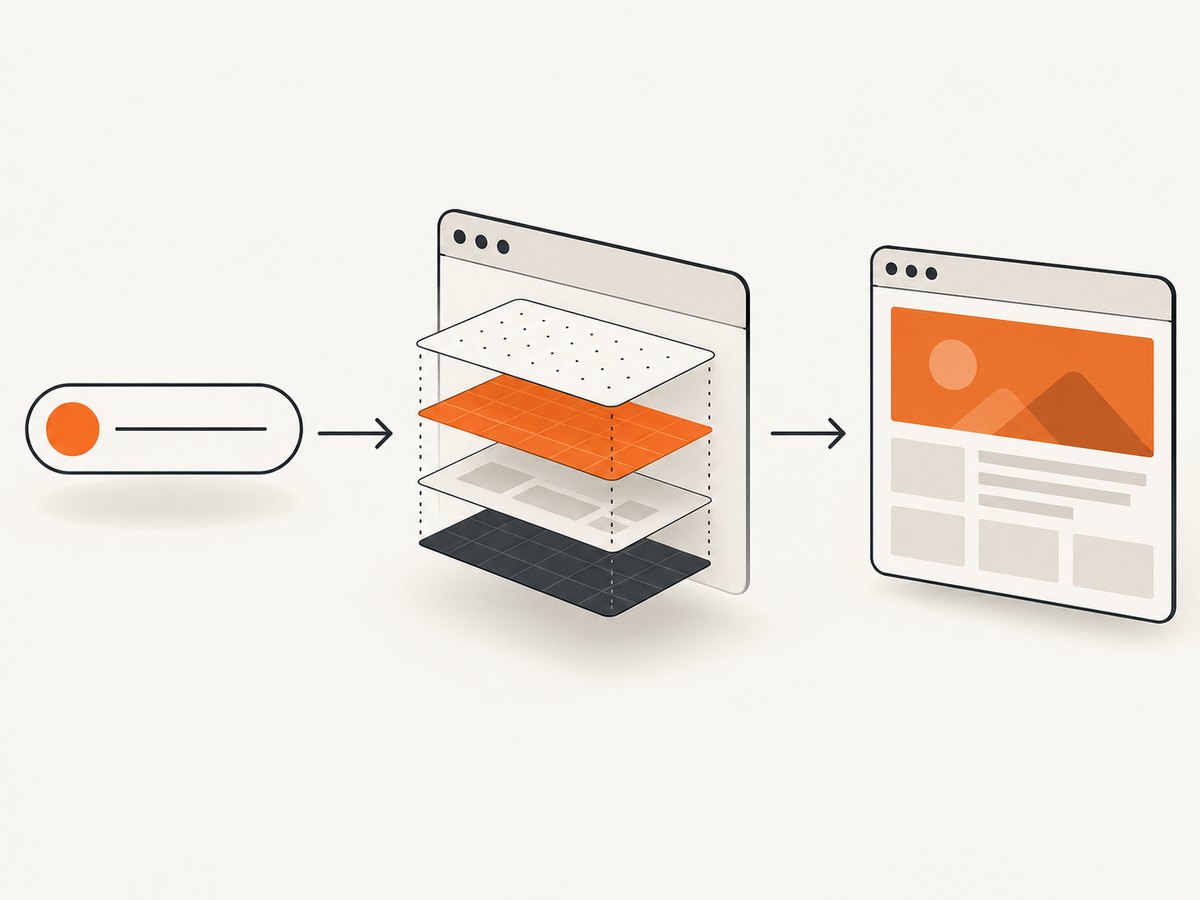
| Decision | Options | Why it matters |
|---|---|---|
| Scope | Viewport, element, or full page | Controls whether the image shows the visible screen, one component, or the scrollable document. |
| Readiness | Visible assertion, loading state, application event, or timed delay | Prevents captures of skeletons, stale data, or half-rendered components. |
| Rendering | Browser, viewport, device scale, theme, locale, timezone | Keeps layout, fonts, and responsive breakpoints consistent. |
| Variation | Animations, caret, timestamps, ads, rotating content | Reduces false differences while preserving the behavior under test. |
Playwright documents viewport, element, and full-page screenshots plus CSS-pixel and device-pixel scaling in its screenshot API. For automated comparison, its screenshot assertions wait for two consecutive screenshots to match before comparing the result.
1. Choose the capture scope deliberately
Viewport screenshot
Use a viewport capture when the question is “What did the user see?” It is appropriate for bug reports, responsive checks, and above-the-fold documentation.
import { chromium } from 'playwright';

const browser = await chromium.launch();
const page = await browser.newPage({ viewport: { width: 1440, height: 900 }, deviceScaleFactor: 1 });
await page.goto('https://example.com', { waitUntil: 'domcontentloaded' });
await page.screenshot({ path: 'viewport.png', type: 'png' });
await browser.close();
Element screenshot
Capture one component when surrounding content is irrelevant or changes frequently. A stable selector is better than a position or a generated class.
const card = page.locator('[data-testid="pricing-card"]');
await card.waitFor({ state: 'visible' });
await card.screenshot({ path: 'pricing-card.png', animations: 'disabled' });
Full-page screenshot
Use full-page mode for documentation and page archives. It captures the scrollable page and can trigger lazy-loaded content as the browser scrolls. Long pages can consume substantial memory, so split very large pages into sections when an image does not need to be a single canvas.
await page.screenshot({ path: 'full-page.webp', fullPage: true, type: 'webp', quality: 82 });2. Wait for meaningful application state
A quiet network is not proof that a page is ready. Playwright defines networkidle as no network connections for at least 500 ms and discourages using it as a testing condition. Analytics, polling, WebSockets, and advertisements can keep a page busy forever, while a page can be visually ready before the network becomes quiet. Prefer an explicit application condition.
await page.goto('https://example.com/dashboard', { waitUntil: 'domcontentloaded' });
await page.getByRole('heading', { name: 'Dashboard' }).waitFor({ state: 'visible' });
await page.locator('[data-testid="loading"]').waitFor({ state: 'hidden' });
await page.screenshot({ path: 'dashboard.png' });
Useful readiness signals include a heading or table row becoming visible, a loading indicator becoming hidden, a stable URL after navigation, or a custom event emitted by your application. Use a short, explicit delay only when the application has no observable state; document why the delay exists and keep it bounded.
3. Make rendering deterministic
Use the same browser engine, viewport dimensions, device scale factor, color scheme, locale, timezone, and authentication state for baseline and comparison captures. A one-pixel breakpoint change can reflow an entire page.
const context = await browser.newContext({
  viewport: { width: 1280, height: 800 },
  deviceScaleFactor: 1,
  colorScheme: 'light',
  locale: 'en-US',
  timezoneId: 'UTC',
  reducedMotion: 'reduce'
});
Load the same fonts in every environment. If a web font is not available when the screenshot is taken, fallback metrics can change line wrapping. In CI, use a pinned browser version and install the required font packages. Keep test data fixed and freeze dates or random identifiers where your application permits it.
4. Control visual variation without hiding defects
Animations and transitions can produce different pixels on every run. Playwright can disable animations and hide the caret. Mask a region only when it is intentionally volatile, such as a clock or rotating recommendation. Do not mask the component whose layout or behavior you are testing.
await expect(page).toHaveScreenshot('home.png', {
  animations: 'disabled',
  caret: 'hide',
  mask: [page.locator('[data-testid="live-clock"]')],
  maskColor: '#999999'
});
Other sources of drift include ad slots, personalized recommendations, live counters, random avatars, current weather, and third-party chat widgets. Stub these sources, provide deterministic fixtures, or hide only the specific region. A broad page-wide mask can make a test pass while the layout is broken.
5. Use screenshot assertions for visual regression
For regression testing, let the Playwright test runner establish screenshot stability and compare against a checked-in baseline. The runner waits for two consecutive screenshots to match, then reports pixel differences.
import { test, expect } from '@playwright/test';

test('checkout summary is stable', async ({ page }) => {
  await page.goto('https://example.com/checkout');
  await page.getByRole('heading', { name: 'Order summary' }).waitFor();
  await expect(page).toHaveScreenshot('checkout-summary.png', {
    fullPage: true,
    animations: 'disabled',
    caret: 'hide'
  });
});
Review every baseline update. A changed screenshot can represent an intended design change, a browser upgrade, a missing font, or a real regression. Store baselines with the same project and browser configuration used in CI.
6. A complete reliable capture helper
This helper combines a fixed context, an explicit readiness selector, optional element capture, and a controlled timeout.
import { chromium } from 'playwright';

export async function capture({ url, output, selector, fullPage = false }) {
  const browser = await chromium.launch();
  const context = await browser.newContext({
    viewport: { width: 1440, height: 900 },
    deviceScaleFactor: 1,
    colorScheme: 'light',
    locale: 'en-US',
    timezoneId: 'UTC',
    reducedMotion: 'reduce'
  });
  const page = await context.newPage();
  page.setDefaultTimeout(15000);
  await page.goto(url, { waitUntil: 'domcontentloaded', timeout: 30000 });
  const ready = page.locator('[data-screenshot-ready]');
  if (await ready.count()) await ready.waitFor({ state: 'visible' });
  if (selector) {
    await page.locator(selector).screenshot({ path: output, animations: 'disabled' });
  } else {
    await page.screenshot({ path: output, fullPage, animations: 'disabled', caret: 'hide' });
  }
  await browser.close();
}

capture({ url: 'https://example.com', output: 'page.png' });
7. Reliability checklist
- Choose viewport, element, or full page based on the question.
- Wait for a meaningful selector or application event.
- Use fixed viewport, scale, browser, locale, timezone, and theme.
- Disable animations and hide the caret for comparisons.
- Stub or mask known volatile data narrowly.
- Ensure fonts and browser versions are installed consistently.
- Capture with the same authentication, cookies, and feature flags.
- Save the URL, commit, browser version, and capture settings with each baseline.
8. Troubleshooting common failures
| Symptom | Likely cause | Fix |
|---|---|---|
| Screenshot shows a spinner | Capture ran before application readiness. | Wait for a visible content selector and for the loading indicator to be hidden. |
| Images are missing | Lazy loading or blocked third-party resources. | Use full-page capture to trigger lazy images, wait for image completion, or allow the required host. |
| Text wraps differently in CI | Missing fonts, different browser, viewport, or scale. | Pin the browser, install fonts, and keep context settings identical. |
| Every run differs | Animation, caret, timestamps, ads, or random data. | Disable animations, hide the caret, freeze data, and mask only known volatile regions. |
| Timeout waiting for network idle | Polling, analytics, or WebSockets never stop. | Use an explicit application selector instead of networkidle. |
| Element selector fails | Selector is generated or element is inside an iframe. | Add a stable test id; locate the frame first with frameLocator(). |
| Full page is clipped | Fixed-position overlays or extremely tall content. | Hide the overlay, capture sections, or use an API that handles full-page stitching. |
9. Performance, reliability, and cost
Browser startup is expensive. Reuse a browser process and create isolated contexts for parallel jobs. Limit concurrency to what your CPU and memory can sustain. Capture only the scope you need; full-page images take longer and use more memory. WebP usually reduces transfer size, while PNG preserves lossless pixels for regression tests.
Retries should target transient failures such as DNS errors or a temporary upstream timeout. Do not blindly retry a deterministic selector failure. Record a verdict, HTTP status, elapsed time, and browser error so an operator can distinguish a blank page from a valid screenshot.
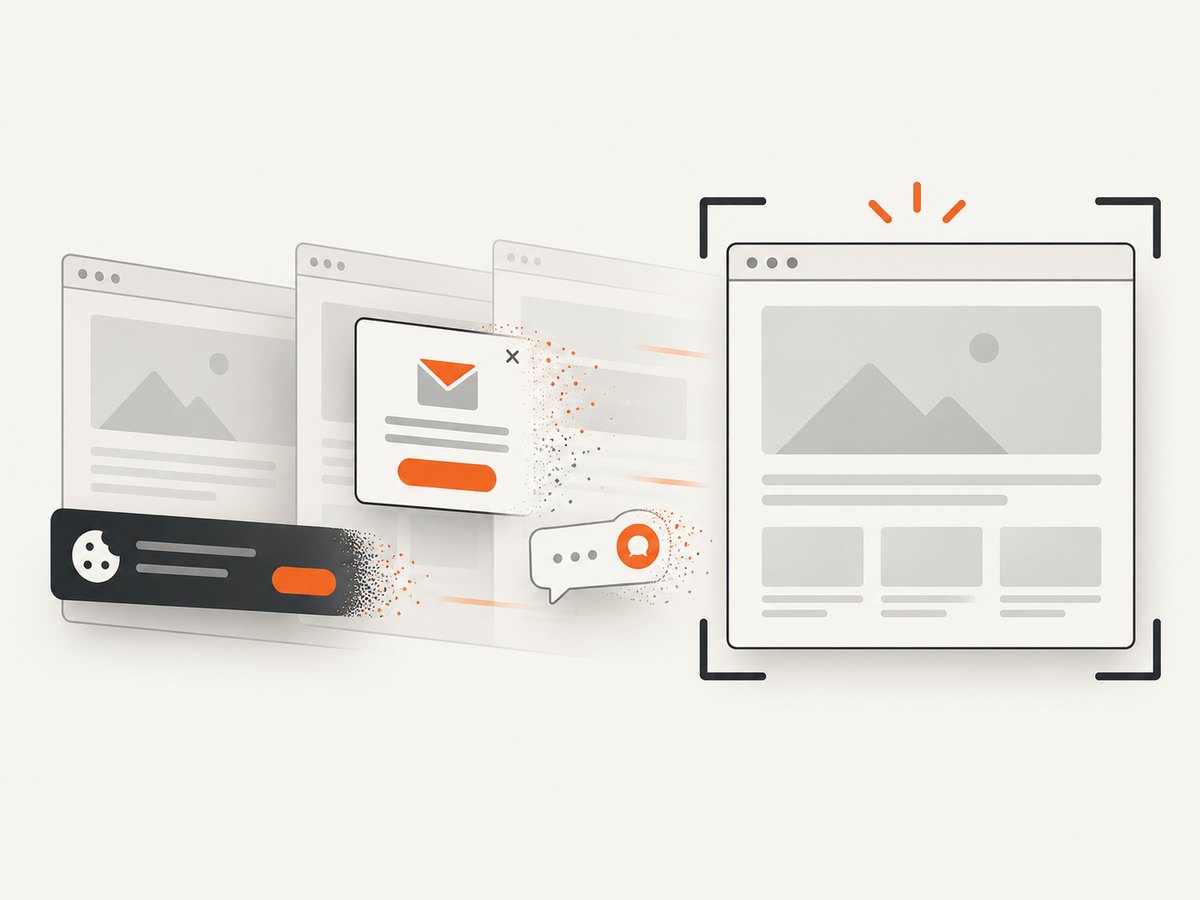
For a hosted workflow, ScreenshotNeo returns PNG, JPEG, WebP, or PDF from one GET request. It removes cookie and consent banners, newsletter popups, and chat widgets before capture; each step can be disabled. Bot checks, blank pages, timeouts, failed loads, and cache hits are not billed, and response headers report the page verdict and whether the request was billed. Caching with a chosen TTL can reduce repeated work. Use the smallest image dimensions and a sensible cache policy that meet your retention requirements.
Or skip the browser setup
ScreenshotNeo provides a hosted capture endpoint and an MCP server for Claude, Cursor, and other MCP clients. The API supports full-page and element captures, dark mode, device presets, retina scale, custom CSS and JavaScript, click actions, waits, request blocking, headers, cookies, user agents, authorization, timezone, geolocation, transparent backgrounds, resizing, signed links, asynchronous jobs, bulk capture, PDF options, and a usage API. See the ScreenshotNeo documentation for parameter details.
curl -G "https://api.screenshotneo.com/v1/shot" -d access_key=YOUR_API_KEY --data-urlencode url=https://stripe.com -o shot.webpimport requests
r = requests.get("https://api.screenshotneo.com/v1/shot", params={"access_key": "YOUR_API_KEY", "url": "https://stripe.com"}, timeout=90)
open("shot.webp", "wb").write(r.content)const q = new URLSearchParams({ access_key: 'YOUR_API_KEY', url: 'https://stripe.com' });
const res = await fetch(`https://api.screenshotneo.com/v1/shot?${q}`);Cookie banners, popups, and chat widgets are removed before the shot. Bot checks, blank pages, and failed loads are never billed. The MCP server lets AI agents take screenshots. The free plan includes 1,000 screenshots a month with no card, and paid plans start at $5 for 3,000 screenshots. Create a free ScreenshotNeo account.
FAQ
Should I use PNG or WebP?
Use PNG for pixel-sensitive regression baselines. Use WebP when transfer size and storage matter and small compression differences are acceptable.
Is a fixed delay ever acceptable?
Yes, when no observable readiness signal exists, but keep it short and document the dependency. A selector or application event is more reliable.
Should dynamic content always be masked?
No. Mask only content outside the behavior under test. Otherwise a broken layout can be hidden.
When is an API better than self-hosted Playwright?
An API is useful when you need a shared capture service, consistent browser setup, bulk URLs, PDFs, signed links, or AI-agent access without maintaining browser workers.


