How to Render ApexCharts Correctly in Puppeteer
Await ApexCharts render, expose a readiness signal, and make Puppeteer capture reliable with complete code, exports, debugging, and production tips.
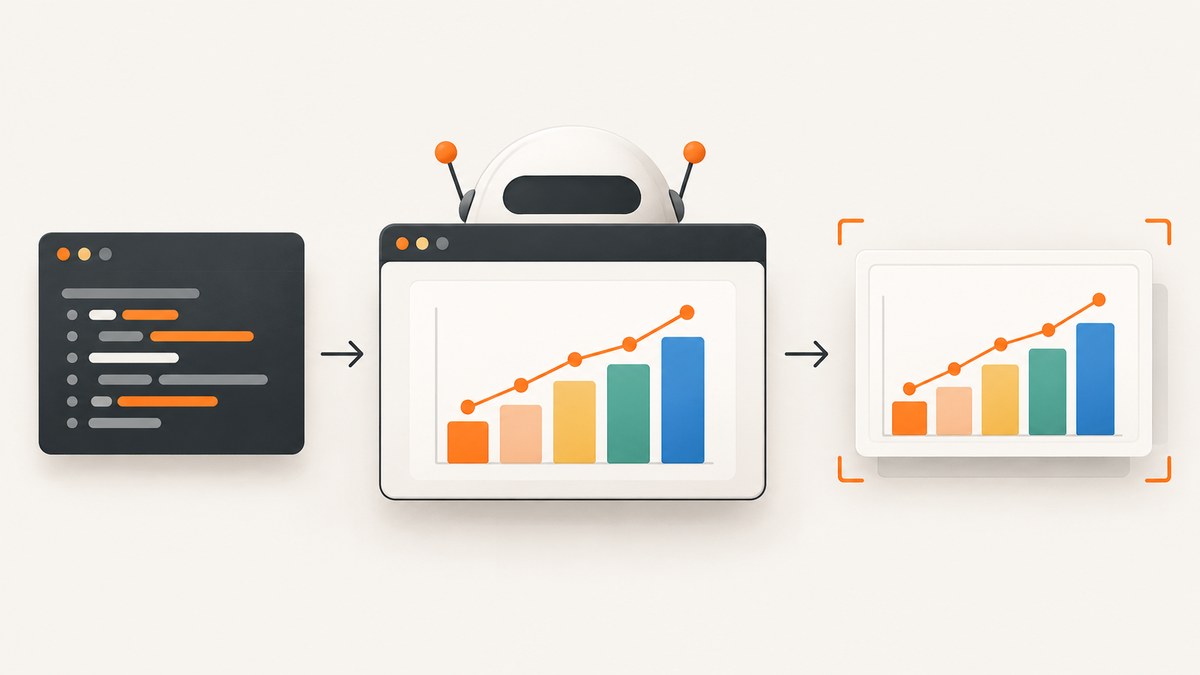
Direct answer: wait for ApexCharts’ own render promise, then tell Puppeteer that the chart is ready, and only after that call page.screenshot(). Network-idle navigation can help load the page, but it cannot prove that a client-side chart has finished drawing.
The reliable sequence is:
- Create the chart.
await chart.render().- Set an explicit readiness flag or DOM marker.
- Navigate Puppeteer to the page.
- Use
page.waitForFunction()(or wait for a selector) with a timeout. - Capture the page or chart element.
This guide shows a complete implementation, explains chart-only export options, covers animations, fonts, lazy assets, failures, performance, and production reliability, and ends with a hosted alternative from ScreenshotNeo.
1. Why a normal Puppeteer screenshot can miss ApexCharts
A Puppeteer navigation lifecycle and an ApexCharts render lifecycle are different things. page.goto(url, { waitUntil: 'networkidle2' }) waits for a period of low network activity. ApexCharts may still be creating SVG nodes, calculating dimensions, running animations, or waiting for a container whose size was established by client-side CSS.
ApexCharts documents that render() returns a Promise that resolves after the chart has been drawn. Use that Promise as the application-level completion boundary. Puppeteer’s predicate wait then bridges the page and the controlling Node.js process.
Do not use a fixed sleep as your primary synchronization method. A short delay can be too early on a busy machine and unnecessarily slow on a fast one. A readiness marker expresses the condition you actually need.
2. Complete working example: page and Puppeteer capture
The following example uses a small static page. It sets both success and failure state so a capture cannot silently continue after chart initialization failed.

Chart page (chart.html)
<!doctype html>
<html lang="en">
<head>
  <meta charset="utf-8">
  <meta name="viewport" content="width=device-width, initial-scale=1">
  <title>ApexCharts capture</title>
  <script src="https://cdn.jsdelivr.net/npm/apexcharts"></script>
  <style>
    body { margin: 0; font-family: system-ui, sans-serif; }
    #chart { width: 900px; min-height: 420px; }
  </style>
</head>
<body>
  <div id="chart" aria-label="Monthly revenue chart"></div>
  <script>
    (async () => {
      const target = document.querySelector('#chart')
      const options = {
        chart: {
          type: 'line',
          height: 420,
          animations: { enabled: false }
        },
        series: [{
          name: 'Revenue',
          data: [18, 24, 21, 31, 35, 42]
        }],
        xaxis: { categories: ['Jan', 'Feb', 'Mar', 'Apr', 'May', 'Jun'] }
      }

      try {
        const chart = new ApexCharts(target, options)
        await chart.render()
        window.chartReady = true
        target.dataset.renderState = 'ready'
      } catch (error) {
        window.chartReady = false
        target.dataset.renderState = 'error'
        window.chartError = String(error)
        console.error(error)
      }
    })()
  </script>
</body>
</html>
Puppeteer capture (capture.mjs)
import puppeteer from 'puppeteer'

const browser = await puppeteer.launch({ headless: true })
const page = await browser.newPage()
await page.setViewport({ width: 1200, height: 800, deviceScaleFactor: 1 })

try {
  await page.goto('http://127.0.0.1:8080/chart.html', {
    waitUntil: 'networkidle2',
    timeout: 30_000
  })

  await page.waitForFunction(
    () => window.chartReady === true || window.chartError,
    { timeout: 30_000 }
  )

  const state = await page.$eval('#chart', element => ({
    renderState: element.dataset.renderState,
    error: window.chartError || null
  }))

  if (state.renderState !== 'ready') {
    throw new Error(`ApexCharts did not render: ${state.error || 'unknown error'}`)
  }

  await page.screenshot({ path: 'chart-page.png', fullPage: true })
  // For chart-only output instead:
  // await page.locator('#chart').screenshot({ path: 'chart-only.png' })
} finally {
  await browser.close()
}
Puppeteer’s screenshot and wait APIs are documented in its official guide and API reference: screenshots, waitForFunction, and waitForNetworkIdle.
3. Readiness signals that work for real applications
Global flag
window.chartReady = true is convenient when you own the page. Set it only after the awaited render Promise resolves. If several charts exist, expose a count or named state:
window.chartStatus = { sales: 'ready', traffic: 'pending' }
// After each chart's await chart.render():
window.chartStatus.sales = 'ready'
DOM marker
A data attribute or dedicated element is easier to inspect and can support CSS or test tooling:
await chart.render()
document.querySelector('#chart').setAttribute('data-render-state', 'ready')
Then wait with page.waitForSelector('#chart[data-render-state="ready"]'). For an error, set data-render-state="error" and include a useful message in a separate property.
Multiple charts
Render charts concurrently, but signal readiness only when all required charts finish:
const jobs = chartDefinitions.map(async ({ id, options }) => {
  const chart = new ApexCharts(document.querySelector(id), options)
  await chart.render()
})
await Promise.all(jobs)
window.allChartsReady = true
Use Promise.allSettled() when you need to report every failure, then fail the capture if any required chart is rejected.
4. Network idle is useful, but it is not chart readiness
networkidle2 is a practical navigation condition when a page loads scripts, data, and styles. It does not know whether an application has finished chart initialization. A chart can be late because data arrives from an API after the initial network quiet period, because a resize observer runs later, or because rendering is still animated.
Use both conditions when appropriate:
await page.goto(url, { waitUntil: 'networkidle2' })
await page.waitForFunction(() => window.chartReady === true, {
  timeout: 30_000
})
If the site never becomes network idle because of analytics or long polling, use a less strict navigation condition such as domcontentloaded and rely on your explicit chart marker. You can also call page.waitForNetworkIdle({ idleTime: 500, timeout: 30_000 }) after navigation when that condition is meaningful for your page.
5. Make output repeatable: animation, dimensions, and fonts
Disable animation for static captures
ApexCharts exposes animation settings and speed controls. For image generation, disabling animation generally removes a source of timing variation:
const options = {
  chart: {
    animations: {
      enabled: false
    }
  }
}
Still await render(). Disabling animation does not replace the render Promise.
Give the chart a stable size
Set an explicit viewport and a chart container width and height. Responsive layouts can produce different line breaks and dimensions when the browser window changes. If your application calculates size after a resize, wait for the final layout before rendering or signal readiness only after that resize has completed.
Wait for fonts when exporting chart PNGs
For ApexCharts’ dataURI() PNG export, the export documentation notes that web fonts may not embed and recommends waiting for document.fonts.ready. In Puppeteer page screenshots, do the same when typography is part of the expected result:
await page.evaluate(async () => {
  if (document.fonts) await document.fonts.ready
})
await page.screenshot({ path: 'with-fonts.png' })
Also account for images, CSS background images, and data requests that your own page uses. There is no universal asset policy for every application, so make the page’s readiness marker represent all assets required for the intended capture.
6. Choose between a page screenshot and ApexCharts export APIs
| Need | Use | Condition |
|---|---|---|
| Composed page with surrounding UI | page.screenshot() |
Wait for the application readiness signal first. |
| One chart element | Element screenshot | Wait for the chart, then capture its selector. |
| Chart-only PNG | ApexCharts dataURI() |
Call after render; use scale or width as needed. |
| Chart-only SVG | getSvgString() |
Call after render for vector output. |
| Chart data | exportToCSV() |
This produces data, not an image. |
| Browserless SVG or hydration-ready markup | apexcharts/ssr |
Use when the chart does not require browser-only layout or interaction. |
The exports feature is included in the full apexcharts bundle. If you use apexcharts/core, register the Exports feature explicitly. See the official dataURI, getSvgString, exportToCSV, and server-rendering documentation.
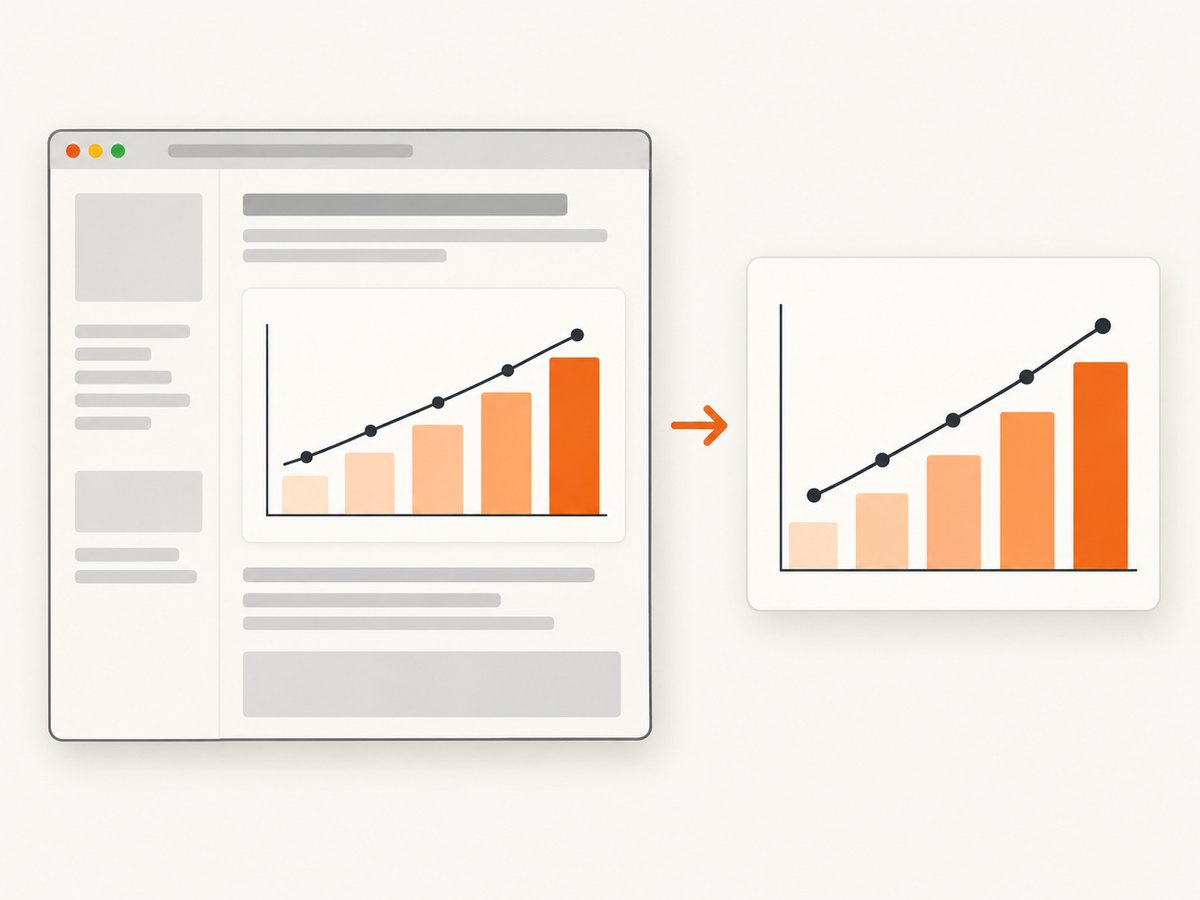
Calling dataURI() in the page
await chart.render()
await document.fonts.ready
const result = await chart.dataURI({ scale: 2 })
// result.imgURI is a data URL; result.blob is a Blob in supported browsers
Use ApexCharts export when you need only the chart and want its own export sizing. Use Puppeteer when page CSS, labels outside the chart, controls, or surrounding content are part of the artifact.
7. Handling failures instead of producing bad images
Always bound waits and inspect the failure state. A timeout should fail the job, produce diagnostics, and be retried only when the cause is transient.
try {
  await page.waitForFunction(() => window.chartReady === true, {
    timeout: 30_000
  })
} catch (error) {
  await page.screenshot({ path: 'debug-timeout.png', fullPage: true })
  const html = await page.content()
  console.error('Chart readiness timeout', { error, html })
  throw error
}
8. Troubleshooting checklist
| Symptom | Likely cause | Fix |
|---|---|---|
| Blank chart area | Capture ran before render() resolved, or the container has no size. |
Await the Promise, set explicit dimensions, and inspect the DOM marker. |
| Timeout waiting for readiness | Chart initialization threw, data never arrived, or the flag is set on a different page frame. | Expose an error state, log the exception, verify the URL and API response, and use the correct frame. |
| Old or partial data | Screenshot starts before asynchronous data processing completes. | Set readiness after data assignment and after render(), not after navigation. |
| Different dimensions between runs | Viewport, device scale, fonts, or responsive CSS differ. | Set viewport and device scale explicitly; wait for fonts and stable layout. |
| Chart appears mid-animation | Animation is still active when capture occurs. | Disable animations for capture or signal readiness only after the final render state. |
| PNG export lacks the custom font | Web fonts were not available to the export path. | Wait for document.fonts.ready and follow ApexCharts’ font guidance. |
| Export methods are undefined | The Exports feature is absent from an apexcharts/core build. |
Use the full bundle or register the Exports feature explicitly. |
| Navigation never reaches network idle | Analytics, sockets, or polling keep requests active. | Use domcontentloaded and your application-level readiness signal. |
9. Performance and reliability in production
- Reuse a browser process: launching Chromium for every chart adds startup work. Create isolated pages or contexts per job and close them promptly.
- Set bounded timeouts: navigation and readiness waits should have limits so a broken page cannot occupy a worker forever.
- Keep readiness specific: wait for the charts required by the output, rather than an arbitrary long delay.
- Control capture size: very large full-page images consume more memory. Capture an element or use an ApexCharts export when surrounding page content is unnecessary.
- Retry selectively: retry transient navigation or network failures with a small limit; do not retry deterministic JavaScript errors indefinitely.
- Record diagnostics: retain the URL, viewport, browser version, readiness timeout, console errors, and a debug screenshot for failed jobs.
- Prefer SVG for vector workflows: chart-only SVG can be smaller and remain sharp at arbitrary scale, while PNG is convenient for raster pipelines.
10. Or skip the browser setup
If your goal is a clean image of a public page rather than control over the page’s ApexCharts lifecycle, ScreenshotNeo provides a single screenshot request. Read the full parameter list in the ScreenshotNeo documentation.
curl -G "https://api.screenshotneo.com/v1/shot" -d access_key=YOUR_API_KEY --data-urlencode url=https://stripe.com -o shot.webpimport requests
r = requests.get("https://api.screenshotneo.com/v1/shot", params={"access_key": "YOUR_API_KEY", "url": "https://stripe.com"}, timeout=90)
open("shot.webp", "wb").write(r.content)const q = new URLSearchParams({ access_key: 'YOUR_API_KEY', url: 'https://stripe.com' });
const res = await fetch(`https://api.screenshotneo.com/v1/shot?${q}`);ScreenshotNeo removes cookie and consent banners, newsletter popups, and chat widgets before capture; each cleanup step can be turned off. Bot checks, CAPTCHAs, blank pages, timeouts, failed loads, and cache hits are not billed, and response headers identify the page verdict and billing result. Its MCP server gives AI agents tools named take_screenshot, get_page_info, and capture_pdf. The Free plan includes 1,000 shots per month with no card; paid plans start at $5 for 3,000 shots. This is useful when you need repeatable page captures without installing or operating Puppeteer.
Create a free ScreenshotNeo account and start with 1,000 screenshots per month at no charge.
11. FAQ
Should I wait for networkidle0 instead of using a chart flag?
No. Network idle measures requests. The awaited ApexCharts render Promise measures chart completion. You may use both when they describe separate requirements.
Can I capture only the chart?
Yes. Wait for readiness, then take an element screenshot of the chart container, or use dataURI() or getSvgString() for chart-only exports.
Do animations have to be disabled?
No, but disabling them makes static captures easier to reproduce. In every case, keep the await chart.render() step.
When is server rendering a better fit?
Consider the apexcharts/ssr entry when you can generate SVG or hydration-ready HTML without browser-only layout or interaction. Use Puppeteer when the composed page itself is the artifact.
What should a failed capture return?
Return a job failure with the timeout or page error, retain diagnostics, and avoid publishing a blank or partially rendered image as if it were successful.


